> ## Documentation Index
> Fetch the complete documentation index at: https://koreai.mintlify.site/llms.txt
> Use this file to discover all available pages before exploring further.
# Conversation Intelligence Settings
This extracts valuable insights from customer interactions across various communication channels. It captures information from spoken and written conversations, matches it with structured metadata about the interaction, and analyzes emotions and sentiments to understand customers' needs, opinions, and expectations. All post-interaction analytics from Contact Center AI interactions are reflected here.
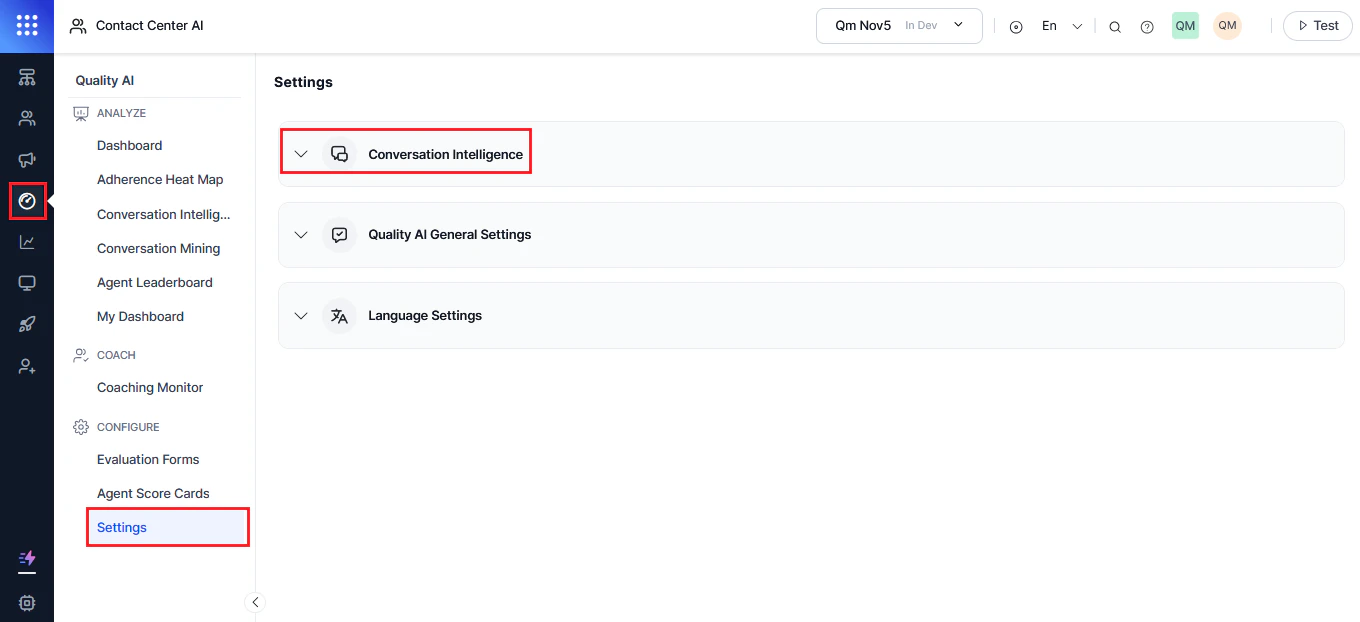
This helps you make app-level changes to **Conversation Intelligence**. It includes following three sections:
* **Conversation Intelligence**
* **Quality AI General Settings**
* **Language Settings**
***
## Access Conversation Intelligence
Navigate to **Quality AI** > **Configure** > **Settings** > **Conversation Intelligence**.
 ***
## Enable Conversation Intelligence
1. Enable the **Conversation Intelligence Dashboard** toggle.
2. Configure script adherence settings as required.
Role permissions in Settings are defined by Admin based on agent roles.
***
## Interaction Level Resolution Detection Methods
This setting defines how the system determines contact-level resolution across conversations. Select the method that aligns with your quality standards and reporting needs. The system controls resolution calculation, while the Taxonomy Builder defines success and failure criteria for topics.
***
### Method 1: Topic-Based Resolution (Strict)
The system evaluates resolution using **AND logic** across all L3 topics in a conversation. A contact is marked resolved only when every topic is successfully resolved.
#### Use when:
* You want strict resolution evaluation across all topics
* You want to prevent minor mentions from affecting resolution metrics
* You want structured control via Taxonomy Builder
For example, if a payment issue is resolved but a rewards question isn't, the contact is still marked as resolved only if all L3 topics are resolved.
#### Configuration:
1. Go to **Settings > Conversation Intelligence**
2. Select **Topic-Based Resolution (Strict)**
3. Select **Save**
No additional configuration is required in Taxonomy Builder.
***
### Method 2: Overall Contact Level Resolution (Holistic Assessment)
The system uses an LLM-based evaluation to determine whether the primary reason for contact is resolved, even if minor issues remain unresolved.
#### Use when:
* You want outcome-based evaluation of primary intent
* You want flexibility in handling secondary issues
* You want LLM-driven resolution assessment
For example, if a payment issue is resolved but a rewards question remains unresolved, the contact is still marked as resolved if the primary issue is addressed.
#### Configuration:
1. Go to **Settings** > **Conversation Intelligence**
2. Select **Overall Contact Level Resolution (Holistic Assessment)**
3. Select **Save**
4. Go to **Quality AI** > **Configure** > **Taxonomy Builder**
5. Open the **Resolution** tab
6. Configure Successful resolution description, Unsuccessful resolution description, and Overall resolution description and save configuration.
***
## Impact of Changing Resolution Method
Changing the resolution method affects:
* All taxonomies in the organization
* All queues and agents
* Historical data interpretation
* Real-time dashboards and reports
* Agent performance metrics
* QA workflows
***
## Settings vs Taxonomy Configuration
### Settings (Application Level)
* Defines global resolution detection method
* Applies across the entire organization
* Requires admin permissions
* Takes effect immediately system-wide
### Taxonomy Builder (Taxonomy Level)
* Defines topic structure and classification
* Configures topic-level resolution criteria (L3 only)
* Manages resolution descriptions (when enabled)
* Supports version-controlled updates
***
## Disable Conversation Intelligence
1. Turn off the **Conversation Intelligence Dashboard** option.
2. Select **Confirm**.
3. Select **Save** to apply changes.
***
## Enable Conversation Intelligence
1. Enable the **Conversation Intelligence Dashboard** toggle.
2. Configure script adherence settings as required.
Role permissions in Settings are defined by Admin based on agent roles.
***
## Interaction Level Resolution Detection Methods
This setting defines how the system determines contact-level resolution across conversations. Select the method that aligns with your quality standards and reporting needs. The system controls resolution calculation, while the Taxonomy Builder defines success and failure criteria for topics.
***
### Method 1: Topic-Based Resolution (Strict)
The system evaluates resolution using **AND logic** across all L3 topics in a conversation. A contact is marked resolved only when every topic is successfully resolved.
#### Use when:
* You want strict resolution evaluation across all topics
* You want to prevent minor mentions from affecting resolution metrics
* You want structured control via Taxonomy Builder
For example, if a payment issue is resolved but a rewards question isn't, the contact is still marked as resolved only if all L3 topics are resolved.
#### Configuration:
1. Go to **Settings > Conversation Intelligence**
2. Select **Topic-Based Resolution (Strict)**
3. Select **Save**
No additional configuration is required in Taxonomy Builder.
***
### Method 2: Overall Contact Level Resolution (Holistic Assessment)
The system uses an LLM-based evaluation to determine whether the primary reason for contact is resolved, even if minor issues remain unresolved.
#### Use when:
* You want outcome-based evaluation of primary intent
* You want flexibility in handling secondary issues
* You want LLM-driven resolution assessment
For example, if a payment issue is resolved but a rewards question remains unresolved, the contact is still marked as resolved if the primary issue is addressed.
#### Configuration:
1. Go to **Settings** > **Conversation Intelligence**
2. Select **Overall Contact Level Resolution (Holistic Assessment)**
3. Select **Save**
4. Go to **Quality AI** > **Configure** > **Taxonomy Builder**
5. Open the **Resolution** tab
6. Configure Successful resolution description, Unsuccessful resolution description, and Overall resolution description and save configuration.
***
## Impact of Changing Resolution Method
Changing the resolution method affects:
* All taxonomies in the organization
* All queues and agents
* Historical data interpretation
* Real-time dashboards and reports
* Agent performance metrics
* QA workflows
***
## Settings vs Taxonomy Configuration
### Settings (Application Level)
* Defines global resolution detection method
* Applies across the entire organization
* Requires admin permissions
* Takes effect immediately system-wide
### Taxonomy Builder (Taxonomy Level)
* Defines topic structure and classification
* Configures topic-level resolution criteria (L3 only)
* Manages resolution descriptions (when enabled)
* Supports version-controlled updates
***
## Disable Conversation Intelligence
1. Turn off the **Conversation Intelligence Dashboard** option.
2. Select **Confirm**.
3. Select **Save** to apply changes.