> ## Documentation Index
> Fetch the complete documentation index at: https://koreai.mintlify.site/llms.txt
> Use this file to discover all available pages before exploring further.
# Confluence Server Connector
[Back to Search AI connectors list](/ai-for-service/searchai/content-sources#supported-connectors)
The Confluence Server Connector lets you securely index, filter, and search Confluence Data Center content from Search AI. It provides enhanced ingestion capabilities, space-based filters, advanced content filtering, and webhook-based real-time synchronization.
| Specification | Details |
| --------------------- | --------------------------------------------------------- |
| Repository type | On-Premise |
| Supported content | Knowledge Articles, Spaces, and Blogs |
| Supported attachments | .pdf, .doc, .docx, .csv, .xls, .xlsx, .ppt, .pptx, Images |
| RACL support | Yes |
| Content filtering | Yes |
| Real-Time Sync | Yes |
## Authorization Support
The connector supports three authentication methods:
* **Basic Authentication** — No server-side configuration required. Proceed directly to Step 2.
* **OAuth 2.0** — Register Search AI as an OAuth client in Confluence Server, then configure the connector with the generated credentials.
* **Header-Based Authorization** — Configure required headers (for example, `Authorization: Bearer ` or `X-API-Key`) in the Search AI connector settings. Ensure the external system is configured to accept and validate these headers. Proceed directly to Step 2.
## Step 1: Register Search AI in Confluence Server (OAuth 2.0 Only)
OAuth 2.0 requires creating an incoming link under **Application Links** in the Confluence Server.
During setup, use the Redirect URL for your region:
| Region | Redirect URL |
| ------ | ------------------------------------------------ |
| JP | `https://jp-bots-idp.kore.ai/workflows/callback` |
| DE | `https://de-bots-idp.kore.ai/workflows/callback` |
| Prod | `https://idp.kore.com/workflows/callback` |
After creating the link, you receive a **Client ID** and **Client Secret**. These values are required in Step 2. For details, refer to [Atlassian's documentation on configuring an incoming link](https://confluence.atlassian.com/doc/configure-an-incoming-link-1115674733.html).
## Step 2: Configure the Confluence Server Connector
1. Go to **Content > Connectors** and choose **Confluence (Server)**.
2. Under **Authentication**, enter the required fields:
* **Authorization Type** — Basic, OAuth 2.0, or Header-Based
* **Grant Type** — For OAuth 2.0, select Authorization Code or Client Credentials. For more details, refer to [Authentication](/ai-for-service/searchai/content-sources#authentication).
* **Basic Auth** — Connector name, username, password, and Confluence Data Center host URL
* **OAuth 2.0** — Connector name, Client ID, Client Secret, Confluence Data Center base URL, and domain name
* **Header-Based** — Header, Token, and Host URL
3. **Real-Time Sync** — Toggle to enable or disable automatic syncing of content changes using Confluence webhook notifications.
4. **Webhook Client Secret** — Generated automatically (with option to regenerate).
5. **Webhook URL** — Copy the provided URL for use when configuring the Confluence webhook.
6. Click **Connect** to initiate authorization.
Webhook sync updates document entities only. Associated users and permissions within those entities must be synchronized through regular incremental or manual sync.
### Multiple Authentication Profiles
A single Confluence Server connector supports multiple authentication profiles, allowing it to sync content from multiple Confluence Server accounts. Each profile authenticates independently using its own credentials (such as OAuth 2.0, Basic Auth, or Header-based authorization) and syncs content from spaces accessible to that authenticated user.
Content accessible by multiple profiles is automatically deduplicated, ensuring no duplicate search results appear. Deleting a profile removes only content exclusive to that profile; content shared with other profiles remains accessible.
This approach simplifies multi-account management, reduces the need for multiple connectors, and improves scalability for enterprise use cases.
## Webhook Configuration for Real-Time Sync
Search AI uses Confluence webhook notifications to manage real-time content updates and deletion events. When configured, webhooks automatically sync content changes and remove deleted pages and blog posts from the Search AI index.
Perform the following steps in your Confluence server:
1. Go to **Settings > General Configuration**.
2. Search for "Webhook" and select **Webhooks** from the left navigation under Configuration.
3. Click **Create webhook**.
4. Enter the following details:
* **Name** — SearchAI Webhook Sync
* **URL** — The webhook endpoint URL provided in the Search AI connector configuration
* **Secret** — The webhook secret token displayed in the Search AI connector Authentication configuration
5. Click **Test connection** to verify Confluence can reach the endpoint.
6. From the **Events** dropdown, select the subscribed events: `page_created`, `page_restored`, `page_updated`, `page_removed` (or `page_deleted`), `page_moved`, `page_trashed`, `blog_created`, `blog_updated`, `blog_restored`, `blog_trashed`, `blog_removed` (or `blog_deleted`).
7. Ensure **Active** is selected, then click **Save**.
Real-Time sync updates document entities only. Associated users and permissions within those entities must be synchronized through regular incremental or manual sync.
## Content Ingestion
Go to the **Manage Content** tab in the connector configuration to define how content is ingested. Choose between two modes:
* **Ingest all content** — Syncs all available content from Confluence.
* **Ingest filtered content** — Syncs only the content you specify.
To configure filtered ingestion:
1. Select **Ingest filtered content** and click **Edit configuration** to open the Ingestion Filters page.
2. Click **Browse & Select**, then mark the spaces or content types you want to sync.
3. Use the search box to locate spaces, check or uncheck items to include or exclude, and click **View More** to load additional spaces.
4. Save the configuration.
### Incremental Sync
During each sync cycle, only newly created or modified Pages, Blogs, Spaces, and Comments are fetched and updated in Search AI.
### Content Filters
To selectively ingest content, select **Sync Specific Content** and click **Configure**. Define rules using a parameter, operator, and value.
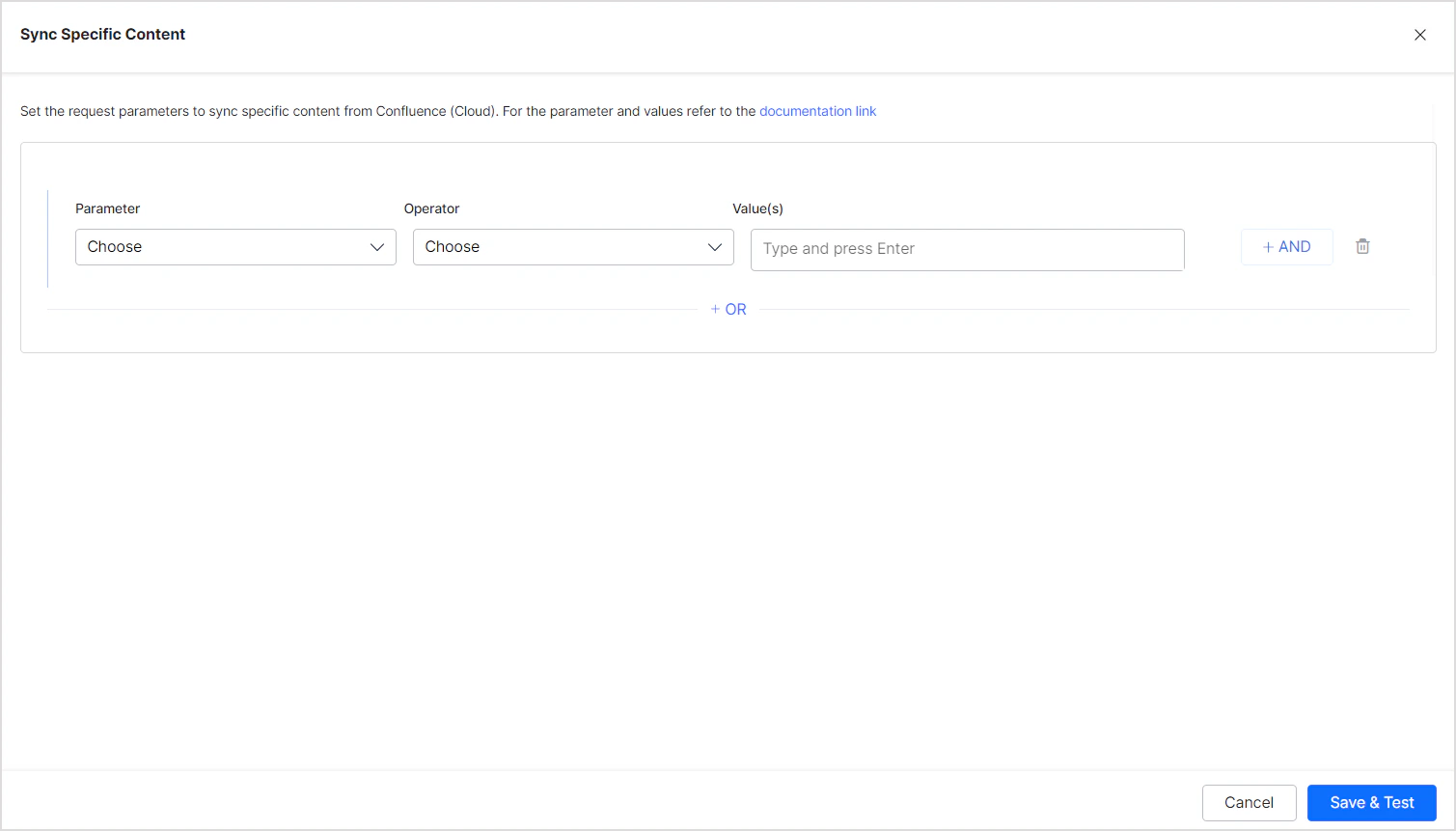 Supported filter parameters (apply to Pages, Spaces, Blogs, and Comments):
| Parameter | Description |
| ------------ | --------------------------------------------------------------------------------------------- |
| **Ancestor** | Direct child pages and descendants of given content IDs |
| **Content** | Specific content by content ID |
| **Created** | Content by creation date (`yyyy/mm/dd hh:mm`, `yyyy-mm-dd hh:mm`, `yyyy/mm/dd`, `yyyy-MM-dd`) |
| **Creator** | Content created by specified user account IDs |
| **Label** | Content filtered by label |
| **Parent** | Content under a given parent (applies to Pages, Blogs, and threaded Comments) |
| **ID** | Content by content ID |
| **Space** | Content in a specific space (applies to Pages, Blogs, and Comments) |
| **Title** | Content by page or blog title |
| **User** | Content by user ID |
You can also add custom CQL fields. Refer to the [complete list of supported CQL fields](https://developer.atlassian.com/cloud/confluence/cql-fields/).
**Example:** Ingest all pages and sub-pages under a given ancestor:
Supported filter parameters (apply to Pages, Spaces, Blogs, and Comments):
| Parameter | Description |
| ------------ | --------------------------------------------------------------------------------------------- |
| **Ancestor** | Direct child pages and descendants of given content IDs |
| **Content** | Specific content by content ID |
| **Created** | Content by creation date (`yyyy/mm/dd hh:mm`, `yyyy-mm-dd hh:mm`, `yyyy/mm/dd`, `yyyy-MM-dd`) |
| **Creator** | Content created by specified user account IDs |
| **Label** | Content filtered by label |
| **Parent** | Content under a given parent (applies to Pages, Blogs, and threaded Comments) |
| **ID** | Content by content ID |
| **Space** | Content in a specific space (applies to Pages, Blogs, and Comments) |
| **Title** | Content by page or blog title |
| **User** | Content by user ID |
You can also add custom CQL fields. Refer to the [complete list of supported CQL fields](https://developer.atlassian.com/cloud/confluence/cql-fields/).
**Example:** Ingest all pages and sub-pages under a given ancestor:
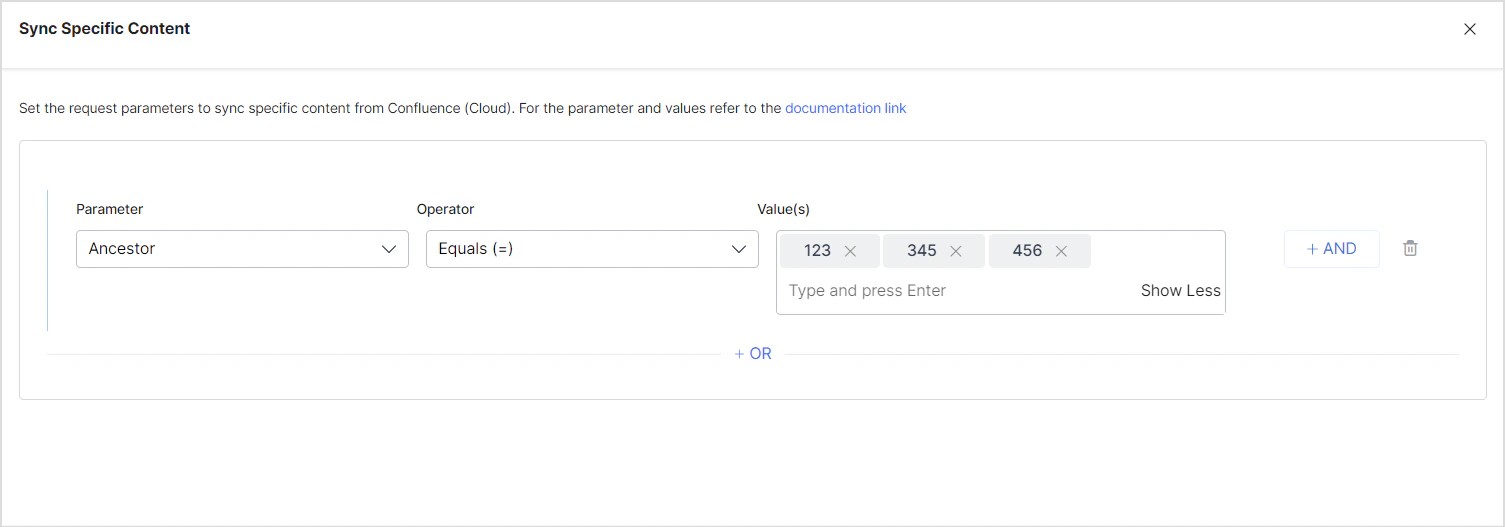 **Example:** Ingest only pages created or modified after January 1, 2024:
* Use the **OR** operator to combine multiple rules for different content types.
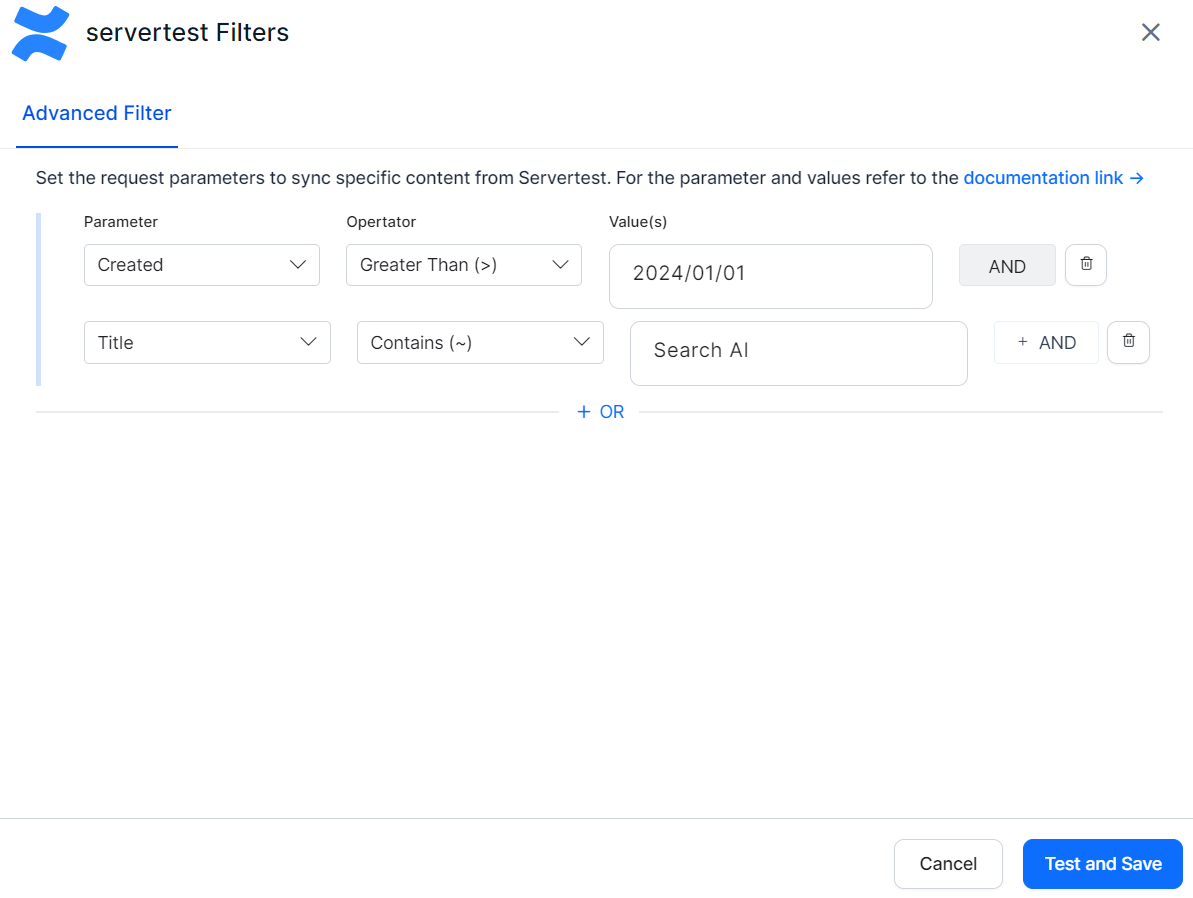
* Use the **AND** operator within a rule to apply multiple conditions. For example, to ingest content created after January 1, 2024 with "SearchAI" in the title:
**Example:** Ingest only pages created or modified after January 1, 2024:
* Use the **OR** operator to combine multiple rules for different content types.
* Use the **AND** operator within a rule to apply multiple conditions. For example, to ingest content created after January 1, 2024 with "SearchAI" in the title:
 ## Access Control
Search AI supports access control for content ingested via the Confluence Server Connector. Go to the **Permissions and Security** tab and select the access mode:
* **Permission Aware** — Honors user permissions from Confluence Server. Users can only view search results for content they can access in Confluence.
* **Public Access** — Overrides Confluence permissions. All ingested content is visible to all Search AI users regardless of actual Confluence access.
### Prerequisites
Access control relies on user email addresses as unique identifiers. The ingestion account must have access to:
* Read page-level and space-level permissions
* Retrieve user and group details via API tokens with appropriate access
This typically requires an admin account or permissions that allow access to user directories in Confluence.
### Permission Sets in Confluence Server
**Space Permissions** — Each space defines its own set of permissions managed by space administrators. These permissions control who can view, edit, or administer content in that space. Search AI requires at least **view** access to ingest and apply access control correctly.
**Blog Restrictions** — Blog posts inherit permissions from their parent space but can have their own view or edit restrictions. Blog permissions follow the same model as page permissions. The Blog Post ID must be set in the `sys_racl` field. Permissions inherited from the parent space apply unless overridden by blog-specific restrictions.
**Page Restrictions** — Pages may inherit permissions from their parent space but can also define their own view or edit restrictions. If a page is restricted to specific users or groups, those restrictions override inherited space permissions.
### How Permissions Are Handled in Search AI
* **Individual access** — Users added directly to a space or specific page are included in the `sys_racl` field of the ingested document, represented by email addresses or usernames depending on your Confluence setup.
* **Group access** — When access is granted to groups (for example, `confluence-users` or `engineering-team`), Search AI creates Permission Entities based on group identifiers stored in the `sys_racl` field. Use the **Permission Entity APIs** to associate users with the appropriate group or entity in Search AI.
### Limitations
* **Anonymous access** — Search AI doesn't support anonymous access. If a page is publicly viewable in Confluence without login, it won't be searchable unless explicitly shared with known users or groups.
* **Webhook sync** — User synchronization isn't supported through webhooks. Document entities are updated via webhook, but associated users within those entities must be synchronized through regular incremental or manual sync.
## Access Control
Search AI supports access control for content ingested via the Confluence Server Connector. Go to the **Permissions and Security** tab and select the access mode:
* **Permission Aware** — Honors user permissions from Confluence Server. Users can only view search results for content they can access in Confluence.
* **Public Access** — Overrides Confluence permissions. All ingested content is visible to all Search AI users regardless of actual Confluence access.
### Prerequisites
Access control relies on user email addresses as unique identifiers. The ingestion account must have access to:
* Read page-level and space-level permissions
* Retrieve user and group details via API tokens with appropriate access
This typically requires an admin account or permissions that allow access to user directories in Confluence.
### Permission Sets in Confluence Server
**Space Permissions** — Each space defines its own set of permissions managed by space administrators. These permissions control who can view, edit, or administer content in that space. Search AI requires at least **view** access to ingest and apply access control correctly.
**Blog Restrictions** — Blog posts inherit permissions from their parent space but can have their own view or edit restrictions. Blog permissions follow the same model as page permissions. The Blog Post ID must be set in the `sys_racl` field. Permissions inherited from the parent space apply unless overridden by blog-specific restrictions.
**Page Restrictions** — Pages may inherit permissions from their parent space but can also define their own view or edit restrictions. If a page is restricted to specific users or groups, those restrictions override inherited space permissions.
### How Permissions Are Handled in Search AI
* **Individual access** — Users added directly to a space or specific page are included in the `sys_racl` field of the ingested document, represented by email addresses or usernames depending on your Confluence setup.
* **Group access** — When access is granted to groups (for example, `confluence-users` or `engineering-team`), Search AI creates Permission Entities based on group identifiers stored in the `sys_racl` field. Use the **Permission Entity APIs** to associate users with the appropriate group or entity in Search AI.
### Limitations
* **Anonymous access** — Search AI doesn't support anonymous access. If a page is publicly viewable in Confluence without login, it won't be searchable unless explicitly shared with known users or groups.
* **Webhook sync** — User synchronization isn't supported through webhooks. Document entities are updated via webhook, but associated users within those entities must be synchronized through regular incremental or manual sync.