> ## Documentation Index
> Fetch the complete documentation index at: https://koreai.mintlify.site/llms.txt
> Use this file to discover all available pages before exploring further.
# Dropbox Connector
[Back to Search AI connectors list](/ai-for-service/searchai/content-sources#supported-connectors)
The Dropbox connector lets Search AI ingest and index files stored in your Dropbox account, enabling search across that content.
| Specification | Details |
| --------------------- | ---------------------------------------------------------------------------------------- |
| Repository type | Cloud |
| Supported API version | Dropbox API v2 |
| Supported content | .doc, .docx, .ppt, .pptx, .pdf, .txt, .html (password-protected files are not supported) |
## Prerequisites
* A Dropbox account with permission to create developer applications
* Access to the Search AI application
## Step 1: Configure an Application in Dropbox
1. Sign in to the [Dropbox Developer Portal](https://www.dropbox.com/developers/apps).
2. Create a new app. Under **Choose an API**, select **Scoped access** and choose the appropriate access type.
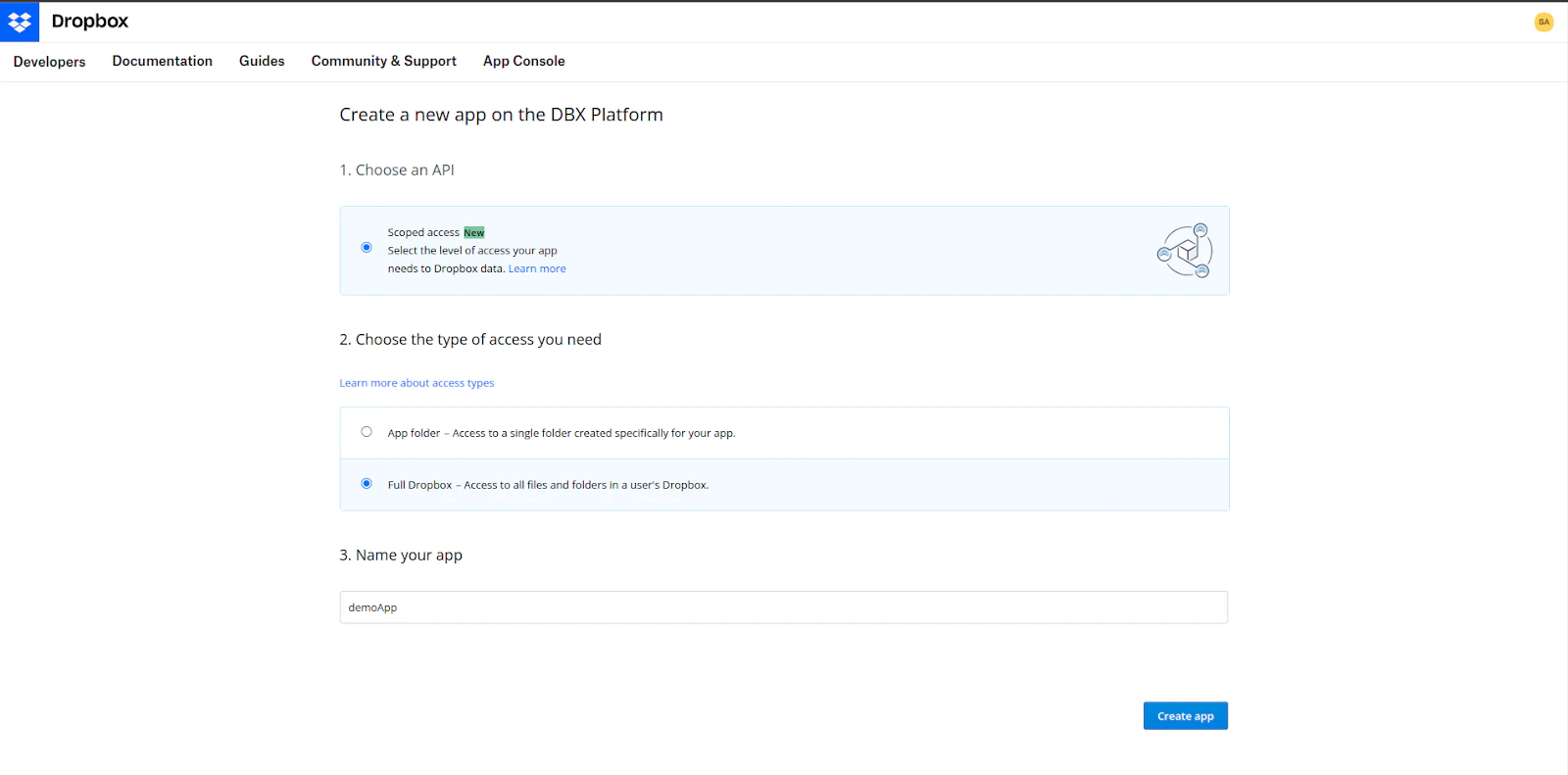 3. Enter a name for the app, accept the terms and conditions, and click **Create app**.
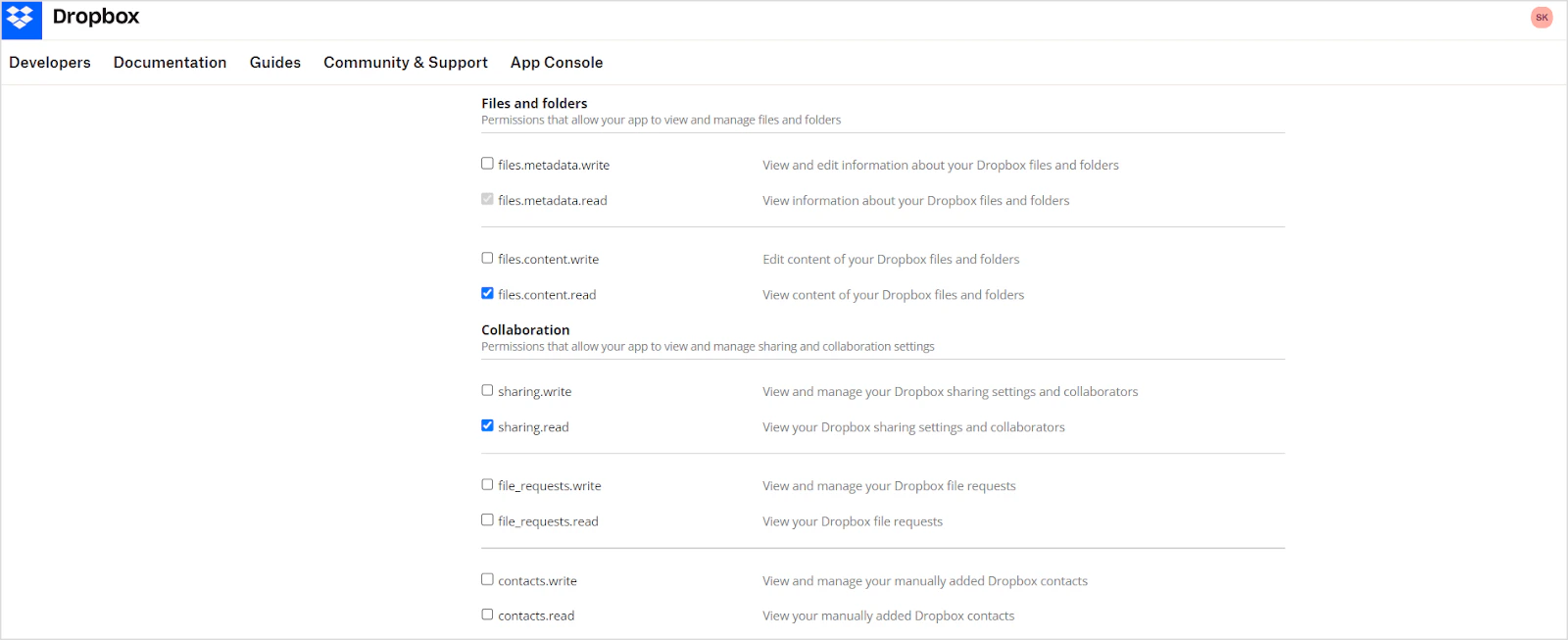
4. Open the **Permissions** tab (or click **Scoped App**) and enable the following minimum permissions:
* `files.content.read`
* `sharing.read`
3. Enter a name for the app, accept the terms and conditions, and click **Create app**.
4. Open the **Permissions** tab (or click **Scoped App**) and enable the following minimum permissions:
* `files.content.read`
* `sharing.read`

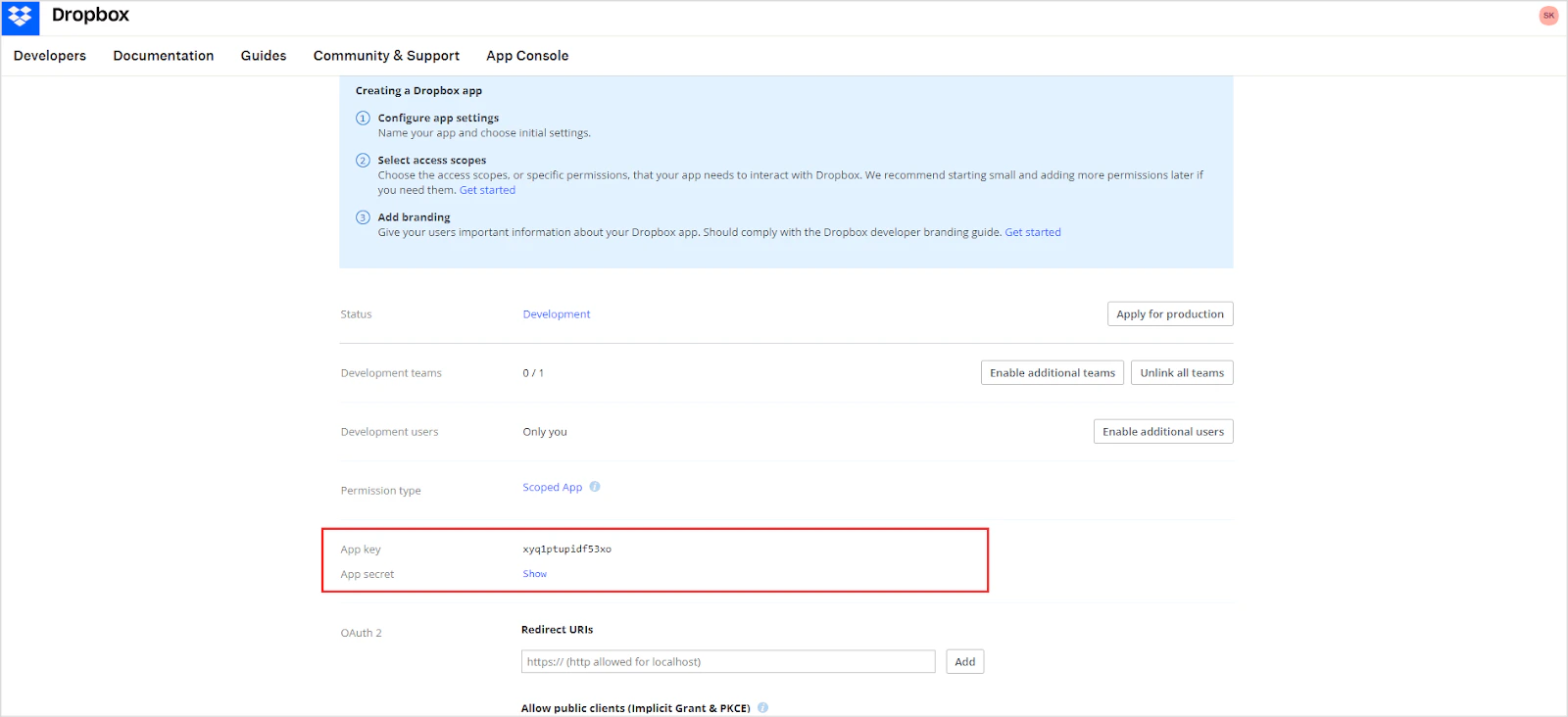
 5. On the **Settings** tab, set the **Redirect URI** to the URL matching your deployment region:
* JP Region: `https://jp-bots-idp.kore.ai/workflows/callback`
* DE Region: `https://de-bots-idp.kore.ai/workflows/callback`
* Prod: `https://idp.kore.com/workflows/callback`
5. On the **Settings** tab, set the **Redirect URI** to the URL matching your deployment region:
* JP Region: `https://jp-bots-idp.kore.ai/workflows/callback`
* DE Region: `https://de-bots-idp.kore.ai/workflows/callback`
* Prod: `https://idp.kore.com/workflows/callback`
 6. Save the **App key** and **App secret** shown on the settings page. These are required in Step 2.
 ## Step 2: Configure the Dropbox Connector in Search AI
1. In Search AI, go to **Sources > Connectors** and select **Dropbox**.
2. On the **Authorization** tab, provide the following fields and click **Connect**:
| Field | Value |
| ------------------ | ------------------------------------------------ |
| Name | Unique name for the connector |
| Authorization Type | OAuth 2.0 |
| Grant Type | Authorization Code |
| Client ID | App key from the Dropbox application settings |
| Client Secret | App secret from the Dropbox application settings |
3. After a successful connection, go to the **Configuration** tab and click **Sync Now**.
## Step 2: Configure the Dropbox Connector in Search AI
1. In Search AI, go to **Sources > Connectors** and select **Dropbox**.
2. On the **Authorization** tab, provide the following fields and click **Connect**:
| Field | Value |
| ------------------ | ------------------------------------------------ |
| Name | Unique name for the connector |
| Authorization Type | OAuth 2.0 |
| Grant Type | Authorization Code |
| Client ID | App key from the Dropbox application settings |
| Client Secret | App secret from the Dropbox application settings |
3. After a successful connection, go to the **Configuration** tab and click **Sync Now**.