> ## Documentation Index
> Fetch the complete documentation index at: https://koreai.mintlify.site/llms.txt
> Use this file to discover all available pages before exploring further.
# GitHub On-Premise Connector
[Back to Search AI connectors list](/ai-for-service/searchai/content-sources#supported-connectors)
GitHub is a widely used platform for version control and collaboration, enabling developers to host, manage, and track changes in code repositories. With the GitHub On-Premise connector in Search AI, you can ingest and index issues, pull requests, files, pages, and commit messages from your self-hosted GitHub instance.
The connector supports multiple authentication profiles, allowing you to configure and index content from one or more GitHub organizations simultaneously.
Searching through attachments is not supported.
## Specifications
| Specification | Details |
| -------------------------- | ----------------------------------------------------------------------------------------------------------- |
| Repository type | Cloud |
| Supported content | Issues, pull requests, and files (.md, .mdx, .mdoc, .mdc, .rst, .adoc, .asciidoc, .txt, .xlsx, .xls, .html) |
| RACL support | Yes |
| Content filtering | Yes |
| Auto permission resolution | No |
## Prerequisites
* Set up authentication on your GitHub On-Prem instance.
* Whitelist the Search AI domain in your GitHub On-Prem instance.
## Authorization Support
Search AI supports two authentication methods for GitHub On-Prem:
1. Personal Access Token
2. OAuth 2.0
Each authentication profile corresponds to a GitHub organization and requires owner or administrator permissions to ensure proper access to repositories and metadata.
## GitHub Configuration
### Personal Access Token
1. Go to [Developer Settings](https://github.com/settings/tokens) in your GitHub account.
2. Generate a token with the following permissions:
* `repo`
* `read:org`
### OAuth 2.0
1. Register a new [OAuth application](https://github.com/settings/developers) in GitHub.
2. Provide the basic app details.
3. Use one of the following callback URLs based on your region:
* JP Region: `https://jp-bots-idp.kore.ai/workflows/callback`
* DE Region: `https://de-bots-idp.kore.ai/workflows/callback`
* Prod: `https://idp.kore.com/workflows/callback`
4. This generates client credentials. Use the [device flow](https://docs.github.com/en/apps/oauth-apps/building-oauth-apps/authorizing-oauth-apps#device-flow) and client credentials to manually create an access token using an API client tool such as Postman.
## Configure the GitHub On-Prem Connector in Search AI
Provide the following fields when configuring the connector:
| Field | Description |
| ------------------------------ | -------------------------------------------------------------- |
| **Name** | Unique identifier for the connector |
| **Owner Name** | GitHub organization or user account that owns the repositories |
| **Authorization Type** | Personal Access Token or OAuth 2.0 |
| **Token / Client Credentials** | Provide the token (PAT) or client credentials (OAuth 2.0) |
| **Host Domain** | URL of the GitHub On-Prem domain |
Click **Connect** to authenticate.
## Managing Multiple Authentication Profiles
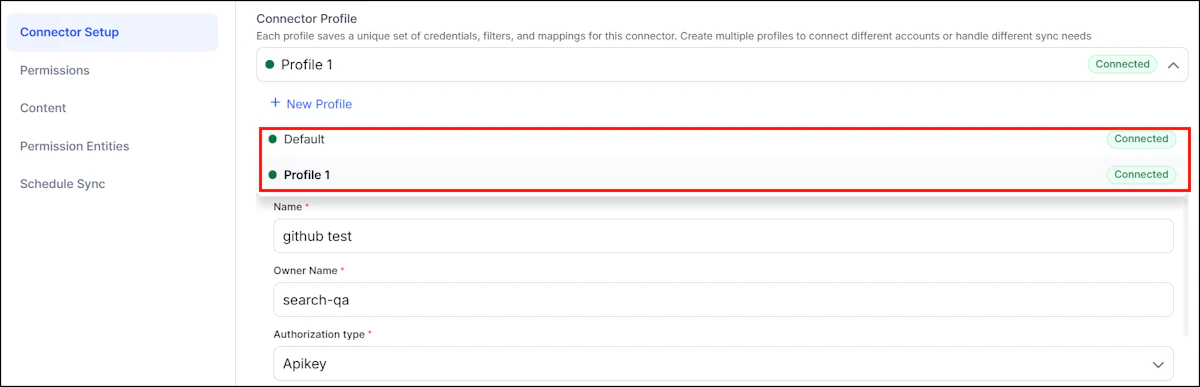
The connector supports multiple authentication profiles, each representing a different GitHub organization.
### Adding Authentication Profiles
* Add profiles from the connector UI. The dropdown shows connection status: **Connected** or **Not Connected**.
* During initial setup, you can't navigate to other tabs until authentication succeeds.
* After authenticating, a prompt lets you sync with default settings or customize before syncing.
 ### Profile-Specific and Shared Settings
Each profile maintains its own filters, repository selections, and content rules. The following settings are shared across all profiles:
* Permissions content (combined content, duplicates removed)
* Sync schedule
## Webhook Configuration for Real-Time Sync
Configure GitHub webhooks to enable real-time updates and deletions in Search AI:
1. Go to **Settings > Developer Settings**, click **Create new GitHub App**, and provide app details.
2. Enable **Active** and add the **Webhook URL** and **Webhook Secret** from Search AI.
3. Set repository permissions: Contents, Issues, Metadata, Pages, Pull requests (Read-only).
4. Set organization permissions: Events, Members, Webhooks (Read-only).
5. Enable events: Issues, Pull requests, Push, Repository, Comments, and Reviews.
6. Select **Any account**, create the app, and install it in the required organization.
## Content Ingestion
1. Go to **Manage Content** and select the object types to ingest: **Issues**, **Pull Requests**, **Pages**, **Files**, or **Commit Messages**.
2. Choose an ingestion mode:
* **Ingest All Content** - syncs all content.
* **Ingest Filtered Content** - configure filters below.
**Standard Filter**
Select the repositories to ingest content from. All accessible repositories are listed. Select the required repositories and click **Add Selection**.
**Advanced Filters**
Configure additional filters using properties specific to each content type. The connector ingests only content that meets both standard and advanced filter criteria.
**Ingested Fields**
For all content types, the connector captures:
* `doc_source_type` - identifies the content type in the ingested JSON
* `repository_id` and `repository_name` - repository details
* `url` - link to the specific object
* Creation and update timestamps
For **Issues**, the connector also captures: issue status, comments, reporter, assignee, reactions, closure date, closed by, and labels.
### Real-Time Sync via Webhooks
Search AI processes webhook events to handle content lifecycle:
* Update: edited, closed, reopened, synchronize, push, gollum (update)
* Delete: deleted, push, gollum (delete)
### Sync Logic
| Scenario | Behavior |
| -------------------- | ------------------------------------------------------------------------------- |
| Manual sync | Only the selected profile is synchronized |
| Scheduled sync | All profiles are synchronized in sequence, most recently added first |
| Disconnected profile | Previously ingested content is retained until a manual sync or deletion |
| Deleted profile | All associated content is removed unless already synced through another profile |
Each sync performs a full fetch of accessible content from GitHub and ingests only new or updated items into the Search AI index.
**Conflict Handling**
If two authentication profiles apply different field mappings to the same document, the most recent sync takes precedence.
## RACL Support
For all content ingested from GitHub repositories, Search AI sets the `repository ID` as the `sys_racl` value. This value is stored as a permission entity. Use the [Permission Entity APIs](/ai-for-service/apis/searchai/permission-entity-apis) to associate users with the permission entity corresponding to each repository ID.
## Limitations
* Webhooks don't sync user permissions in real time
* Permission updates occur only during manual or scheduled sync
### Profile-Specific and Shared Settings
Each profile maintains its own filters, repository selections, and content rules. The following settings are shared across all profiles:
* Permissions content (combined content, duplicates removed)
* Sync schedule
## Webhook Configuration for Real-Time Sync
Configure GitHub webhooks to enable real-time updates and deletions in Search AI:
1. Go to **Settings > Developer Settings**, click **Create new GitHub App**, and provide app details.
2. Enable **Active** and add the **Webhook URL** and **Webhook Secret** from Search AI.
3. Set repository permissions: Contents, Issues, Metadata, Pages, Pull requests (Read-only).
4. Set organization permissions: Events, Members, Webhooks (Read-only).
5. Enable events: Issues, Pull requests, Push, Repository, Comments, and Reviews.
6. Select **Any account**, create the app, and install it in the required organization.
## Content Ingestion
1. Go to **Manage Content** and select the object types to ingest: **Issues**, **Pull Requests**, **Pages**, **Files**, or **Commit Messages**.
2. Choose an ingestion mode:
* **Ingest All Content** - syncs all content.
* **Ingest Filtered Content** - configure filters below.
**Standard Filter**
Select the repositories to ingest content from. All accessible repositories are listed. Select the required repositories and click **Add Selection**.
**Advanced Filters**
Configure additional filters using properties specific to each content type. The connector ingests only content that meets both standard and advanced filter criteria.
**Ingested Fields**
For all content types, the connector captures:
* `doc_source_type` - identifies the content type in the ingested JSON
* `repository_id` and `repository_name` - repository details
* `url` - link to the specific object
* Creation and update timestamps
For **Issues**, the connector also captures: issue status, comments, reporter, assignee, reactions, closure date, closed by, and labels.
### Real-Time Sync via Webhooks
Search AI processes webhook events to handle content lifecycle:
* Update: edited, closed, reopened, synchronize, push, gollum (update)
* Delete: deleted, push, gollum (delete)
### Sync Logic
| Scenario | Behavior |
| -------------------- | ------------------------------------------------------------------------------- |
| Manual sync | Only the selected profile is synchronized |
| Scheduled sync | All profiles are synchronized in sequence, most recently added first |
| Disconnected profile | Previously ingested content is retained until a manual sync or deletion |
| Deleted profile | All associated content is removed unless already synced through another profile |
Each sync performs a full fetch of accessible content from GitHub and ingests only new or updated items into the Search AI index.
**Conflict Handling**
If two authentication profiles apply different field mappings to the same document, the most recent sync takes precedence.
## RACL Support
For all content ingested from GitHub repositories, Search AI sets the `repository ID` as the `sys_racl` value. This value is stored as a permission entity. Use the [Permission Entity APIs](/ai-for-service/apis/searchai/permission-entity-apis) to associate users with the permission entity corresponding to each repository ID.
## Limitations
* Webhooks don't sync user permissions in real time
* Permission updates occur only during manual or scheduled sync