> ## Documentation Index
> Fetch the complete documentation index at: https://koreai.mintlify.site/llms.txt
> Use this file to discover all available pages before exploring further.
# Notion Connector
[Back to Search AI connectors list](/ai-for-service/searchai/content-sources#supported-connectors)
Notion is a productivity and collaboration application combining note-taking, project management, task tracking, and knowledge sharing. Search AI ingests **pages** from Notion **workspaces**, indexing them for efficient retrieval and enabling users to quickly locate information.
## Connector Specifications
| Specification | Details |
| ----------------- | ------- |
| Repository type | Cloud |
| Supported content | Pages |
| RACL support | Yes |
| Content filtering | No |
## Authorization Support
Search AI supports two authentication methods for Notion: **Internal Integration Token** and **OAuth 2.0**.
### Public Integration (OAuth 2.0)
Public integrations use the OAuth 2.0 protocol for secure authentication. For setup instructions, see the [Notion authorization guide](https://developers.notion.com/docs/authorization).
Use one of the following redirect URLs when configuring the public integration:
* JP Region: `https://jp-bots-idp.kore.ai/workflows/callback`
* DE Region: `https://de-bots-idp.kore.ai/workflows/callback`
* Prod: `https://idp.kore.com/workflows/callback`
Generate client credentials and an access token for this integration.
### Internal Integration (Token)
This method uses an internal integration token for direct authentication.
1. Create your integration on the [Notion integrations settings page](https://www.notion.so/profile/integrations).
2. Under the **Configuration** tab of the integration, enable the following capabilities:
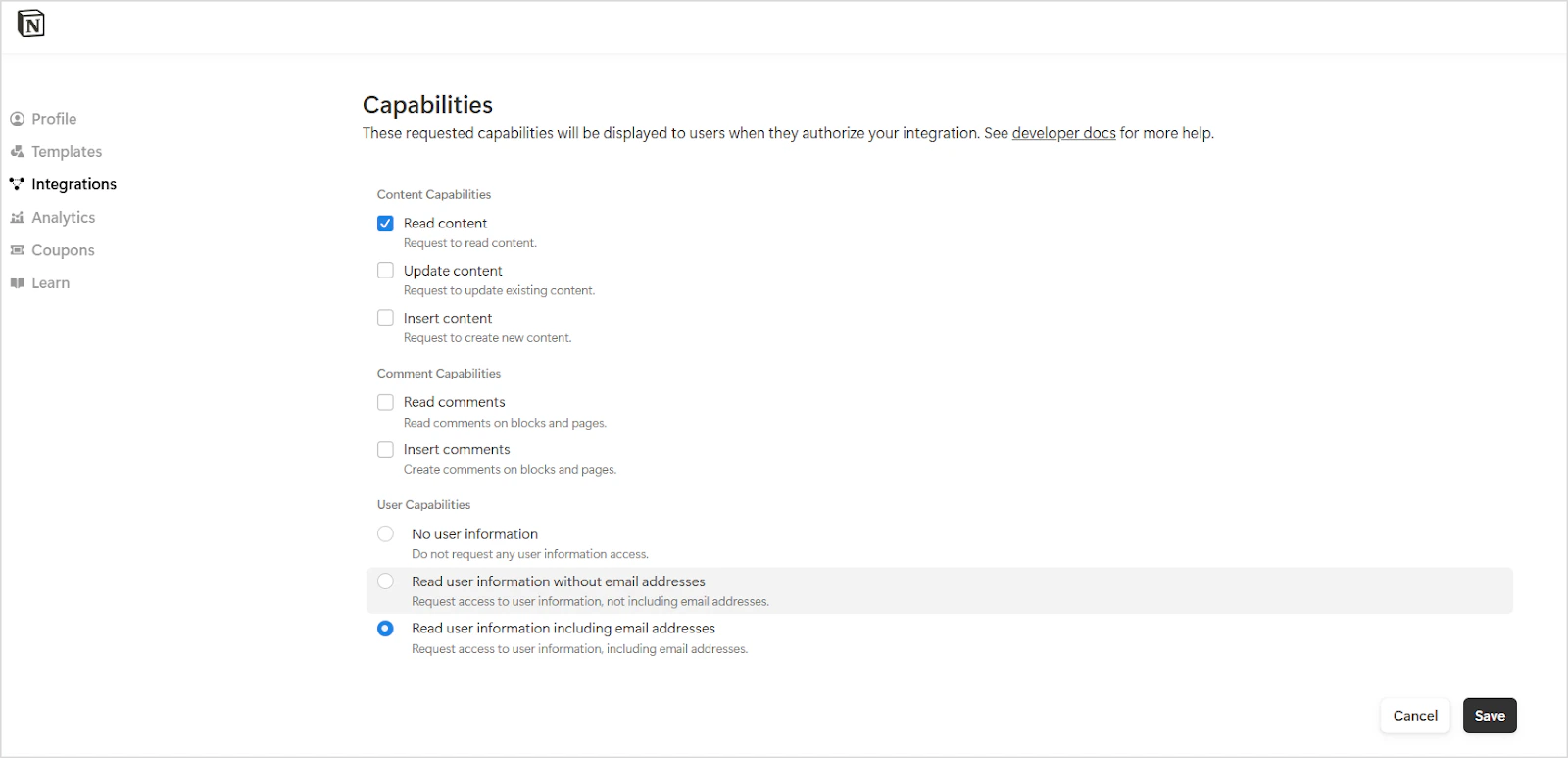 3. Copy the integration token from this tab. Use it to authenticate API requests.
Ensure that Notion workspace pages are shared with the integration so that content can be ingested into Search AI. See [how to add connections to pages](https://www.notion.com/help/add-and-manage-connections-with-the-api#add-connections-to-pages) for details.
## Configure the Notion Connector in Search AI
Provide the following fields to configure the connector:
| Field | Description |
| ------------------------------ | -------------------------------------------------------------------------------------- |
| **Name** | Unique name for the connector |
| **Authorization Type** | **Personal Access Token** (Internal Integration) or **OAuth 2.0** (Public Integration) |
| **Token / Client Credentials** | Integration token or OAuth client credentials, depending on auth type |
Additional fields map Notion content to Search AI schema fields. Only standard fields are supported, and these mappings are pre-configured by default.
## RACL Support
Access control for the Notion Connector uses the **Page ID** as the permission entity. For each ingested page, the `sys_racl` field contains the page ID. For example, if the page ID is `a1b2c3`, the field appears as:
```json theme={null}
"sys_racl": ["a1b2c3"]
```
Use the [Permission Entity APIs](/ai-for-service/apis/searchai/permission-entity-apis) to associate users with this permission entity.
3. Copy the integration token from this tab. Use it to authenticate API requests.
Ensure that Notion workspace pages are shared with the integration so that content can be ingested into Search AI. See [how to add connections to pages](https://www.notion.com/help/add-and-manage-connections-with-the-api#add-connections-to-pages) for details.
## Configure the Notion Connector in Search AI
Provide the following fields to configure the connector:
| Field | Description |
| ------------------------------ | -------------------------------------------------------------------------------------- |
| **Name** | Unique name for the connector |
| **Authorization Type** | **Personal Access Token** (Internal Integration) or **OAuth 2.0** (Public Integration) |
| **Token / Client Credentials** | Integration token or OAuth client credentials, depending on auth type |
Additional fields map Notion content to Search AI schema fields. Only standard fields are supported, and these mappings are pre-configured by default.
## RACL Support
Access control for the Notion Connector uses the **Page ID** as the permission entity. For each ingested page, the `sys_racl` field contains the page ID. For example, if the page ID is `a1b2c3`, the field appears as:
```json theme={null}
"sys_racl": ["a1b2c3"]
```
Use the [Permission Entity APIs](/ai-for-service/apis/searchai/permission-entity-apis) to associate users with this permission entity.