> ## Documentation Index
> Fetch the complete documentation index at: https://koreai.mintlify.site/llms.txt
> Use this file to discover all available pages before exploring further.
# WordPress Connector
[Back to Search AI connectors list](/ai-for-service/searchai/content-sources#supported-connectors)
The WordPress connector enables Search AI to ingest content from WordPress pages and posts, making that content available for search and answer generation.
| Specification | Details |
| ----------------- | ------------ |
| Repository type | Cloud |
| Supported content | Pages, Posts |
| RACL support | Yes |
| Content filtering | No |
## Authorization Support
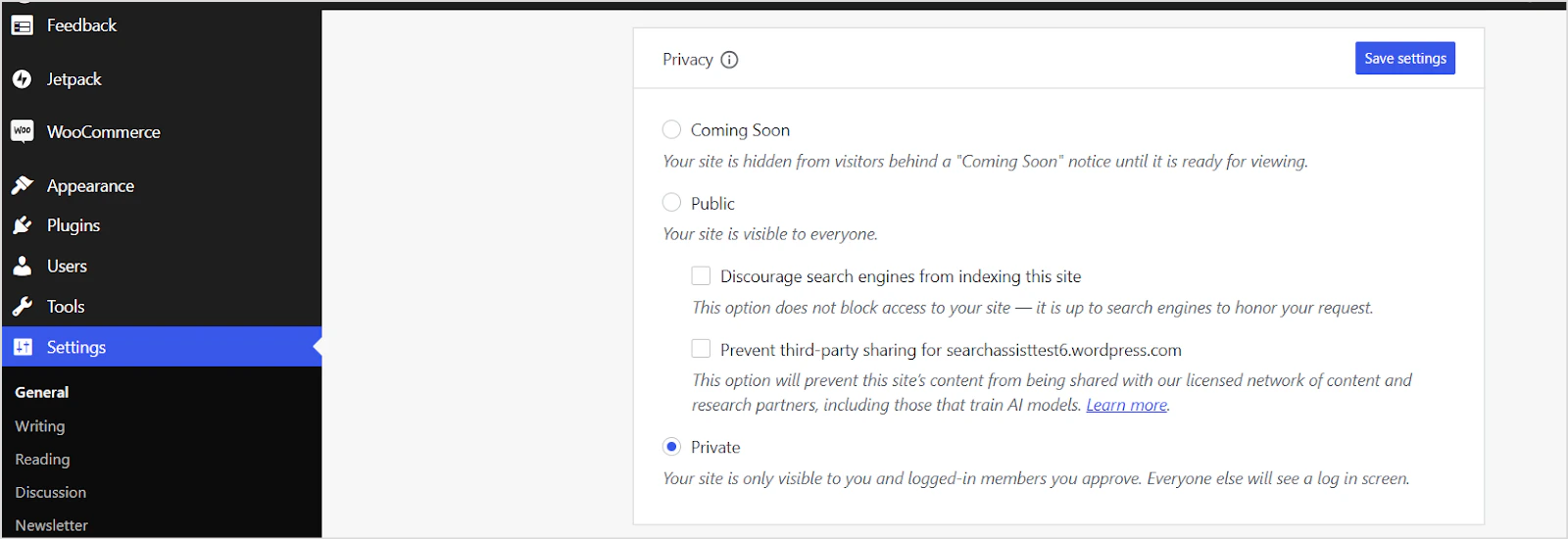
Search AI supports ingestion from both public and private WordPress sites. For private sites, WordPress uses **OAuth 2.0 authorization code grant type**. See the [WordPress OAuth documentation](https://developer.wordpress.com/docs/oauth2/) for details.
## Generating OAuth Client Credentials in WordPress
1. Go to the [WordPress developer page](https://developer.wordpress.com/apps).
2. Click **Create New Application**. Enter the following details.
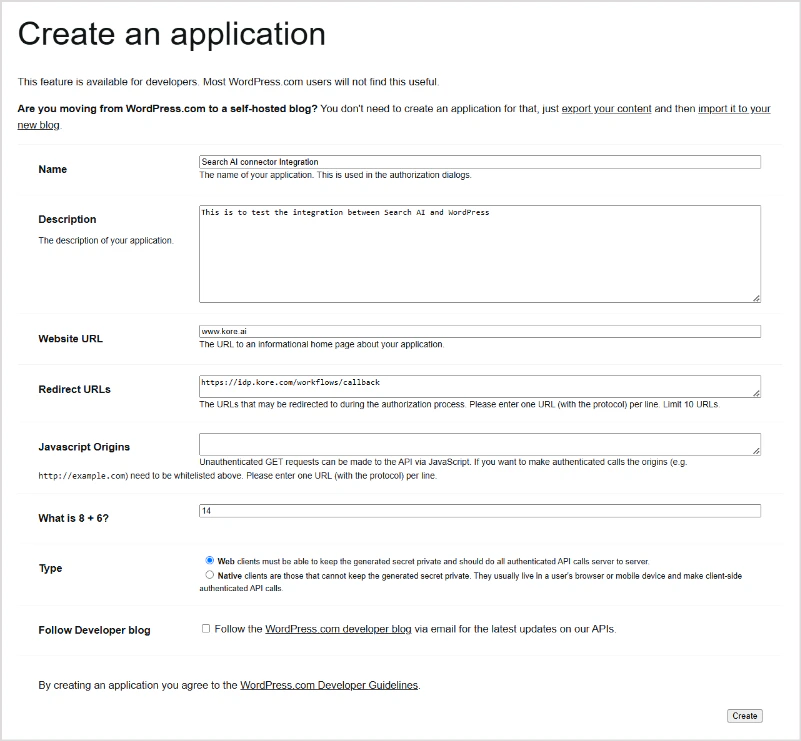 * **Name**: A name for the client (for example, *My App*).
* **Redirect URLs**: The callback URL for authorization responses. Use the URL for your region or deployment:
* JP Region: `https://jp-bots-idp.kore.ai/workflows/callback`
* DE Region: `https://de-bots-idp.kore.ai/workflows/callback`
* Prod: `https://idp.kore.com/workflows/callback`
3. Click **Create** to generate client credentials.
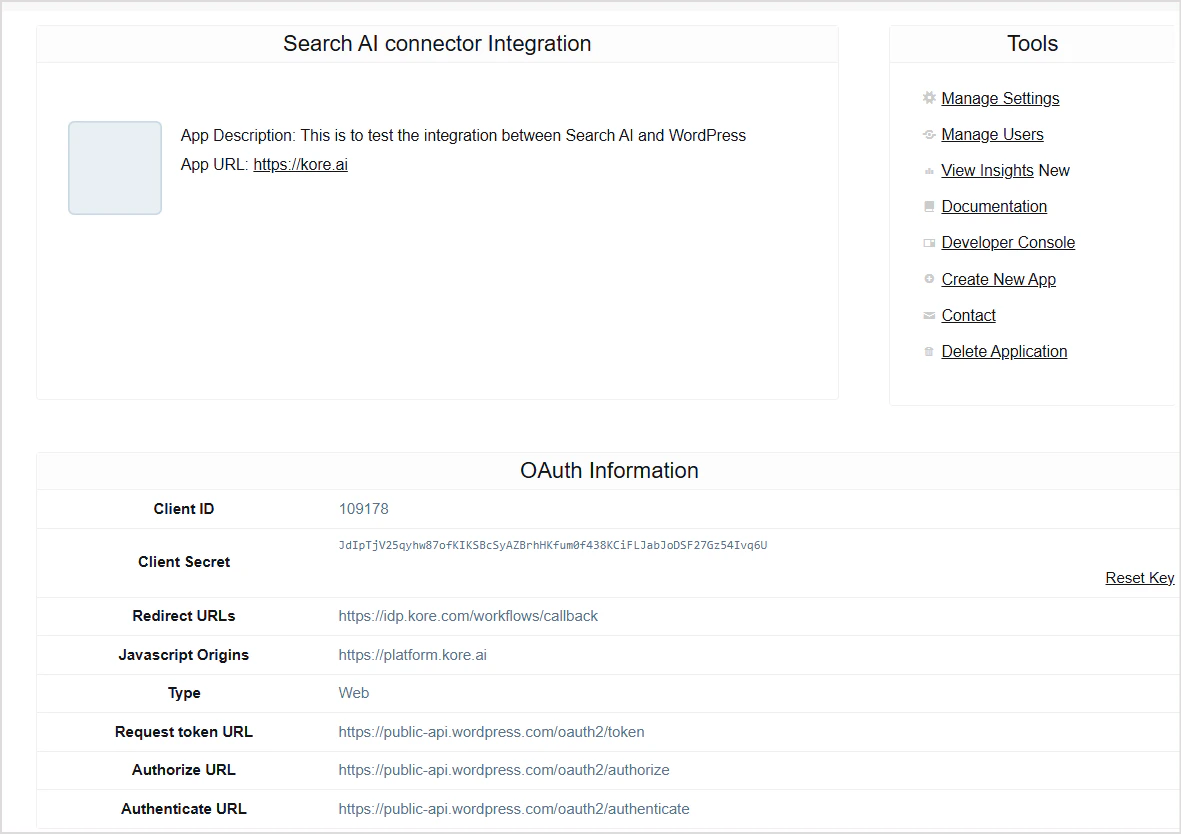
4. Copy and securely store the **Client ID** and **Client Secret** displayed on the next page. You will need these to configure the connector.
* **Name**: A name for the client (for example, *My App*).
* **Redirect URLs**: The callback URL for authorization responses. Use the URL for your region or deployment:
* JP Region: `https://jp-bots-idp.kore.ai/workflows/callback`
* DE Region: `https://de-bots-idp.kore.ai/workflows/callback`
* Prod: `https://idp.kore.com/workflows/callback`
3. Click **Create** to generate client credentials.
4. Copy and securely store the **Client ID** and **Client Secret** displayed on the next page. You will need these to configure the connector.
 ## Configuring the WordPress Connector in Search AI
1. Go to **Content > Connectors** and select the **WordPress Connector**.
2. Enter the following details:
| Field | Description |
| ---------------------- | --------------------------------------------------------------------------------------- |
| **Name** | Unique name for the connector |
| **Authorization Type** | Set to **Public** for publicly accessible sites; set to **OAuth 2.0** for private sites |
| **Client Credentials** | Required only for OAuth 2.0 — provide the Client ID and Client Secret from WordPress |
| **Site URL** | URL of the WordPress site to ingest content from |
3. Click **Connect**. Once authenticated, the connector is ready to ingest pages and posts.
## Content Synchronization
Go to the **Configuration** tab and click **Sync Now** to ingest all accessible pages and posts immediately. Use **Schedule Sync** to set up recurring synchronization.
## Permissions and Access Control
* Public sites are accessible to all Search AI users.
* Private sites configured with **Public Access** in Search AI are accessible to all Search AI users, regardless of WordPress permissions.
* Private sites configured with **Permission Aware** access are accessible only to Search AI users who have access to the site in WordPress.
When switching from Permission Aware to Public Access, content becomes immediately accessible to all users. When switching from Public Access to Permission Aware, access information is fetched on the next sync. Trigger a manual sync for immediate effect.
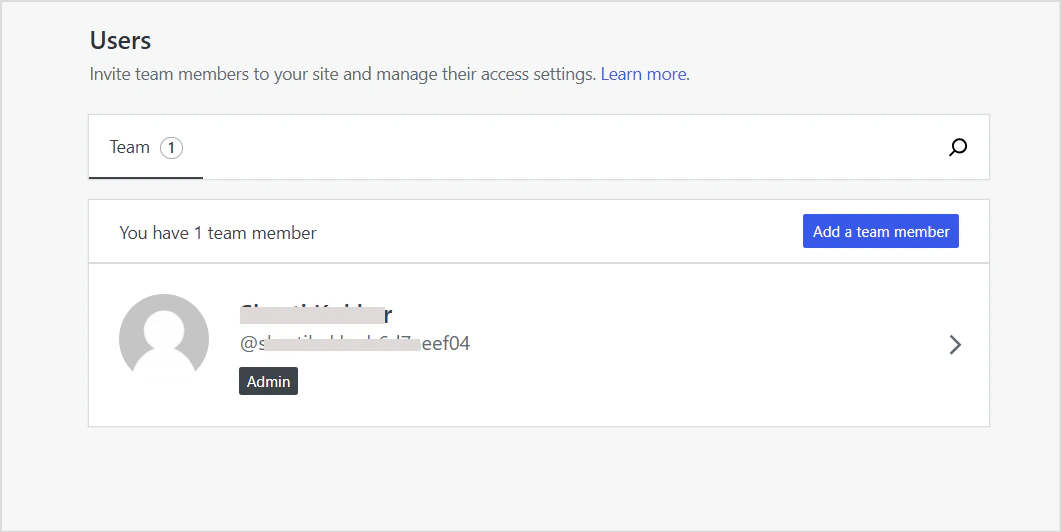
For **public WordPress sites**, the `sys_racl` field is set to `*`. For **private sites**, the `sys_racl` field contains the identity information of team members added to the WordPress site. To view team members, go to the **Users** page on the site's dashboard.
## Configuring the WordPress Connector in Search AI
1. Go to **Content > Connectors** and select the **WordPress Connector**.
2. Enter the following details:
| Field | Description |
| ---------------------- | --------------------------------------------------------------------------------------- |
| **Name** | Unique name for the connector |
| **Authorization Type** | Set to **Public** for publicly accessible sites; set to **OAuth 2.0** for private sites |
| **Client Credentials** | Required only for OAuth 2.0 — provide the Client ID and Client Secret from WordPress |
| **Site URL** | URL of the WordPress site to ingest content from |
3. Click **Connect**. Once authenticated, the connector is ready to ingest pages and posts.
## Content Synchronization
Go to the **Configuration** tab and click **Sync Now** to ingest all accessible pages and posts immediately. Use **Schedule Sync** to set up recurring synchronization.
## Permissions and Access Control
* Public sites are accessible to all Search AI users.
* Private sites configured with **Public Access** in Search AI are accessible to all Search AI users, regardless of WordPress permissions.
* Private sites configured with **Permission Aware** access are accessible only to Search AI users who have access to the site in WordPress.
When switching from Permission Aware to Public Access, content becomes immediately accessible to all users. When switching from Public Access to Permission Aware, access information is fetched on the next sync. Trigger a manual sync for immediate effect.
For **public WordPress sites**, the `sys_racl` field is set to `*`. For **private sites**, the `sys_racl` field contains the identity information of team members added to the WordPress site. To view team members, go to the **Users** page on the site's dashboard.
 ## Points to Note
* Comments and author information, if available for a page or post, are included as metadata fields in the ingested content and are also added to the chunk text.
## Points to Note
* Comments and author information, if available for a page or post, are included as metadata fields in the ingested content and are also added to the chunk text.