

Create and manage forms under Resources > Forms, where you define their structure.
Use forms in the Human Task node to configure how they are used in the workflow, including field values and access.
Create a form
- In the left navigation, select Resources > Forms.
- Select New form.
- Enter a name and description for the form.
- Select Create. The form opens in the form builder.
- Configure the fields you want to include in the form.
- Preview the form to verify how it appears to users.
- Publish the form.
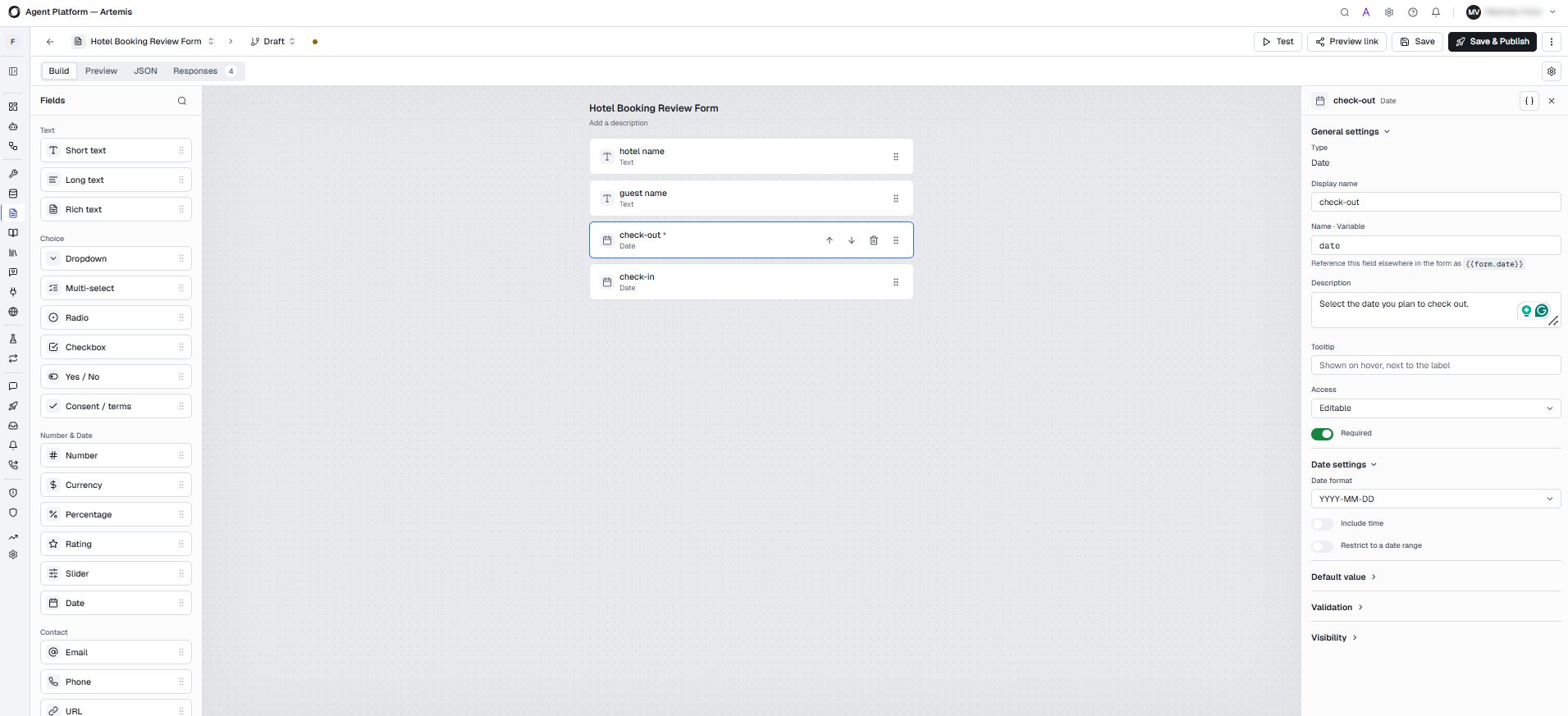
Configure a form in the form builder
Use the form builder to add fields and configure their settings. Select a field from the field palette to add it to the form, then select the field to configure its settings.Configure form settings
Use the form settings to configure the form details, appearance, and reuse options.Preview a form
Select Preview to view how the form appears to users. Use the desktop and mobile options to preview the form on different screen sizes. You can also select Preview link to generate a shareable preview link for others to review the form.Publish and version a form
Forms use draft and published versions so that you can update a form without unexpectedly changing forms already used by workflows. When you publish a form:- The first published version is v1.
- Subsequent publications create new versions, such as v2 and v3.
- Published versions remain unchanged after they are published.
- A workflow can use a specific published version or the current draft.
- When a newer version is available, you can refresh the form configuration in the workflow and review the changes before adopting the new version.
- A workflow run uses the form version that was pinned when the run started.
Use a form in a workflow
You can use a published form in a workflow to collect information from users or assignees.- Open the workflow and add the Human Task node.
- In the Task tab, select a form. The fields defined in the form are presented to the assignee.
- Select the form version to use.
- Configure the field values and access for the task.
The form must have at least one published version before you can attach it to a Human Task node. If the form has not been published, publish it in the Form Builder first.
Use a form as a trigger
Use a form as an Intake form trigger to start a workflow when a user submits the form. For information about configuring an Intake form trigger, see Configuring triggers.View form responses
The Responses tab lists submissions received for the form. You can search and filter responses and view individual submissions. Select a response to view its submitted values. You can view the submission in Form or JSON format.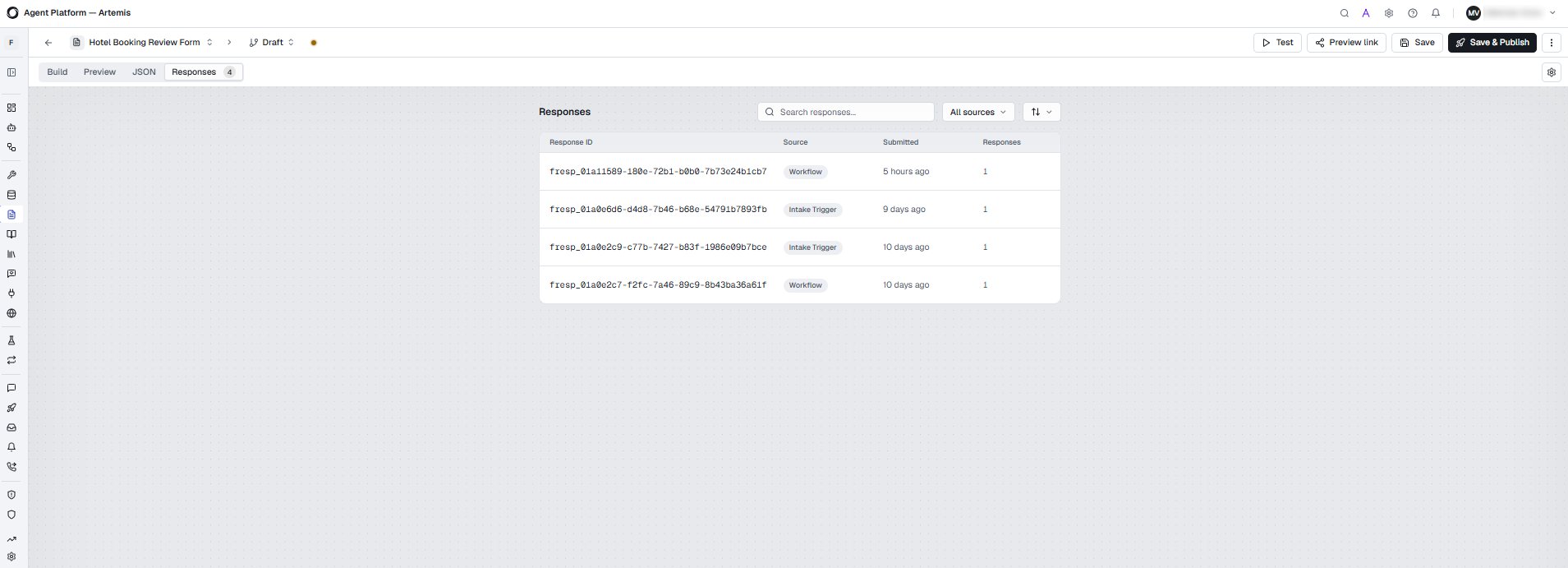
Import and export a form
You can export a form definition as JSON to reuse it in another project, or import a form definition into a project.- Export: Select Export from the form’s actions menu to export the form definition as JSON. The exported definition includes the form fields, validation, visibility, theme, and form settings.
- Import: Select Import and select the form definition to import it into the project. When you import a form into another project, project-specific settings, such as domain configuration, must be configured again after import.