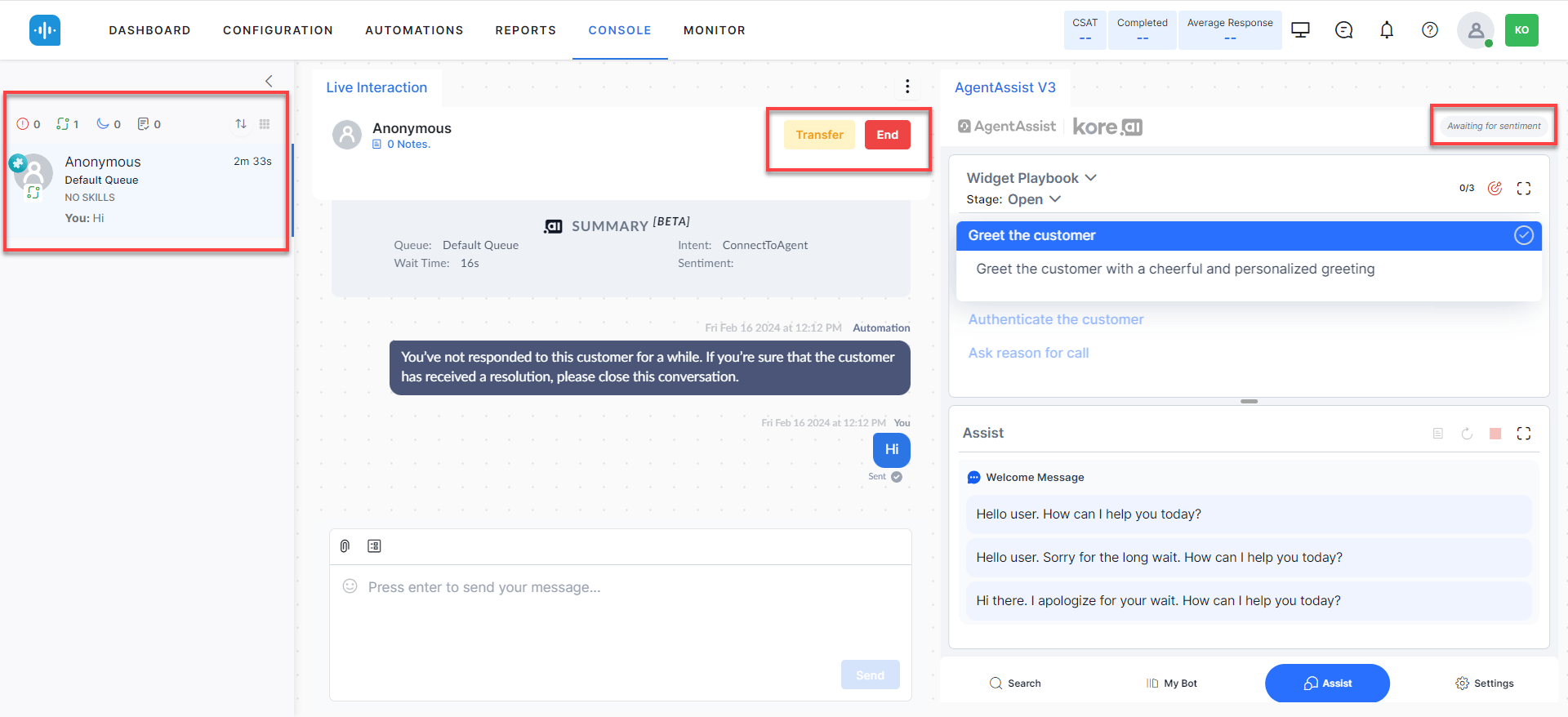
Features
Widget Tabs
The widget has five tabs-Search, My AI Agent (Bot), Assist, Transcript (voice only), and More-plus Settings and Theme controls.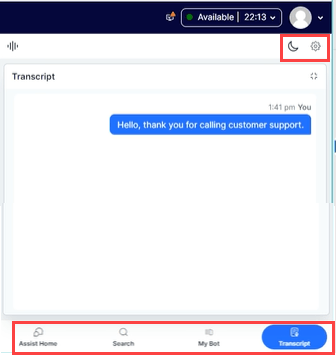
Search Tab
Shows all configured Dialog Tasks and supports searching for Dialog Tasks, FAQs, Generative AI answers, web pages, and files. Content updates automatically based on the conversation.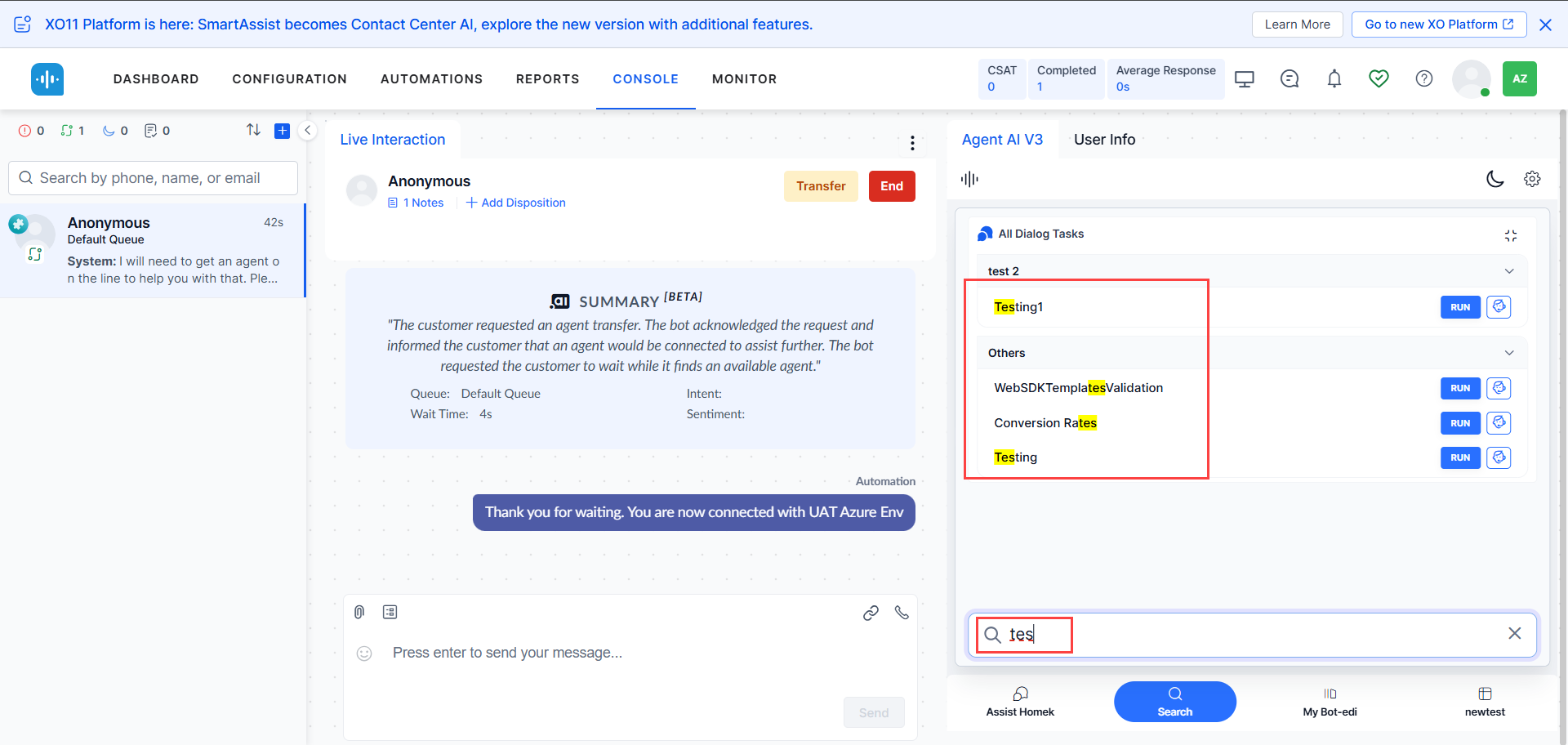
Error States
| Condition | Display |
|---|---|
| Timeout or dialog tasks not configured | 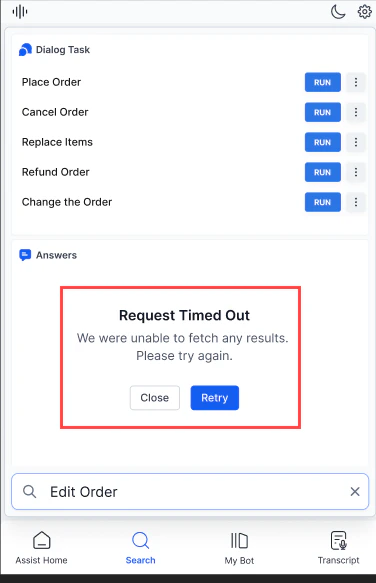 |
| Consecutive timeout |  |
| Server error |  |
| Dialog Tasks not found | 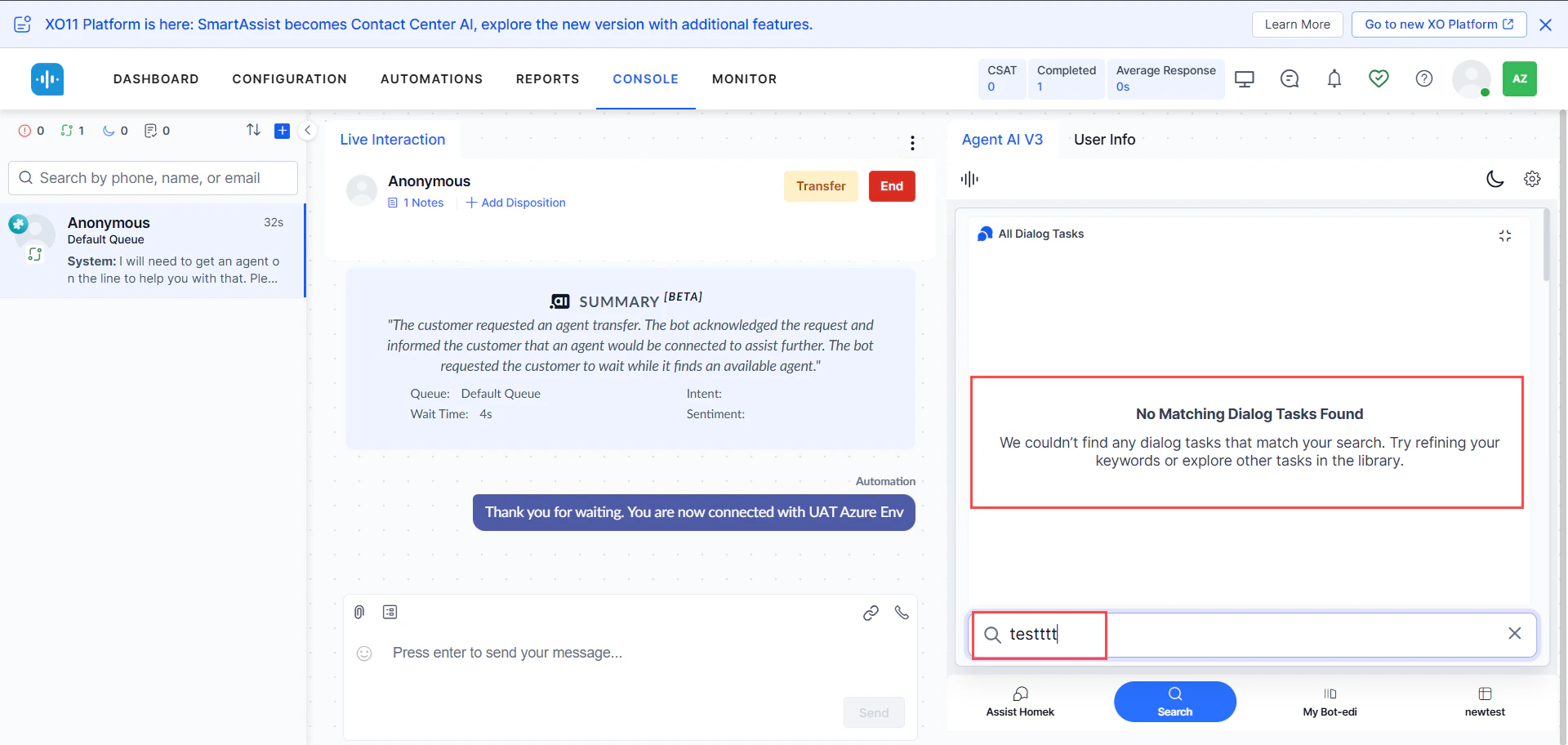 |
| No matching results | 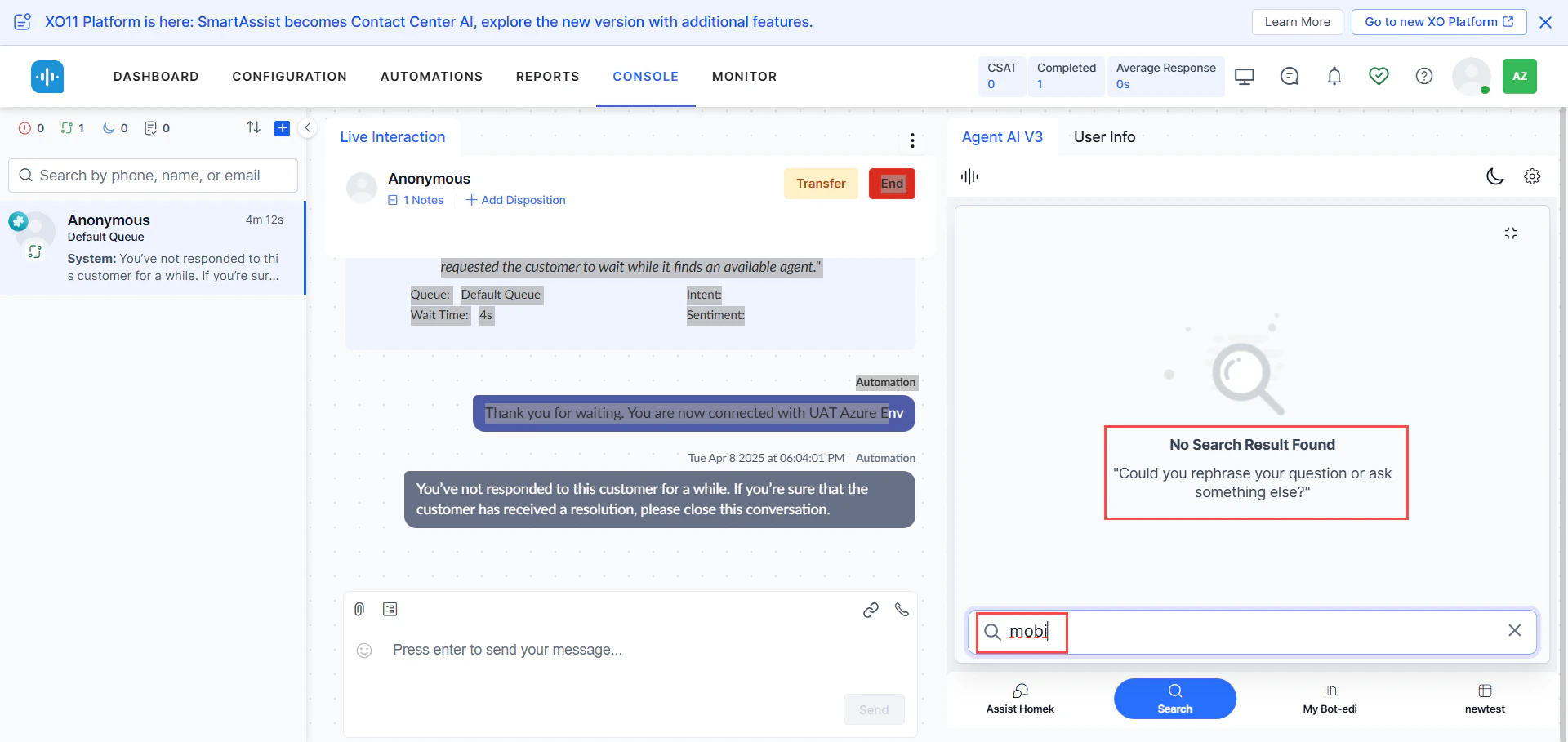 |
My AI Agent (Bot) Tab
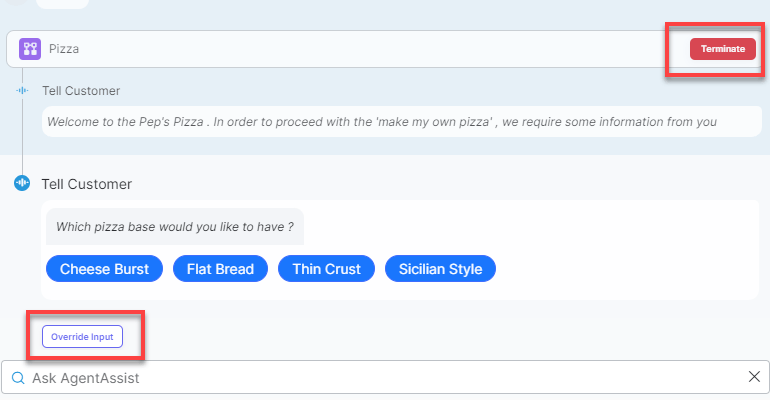
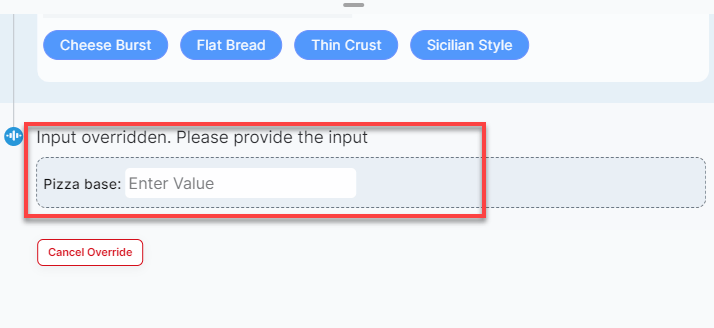
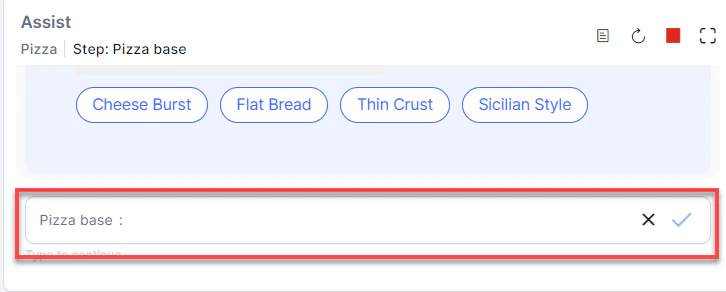
Lets agents run automations independently using their own inputs. Useful when automation fails mid-conversation or when agents need to run parallel queries without affecting the customer interaction.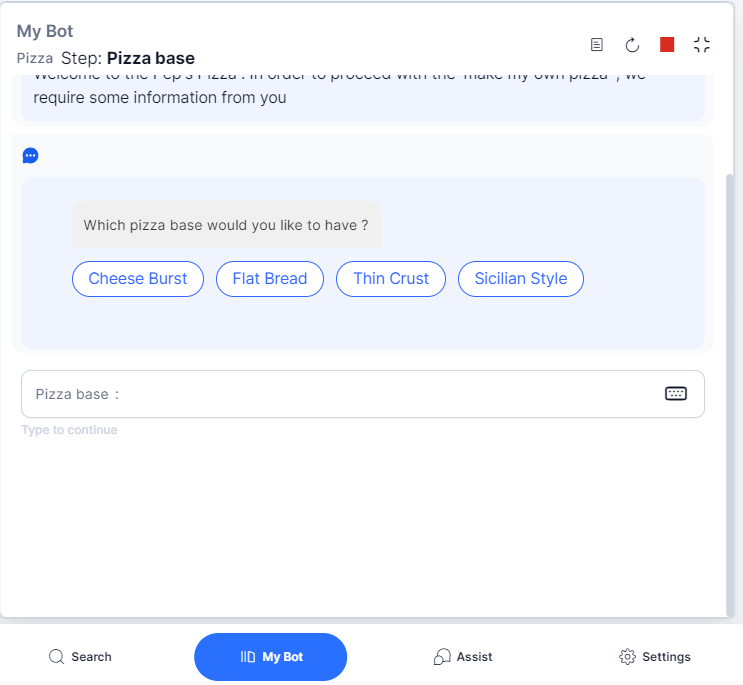
Assist Tab
The Assist Tab is the primary agent workspace. It automatically monitors conversations and displays Dialog Tasks, FAQs, Knowledge AI results, Playbooks, Agentic Copilot messages, and coaching prompts.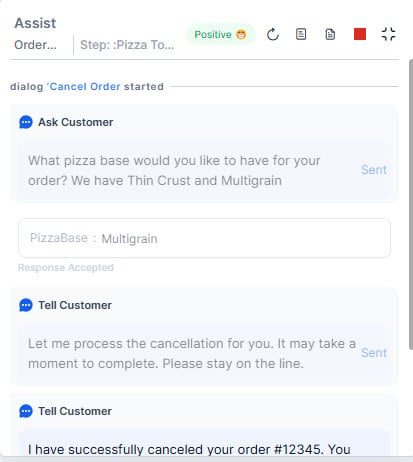
- Suggests the best response based on conversation context.
- Displays Agentic Copilot messages with a configurable delay (up to 10 seconds) before auto sending.
- Displays the Generate NBA button so you can manually trigger an NBA suggestion when Proactive Mode is off. The button appears after a new customer message arrives and the previous NBA generation finishes.
- Retrieves knowledge base content based on customer intent.
- Shows historical automation runs and conversation history.
- Displays the Landing Summary with the bot-to-human conversation summary and, for call transfers, the Call Transfer Reason.
- Supports file and image attachments up to 25 MB.
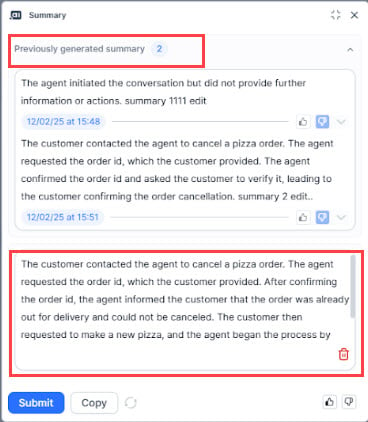
- Allows on-demand summary generation (up to 2 times per conversation).
The Generate NBA button sends only the latest customer query to Agentic Copilot. For more accurate NBAs, include additional metadata, such as the full chat history or a conversation summary, to give Agentic Copilot sufficient context for relevant suggestions. To include this metadata, go to Linked Services > Pass Metadata, and select the desired information, such as Agent-Customer Chat History. You must also add the same variables to the prompt in the Agentic Platform.
Assist Tab Controls
Agentic Copilot Messages
After Welcome Events execute, the widget displays: “Agentic Copilot is actively listening to your conversation and ready to assist automatically.”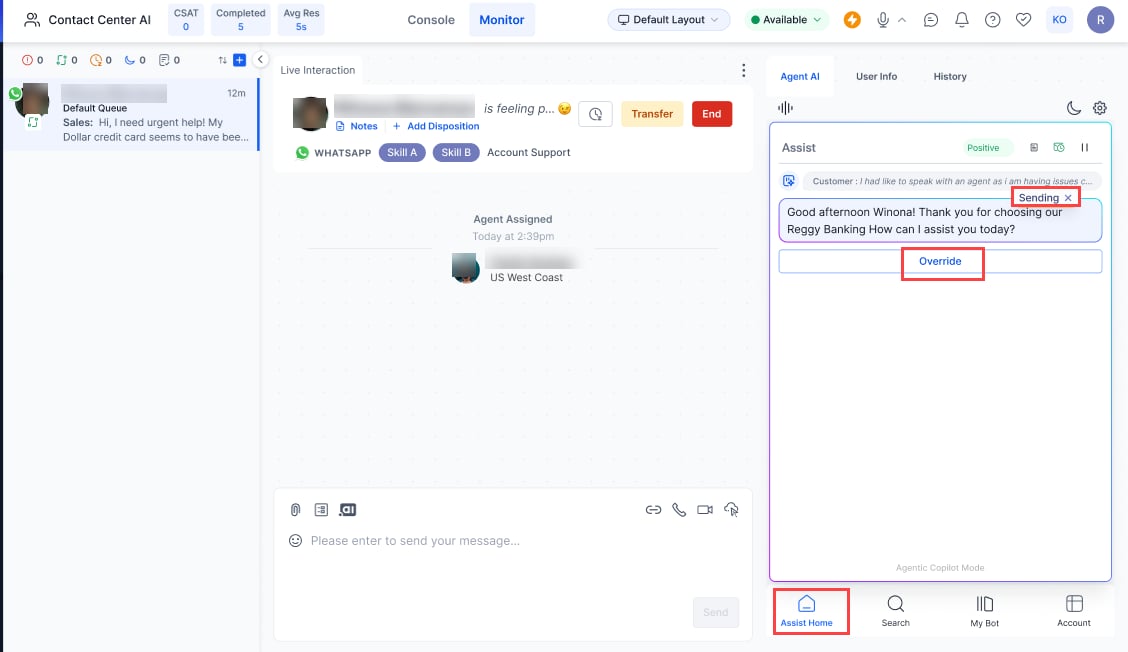
- Select x to cancel auto send.
- Select Copy to move the message to the chat input field.
- Select Send to send immediately.
- Select Override to discard the Agentic response and type your own.
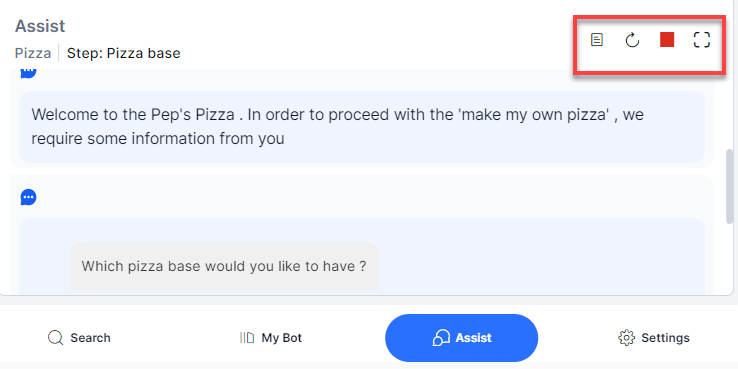
- Use the Stop/Resume icon (top-right) to pause or resume auto-send globally.
- Auto-send turns off automatically if Agentic Copilot fails to respond.
- For messages outside the app’s scope, Agentic indicates it can’t respond.
- To regenerate a failed response, double-click the corresponding customer message.
Generate Summary
Agents can generate on-demand summaries at any point during a conversation, up to two times. Previous summaries with timestamps remain visible during agent transfers.Enable the Generate Summary toggle in Widget Theming > Layout Customization > Assist Action Menu Layout to activate this feature.
Landing Summary
The Landing Summary appears when a conversation transfers from the bot to a human agent. It gives the agent a quick overview of the bot-customer interaction before the transfer. The Landing Summary includes the following:- A summary of the bot-customer conversation before the transfer.
- Call Transfer Reason — For bot-to-human call transfers, the Landing Summary includes a Call Transfer Reason section that explains why the bot transferred the call to the agent.
Attachment Support
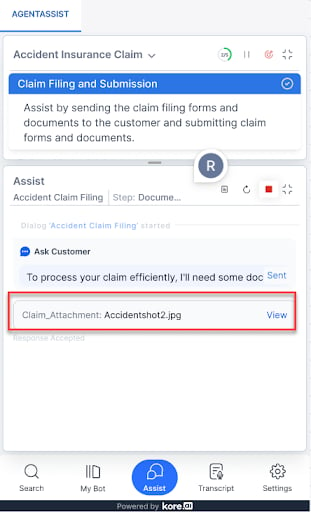
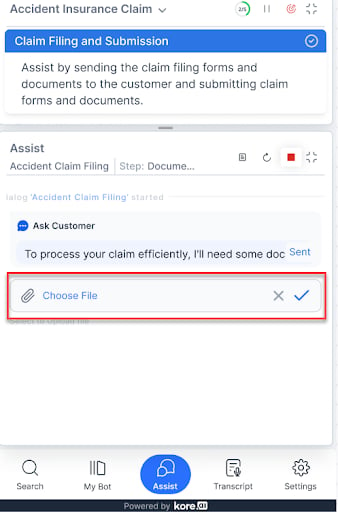
Attachments are limited to one file at a time, up to 25 MB. If the file is detected automatically:- A “waiting…” indicator appears.
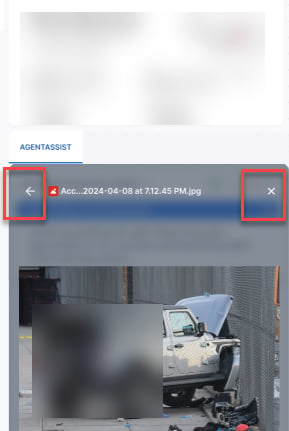
- On success, the file name appears in the input field with a View button.
| Error | Display |
|---|---|
| File exceeds 25 MB | 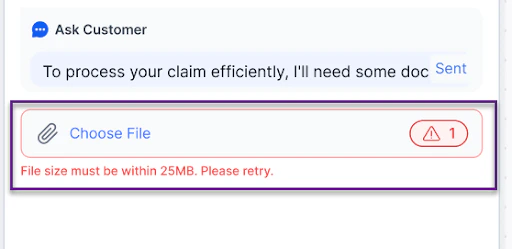 |
| Unsupported file type |  |
In-line Digital Forms
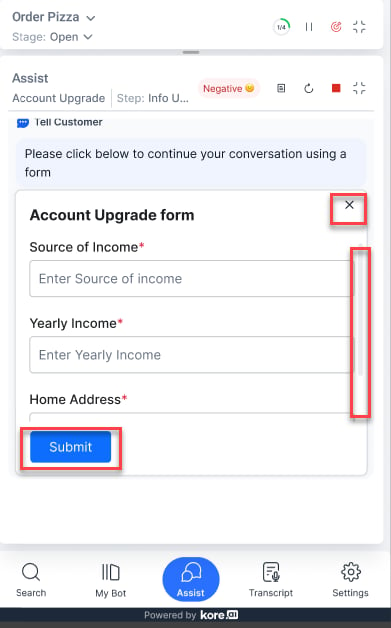
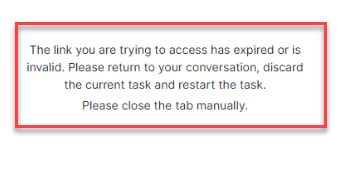
Collect customer information through forms embedded in the Assist tab. To use this feature, configure forms with Dialog Tasks and set the Web/Mobile SDK Form Behavior to Open inline form.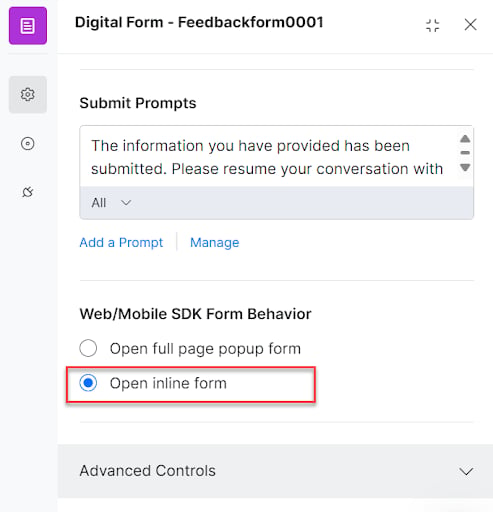
-
Close icon-Exits the form. A confirmation dialog prompts before discarding.
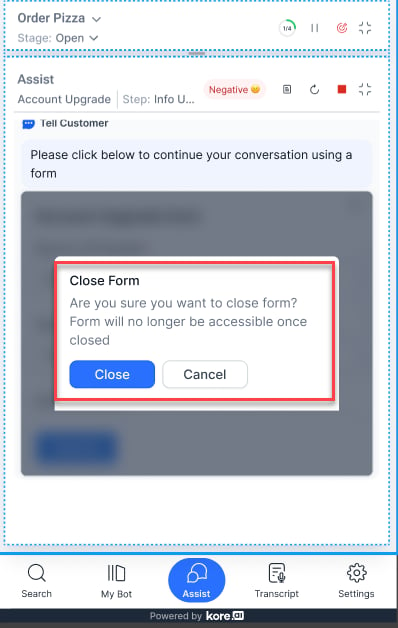
- Fixed frame height- 306 pixels with scroll support.
-
Submit option-Sticky at the bottom of the form.
Transcript Tab
Available for voice calls only. Displays a real-time text transcription of the agent-customer conversation throughout the session.
More Tab
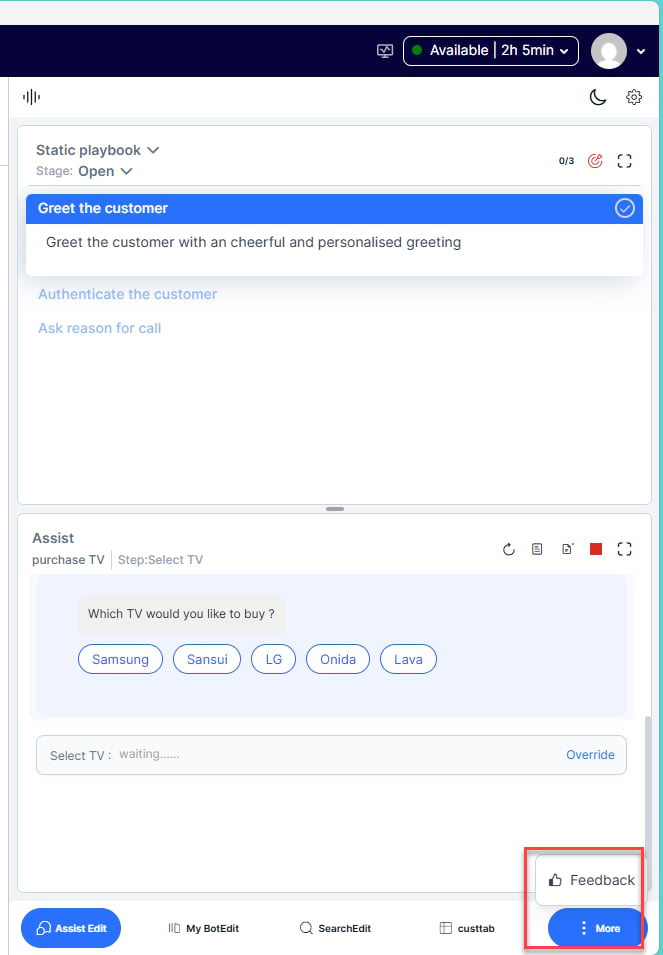
Lets agents submit overall feedback on the widget. Agents can select up to five positive or negative options and optionally add comments.If the conversation is transferred, feedback from both agents is saved in the logs.
-
Select More > Feedback.
-
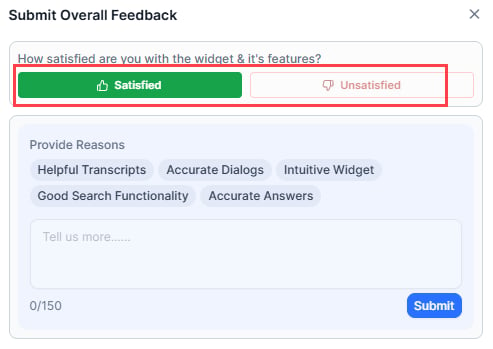
Select Satisfied (positive) or Unsatisfied (negative).
-
Select feedback options from the list and add comments if needed.
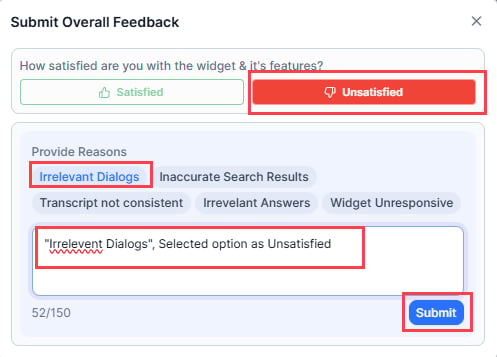
- Select Submit.
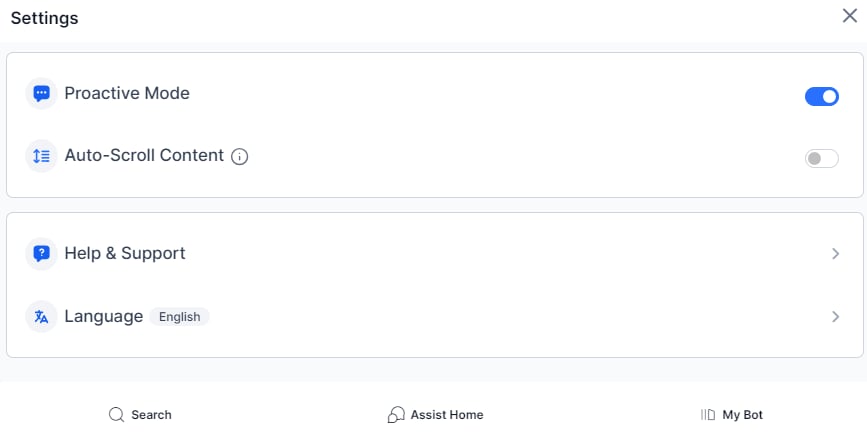
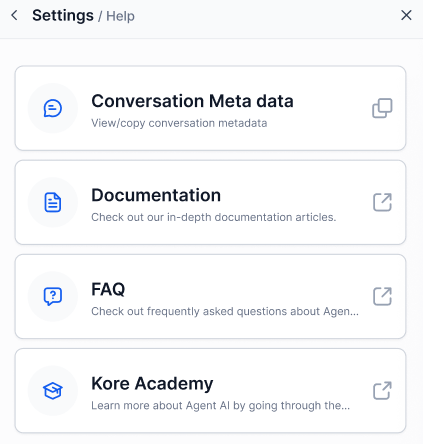
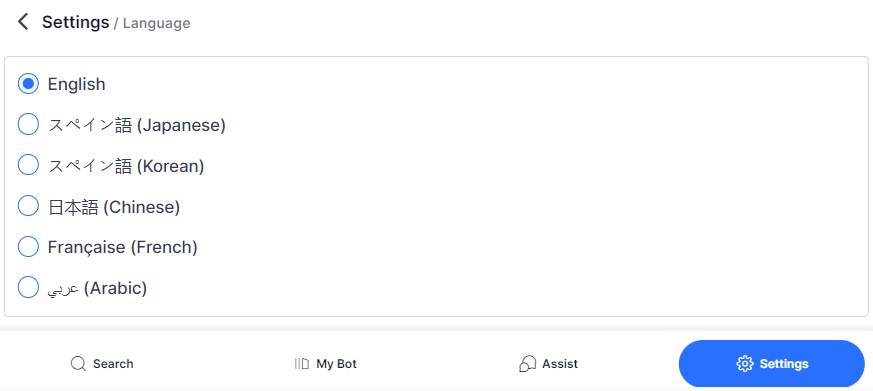
Settings
Theme Selection
Choose Dark or Light theme from the Settings tab.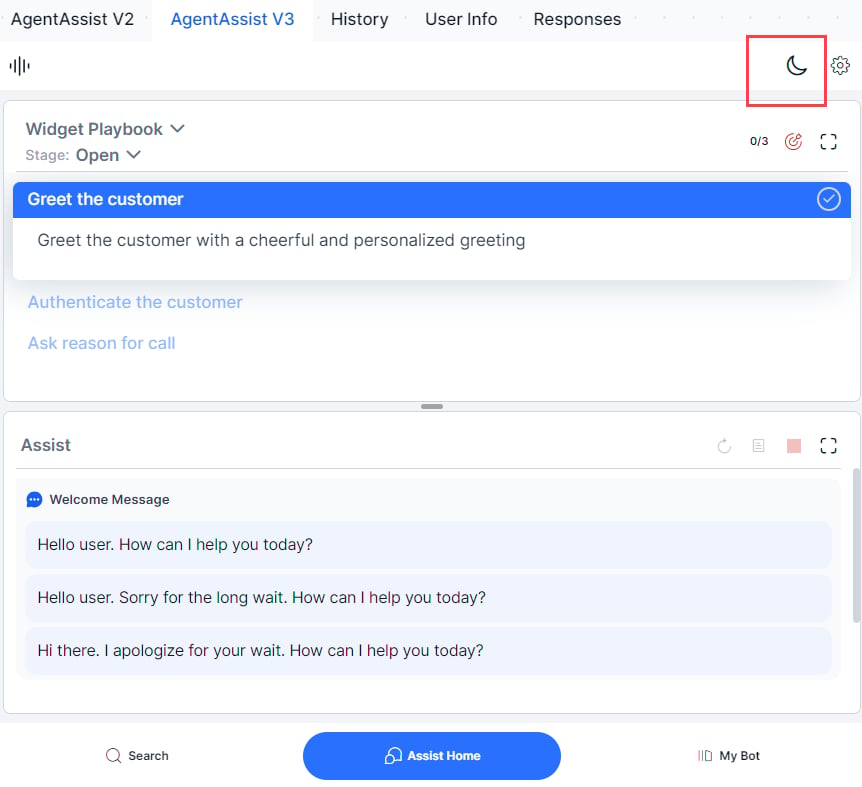
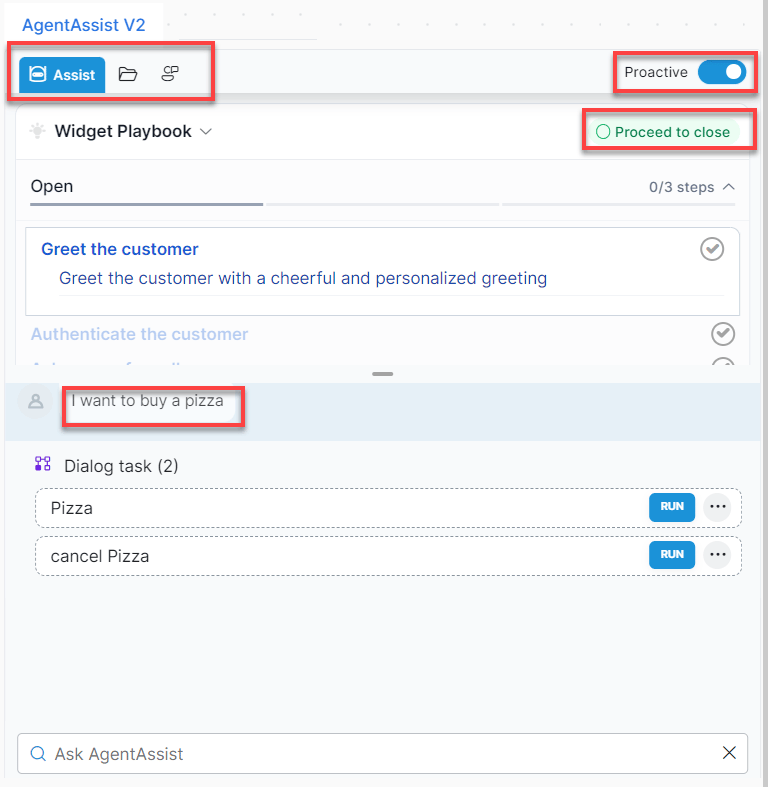
V2 vs V3 Differences
UI Changes
Agent AI V2
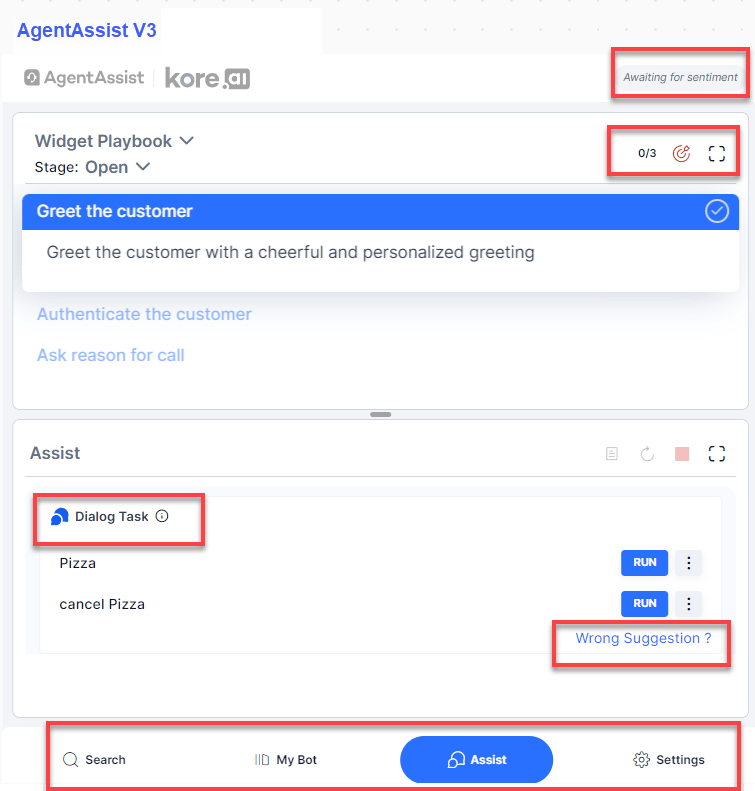
Feature-Level Changes
Agent AI V2-Dialog Tasks