

Override App Inputs
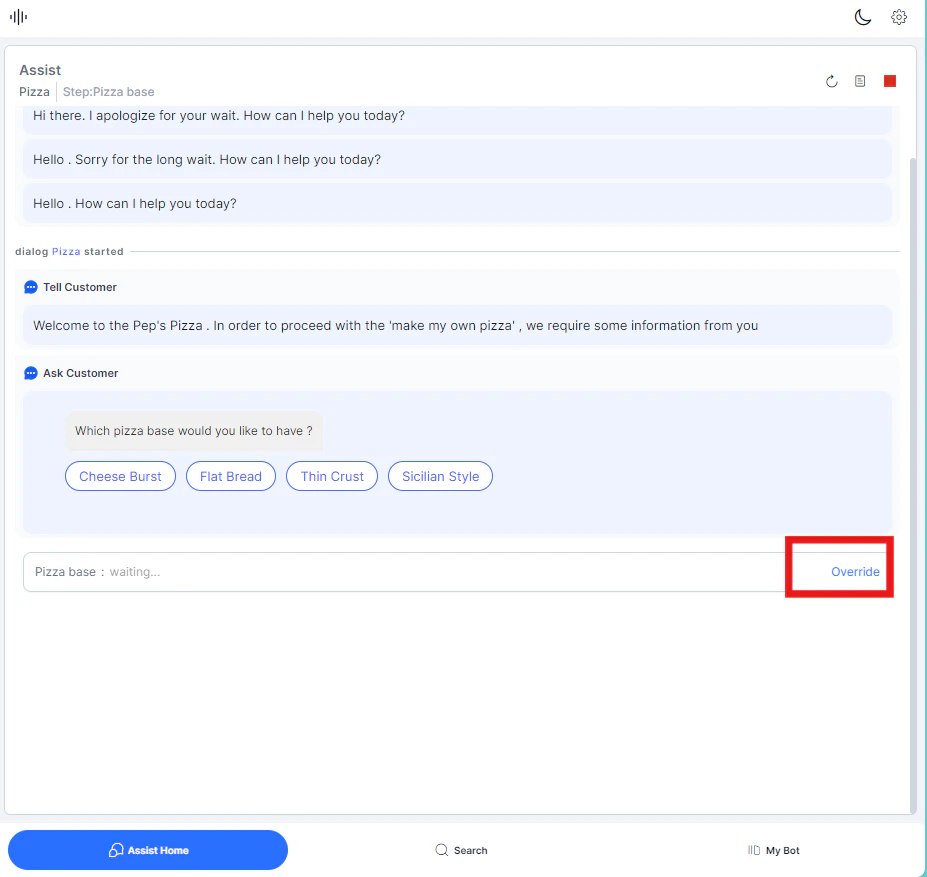
When automation fails to understand a customer’s input, a “try again” error appears. If errors repeat, you can intervene and correct the input manually. To override an app input:-
Select Override Input below the automation step.
-
The Type to continue box appears. Enter the correct value.

Terminate an Automation
Stop an automation at any point during the interaction. Common reasons include accidental trigger, unexpected behavior, or a change in customer intent. To terminate an automation:- On the Assist or My AI Agent (Bot) tab, select Terminate next to the automation step.
-
Select Yes, Terminate to confirm.

Sentiment Analysis
The Agent AI widget continuously analyzes and displays the customer’s sentiment in real time, based on their messages. This helps agents handling multiple conversations quickly assess customer emotion when switching between interactions. The sentiment indicator appears at the top-right of the widget.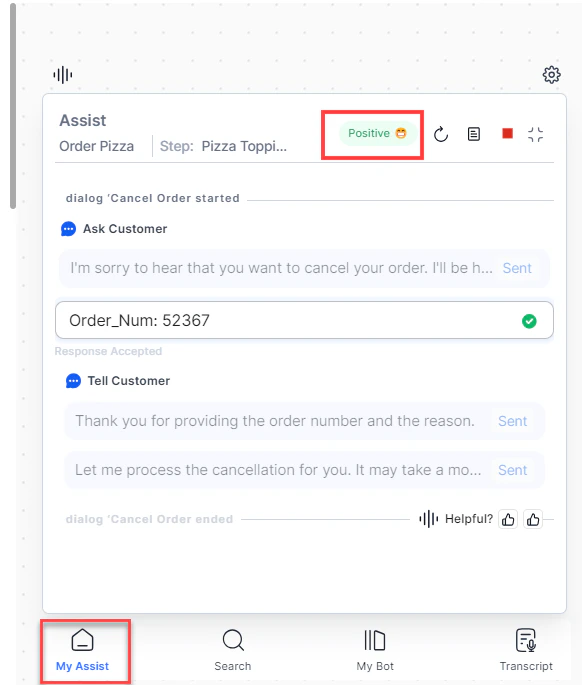
Search and Ask a Question
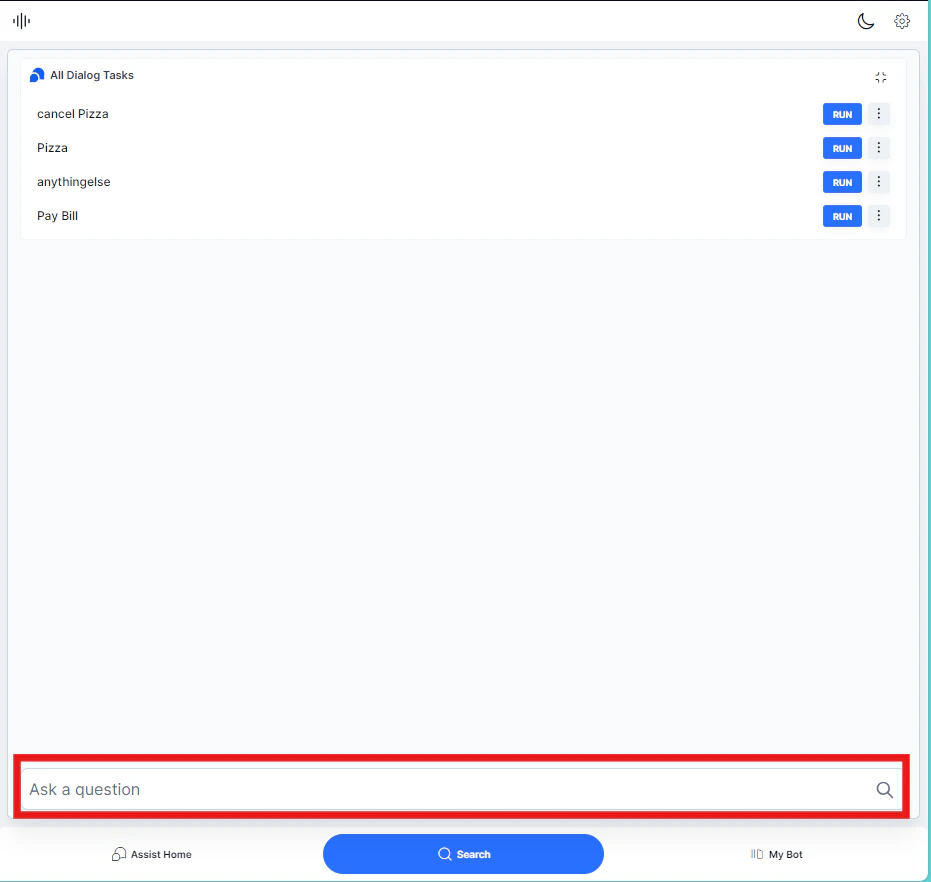
Use the search bar to look up FAQs and automations without leaving the conversation. To search:- Type a question in the Ask a question search bar.
-
Press Enter. Agent AI shows matching results you can use to respond.
Run Automation with Agent Input
You can run an automation using customer inputs or agent inputs. Using agent inputs lets you control the entire automation process independently — without prompting the customer for each value. This is useful for retrieving information in parallel while the customer waits, or when you already have the required data. To run automation with agent input:- In the Search tab, select the ellipsis next to a Dialog Task.
- Select Run with agent’s input. The automation starts in the My AI Agent (Bot) tab as a parallel session.
You can also use the Run button to start a configured Dialog Task directly.