

Welcome Events
Welcome Events are preconfigured messages or prompts that trigger automatically when a conversation is assigned to an agent in the Agent AI widget. They guide agents from the start, reduce Average Handle Time (AHT), and improve customer satisfaction. Configure Welcome Events in three sections:- Configure On-Connect Dialog Task
- Configure Greeting Messages
- Priority Settings
Configure On-Connect Dialog Task
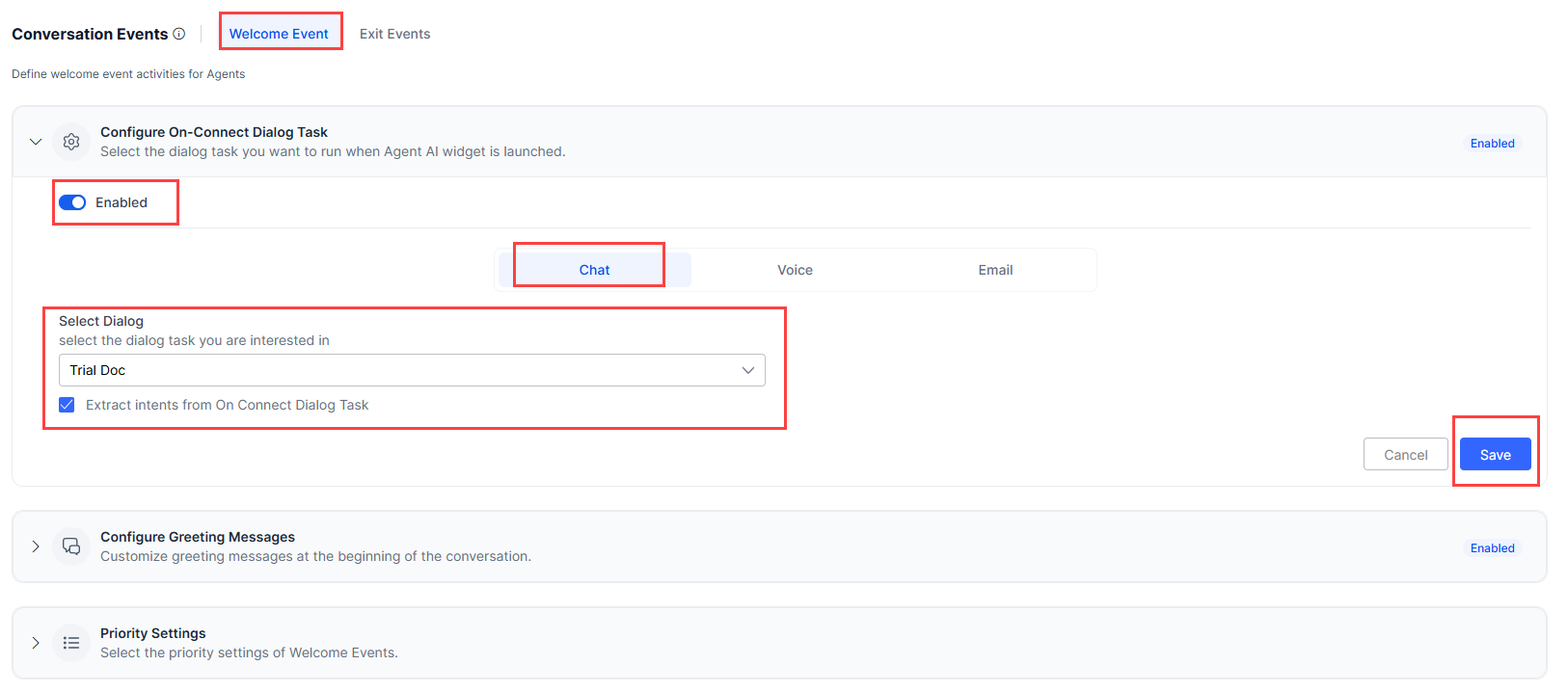
Select a dialog task to run automatically when the Agent AI widget launches.- Sign in to AI for Service.
- Go to Agent AI > Configurations > Conversation Events > Welcome Events.
- Expand Configure On-Connect Dialog Task.
- Turn on the toggle if it’s off.
- Select a channel — Chat, Voice, or Email.
- Select a dialog task from the Select Dialog list.
-
Select Extract intents from On Connect Dialog task to identify Next Best Actions from the dialog.
When enabled, the system terminates the current dialog and uses the message node’s content to identify suggestions. Ensure the dialog flow contains only one message node, preferably at the end.
-
Select Save.
Configure Greeting Messages
Customize greeting messages displayed at the start of a conversation. Agents can use these messages when communicating with customers through the Agent AI widget.- Go to Configurations > Conversation Events > Welcome Events.
- Expand Configure Greeting Messages.
- Turn on the toggle if it’s turned off.
- Select a channel — Chat, Voice, or Email.
- Select a language. The app’s default language is pre-selected.
- Select + Add Message > New Messages to add a greeting message.
- Enter the message in the Message box and select Add.
-
To copy messages from another channel, select + Add Message > Copy from Chat (or Copy from Voice for the Chat channel).
Copy from Voice appears for the Chat channel. Copy from Chat appears for the Voice channel.
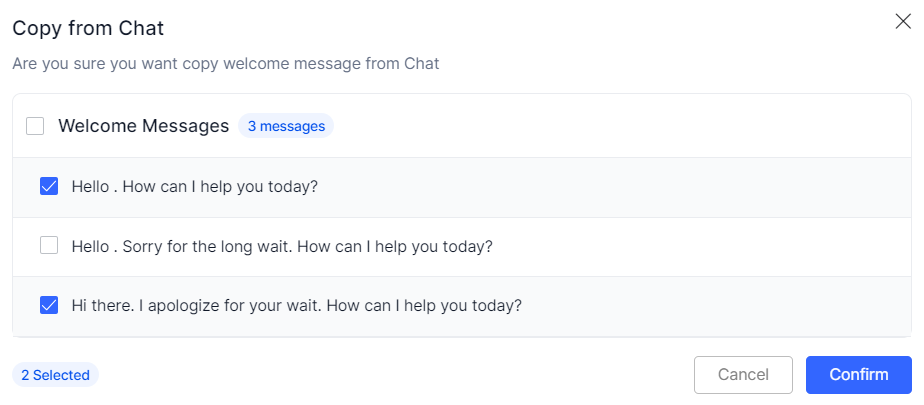
- Select Welcome Messages to select all existing messages, or select individual messages.
- Select Confirm.
-
Select Display Random Message to randomly show any three configured messages to the agent.

- Select the down-arrow to change the message language.
- Select the edit button on a message to modify it, then select Update.
- Select the delete button on a message to remove it. Confirm by selecting Yes.
- Use the enable/disable toggle on a message to activate or deactivate it.
- Select Save.
Priority Settings
Define whether the dialog task or greeting messages run first.- Go to Configurations > Welcome Events.
- Expand Priority Settings.
-
Select On-Connect Dialog Task or Greeting Messages.

- Select Save.
If you turn on Agentic Copilot in Widget Settings > Agent AI Channel Specific Settings, the message “Whenever Agentic Copilot is enabled, it will run after the configured Welcome Events” displays in this section.
Exit Events
Exit Events mark the end of a customer interaction. Configure a dialog task, conversation summary, or Agentic app to run automatically when the conversation ends. Select one of the following combinations:- Configure End of Conversation Dialog Task + Conversation Summary (OOTB Kore Summarization)
- Conversation Summary (Custom Dialog Task) + Configure End of Conversation Agentic App
Configure End of Conversation Dialog Task
Select a dialog task to run automatically at conversation end. To enable this, disable both Conversation Summary > Custom Dialog Task and Configure End of Conversation Agentic App.- Sign in to AI for Service > Agent AI.
- Go to Configurations > Conversation Events > Exit Events.
- Select a channel — Chat, Voice, or Email.
-
Turn on the Configure End of Conversation Dialog Task toggle.
- If Conversation Summary > Custom Dialog Task is on, a confirmation message appears.
For new accounts, Conversation Summary > OOTB Kore Summarization is available by default.- If Configure End of Conversation Agentic App is on, a confirmation message appears.
- Select Yes, Proceed.
- Expand Configure End of Conversation Dialog Task.
-
Select a dialog task from the Select Dialog list.
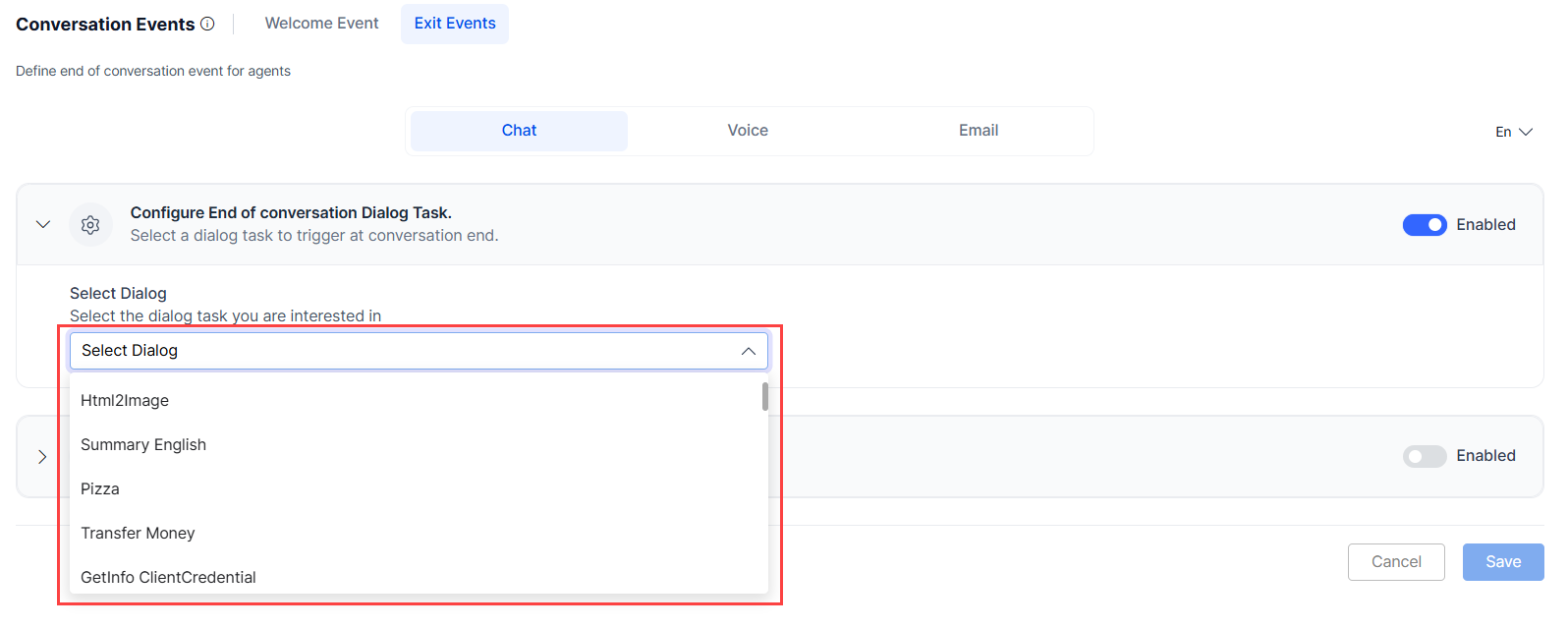
- Select Save.
Configure End of Conversation Agentic App
Select an Agentic App to trigger when the conversation ends. This toggle is only available when Agentic Copilot is enabled in Widget Settings > Agent AI Channel Specific Settings. Enabling this disables Configure End of Conversation Dialog Task.
Steps:
- Sign in to AI for Service > Agent AI.
- Go to Configurations > Conversation Events > Exit Events.
- Select a channel — Chat, Voice, or Email.
-
Turn on the Configure End of Conversation Agentic App toggle. A confirmation appears if Configure End of Conversation Dialog Task was enabled.
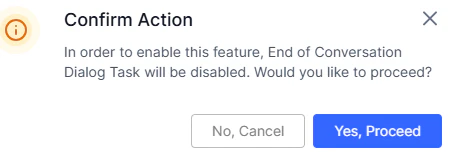
- Select Yes, Proceed.
-
Select Use same app as Agentic Copilot or Select a different Agentic App.
- If you select Select a different Agentic App, a dropdown appears.
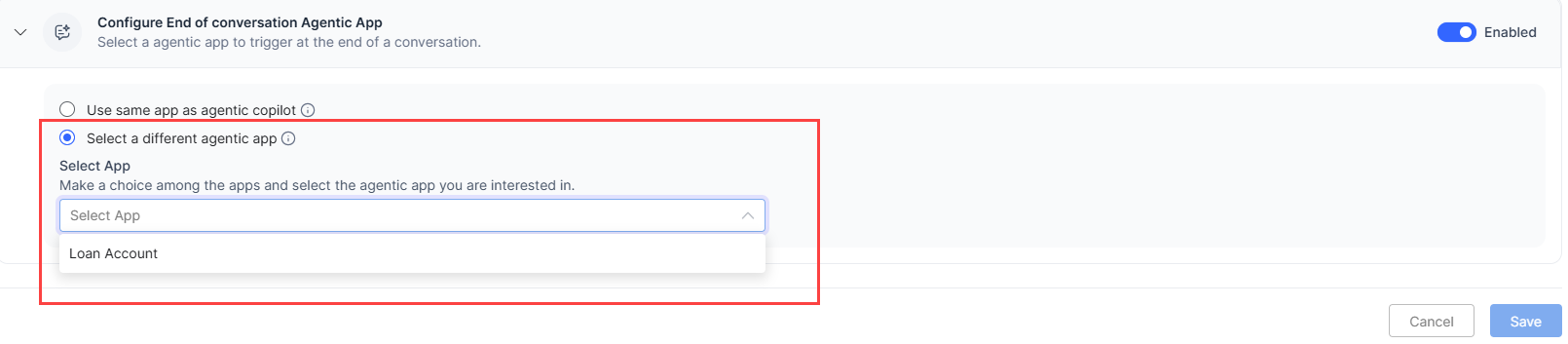
- Select an Agentic App from the list.
- Select Save.