The Conversation Flows feature is available only for published AI Agents.
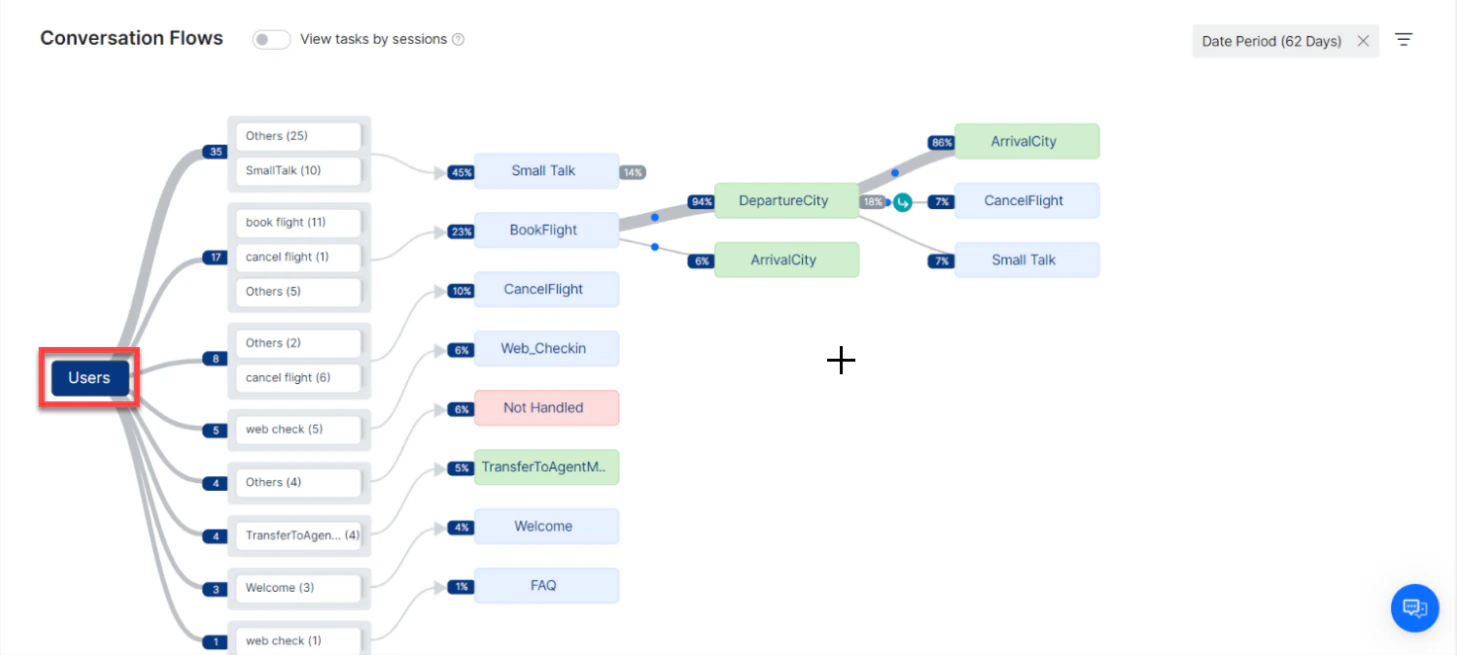
- Intents Flow: An aggregated view of how each of the AI Agent’s intents is executed. Intents are rolled up to the top level regardless of what stage of a conversation they were initiated. This is the default view. The View tasks by sessions toggle must be OFF to access this view.
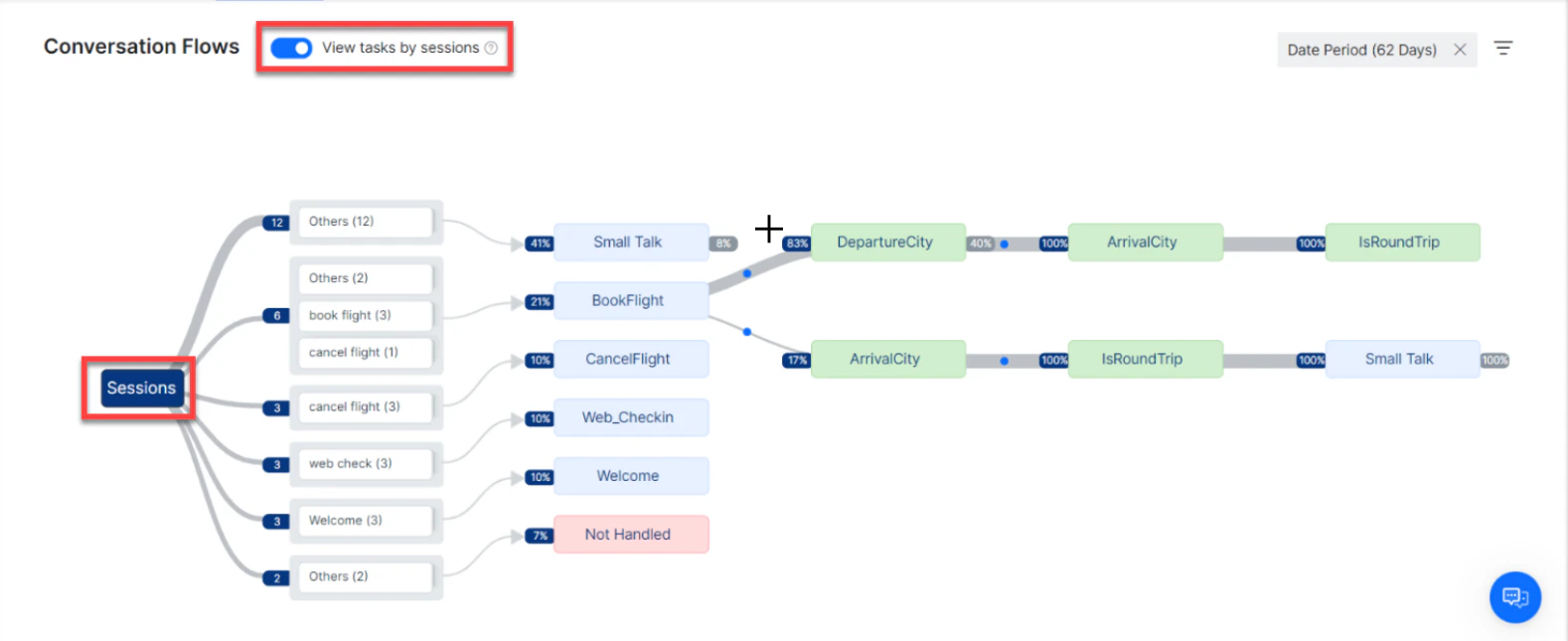
- Session Flow: The user journey across different intents in the order they were executed during a conversation session. Every flow starts with the intent used to initiate a session. Turn ON the View tasks by sessions toggle to access this view.
-
Click Analytics on the left navigation pane. The Analytics panel opens with the list of reports.

- Click Conversation Flows under the Automation section of the Analytics panel.
- Select appropriate filters and click Apply.
Purpose
Conversation Flows can be used to identify the following:- Popular utterances: Utterances used to invoke the AI Agent’s intents, automatically grouped by similarity for a simplified view.
- False Positives: A quick review of utterance groups helps identify utterances mapped to an incorrect intent. Analyze these utterances and make the necessary training updates.
- False Negatives: Utterances that didn’t result in any intent identification are shown as “Not Handled Utterances.” Analyze these and add them to the training corpus if required.
- Popular Intents and Flows: Understand the popular intents of your users and the flows used to execute them.
- Drop-off Points: Analyze specific areas of conversations that are resulting in drop-offs. A conversation is marked as a drop-off if the user abandoned it without providing a valid input.
- Agent Hand-offs: View flows leading to agent hand-offs. These are conversations that result in navigating to the Agent Node from any Dialog Task.
Key Features
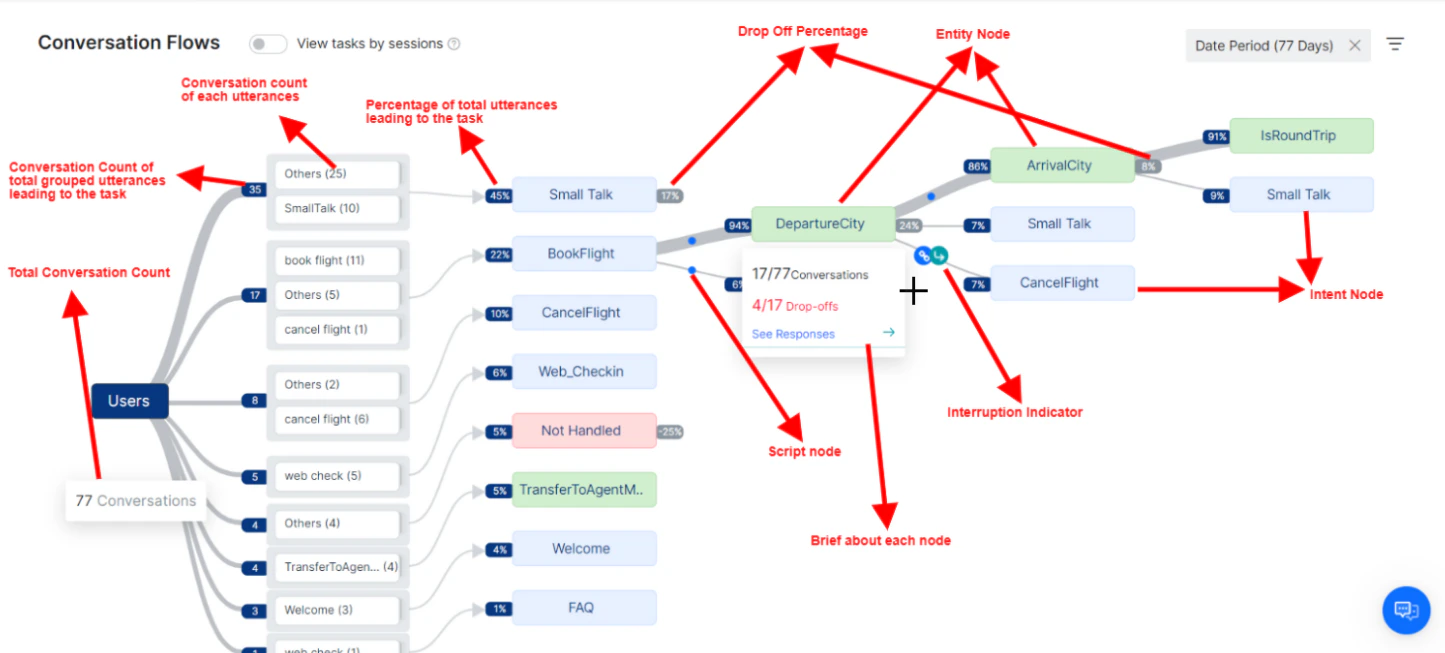
- Utterance Groups: Every flow starts with a user utterance that initiated the conversation and expands to show further interactions. Utterances are grouped based on similarity, ignoring stop words and entity values. These utterance nodes lead to one of the following intents:
- Individual task intents
- FAQs
- Small Talk
- Help
- Not Handled utterances
- Nodes: Individual points plotted on the conversation flow across various levels. Only nodes that require input from the user are plotted. The following nodes are plotted:
- Intent Nodes (Dialog and FAQ intents)
- Entity Nodes
- Confirmation Nodes
- User Input Nodes (using on intent transition)
- Message Nodes
- Node Details: The following details are presented for each node:
- Percentage of total utterances leading to this node. Click the percentage to display the list of user utterances that triggered the node.
- Node Name (task or entity name) with the following details on hover:
- Conversation and Drop-offs details
- See Responses shows the user’s response to this node, where applicable
- Percentage of drop-offs where applicable
- Path Indicators on the path between two nodes, indicating:
- Script or Service nodes visited during the transition between nodes
- Tasks executed as part of Hold and Resume scenarios
- Chat History: Viewed by clicking the utterance from the User Utterance window for either input (percentage) or response information.
Filters
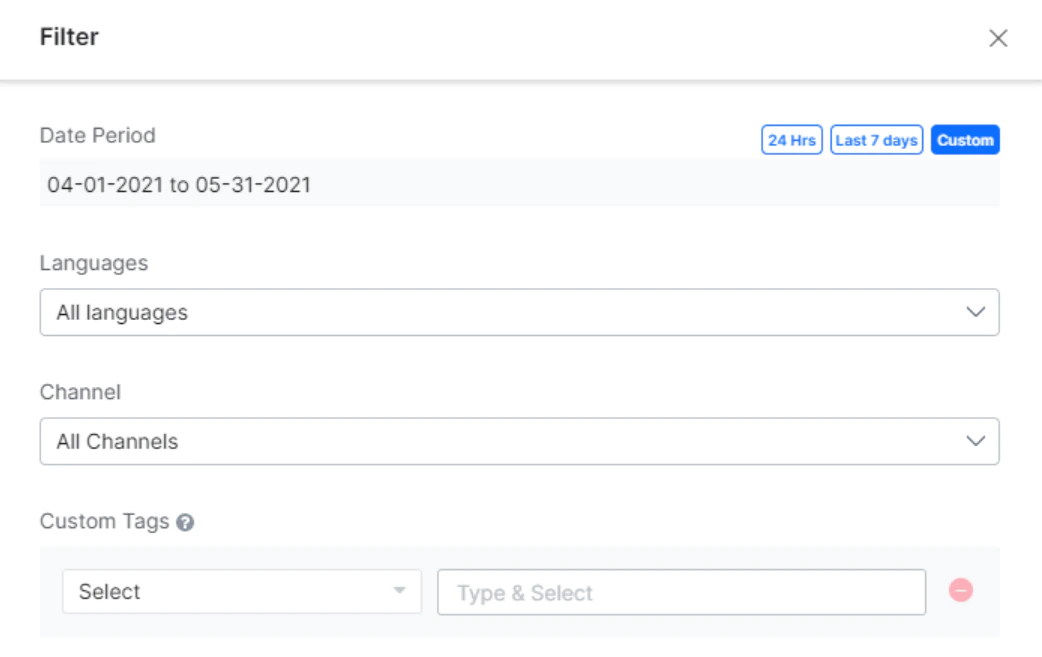
Conversation Flows can be filtered using one or more of the following criteria:- Date Period: Default is set to Last 7 days. Change to 24 Hrs or use the Custom option to select start and end dates from the calendar.
- Languages: For multi-language AI Agents, filter by selecting one or more languages from the drop-down list. Default is All Languages.
- Channels: Filter by one or more channels the AI Agent was published on. Default is All Channels.
- Custom Tags: If meta or custom tags have been added to your AI Agent, filter by Tag Name and tag value. No tag is selected by default.