-
Click Analytics on the left navigation pane. The Analytics panel opens with the list of reports.

- Click Conversation Insights under the Automation section of the Analytics panel.
- Select appropriate filters and click Apply.
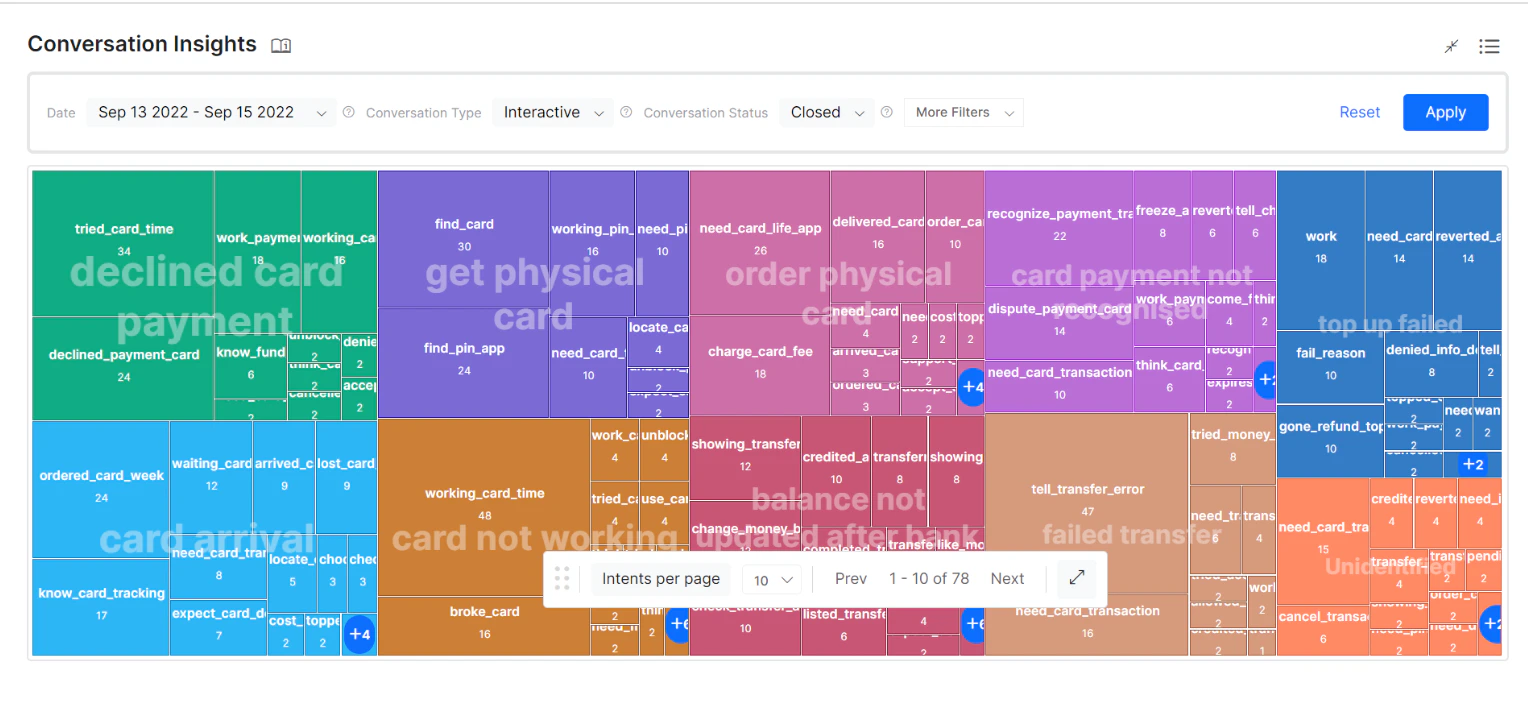
The platform groups similar utterances to form a cluster and names each cluster. Conversation Insights allows AI Agent designers to identify FPs and FNs, create new intents, and take other corrective actions. Cluster labeling is crucial for decision-making in these scenarios.
Clustering Views
Conversation Insights represents the relationship between intents and clusters in two different views:- Treemap View
- Grid View
Treemap View
The default view is the treemap, a visual method for displaying hierarchical data using nested rectangles. It shows the relationship between intents and clusters.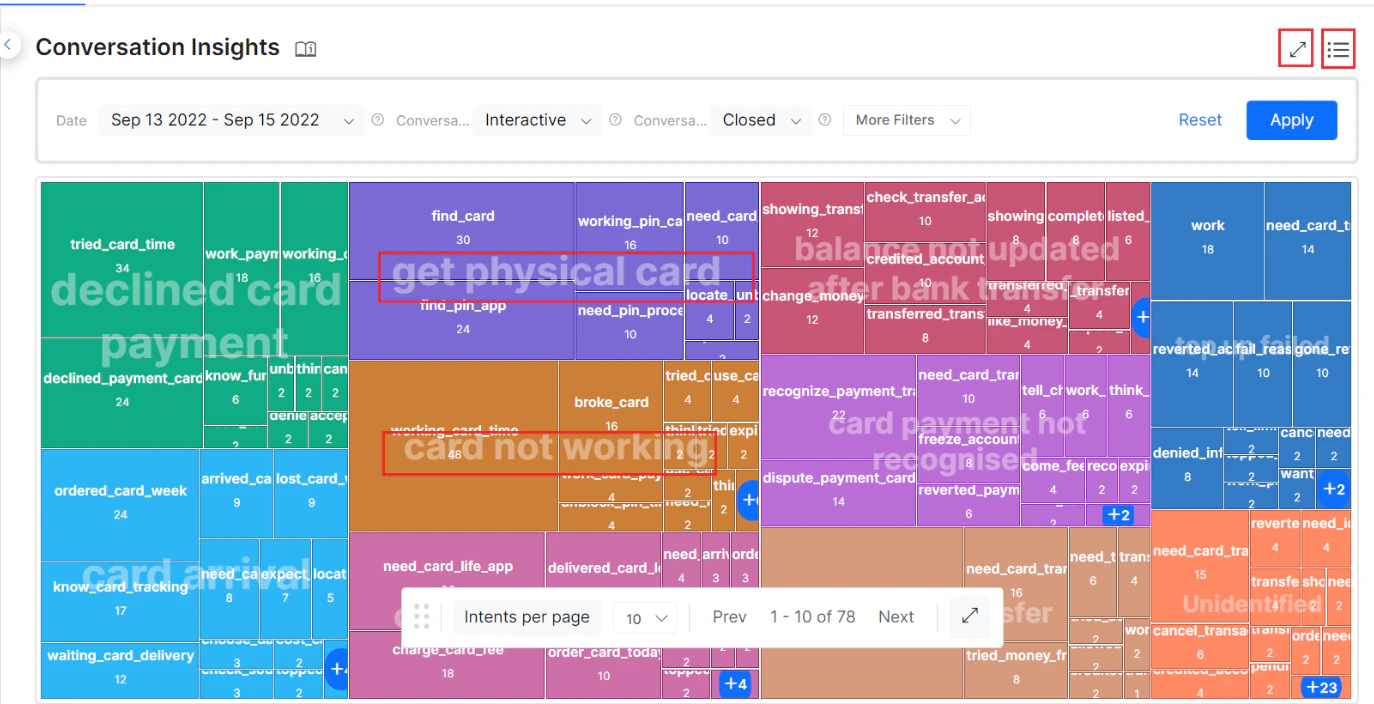
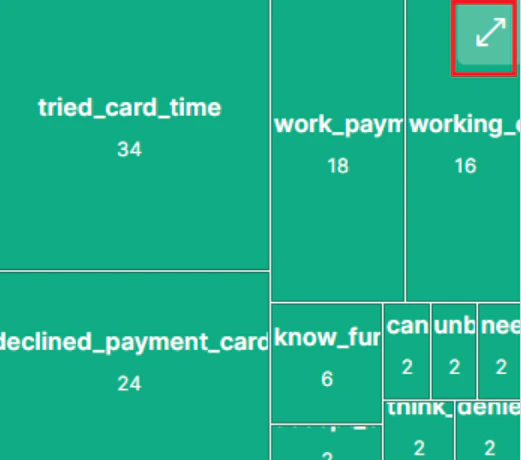
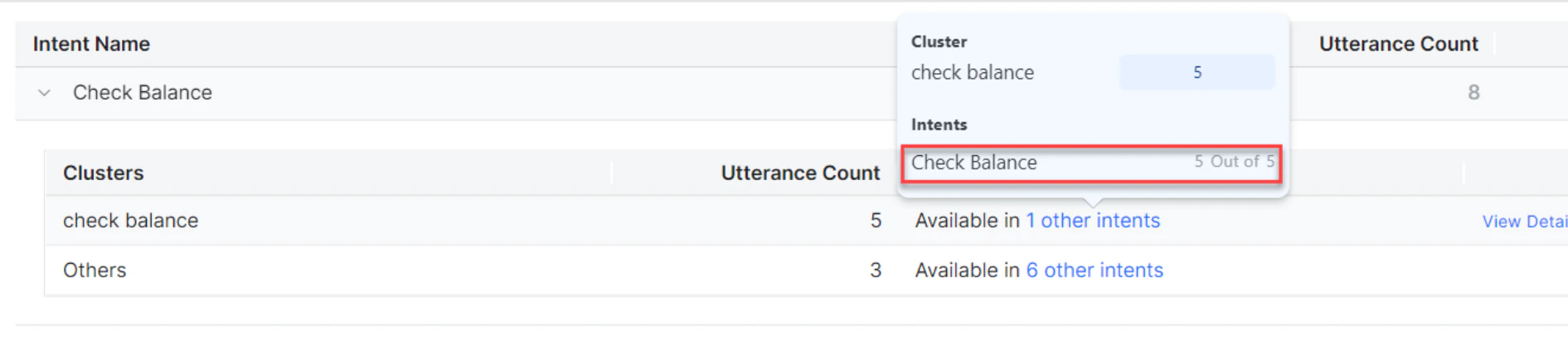
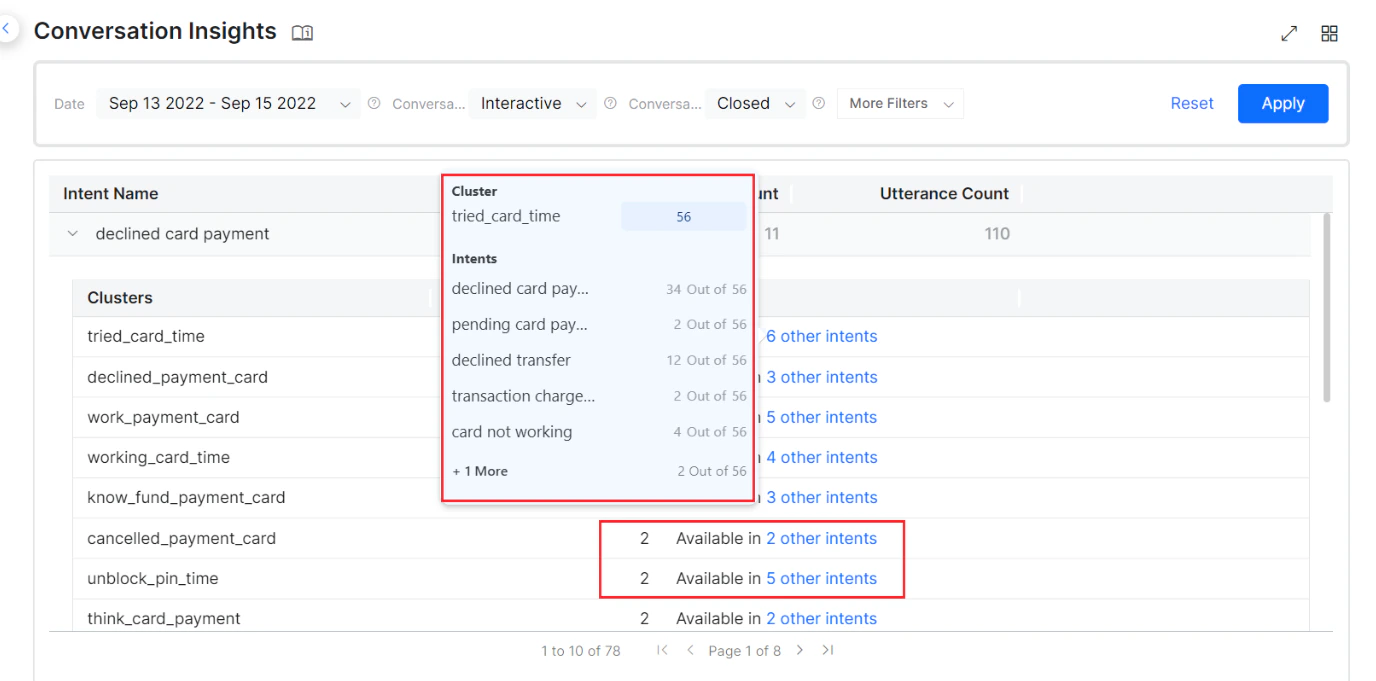
Hovering on an individual cluster highlights that cluster wherever it appears across all intents. The tooltip displays the total utterances of the cluster and utterance counts across various intents.

Display More Intents and Clusters
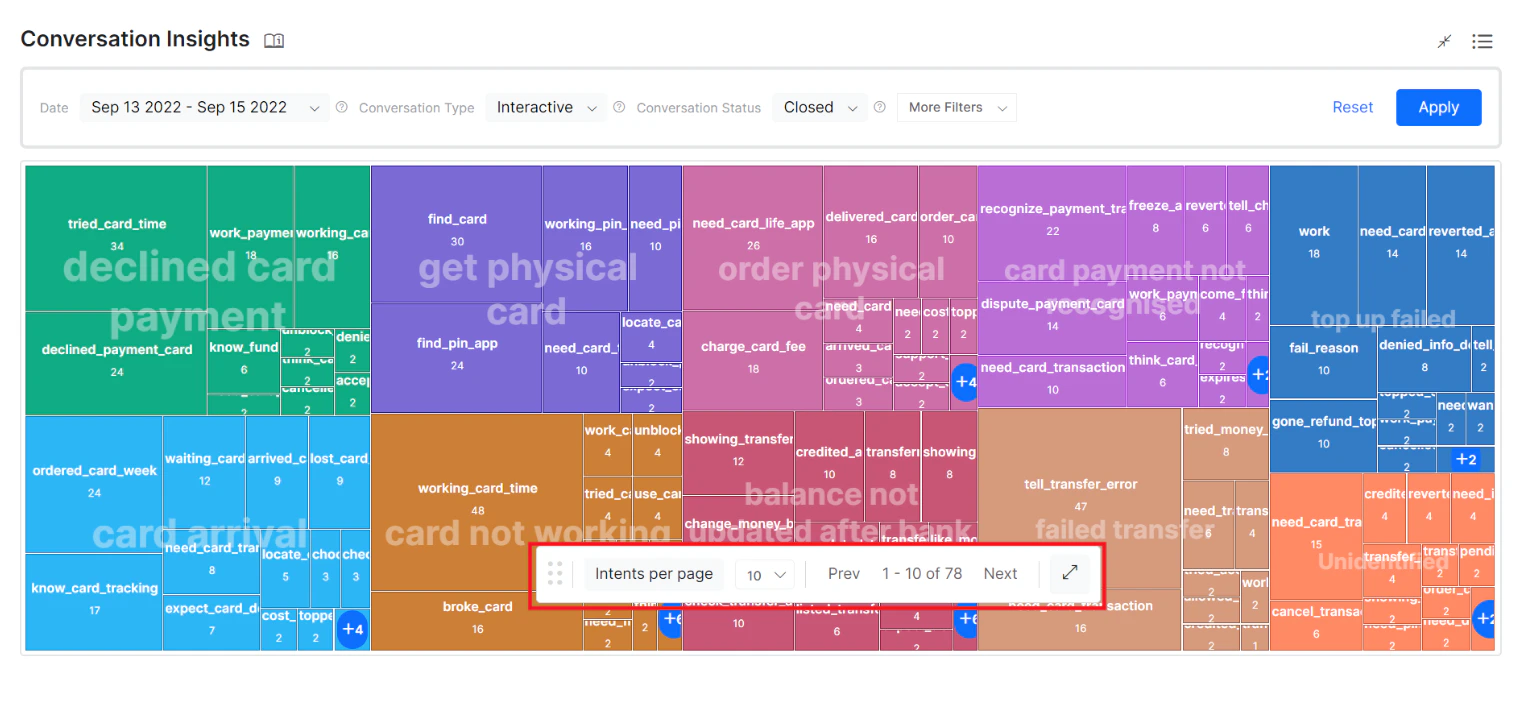
Use the Intents per page drop-down in the treemap view to adjust the number of intents displayed. Click Next to view the next page of intents.If you select 10 “Intents per page,” the top 10 intents are displayed on the first page. The platform shows the total number of pages in the navigation bar.
Grid View
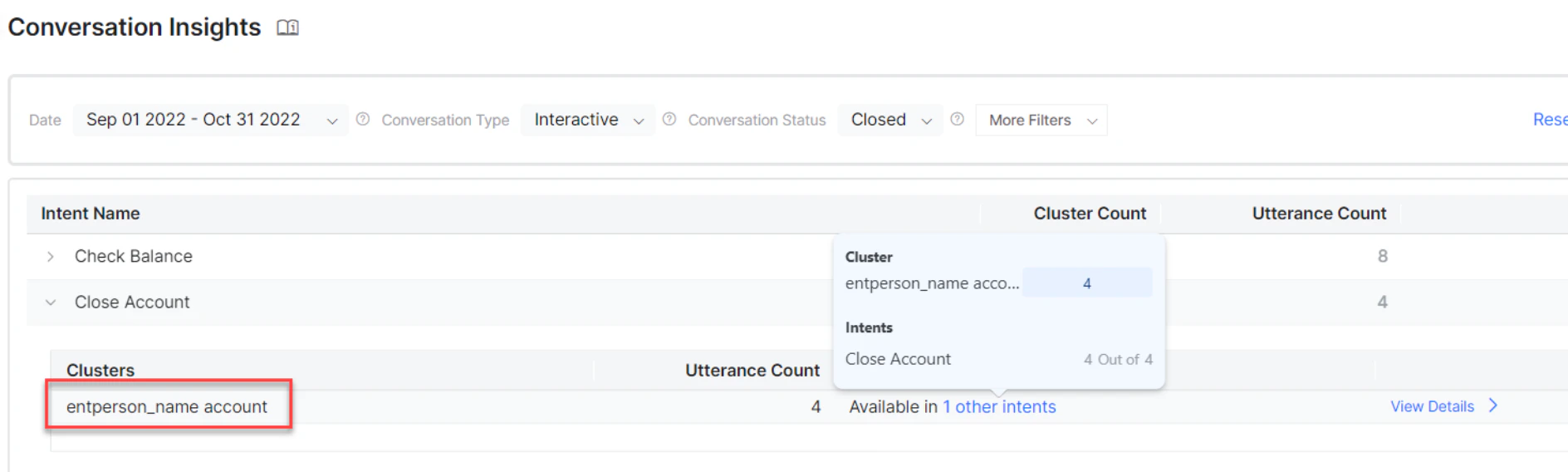
The grid view displays all intent and cluster details in a tabular format. This view is helpful when there is a large number of intents. The grid shows Intent Name, Cluster Count, and Utterance Count.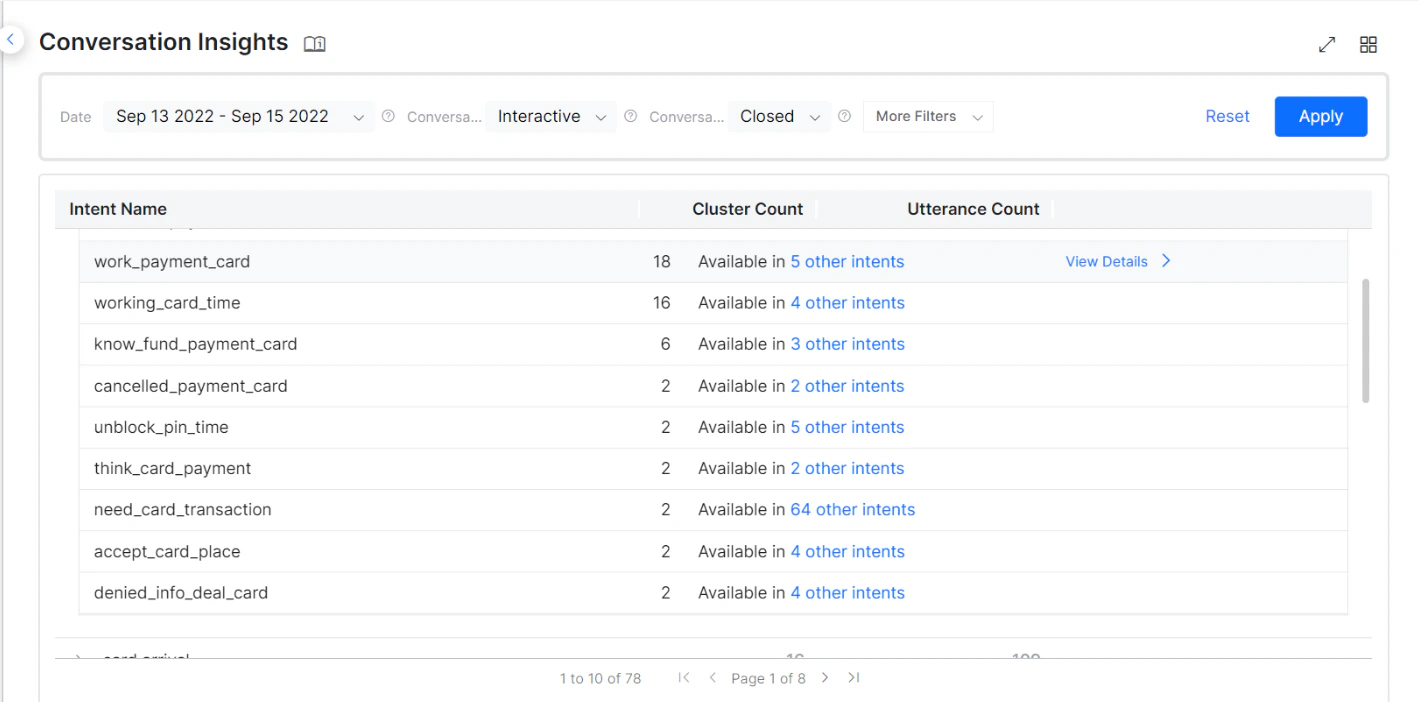
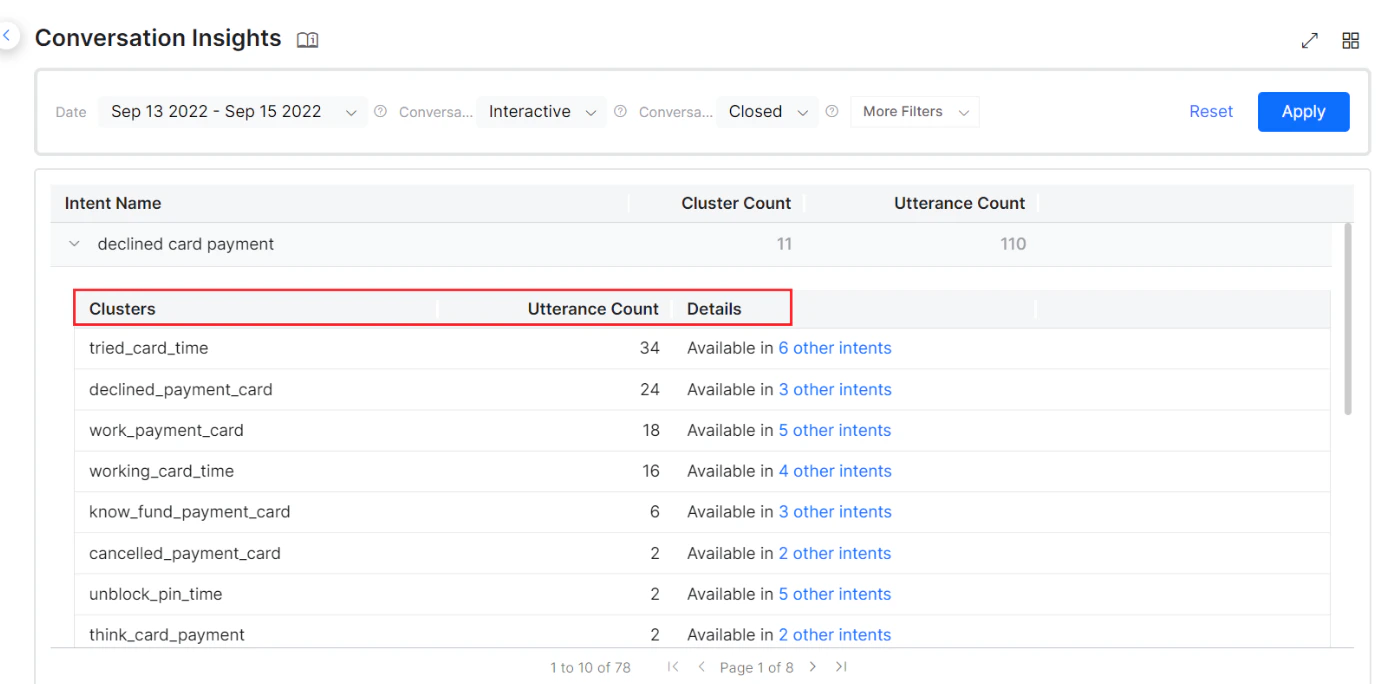
- Clusters: The clusters available for the specific intent.
- Utterance Count: The utterance count of each cluster.
- Details: The availability of the cluster in other intents.
Click the toggle to go back to the treemap view.
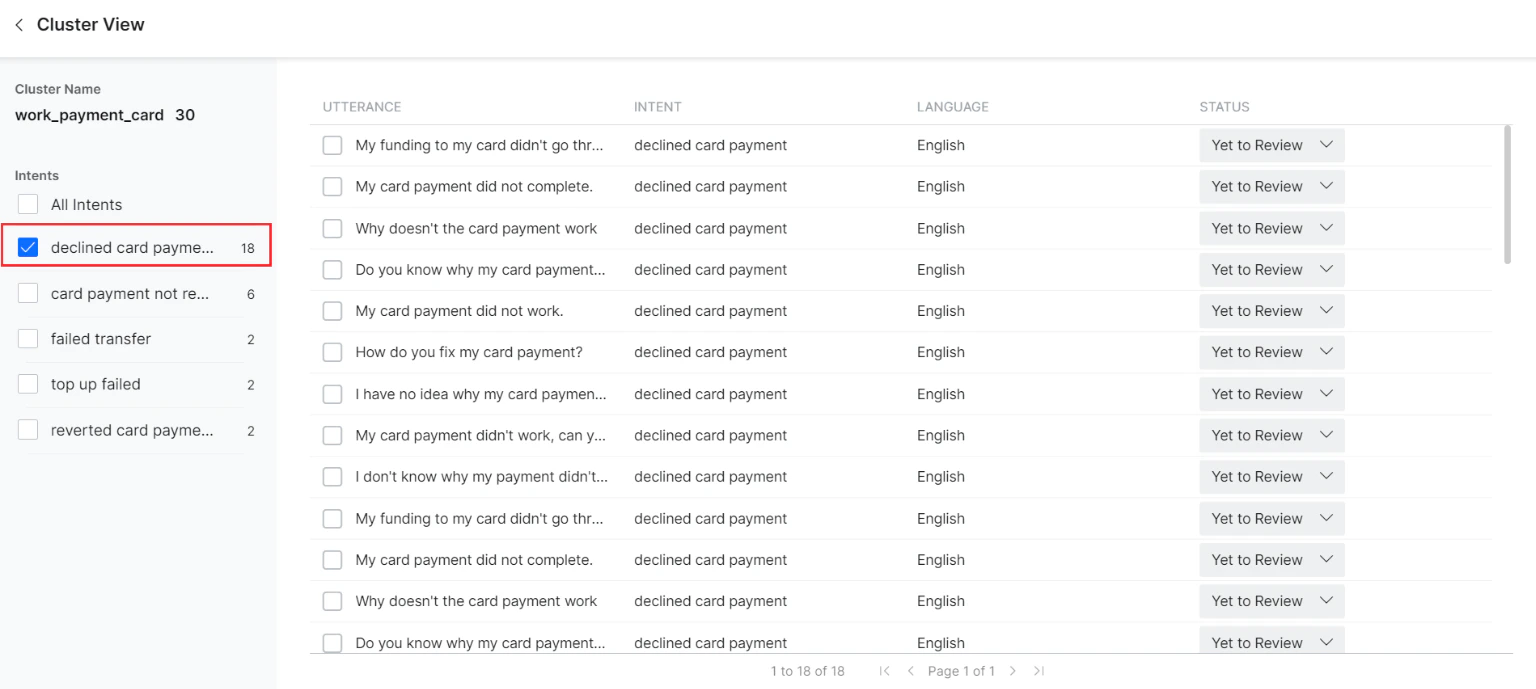
Cluster View
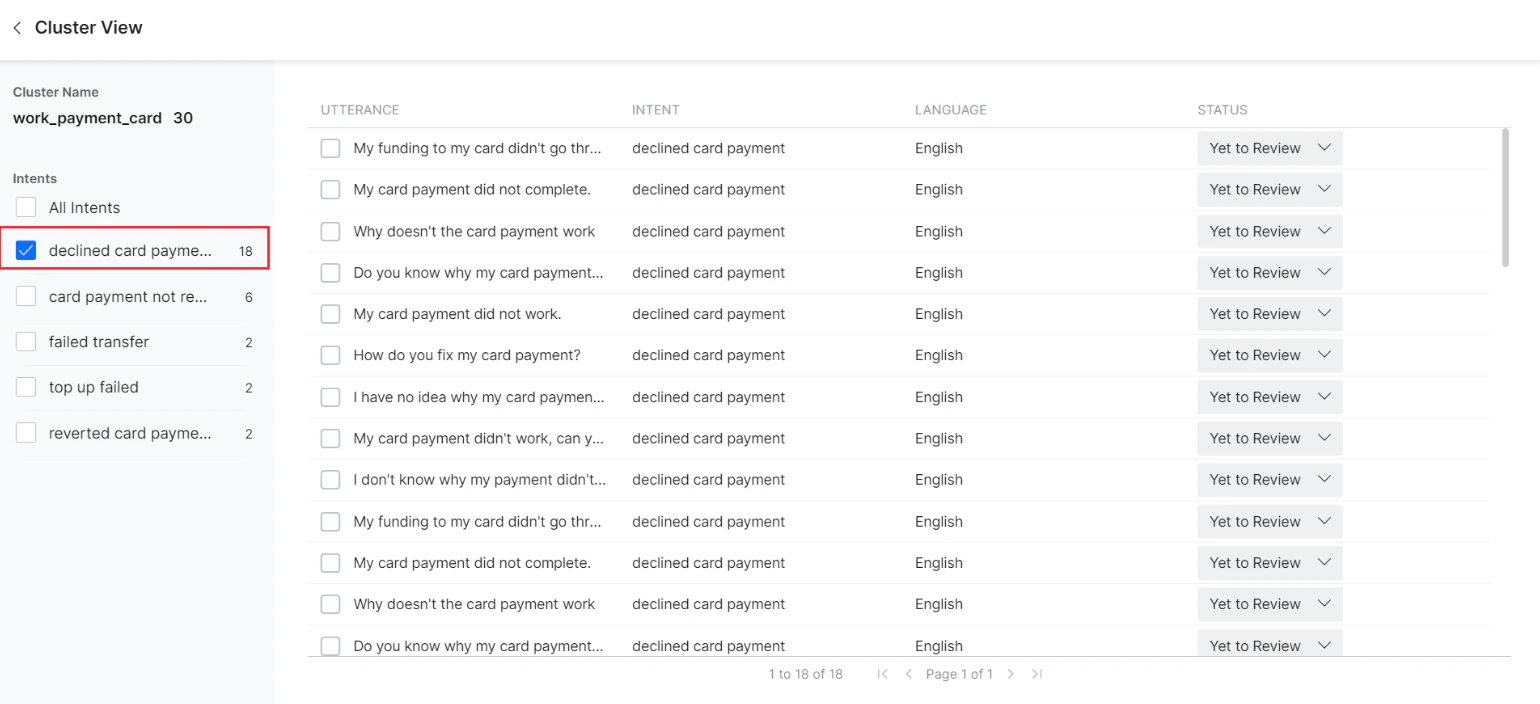
Click the View Details link corresponding to the cluster name to go to the Cluster View page.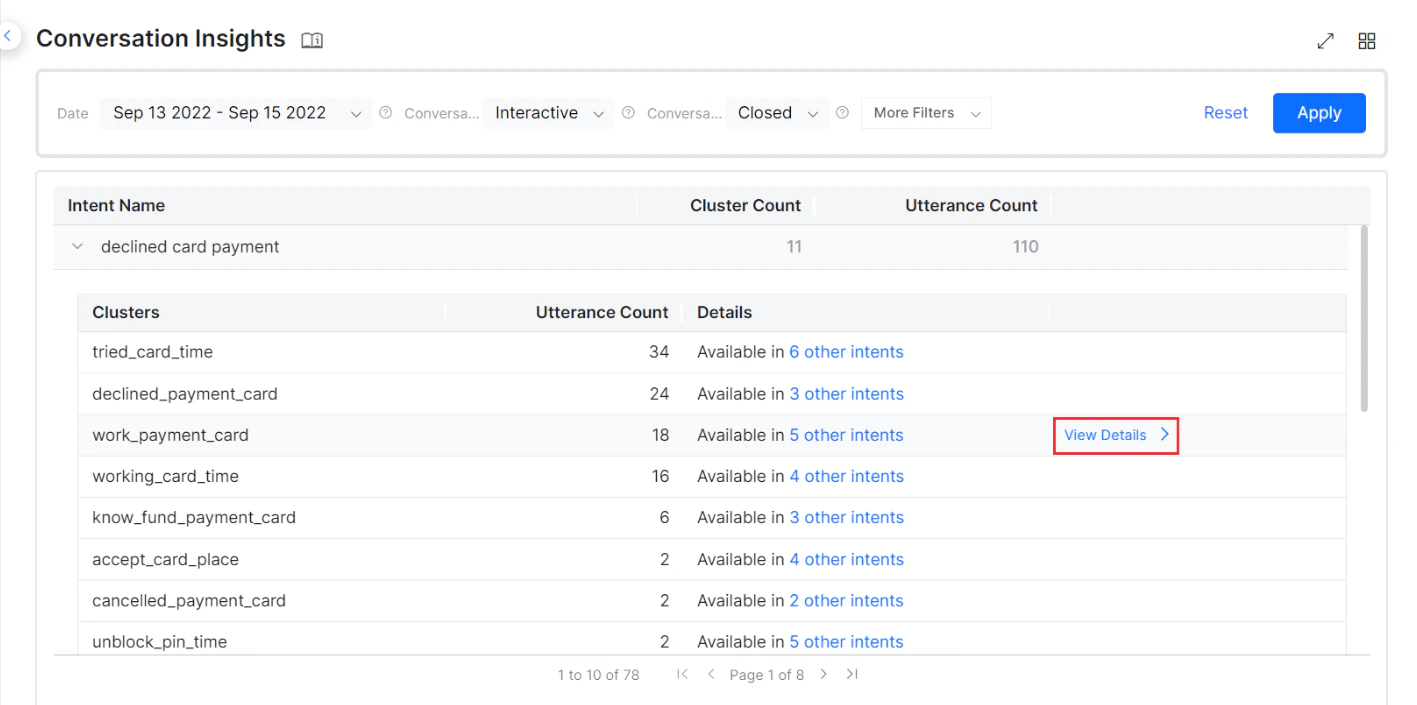
Intent View
Click the View Details link corresponding to each intent to go to the Intent View page.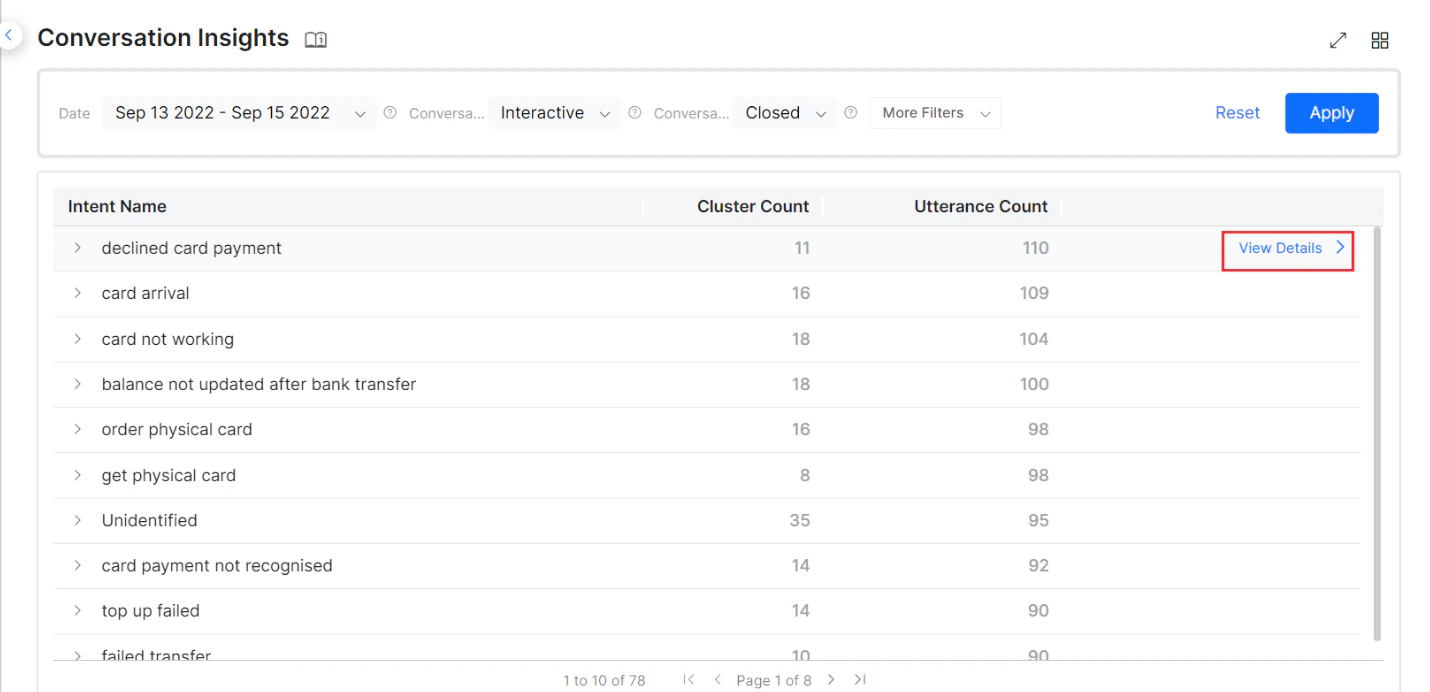
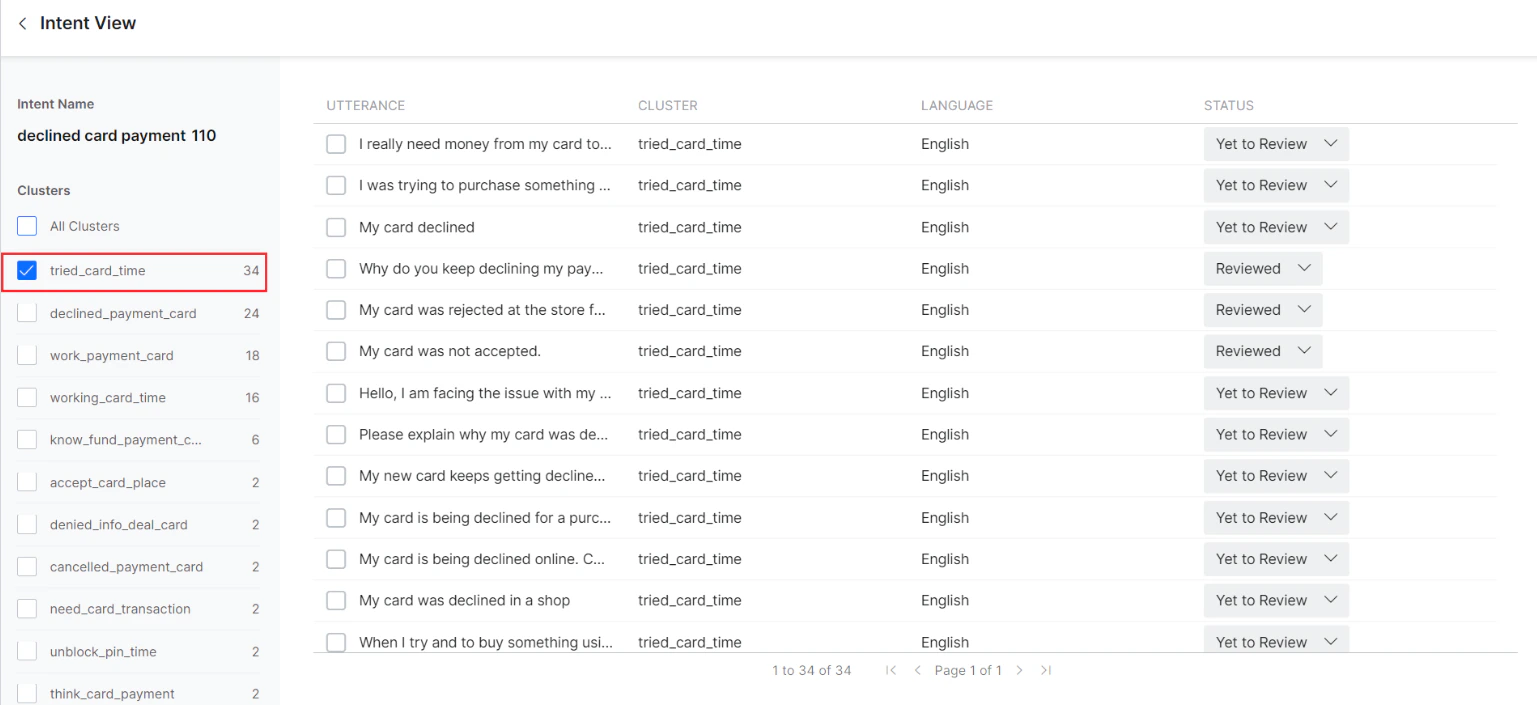
The number next to the Intent Name and Cluster Names represents the number of utterances.
Export Insight Data
The conversation insights dashboard includes an export option to download clustered insights data as a .CSV file. To maintain consistency between the dashboard and the generated file, the exported data incorporates the user’s active date ranges, applied filters, and UI labels.Utterance Validation
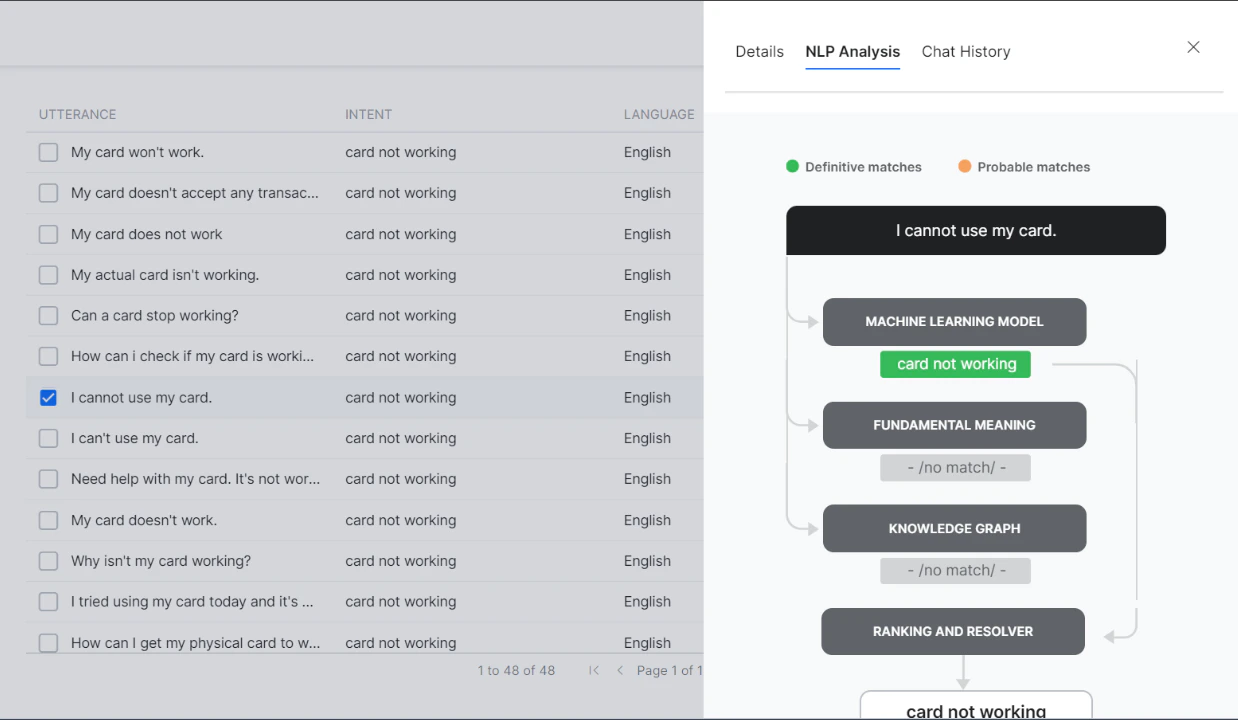
Utterances grouped in clusters can be validated and trained for an existing intent or a new intent based on your requirements. Click any utterance displayed in the grid on the Intent View or Cluster View pages to view utterance details, NLP Analysis, and Chat History — the same as in NLP Insights.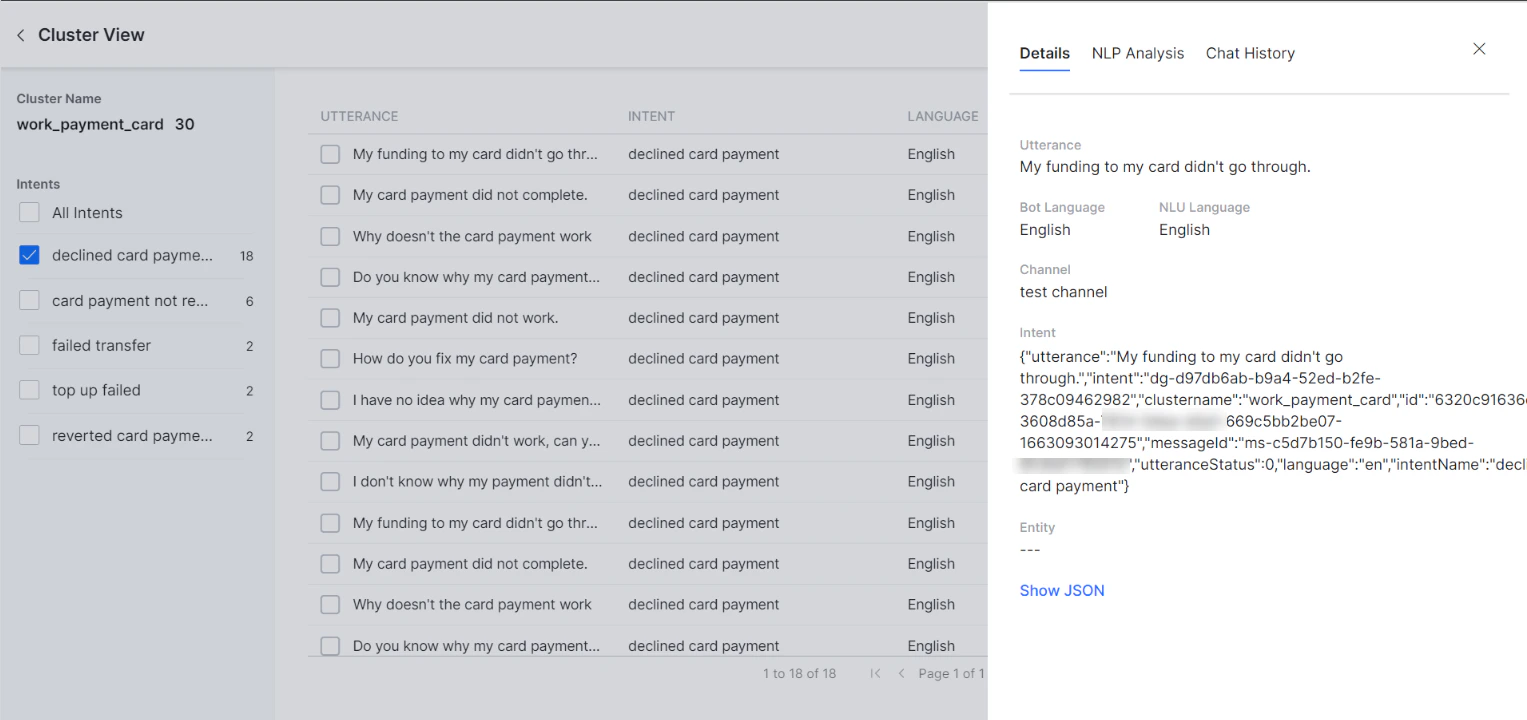
Train the Utterances
-
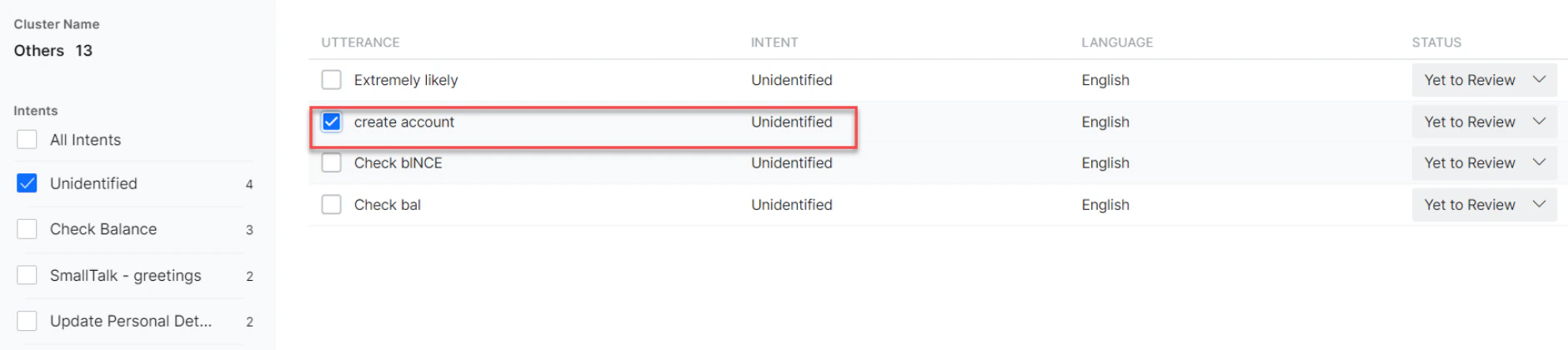
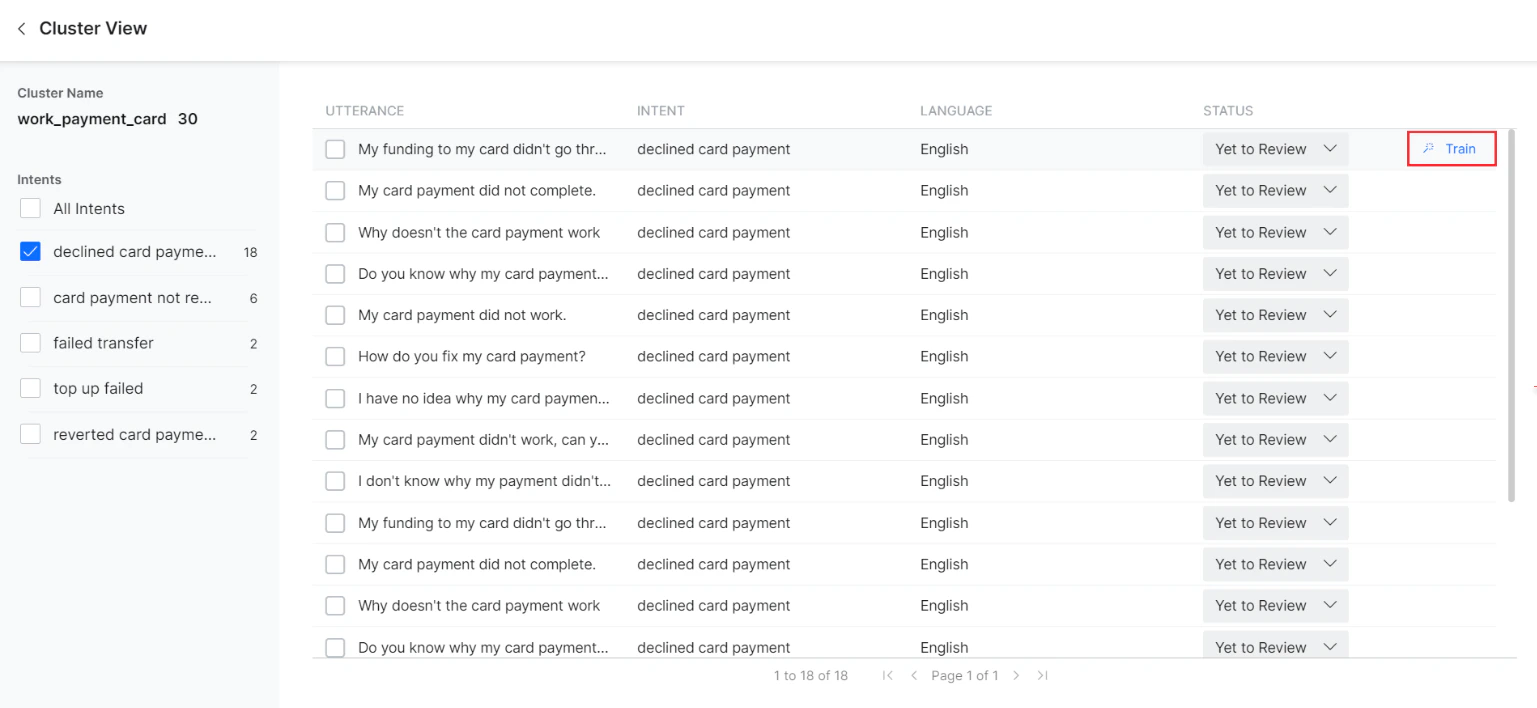
Click the cluster in the treemap view or grid view to display all intents and utterances the cluster is part of.
All utterances that are part of the clicked Cluster-Intent pair are displayed. Select one or all utterances to initiate training. You can also go to the intent view by clicking View Details next to the intent name from the grid view.
- Identified as Incorrect Intents (False Positives)
- Unidentified due to insufficient training (False Negatives)
- Unidentified since the intent wasn’t created (You can add a new intent here)
Utterances categorized as Identified as Incorrect Intents or Unidentified due to insufficient training are mainly caused by insufficient or incorrect training. -
Click the Train button next to an utterance to initiate training. For bulk training, select multiple utterances and choose an option from the Train drop-down.
 NLP Analysis and Utterance testing panels are displayed the same as in NLP Insights. The training process is the same as utterance training in NLP Insights.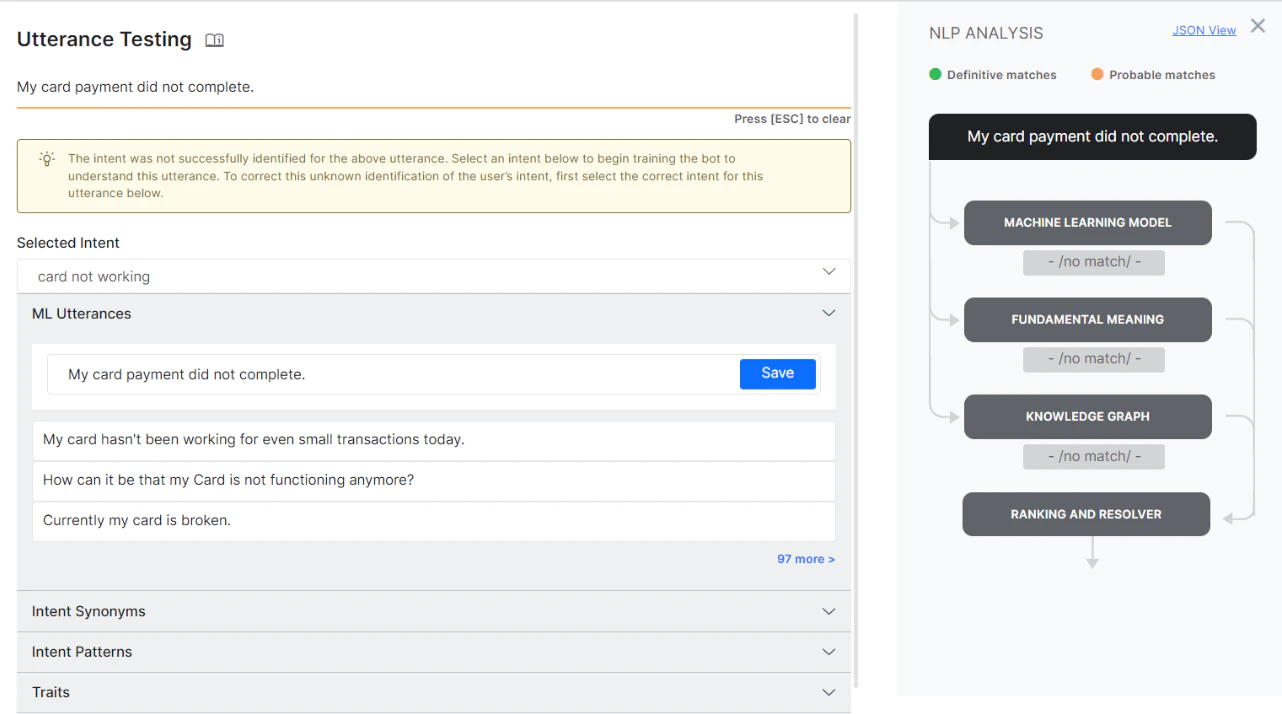
-
Select a matching intent from the Selected Intent drop-down and click Save to initiate the training. You can also add intent synonyms, patterns, and traits as required.
If the task is already published, the following message is displayed. Click Upgrade to change the task status to Development.
 Click Re-Run Utterance to train the utterance again.
 In bulk utterance training, select multiple utterances and train them for existing intents using the Train drop-down, or add new intents using the Add Intent drop-down. The steps are the same as single utterance training.
Add Existing Intent
To map an existing Dialog Task or FAQ to an utterance:- Click the Train drop-down.
-
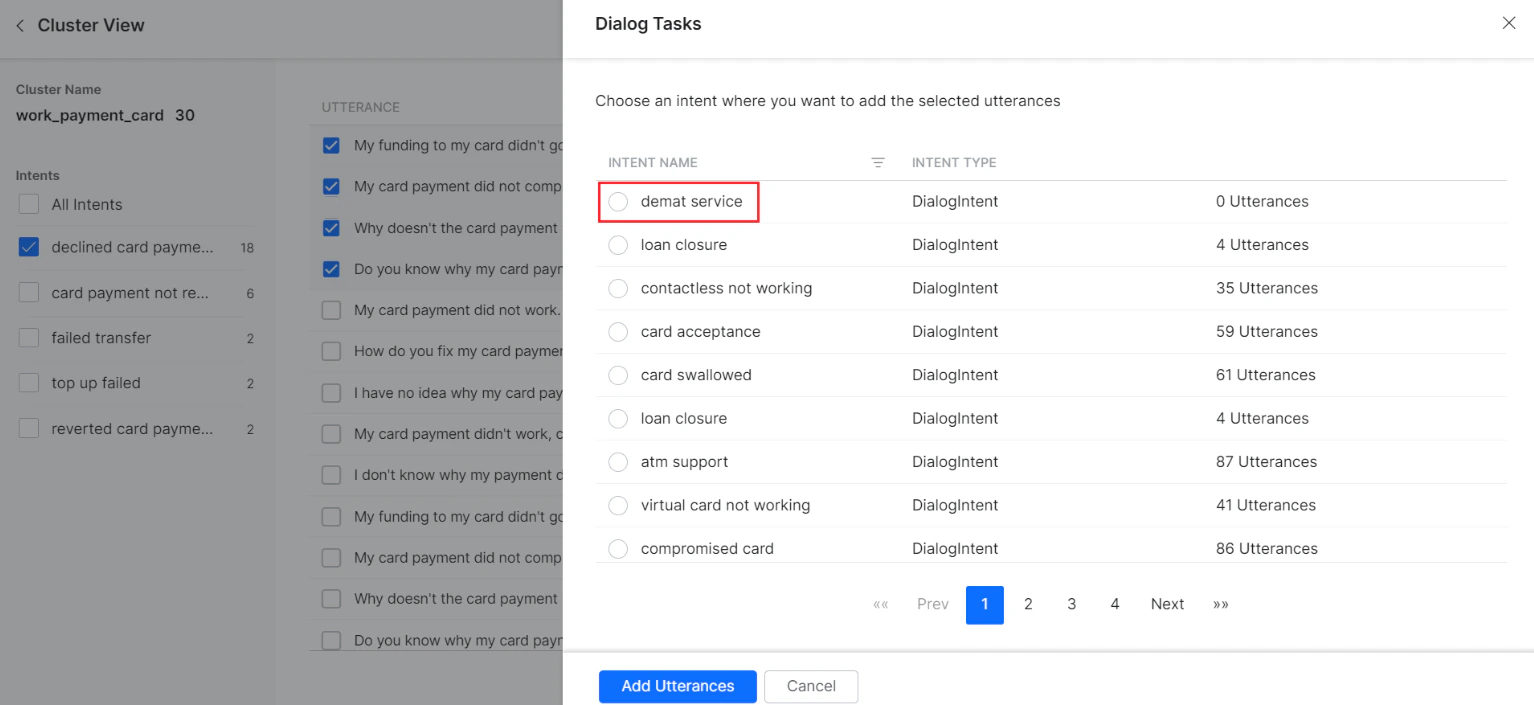
Click Dialog Task to choose the matching intent.
-
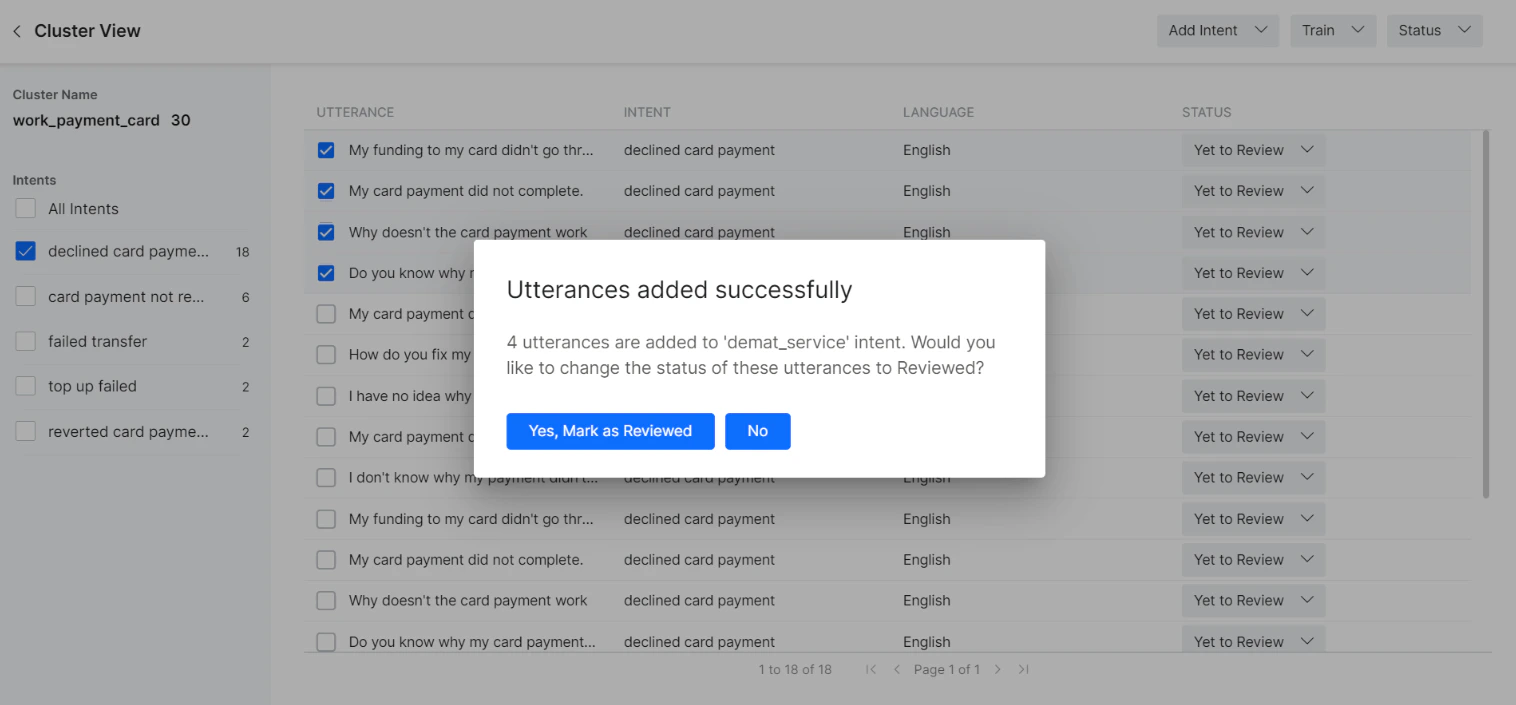
Click Add Utterances to add the intent. Click Yes, Mark as Reviewed to change the status to Reviewed, or click No.
-
To add an existing FAQ, click the FAQ option from the Train drop-down.
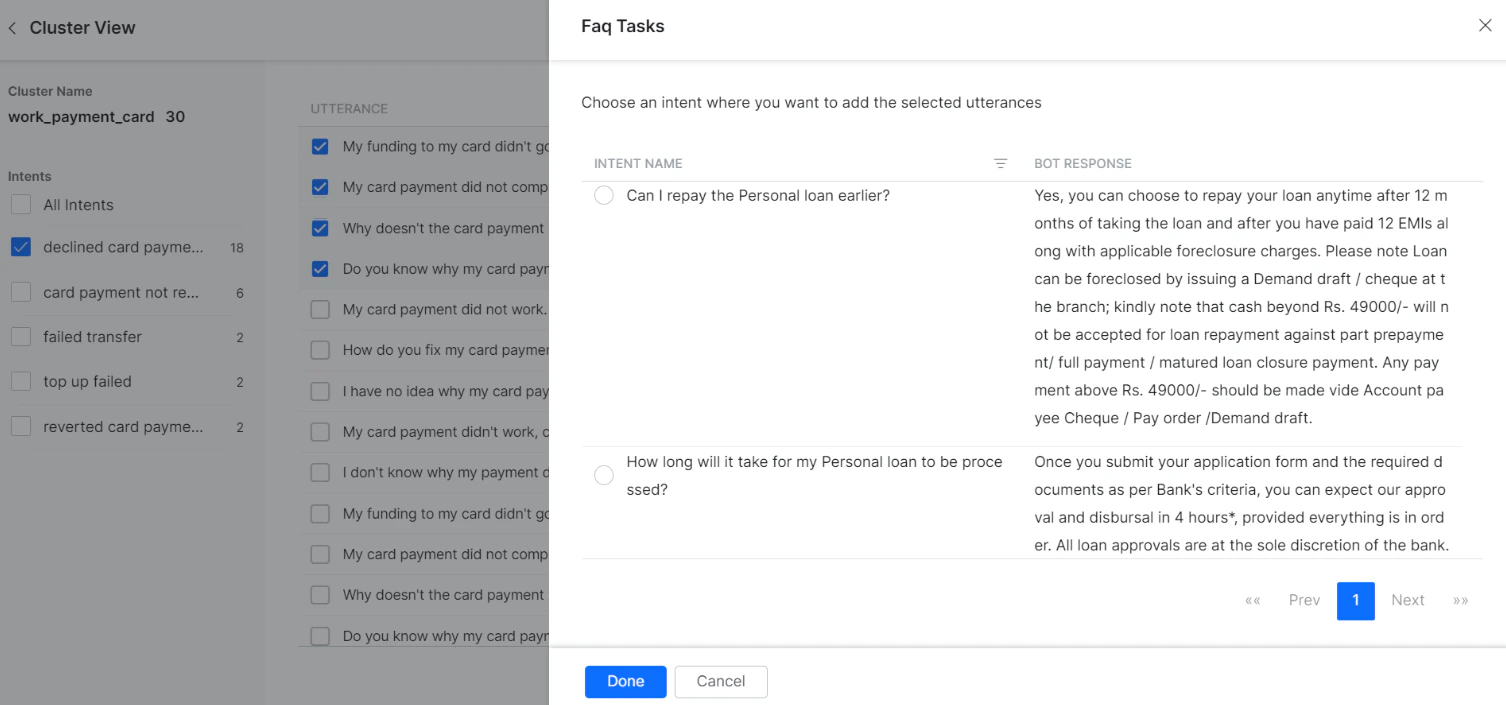
- Upon adding the FAQ successfully, click Yes, Mark as Reviewed to change the status to Reviewed, or click No.
Add New Intent
When utterances can’t be mapped to any existing intent, create a new intent:-
Click the Add Intent drop-down.
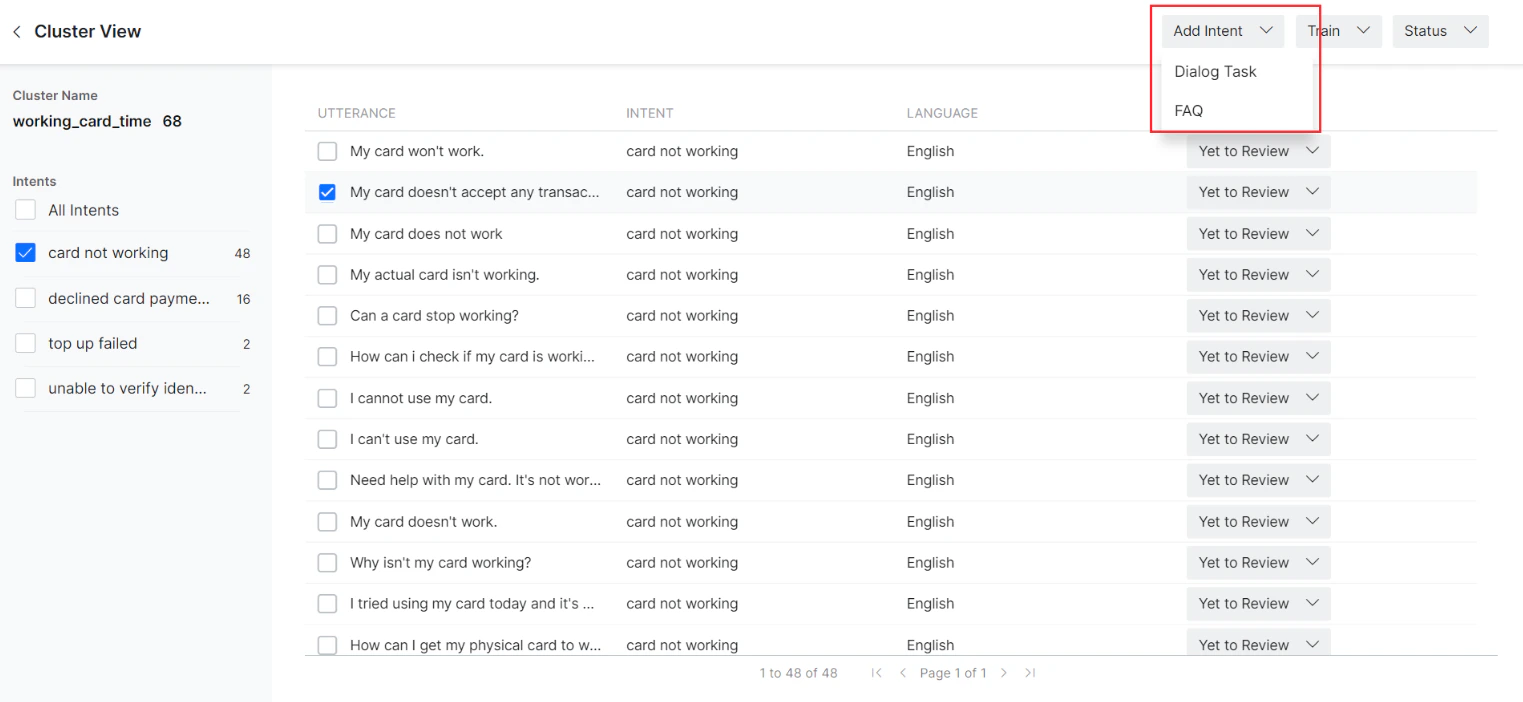
- Click Dialog Task to create a new intent for the selected utterance.
-
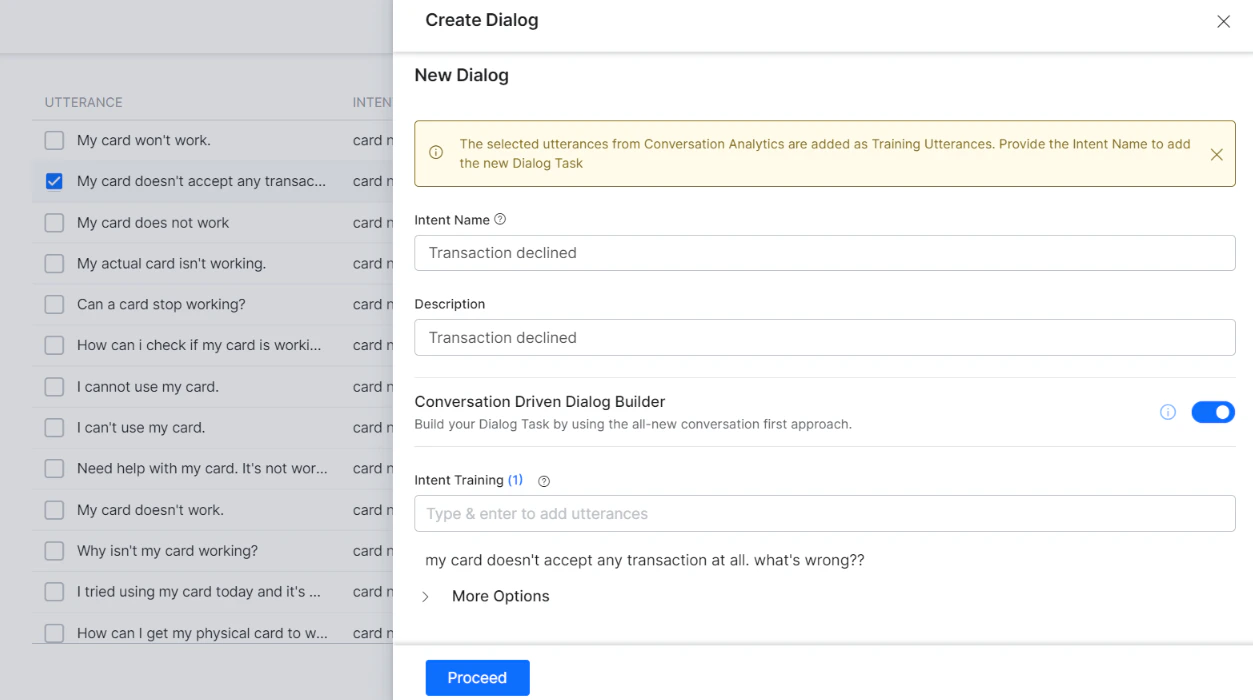
The Create Dialog panel is displayed. Enter the required details and click Proceed.
-
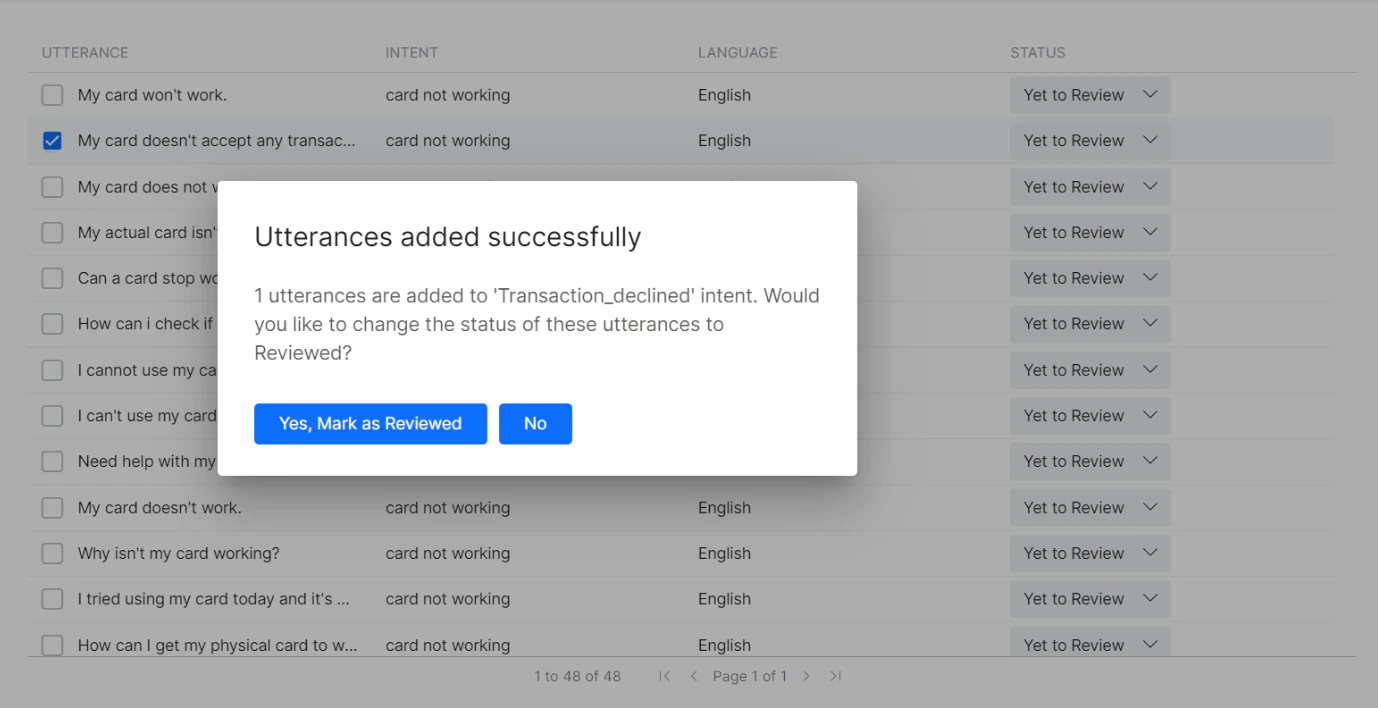
Click Yes, Mark as Reviewed to change the status to Reviewed, or click No.
-
To add a new FAQ, click the FAQ option in the Add Intent drop-down.
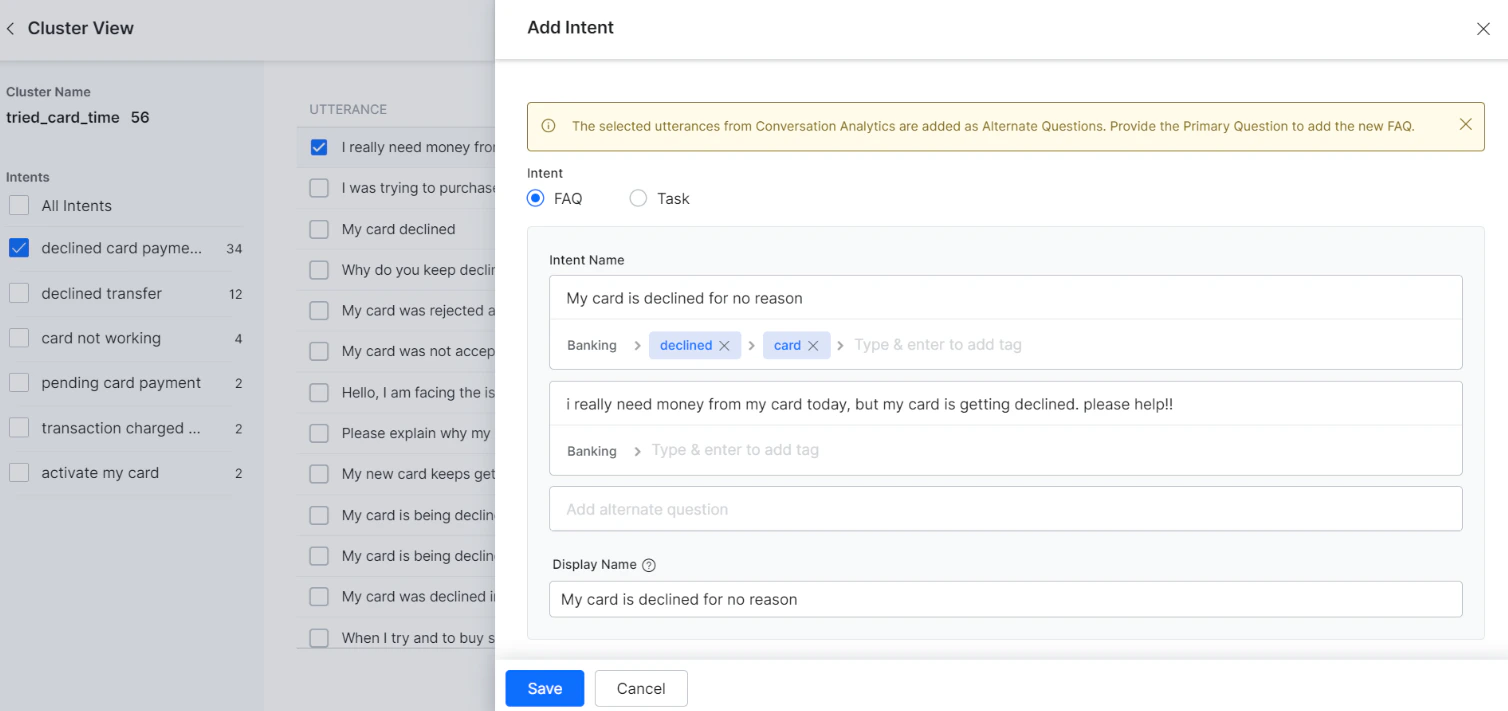
-
Click Yes, Mark as Reviewed to change the status to Reviewed, or click No.
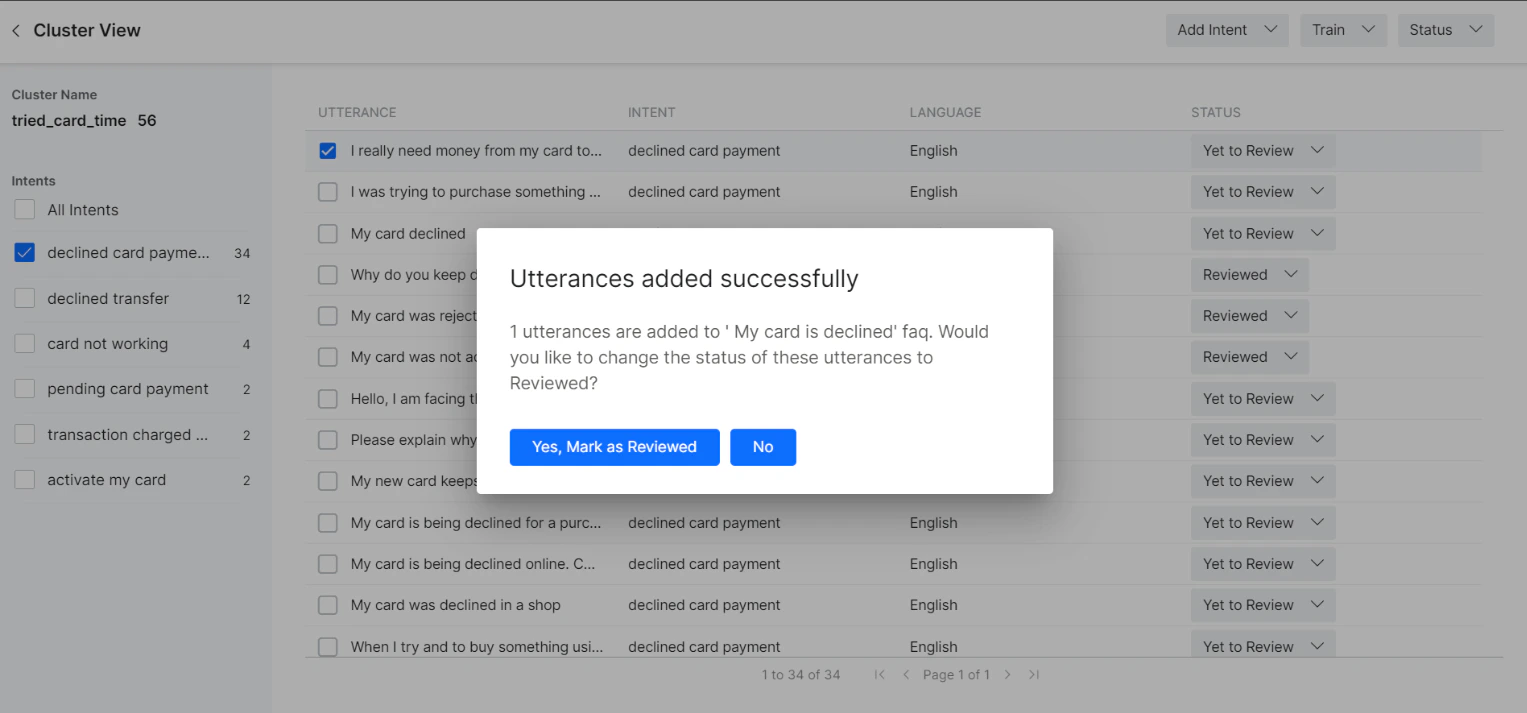
Status Review
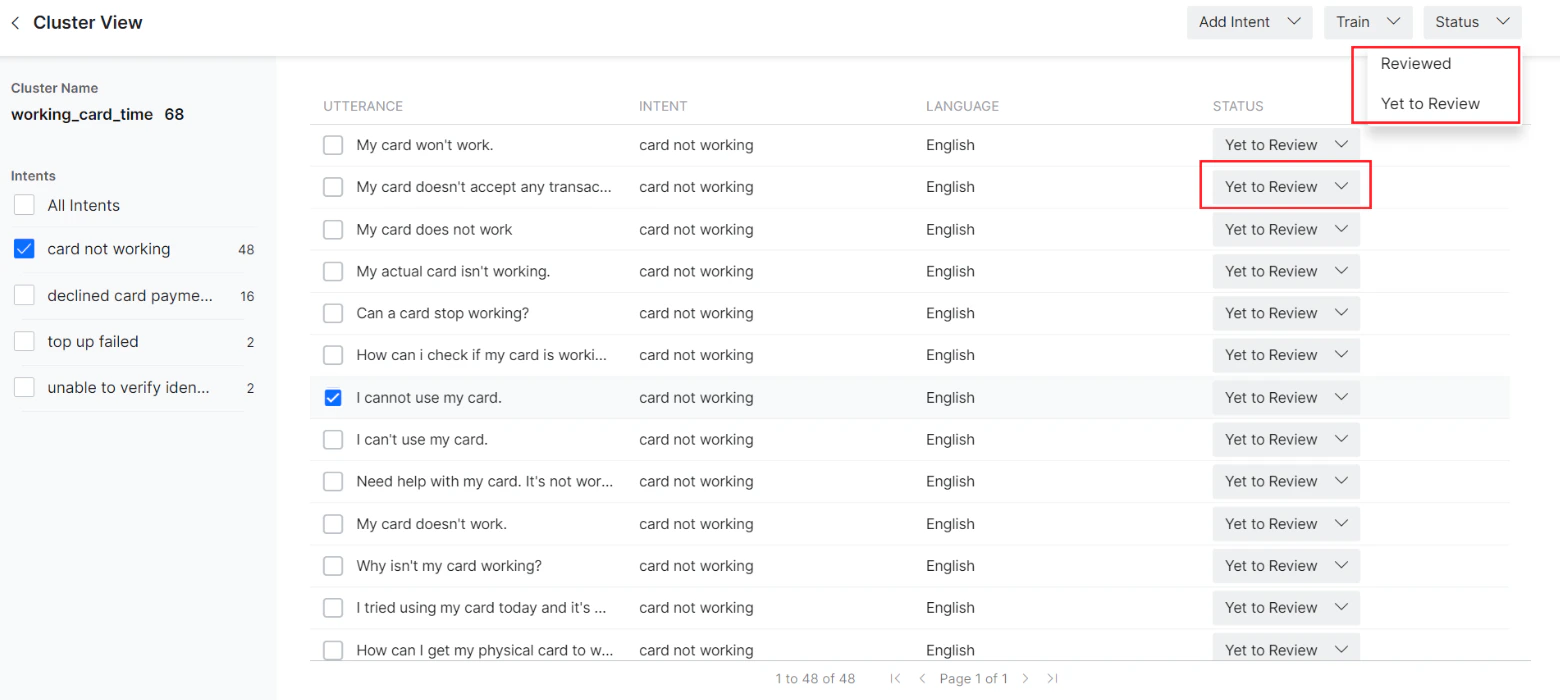
The status of all utterances is Yet to Review by default. You can change the status of an individual utterance between Yet to Review and Reviewed.Use the Status drop-down in the top right corner of the page to change the status of one or more selected utterances.
Dataset Filters
Once an AI Agent is published, filter the datasets on the Conversation Insights dashboard to analyze data from multiple conversations. Available filter criteria include Date, Conversation Type, Conversation Status, and under More Filters — Intent Type, Utterance Status, and others.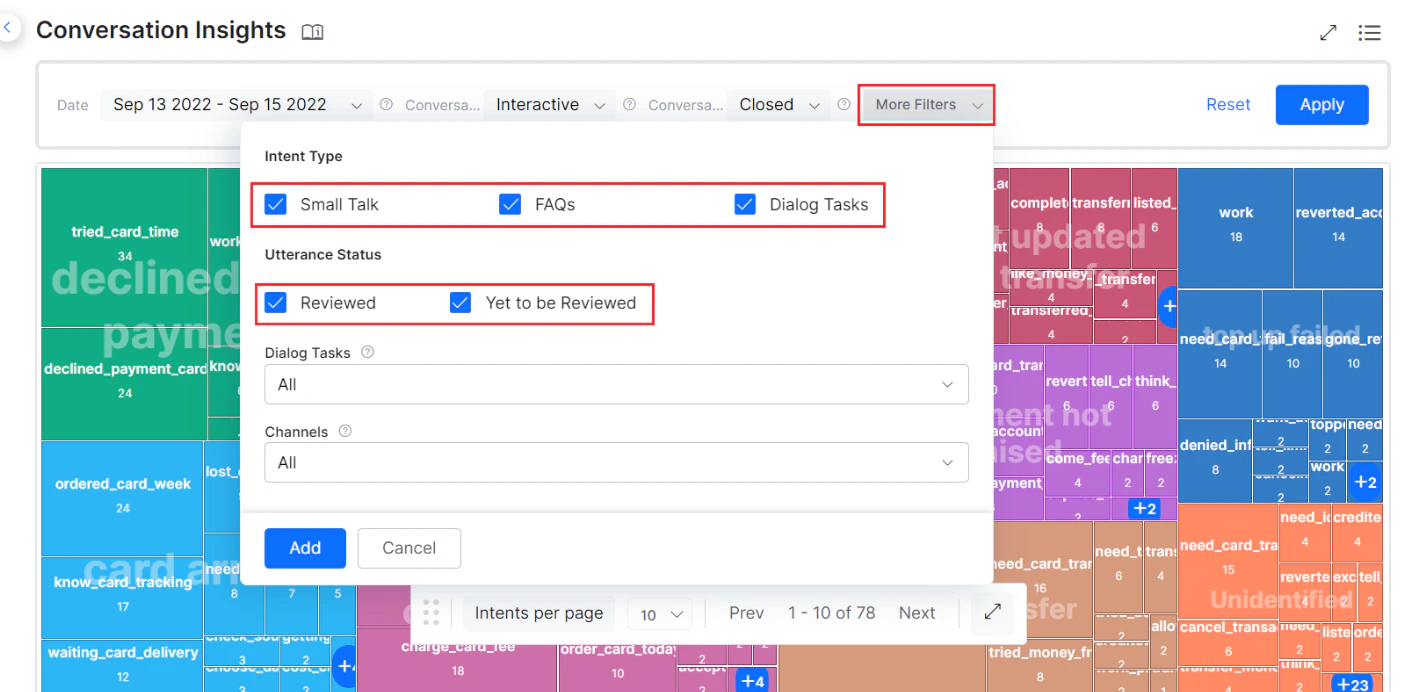
Appendix: TP, TN, FP, and FN Scenarios
True Positive True Positives (TP) occur when the AI Agent correctly identifies the intent of an utterance. In the example below, the intent is correctly mapped to Check Balance.