

The date selection filter is a default filter that applies to all widgets across the dashboard.
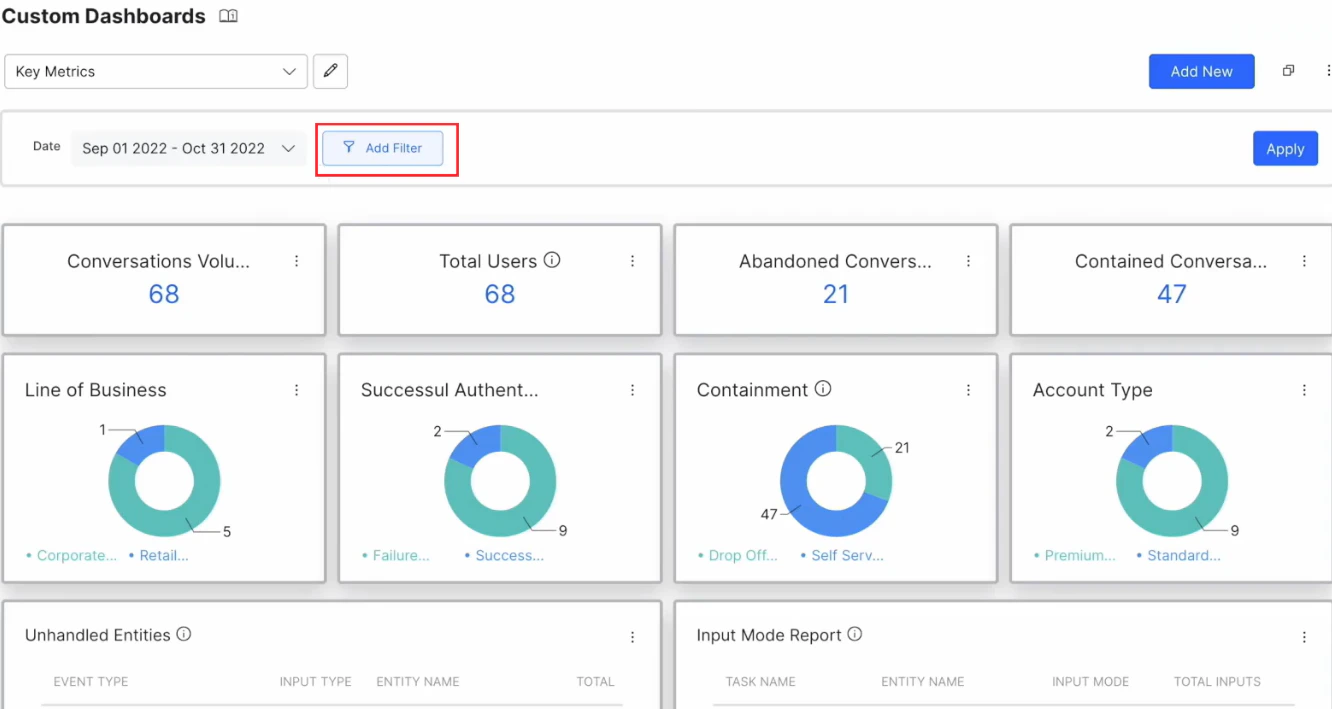
Add Filters
To add one or more filters at the custom dashboard level:-
Click the Add Filter button to open the Configuration panel.
 Tooltips are available for all fields in the Add Custom Filter panel except the Preview Date. Use the Preview Date to select a date range to display data.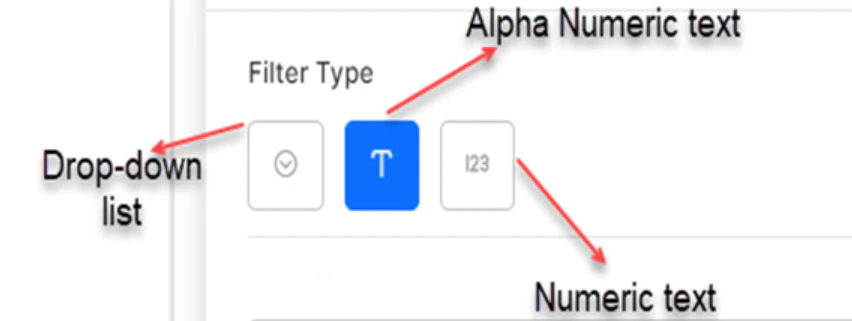
-
Drop-down list: Choose from a list of values based on the selected field name within the dataset or meta tag. Set one or more values as default values for this control. This is an optional feature. Existing values of the selected field are displayed in ascending order as suggestions. Either choose from the suggested values or add a new value.
Adding a new value creates filters for values not yet available in the AI Agent.
- Alphanumeric Text field: Choose from existing values of the selected field as suggestions in ascending order, or add a new value. Adding a new value creates filters for values not yet available in the AI Agent.
- Numeric Text field: Choose a numeric range by providing From Value and To Value. On applying this filter, results in each widget are filtered based on these values.
-
Drop-down list: Choose from a list of values based on the selected field name within the dataset or meta tag. Set one or more values as default values for this control. This is an optional feature. Existing values of the selected field are displayed in ascending order as suggestions. Either choose from the suggested values or add a new value.
- Enter the Filter Name.
-
Select a field from one of the following data sources in the Filter Source drop-down:
- Sessions (Dataset): Presents all fields captured by the platform during conversation sessions.
- User Tag (Custom Tag): Presents custom user tags generated in the AI Agent. You can also add a user tag not yet available in the AI Agent.
- Message Tag (Custom Tag): Presents custom message tags generated in the AI Agent. You can also add a message tag not yet available in the AI Agent.
- Session Tag (Custom Tag): Presents custom session tags generated in the AI Agent. You can also add a session tag not yet available in the AI Agent.
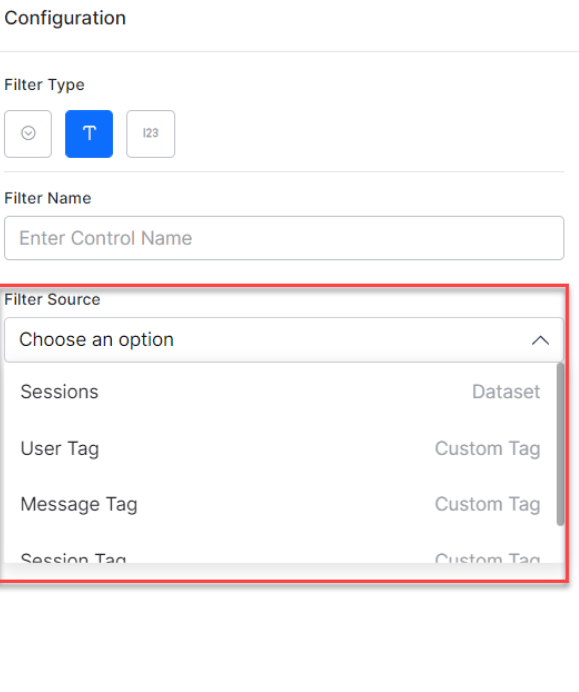 Based on the Filter Source, select the fields in the Field Name drop-down. For Custom Tags, select any existing tag or add a tag not yet available in the AI Agent.
 - Click Save & Preview to save and preview the filter details.
-
Optionally, select a Default filter to be applied to all widgets in the entire dashboard.
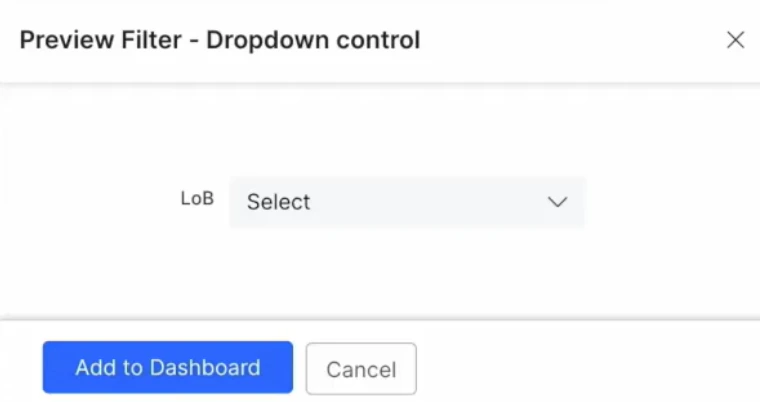
- Click Add to Dashboard in the preview panel to add the filter.
-
Click Apply to apply the filter to the dashboard.
The default filter is added at the dashboard level. Select the value from the drop-down to apply it to all widgets.
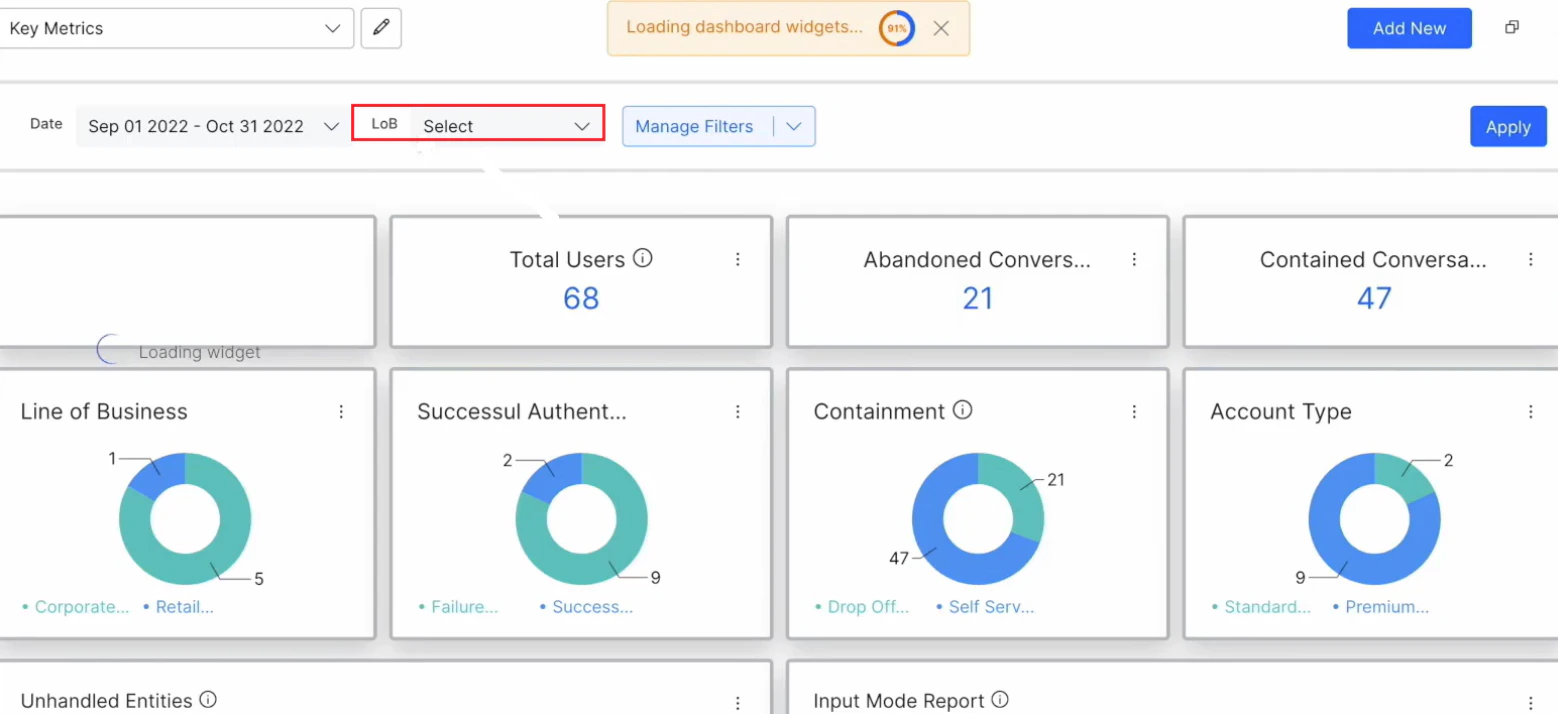
Manage Filters
All filters added to the dashboard are displayed on the Custom Dashboards home page. You can edit or delete any filter added to the custom dashboard.The default Date Filter can’t be edited or deleted.
Update Filter
-
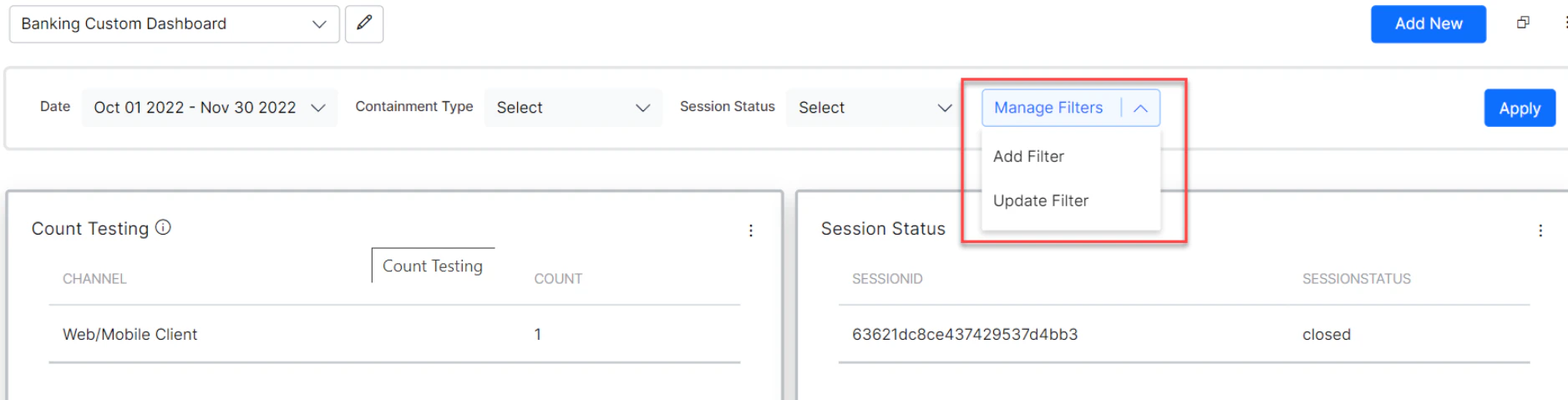
Click the Manage Filter drop-down button. The options Add Filter and Update Filter are displayed.
-
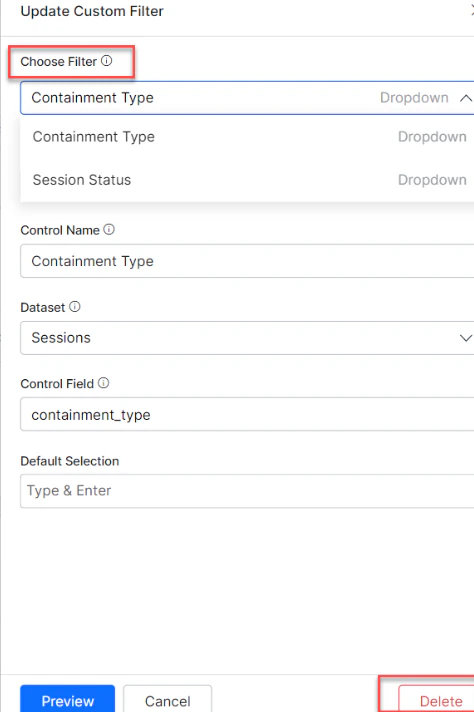
Select Update Filter. The Update Custom Filter panel is displayed.
-
Select a filter from the Choose Filter drop-down menu.
- Edit the details as required in the Configuration panel.
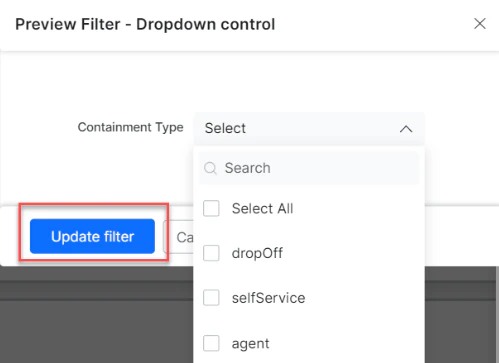
- Click Preview. The Preview Filter pop-up is displayed. Select a value from the drop-down as required.
-
Click Update filter to save the changes.

- Click Proceed in the confirmation pop-up to confirm the updates.
Delete Filter
-
In the Update Custom Filter panel, select the filter to delete from the Choose Filter drop-down.
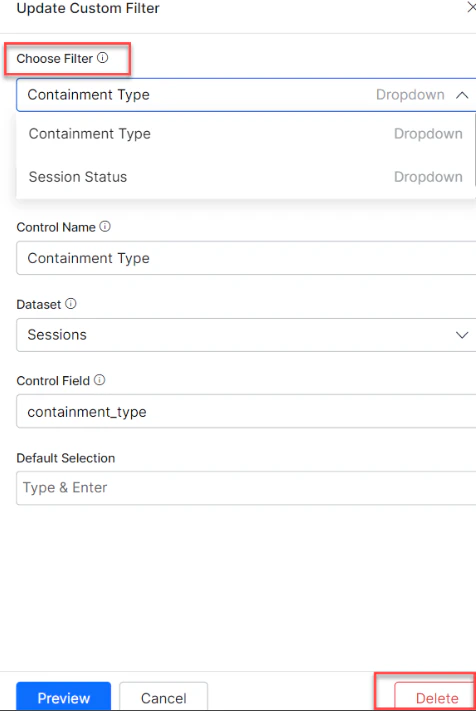
-
Click Delete to delete the selected filter.
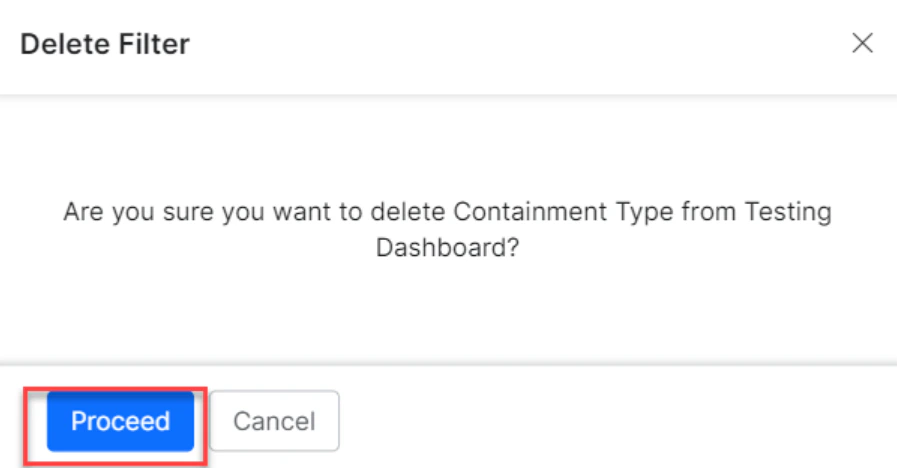
- Click Proceed in the confirmation pop-up to confirm the deletion.
More Filters
If more than two filters are added to the dashboard, they’re displayed in the More Filters drop-down next to the first two added filters.
Filter Configurations
The following configurations govern how filters behave on the custom dashboard: Set Default Value- Whenever a Custom Dashboard is loaded or refreshed, the default values of dashboard-level filters are applied to all widgets in that dashboard.
- If no default value is set, the filter isn’t applied to any widgets.
- If a default value is set, the filter is applied based on the filter component type:
- Drop-down: All selected values are applied as default values.
- Date range: Records between the From Date and To Date (inclusive) are filtered.
- If only From Date is selected, records equal to or greater than that date are filtered.
- If only To Date is selected, records less than or equal to that date are filtered.
- Numeric range: Records between the From Value and To Value (inclusive) are filtered.
- If only From Value is selected, records equal to or greater than that value are filtered.
- If only To Value is selected, records less than or equal to that value are filtered.
- Text field: Records containing the exact value are filtered.
- The system dynamically appends dashboard-level filters to each widget’s filter conditions during query execution.
- If a filter isn’t applicable to a widget, the data for that widget isn’t loaded and a message is displayed. This typically occurs when the dashboard filter’s dataset differs from the dataset used to define the widget.
As per the platform configuration, the maximum number of allowed dashboard-level filters is 5.