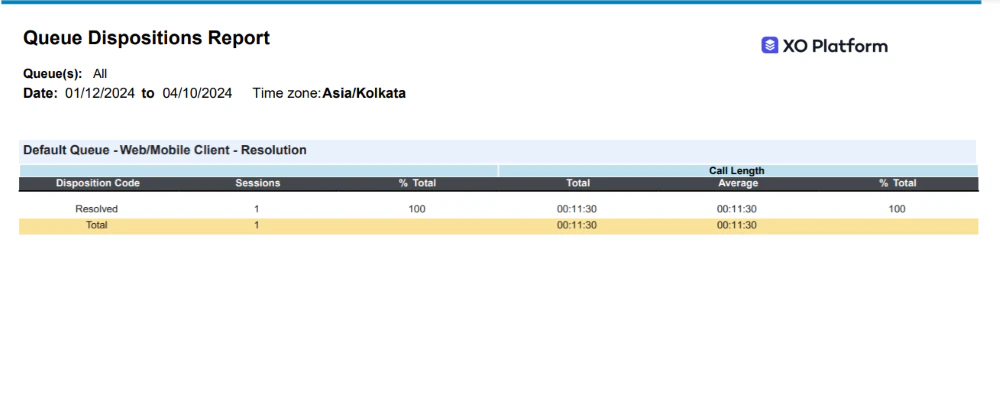
Generate and Manage the Report
To create a new report, follow these steps:- On the Reports page, select New Report.
- From the list of reports, select a report type to generate. For example, Interaction Details Report.
- Enter the Report Name and Report Description.
- Select a Time Period.
- Select Data Filters.
- Select Report Generation and choose Run On Demand or Schedule, where you can create up to six schedules (only one for the Hourly option).
- Select the desired format.
- Enter a Send To address (single email address or mailing list).
- Select Create to create the report.
- Select the Run option to generate the report. Run On Demand generates the report as and when needed, while Schedule configures automatic generation at the specified date and time. Use the toggle to enable or disable the schedule (applies only to scheduled reports).
- Select the option to download the report.
The red dot beside the report indicates it was generated within the last 24 hours.