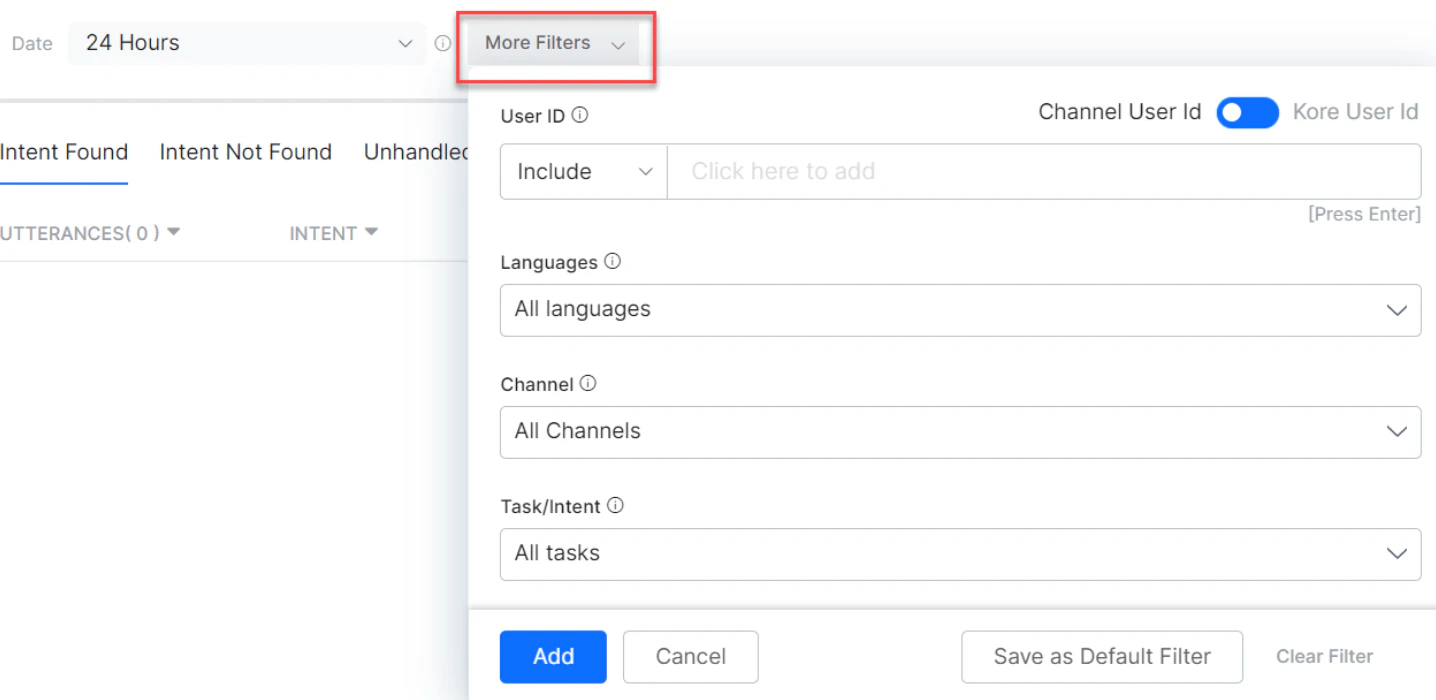
Back to Analytics OverviewDashboard filters let you narrow the analytics data displayed across the overview dashboard based on your selections.To understand which filters are available on each dashboard, see the Filter Criteria Matrix.
By default, the AI Agent dashboard displays data for the past 24 hours.
The following table describes all filter criteria available on the Platform.
Filter
Description
Date
Select a specific period to display conversations from that time. Format: MM-DD-YYYY. Options: 24 Hours (default) - data from the preceding 24 hours; 7 Days - data from the past seven days, starting from the selected or current day; Custom - You can filter dashboard data and exports by selecting a date range (including periods beyond 7 days or a custom range), specifying precise start and end date-time values down to minutes, and choosing a timezone from the dropdown, which defaults to UTC+5:30.
Conversation Type
Filters data by interactive or non-interactive conversation type. Developer interactions aren’t included.
Conversation Status
Filters by Active Conversations (ongoing) or Closed Conversations (ended sessions).
UserID
Filters by Kore User ID (platform-generated) or Channel User ID (email from the channel). You can include or exclude a selected user ID. Type the first three characters to populate the dropdown. Channel-specific IDs are shown only for users active during the selected period. For Enterprise AI Agents, the Kore registered email appears under Channel ID.
Languages
For multi-lingual AI Agents, filters conversations by specific languages. All enabled languages are shown by default. Not available on the Performance tab of NLP Insights.
Channels
Filters data by specific channels when the AI Agent is published in multiple channels. All enabled channels are shown by default.
Task/Intent
Filters conversations by specific tasks or intents. All tasks and intents are shown by default. Not available on the Intent Not Found tab of NLP Insights.
Utterance Type
Filters by Trained or Not Trained utterances. Both are shown by default. Available only on the Intent Found tab of NLP Insights.
Utterance Status
Filters by utterance status: Reviewed or Yet to be Reviewed.
Intent Type
Filters by conversation skill: Dialog Tasks, FAQs, or Small Talks.
Dialog Tasks
Filters by specific dialog tasks selected from the Dialog Tasks dropdown.
Ambiguous
Select Show Ambiguous to filter conversations where multiple intents were identified and the user was asked to choose. Available only on the Intent Not Found tab of NLP Insights.
Developer Interactions
Select Include Developer Interactions to include developer interactions in results. Excluded by default. Applies to both AI Agent owners and shared developers.
Custom Tags
Filters by custom tags at three levels: User Level (tags on user information), Message Level (tags on the current node’s message, or the previous node with a message), and Session Level (tags for the current session). Set the condition to Contain or Does Not Contain the specified value. Not available on the Debug Logs tab of NLP Insights. Tags are defined as key-value pairs from script nodes, message/entity/confirmation prompts, error prompts, Knowledge Graph responses, BotKit SDK, and other locations. Use the following scripts to add tags: tags.addUserLevelTag("tagname","tagvalue"), tags.addSessionLevelTag("tagname","tagvalue"), tags.addMessageLevelTag("tagname","tagvalue").
Select More Filters to access filters from UserID through Custom Tags.