- Distribution trends of feedback scores.
- The overall score for the given period and its trend.
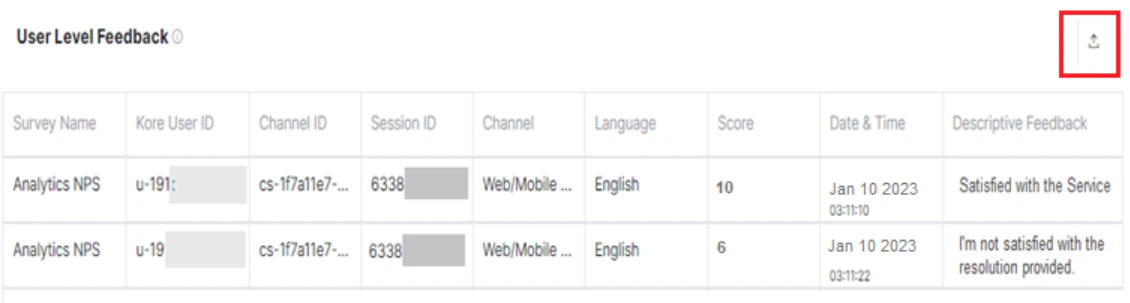
- Comprehensive feedback results with an option to export.
View the Feedback Dashboard
-
Click Analytics on the left navigation pane. The Analytics panel displays the list of reports.

- Click Feedback Dashboard under the Automation section of the Analytics panel. The Feedback Dashboard appears on the right side of the page.
- Select the appropriate filters and click Apply.
Dashboard Filters
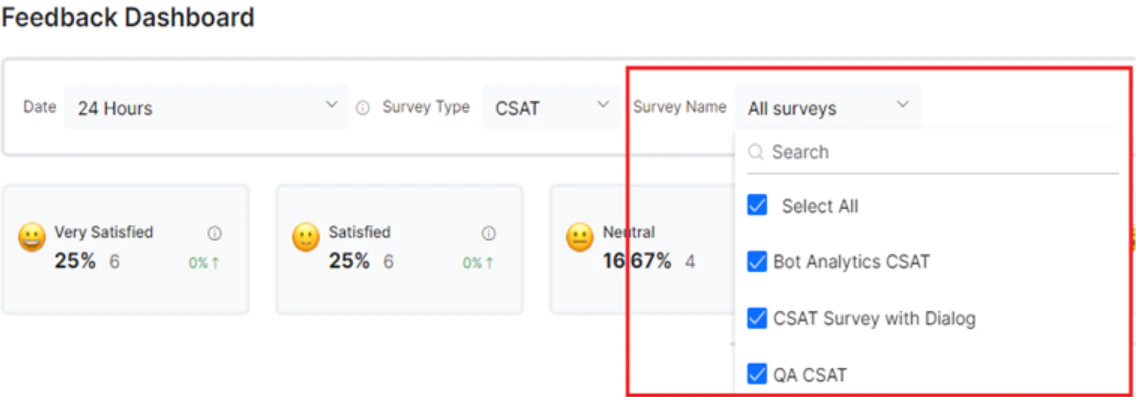
The Feedback Dashboard filters analytics data on feedback survey responses based on the following criteria. Date: Filters conversation sessions by date range based on session start time.The session start time is used to filter sessions.
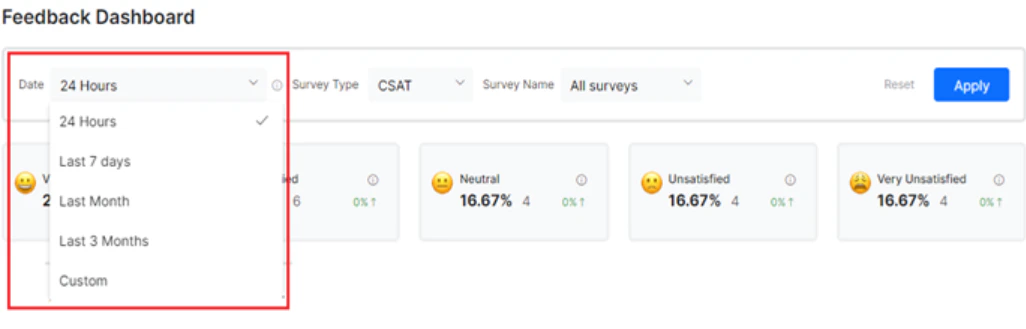
- Last 24 Hours: Feedback from conversations in the past 24 hours.
- Last 7 Days: Feedback from conversations in the past seven days.
- Last 30 Days: Feedback from conversations in the last 30 days.
- Last 90 Days: Feedback from conversations in the last 90 days.
-
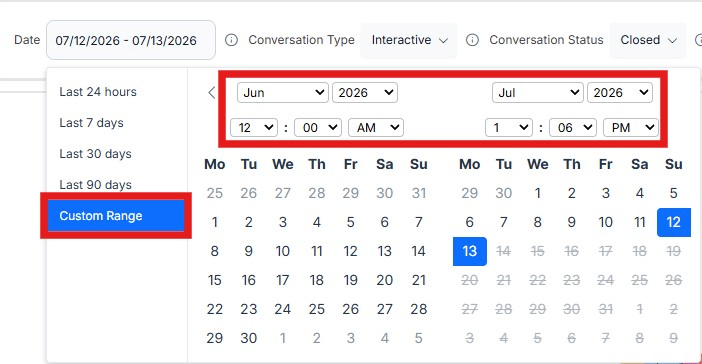
Custom: Helps in filtering dashboard data and exports using precise start and end date-time values, including hours and minutes.
Dashboard Sections
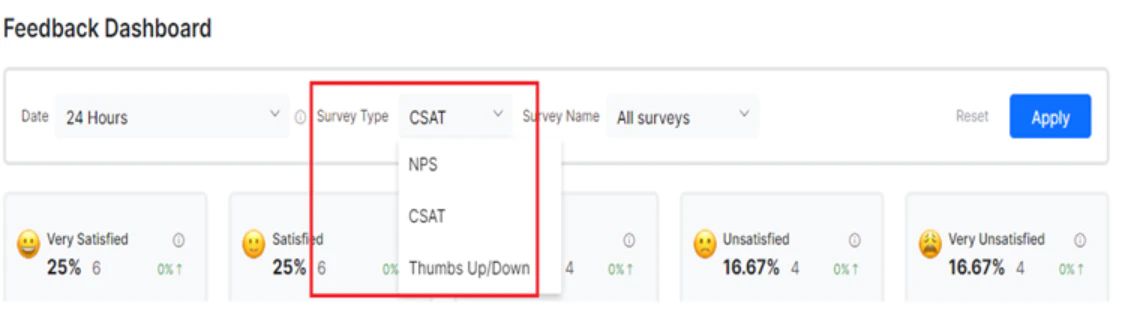
The Feedback Dashboard is organized into five sections based on the selected survey name, survey type, and date.Percentage and Number of Respondents
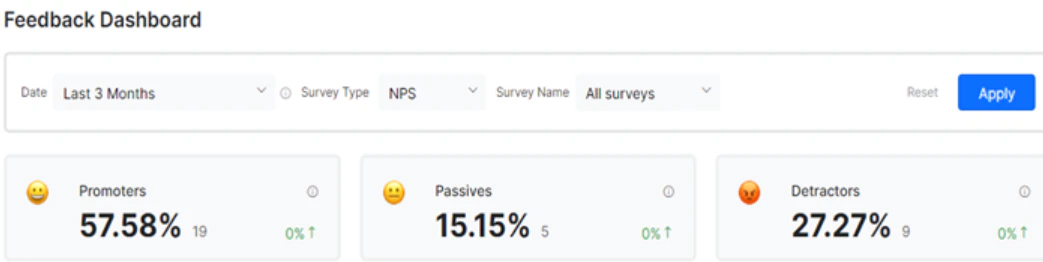
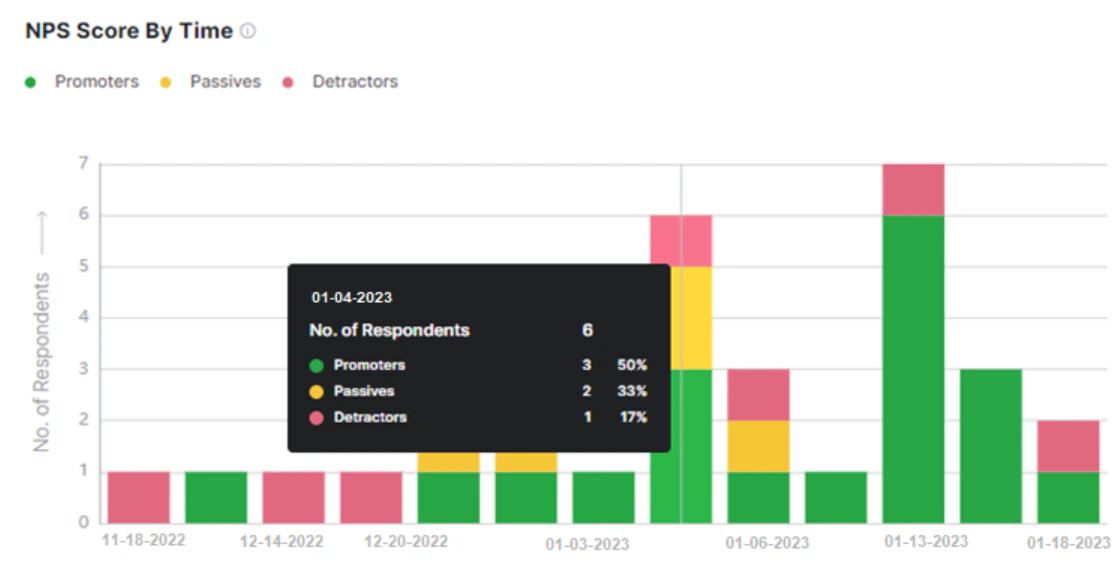
This widget displays the percentage and number of respondents for a specific feedback survey response, along with the percentage increase or decrease over the given period. For NPS surveys:- Promoters: Respondents with a score of 9 or above.
- Passives: Respondents with a score between 6 and 8.
- Detractors: Respondents with a score between 0 and 5.
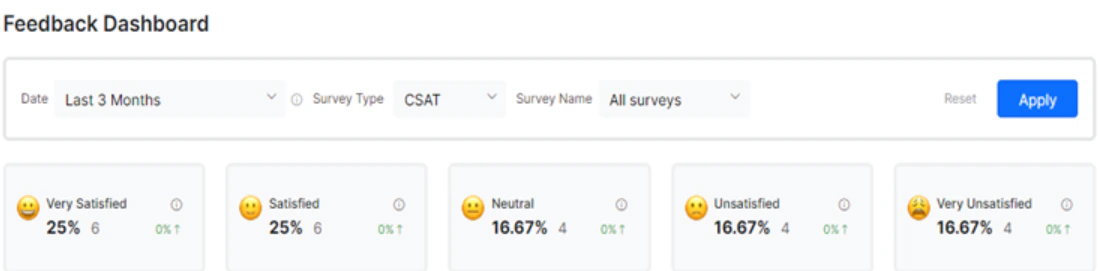
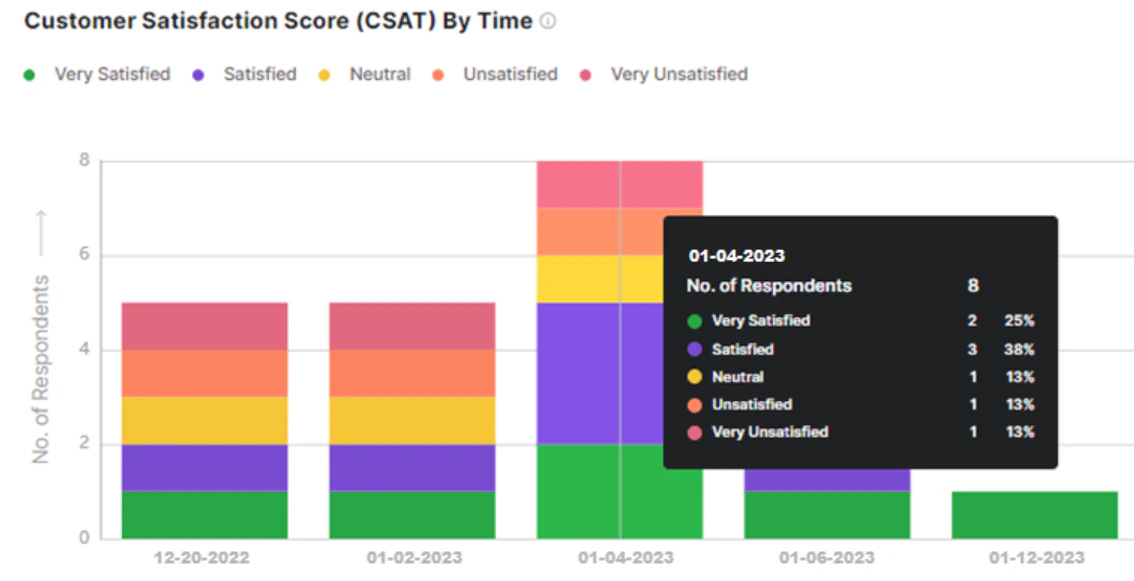
- Very Satisfied: Score of 5.
- Satisfied: Score of 4.
- Neutral: Score of 3.
- Unsatisfied: Score of 2.
- Very Unsatisfied: Score of 1.
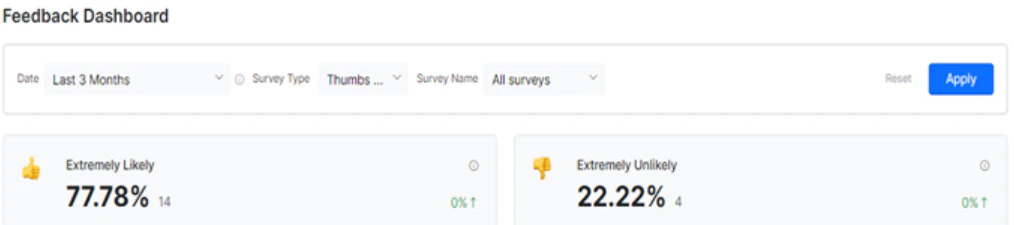
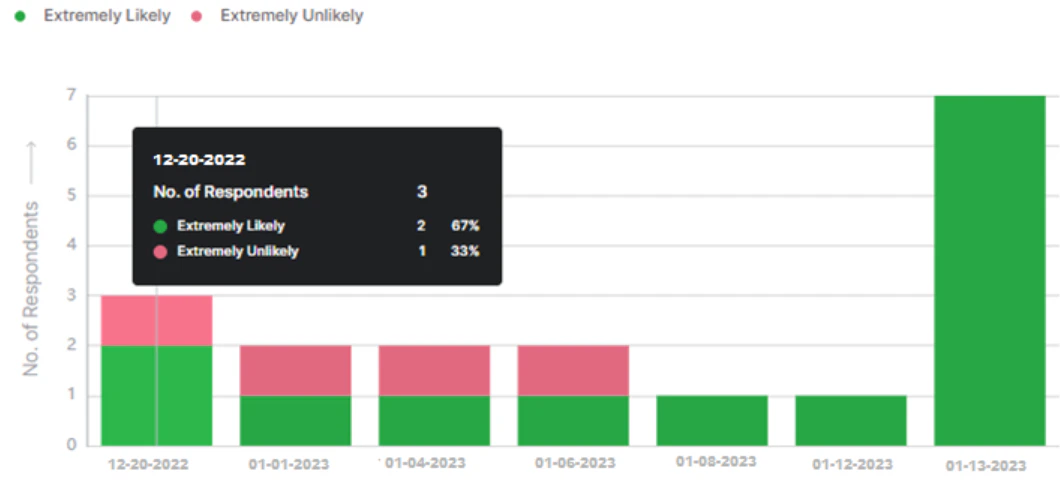
- Extremely Likely: Score of 1.
- Extremely Unlikely: Score of 0.
Score Breakup — Respondent-wise Survey Score over Time
This section displays a bar chart showing the percentage of each response type for Like/Dislike and CSAT surveys, or respondent type for NPS surveys, over the selected time period.Hover over the Survey Score chart to see the number of respondents, response type scores, and percentage of respondents for each response type at a granular level.
Survey Score
This section displays a meter graph (0 to 100) for the survey score based on actual customer feedback. Each score is calculated using a formula specific to the survey type.-
NPS Score: A whole number between -100 and 100. Formula:
(Percentage of Promoters - Percentage of Detractors).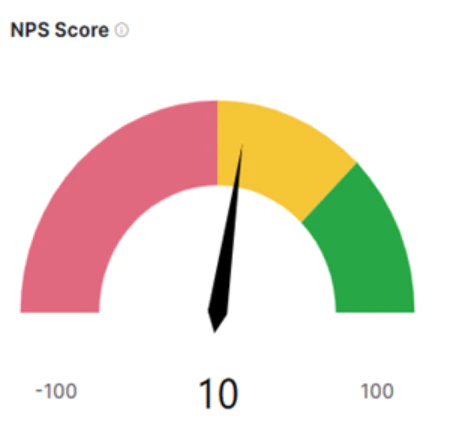
-
CSAT: A percentage value. Formula:
(Number of very satisfied/satisfied Respondents / Total Respondents) * 100.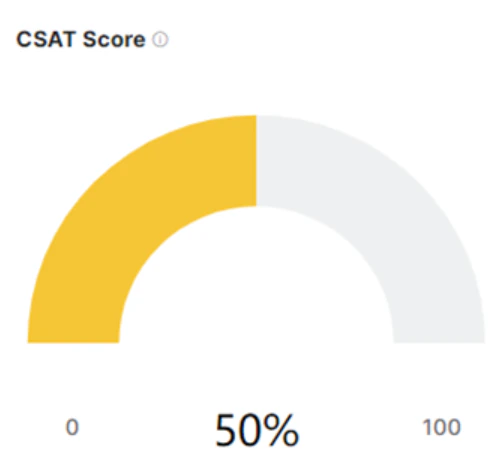
-
Like/Dislike: A percentage value. Formula:
(Number of extremely likely Respondents / Total Respondents) * 100.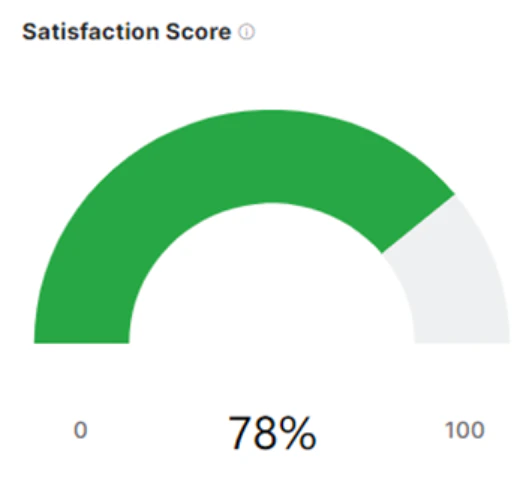
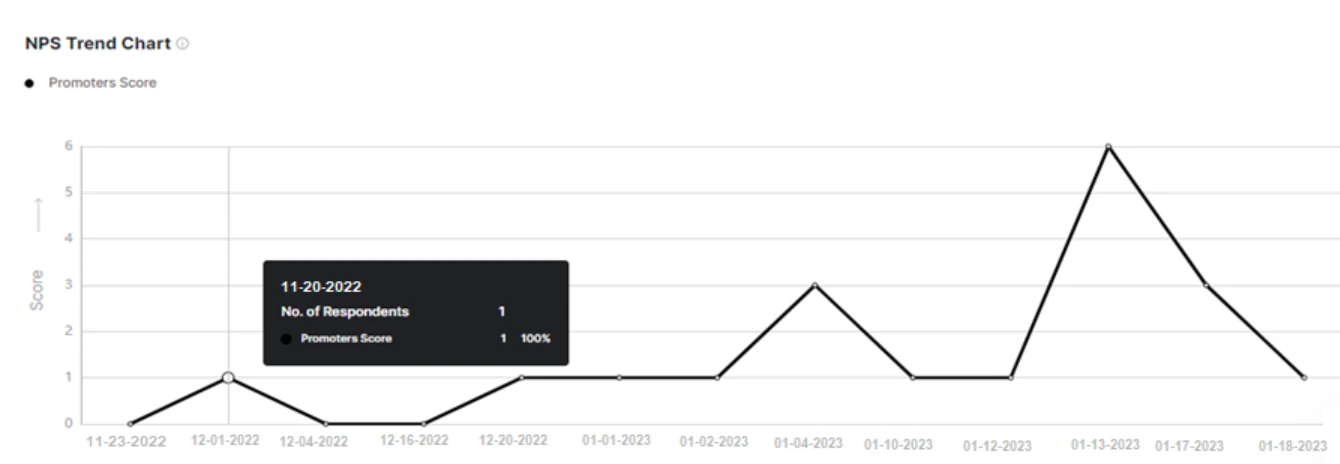
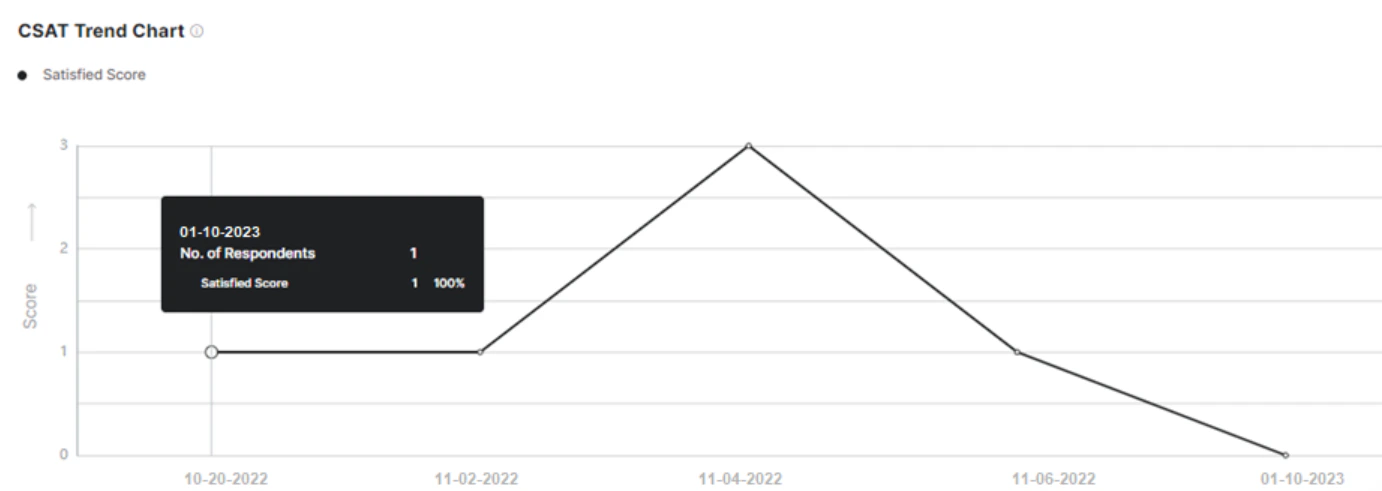
Survey Trendline
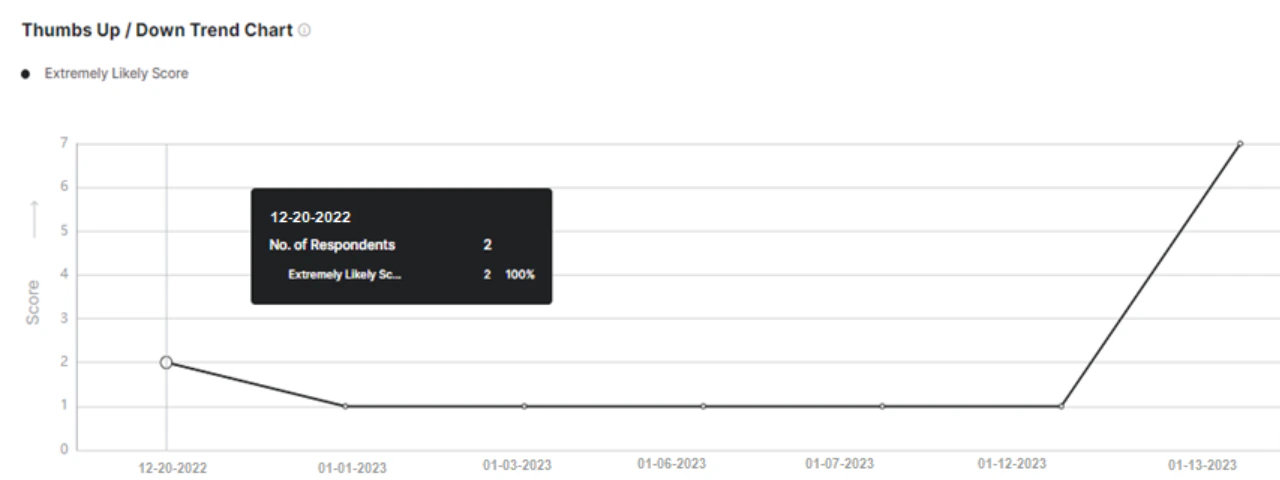
This section displays a line graph capturing the date-wise response score trend for positive respondents over the selected date range.Hover over the trend chart to see the number of respondents and response scores on a specific date at the granular level.
User-level Feedback
This grid represents metadata for all conversations mapped to the selected survey type. The following fields are displayed:The values for Score and Survey Name change based on the selected Survey Type.
Download the Feedback Analytics Report
To download the User-level Feedback report, click the Export to CSV icon.