

Generate the Report
The report includes only interactions evaluated using the selected evaluation forms.
- Create the New Report. Follow the standard report creation process described in see Scheduled Reports.
-
Select Interaction Evaluations and Conversation Analytics Report from the Report Type list.
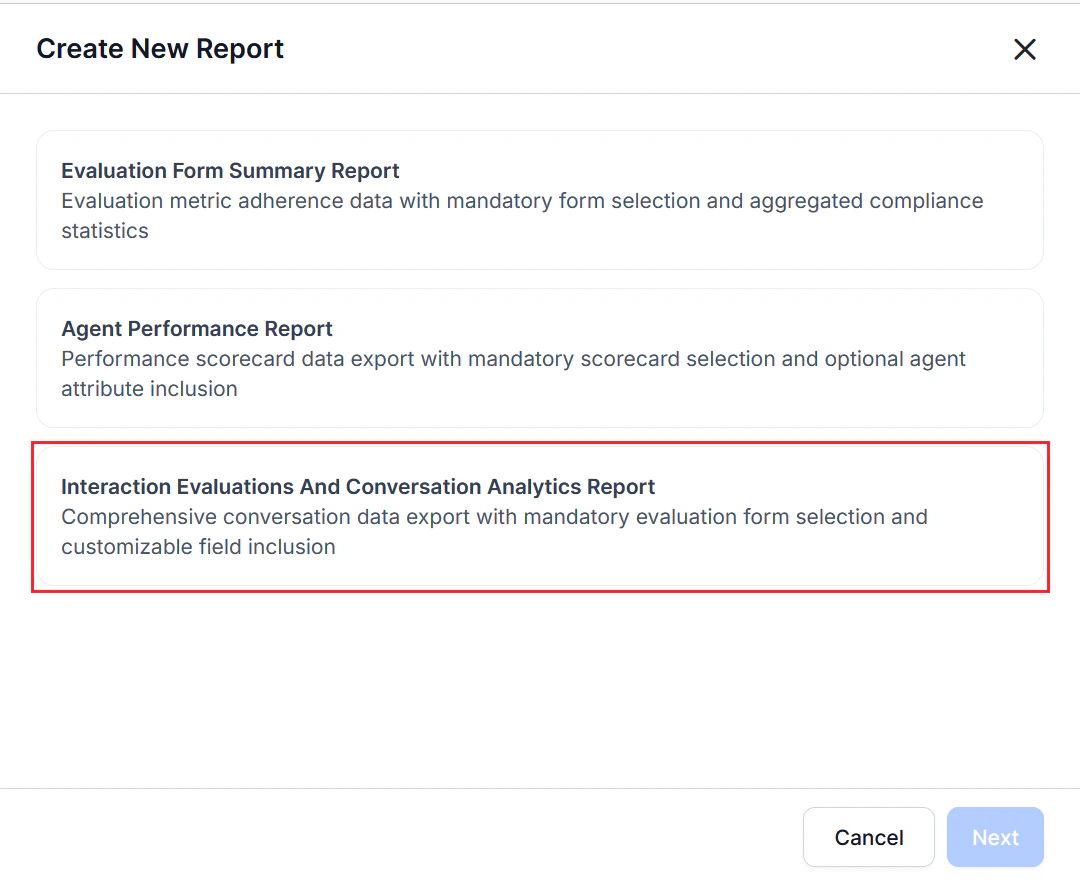
- Select an Evaluation Form (at least one form is required). Only interactions evaluated using the selected forms are included in the report. The available evaluation data and optional fields can depend on the selected evaluation forms.
- Select a Date or Date Range and Timezone.
- Complete the Configuration — Filters and Options section that defines the interaction data included in the report.
-
Configure Filters. The report supports Standard Filters and Custom Filters.
- Standard Filters: Select + Add Filter to add one or more standard filter rows to configure the required criteria. This enables you to use predefined system attributes for consistently segmenting and analyzing interactions across reports. Available filters can include: Agents, Agent Groups, Language, Channel, Contact Direction, Flow (when applicable to the selected evaluation form), Duration Status. The exact filter options available can vary based on the selected evaluation form and the data available for the selected date. Configure the selected filter values. When using a flow-based evaluation form, the Flow filter displays only the Experience Flows associated with the selected evaluation form.
-
Custom Filters: Select Custom Filters using organization-specific fields. This is provided by CRM integrations, APIs, AI Agent metadata, or other organization-specific configuration.
Set filter values, and segment interaction data by attributes such as
AccountID,AccountStatus,AccountStatusID,ActionID,ActionName,Content ID,Phone number,agentEmail, and other configured custom fields. These filter field names and available values are dynamic and depend on the organization’s configured data sources. -
Select Optional Fields to include additional metrics or attributes in the report export that provide extended interaction performance and customer context. Only the optional fields selected in this section are added to the report output. Optional Fields are organized into two tabs:
- Standard Optional Fields: These are predefined, system-defined fields ready to use for consistent reporting. Depending on the selected evaluation forms and available data, these can include: Custom Conversation ID, Agent Groups, End Time, Duration, Empathy Score, Crutch Word Score, Intents, Keywords, Topics, Agent Emotions, Is Churn Risk Observed, Evaluation Form, Flow Name, Conversation Source, Agent AI Widget Status, Metric Violation Events, AI Justification, Audit Status, Audit Date, Audit Response by Matrix, Disposition, Evaluation Form Scoring Type, Not Applicable Scoring Treatment, Context, Comments ], and other available conversation intelligence metrics.
- Custom Optional Fields: These are organization-defined fields made available through CRM integrations, APIs, AI Agent metadata. Examples can include Content ID, Phone Number, agentEmail, boolean check, Customer Name, emailcheck, Queue, queueId, JSON Check. The actual fields available for selection depend on the organization’s configuration, the selected evaluation forms, the available data, and the selected date range.
- Enter one or more email addresses in the Send Email to. At least one email address is required.
- Select Next.
- Complete the Schedule section to generate the report using the current configuration.
AI Justifications are available only for Gen AI by Question metrics, provide AI-generated explanations for each evaluation score. They appear in Interaction Evaluations and Conversation Analytics reports, and are available through APIs.
The report returns all interactions matching the selected filters. Use the Duration Status filter to limit results by evaluation eligibility. Interactions ingested before duration threshold support may contain a
null value for duration_status. Processing Status Options in Reports
The following options determine whether pending or validation-failed conversations are included in exported reports. Exported reports include a Processing Status column with one of the mentioned values: Processed, Pending, or Validation Failed. For validation failure, the report also includes the corresponding validation failure reason.
Report Behavior
The report behaves as follows:- AI Justifications are available only for Gen AI by Question metrics.
- Custom fields depend on the selected date range and available data.
- Only selected optional and custom fields are included in the CSV export.
- By default, all interactions matching the selected filters are exported.
- Use Duration Status to filter interactions by: Evaluated, Below Threshold, Duration Unavailable.
- For interactions ingested before duration threshold support, the
duration_statusfield returnsnull. - Contact Direction displays Inbound, Outbound, or All Directions, when available.
- For flow-based evaluation forms, the report includes Experience Flow conversations and exports flow-specific evaluation details.
- The Not Applicable Scoring Treatment field reflects the treatment (Exclude from Score or Award Full Weightage) applied to that interaction’s evaluation at the time it was scored.
- When Process Conversations When AgentAI Widget Is Off is turned on for the Agent AI source, the report includes Agent AI interactions processed with the widget turned off. Select Agent AI Widget Status under Standard Optional Fields to identify them.
Report Fields
Generated CSV Fields
The generated CSV exports one row for each interaction and includes interaction metadata, evaluation outcomes, sentiment analysis, detected topics, audit information, AI-generated justifications (when available), conversation intelligence insights, business metadata, evaluation metric details, and any selected optional or custom fields.The exported CSV dynamically includes columns based on the selected evaluation forms, applied filters, optional fields, custom fields, and report configuration. For flow-based evaluation forms, the export also includes the Flow Name column where applicable.
Metric-Level Evaluation Fields
When metric-level evaluation details are included in the export, the report contains one row for each evaluated metric associated with an interaction.
For manual evaluation metrics, auditor comments are associated with the individual metric result. They aren’t equivalent to AI Justification or Trigger Justification.
Metric-level fields are generated dynamically based on the selected evaluation form. Each configured metric includes its evaluation result together with related attributes such as fatal metric status, adherence weight, violation status, and applicable auditor comments.
Supported metrics may include: Standard quality metrics, AI-based metrics, Deterministic metrics, Manual evaluation metrics, Voice quality metrics, Organization-specific custom metrics.
AI Justification and Trigger Justification fields are included only for supported metrics.
Metric evaluation fields are repeated for each evaluated metric associated with an interaction. A single interaction may appear in multiple rows of the exported CSV — one row for each evaluated metric.
View and Download the Report
For information about viewing, downloading, managing reports, and adding, editing, or removing filters, see Manage Reports. Reports are exported in CSV format.Field Representation in the Generated CSV
The generated CSV exports one row for each interaction and includes interaction details, evaluation outcomes, conversation intelligence insights, and any selected optional or custom fields. Typical exported information includes: Interaction identifiers and timestamps, channel and contact direction, queue and Flow Name (for flow-based evaluation forms), processing status and duration status, evaluation outcomes (including evaluation scores, pass or fail status, Not Applicable Scoring Treatment, and fatal interaction indicators), metric-level evaluation details, sentiment analysis and detected topics, AI-generated justifications (when applicable), evaluation metric details (if configured), conversation intelligence insights, selected optional fields, and custom business fields. Additional evaluation metric columns are included when supported by the selected evaluation form.