Sub-Intents
A sub-intent is a child intent that’s only active when a specific parent intent is matched. The Platform adds an output context to the parent and a matching input context to the child, linking them together.Ways to Define Sub-Intents
Linked Task Exceptions
Linked task exceptions let you define customized Hold and Resume behavior when transitioning between specific tasks. You can also add conditions and map parameters between tasks.Pre-assignments and Post-assignments
- Pre-assignments — Map current context values to entities in the linked (next) task before it starts.
- Post-assignments — Map context values from the linked task back to the main task when the main task resumes.
Post-assignment applies only when the main task is resumed.
Add an Exception
- Open the dialog task you want to customize.
- Click the more options icon (top-right of Dialog Builder) and select Manage Interruptions.
- Click Add sub-intents or exceptions.
- From the Tasks dropdown, select one or more tasks to link.
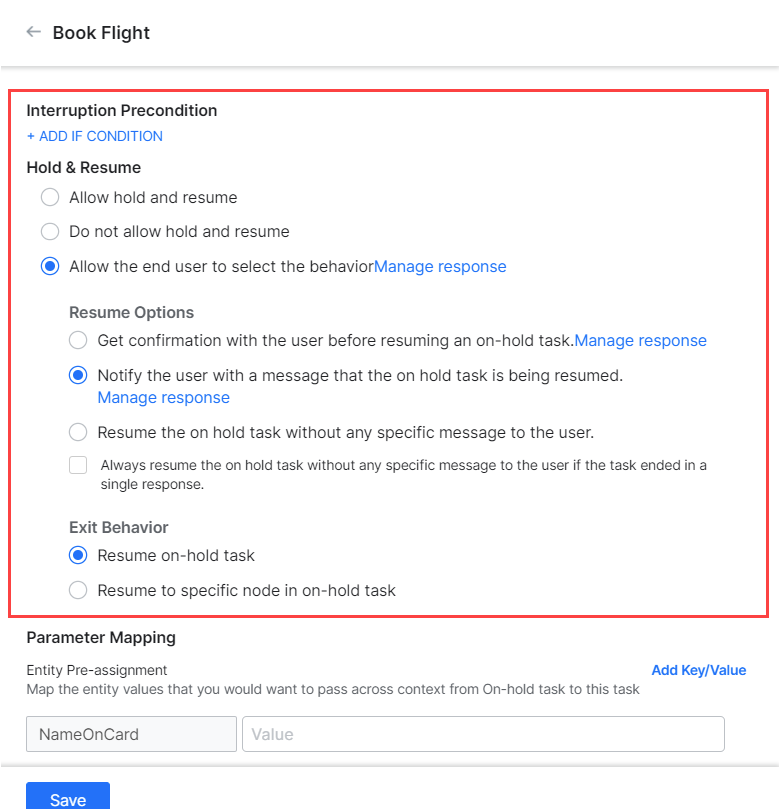
- Define the Hold and Resume settings and click Save.
Add Conditional Expressions
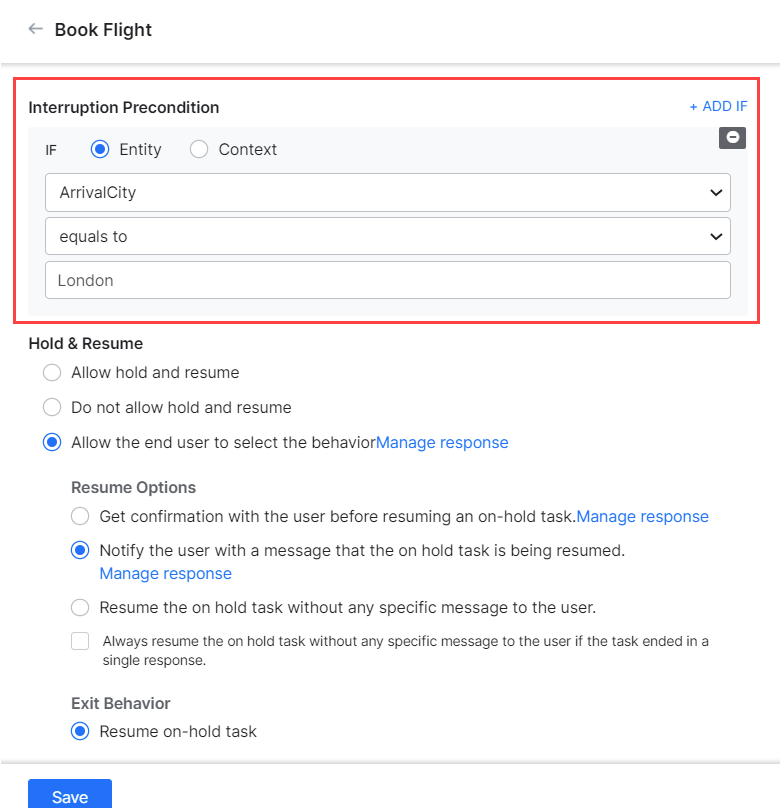
Conditions limit when the exception’s Hold and Resume rules take effect.- Click the task name under Exceptions.
- Under Interruption Precondition, click Add If Condition.
- Select Entity or Context as the condition basis.
- Select the entity or enter the context path.
- Select a connector: Exists, equals to, greater than equals to, less than equals to, not equal to, greater than, or less than.
- Enter a comparison value.
- Repeat for additional conditions. All conditions must be met for the rule to apply.
Important notes:
- The same target task can be linked multiple times with different preconditions. The Platform evaluates exceptions in order.
- If no precondition matches, the intent is added to the Follow-up Intents array.
- Preconditions are evaluated only on user-triggered intents — not on developer-initiated transitions or end-of-dialog user selections.
Parameter Mapping
Pre-assignments:- Under Parameter Mapping, the Entity pre-assignment section lists entities needed for the linked task.
- Enter a direct value or context reference for each entity you want to pre-fill.
- To use a variable, click Add Key/Value and enter a variable name and value.
- Under Entity post-assignment, the section lists entities in the current (main) task.
- Enter a direct value or context reference for each entity.
- To use a variable, click Add Key/Value and enter a variable name and value.
To reset a value, use the keyword
null. Spaces are ignored by the Platform.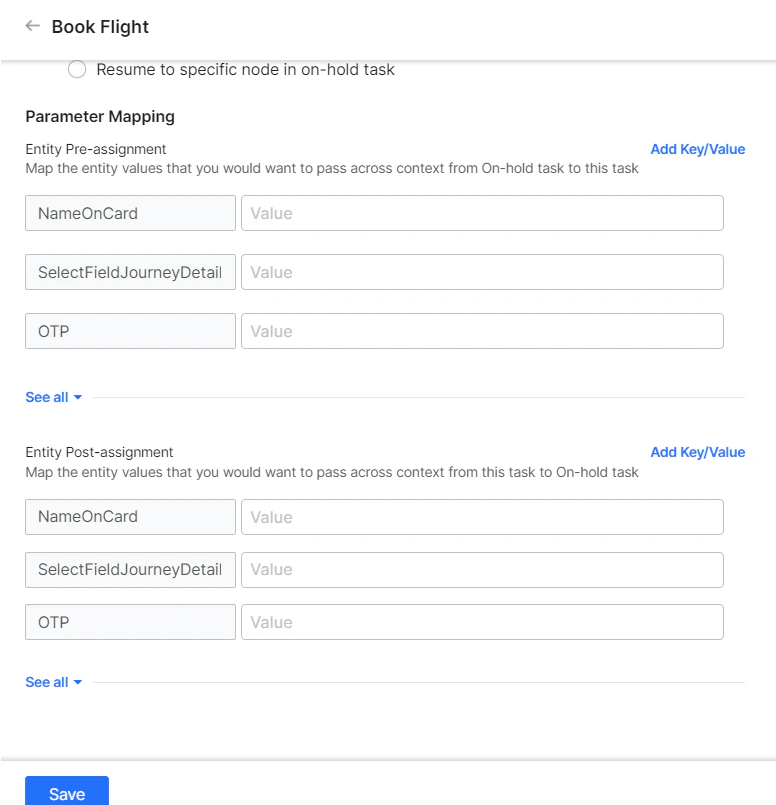
Follow-up Intents
Follow-up intents are user intents that came up during a dialog but weren’t handled at the time. The AI Agent captures them in theFollowupIntents array.
The AI Agent doesn’t capture follow-up intents if Don’t Hold and Resume is selected at the node, task, or app level.
Show Follow-up Tasks at End of Dialog
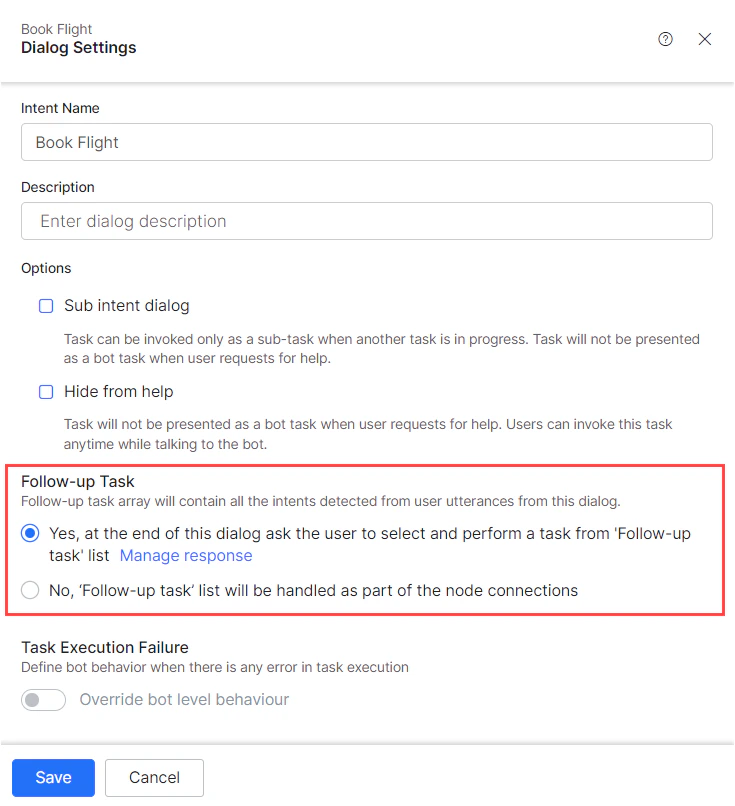
- Open the dialog task you want to configure.
- Click the more options icon and select Dialog Settings.
- In the Follow-up Task section, choose: