Record Conversation to Create a Test Suite
The option to record the test suite captures the metadata in the background which helps to test the flow sequence, transitions, and track the test coverage. The following step-by-step process explains how to record a conversation as a test suite, and validate and create the test cases.Record Test Suite
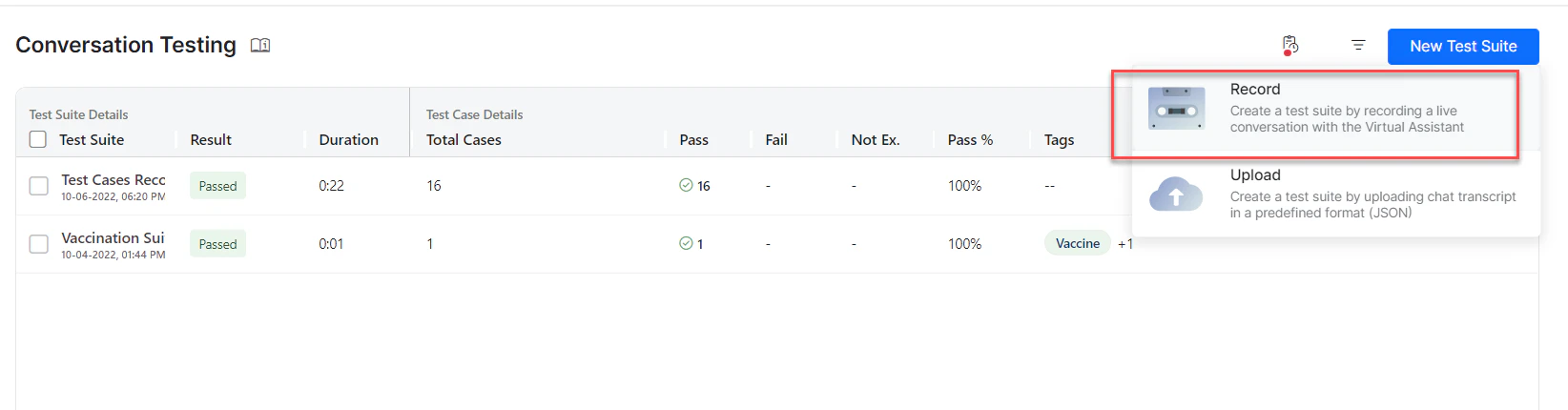
- On the Conversation Testing page, click New Test Suite.
- Click the Record option to start recording the new test.
-
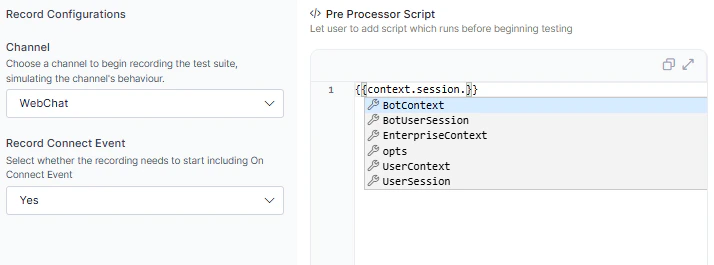
In the pop-up displayed, choose whether to start the recording with the On Connect event included.
“On-Connect” is the message you receive as soon as you open the chat window, even before you enter any message. The option is displayed for VAs with an On-Connect message. If you select “No”, the On-connect message doesn’t get added as a test case. If you select “Yes”, then the On-connect message is created as a separate test case.
- Define the Pre-processor Script to control preconditions during conversation testing. Learn more.
-
Click Proceed to start the test recording.
- The Chat window is displayed. The chat transcript is recorded and the recording status is displayed at the top. You can click Stop to stop the recording.
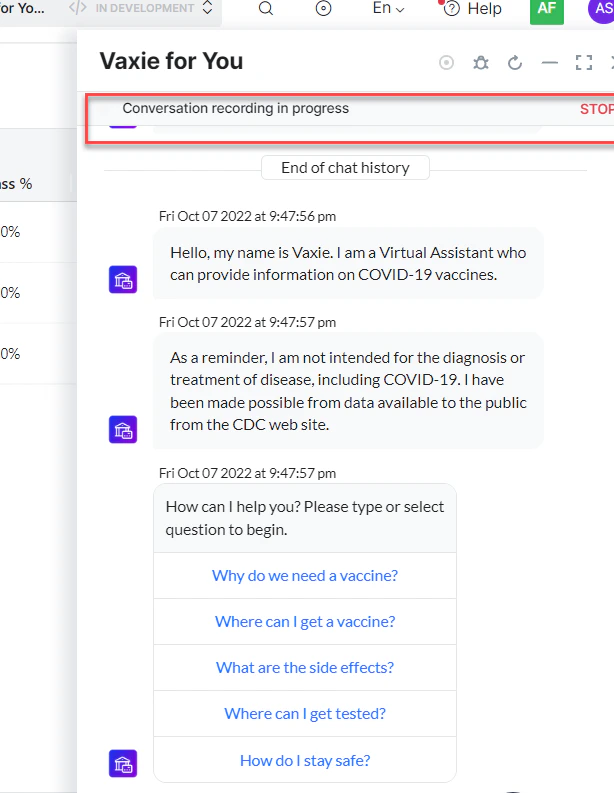
If there is an error while recording due to any limitation set on the platform, it’s displayed on the page.
Pre-processor Script
The Pre-Processor Script allows users to manipulate context data and inject custom data before and during test execution. Context data is preset during conversation recording, which can sometimes lead to unintended workflow paths during validation and cause false negatives. Additionally, users may need to test scenarios requiring custom data from external systems. To address these needs, users can run custom scripts at the recording, validation, and execution phases of conversation testing, enabling them to:- Modify Existing Context Data: Adjust or reset context data to ensure intended workflow paths.
- Set Custom Context Data: Define new context data for specific scenarios, enhancing test accuracy and coverage.
- Inject External Custom Data: Simulate inputs from external systems for real-world test cases.
- EnterpriseContext
- BotContext
- UserContext
- UserSession
- BotUserSession
- Opts
- Reset or Set Session Variables: Adjust session data as needed to ensure consistent New User or Returning User states.
- Simulate Different User Conditions: Accurately test new and returning user flows by managing session variables to reflect the correct state.
Generated User Response Suggestions
If you have enabled LLM and Generative AI for your app, you will see User Response suggestions while recording a Conversation Test Case. This feature provides a regression tool that creates a conversation test suite for each intent (new and old) to evaluate the impact of a change on the conversation execution. It helps check if the task or intent is robust enough to handle random user utterances. It also helps you predict and simulate the end user’s behavior and check if the app can execute all the defined flows by generating user responses and presenting any digressions from the specified intent. Click any suggestion to send it to your app and test the response.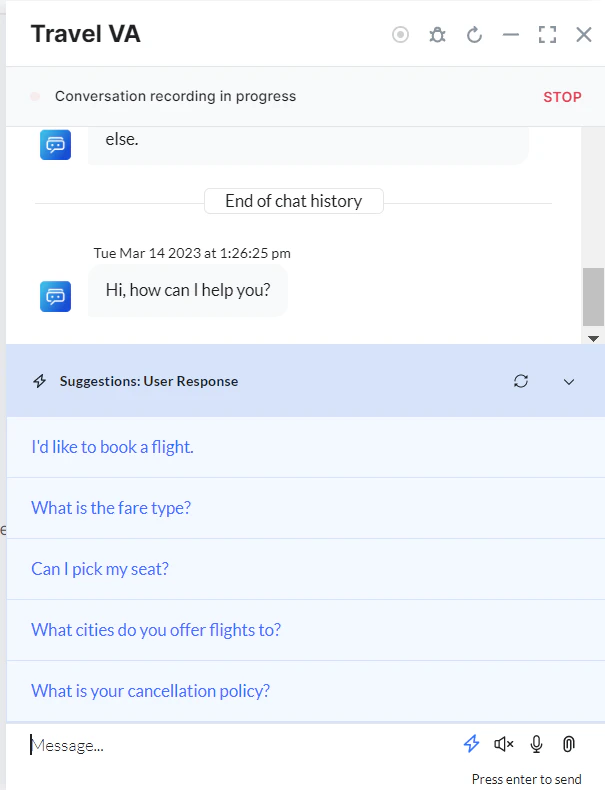

Validate Test Suite
The conversation is recorded and all the metadata at each test case is captured. Once the recording is completed, the Platform provides you an option to validate the test suite as follows:- Upon successful completion of recording, click Validate Test Suite.
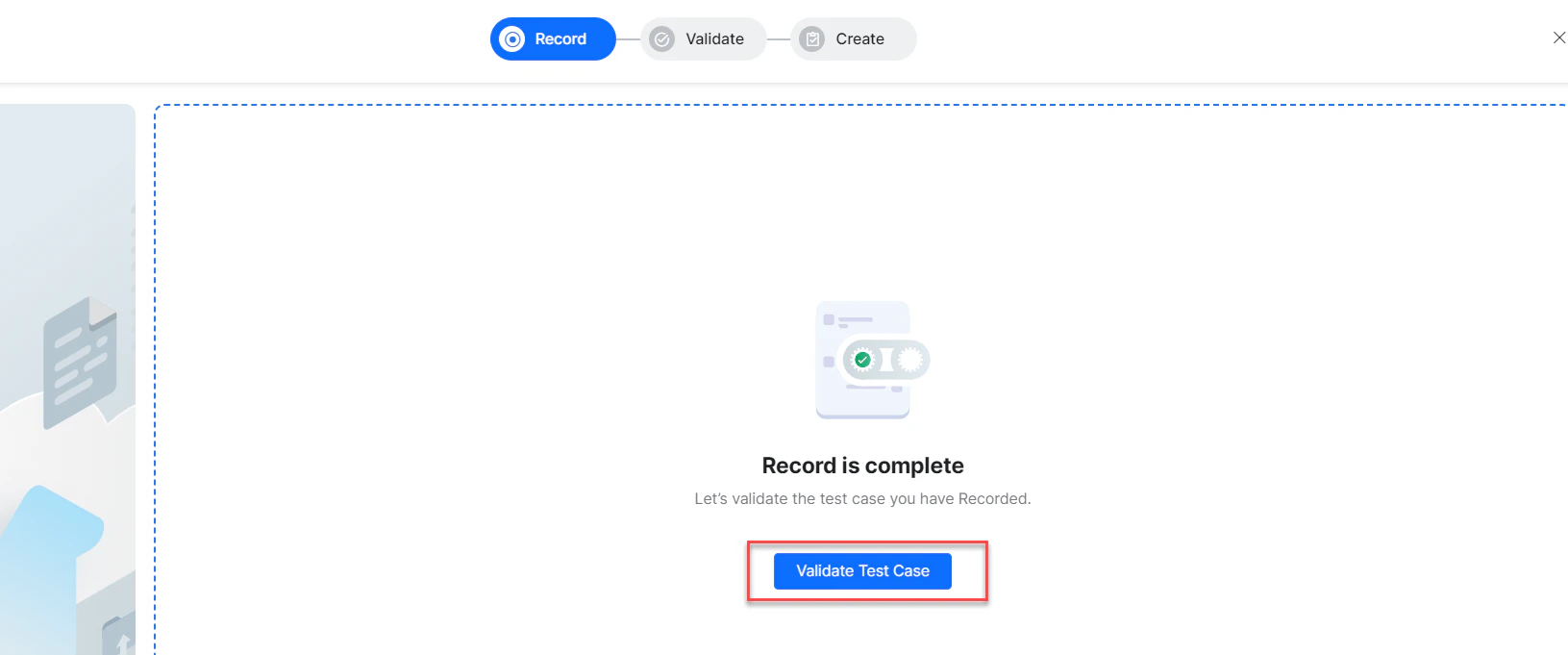
- The ongoing validation is displayed. You may click Cancel if you want to cancel the step or click Continue in Background to continue the validation as a background task.
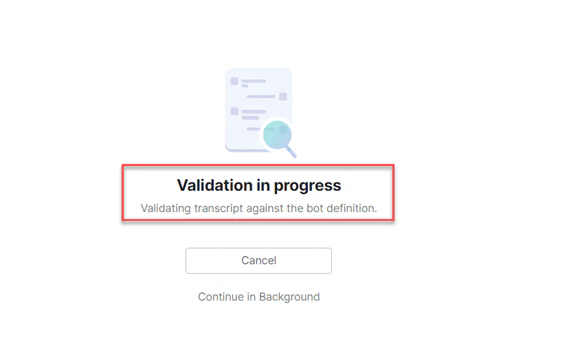
- If you click Continue in Background, you can see the status in the top right corner of the landing page by clicking the Draft icon.

On-Connect is the message you receive as soon as you open the chat window, even before you enter any message. The option is displayed for VAs with an On-Connect message. If you skip it, the On-connect message doesn’t get added as a test case. If you click Proceed, then the On-connect message is created as a separate test case.
- The Chat window is displayed. The chat transcript is recorded and the recording status is displayed at the top. You can click Stop to stop the recording.
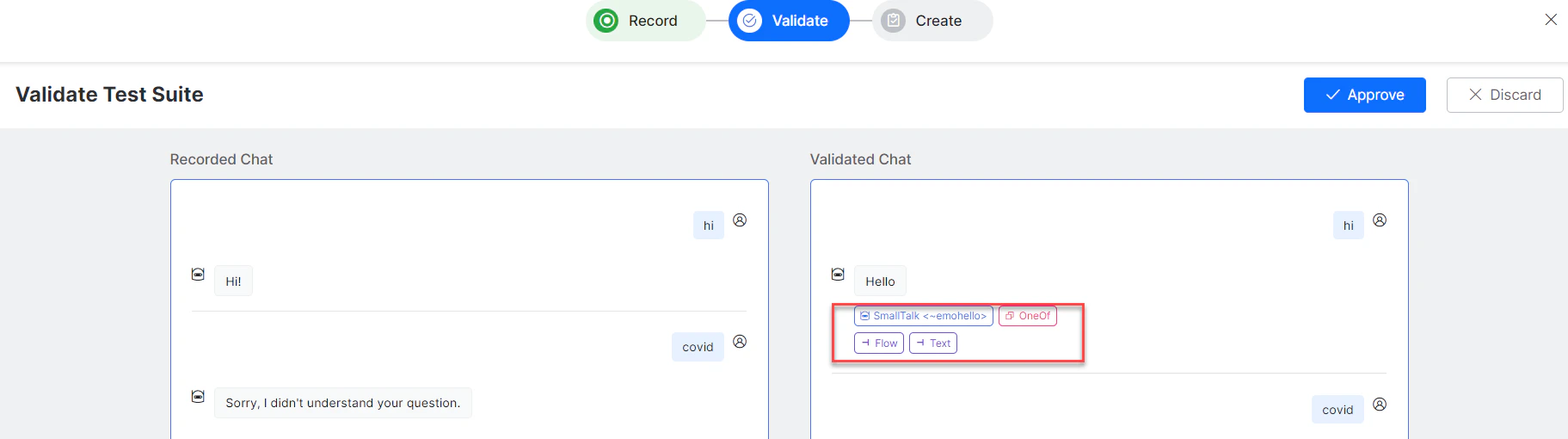
If there is an error while recording due to any limitation set on the platform, it’s displayed on the page.
Capture Test Suite Metadata
Using Conversation Testing, you can test the sequence of nodes executed by the app for user input(s) and capture the following metadata at the time of test suite creation to verify if the app is executing the conversation flows as expected:- Intent ID, Intent Name
- Node ID, Node Name
- Transition flow
Create Test Suite
-
Upon approval, a Create Test Suite pop-up is displayed in which you can enter the following details:
- Test Suite Name
- Description
- Tags
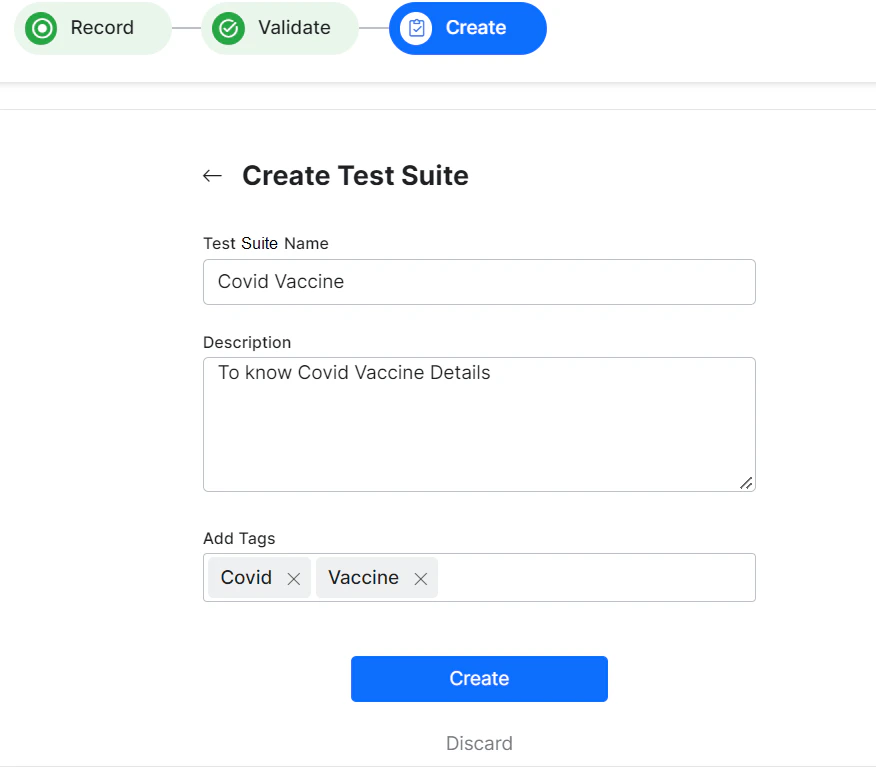
- You can either click Create to create the test suite or discard this step.
-
On clicking Create, the new test suite is created. You can click the Run Test Suite button to execute the test suite.

-
The dialog Before you execute the test Suite is displayed. Select the version of your app to be executed. If any authorization profiles are available, they’re displayed here.
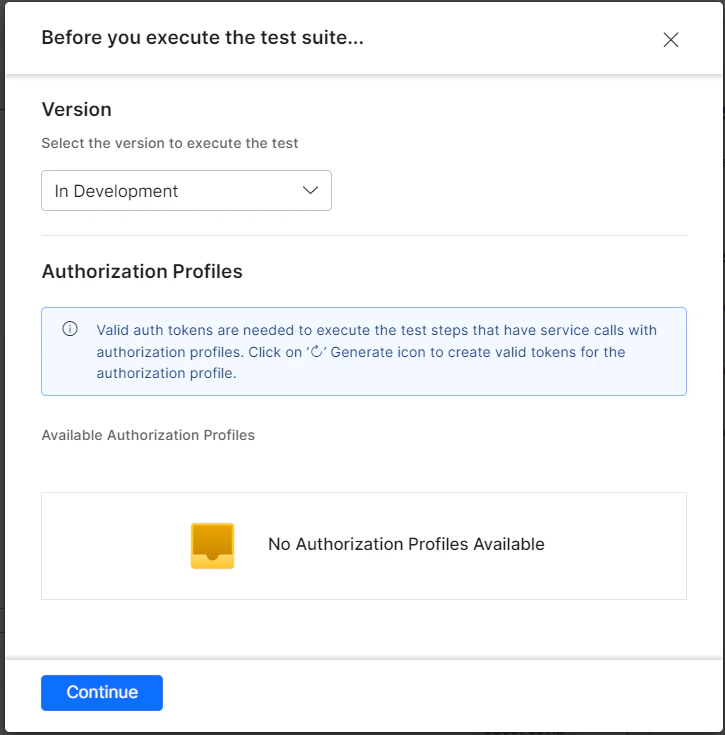
-
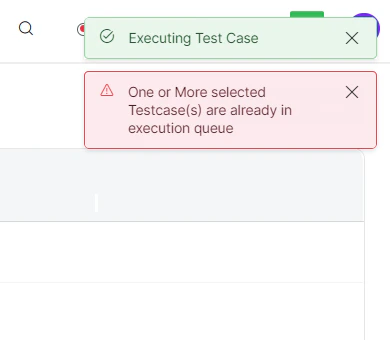
Click Continue to continue the execution. The test cases execution progress is displayed on the top right corner of the page.
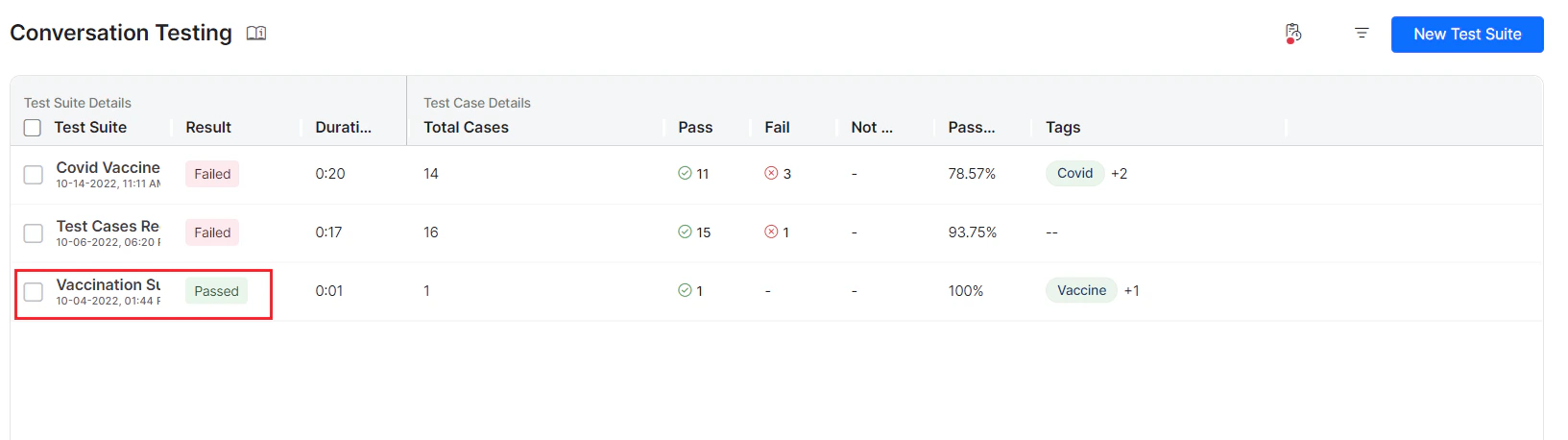
Upload File to Create a Test Suite
Using this option, you can create test suites by uploading chat transcripts in a pre-defined JSON file. This alternative way of creating test suites is quick and scalable, as compared to recording the flow every time. The following step-by-step process explains how to upload a JSON file, validate and create the test suites.Upload a JSON File
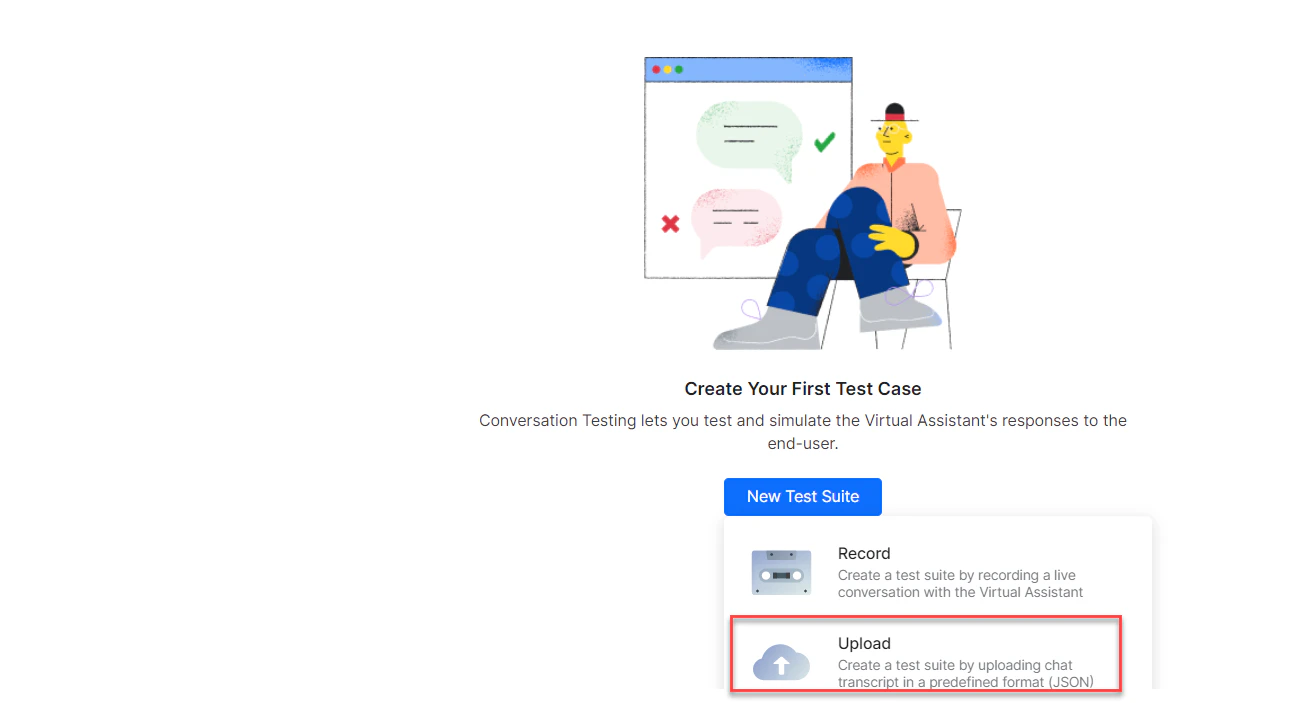
- Click New Test Suite.
-
Click the Upload option to upload a chat transcript in JSON format.
-
You can drag and drop a predefined JSON file in the Upload pop-up or select the file in the local directory using the browse option.
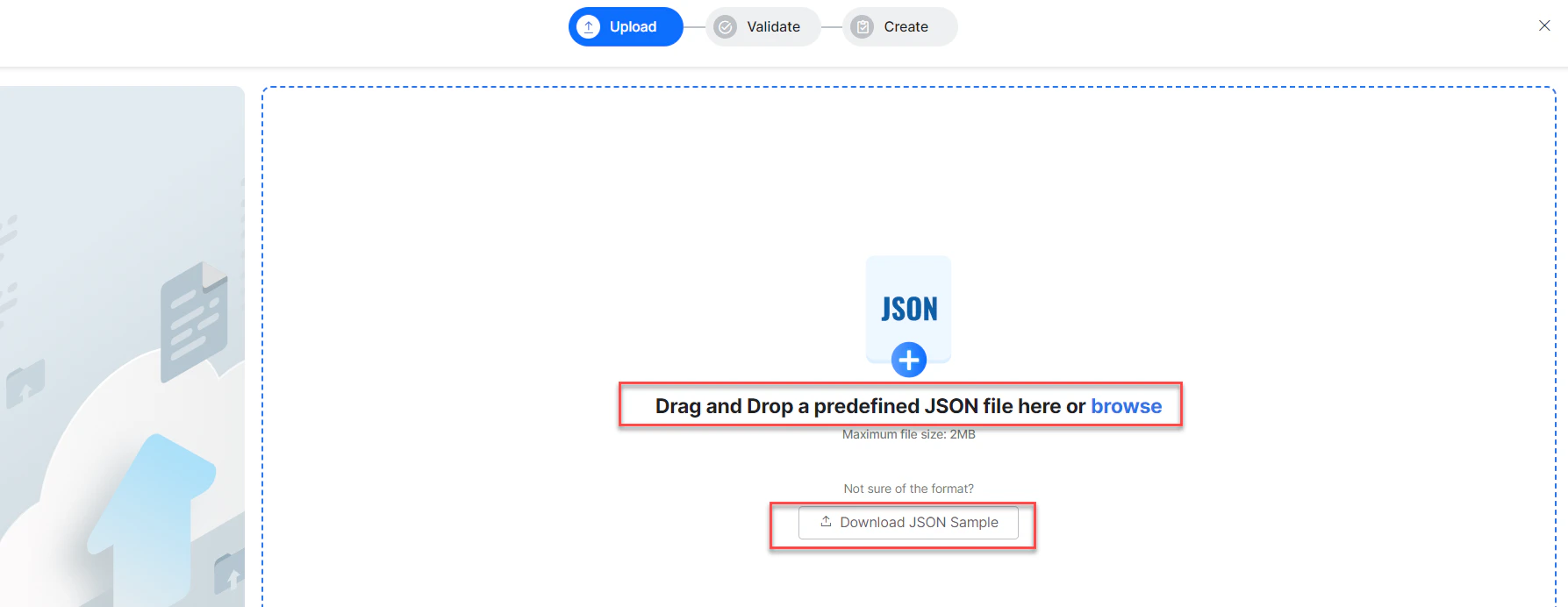
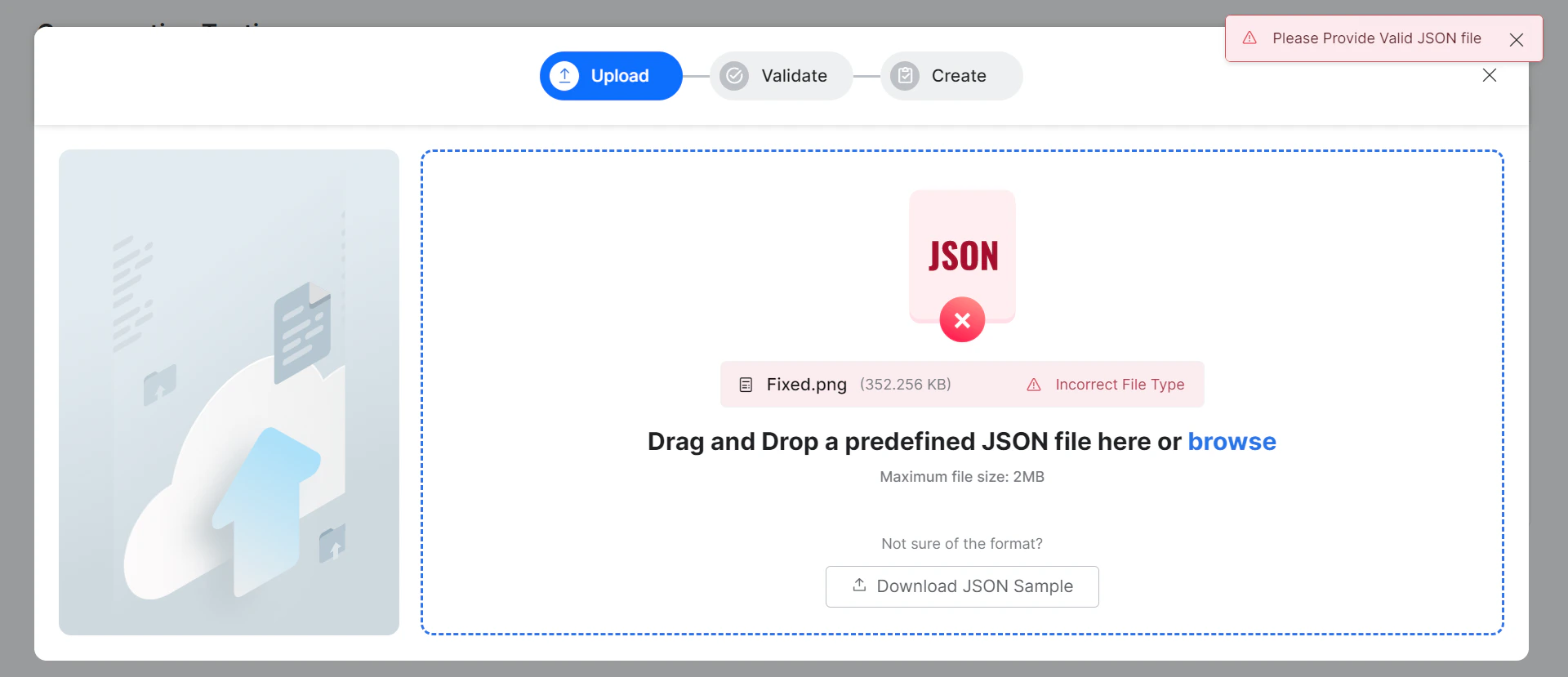
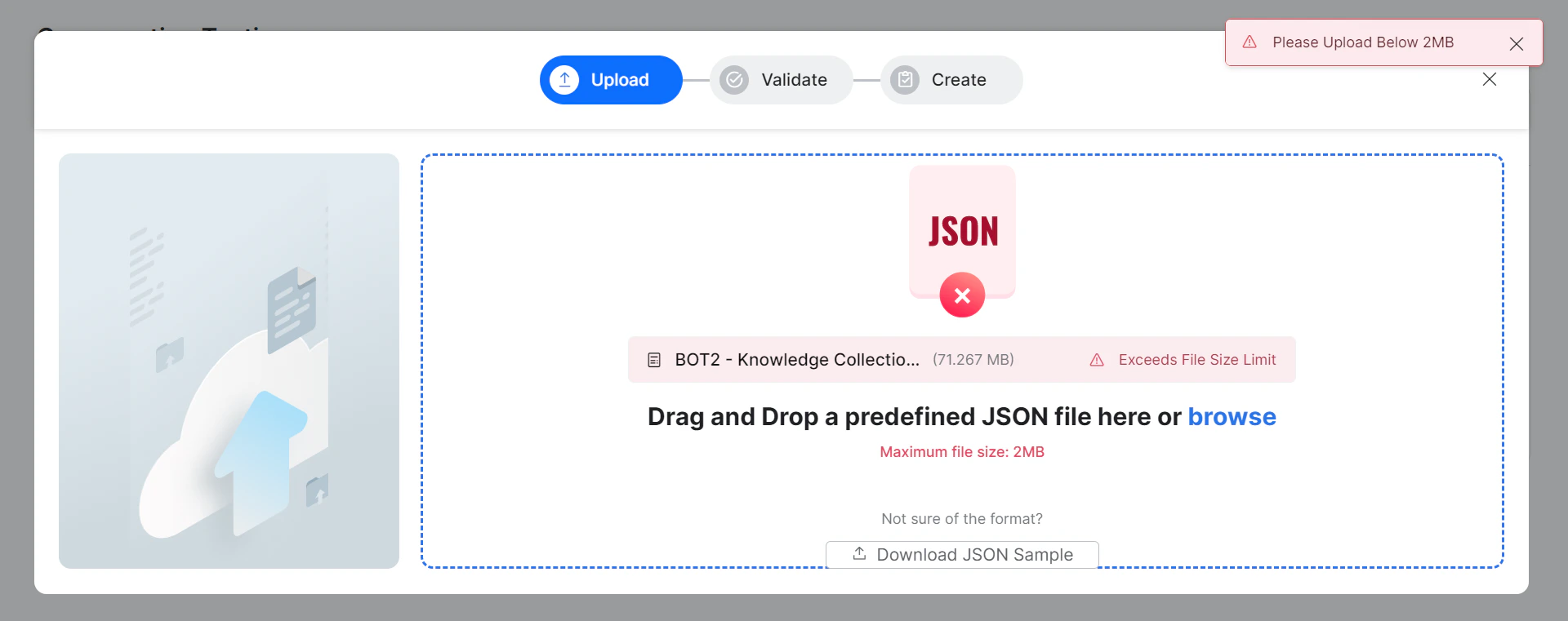
Only JSON files can be uploaded. The maximum file size allowed for upload is 2MB. You can also download a sample JSON file by clicking the Download JSON Sample button.