

Add the Host URL
- Copy-paste the HOST URL from RingCentral Engage to the Platform.
- Provide it in the Channels & Flows > Channels > Digital > All > RingCentral Engage > Configurations.
Generate API Access Token
- Login to your RingCentral Engage developer account. The URL specific to your company will be available after creating a paid account with RingCentral Engage.
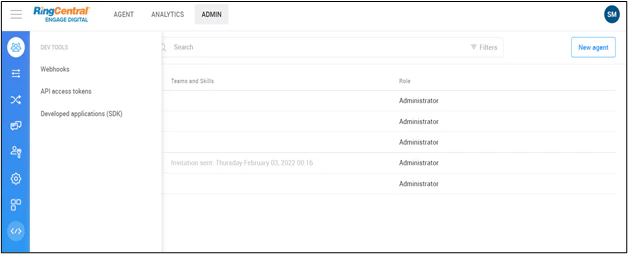
- Navigate to the Admin section and click the code snippet icon on the left navigation menu.
-
Select API Access Tokens.
-
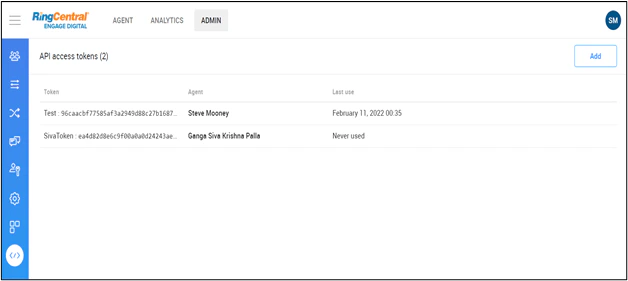
If there are any tokens present already, you can use them or click ADD to generate a new API Token.
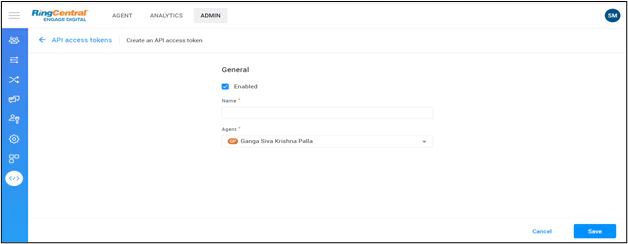
- Provide a Name for your API Token.
- Select Agent from the drop-down list.
- Click Save.
-
Navigate to the API Tokens screen and select the Edit icon to land on the screen shown below where the generated API Access Token appears.

- Copy and provide the generated API Access Token under Channels & Flows > Channels > Digital > All > RingCentral Engage > Configurations on the Platform.
Setup Webhook Configuration
-
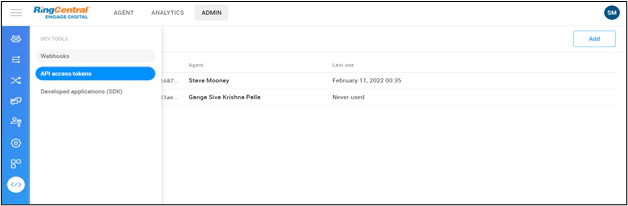
Once the API Token has been generated, navigate to Admin > Webhooks. Click the code snippet icon on the left navigation menu, and select Webhooks.
-
If any webhook configurations are present already, you can use them or click ADD to generate a new webhook configuration.
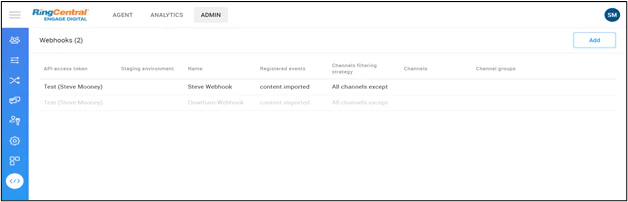

- Select the API Access Token generated.
- Copy the URL from the Platform under the RingCentral Engage channel and paste it to the above webhook configuration screen.
- Provide a Name for the configuration.
- The Verification Token will be generated automatically.
- Copy the verification token and paste it in the RinCentral Engage > Configurations section of the Platform.
-
Provide any unique “Secret Key” of your choice.
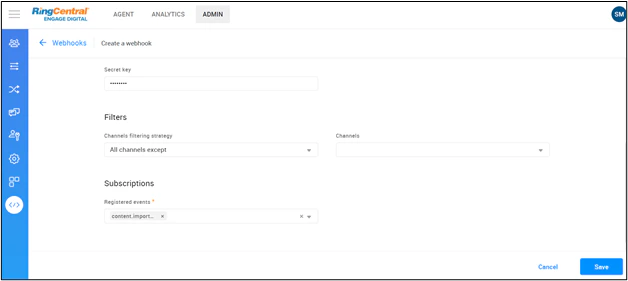
- Select the Channel you prefer or select all the channels if the message is to be delivered on all the channels.
Subscribe to events for message delivery
- Select the content. imported event under the Subscriptions section.
- Click Save.
Make sure to check the Active option before you save. This will establish a handshake between RingCentral Engage and Platform by sending a 200 code to RingCentral on successful connection establishment.