

Version Types
Creating a Version
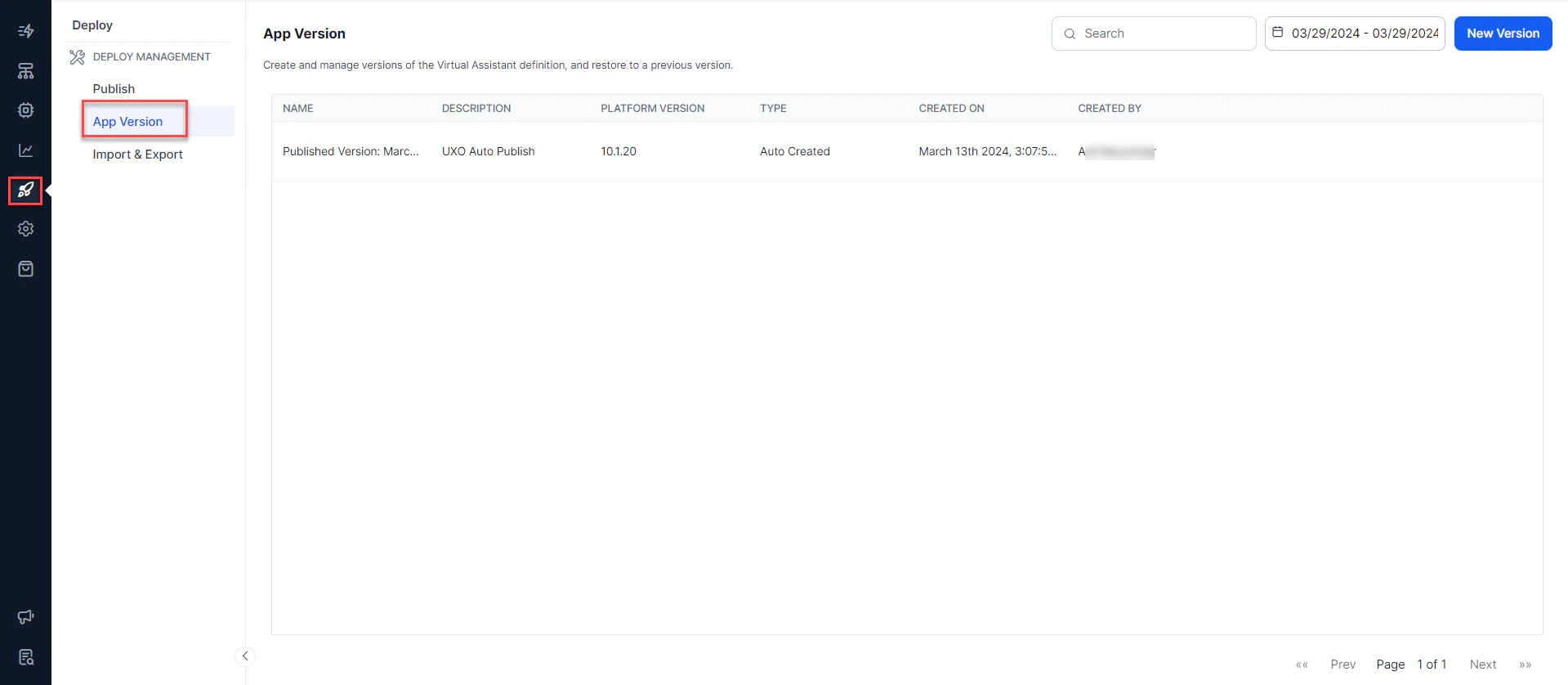
- On the App Versions page, click New Version.
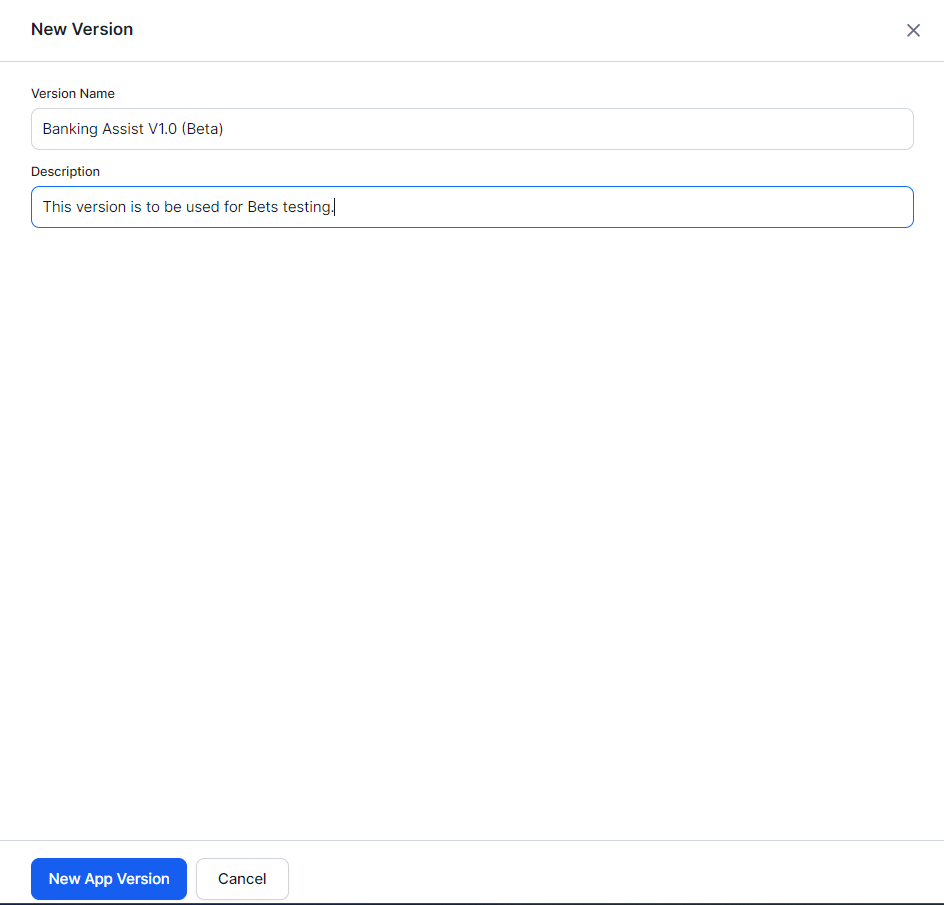
- Enter a Version Name and a brief Description of the changes.
- Click New App Version.
Version Actions
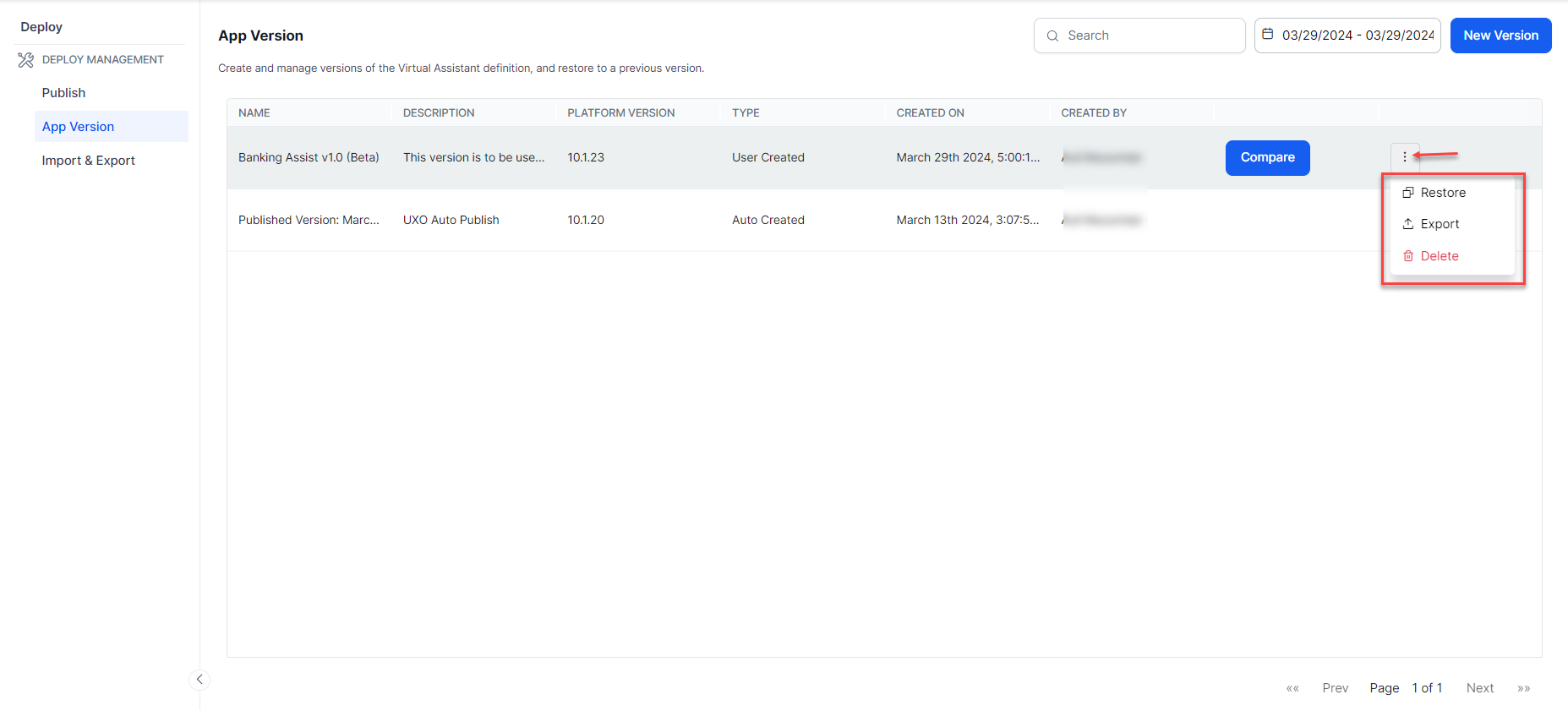
Each version on the App Versions page shows the following details:
Available actions per version:
- Restore — Replace the in-development copy with this version
- Export — Download a
.ziparchive of this version - Delete — Remove the version (not available for Auto Created versions)
- Compare — Diff this version against another
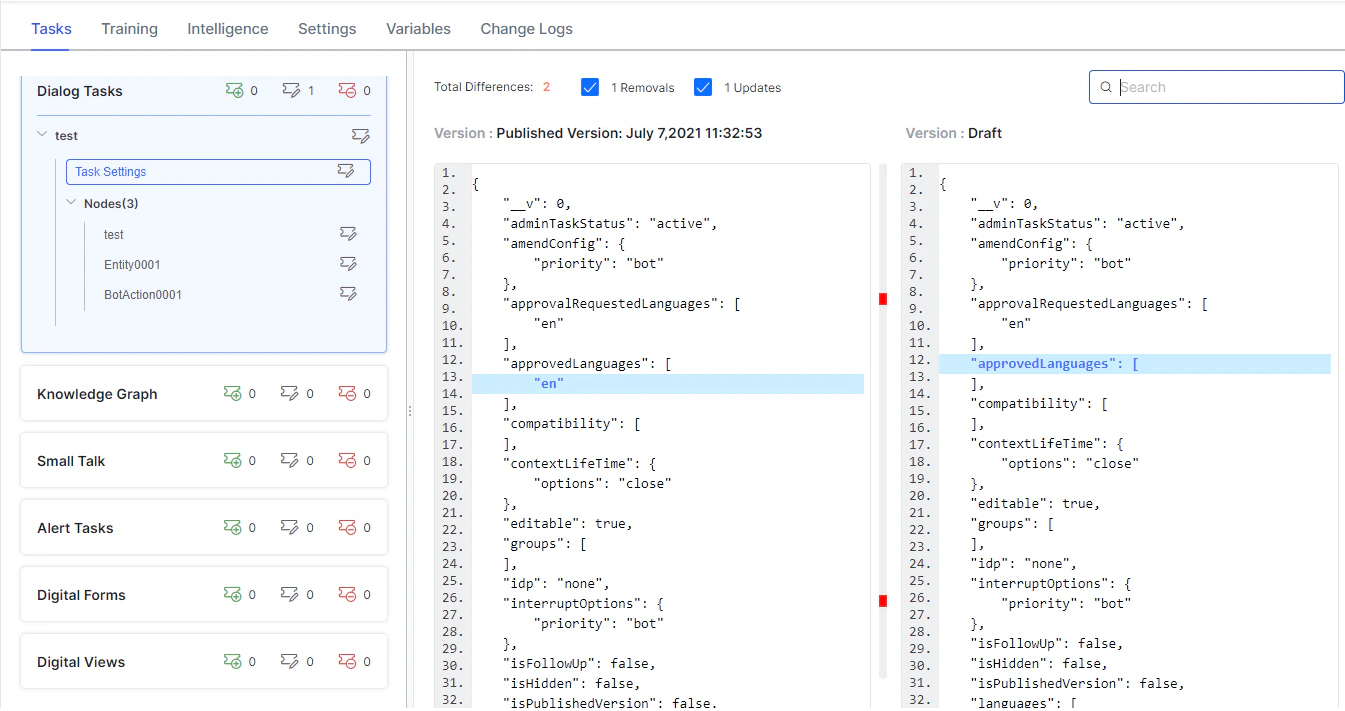
Comparing Versions
Version comparison helps you:- Debug a published version by comparing it with a previous one
- Analyze changes before publishing
- Assess the impact before or after a version restore
- Review NLP/NLU training changes across versions
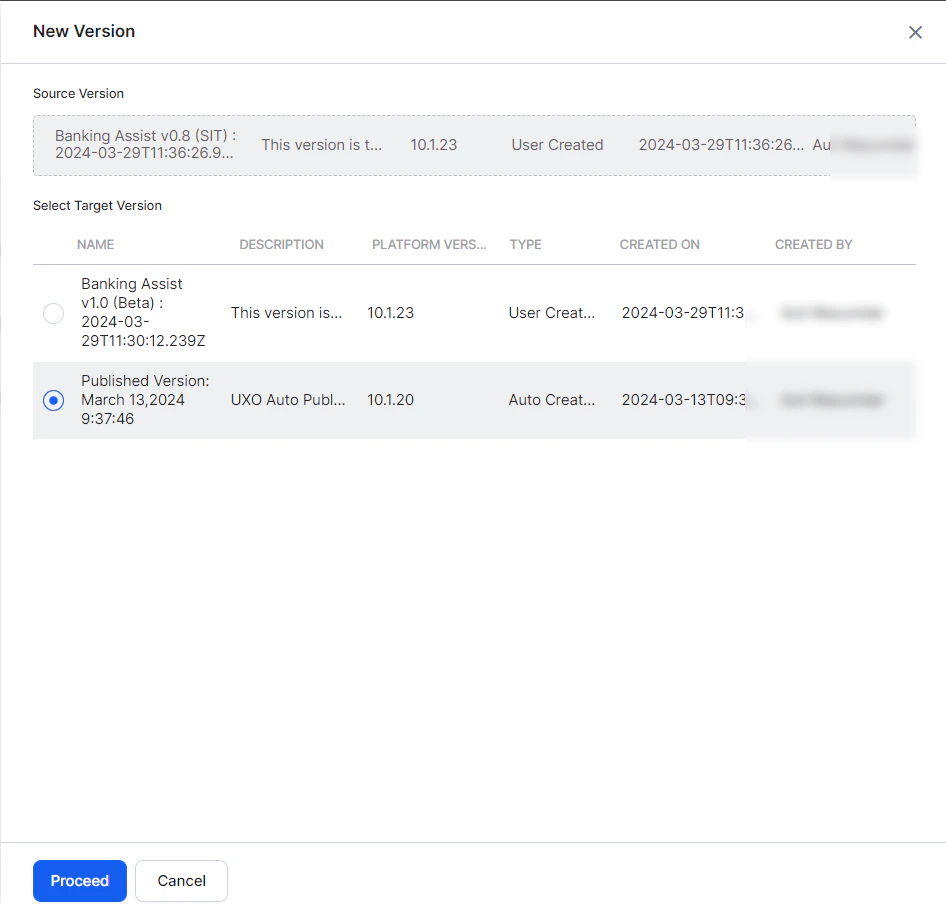
- On the App Versions page, hover over a version and click Compare.
- In the comparison window, select a target version to compare against.
- Click Proceed.
Restoring a Version
Restoring replaces the current in-development copy with the selected version. The platform validates version compatibility and rejects incompatible restorations.Restoration Rules by Component
Tasks
Applies to Dialog Tasks, Alert Tasks, Small Talk, UI Forms, Panels, and Widgets.- Tasks in the agent but absent from the restored version are marked Deleted.
- Deleted tasks are unavailable for development and are removed from the Published copy on the next publish.
- Deletions can’t be excluded from publish requests.
- Restoring a version that contains previously deleted tasks re-adds them as new tasks; the originals remain in the publish logs as deleted.
- If the agent is restored to an unpublished state, imports may be restricted.
Knowledge Graph
Applies to Knowledge Tasks per language.- FAQs absent from the restored version are marked Deleted and unavailable for development.
- Deleted FAQs are removed from the Published copy only when their parent nodes are selected during the publish request.
- If parent nodes aren’t selected, the FAQs remain in the Published copy but are treated as deleted in the in-development copy.
Small Talk
- Small Talk items absent from the restored version are marked Deleted.
- Deleted items are removed from the Published copy only when Small Talk is selected during the publish request.
Languages
- Languages absent from the restored version are marked as deleted in the configured version.
- Deleted languages are unavailable for development.
- Deletions take effect in the Published copy after the next publish.
Channels
- Channel settings aren’t versioned — current channel enablement is unchanged on restore.
- Exception: The Webhook channel configuration is replaced by that of the restored version.
AI Agent Management
- AI Agent Import isn’t allowed until the restored version is published.
Exporting a Version
Click Export on any version to download a.zip archive. Use it as a backup or as an import file during development.
Deleting a Version
Click More Options > Delete to remove a user-created version.Deleted versions can’t be recovered. Only delete a version if you are absolutely certain it’s no longer needed.