Configure the Node
General Settings
In General Settings, configure the following: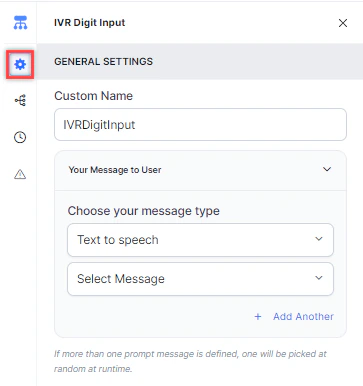
- Custom Name: Enter a name to identify the node.
-
Your Message to User: Select a message type under Choose your message type:
-
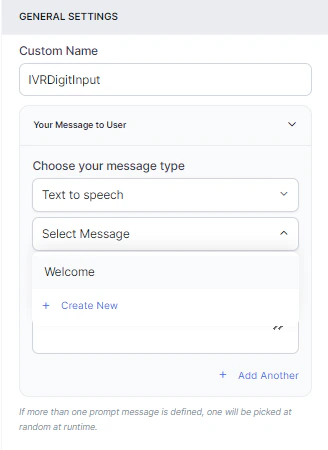
Text to Speech: Type or select a message to convert to speech. Click + Create New to add a new prompt, or + Add Another to define multiple messages (one is randomly selected at runtime).
-
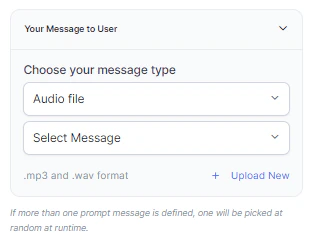
Audio File: Type a message or click + Upload New to upload an .mp3 or .wav file.
-
Link: Click + Create New to add message text and an audio file URL (.mp3 or .wav). Click + Add Another for additional URLs.
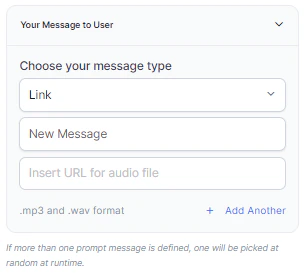
-
Text to Speech: Type or select a message to convert to speech. Click + Create New to add a new prompt, or + Add Another to define multiple messages (one is randomly selected at runtime).
Condition
Click the Condition icon to define the criteria for accepting input:- Maximum length of digit: Enter the maximum number of digits the caller can input.
- Ending Keypress: Enter the key that signals the end of input (for example, #).
- On success: Select a Go to node to route the flow when the condition is satisfied.
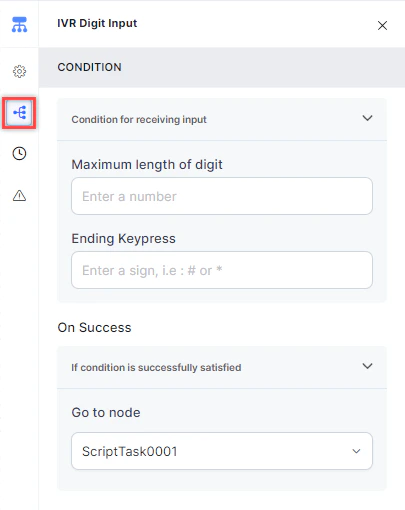
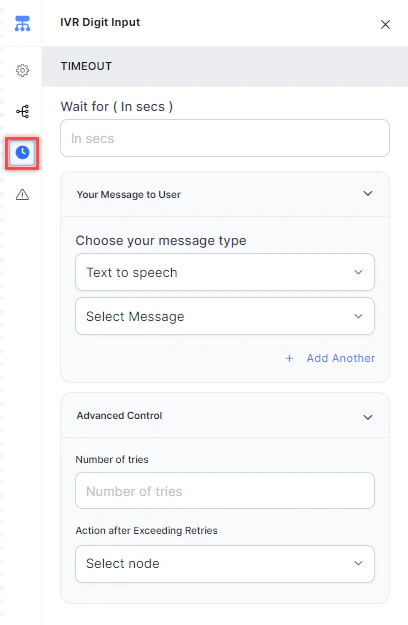
Timeout
Configure the timeout flow with the following fields:- Timeout: Enter the wait time in seconds before a timeout event occurs.
- Your Message to User: Select a message type (Text to Speech, Link, or Audio) to play when a timeout occurs. See General Settings for details.
- Advanced Control:
- Number of Tries: Enter the maximum number of retries allowed.
- Action after Exceeding Retries: Select the node to route to after retries are exhausted.
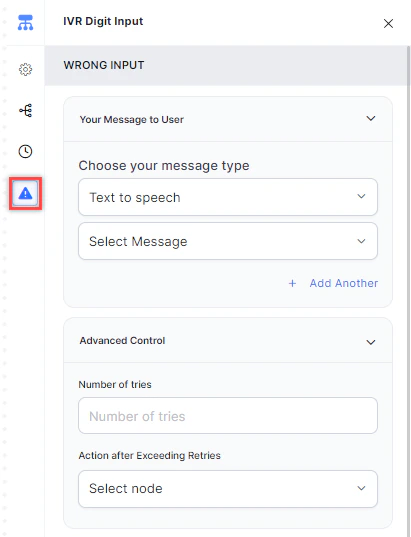
Wrong Input
Use this tab to configure the flow when a caller provides incorrect digit input.- Your Message to User: Select a message type (Text to Speech, Link, or Audio) to play. See General Settings for details.
- Advanced Control > Number of Tries: Enter the maximum number of retries for correct input.
- Advanced Control > Action after Exceeding Retries: Select the node to route to after retries are exhausted.
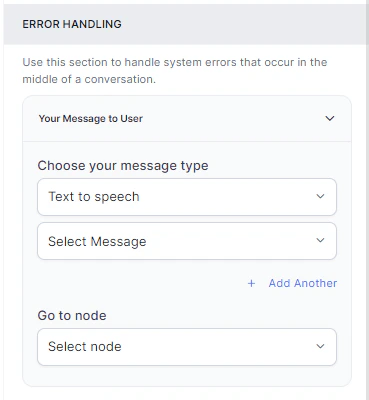
Error Handling
Error handling is available under the Wrong Input tab. Use it to define how system errors are handled during a call.- Your Message to User: Select a message type (Text to Speech, Link, or Audio) to play when a system error occurs. See General Settings for details.
- Go to node: Select the node for error handling. You can create a new node or select an existing one.
Store Digit Input
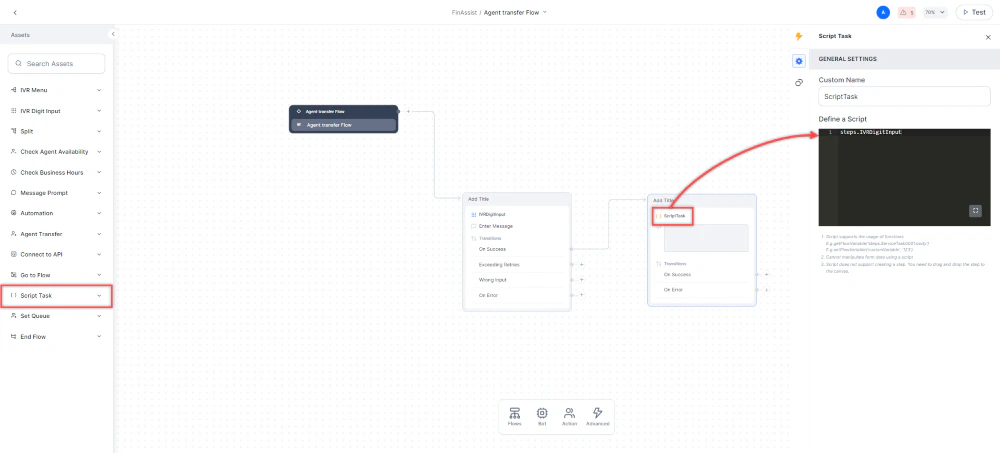
After the caller keys in their input, Contact Center AI stores it as a variable in a Script Task node. The context variable syntax is:- Add a Script Task node below the IVR Digit Input node.
- In General Settings > Define a Script, add the step reference (for example,
steps.IVRDigitInput).