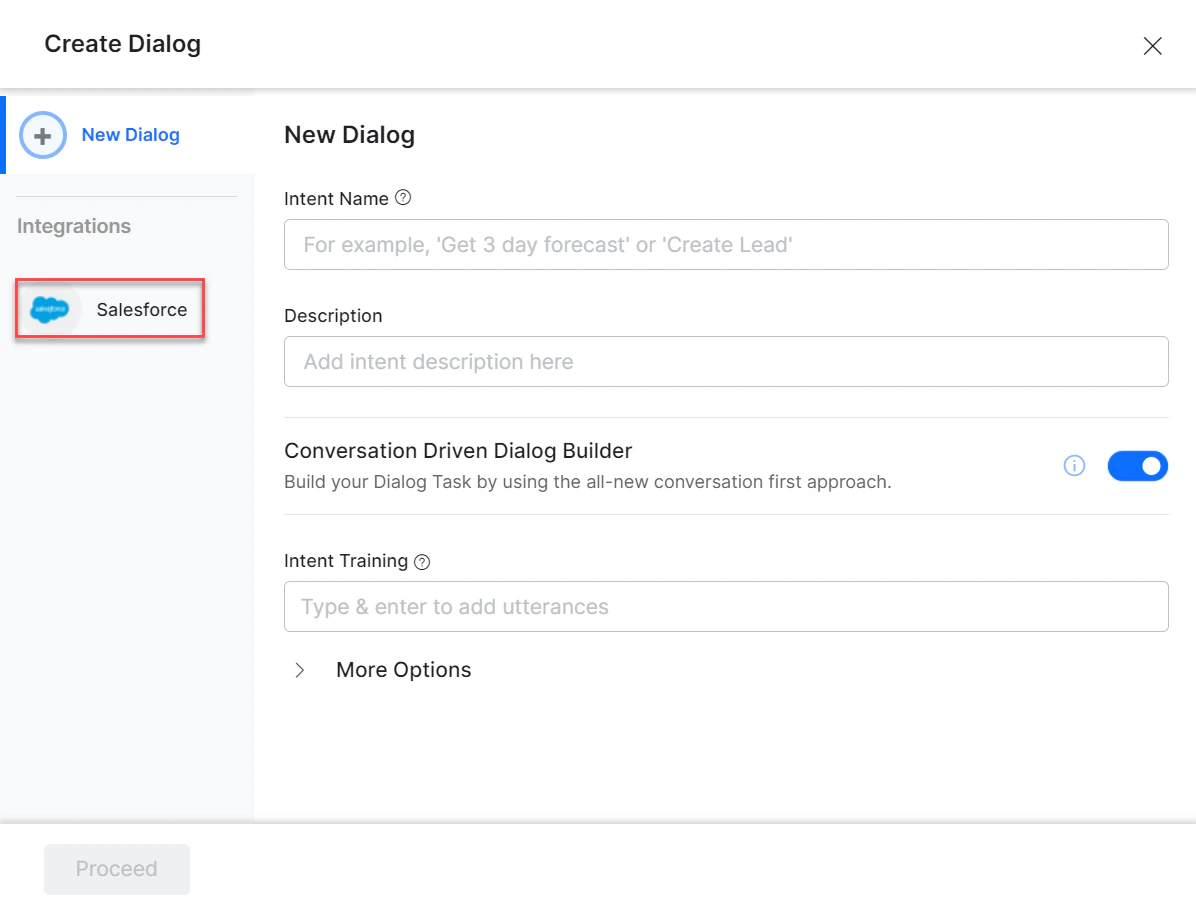
- Go to Automation AI > Use Cases > Dialogs and click Create a Dialog Task.
-
Under Integration, select Salesforce.
- If no integration is configured, click Explore Integrations to set one up. See Actions Overview.
Supported Actions
Create a Lead
- Install the template from Salesforce Action Templates.
-
The Create a Lead dialog task is added with the following components:
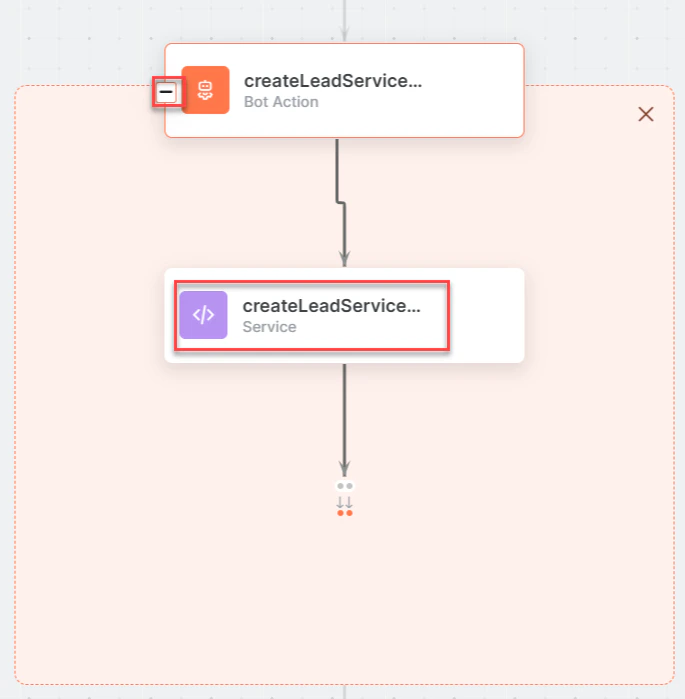
- Createlead - User intent to create a lead.
- firstName, lastName, companyName - Entity nodes for lead details.
-
CreateLeadService - Bot action service to create a lead. Click Edit Request:
 Click +Add Response: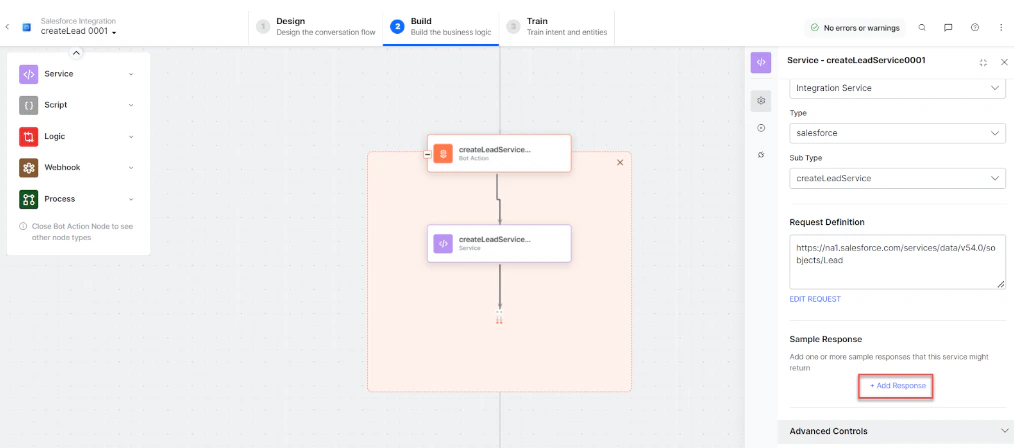
-
subDomainService - Bot action service to fetch subdomain.
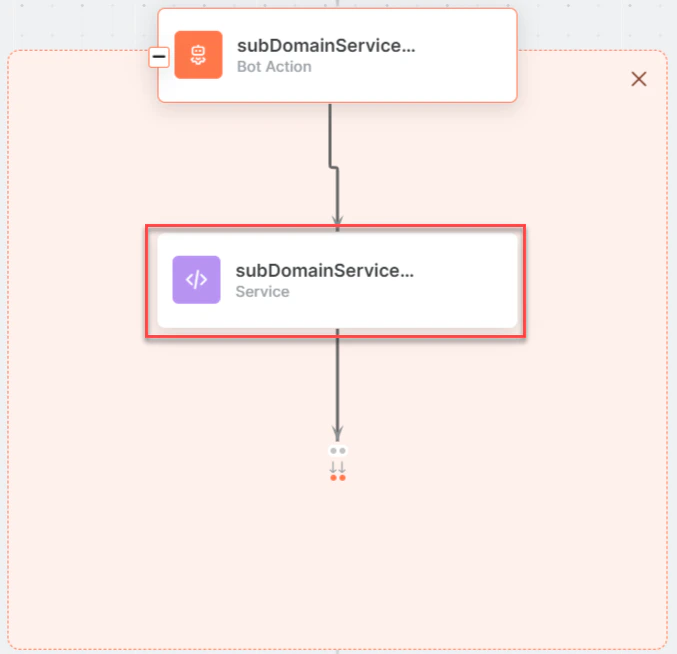
- createLeadMessage - Message node to display responses.
-
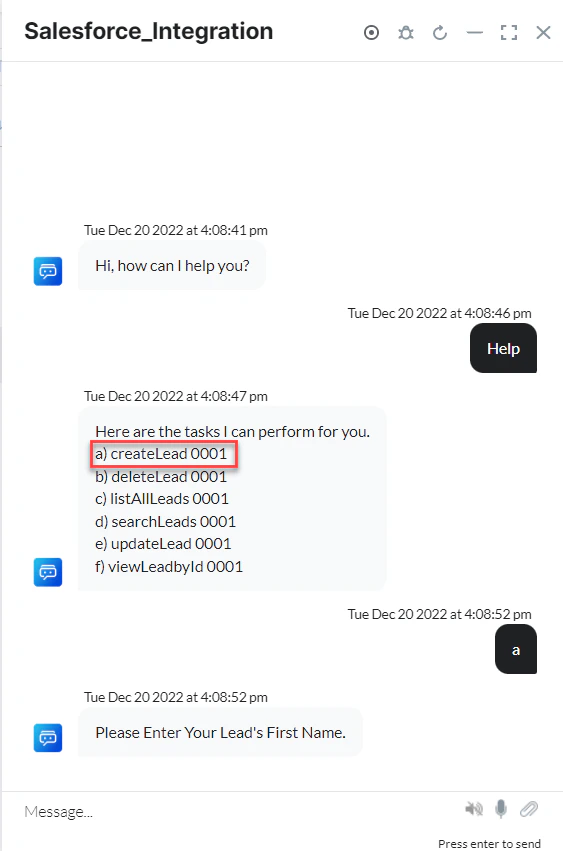
Click Train, then Talk to Bot to test:
-
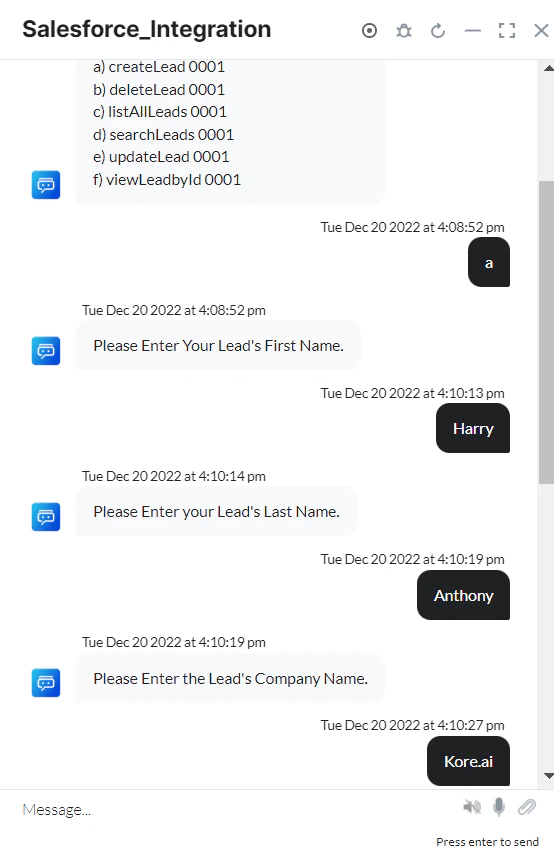
Enter lead details when prompted:
-
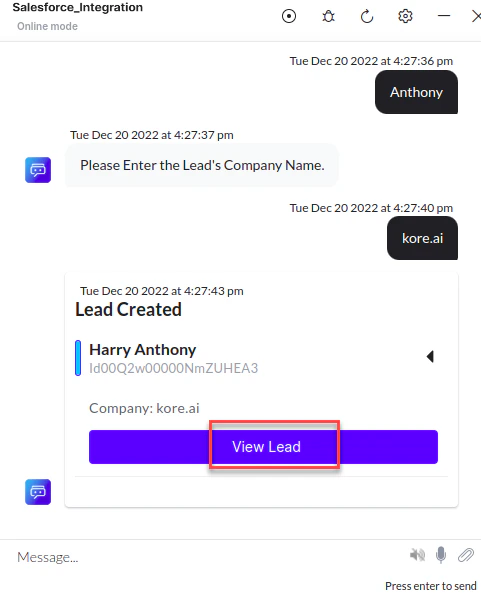
The new lead is created in Salesforce CRM:
-
Click View Lead to see lead details:
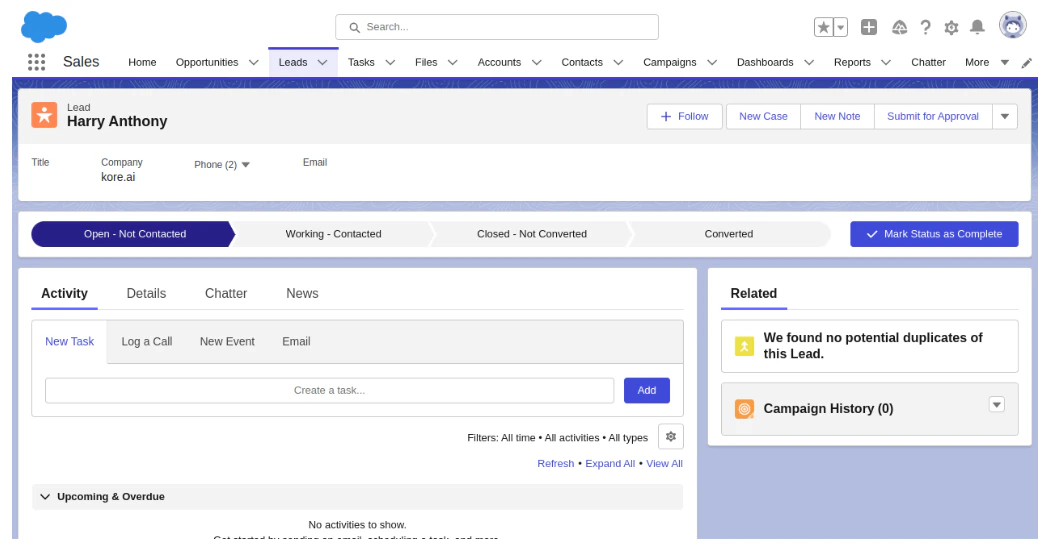
Update a Lead
- Install the template from Salesforce Action Templates.
-
The Update a Lead dialog task is added with the following components:
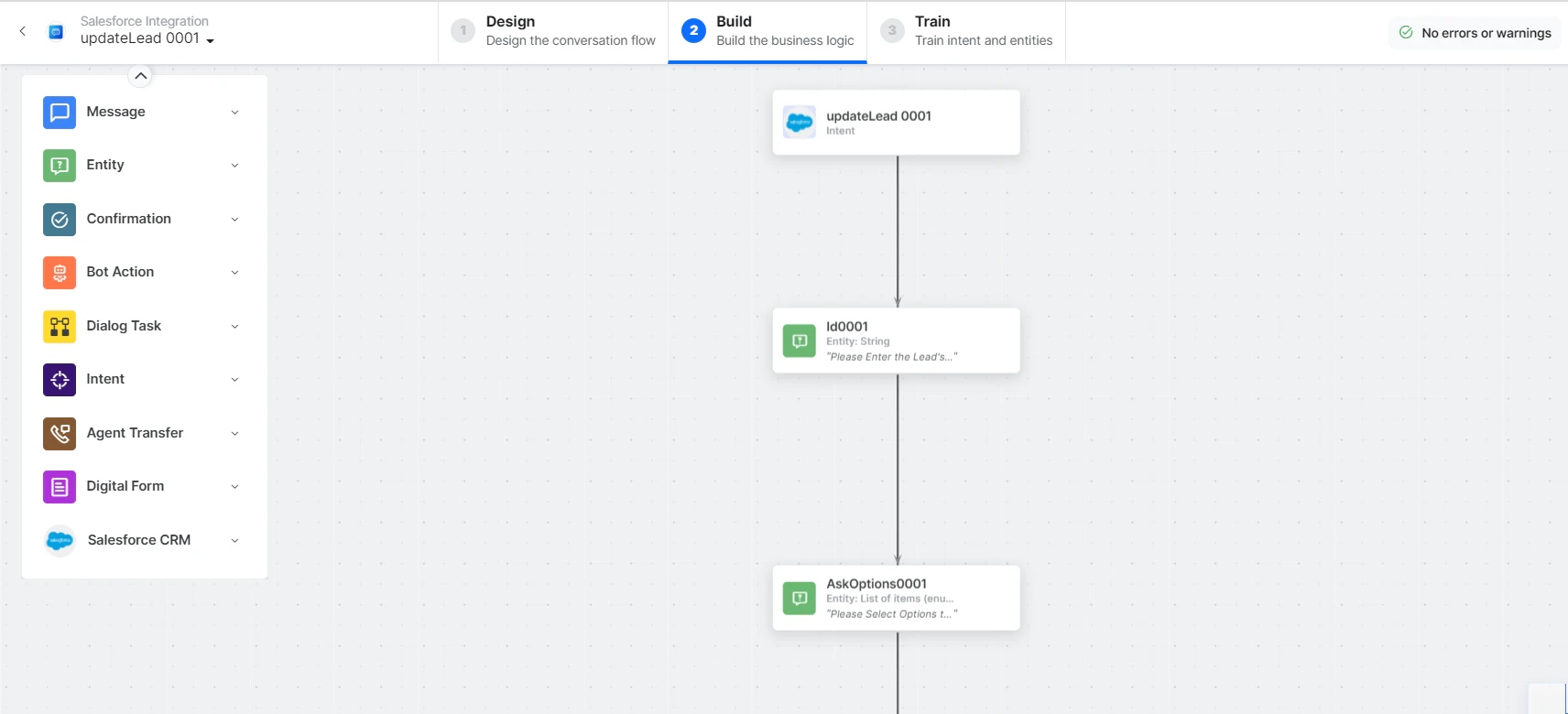
- Update lead - User intent to update a lead.
- Id, AskOptions, LeadStatus, Title, MobilePhone - Entity nodes for update details.
-
updateLeadScript - Bot action script to update a lead.
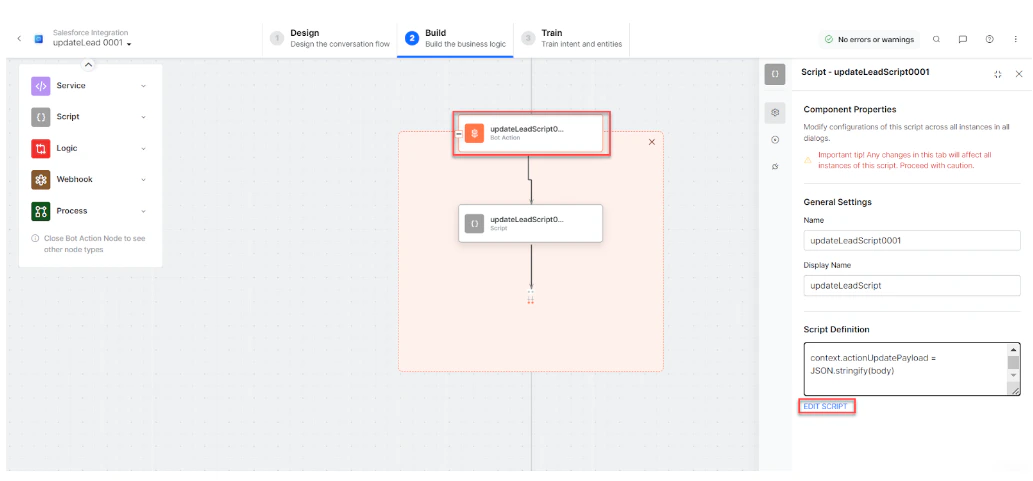
- updateLeadService - Bot action service to update a lead.
- subDomainService - Bot action service to fetch subdomain.
- updateLeadMessage - Message node to display responses.
-
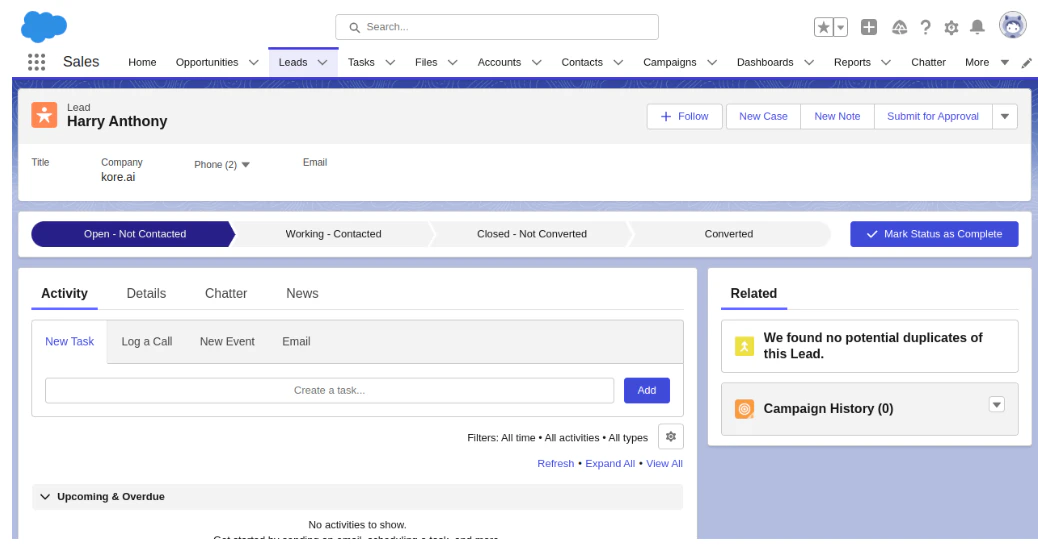
Click Train, then Talk to Bot to test. After entering lead details, the lead is updated in Salesforce CRM. Click View Lead to see updated details:
Delete a Lead
- Install the template from Salesforce Action Templates.
-
The Delete Lead dialog task is added with the following components:
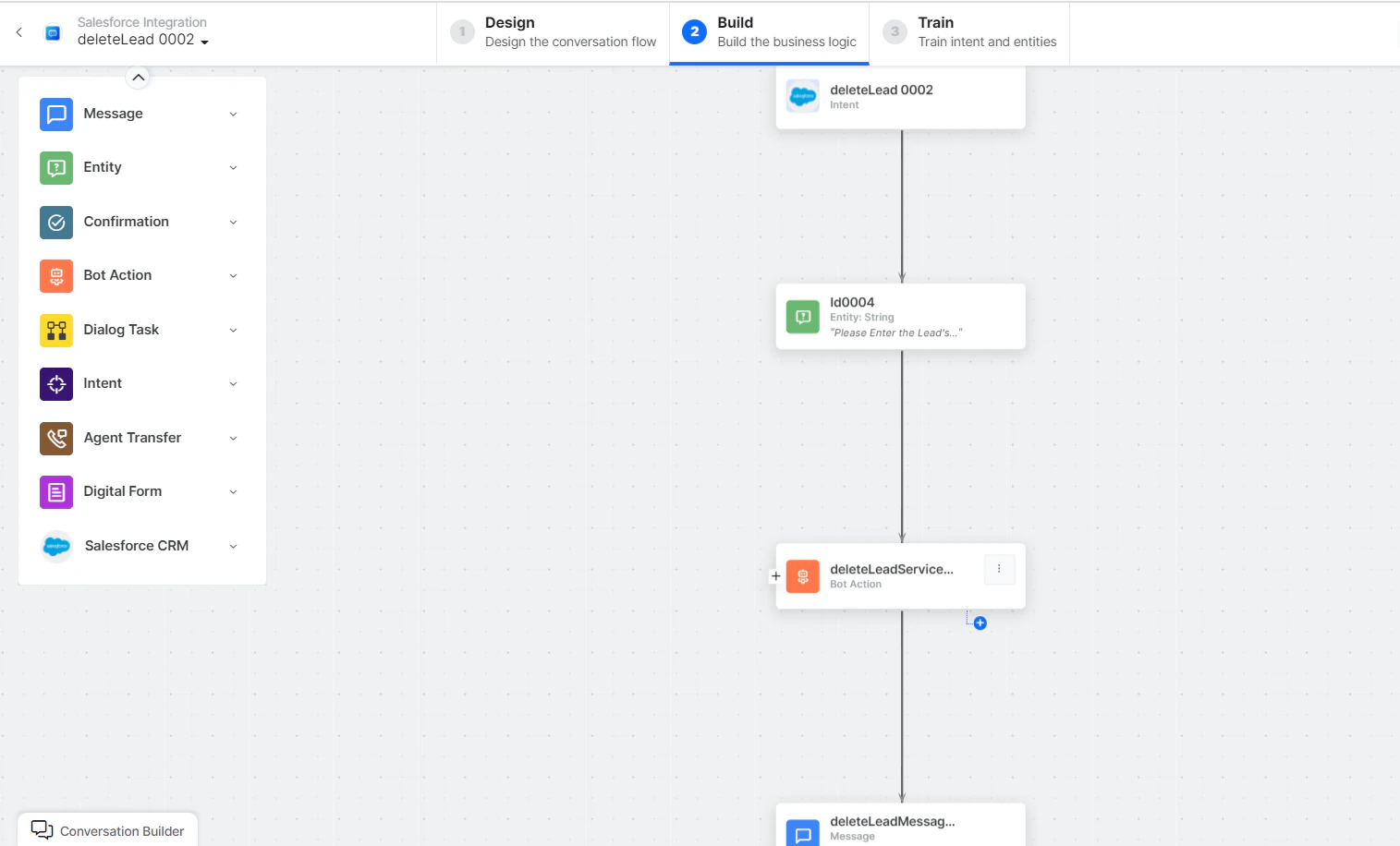
- Delete Lead - User intent to delete a lead.
- ID - Entity node for the lead ID.
-
deleteLeadService - Bot action service to delete a lead.
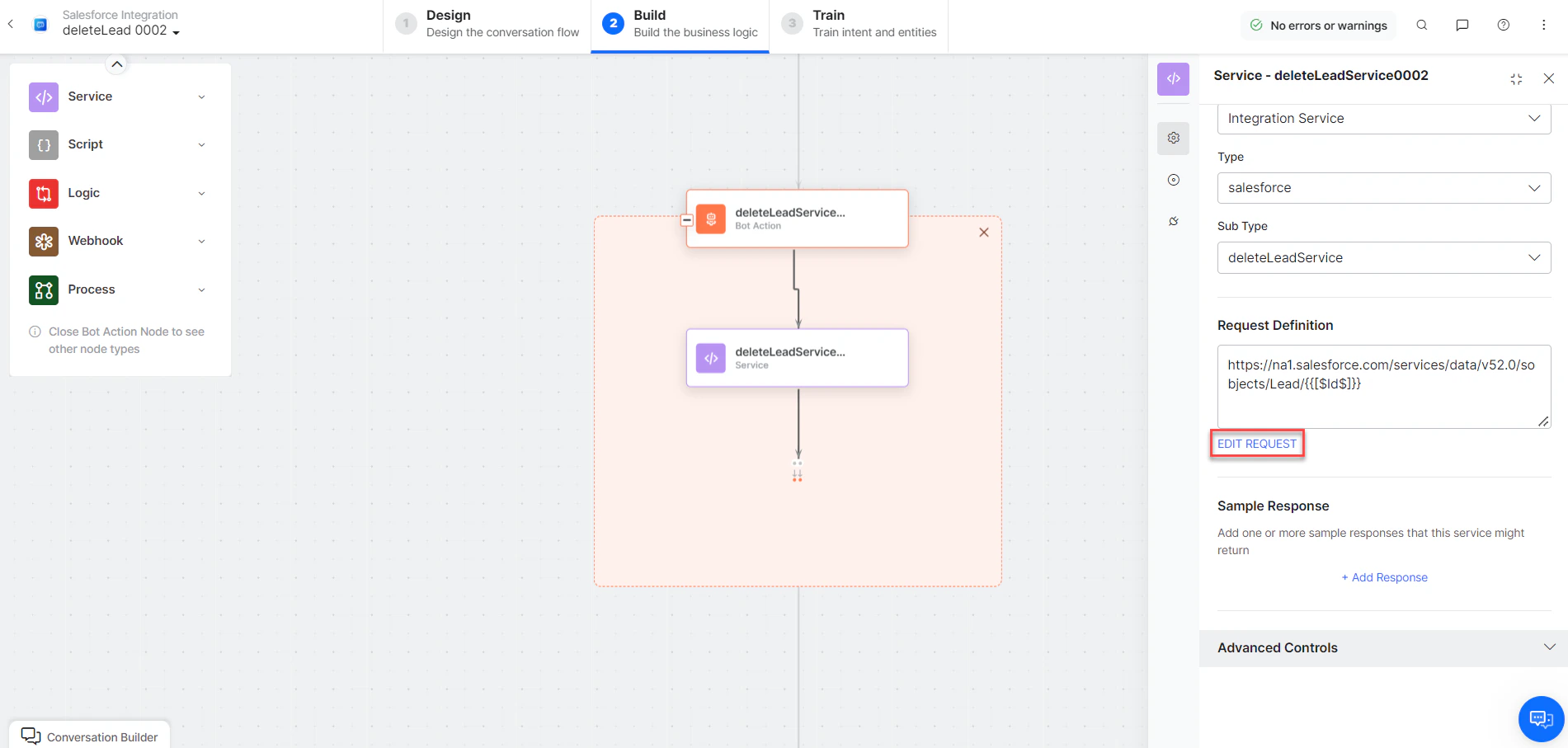
- deleteLeadMessage - Message node to display responses.
-
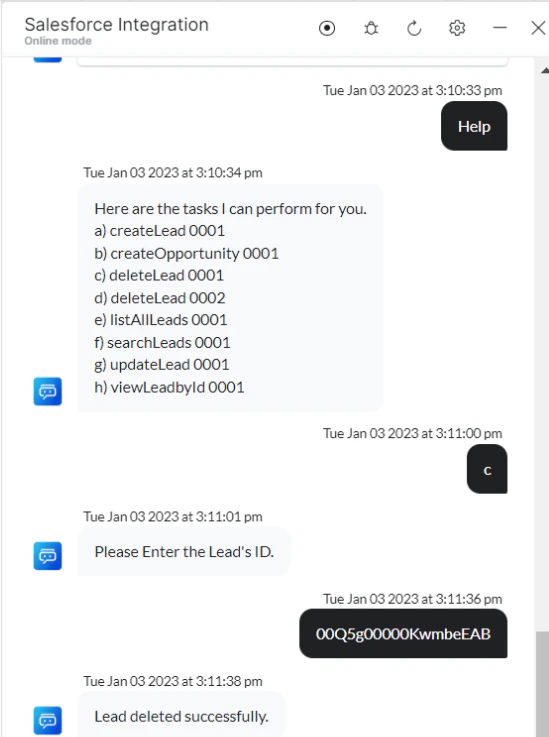
Click Train, then Talk to Bot to test:
List All Leads
- Install the template from Salesforce Action Templates.
-
The List All Leads dialog task is added with the following components:
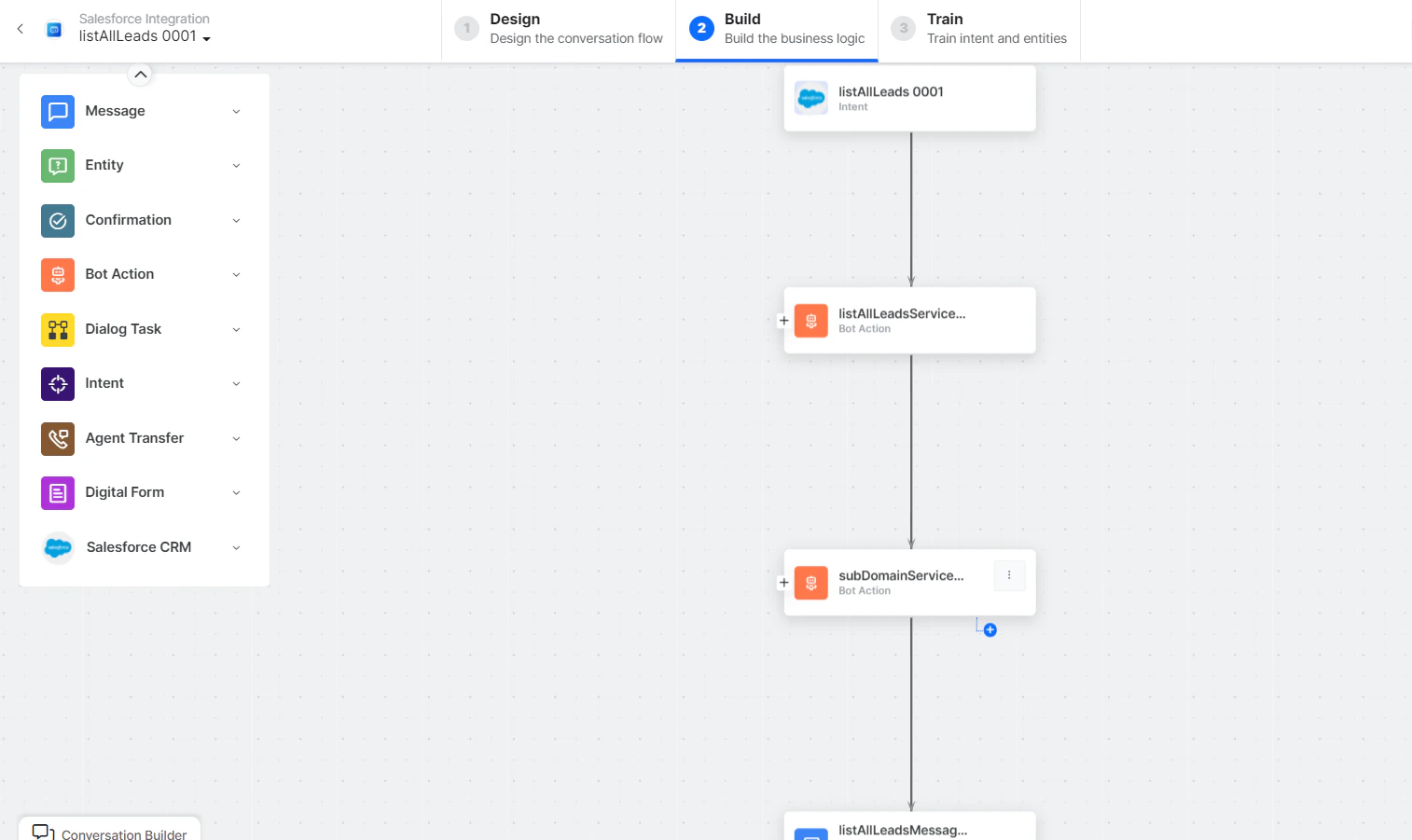
- List All Lead - User intent to list all leads.
-
listAllLeadsService - Bot action service to fetch all leads. Click +Add Response:
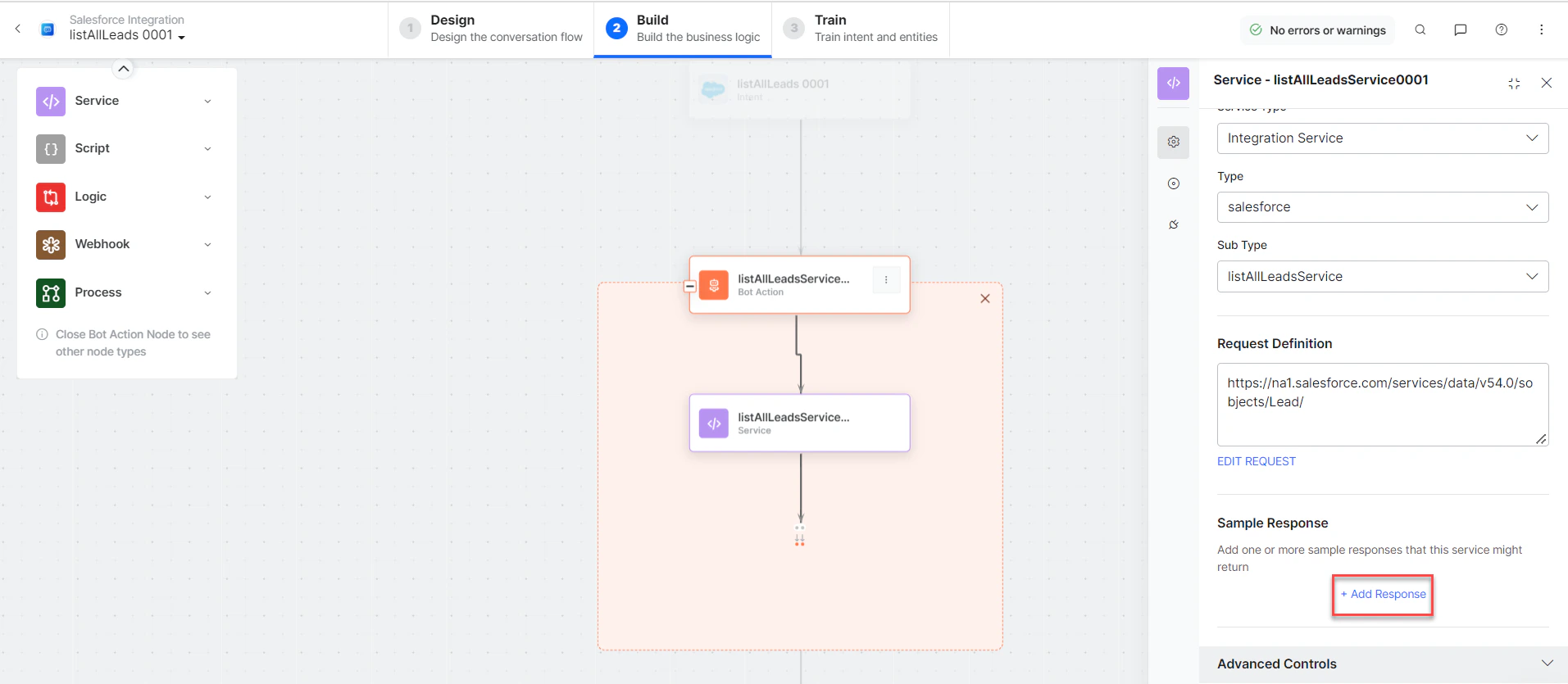
- subDomainService - Bot action service to fetch subdomain.
- listAllLeadsMessage - Message node to display responses.
-
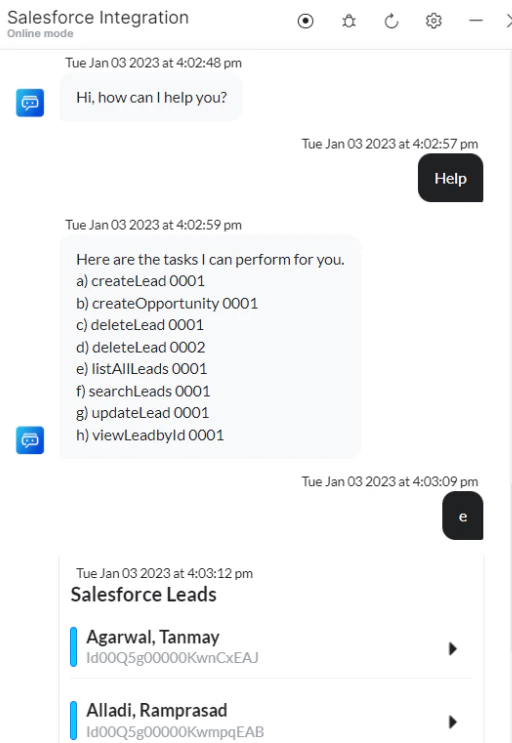
Click Train, then Talk to Bot to test:
View a Lead By ID
- Install the template from Salesforce Action Templates.
-
The View Lead by Id dialog task is added with the following components:
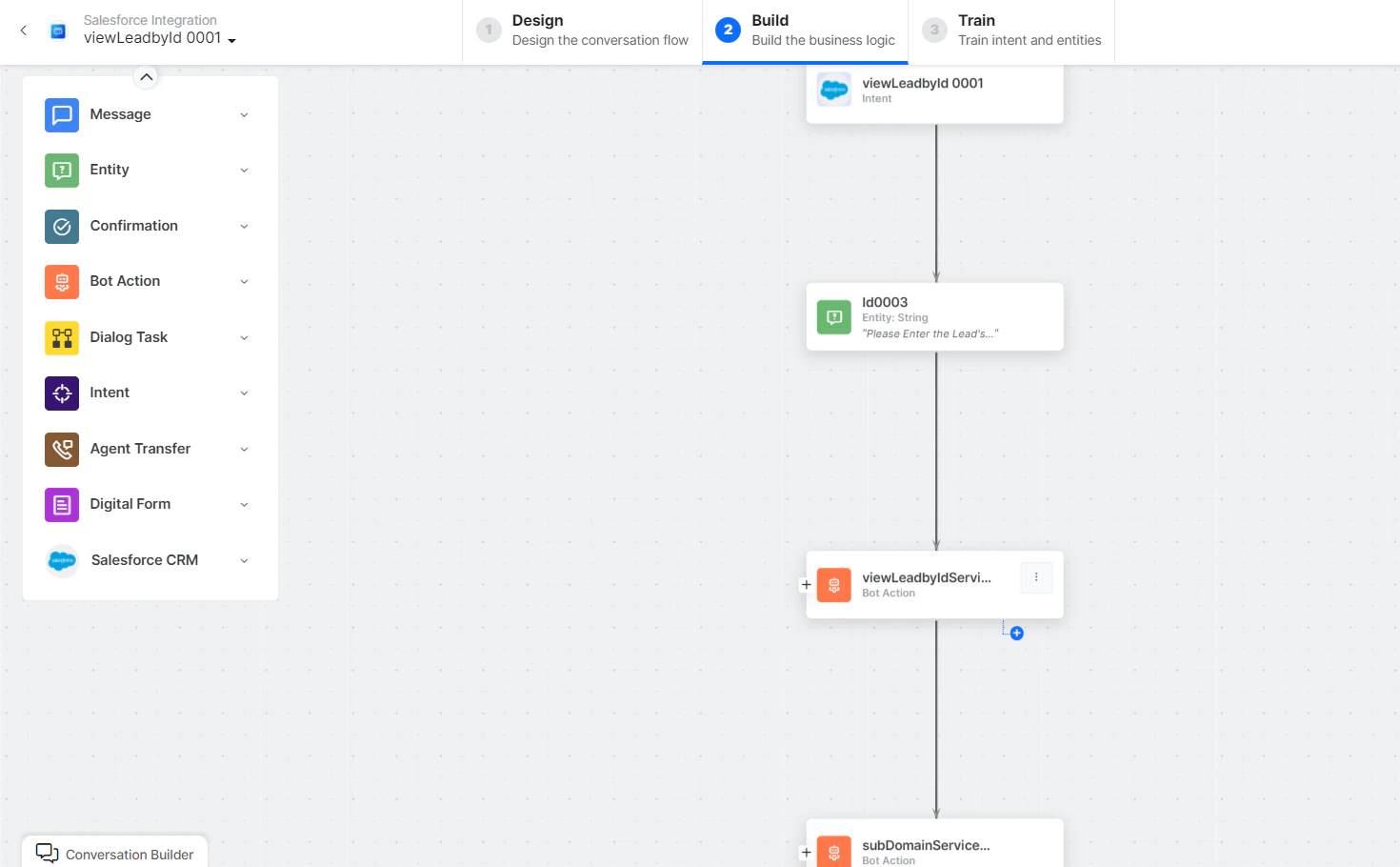
- View Lead by Id - User intent to view a lead by ID.
- ID - Entity node for the lead ID.
-
viewLeadbyIdService - Bot action service to view a lead by ID. Click +Add Response:
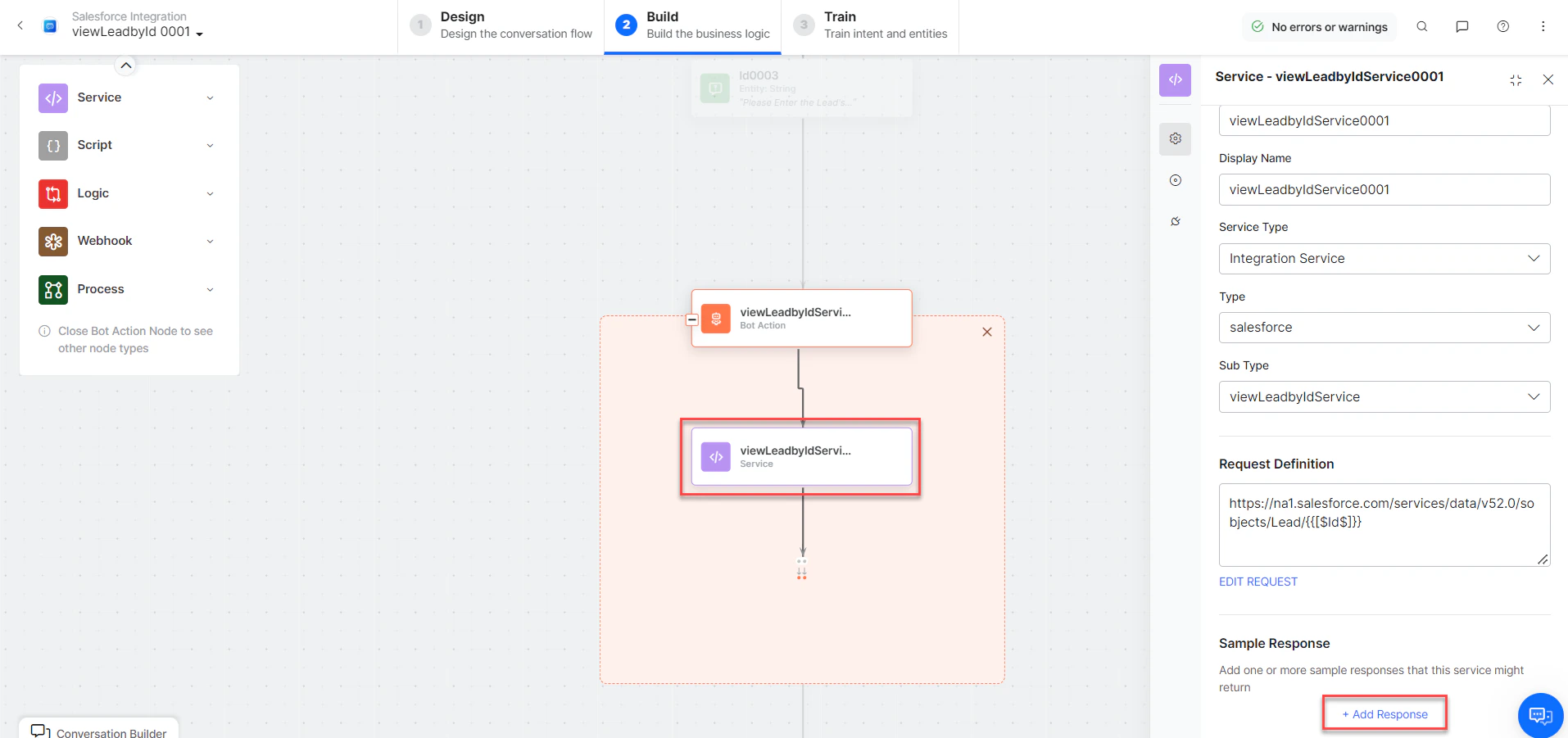
- subDomainService - Bot action service to fetch subdomain.
- viewLeadbyIdMessage - Message node to display responses.
-
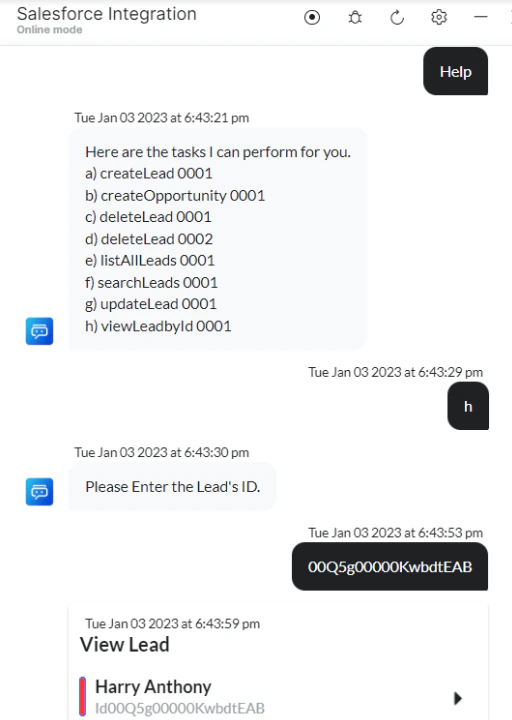
Click Train, then Talk to Bot to test:
Search Leads
- Install the template from Salesforce Action Templates.
-
The Search Leads dialog task is added with the following components:
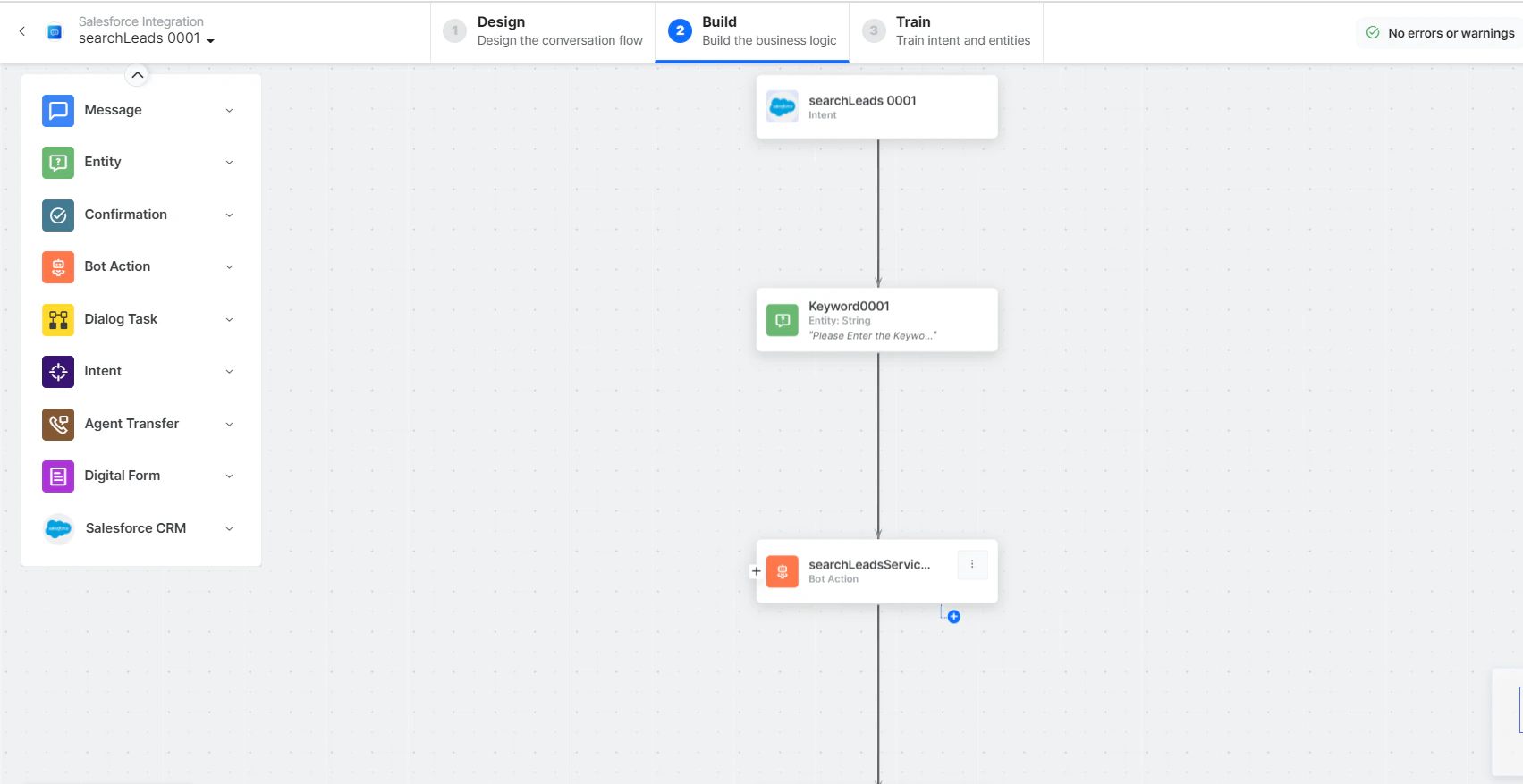
- Search Leads - User intent to search leads.
- Keyword - Entity node for search keywords.
-
searchLeadsService - Bot action service to search leads. Click +Add Response:
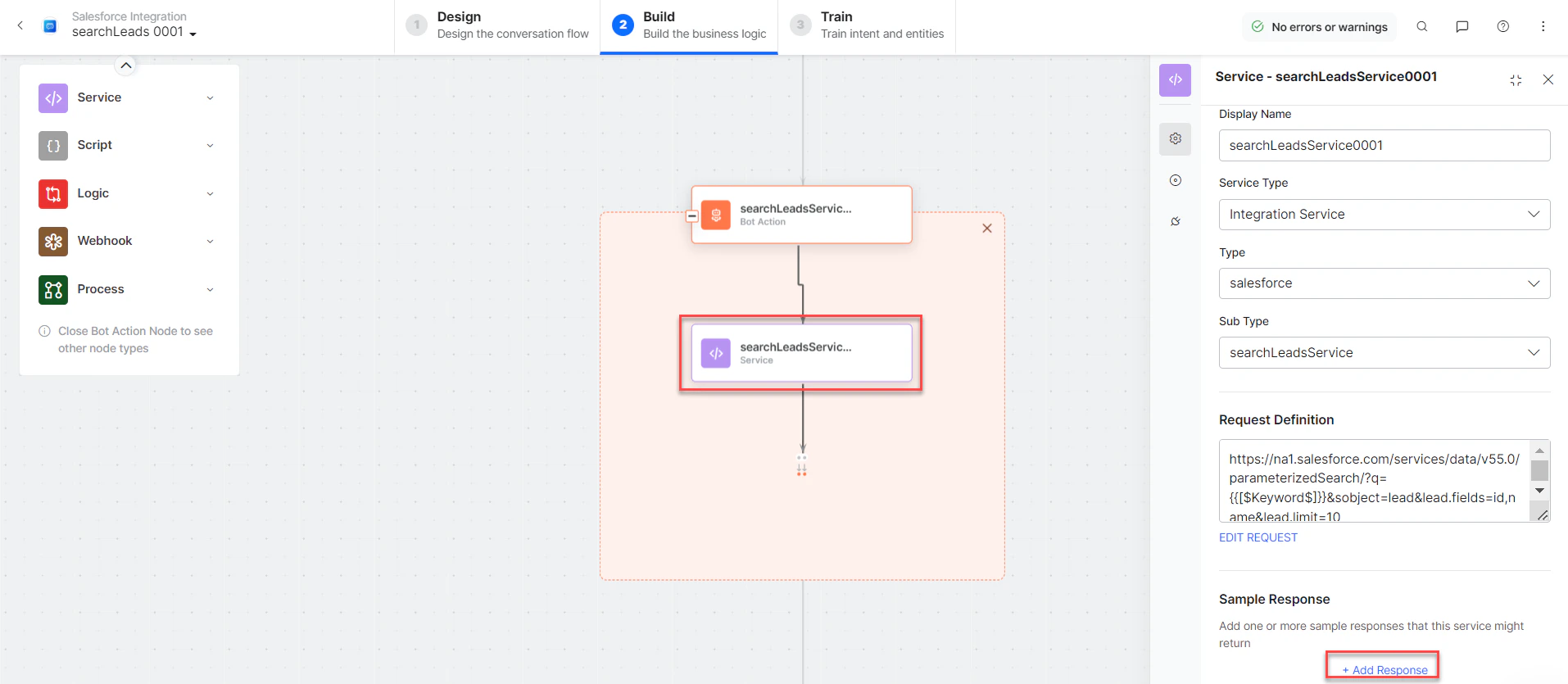
- subDomainService - Bot action service to fetch subdomain.
- searchLeadsMessage - Message node to display responses.
-
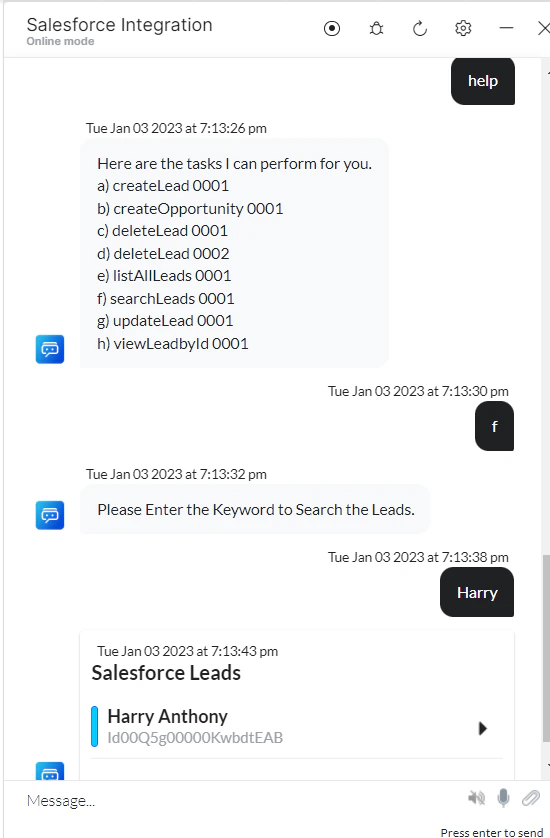
Click Train, then Talk to Bot to test:
Create an Opportunity
- Install the template from Salesforce Action Templates.
-
The Create Opportunity dialog task is added with the following components:
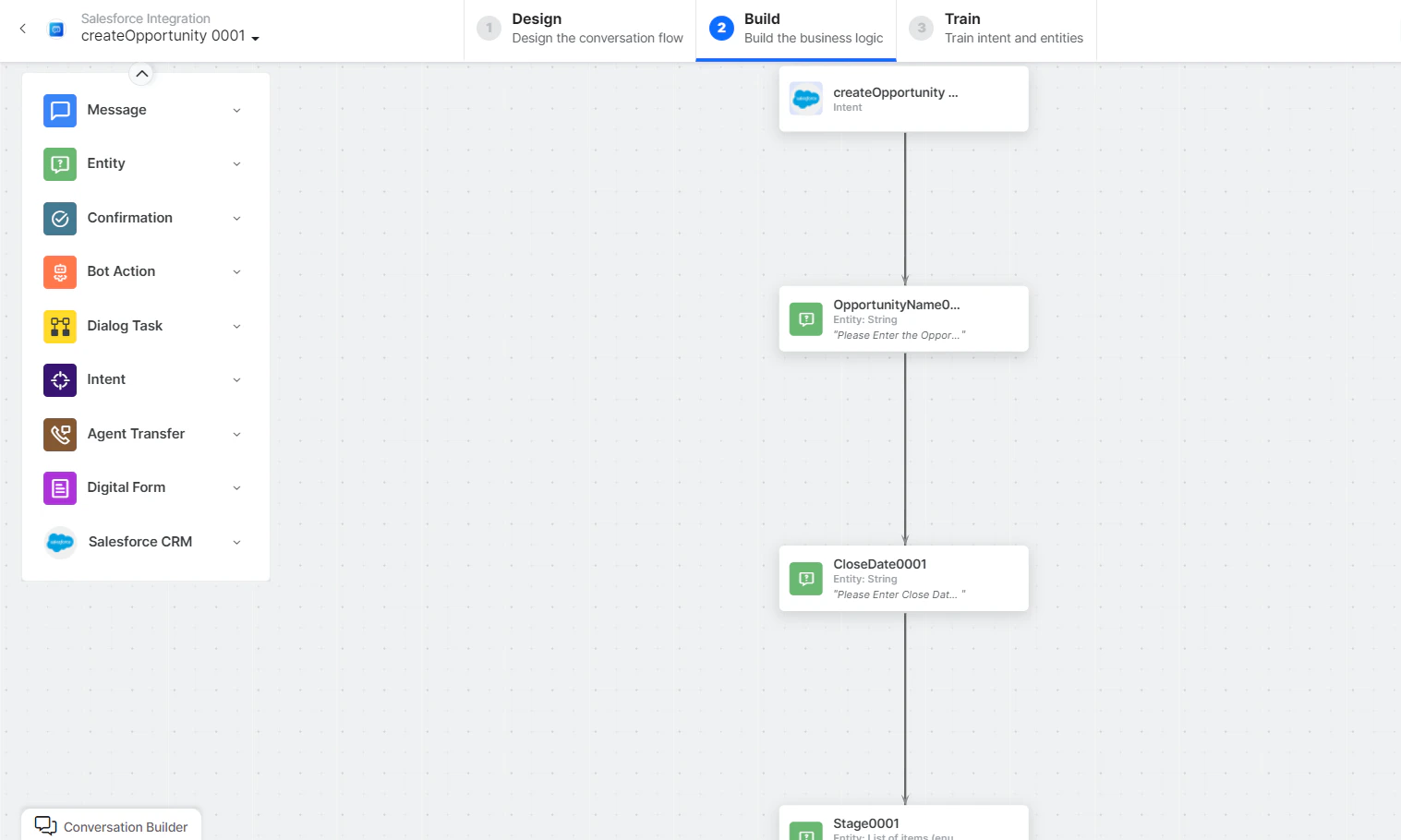
- Create Opportunity - User intent to create an opportunity.
- Opportunity Name, Closed Date, Stage of Opportunity - Entity nodes for opportunity details.
-
CreateOpportunityService - Bot action service to create an opportunity. Click Edit Request:
 Click +Add Response: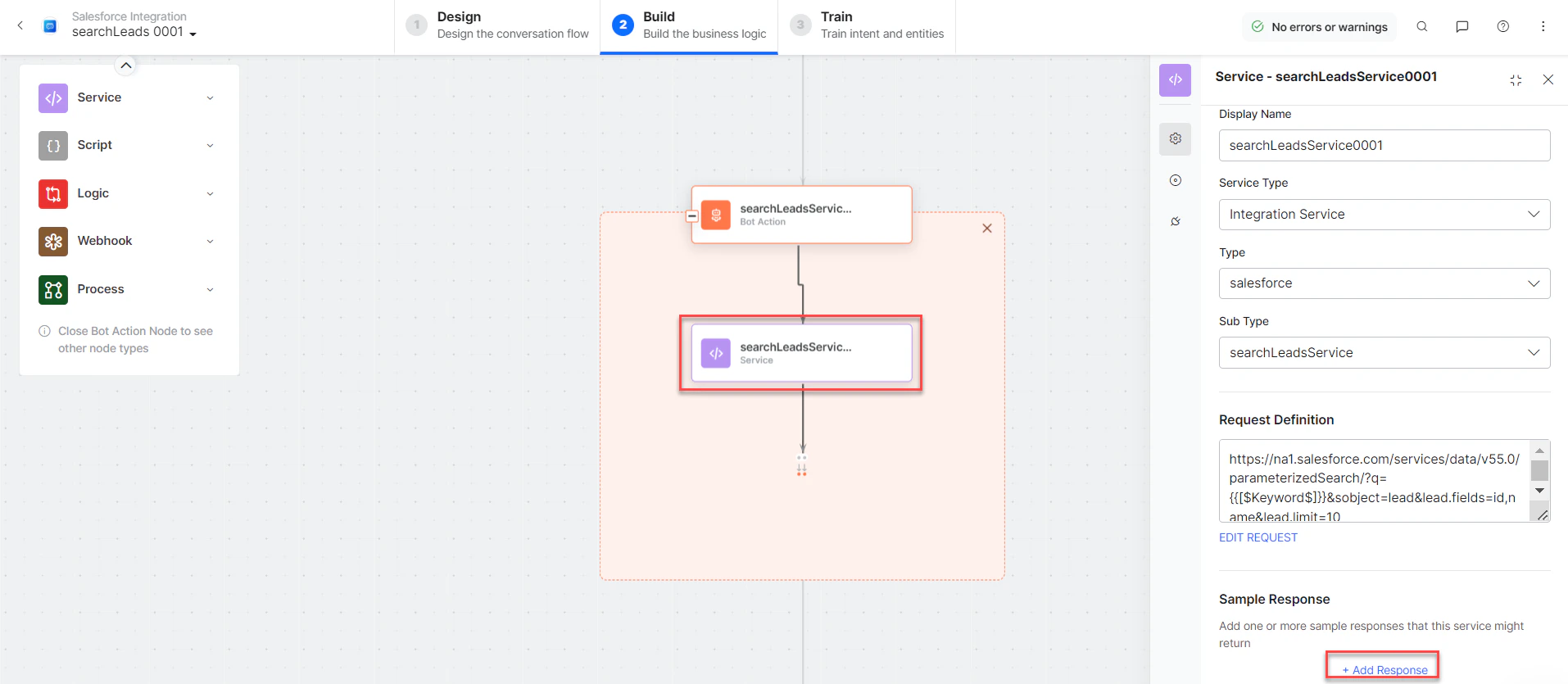
- subDomainService - Bot action service to add subdomain.
- createOpportunityMessage - Message node to display responses.
-
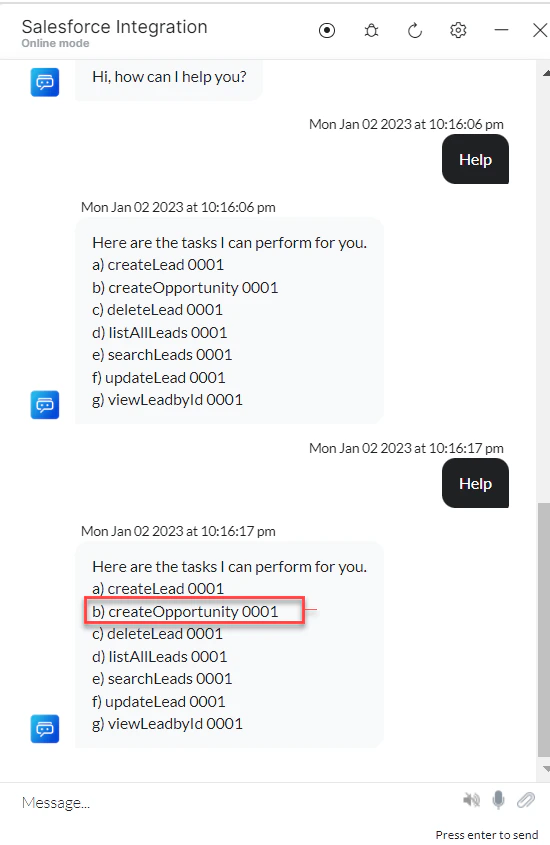
Click Train, then Talk to Bot to test:
-
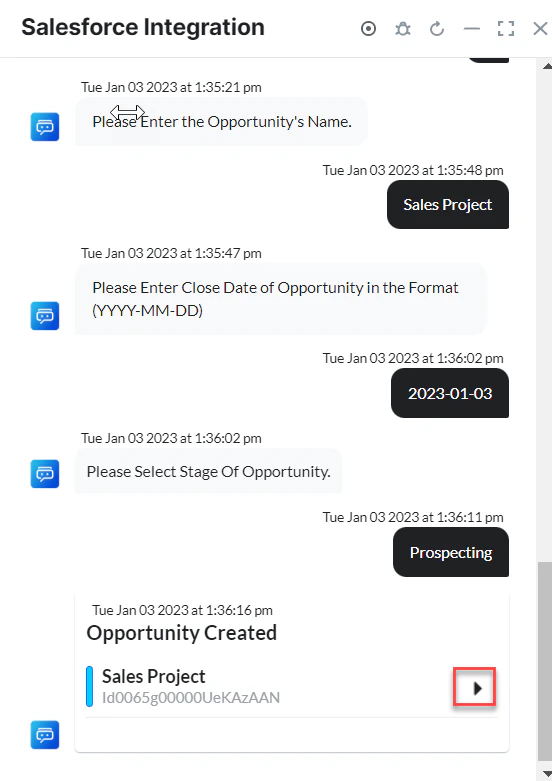
Click the Chevron icon to expand the new opportunity:
-
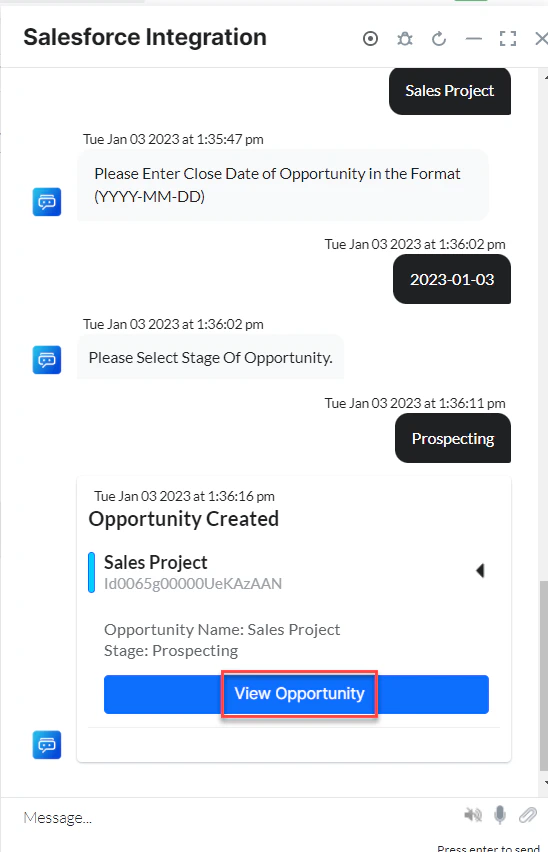
Click View Opportunity to see opportunity details in Salesforce CRM: