

Key Capabilities
- Individual Assessment: Each agent receives evaluations based on applicable scorecards during call transfers.
- Direction-aware Assignment: Assign separate scorecards for Inbound and Outbound contacts to evaluate each direction using relevant criteria.
- Multiple Evaluations: Apply multiple scorecards to each interaction to assess agents.
- Multilingual Support: Attributes and scorecards support multilingual evaluations for diverse interactions.
- Negative Weight Scoring: Apply negative weights to key metric results to highlight their significance and impact on agent scores.
- Fatal Criteria Parameters: Mark non-compliance metrics as fatal, resulting in a zero score for the interaction.
- Not Applicable Scoring Treatment: Choose whether to exclude metrics marked Not Applicable from scorecard scoring or award them full weightage, independently of the evaluation form’s setting.
- Minimum Duration Threshold: Exclude contacts that fall below a configured duration from AutoQA scoring.
- Enterprise Quality Monitoring: Supports advanced enterprise scoring, reporting, and audit workflows.
Access Agent Scorecards
Navigate to Quality AI > Configure > Agent Score Cards.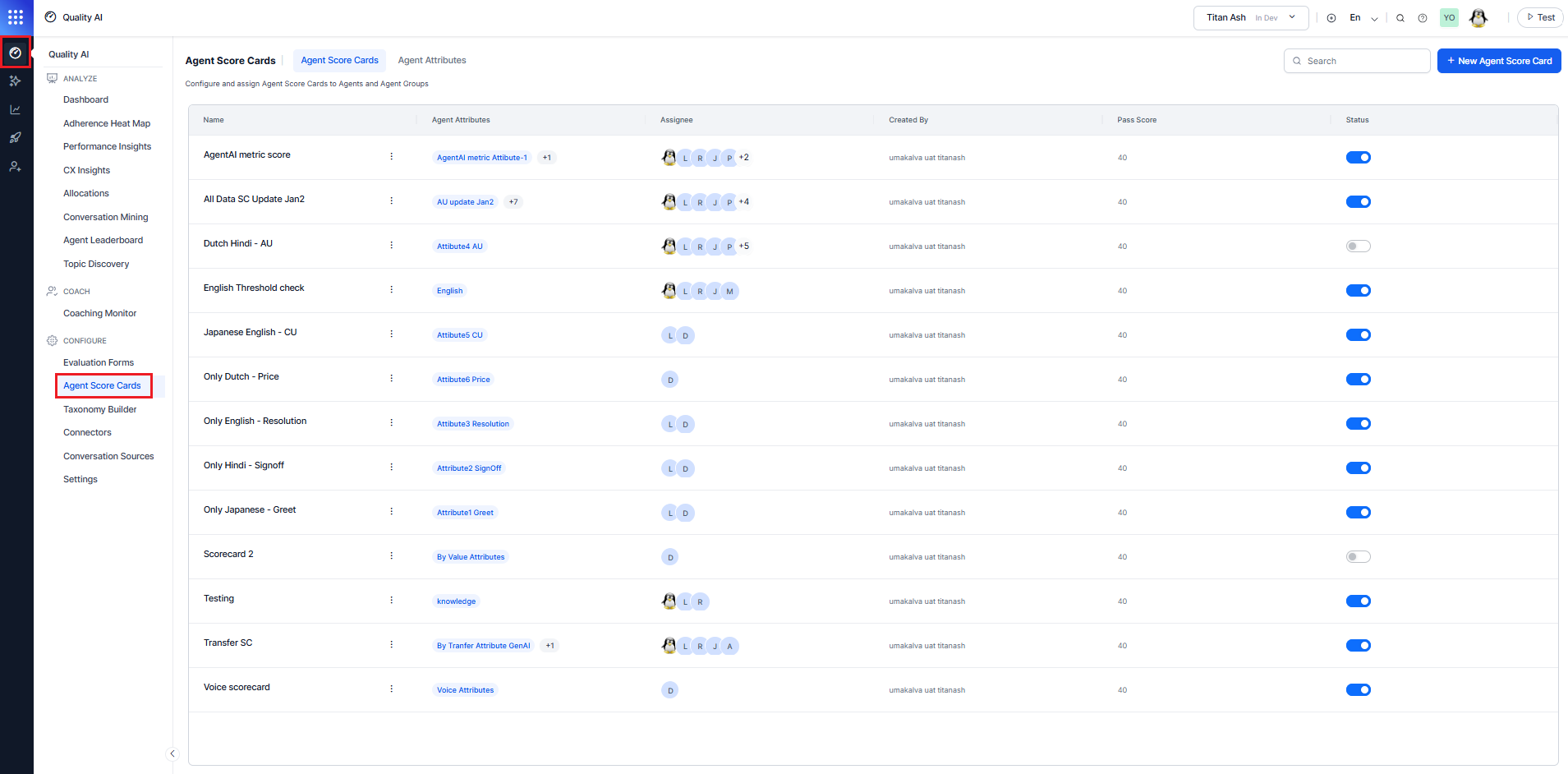
To view Agent Scorecards and Agent Attributes, enable the Agent Scorecards toggle in Quality AI > Settings > Quality AI Configuration Settings.
Permission Types
Supervisors can have one of three permission levels for agent scorecards:Create a New Agent Scorecard
Creating an agent scorecard involves the following three sections:-
Select + New Agent Score Card.
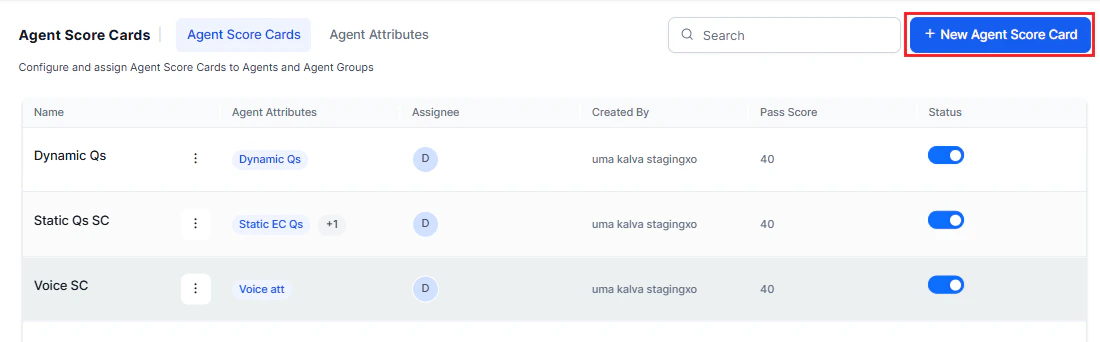
Configure General Settings
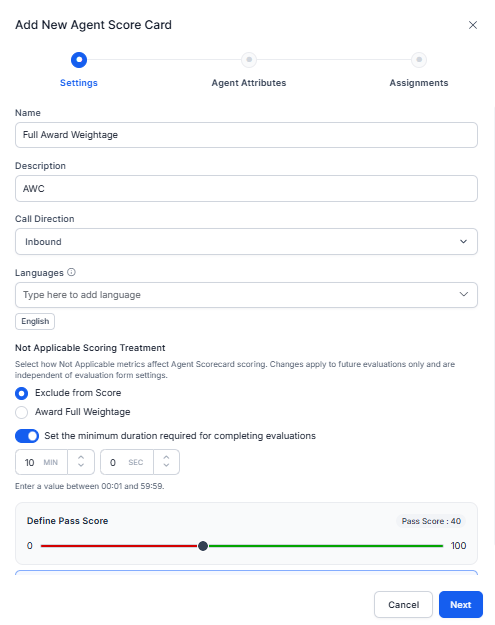
- By default, the system displays the Settings tab.
- Enter a Name for the scorecard.
- Enter a short optional Description.
- Select the Call Direction to define applicable interactions—Inbound, Outbound, or Both.
- Select the required Languages from the drop-down to load the associated evaluation metrics and attributes.
-
Select a Not Applicable Scoring Treatment:
- Exclude from Score (default): Removes a Not Applicable metric’s weightage from both the numerator and denominator when the system aggregates metric results into Agent Attribute and Scorecard scores.
- Award Full Weightage: Adds a Not Applicable metric’s weightage to both the numerator and denominator, so the metric contributes full marks to the Agent Attribute and Scorecard scores while its displayed outcome stays Not Applicable.
- Turn on to Set the minimum duration required to complete evaluations.
- Enter a threshold value in minutes (MIN) and seconds (SEC).
- Set the minimum Pass Score required for agents.
-
Select Next.
At least one scorecard you must set as the default. The first scorecard you create becomes the default automatically. Before removing the default setting from a scorecard, assign another scorecard as the default.
Configure Agent Attributes
Select and configure attributes that define agent performance scoring.- Search for the relevant agent attributes name.
-
Select Agent Attributes to add them to the scorecard.
 Only attributes matching the selected languages are shown. Each attribute contributes proportionally to the final score. The Next button is enabled only when total weightage equals 100%.
 - Select Add Agent Attributes.
-
Assign a Weightage to each selected attribute.
-
Select Next.
Only attributes matching the selected languages are shown. Each attribute contributes proportionally to the final score. The Next button is enabled only when total weightage equals 100%.
Configure Assignments
Assign the scorecard to agents and agent groups.- Search and select agents or agent groups, and configure contact direction-based assignment.
-
Select Add Agents and Add Groups to include them in the scorecard.
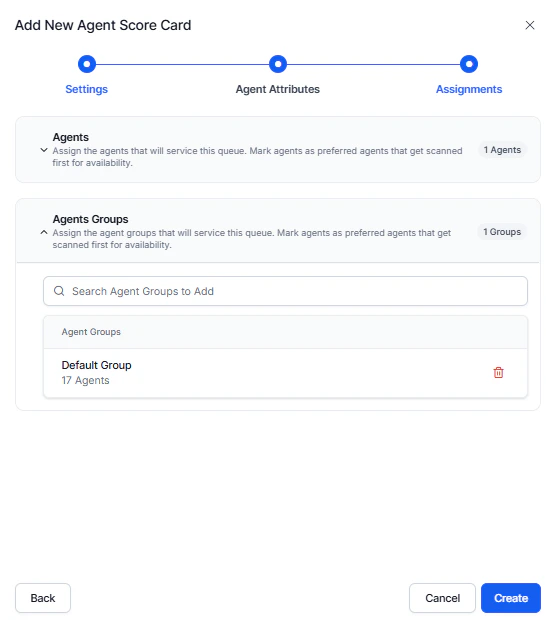
-
Select Create to create the Agent Scorecard with the selected agent attributes and assigned agents and agent groups.
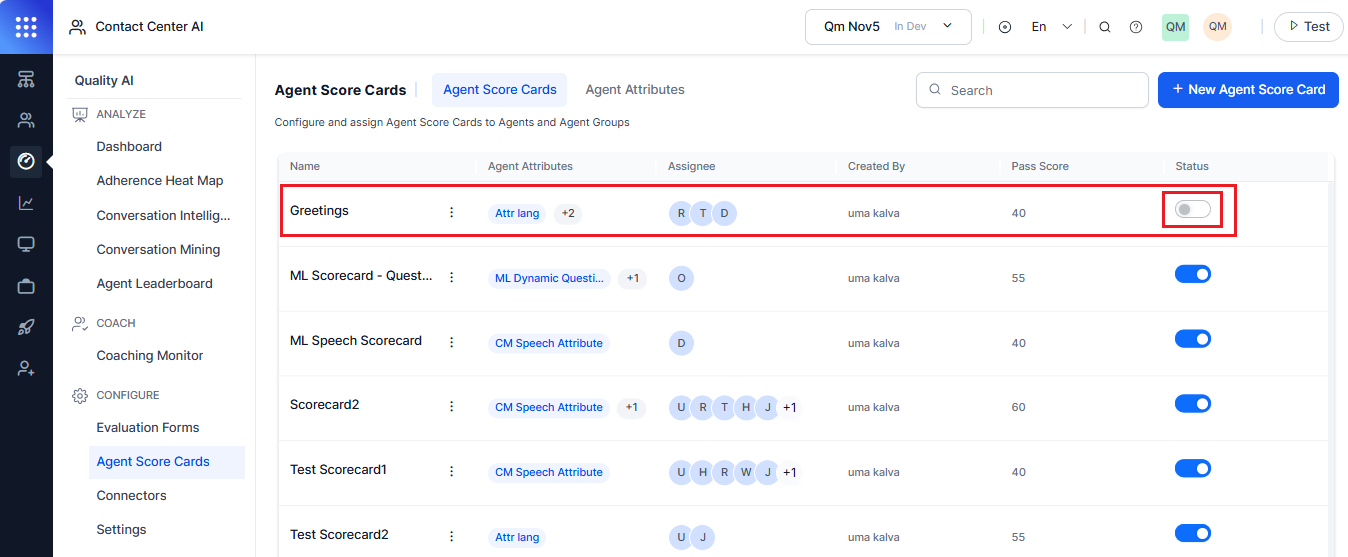 Toggle the Scorecard Status to Active to begin agent-level scoring.
Agent Scorecard Elements
The Agent Scorecards elements list displays the following columns for each scorecard:- Name: Name of the agent scorecard.
- Agent Attribute: List of performance attributes assigned to the scorecard.
- Assignee: Agents or agent groups assigned to the scorecard.
- Created By: Name of the user who created the scorecard.
- Pass Score: Minimum score threshold required for an agent to pass.
- Status: Indicates whether the scorecard is Active or Inactive.
- Search: Search for agent scorecards by name.
Not Applicable Scoring Treatment
The scorecard-level Not Applicable Scoring Treatment determines how Not Applicable metric outcomes contribute to Agent Attribute and overall Scorecard scores. The system applies this setting across the Agent Leaderboard, Agent Dashboard, and agent-specific dashboards. It doesn’t inherit the Not Applicable Scoring Treatment configured on the evaluation form.
A change to this setting doesn’t retroactively rescore conversations evaluated. It applies only to metric contributions from conversations scored after the change.
Not Applicable scoring is configured independently for evaluation forms and scorecards. Different settings can result in different scores for the same interaction.
How Minimum Duration Threshold Works
The minimum duration threshold determines the shortest interaction that qualifies for AutoQA scoring.Duration Calculation by Channel
Threshold changes apply only to new contacts after the scorecard is saved. Disabling the threshold evaluates all contacts.
Manual Override
Supervisors with the appropriate permissions can manually evaluate contacts flagged as Below Threshold or Duration Unavailable. The system includes these manually evaluated contacts in quality metrics as normalVersioning Behavior
The system versions threshold settings per scorecard. Updates apply only to contacts ingested after saving the scorecard. Historical contacts continue to use the previous threshold configuration.Pass Score Logic
- Pass: Score ≥ Pass Score
- Fail: Score < Pass Score.
Manage Agent Scorecards
Edit an Agent Scorecard
- Select the vertical ellipse (⋮) on any existing scorecard.
- Select Edit.
- Update the Settings, including Not Applicable Scoring Treatment, Agent Attributes, or Assignments, as needed.
- Select Update to save.
Delete an Agent Scorecard
To delete an agent scorecard:- Select the vertical ellipsis (⋮) for the scorecard you want to delete.
- Remove any unassigned attributes. If an attribute belongs to another scorecard, remove that scorecard assignment first.
- Select Delete to permanently remove the scorecard.
Deleting an agent scorecard permanently removes all data associated with the scorecard. Deleted scorecards can’t be recovered.
Delete the Default Scorecard
You can’t delete the default scorecard directly. Before deleting the current default scorecard:- Assign another scorecard as the default.
- Select the vertical ellipsis (⋮) for the current default scorecard.
- Select Delete.
Delete an Agent Scorecard
- Select the vertical ellipse (⋮) on any existing scorecard.
- Delete attributes only if they’re unassigned; otherwise, remove associated scorecards first.
- Select Delete to permanently remove the selected agent scorecard.
Delete Agent Scorecard
When you delete an agent scorecard, you permanently lose all data linked to that scorecard, and you can’t recover it.Delete Default Scorecard
You can’t delete the default scorecard directly. Before deleting any default scorecard, you must assign another scorecard as the default before deleting the current scorecard. Otherwise, the system displays a warning dialog.Language Configuration Warnings
Adding Languages
A warning appears if a new language isn’t configured for existing metrics or attributes. You must configure metrics for that language first.Deleting Languages
You can’t remove any languages linked to active scorecards or attributes until you clear those links. The system allows language modification only for attributes configured for the selected languages.Agent Attributes
This feature generates agent attributes by aggregating evaluation metrics to calculate an Agent Attribute Score, which highlights critical performance areas such as Professionalism and Product Knowledge. The system derives the score from evaluation metric data and filters the displayed attributes according to the scorecard’s language.Access Agent Attributes
Navigate to Quality AI > CONFIGURE > Agent Attributes.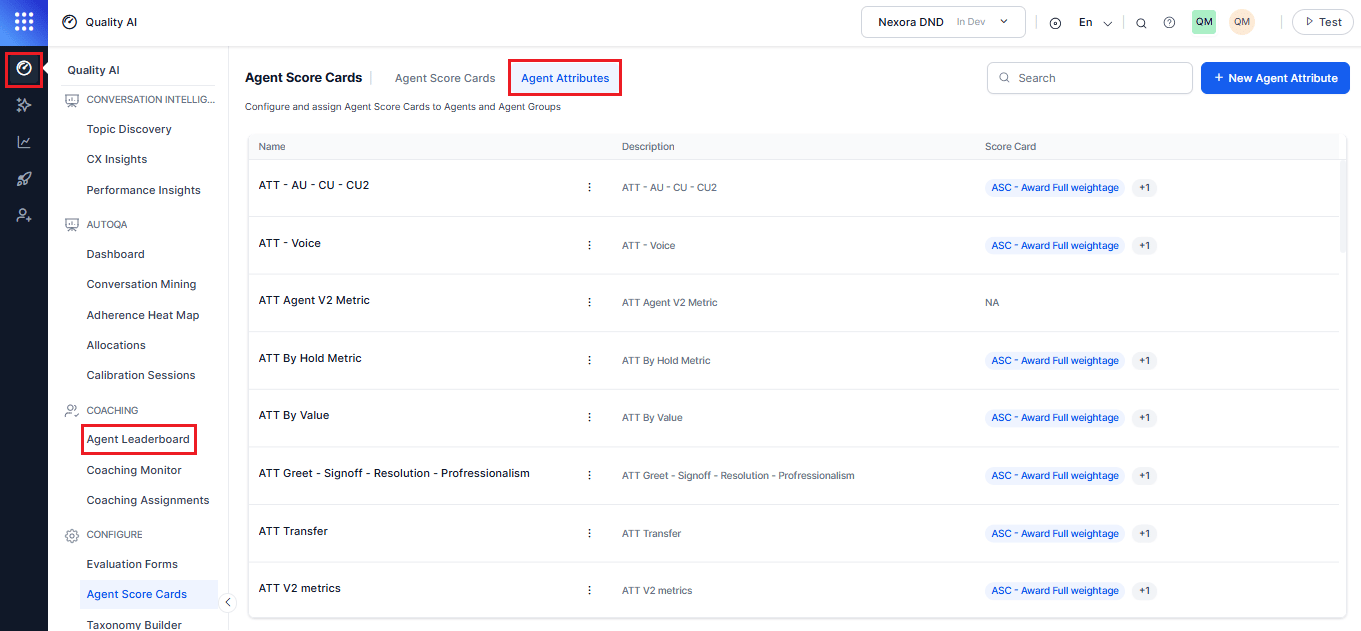
Create a New Agent Attribute
-
Select Agent Attributes > + New Agent Attribute.
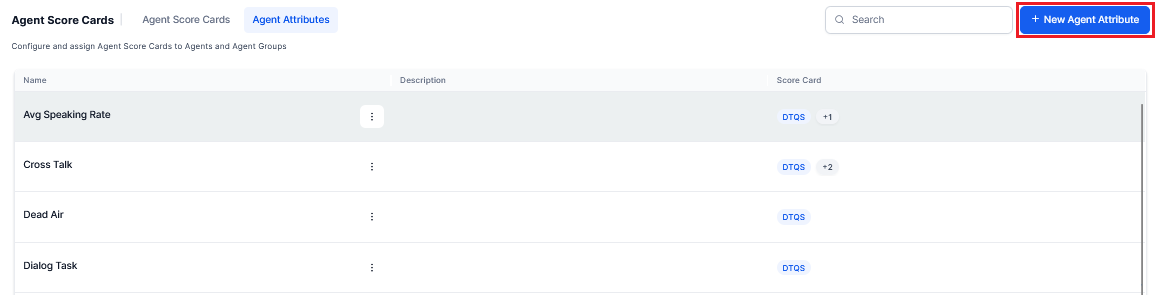
-
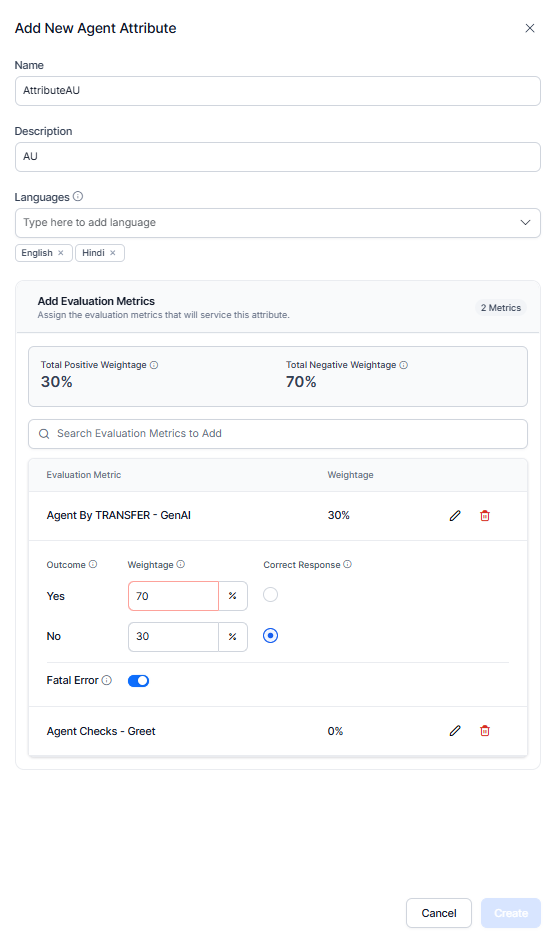
In the Add New Agent Attribute panel:
- Enter a Name.
- Enter an optional Description.
- Select a target Language to load the associated evaluation metrics and attributes.
- Search for and select evaluation metrics using Add Evaluation Metrics.
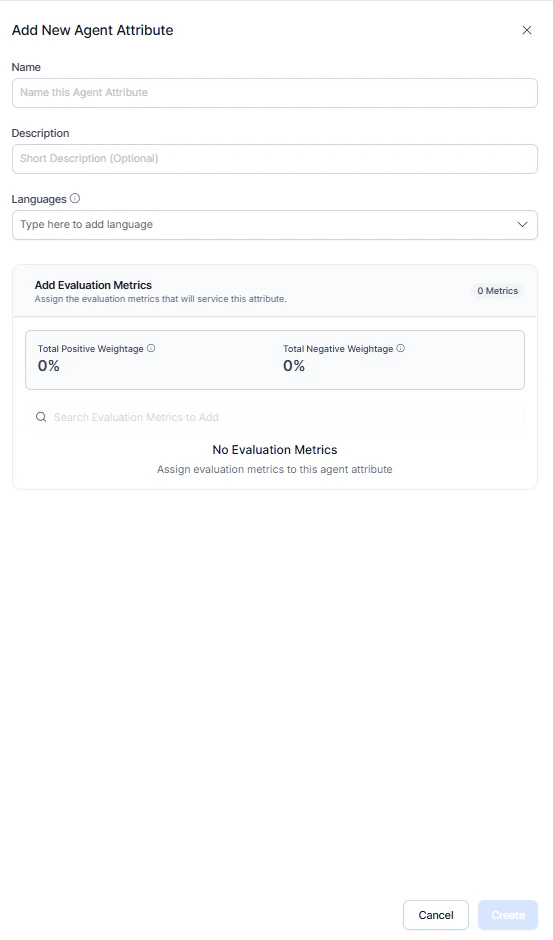
Add Evaluation Metrics
- Select Add Evaluation Metric to assign the selected metrics to the agent attribute.
- Add Total Positive Weightage cumulative score percentage.
- Add Total Negative Weightage cumulative score percentage.
Add Metric Configuration
- Define the overall Weightage of the metric.
- Assign a percentage value for each Outcome (for example, Yes or No).
- Select a correct Response for the evaluated outcome.
- Enable to mark the metric Fatal Error (if it’s a critical failure condition).
-
Select Create.
Agent Attributes Elements
Each agent attribute displays the following elements list:Manage Agent Attributes
Edit an Agent Attribute
- Select the attribute and click the vertical ellipsis (⋮).
- Select Edit.
- Update the evaluation metrics, and select Update.
Language Update Warnings
Adding A New Language
A warning appears if the new language isn’t configured for the current by-question metrics. Configure the new language on the listed metrics or select a language that supports the metrics.Deleting A Language
The system displays a warning if the language is in use in other scorecards. Remove the language configuration from all associated scorecards before deleting it. The system blocks deletion if the language is still in use.Only scorecards for the selected languages appear. You can remove or delete languages not linked to any scorecards.
Delete an Agent Attribute
- Select the three-dot (⋮) menu on the attribute you want to delete.
-
Select Delete and confirm the action in the warning dialog.

Agent Attribute Deletion Warnings
You can’t delete an attribute that’s assigned to a scorecard. Remove it from all scorecards first. Deleting an attribute removes all associated data.