

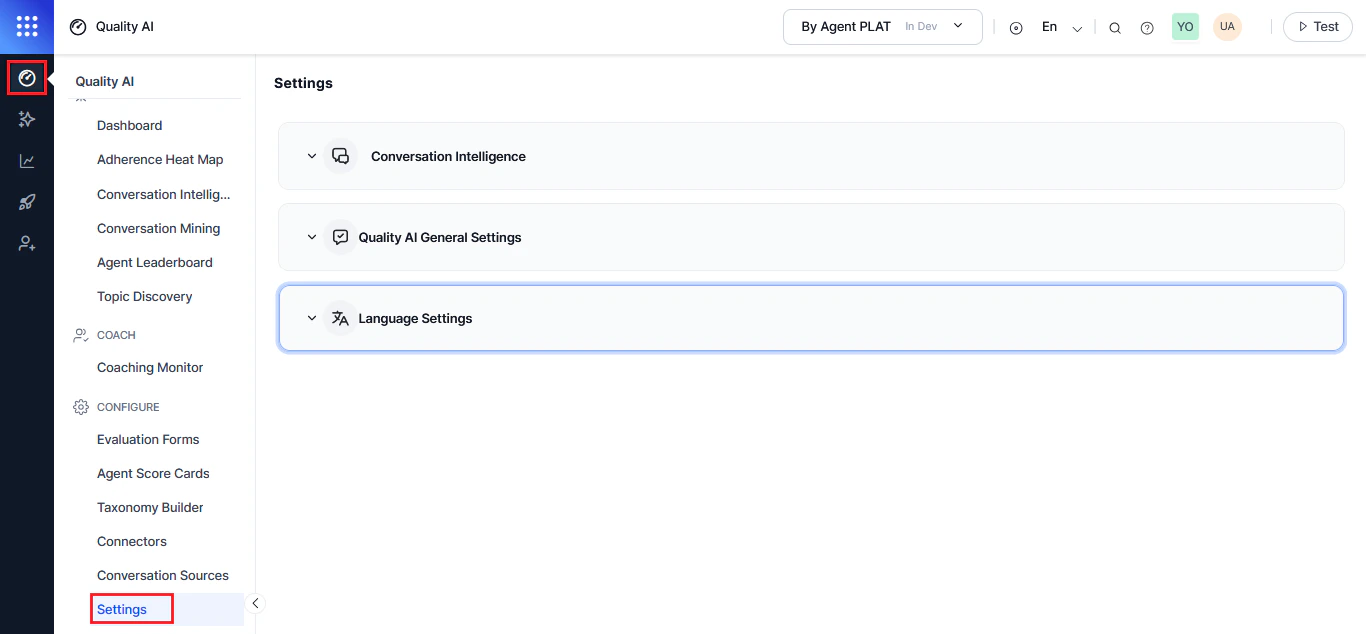
Only Administrators and Supervisors can enable or disable language settings at the app level.
Add a New Language
-
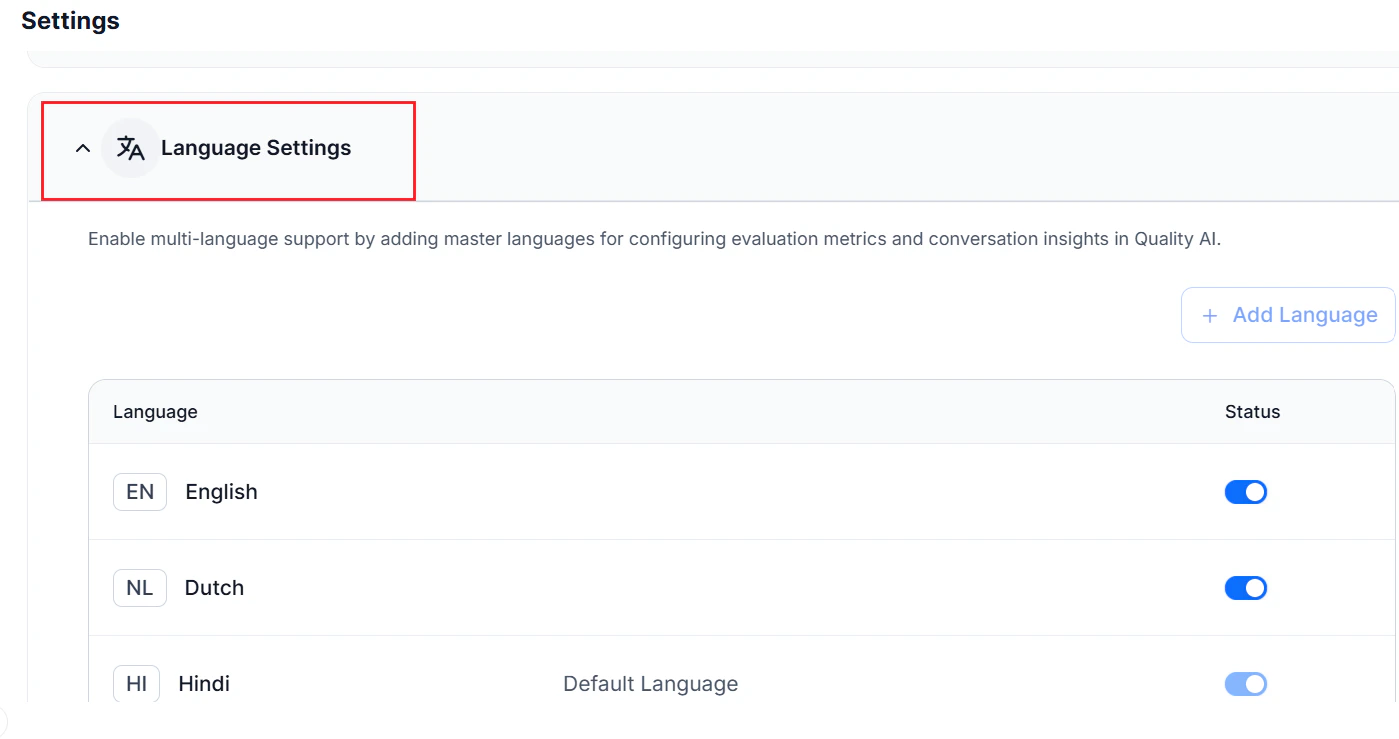
Expand the Language Settings section.
-
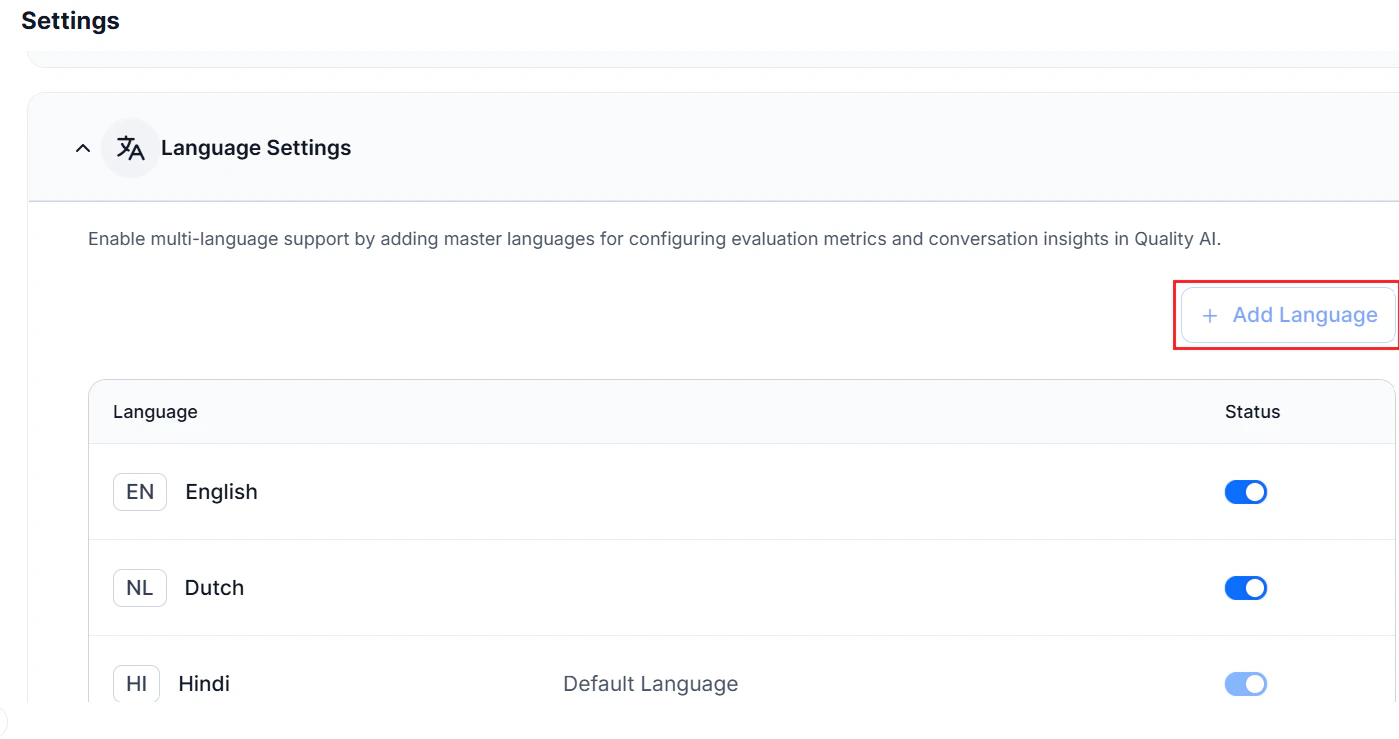
Select + Add Language.
-
Search for and select a language from the dropdown.
 Supported languages: English, Dutch, Hindi, Japanese, German, and Spanish.
 - Enable the Status toggle to activate the language across the application (Auto QA, Scorecard, and Conversation Intelligence analytics).
- Select Save.
Set a Default Language
-
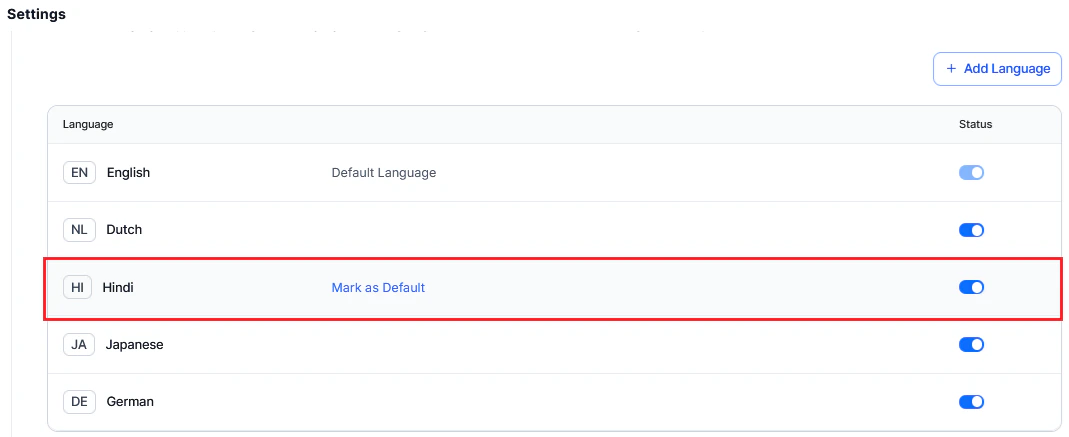
In the language list, select the language you want to set as default.
-
Select the language to set it as the default.
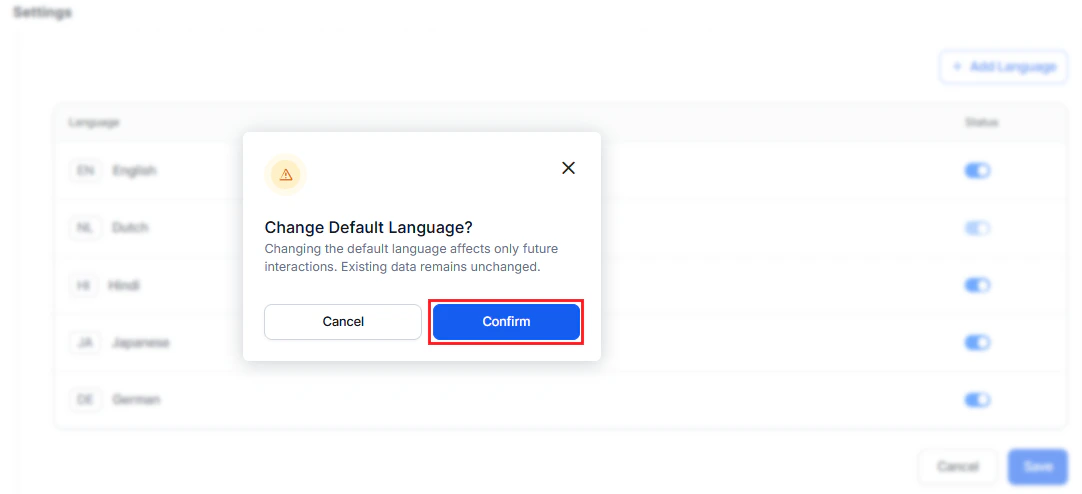
-
Select Confirm.
Users with Auto QA permission can update the default language when multiple languages are configured. The first language added is the default. Changing the default only affects future interactions — existing data remains unchanged.
-
The selected language status changes to lighter mode to indicate it’s the default.
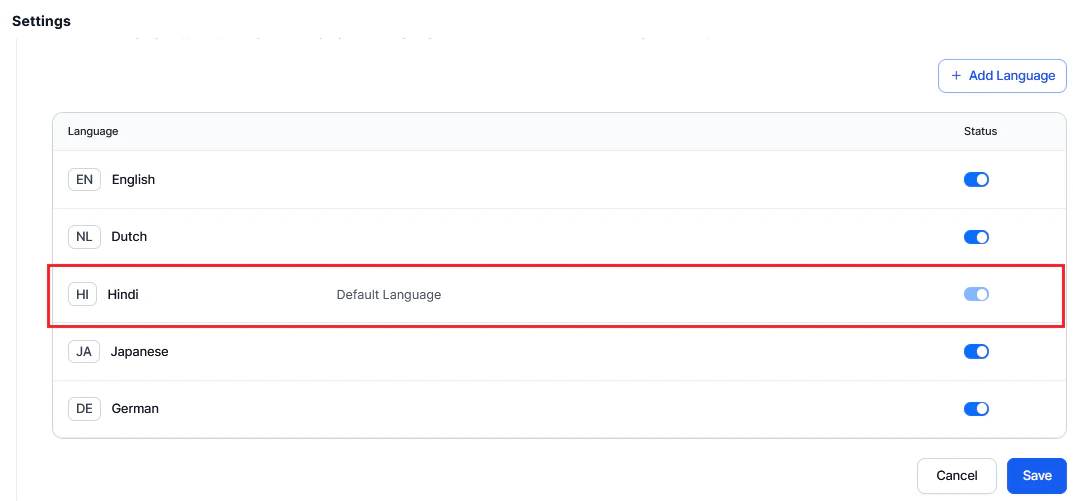
- Select Save.
Disable a Language
-
Toggle off the Status switch for the language. A warning appears.
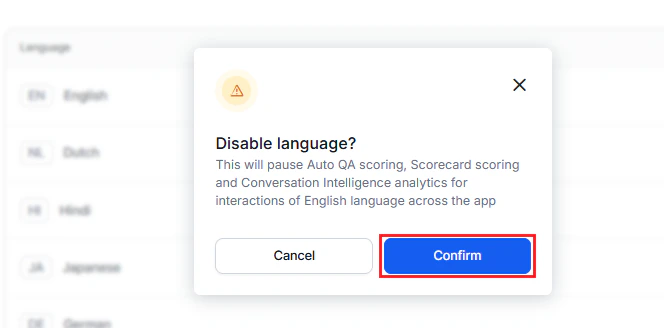
-
Select Confirm.
Disabling a language stops Auto QA, Scorecard, and Conversation Intelligence analytics for all conversations in that language.
- Select Save.