

Specifications
Prerequisites
Create an OAuth application in Box to obtain the client credentials needed for connector configuration.Create an OAuth Application in Box
- Log in to the Box developer console.
-
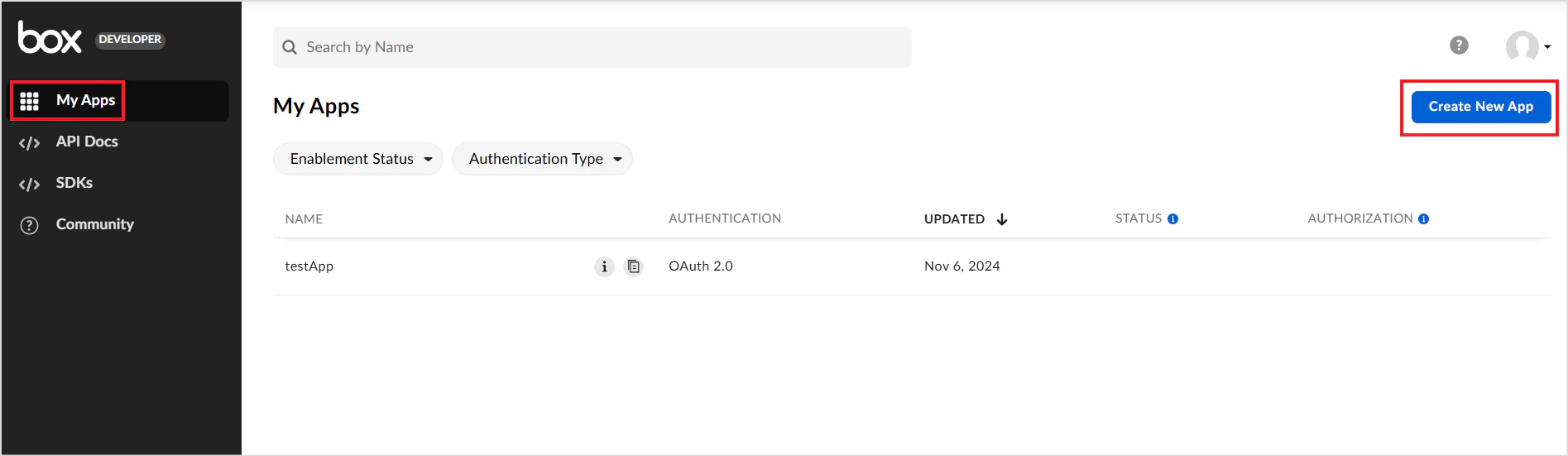
Go to My Apps and click Create New App.
-
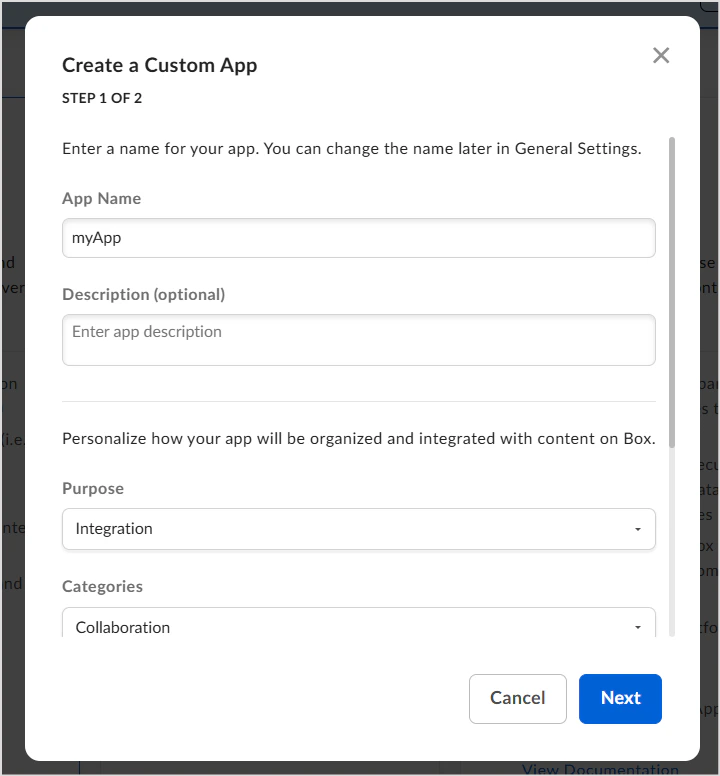
Create a Custom App:
- Enter the app name, description, and purpose.
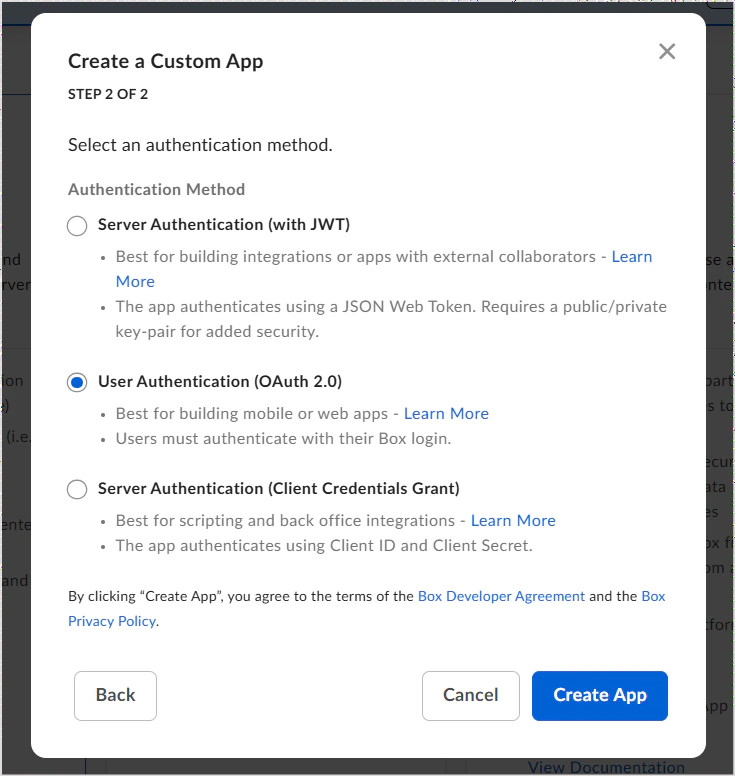
- Select User Authentication (OAuth 2.0) and click Create App.
-
Go to the Configuration tab of the new app:
- Note the auto-generated Client ID and Client Secret — these are used in Search AI.
- Under OAuth 2.0 Redirect URIs, add the callback URL for your region or deployment.
- Under Application Scopes, enable:
- Read all files and folders stored in Box — required to access content.
- Write all files and folders stored in Box — required to download content.
- Save the changes.
Configure the Box Connector in Search AI
- Go to the Connectors page in Search AI.
-
Select Box Connector and provide the following configuration details.
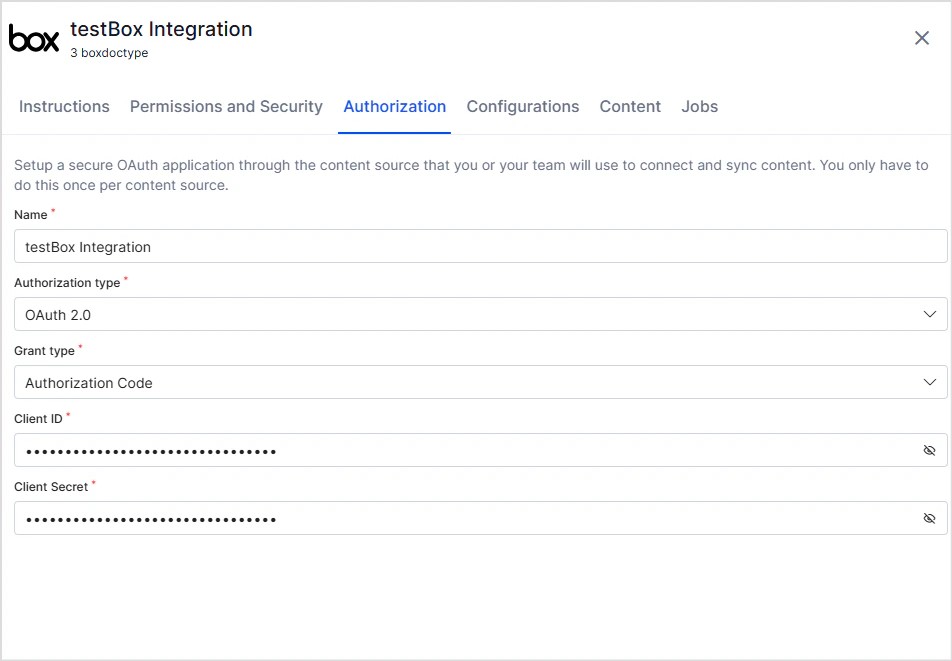
- Click Connect. You will be prompted to log in to Box and grant access.
- After authentication, the Box connector shows as connected and is ready for use.
Content Synchronization
Content synchronization ingests all files and folders accessible in the Box account into Search AI. Go to the Configuration tab and:- Click Sync Now to immediately sync content.
- Use Schedule Sync to set up automatic sync at a future time or regular interval.
RACL Support
Search AI automatically resolves permission entities for Box content. It identifies all users with access to each file or folder in Box and associates them with the corresponding permission entities in Search AI. When Permission Aware is enabled, access information is stored in thesys_racl field of each ingested item:
- The file owner is always included in
sys_racl. - All collaborators on the file are also added to
sys_racl. - Files or folders set to Public Access are available to all users, and
sys_raclis set to*.