

Prerequisites
- A Dropbox account with permission to create developer applications
- Access to the Search AI application
Step 1: Configure an Application in Dropbox
- Sign in to the Dropbox Developer Portal.
-
Create a new app. Under Choose an API, select Scoped access and choose the appropriate access type.
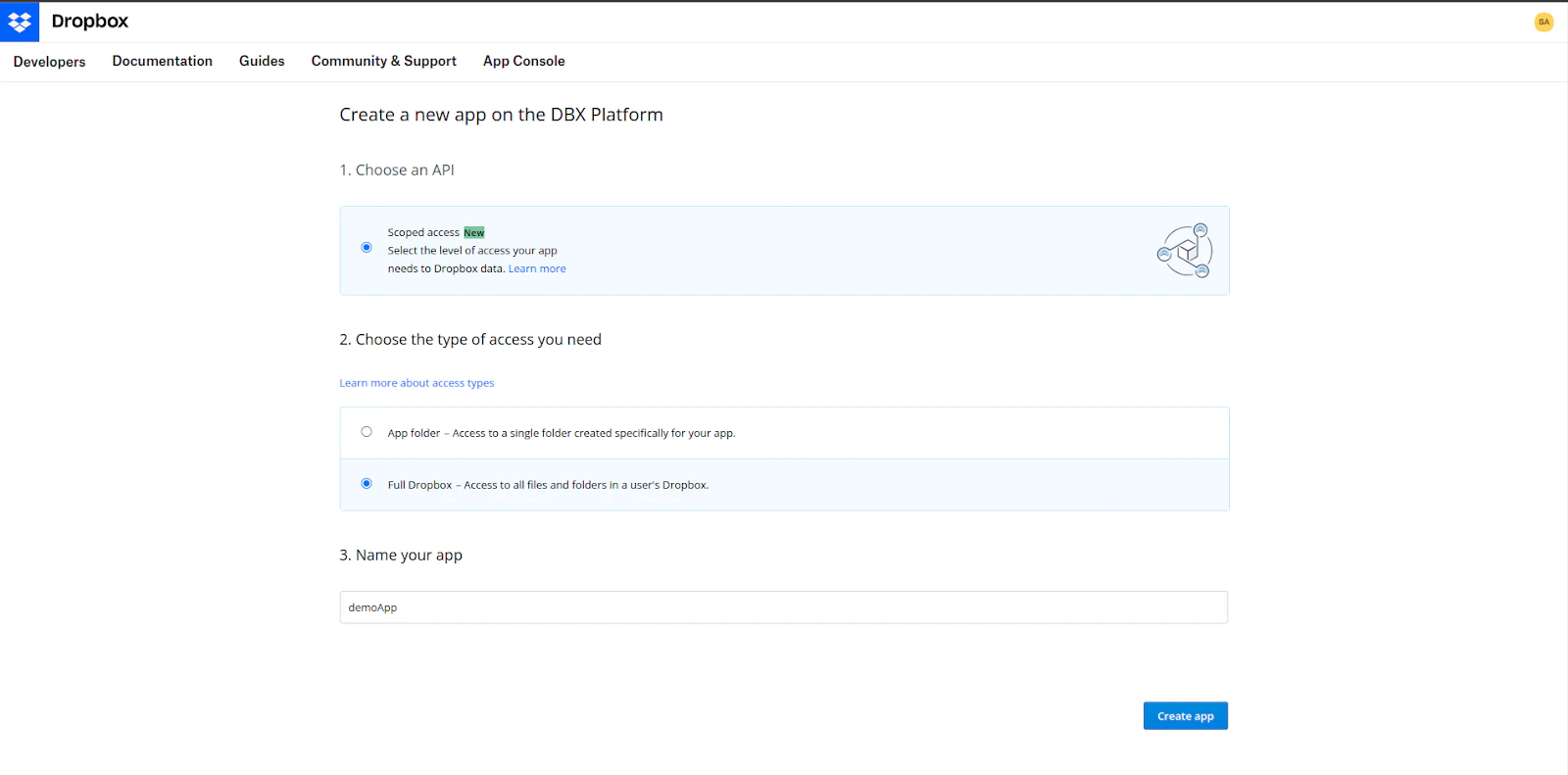
- Enter a name for the app, accept the terms and conditions, and click Create app.
-
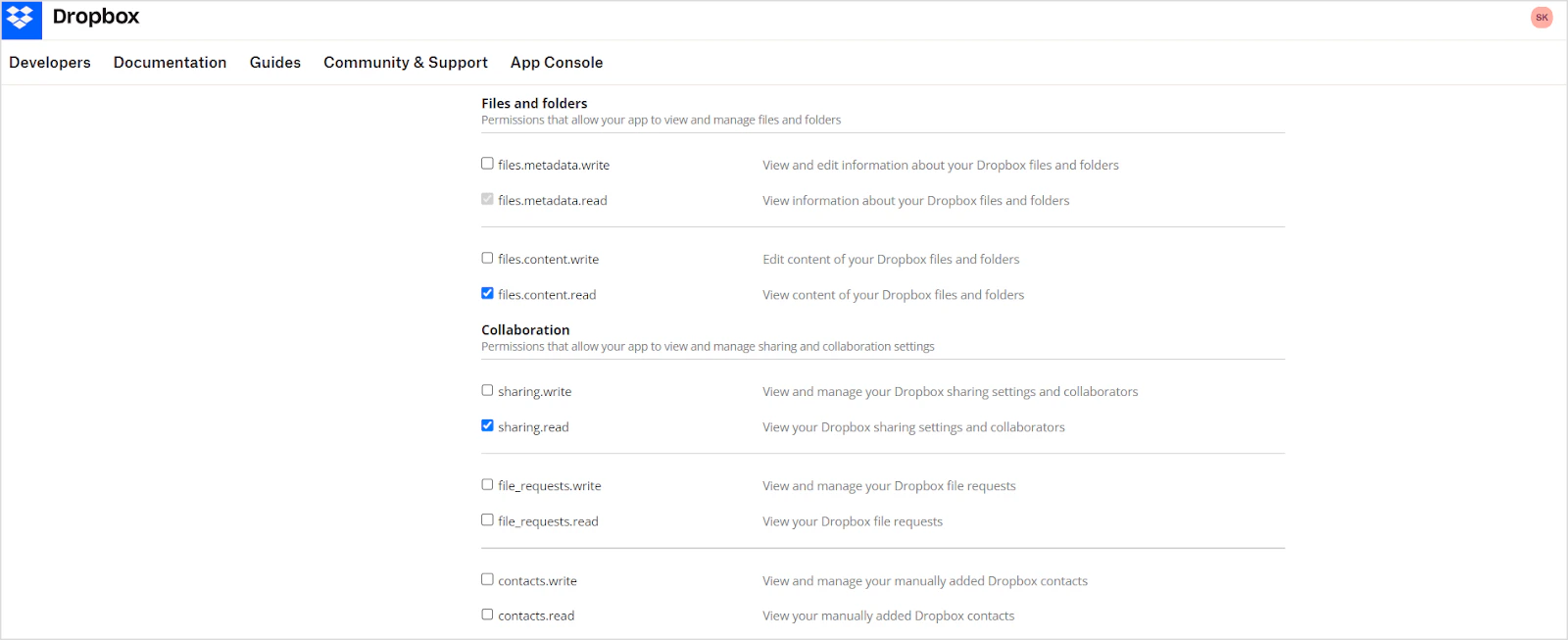
Open the Permissions tab (or click Scoped App) and enable the following minimum permissions:
files.content.readsharing.read

-
On the Settings tab, set the Redirect URI to the URL matching your deployment region:
- JP Region:
https://jp-bots-idp.kore.ai/workflows/callback - DE Region:
https://de-bots-idp.kore.ai/workflows/callback - Prod:
https://idp.kore.com/workflows/callback

- JP Region:
-
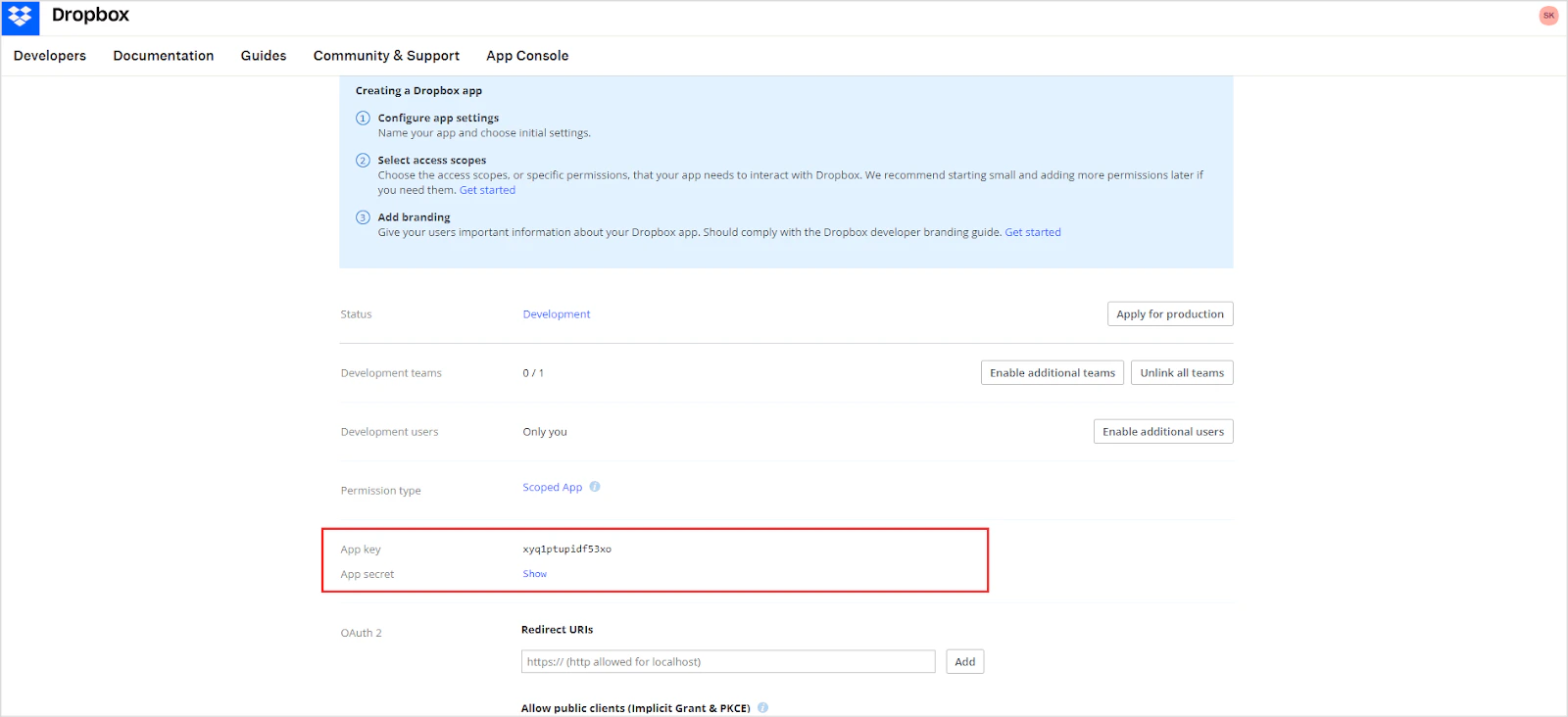
Save the App key and App secret shown on the settings page. These are required in Step 2.
Step 2: Configure the Dropbox Connector in Search AI
- In Search AI, go to Sources > Connectors and select Dropbox.
-
On the Authorization tab, provide the following fields and click Connect:
- After a successful connection, go to the Configuration tab and click Sync Now.