

Connector Specifications
Prerequisites
A valid JFrog Identity Token with admin permissions for the target projects and repositories.Connector Configuration
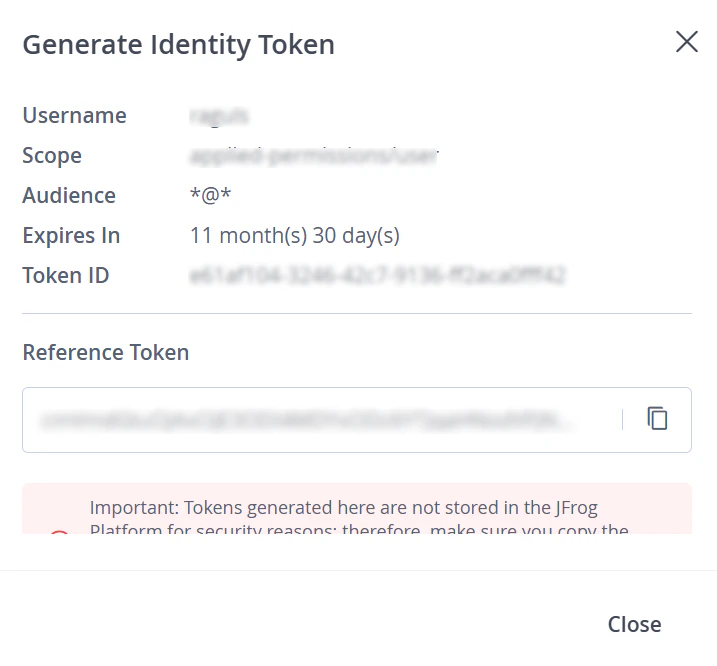
Create an Identity Token in JFrog
- Sign in to your JFrog Artifactory account.
- Go to User Profile > Identity Token.
- Click Generate Identity Token.
- Under Scopes, select admin to assign administrator privileges.
- Click Generate, then copy the token.
Configure the Connector in Search AI
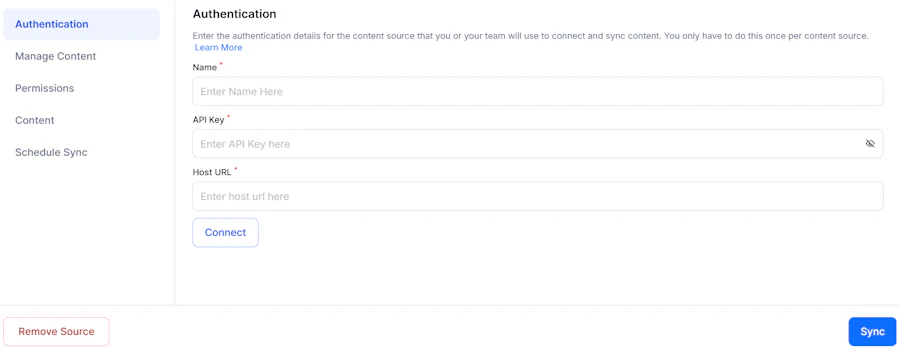
On the Authentication page, provide the following details:
Ensure the domain name is explicitly defined in the Host URL. Click Connect to validate access and proceed.
Content Ingestion
After a successful connection, Search AI ingests all artifacts from the repositories and projects linked to the authenticated account. Each artifact is processed as a distinct document with the following fields:Access Control
- Each artifact in JFrog is linked to a project via a unique Project ID.
- This Project ID is stored in the RACL field of the ingested data.
- Associate users with the relevant Project ID using the Permission Entity APIs. Users added to these permission entities gain access to artifacts associated with that project.