

Prerequisites
The Workday connector uses Workday REST APIs. Register Search AI as an API client in Workday before configuring the connector.- In the Workday Console, search for Register API Client.
- Enter a name for the app.
- Set Grant Type to Authorization Code Grant.
- Set Access Token Type to Bearer.
- Choose a Redirection URI based on your region or deployment:
- JP Region:
https://jp-bots-idp.kore.ai/workflows/callback - DE Region:
https://de-bots-idp.kore.ai/workflows/callback - Prod:
https://idp.kore.com/workflows/callback
- JP Region:
- Set the Scope (Functional Areas) to include:
- Jobs & Positions (Custom Object)
- Organizations and Roles (Workday REST API)
- Staffing (Workday REST API)
- Configure any other properties as needed. See the Workday documentation for details.
- Click OK. Save the Client ID, Client Secret, Authorization URL, and Token URL — these are required for connector configuration.
Configuring the Workday Connector in Search AI
Go to the Authorization page of the connector, enter the following fields, and click Connect.Ingesting Content
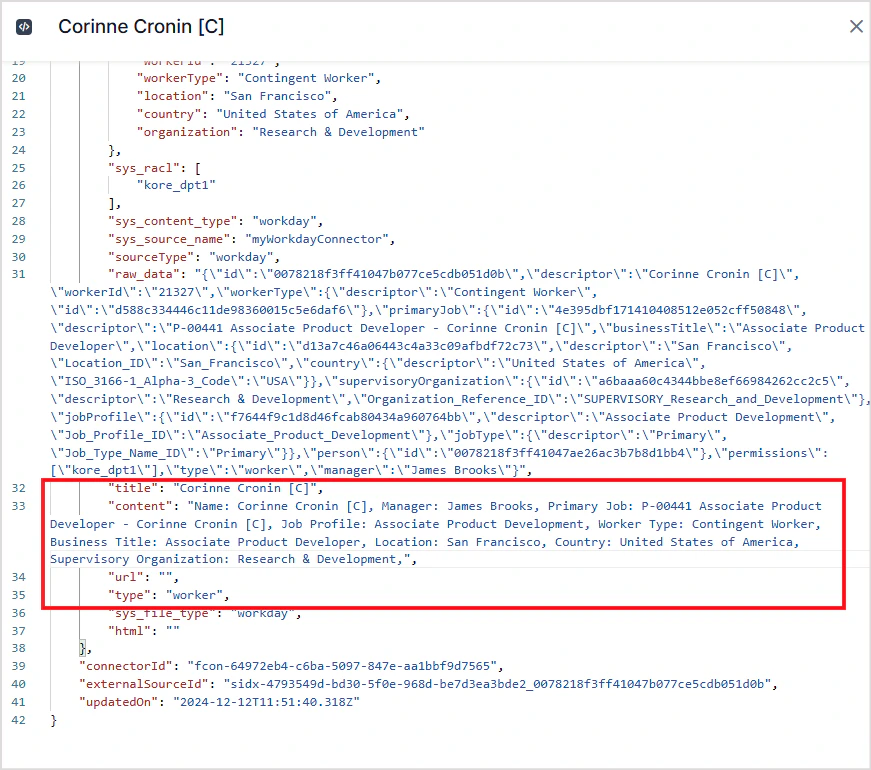
After connecting, go to the Configuration tab to set up synchronization. Use Sync Now for an immediate sync, or Schedule Sync to configure a recurring schedule. Search AI ingests the following content types from Workday: Workers, Job Profiles, Job Families, and Supervisory Organization Charts. Thetype field in each ingested document identifies the content type (worker, job profile, and so on). Relevant fields are populated in the content field of each document. For example, a worker record includes all worker details with the worker’s name as the document title.
RACL Support
Search AI uses the tenant ID to identify users with access to Workday content. Thesys_racl field for all ingested content is set to the tenant ID, ensuring access is restricted to users assigned to that tenant.
The tenant ID appears in the Workday URL as the unique identifier following the first /. For example, in https://impl.wd12.myworkday.com/domain_dpt1/, the tenant ID is domain_dpt1.