Configuring an MCP Server in an Agent
To integrate tools from an MCP server into an agent, follow these steps:-
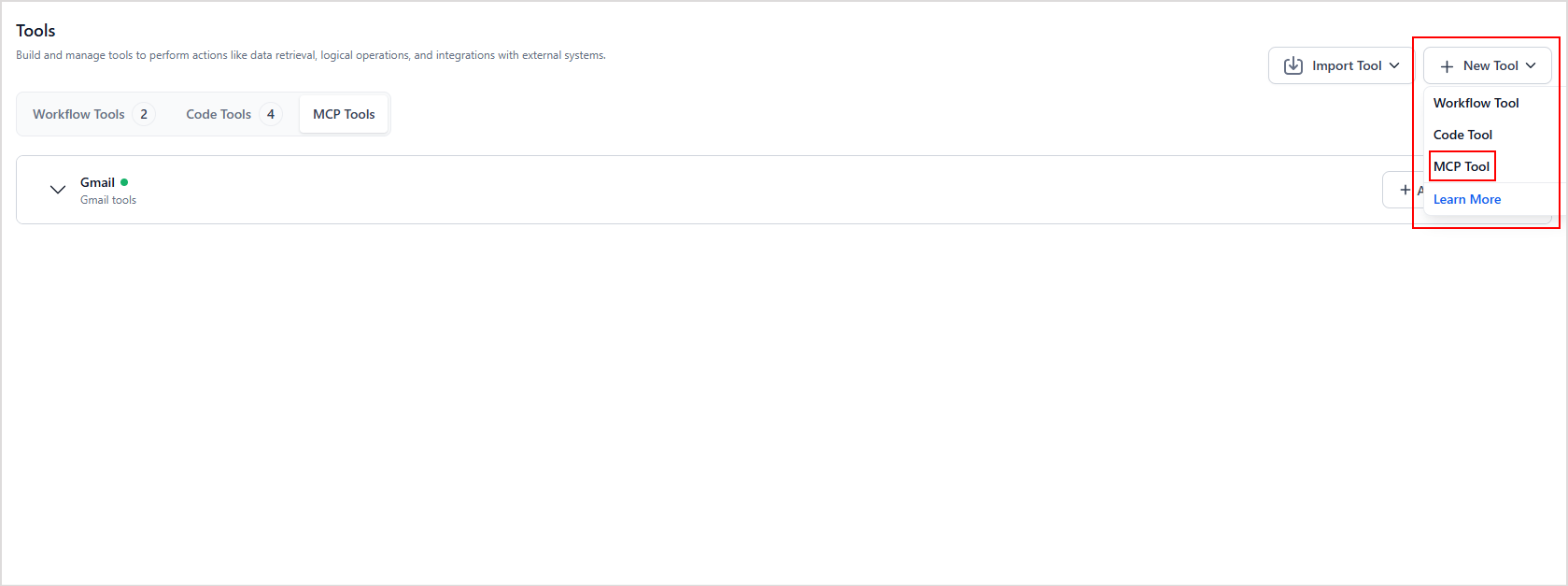
Navigate to the Tools section of the app and click on Add Tool. Click on +New Tool to configure a new MCP server and add tools.
-
Provide the MCP server configuration on the following page.

- Name- Provide a unique name for the MCP server.
- Description- Provide a description of the capabilities/tools offered by the server.
- Request Definition - Define how the platform sends a request to the MCP server to fetch available tools. Click Configure and provide the MCP server configuration details.

- Select the MCP server configuration type - HTTP or SSE.
- URL: Endpoint that returns tool definitions.
- Headers: Any required headers like Authorization tokens.
- Click the Test button to fetch tool metadata from the MCP server.
- Upon successful connection, the platform displays the list of all the tools offered by the MCP server. Select the required tools and click Add Selected to add the tools to the agent.
Tool Preview
The Tool Preview allows you to view, inspect, and test MCP tools configured for an application. To access the Tool Preview:- Navigate to the Tools menu within the app.
- Open the MCP tab to see all tools configured for the app, grouped by MCP server.
- Click on any tool to view its details.
artifacts field of the Execute API response payload. This allows programmatic access to individual tool outputs in the API response. Note that this setting affects only the API response payload. Tool execution behavior, playground simulations, and other agent or tool functionalities remain unchanged.
Tool Naming Convention
To avoid naming conflicts and help identify the source, imported tool names are automatically prefixed with the MCP server name. Format:Tool Testing
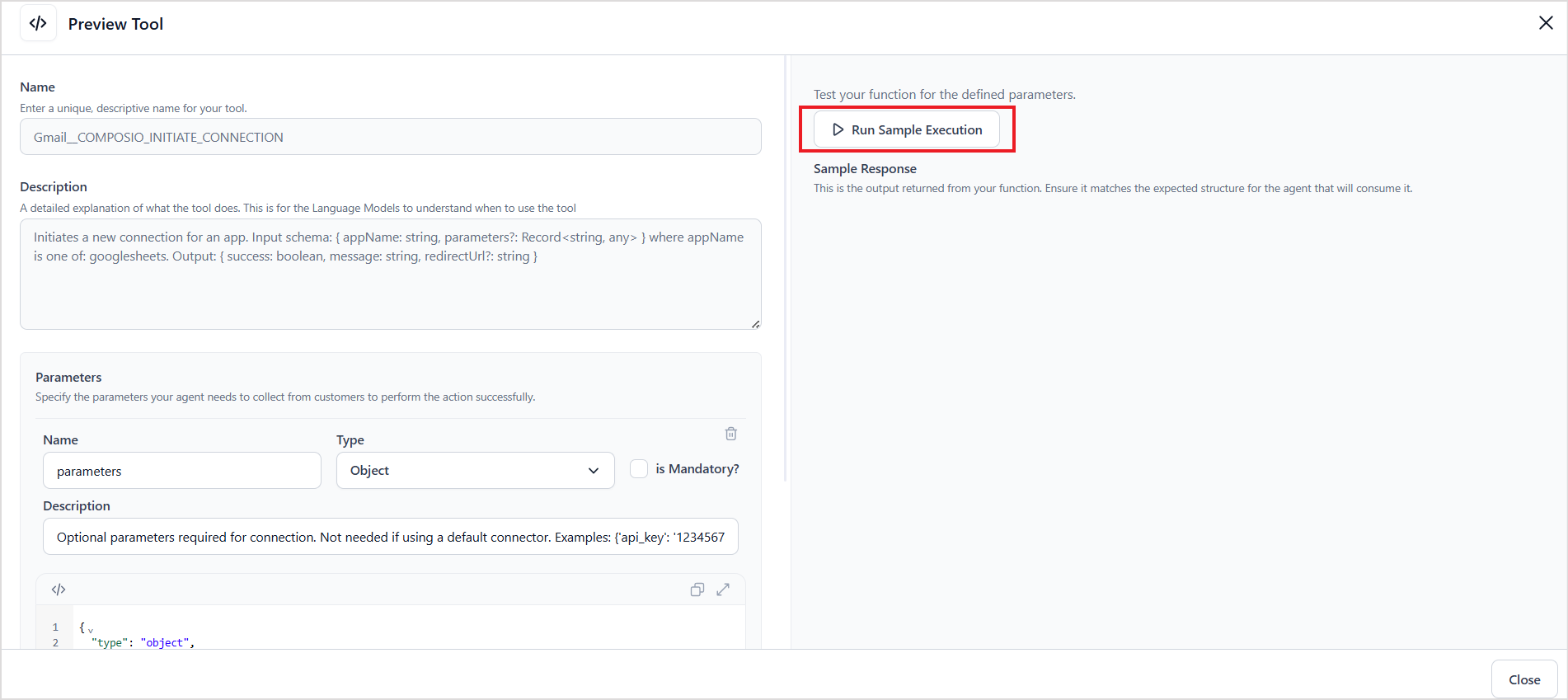
After the MCP server is configured, preview and test the tools to ensure they’re functioning as expected. Testing the tools is essential as it helps validate their functionality, confirms the formats of requests and responses, identifies any issues, and builds confidence in the tools’ reliability. To test a tool,- Open the tool in Preview mode.
-
Click on Run Sample Execution.
-
Enter sample values for the inputs and click Execute to initiate a request to the MCP server.
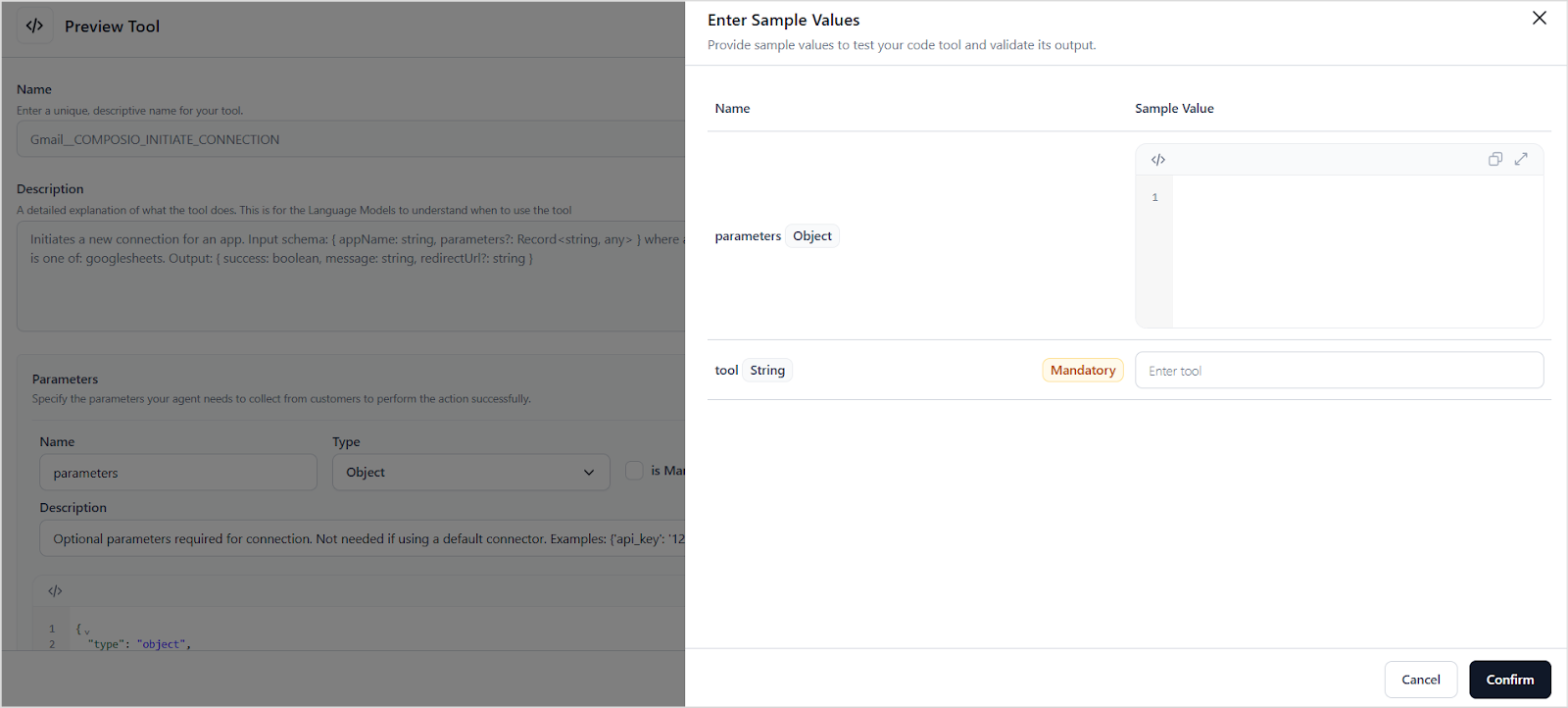
- The request is sent to the MCP server, and the resulting output is displayed in the Sample Response section.
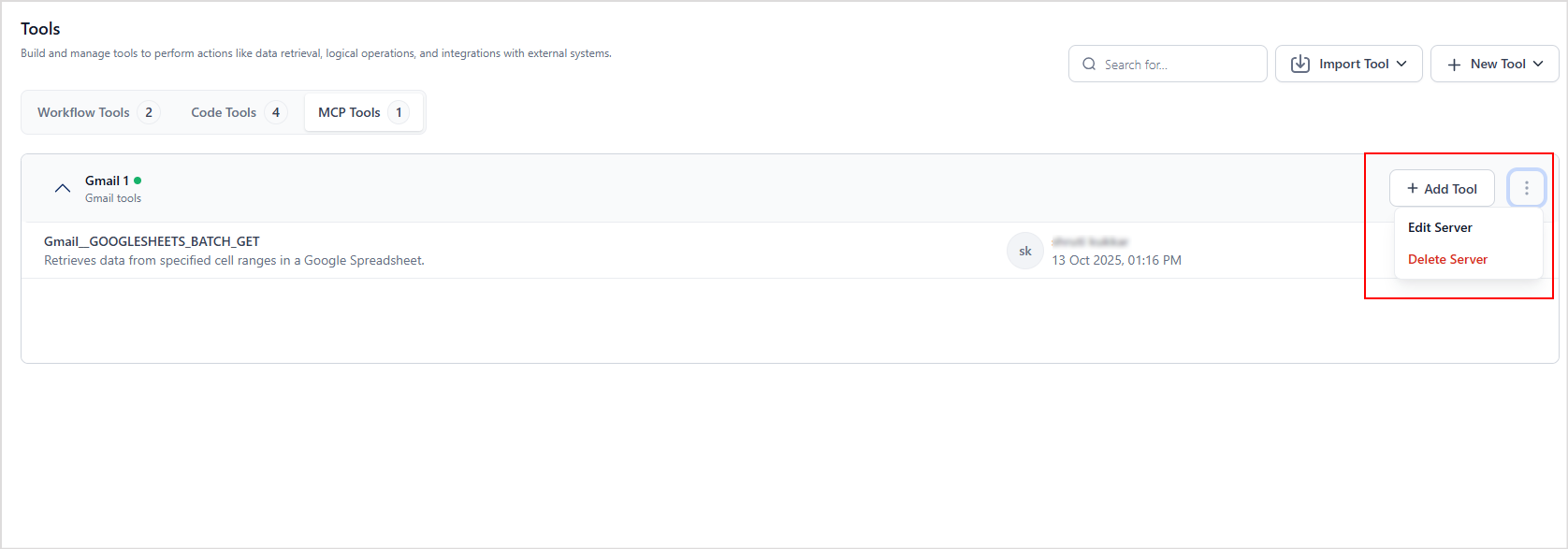
Updating/Reconfiguring the MCP server
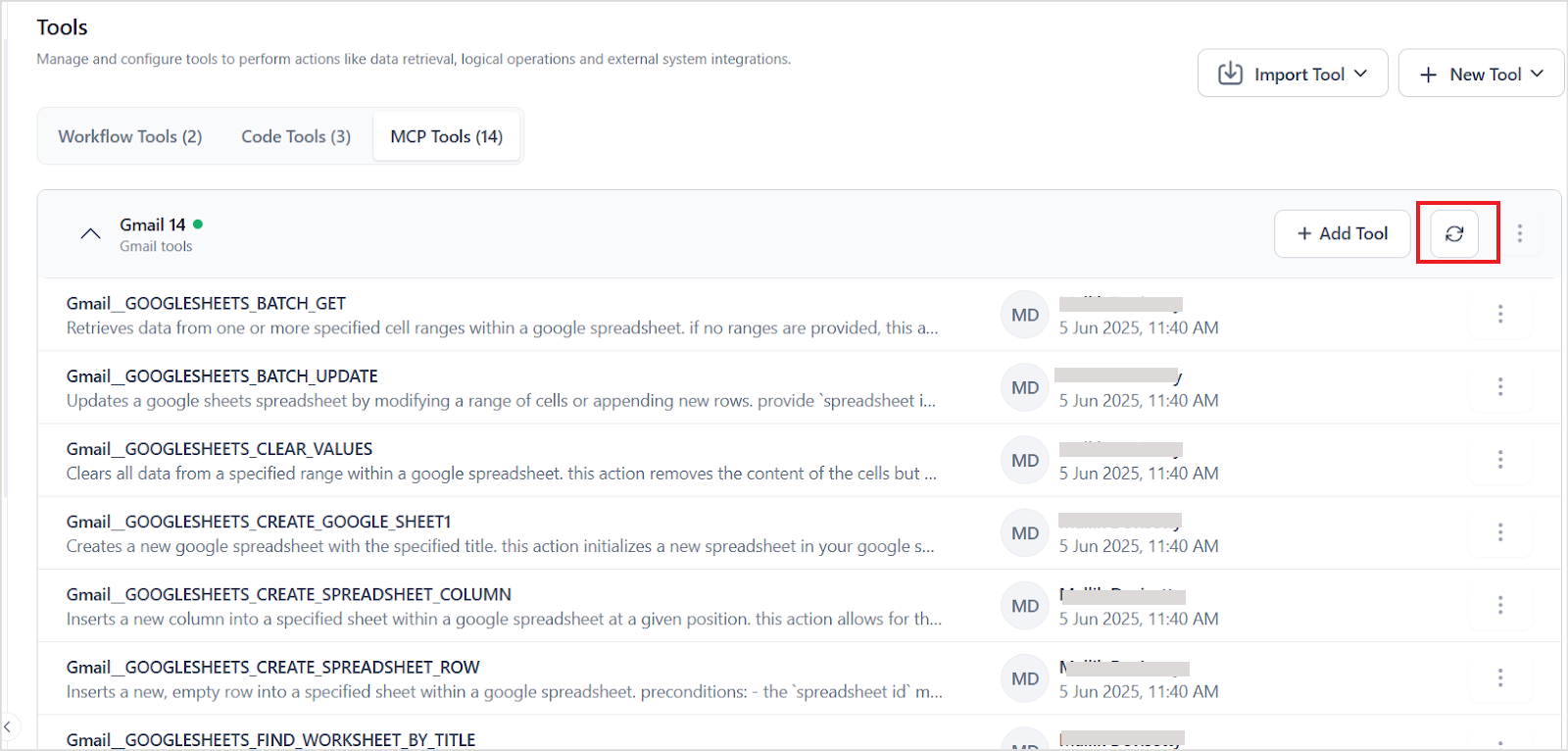
Whenever there are any updates to the tools hosted via the MCP server, reconfigure the MCP server in the Agentic App for the changes to reflect. Use the refresh icon to fetch updated content from the MCP server.