
Create a Code Tool
To create a code tool, click +Create Tool in the Tools page while creating the agent and select Code Tool. Provide the following details for the tool.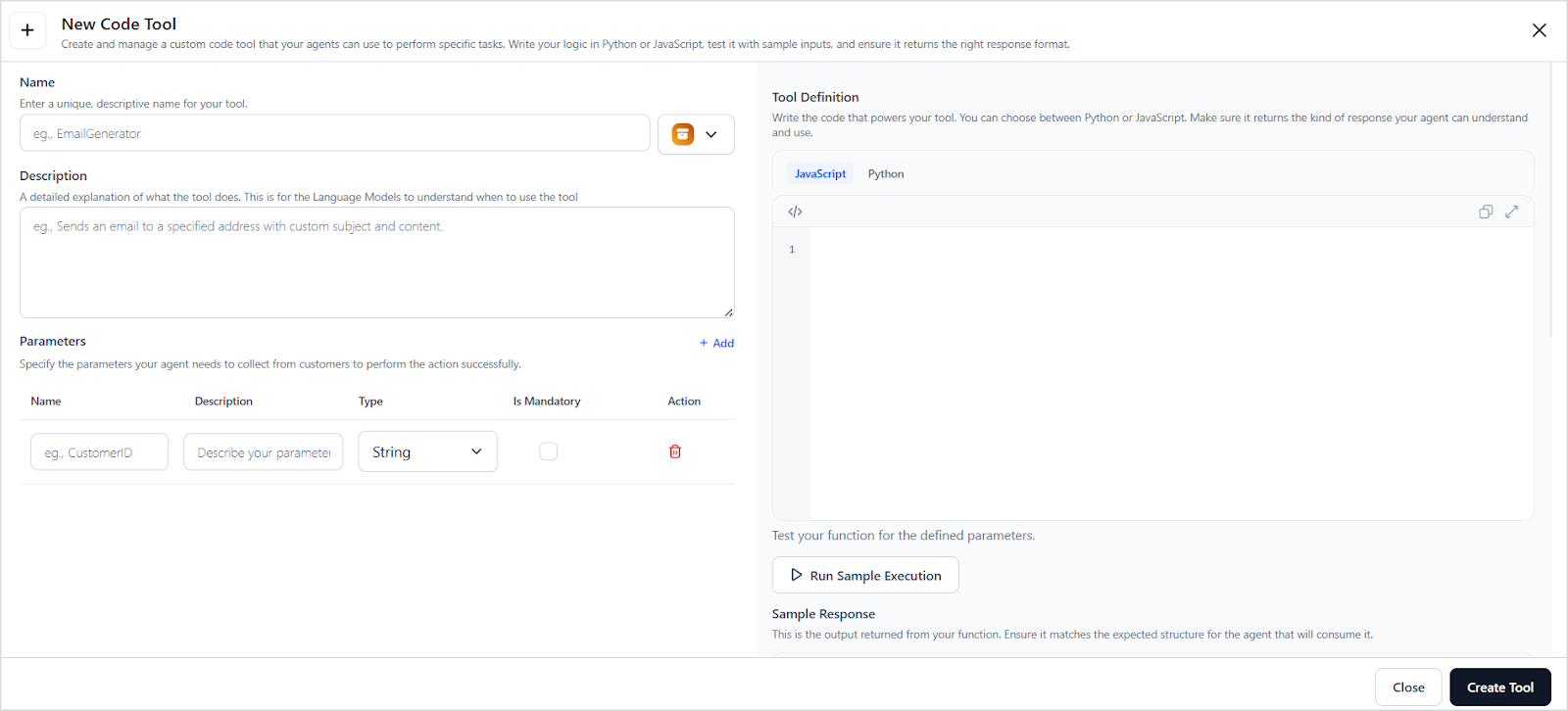
Tool Metadata
Name Enter a unique and descriptive name for the tool to help identify its purpose. Example: SQL Query Processor Don’t add special characters or spaces. Only alphabets, numbers, and underscores are allowed in the name.Description Provide a clear and detailed description of the tool’s functionality. This helps the agent understand:
- What the tool does.
- When to use it.
- How to use it.
Include Tool Response in Artifacts When enabled, the response returned by the tool is included in the artifacts field of the Execute API response payload. This setting affects only the API response and doesn’t change tool execution behavior, playground simulations, or other agent and tool functionalities.
Input Parameters
Define the input parameters required by the tool to perform its task. For each parameter, specify:- Name: A unique identifier for the parameter.
- Description: Explains the parameter’s purpose to help the agent extract relevant data from user input.
- Type: The expected data type. The following types are supported:
- string: sequence of characters
- number: An integer value
- boolean: true or false
-
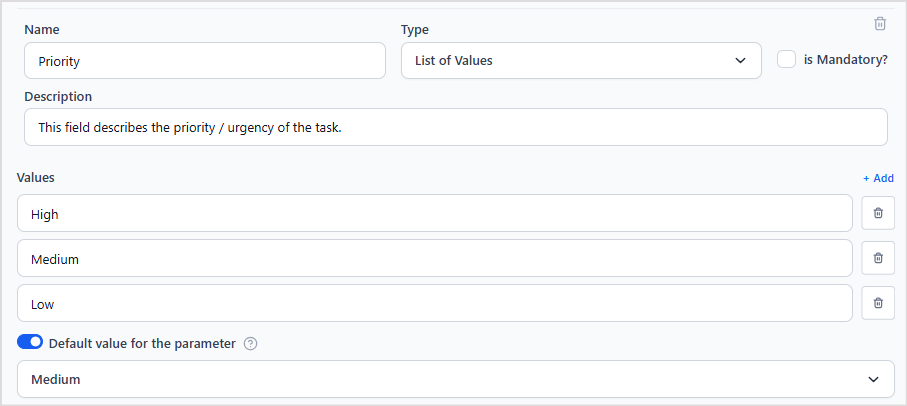
list of values: A restricted set of predefined values. This type is useful when the input must be one of a specific set of options. For this type of field, add all the values that the parameter can take. For example, a parameter priority of type enum might accept values like “low,” “medium,” or “high.”

- object. A structured data type that includes one or more nested parameters. Use this when multiple related values must be grouped. For example, a location object might include fields like building, city, and zip code. An object type can have a nested structure. Adhere to the Sample Schema for detailed structure and formatting guidelines.
- isMandatory: Indicates whether this input parameter is mandatory or not.
- Default value of the parameter: Enable this option to assign a default value to the parameter. This default value is used whenever the parameter value isn’t found in the input. The data type for the default value must be same as that of the parameter itself. For instance, if the priority isn’t specified in the user input, the default value of Medium is used when configured as shown below.
Defining an object parameter
Use an object parameter when a tool requires a structured input that groups multiple related fields. Object parameters enable structured, nested inputs and allow the agent to validate and construct accurate tool requests before execution. When defining an object-type parameter:- use the
propertiesfield to list all the fields inside the object. This field is mandatory for an object type of parameter. - For each field in properties, specify the
- type (string, number, boolean, enum, or object): The data type of the field.
- description(optional): A brief explanation of the field’s purpose.
- required(optional): Indicates whether the field is mandatory.
- Use the
requiredarray to list the mandatory fields of an object. - If there is an
objectwithin thisobject, its type must be set asobjectand must have its ownpropertiesandrequiredfields to define the fields within this sub-object.