

Before you begin
Make sure you have:- A workspace and a project. See Create and manage projects.
- Developer permissions on the project. See Features and permissions.
- At least one LLM provider and model configured. See Configure LLM.
If Arch generated your project from the Quick start guide, you already have a working agent. Start by testing the agent and use the remaining sections to customize it.
Ways to build
Build agents in Studio or from your development environment. This page mainly focuses on development in Studio using the Visual Editor or ABL Editor.How an agent is built
You build every agent in the same order. The channel comes last. Build and test a chat agent- Create the agent.
- Define what the agent does.
- Choose the model and limits.
- Add tools and knowledge.
- Test the agent.
- Choose a voice architecture.
- Configure a voice channel.
- Set the spoken style and listening features.
- Test your voice agent.
- Collect and remember data.
- Add deterministic steps with FLOW.
- Customize responses and the conversation.
- Add safety rules.
- Connect to other agents.
- Adapt for your channel and language (voice and multilingual).
- Evaluate and improve.
- Deploy and operate.
Reasoning and FLOW (Deterministic steps)
Every agent reasons by default. Add aFLOW section when parts of the conversation need fixed, deterministic steps. A FLOW section doesn’t create a different agent type. The agent still reasons and calls tools outside the flow steps.
Channel and language
You choose the channel at deployment, but plan for it before you write instructions. Voice callers hear your replies, so write short, plain replies and ask for one thing at a time. Chat users can read longer replies and use buttons, cards, and other rich content. Most of an agent is the same on every channel and in every language. Only a few parts change.
More than one language applies to either channel. It adds language detection, routing, localized messages, a glossary, and optional per-language models. On voice, also check that the speech settings support each language.
Build the agent with this guide. Then complete Enable Voice Interactions for voice, and Multi-language support for more than one language. For design advice, see Design voice conversations and Build multilingual agents.
Build an agent
Create an agent in Studio
You need developer permissions on the project.- Open your project and select Agents in the sidebar. The page lists each agent with its name, flow indicator, deployment status, and last change.
- Select Create Agent and complete the fields.
- Select Create Agent. The agent editor opens.
Choose an editor
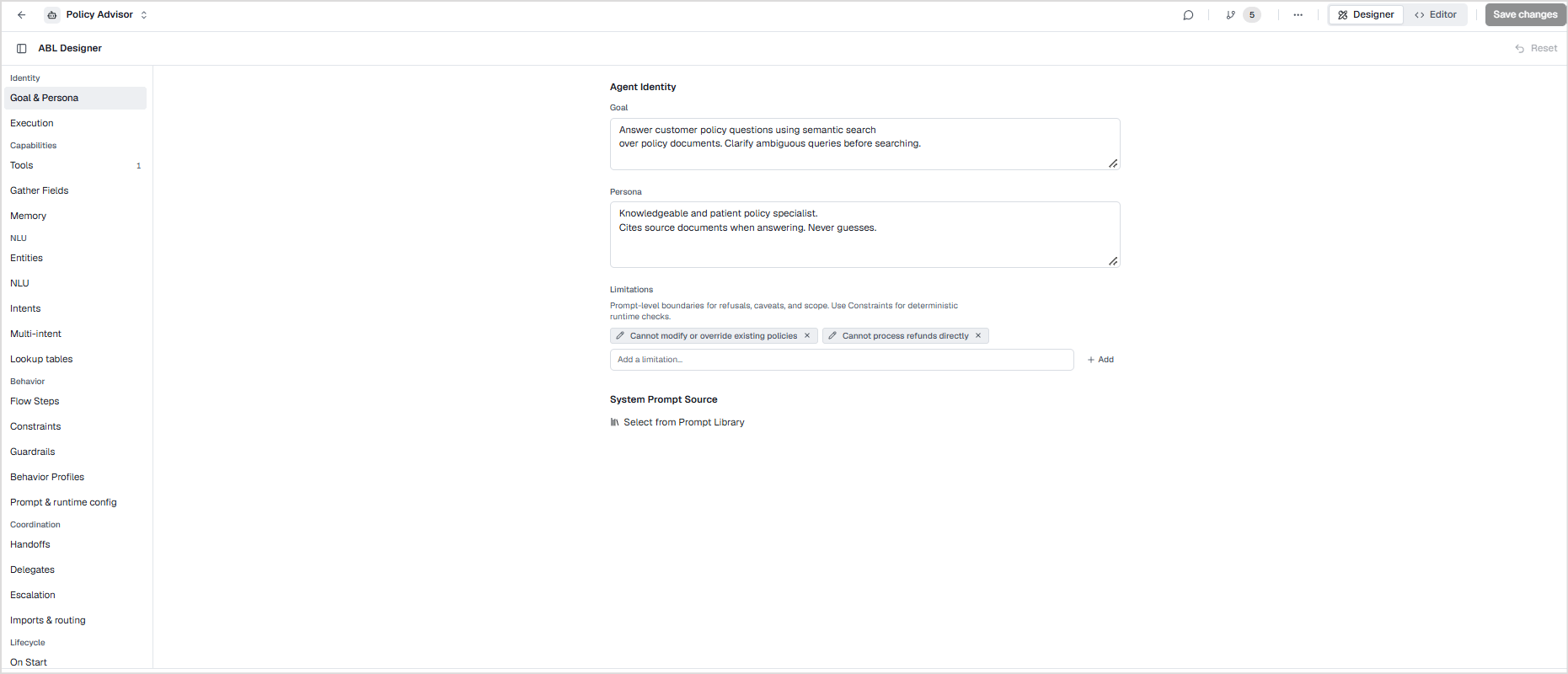
Configure the agent in either editor. They stay in sync.- Visual Editor: a form with sections for identity, tools, memory, flow, and more.
- ABL Editor: a code editor for the agent’s ABL definition. To open it, select the < > ABL icon in the agent’s top bar.
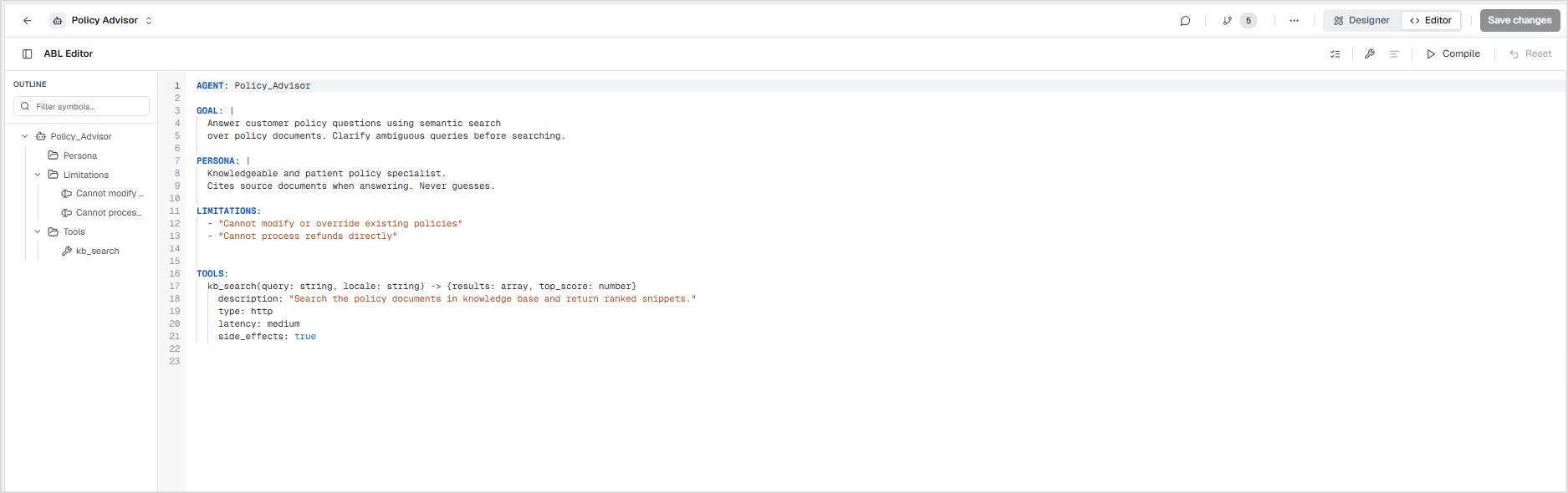
/ to insert a snippet, such as a tool, a gather field, or a handoff.
Save and validate
Save and validate
Select Save to save and validate the definition. Studio flags syntax issues inline. The status bar shows No issues when the definition is valid.Select Compile to run a full structural check without saving.
Outline panel
Outline panel
The Outline panel shows the agent’s structure as a tree, such as 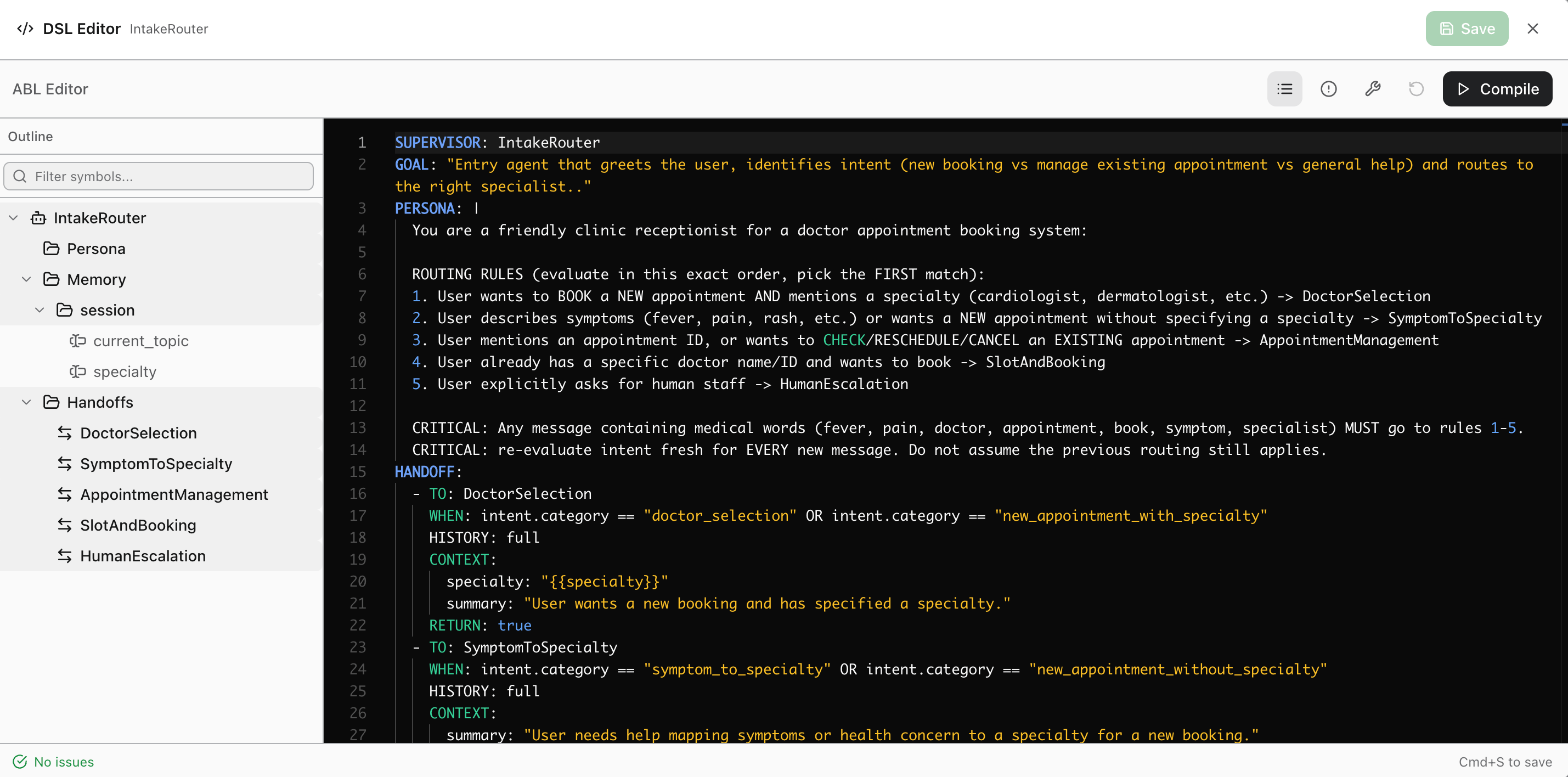
PERSONA, MEMORY, HANDOFFS, and steps. Use Filter symbols to jump to a section.Diagnostics panel
Diagnostics panel
The Diagnostics panel at the bottom lists validation issues by type.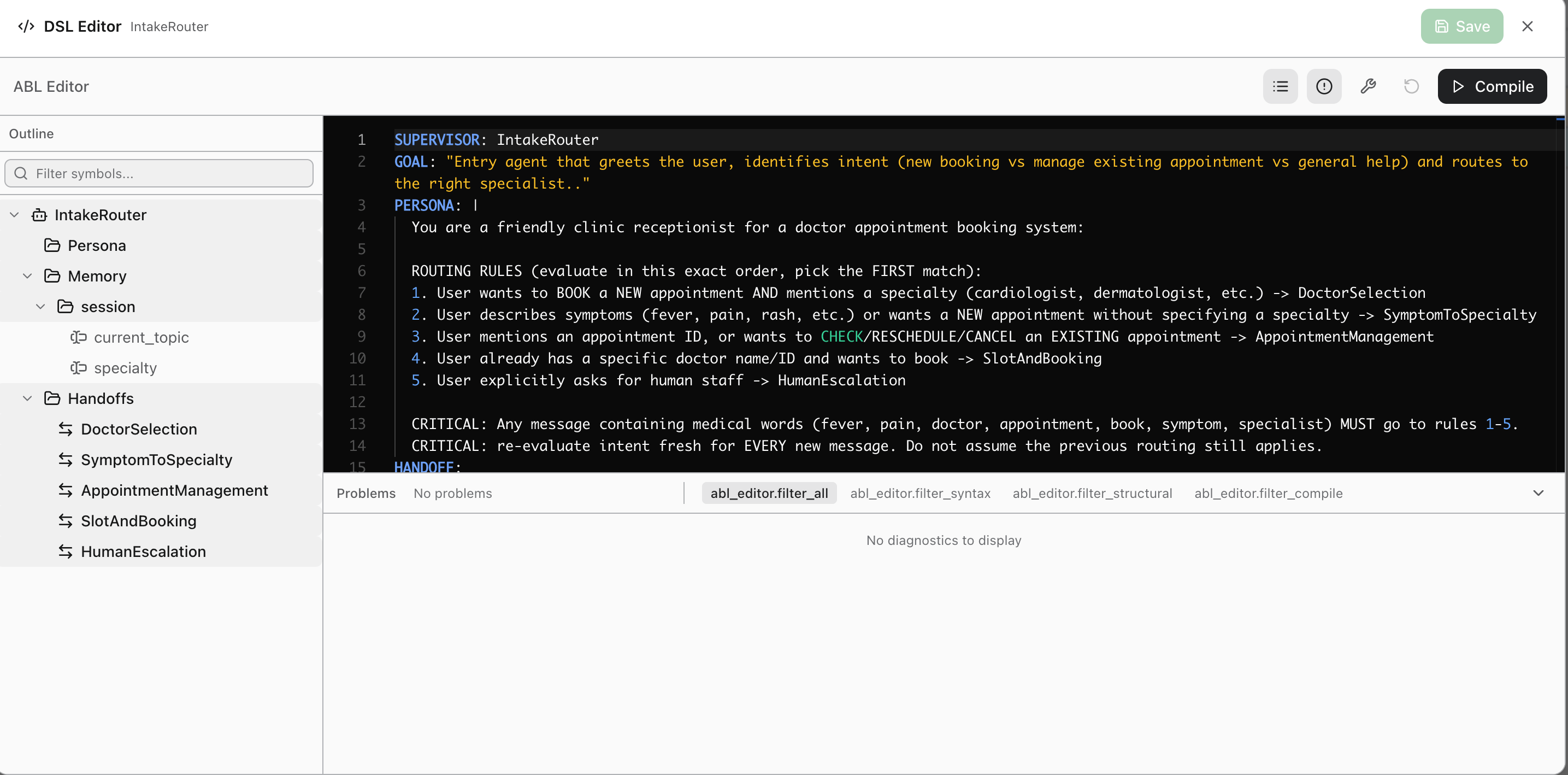
Insert a tool signature
Insert a tool signature
Select Insert Tool Signature to search the project’s tools and insert a signature into the 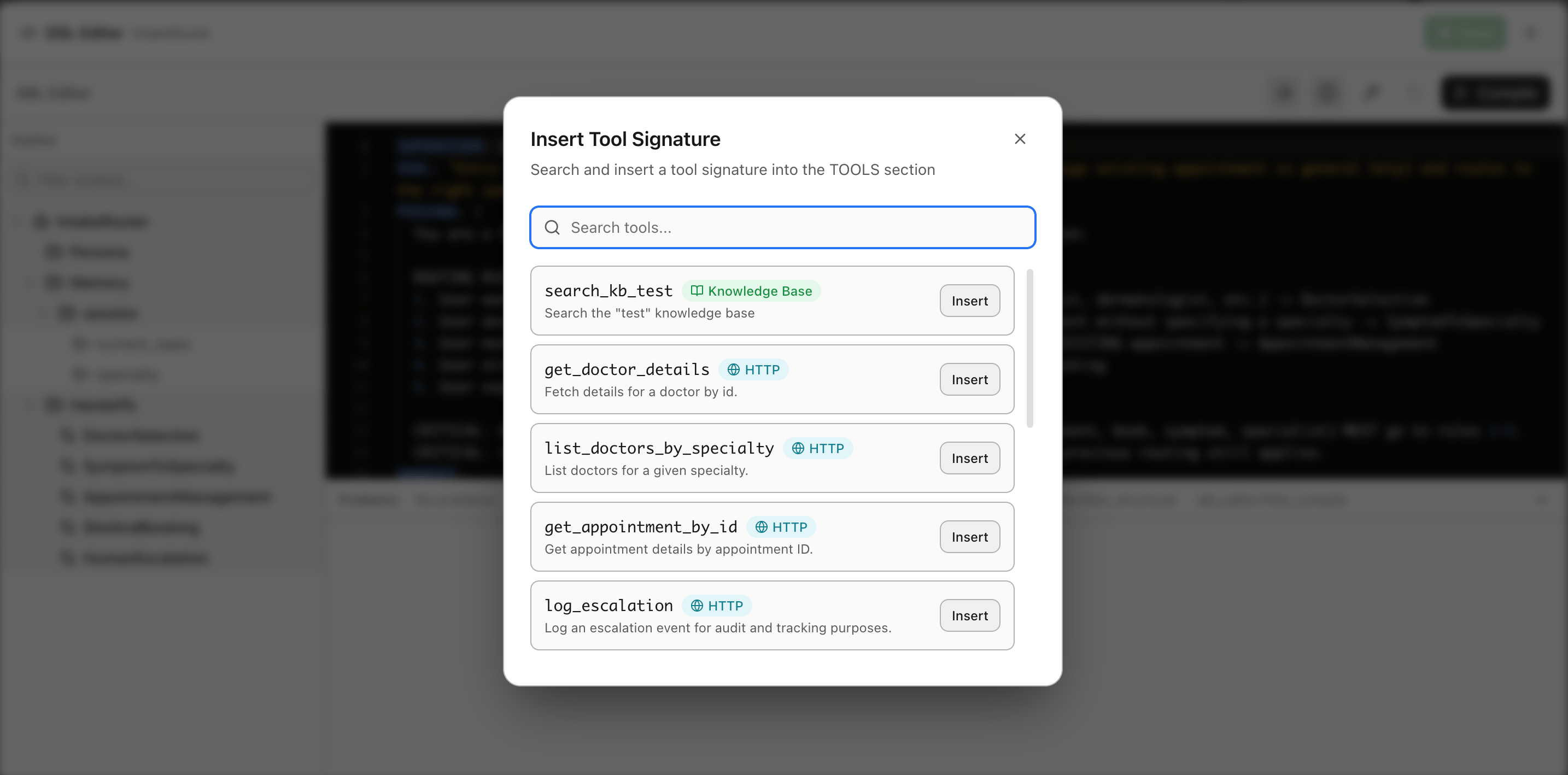
TOOLS block at the cursor.Define identity and persona
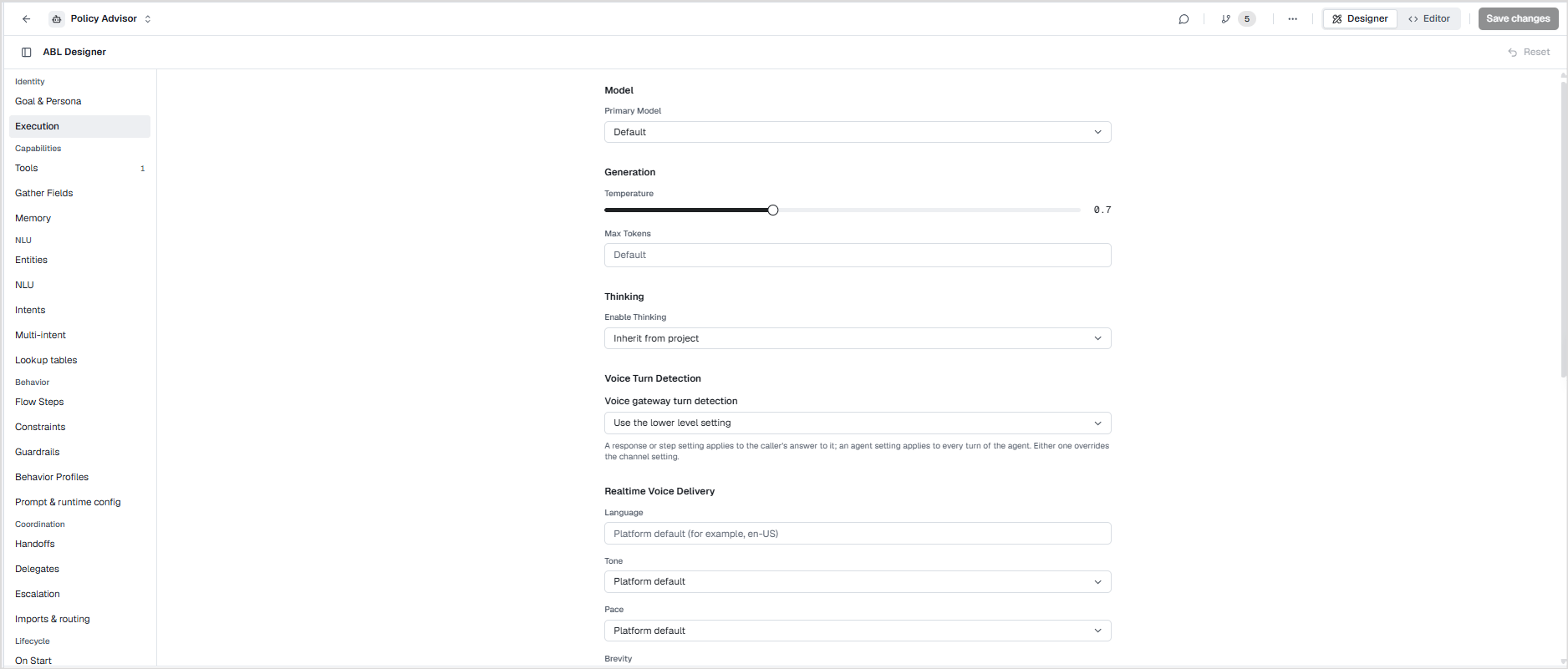
Identity and persona set how the agent communicates: its tone, expertise, and boundaries.Configure execution
TheEXECUTION block sets the model, token limits, reasoning depth, and timeouts.
Model settings apply in this order, from lowest to highest precedence: the model card, the project model override, agent runtime overrides, and EXECUTION. If the selected model doesn’t support a setting, the platform leaves it out of the request. For example, it doesn’t send sampling parameters to reasoning models.
Add tools
Tools let an agent call APIs, retrieve data, or trigger actions. Create the tool at the project level, then attach it to the agent in Studio or in theTOOLS block.
INSTRUCTIONS.
Test your agent
Test the agent in Studio’s chat. Test chats run on the working copy. Your agent abl so far:- On the agent page, click the Chat option at the top.
- Send messages. The agent’s replies appear in real time.
- In the debug panel, open the trace events and confirm the kb_search call, then check the reply used its results.
Enable Voice Interactions
You don’t rebuild the agent for voice. The same agent that works in chat speaks and listens on a call. Add voice settings, connect a voice channel, and test it.Choose a voice architecture
Pick the architecture when you create the channel. Each voice setting in the voice reference states where it applies.
Configure a voice channel
- Add voice service credentials in Workspace Settings > AI Configuration > Voice Services. For Pipeline voice, add speech-to-text and text-to-speech credentials. For Realtime voice, add a speech-to-speech provider.
- Go to Deployments > Channels, and under Voice, create a Pipeline Voice or Realtime LLM Voice channel. In the channel’s call routing, enable Soft Phone. You don’t need a phone number to test. For full channel setup, see Enable voice interactions.
Set the spoken style
Callers hear your replies, so keep them short and plain. SetEXECUTION.voice.instructions to give spoken-style rules. The runtime strips markdown from RESPOND: text before speech. Your instructions replace the default spoken-style rules, so restate rules such as “plain speech, no lists.” Add a VOICE: block only when you need SSML or a different spoken version. To keep one agent for chat and voice, use a phone behavior profile.
Set how the agent listens
UseCONVERSATION.listening to decide what happens when the caller stays silent (on_no_input) or talks over the agent (barge-in). Use DTMF: on a GATHER field for keypad entry, and SECURE_INPUT for card numbers and other sensitive values.
For every listening setting, with values, defaults, and where each applies, see Listening in ABL.
To apply these settings to all the agents in the project, see Set default listening settings.
Plan hold, hang-up, and transfer
UseCOMPLETE to end the call, on_caller_hold_limit to handle a long hold, and ESCALATE to transfer the call to a human.
Extend Policy_Advisor example for voice
Keep the identity, model, tool, and instructions from the chat example. Add the voice settings to its existing EXECUTION block, then add listening behavior and a spoken greeting:
Test your voice agent
- Click the chat option for the agent -> New Chat or Call.
- When a voice channel is configured, the simulator shows Voice ready option. Click on that and select Inbound Call.
- Select the voice channel you created and click on Start Call. The Soft Phone opens.
- Interact with the agent and review the responses.
- Click on open in Observatory to review the sesson and trace events, voice quality metrics, and other details. See Observatory.
Extend agent capabilities
Collect and remember data
Gather: define the fields the agent collects from users, with types and required flags.GATHER works in the agent and in flow steps. See Gather data from users.
Memory: configure session variables for one conversation, persistent values across sessions, and remember and recall triggers that store and inject context.
Add a FLOW section
Add aFLOW section for fixed, step-by-step control, such as bookings, identity checks, or data collection.
Each step can respond, add model context, call a tool, and name the next step. In Studio, configure each step with these fields:
- Step name: a name that says what the step does.
- Execution mode: Deterministic steps follow the defined sequence without a model decision.
- Respond: what the agent says at this step.
- Model context: what the model remembers for later turns. It doesn’t change the reply.
- Call: the tool to call.
- Then: the next step.
REASONING: false follow the defined path. THEN names the next step. ON_INPUT branches on the user’s reply. For entry points, tool-call branching, SET, and MAX_ATTEMPTS, see the FLOW reference.
Mix reasoning and deterministic steps
One flow can combine deterministic steps (REASONING: false) with reasoning steps (REASONING: true). Use deterministic steps for data collection and confirmations. Use reasoning steps for open-ended research or analysis.
Customize responses
EveryRESPOND supports variables, templates, rich content, interactive actions, and channel-specific formats. The platform renders the right format for the active channel.
On voice, the runtime speaks the
VOICE: block if there is one. Otherwise it speaks the RESPOND: text with markdown removed. Rich content isn’t used. Write replies that work as plain speech. See Channel selection.RESPOND
UseRESPOND for text replies. Insert values from variables, memory, and tool results with {{ }}.
|:
Multiple responses in one turn
An agent can send several messages in one turn, in any mix of text and templates. Each message streams to the client separately, in order, and isn’t merged with the next one. This flow sends a template, then plain text, then another template:first_template, the plain text, and second_template.
Templates
Use theTEMPLATES block to define named replies once and reuse them with TEMPLATE(name) in RESPOND, ON_START, and COMPLETE.
Templates support:
- Variable interpolation using
{{ }}to insert dynamic values. - Conditional blocks and loops for rendering dynamic content.
- Multiple channel-specific variants, allowing the same response to be rendered differently on web, voice, Slack, WhatsApp, Teams, and other supported channels.
- Interactive actions for building rich, interactive experiences.
DEFAULT is required and serves as the fallback when no channel-specific variant is available.
See Templates.
Interactive responses
Add interactive elements to any reply withACTIONS:
- Buttons for set choices.
- Select menus for choosing from a list.
- Input fields for free text.
- Forms that group several inputs with a submit action.
Carousels
A carousel shows a row of cards that users scroll, each with a title, subtitle, image, and buttons. Use it for several options, such as hotels, products, or flights. Define it inRICH_CONTENT with the CAROUSEL key.
System messages
UseMESSAGES to set the text of system-generated replies so they match the agent’s tone.
Lifecycle events
Define what happens when a session starts, when an error occurs, and when the task is complete.On start
ON_START runs once when the agent starts a session, either as the session entry point or after a handoff. Use it for a greeting, tool calls, and variable setup.
In Studio, configure these fields:
Interactive Actions Types
In ABL, add an
ON_START block:
On voice, the greeting is the first thing the caller hears. Keep it to one short sentence. On a pipeline voice channel, a channel Welcome Message replaces the
ON_START greeting, and Allow caller to interrupt the welcome decides whether callers can talk over it. See Design channel-specific welcome experiences.ON_START:
Error handling
Define how the agent recovers from tool failures, timeouts, and unexpected input, so conversations don’t dead-end. In Studio, add a handler on the Error Handling page.
For example, when a tool call fails, the agent can say “An error occurred. Please try again.” and then retry the step, continue, or hand off to another agent.
Completion
Completion conditions decide when the task is done. Each condition is an expression on the conversation state, such as whether all required information is collected. When it’s true, the agent marks the task complete and can send a final message. In Studio, configure each condition:- When expression: the condition to meet.
- Response message: an optional message to the customer.
- Later model context: what the model knows about that message in later turns.
Coordinate with other agents
Configure how the agent hands off work to other agents or to people.- Handoffs: rules that pass the conversation to another agent when a condition is met, with context such as session variables.
- Delegates: sub-agents that complete a subtask and return the result. The calling agent keeps control.
- Escalation: triggers and routing to a human agent, with context and queue assignment.
Supervisor agents
In a multi-agent project, use theSUPERVISOR block to define the agent that routes to the others.
Behavior and safety
Control how the agent enforces rules, filters content, and adapts to context.- Constraints: rules enforced at runtime. Unlike
LIMITATIONS, a constraint withREQUIREandON_FAILis hard enforcement. The agent can’t proceed until the condition is met. - Guardrails: content safety policies on inputs and outputs. They can block, redact, or flag content with built-in checks or external moderation providers.
- Behavior profiles: settings that apply in a given context, such as a user role, a session flag, or a channel.
To keep one agent for chat and voice, put the spoken style in a phone behavior profile. See Keep one agent with a phone behavior profile.
NLU intent classification
Use theNLU block to define intents, entities, and categories that classify user messages. It supports:
- Intent classification with keyword patterns and example utterances.
- Entity extraction with typed extractors: enum, pattern, location, date, number, and free text.
- Synonyms that map variants to one value.
- Embeddings-based matching when keyword patterns aren’t enough.
- Multi-intent handling for several intents in one message.
- Lookup tables to validate input, match fuzzily, and suggest corrections.
- Per-language models and a glossary. See Multi-language support.
Multi-language support
Build agents that detect the user’s language and reply in it. These settings apply to chat and voice. On voice, also check that the speech settings support each language. For a language policy and test plan, see Build multilingual agents.Set up language detection
Route by language
Provide language-specific models
Route to different LLM models based on detected language.Add a glossary
Add domain terms so the agent uses the right terminology in every language.Set the language per environment
For a deployment that serves one market:DEFAULT_LANGUAGE=es for your Spanish market deployment and DEFAULT_LANGUAGE=en for English.
Use localized messages
Keep translated text in locale assets at Project > Settings > Localization. Reference a message with{{locale.<key>}}. The same key returns the text for the resolved language.
Use the AI Architect
The AI Architect is an AI assistant built into Studio. Open it from the Architect icon in the Studio header. It adapts to what you’re editing. In a section such as Identity or Tools, it suggests changes as a diff that you can accept, reject, or refine.The AI Architect needs an LLM provider configured at Admin > Arch. Without one, the panel shows a warning.
Troubleshooting
For NLU accuracy issues, see NLU configuration.
Debug panel
Use the debug panel to review a test run: trace events show the agent’s actions, timing information shows how long operations took, and variable state shows current session values. The chat view has a debug panel.Debug context
Use Debug context to start a new chat or Studio voice test call with the version and interaction details you want to inspect. The Debug context dialog sets context for new chats and Studio voice test calls in the project.
These settings apply to new chats and Studio voice test calls in the current project. They’re stored in the browser and cleared when you sign out.
Sessions
Use Sessions to return to a test conversation or copy its session ID when investigating behavior. Each test conversation creates a session. You can start a new session, view past sessions on the Sessions page, and copy a session ID for debugging.Related articles:
- Studio overview: navigation, project management, and workspace layout.
- Tools, knowledge, and connections: tools and resources that agents use.
- Evaluations: test agents at scale.
- Deployment: publish and deploy agents.
- Multi-agent orchestration: coordinate several agents.
- Safety and guardrails: content safety and constraints.
- Memory and state: session and persistent memory.
- FLOW reference: full FLOW syntax.
- Tools reference: tool definition syntax.
- Enable voice interactions: voice channel setup.
- Voice in ABL: every voice setting in ABL.