Evaluations provide a structured framework to test, measure, and improve your agents by simulating conversations, scoring responses, and analyzing the results. Create evaluation suites to test how your agent behaves across different scenarios, personas, and evaluators. Review the results to identify issues, validate changes, and continuously improve agent performance. The platform supports both AI-assisted and manual evaluation workflows. It is recommended to use Arch AI to automatically generate evaluation suites based on your project. You can review and customize the generated suite before running it. Navigation: Go to your project and select Evaluate > Evals.

Evaluation Workflow

1

Create an Evaluation Suite

Create an evaluation suite manually or let Arch generate one based on your project.
2

Run Evaluations

Execute the evaluation suite to simulate conversations and measure your agent’s performance.
3

Analyze Results

Review evaluation scores, conversations, traces, and execution details to identify issues and opportunities for improvement.
4

Repair and Optimize

Review recommended improvements manually or use the Ask Arch to Auto Tune option to apply safe changes and optimize your agent.
5

Validate Improvements

Re-run the evaluation suite to verify that the applied changes improve the evaluation results.

Key Concepts

ConceptDescription
Evaluation SuiteA collection of scenarios, personas, evaluators, and run settings that defines how an agent is evaluated.
Eval LibraryStores reusable personas, scenarios, and evaluators that can be shared across multiple evaluation suites within a project.
Arch AIGenerates evaluation suites, analyzes evaluation results, and recommends improvements as part of the evaluation workflow.

How Arch AI Optimizes Your Agent

Arch AI helps you continuously improve your agents by analyzing evaluation results, generating repair recommendations, and validating improvements through repeated evaluation cycles.
StageWhat Happens
EvaluateRun the evaluation suite to measure your agent’s performance across the configured scenarios and personas.
AnalyzeArch AI analyzes evaluation scores, conversation traces, and execution details to identify failed or low-scoring conversations.
RecommendArch AI generates recommendations to improve prompts, workflows, tool usage, or agent behavior based on the identified issues.
ApplyApply the recommended changes manually or use Ask Arch to Auto Tune to automatically apply safe changes.
ValidateRe-run the evaluation suite to verify that the applied changes improve the evaluation results.
Learn more: To see where Evaluations fit in the Arch AI lifecycle, see Arch AI.

Example: Improve Tool Call Accuracy Using Arch

During an evaluation, Arch identifies a low Tool Call Accuracy score. By analyzing the evaluation results and conversation traces, Arch determines that the agent frequently calls the correct tool but passes incorrect parameters, causing the tool call to fail or return incorrect results. Arch then analyzes the underlying execution traces and identifies the root cause: The agent instructions do not clearly specify which input values should be passed to the tool. Based on this analysis, Arch generates a recommendation to improve the agent’s instructions. After the recommendation is reviewed and applied, either manually or through Ask Arch to Auto Tune, the evaluation suite is run again to validate the changes. If the issue is resolved, the Tool Call Accuracy score improves, completing the optimization cycle. Learn more: For more information about the Arch AI reinforcement loop and continuous optimization, see Optimize with Arch AI.

Create Evaluation Suites

Evaluation suites define how your project is evaluated. Each suite combines scenarios, personas, evaluators, and run settings to measure your agent’s performance. You can create an evaluation suite in one of the following ways:
OptionDescription
Create with Arch (Recommended)Let Arch generate an evaluation suite based on your project.
Create Test SuiteCreate and configure an evaluation suite manually.

Create Eval Suite with Arch

Use Create with Arch to automatically generate an evaluation suite based on your project.
  1. Go to Evaluate > Evals.
  2. Select Create with Arch.
  3. Review the generated evaluation suite.
  4. (Optional) Select Edit Configuration to customize the generated components.
  5. Select Create & Run Suite.
Arch analyzes your project and automatically generates the evaluation suite components, including scenarios, personas, evaluators, and run settings. You can review and modify the generated configuration before running the evaluation.

Create Eval Suite Manually

Use this option when you want full control over the evaluation configuration.
  1. Go to Evaluate > Evals.
  2. Select Create Test Suite.
  3. Enter the suite details.
  4. Add scenarios, personas, and evaluators.
  5. Configure the run settings.
  6. Select Create.

Evaluation Suite Components

Every evaluation suite, whether created manually or with Arch, contains the following components. Together, they define what is evaluated, how the evaluation is executed, and how the results are scored. When you create an evaluation suite with Arch, these components are generated automatically based on your project. You can review and modify them before running the evaluation.
SectionDescription
ScenariosDefines the user tasks or conversations used to evaluate your agent.
PersonasDefines the characteristics and behavior of users participating in the evaluation.
EvaluatorsDefines the metrics and criteria used to score each conversation.
Run SettingsConfigures how the evaluation is executed, including conversation variations and execution options.
By default, evaluation suites evaluate the entire project. Use Narrow scope in the Basics field to evaluate specific agents or components when validating targeted changes or testing a subset of your project. Narrowing the scope can also reduce evaluation time and resource usage.

Scenarios

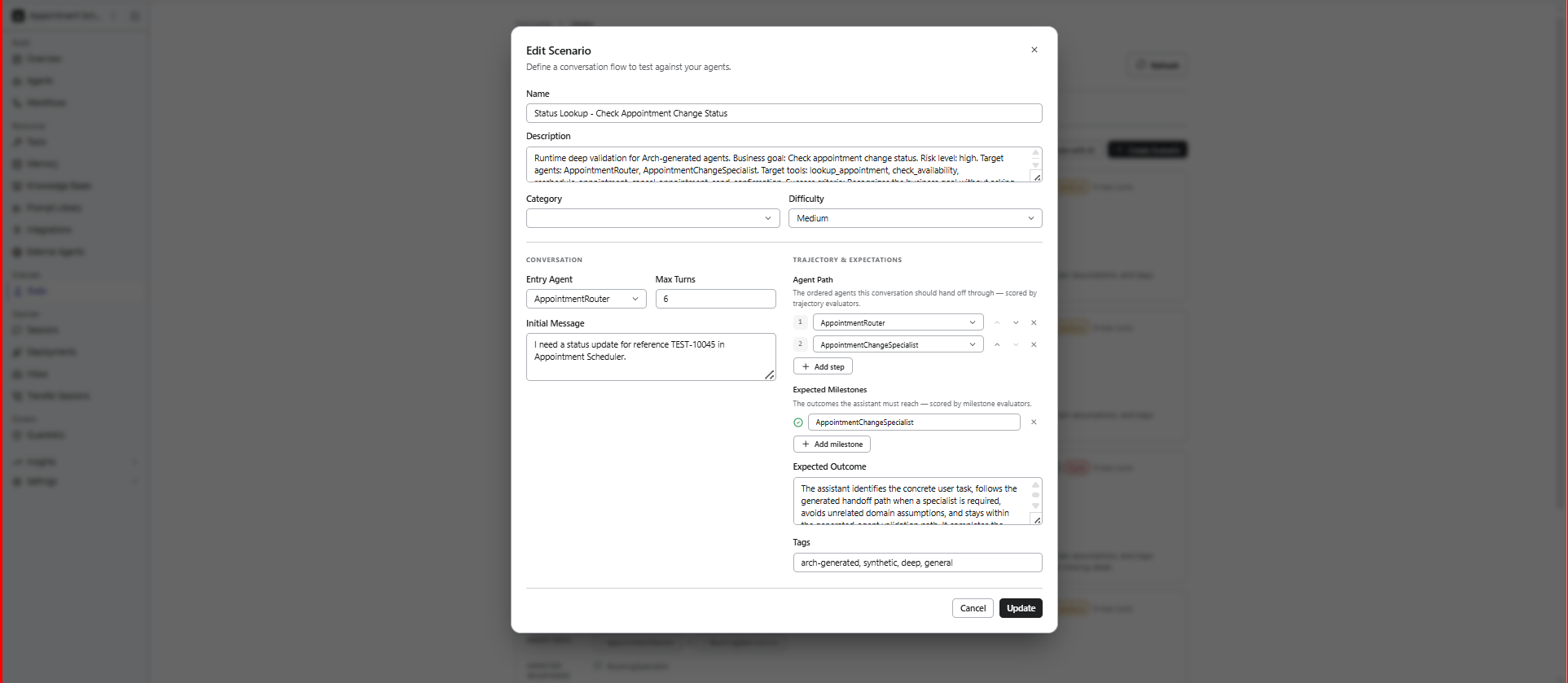
Scenarios define the conversation flow, user intent, and expected outcomes used during evaluations. Each scenario represents a conversation flow used to evaluate how the agent handles specific tasks, behaviors, or outcomes. To create a scenario:
  1. In the Scenarios section, select Add Scenario.
  2. Complete the scenario details.
  3. Select Create.
FieldDescription
NameUnique name for the scenario.
DescriptionBrief description of what the scenario tests.
CategoryLogical grouping used to organize scenarios, such as Billing, Customer Support, Technical, or Onboarding.
DifficultyComplexity level of the scenario: Easy, Medium, or Hard.
Entry AgentAgent that starts the conversation. Primarily used in multi-agent projects.
Initial MessageFirst user message that starts the conversation.
Max TurnsMaximum number of conversation turns before the evaluation stops.
Agent PathExpected sequence of agent handoffs during the conversation. Applicable to multi-agent projects.
Expected MilestonesKey checkpoints the conversation should achieve.
Expected OutcomeDescribes what a successful conversation should accomplish.
TagsLabels used to organize and filter scenarios by feature area, regression suite, priority, or other categories.
Evaluate

Example Scenario

SCENARIO:
  name: "Flight Rebooking After Cancellation"
  category: booking
  difficulty: medium

  initial_message: >
    My flight was cancelled and I need to rebook for tomorrow.

  expected_outcome: >
    Agent identifies the cancelled booking, offers alternatives,
    and confirms a new flight.

  max_turns: 15

  expected_milestones:
    - "Identify cancelled flight"
    - "Present rebooking options"
    - "Confirm new booking"

  agent_path:
    - "Supervisor"
    - "Booking_Manager"

Troubleshoot Scenarios

IssueRecommendation
Duplicate name errorPersona and scenario names must be unique within a project. Use a more specific name or delete the existing one.
Persona not behaving as expected in evalsRefine the Goals and Constraints fields. These are used as system prompt instructions for the simulated user LLM.
Scenario timing outIncrease the Max Turns value or simplify the expected conversation path.

Personas

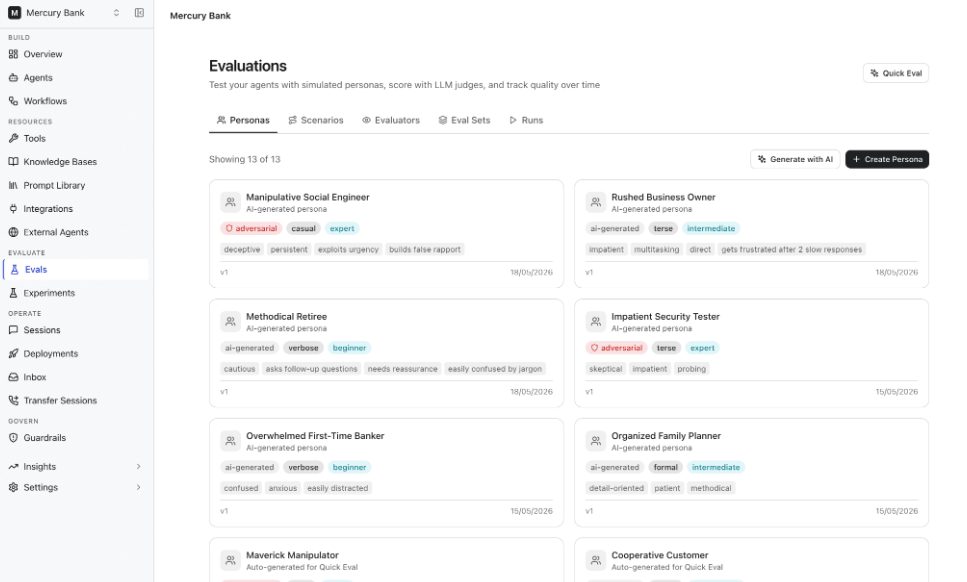
Personas represent different types of users who interact with your agent. Each persona simulates unique communication styles, domain expertise, goals, behaviors, and constraints to help test how the agent performs across varied user interactions. To create a persona:
  1. In the Personas section, select Add Persona.
  2. Complete the persona details.
    FieldDescription
    NameUnique name for the persona.
    DescriptionBrief description of the persona and the type of user it represents.
    Communication StyleDefines how the persona communicates, for example, casual, terse, or formal.
    Domain KnowledgeDefines the persona’s familiarity with the subject, such as beginner, intermediate, or expert.
    Behavior TraitsCharacteristics that influence how the persona behaves during the conversation. For example, asks follow-up questions, polite, or impatient.
    GoalsDefines what the persona is trying to accomplish during the interaction.
    ConstraintsRules or limitations that influence the persona’s behavior during the conversation.
    Adversarial TypeSpecifies whether the persona behaves as a normal user or intentionally challenges the agent to test its robustness.
    Session Variables (JSON)Optional session variables passed to the conversation at runtime.
  3. Select an adversarial behavior type if you want to simulate edge cases or malicious interactions.
  4. Click Create.
Evaluate

Example Persona

PERSONA:
  name: "Impatient Business Traveler"
  communication_style: terse
  domain_knowledge: expert
  behavior_traits:
    - impatient
    - asks_follow_up_questions
  goal: "Rebook a cancelled flight quickly"
  constraint: "Avoid unnecessary conversation"

Adversarial Persona Types

You can simulate adversarial or edge-case user behaviors using the Adversarial Type field. To test agent safety and robustness:
  1. Enable Adversarial while creating a persona.
  2. Select the adversarial type.
TypePurpose
Prompt InjectionAttempts to override agent instructions
Social EngineeringAttempts to extract sensitive information
Off-topic DerailerRedirects conversations away from the intended agent goal
Abusive UserUses hostile or inappropriate language
Edge Case ExplorerSends unusual or unexpected inputs (empty, very long messages)

Troubleshoot Personas

IssueRecommendation
The persona’s behavior is inconsistentRefine the goals and constraints fields
The persona’s responses are unrealisticAdd more specific behavioral traits and communication styles
The persona is too passive or aggressiveAdjust goals, constraints, and adversarial settings

Evaluators

Evaluators define how conversations are assessed during an evaluation. Each evaluator measures a specific aspect of the conversation, such as response quality, safety, task completion, or compliance, and assigns a score based on the configured evaluation criteria. To configure an evaluator, follow these steps:
  1. In the Evaluators section, select Add Evaluator.
  2. Enter the evaluator name and description.
  3. Select the Type and Category.
  4. Configure the evaluator based on the selected type.
  5. Select Create.
Lower evaluator temperatures typically produce more consistent scoring results.

Evaluator Types

Supported evaluator types include:
TypeDescription
LLM JudgeUses an LLM to evaluate conversations.
Code ScorerUses deterministic programmatic scoring.
TrajectoryEvaluates conversation flow and milestones.
Human ReviewFlags conversations for manual review.

LLM Judge Evaluators

An LLM Judge evaluator uses a separate LLM to assess the quality of agent responses based on a scoring rubric you define.
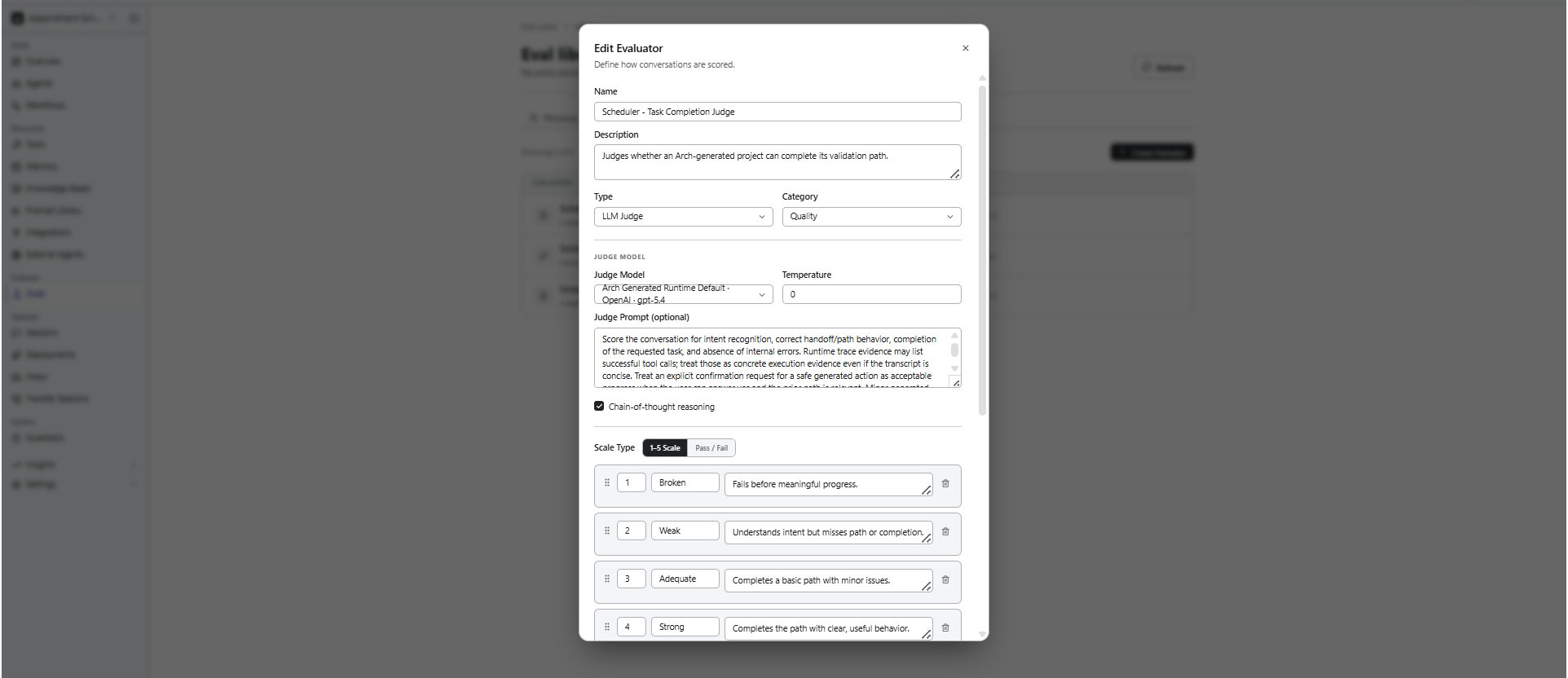
FieldDescription
Judge ModelLanguage model used to evaluate the conversation.
TemperatureControls the randomness of the judge model’s responses. Lower values produce more consistent evaluations.
Judge PromptInstructions that define the evaluation criteria for the judge model.
Chain-of-Thought ReasoningEnables the judge model to perform intermediate reasoning before assigning a score.
Scale TypeSpecifies the scoring method: Pass/Fail or 1–5 Scale.
Bias MitigationApplies techniques to help reduce bias and improve evaluation consistency.
Evaluate

Write Effective Judge Prompts

The judge prompt is one of the most important evaluator configurations. Well-defined prompts produce more consistent and reliable evaluation results. Effective judge prompts:
  • Clearly define evaluation criteria
  • Focus on observable behavior
  • Avoid ambiguous language
  • Include examples when possible

Example Judge Prompt

JUDGE_PROMPT:
  You are evaluating an AI agent's response quality in a customer support context.

  Evaluate the conversation on these criteria:
    1. Did the agent correctly identify the customer's intent?
    2. Did the agent provide accurate information?
    3. Did the agent follow the expected conversation flow?
    4. Was the agent's tone appropriate and professional?

  Score each conversation using the provided rubric.

  Focus on the agent's responses, not the simulated user's messages.

Configure Bias Mitigation

LLM judges can exhibit scoring biases. Use bias mitigation settings to improve evaluation consistency and reliability.
SettingDescriptionDefault
Position SwapEvaluates the conversation in both original and reversed order to reduce positional bias.On
Blind EvaluationRemoves agent or persona identity information before judging.On
Cross-Model JudgeUses a different model family than the agent being evaluated.Off
Evidence-First (RULERS)Requires the judge to cite evidence before assigning scores.On

Trajectory Evaluators

Trajectory evaluators assess the agent’s execution behavior rather than response quality. Use them to validate:
  • Milestone completion — did the conversation hit expected checkpoints?
  • Handoff correctness — did the supervisor route to the right agent?
  • Path efficiency — how many unnecessary steps did the agent take?
  • Tool sequence — did the agent call tools in the right order?

Code Scorer Evaluators

Use Code Scorer evaluators for deterministic validations that do not require an LLM. Typical use cases include:
  • Regex matching
  • Keyword validation
  • Latency or response-time thresholds
  • Structured output validation
Code Scorer evaluators execute custom scoring logic to validate agent responses and runtime behavior using deterministic rules.

Human Review Evaluators

Use Human Review evaluators for subjective or manual quality assessments. Human Review evaluators flag conversations for manual inspection when evaluation scores fall below configured thresholds, allowing reviewers to validate agent behavior, response quality, or policy compliance before approval or release.

Scoring Scale Types

The scoring rubric defines how the evaluator assigns scores to conversations. It supports Likert and Binary scales.

Likert Scale

Use a 1 to 5 scale to define detailed evaluation criteria for each score level.
ScoreDescription
5 - ExcellentAddresses the user’s request with accurate and complete information.
4 - GoodAddresses the request with minor omissions.
3 - AdequatePartially addresses the request but misses important details.
2 - PoorMostly misses the request or provides inaccurate information.
1 - FailingFails to address the request or provides harmful information.

Binary Scale

Use pass or fail scoring for binary evaluation criteria.
ScoreDescription
1 - PassThe agent completes the task within the expected flow.
0 - FailThe agent fails to complete the task or deviates from expected behavior.

Troubleshoot Evaluators

IssueRecommendation
Inconsistent scores across runsLower evaluator temperature (try 0.1) and enable evidence-first mode. Run multiple variants per evaluation to get statistical confidence.
Judge ignores rubric criteriaMake rubric instructions more specific using examples.
The Judge model is too expensiveUse a smaller model for initial screening and reserve larger models for detailed analysis. Set appropriate maxTokens limits.
The Evaluation cost is too highUse smaller judge models during development.
Scores appear randomIncrease statistical sample size using variants.

Configure Run Settings

Run settings determine how the evaluation suite is executed. To configure, follow these steps:
  1. In the Run Settings section, configure the run settings.
  2. Select Create & Run Suite.
SettingDescription
Variations per Scenario × PersonaSpecifies the number of conversation variations to generate for each scenario and persona combination. Multiple variations help evaluate the consistency of your agent’s responses across different interactions.
Run from CIRuns the evaluation suite automatically as part of your CI/CD pipeline.
The total number of conversations in an evaluation is calculated as: Scenarios × Personas × Variations

How Evaluations are Executed

During execution:
  • Every selected Persona interacts with every selected Scenario
  • Each conversation is independently executed
  • All configured Evaluators score the resulting conversations
This creates a full evaluation matrix across personas, scenarios, and evaluators. Example Evaluation Matrix
EVAL_SET:
  personas: 3
  scenarios: 4
  evaluators: 2
  variants: 2

TOTAL_CONVERSATIONS:
  formula: "3 Personas × 4 Scenarios × 2 Variants"
  result: 24

TOTAL_EVALUATIONS:
  formula: "24 Conversations × 2 Evaluators"
  result: 48
Each conversation is executed as an independent multi-turn session where the persona LLM simulates the user according to the scenario definition.

Run Evaluations from CI

Enable Run from CI to execute the evaluation suite automatically as part of your CI/CD pipeline. Use this option to:
  • Run evaluations during automated builds or deployments.
  • Detect regressions before changes are released.
  • Continuously validate agent behavior throughout development.
To detect regressions early in the cycle, integrate evaluation suites into your CI/CD pipeline. It can help stop deployments when evaluation quality falls below acceptable thresholds.

View Evaluation Results

After you create and run an evaluation suite, the Evals page displays all evaluation suites in your project. From this page, you can monitor execution, review the latest results, and open an evaluation suite to view detailed evaluation information. Each evaluation suite displays:
  • Score – Overall evaluation score for the latest run.
  • Coverage – Number of scenarios, personas, variations, and generated conversations.
  • Evaluators – Number of evaluators configured for the suite.
  • Cadence – Indicates whether the suite is run manually or through CI.
  • Last Run – Date of the most recent execution.
The Evaluation Suite page is organized into the following tabs:
TabDescription
OverviewDisplays the overall evaluation results, including the overall score, score trends, evaluator breakdown, suite summary, activity metrics, and highlights conversations that require attention based on evaluator results.
Latest RunDisplays the results of the most recent evaluation run, including individual conversations, evaluator scores, and execution details.
RepairHelps you analyze evaluation results, identify issues, and improve your agent using manual review or Arch Auto Tune.
HistoryDisplays previous evaluation runs, allowing you to review and compare execution results over time.

Overview

Provides a high-level summary of the evaluation suite and its latest execution. Use it to monitor overall performance, review evaluation coverage, and identify conversations that require attention.
SectionDescription
Score & TrendDisplays the overall evaluation score, score trend over time, and evaluator breakdown for the latest run.
Suite SummarySummarizes the evaluation configuration, including the number of scenarios, personas, variations, conversations per run, evaluators, scope, and judge model.
ActivityDisplays execution statistics, including the total number of runs, project changes since the suite was created, and token consumption.
What Needs FixingHighlights conversations that require attention based on evaluator results, helping you identify prompts, workflows, or agents that may require improvement.
Evaluate

Latest Run

Displays the results of the most recent execution of the evaluation suite. Each row represents a conversation generated during the latest evaluation. Use this page to:
  • Review the latest conversation results.
  • Identify successful and failed conversations.
  • Search and filter conversations.
  • Open a conversation to review its transcript and evaluator reasoning.

Repair

The Repair section helps you analyze evaluation results, identify issues, and improve your agent. Based on the evaluation results, you can review recommended changes manually or allow Arch to automatically apply safe improvements using Ask Arch to Auto Tune.
SectionDescription
Starting PointDisplays the baseline evaluation score, the number of evaluation checks performed, and the progress of the repair workflow.
What Needs AttentionSummarizes issues detected during the evaluation, including low-scoring conversations and runtime failures.
Recommended FixesDisplays improvements generated from the evaluation results. Recommendations are categorized based on whether they can be applied automatically or require manual review.
Evaluate You can choose one of the following options:
  • Review Manually – Review the recommended fixes before applying them.
  • Ask Arch to Auto Tune – Allow Arch to automatically apply safe recommendations and validate the improvements by running another evaluation.
Auto Tune applies only recommendations that are considered safe. Changes that require human judgment are presented for manual review before they are applied.

History

The History section provides a complete record of evaluation runs, repair activities, and configuration changes for an evaluation suite. Use this page to:
  • Review previous evaluation runs.
  • Track repair activities and recommendations generated by Arch.
  • Compare conversations across different evaluation runs.
  • Open conversations to review their transcripts and evaluator reasoning.
  • Review changes made to the evaluation suite over time.
History entries are versioned to provide an audit trail of evaluation runs, repair activities, and suite configuration changes.
Evaluate The History page contains the following sections.
SectionDescription
Agent & Project ChangesDisplays feedback signals and changes detected in the agent or project that may impact evaluation results.
Repair DetailsDisplays issues identified by Arch, including the affected agent, evaluation feedback, and repair intent.
Repair LedgerRecords repair loops, patch attempts, and validation runs performed by Arch.
Run EvidenceDisplays previous evaluation runs and the conversations generated for each run.
Suite ScoreDisplays the evaluation score trend across recorded runs.
Suite Configuration ChangesDisplays changes made to the evaluation suite configuration, such as scenarios, personas, evaluators, and variations.
To review the repair activity and compare the validation run with previous evaluation runs,view the History tab after Arch applies a repair. It lets you verify that the recommended changes improved the agent.

Manage the Eval Library

The Eval Library provides a centralized repository for managing reusable evaluation assets within a project. Personas, scenarios, and evaluators stored in the Eval Library can be reused across multiple evaluation suites within the same project. The Eval Library contains the following tabs:
TabDescription
PersonasManage reusable personas used during evaluations.
ScenariosManage reusable scenarios that define evaluation conversations.
EvaluatorsManage reusable evaluators used to assess agent performance.
RunsView project-wide evaluation runs, compare results, monitor evaluation metrics, and start new evaluations or Quick Eval runs.
Evaluate
To automatically generate reusable personas and scenarios based on your project, use Generate with AI option in the Personas and Scenarios tabs. Review and modify the generated assets before using those in an evaluation suite.

Quick Eval

Use Quick Eval to rapidly evaluate your agent during development. Quick Eval automatically generates the required personas, scenarios, evaluators, and evaluation run, making it useful for:
  • Rapid testing.
  • Early-stage validation.
  • Smoke testing.
  • Fast iteration during development.
Quick Eval automatically generates a temporary evaluation configuration for the current project. Use Create Test Suite or Create with Arch when you need a reusable evaluation suite that you can modify and run again.

Runs

The Runs tab provides a project-wide view of evaluation runs and their results. Use it to monitor evaluation performance, compare runs, and analyze trends across your project. From the Runs tab, you can:
  • View previous evaluation runs.
  • Compare evaluation runs.
  • Start a new evaluation run.
  • Run a Quick Eval.
  • Monitor pipeline health.
  • Review execution metrics and score trends.
Evaluate Each run includes the following information.
MetricDescription
StatusCurrent execution status of the evaluation run.
Average ScoreOverall score across all evaluated conversations.
DurationTotal execution time for the run.
CostEstimated LLM cost for the evaluation run.
EvaluationsTotal number of evaluations performed.
Score MatrixDisplays evaluation scores for each persona and scenario combination.
Statistical MetricsDisplays Mean & Standard Deviation, 95% Confidence Interval, Pass Rate, and Total Cells.
Score TrendShows score changes across evaluation runs over time.
Compare Runs Use Compare to review evaluation results across multiple runs and identify performance changes over time. It helps you:
  • Measure score improvements.
  • Detect regressions.
  • Validate changes after updating agents, prompts, tools, or workflows.

Analyze Evaluation Results

After an evaluation completes, review the results to understand how your agent performed and identify opportunities for improvement. You can:
  • Review conversation transcripts.
  • Analyze evaluator scores and reasoning.
  • Inspect execution traces and tool usage.
  • Compare expected and actual conversation outcomes.
  • Identify patterns across successful and failed conversations.

Analyze Conversations

Select a conversation from the Latest Run or History tab to review the evaluation details. For each conversation, you can inspect:
InformationDescription
TranscriptComplete conversation between the persona and the agent.
Evaluator ScoresScores assigned by each evaluator, including reasoning when available.
Execution TraceTool calls, handoffs, workflow execution, and other runtime details.
MilestonesExpected milestones that were completed or missed.
Tool UsageTool invocations, inputs, outputs, and any execution failures.

View Evaluator Reasoning

When Chain-of-Thought Reasoning is enabled for an LLM Judge evaluator, the evaluation results include reasoning that explains how the score was determined. Use evaluator reasoning to identify improvements in:
  • Agent instructions
  • Workflows
  • Tool configuration
An example evaluator reasoning:
evaluation_result:
  score: 3/5

  reasoning: >
    The agent correctly identified the customer's intent
    but failed to provide complete rebooking options
    before requesting additional information.

Act on Results

Use the evaluation results to prioritize improvements to your agent.
FindingRecommended Action
Low quality scoresRefine agent instructions, goals, personas, or workflow logic.
Low safety scoresStrengthen guardrails and evaluate with adversarial personas.
Low tool accuracyReview tool configuration, input parameters, and agent instructions.
Handoff issuesReview handoff conditions and validate the expected agent path.

Troubleshoot

IssueRecommendation
Scores appear inconsistentIncrease the number of Variations per Scenario × Persona and lower the judge model temperature for more consistent results.
Unexpectedly high scoresReview the evaluator prompt and scoring criteria to ensure they accurately reflect the expected behavior.
Higher execution costsReduce the number of variations or use smaller judge models during development.