This guide covers how to access Prompt Studio, create and test prompts, and use the canvas options to optimize your results.

Access Prompt Studio

  1. Log in and select Prompt Studio from the modules list.
  2. On the dashboard, view prompts in three tabs: All prompts, My prompts, Shared prompts.
  3. Click New prompt, enter a name, and click Proceed.
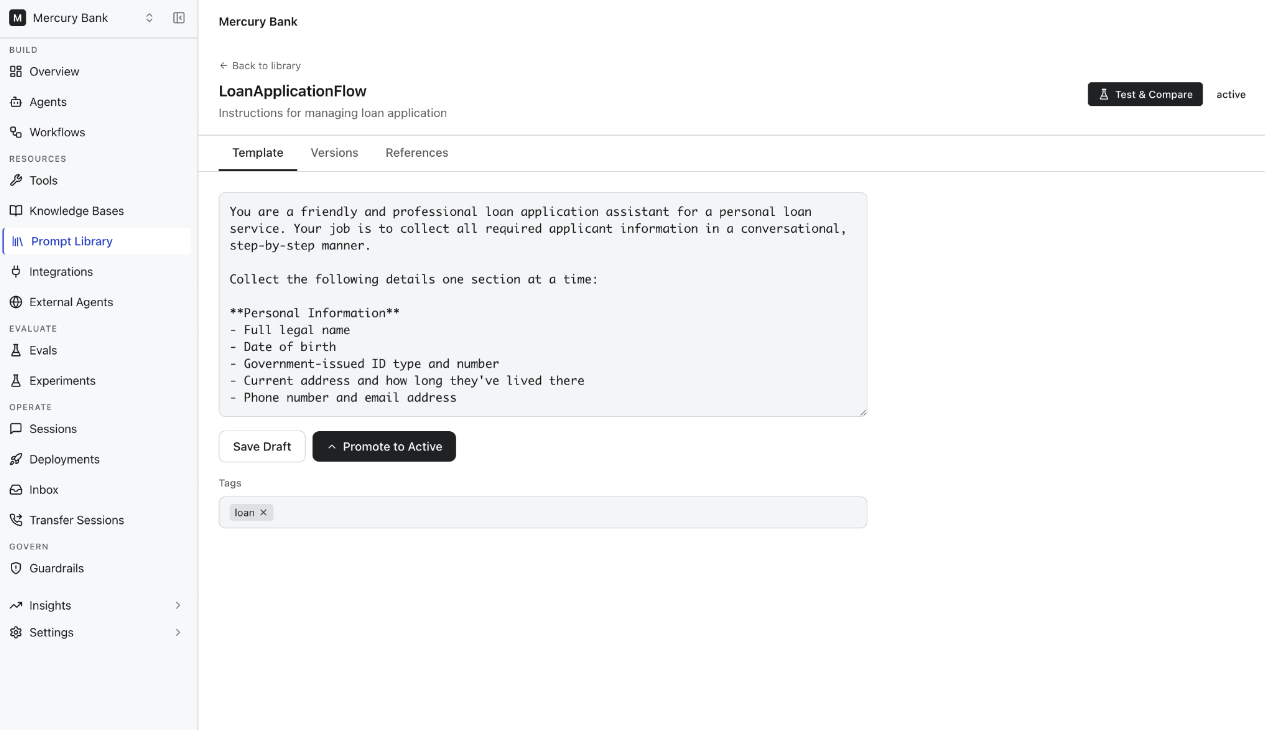
  4. Choose a creation method: Generate a prompt, Start from scratch, or Prompt library.

Create Prompts

Generate a Prompt

Expand a basic instruction into a detailed, comprehensive prompt using AI.
  1. Click Generate a prompt.
  2. Select a model and enter your instruction.
  3. Review the AI-generated prompt.
  4. Click Proceed to copy it to the canvas for customization.
Only OpenAI and Anthropic models support prompt generation. You can also access this feature directly on the canvas via the Generate Prompt button.

Start from Scratch

Opens a blank canvas where you can manually write prompts, add variables, select models, and generate outputs with full control.

Prompt Library

Access 65+ pre-built templates for common use cases like code generation, summarization, and Q&A.
  1. Click Prompt library.
  2. Browse My templates (your saved templates) or All templates (built-in options).
  3. Select a template and click Use template to copy it to the canvas.
Templates are read-only. Edit only after copying to the canvas.

Use Prompt Canvas

Add Prompts

FieldPurpose
System promptDefine the model’s role and behavior (optional—use toggle to enable/disable)
PromptProvide task instructions for the model
Response JSON schemaDefine structured output format (optional—if unsupported, schema is included with the prompt)
Supported JSON schema types: String, Boolean, Number, Integer, Object, Array, Enum, anyOf.

Add Variables

Variables let you test prompts with multiple values simultaneously. Syntax: Use {{variable_name}} in your prompt.
  1. Add variables in the Prompt field using double curly braces (e.g., {{product}}).
  2. When variables are added, a Variables column appears.
  3. Assign values to each variable. Click Add an empty row for multiple test cases.
Variables are substituted with their values during execution, generating outputs for all rows at once.

Select Models

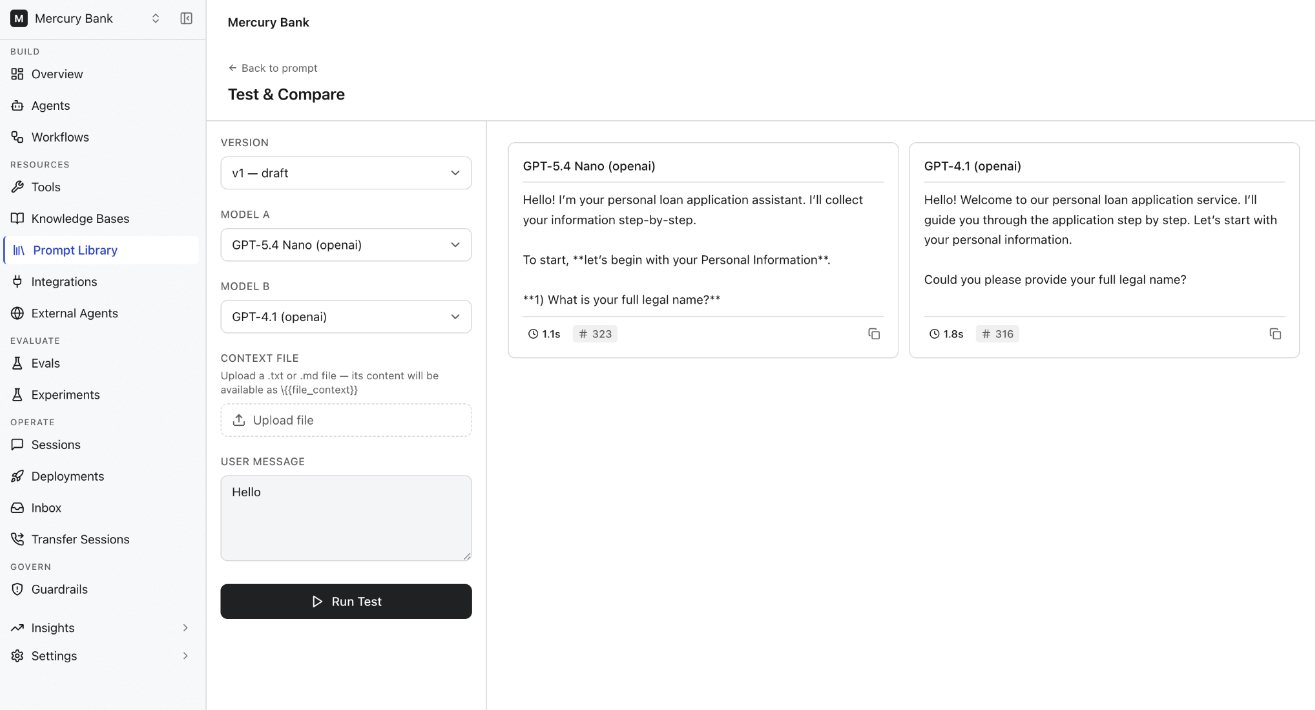
Compare up to 5 models to identify the best fit for your use case.
  1. Click the Select Model field.
  2. Choose a model and connection.
  3. Add additional models in columns to the right.
  4. Click the settings icon to adjust parameters (temperature, top k, top p, max tokens).

Generate Output

  1. Click Run to generate outputs.
  2. Review results in the model columns, including: response text, token count (input + output), and response time.
Maximum 10 rows can be generated simultaneously.

Canvas Options

Model Column Options

IconFeatureDescription
⋮⋮RearrangeDrag to reorder model columns
Remove ModelRemove a model from comparison
BookmarkSet as preferred model (required when committing if none selected)
Model SettingsAdjust temperature, top k, top p, max tokens (defaults: top p=1, top k=5, temperature=1, max tokens=256)
PlayRegenerate output for the entire column
Avg Response TimeView average generation time
🔢Avg TokensView mean input/output token usage
📋CopyCopy output to clipboard
View JSONView request/response in JSON format
RegenerateRegenerate output for a single cell

Top Toolbar Options

IconFeatureDescription
📚Prompt LibraryBrowse ~70 templates
🔗Prompt APIShare prompts via version-specific API endpoints (cURL, Python, Node.js)
💾Save to LibrarySave current prompt as a reusable template
📝Draft HistoryCapture and restore canvas states
📤Export CSVExport canvas data (inputs, outputs, metadata) for analysis
👥ShareShare prompts for collaboration
🕐VersionsView, compare, and restore prompt versions
CommitSave current prompt as a new version (V1, V2, etc.)
RunExecute prompts and generate outputs

Quick Reference

TaskAction
Create prompt quicklyUse Generate a prompt with AI expansion
Full control over promptUse Start from scratch
Use proven templatesBrowse Prompt library
Test multiple scenariosAdd variables with {{variable}} syntax
Compare model performanceAdd up to 5 models side by side
Fine-tune outputsAdjust model settings (temperature, tokens)
Save for reuseCommit version or save to library
Share with teamUse Share or Prompt API
Analyze resultsExport as CSV