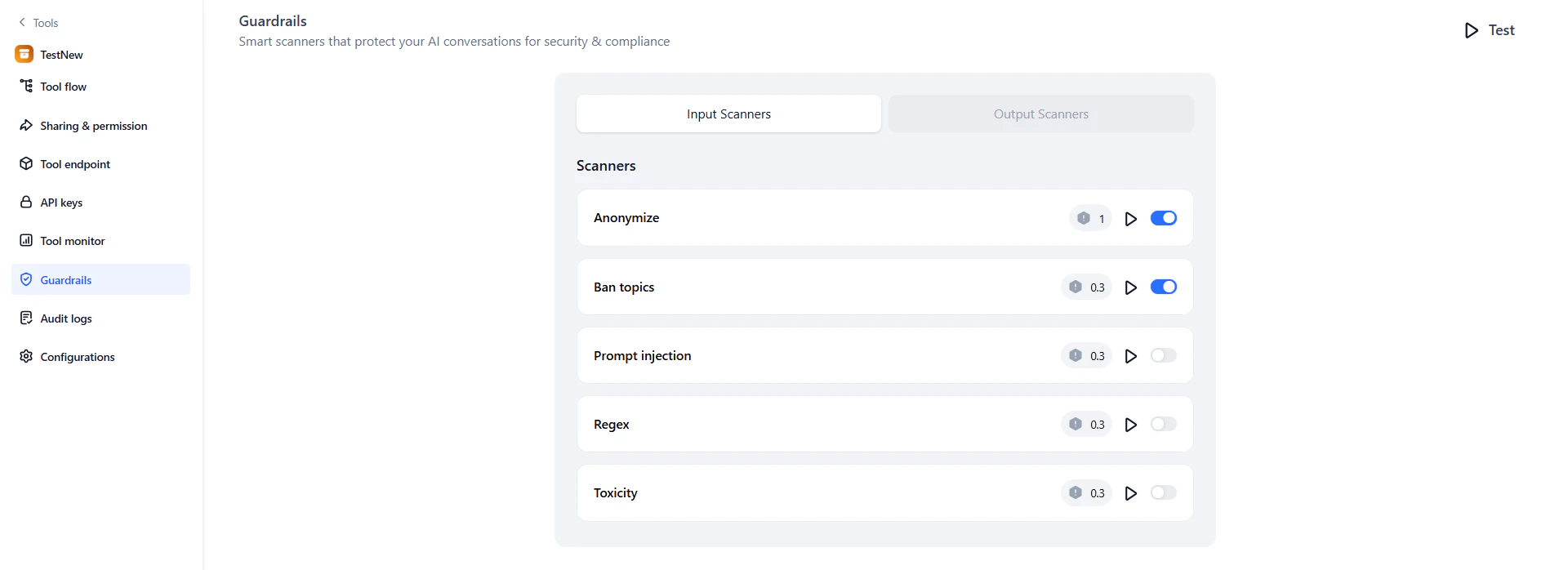
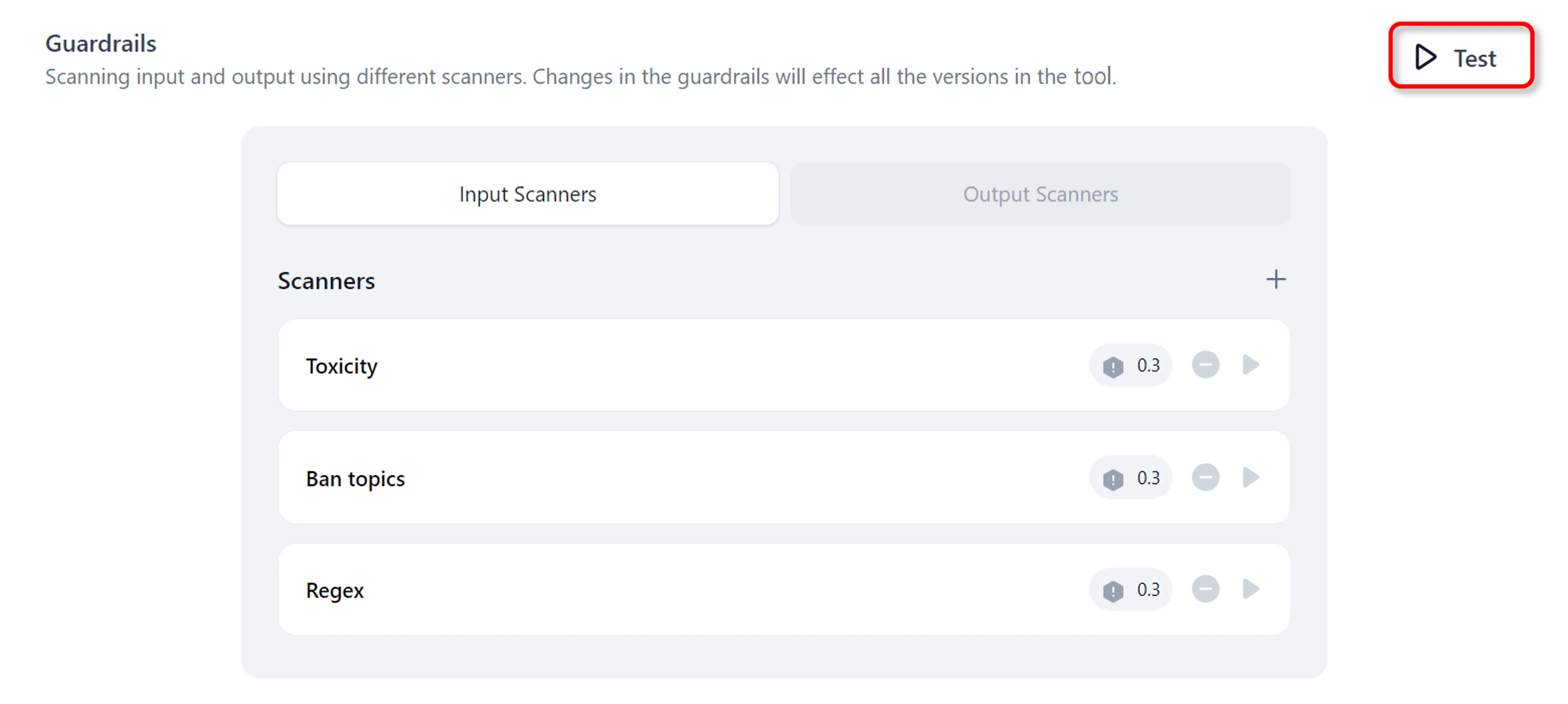
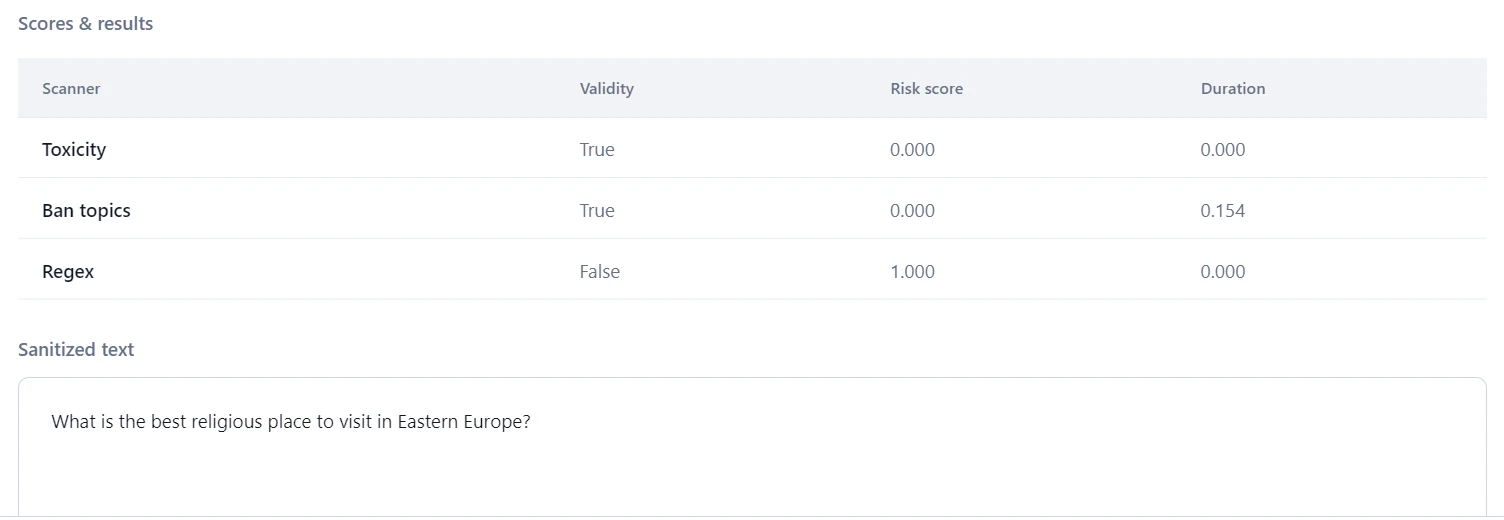
| Regex | Validates prompts using user-defined regular expression patterns. Supports defining desirable (“good”) and undesirable (“bad”) patterns for fine-grained validation. | Input |
| Anonymize | Removes sensitive data from user prompts to maintain privacy and prevent exposure of personal information. | Input |
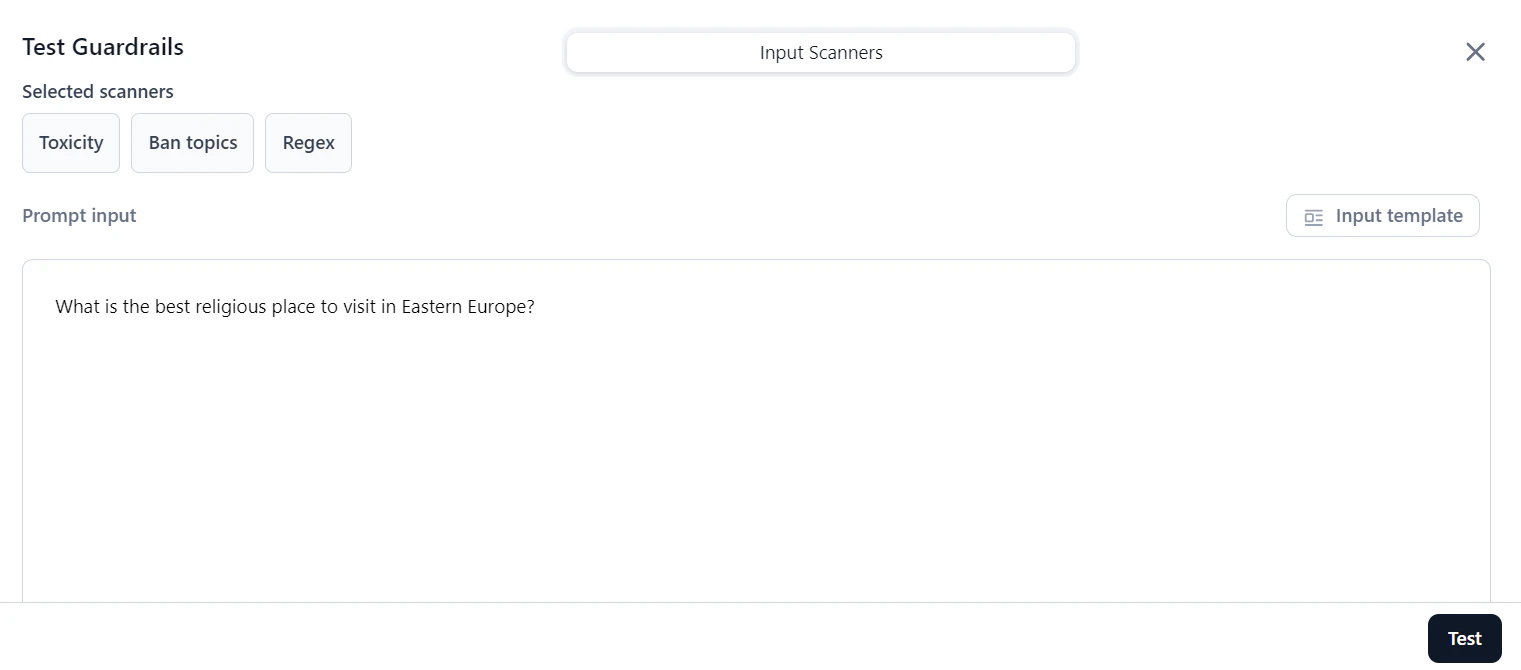
| Ban topics | Blocks specific topics (for example, religion) from appearing in prompts to avoid sensitive or inappropriate discussions. | Input |
| Prompt injection | Detects attempts to manipulate or override model behavior, protecting the LLM from malicious or crafted inputs. | Input |
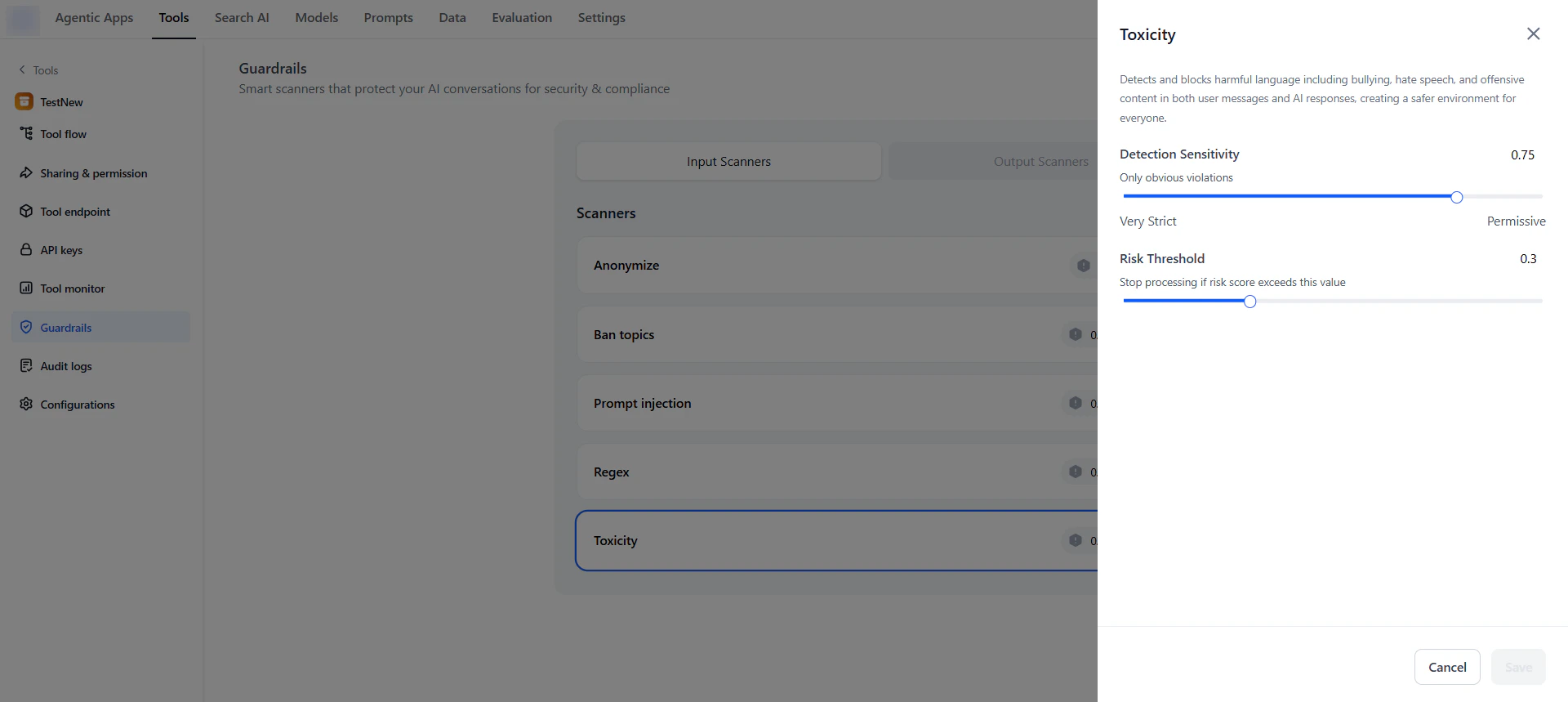
| Toxicity | Analyzes prompts or responses for toxic or harmful language to ensure safe and respectful interactions. | Input, Output |
| Bias detection | Examines model outputs for potential bias to help maintain neutrality and fairness in generated responses. | Output |
| Deanonymize | Replaces placeholders in model outputs with actual values to restore necessary information when needed. | Output |
| Relevance | Measures similarity between the user’s prompt and the model’s output and provides a relevance score to ensure responses stay contextually aligned. | Output |