

Using the Custom Script File
Consider a Travel Planning Assistant use case to understand how the custom script file reduces development overhead. The following conversation flow frequently presents customers with options. The assistant prompts the user to select what they want to book (Flight or Hotel), then prompts them to select a Fare (Economy, Premium Economy, or First Class).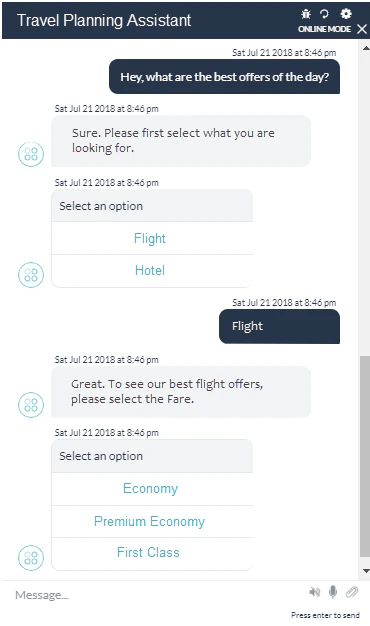
Uploading a Custom Script File
- Select App Settings from the left menu.
-
Select Dev Tools from the menu, then the App Function tab.
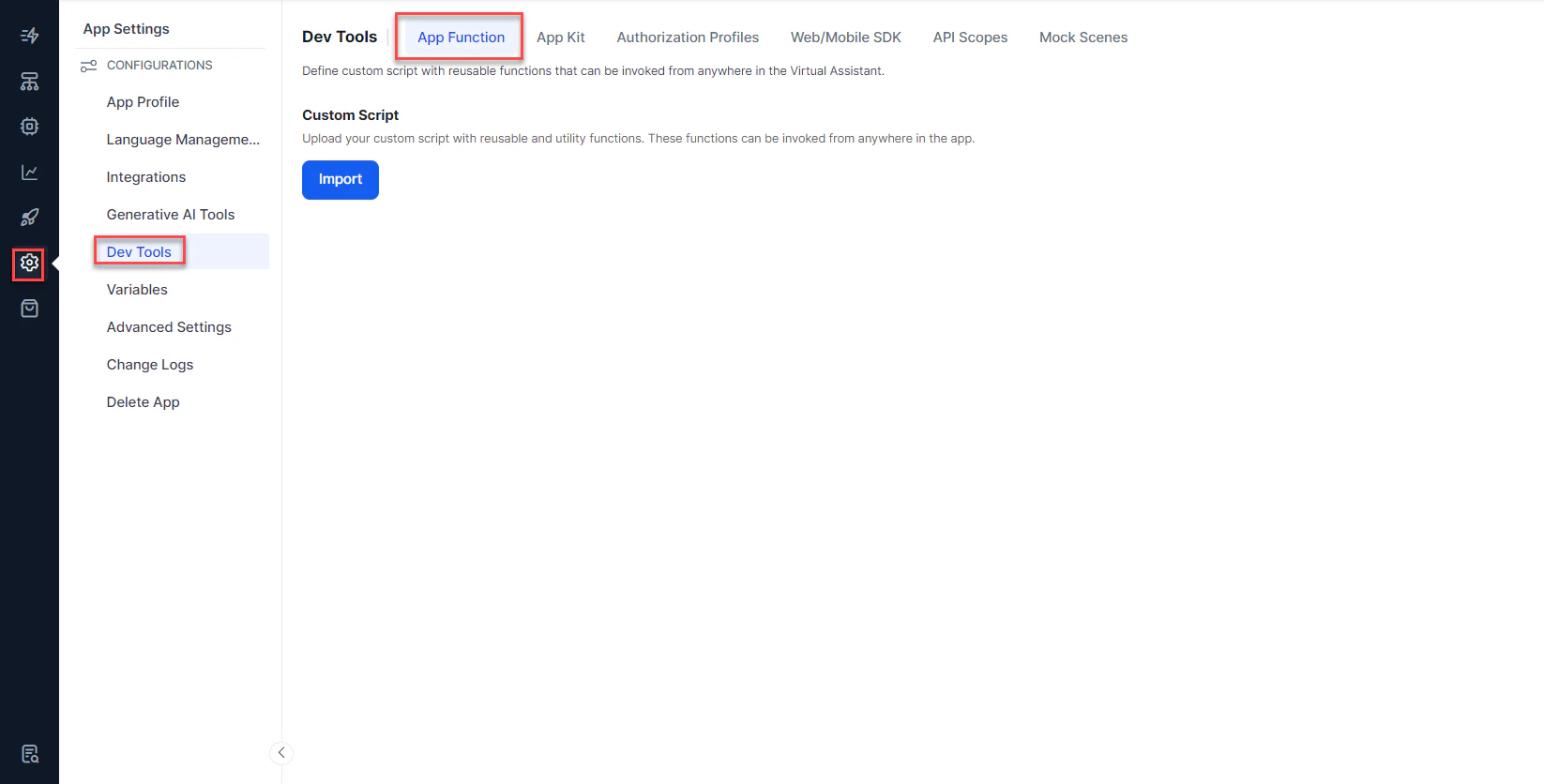
- Under Custom Script, select Import.
- In the Import Custom Script dialog, select Browse and navigate to the script file on your local machine. Click Import. You can also drag and drop the script file.
- After the import succeeds, select Done.
Updating the Custom Script File
Add or modify functions by downloading the file, making changes, and re-importing it. Importing a new custom script file replaces the existing file, which can’t be retrieved later. Keep a copy of the downloaded file as a backup.- Select App Settings from the left menu.
- Select Dev Tools from the menu, then the App Function tab.
- Under Custom Script, click Download to save a copy to your local computer.
- After making changes to the file, click Import New.
- Click Browse, locate the custom script file on your local computer, then click Import.
- Click Done when the import is complete.