Enabling Namespaces
Enable namespaces by going to Automation AI > App Settings > App Profile. Turn on the toggle, then confirm your choice to enable the feature.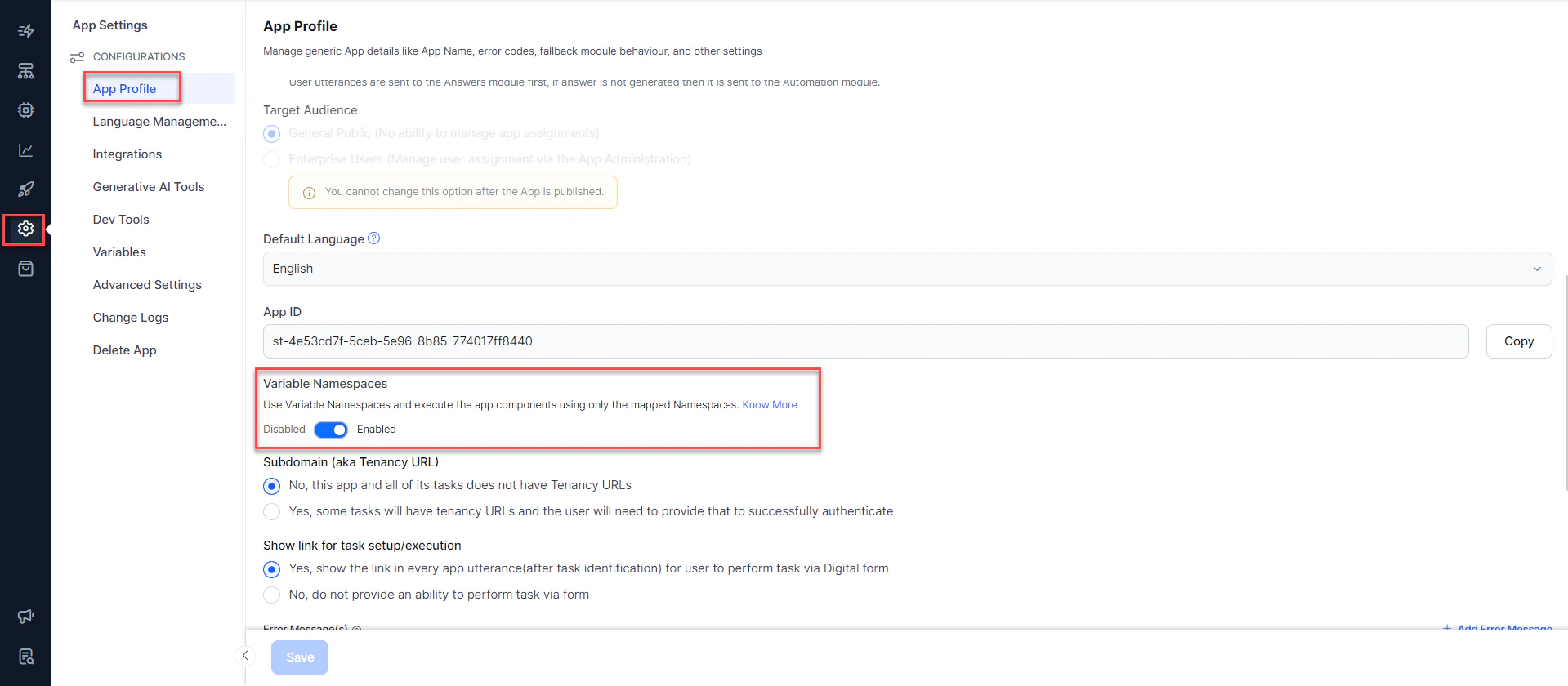
Implementation
Once the Variable Namespaces feature is enabled:- A Default namespace is automatically created by the platform which can’t be deleted or modified.
- All tasks and variables, if any, are automatically associated with this default namespace.
- You can define and manage namespaces.
- You can add or remove the Environment and Content variables to these namespaces. A variable can belong to one or more namespaces. You can’t remove the Environment and Content variables from the default namespace.
- You can map namespaces to the various components of the app definition like:
- Tasks which include Dialog, and Alert;
- Nodes in Dialog Task;
- Knowledge Task;
- Small Talk;
- Standard Responses; and
- Event Handlers.
- You can remove the namespace mapping for the components. But if you mapped components with any namespace, then the execution of these components may fail if you have included one or more variables in defining the component.
- Only the variables that belong to the namespace mapped to a component will be loaded.
- If the variable that’s not mapped is referenced by the component, it will flag a “variable not found” error.
- The same logic applies to App functions used within the tasks.
Creating Namespaces
When configuring a variable (environment or content), you have an option to Add Namespace. Use this option to create a namespace.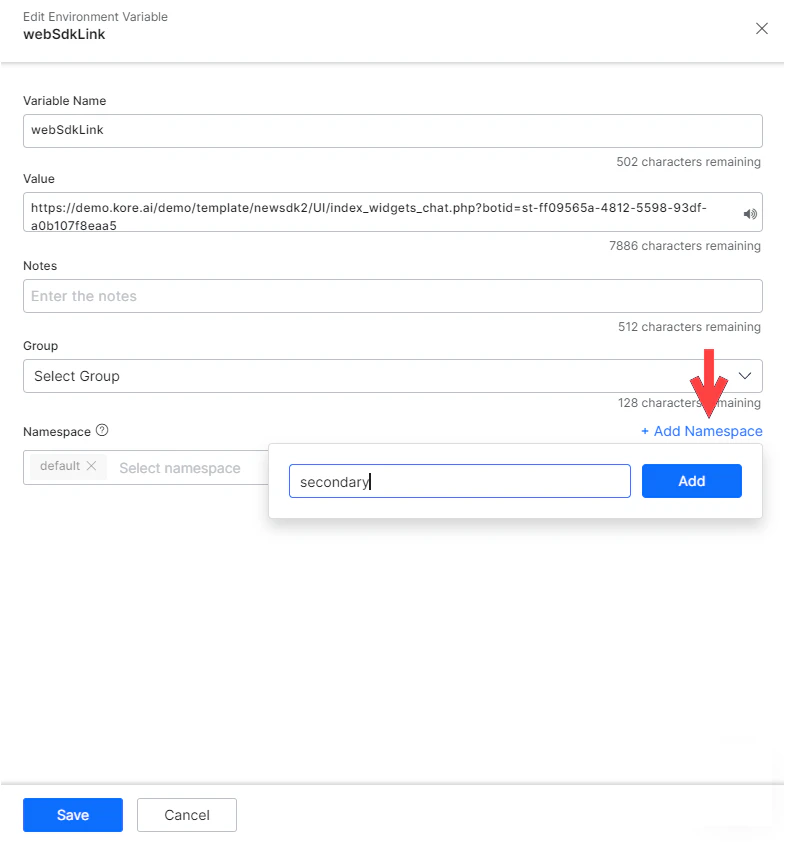
Editing
You also have an option to Manage Namespaces from under Automation AI > App Settings > Variables > Environment/Content Variables. Use this option to view, edit, or delete namespaces. Deleting a namespace that’s mapped to any component is restricted. You need to unmap the namespace from all associated components before deletion. As mentioned earlier, you can’t delete the default namespace.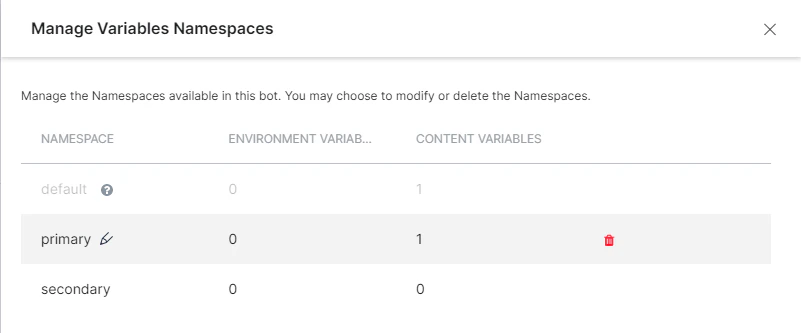
Variable Mapping
Once created, the namespace needs to be mapped to variables, tasks, and other components. This ensures that only the variables that belong to the namespace mapped to a component are loaded at the time of execution. At the time of variable creation (environment and content), you can map the namespace. By default, the variables would be assigned to the default namespace. A variable can be mapped to multiple namespaces. You can change the mapping later by editing the variable definition.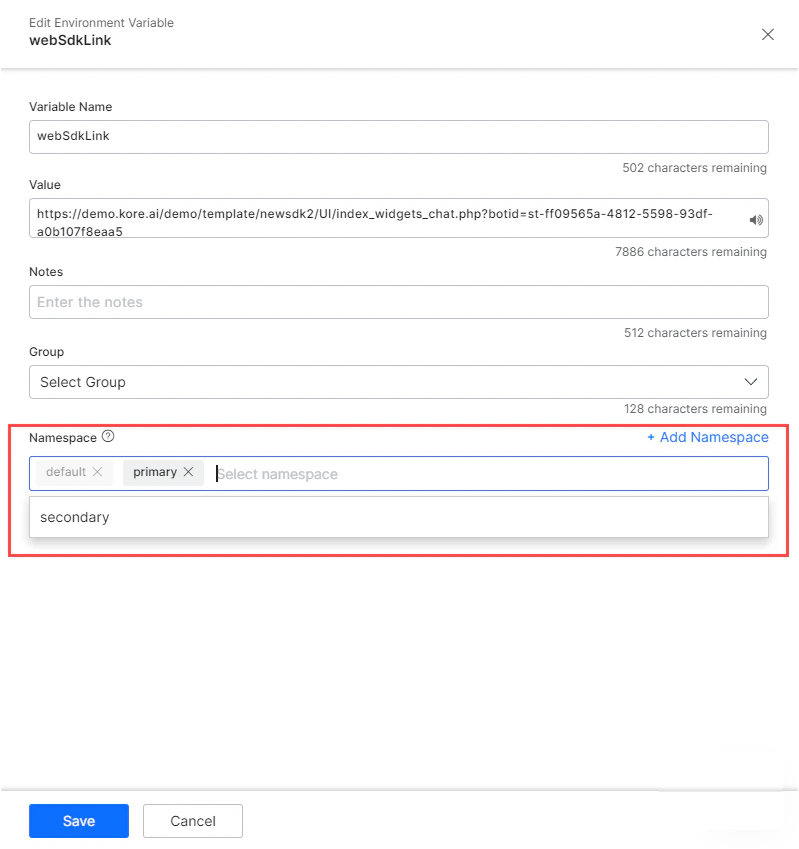
Components
All the components have a Manage Variable Namespaces action item which can be used to map the component with a particular namespace. Below is a list of places where you can find the Manage Variable Namespaces option: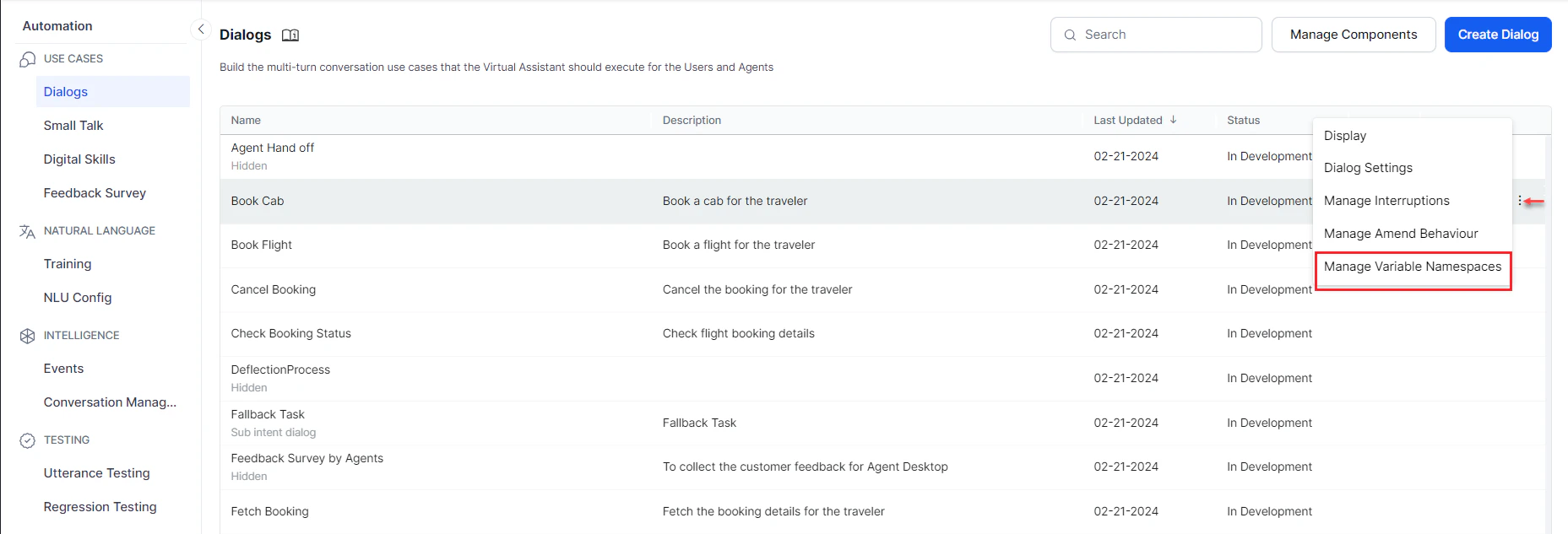
Nodes within Dialog Tasks
You can find the option under the Component Properties section of the node. You can choose to use the Variable Namespace associated with the task or customize it for the node.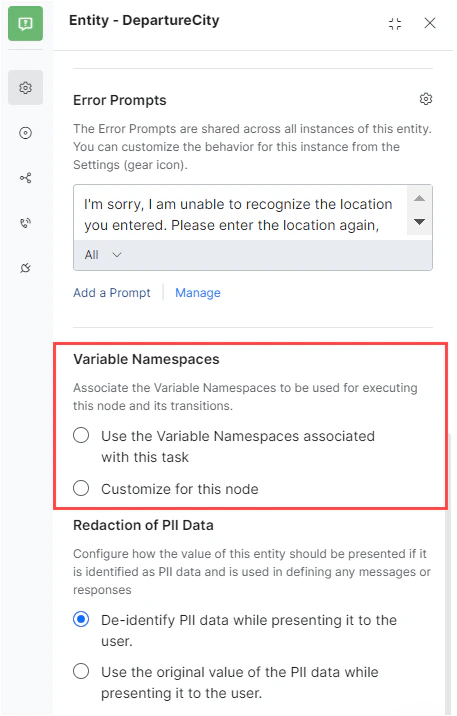
Knowledge Graph
Navigate to Automation AI > KNOWLEDGE AI > FAQs. Click Manage KG. On the Knowledge Graph screen, click the 3-dot menu icon and select Manage Variable Namespaces.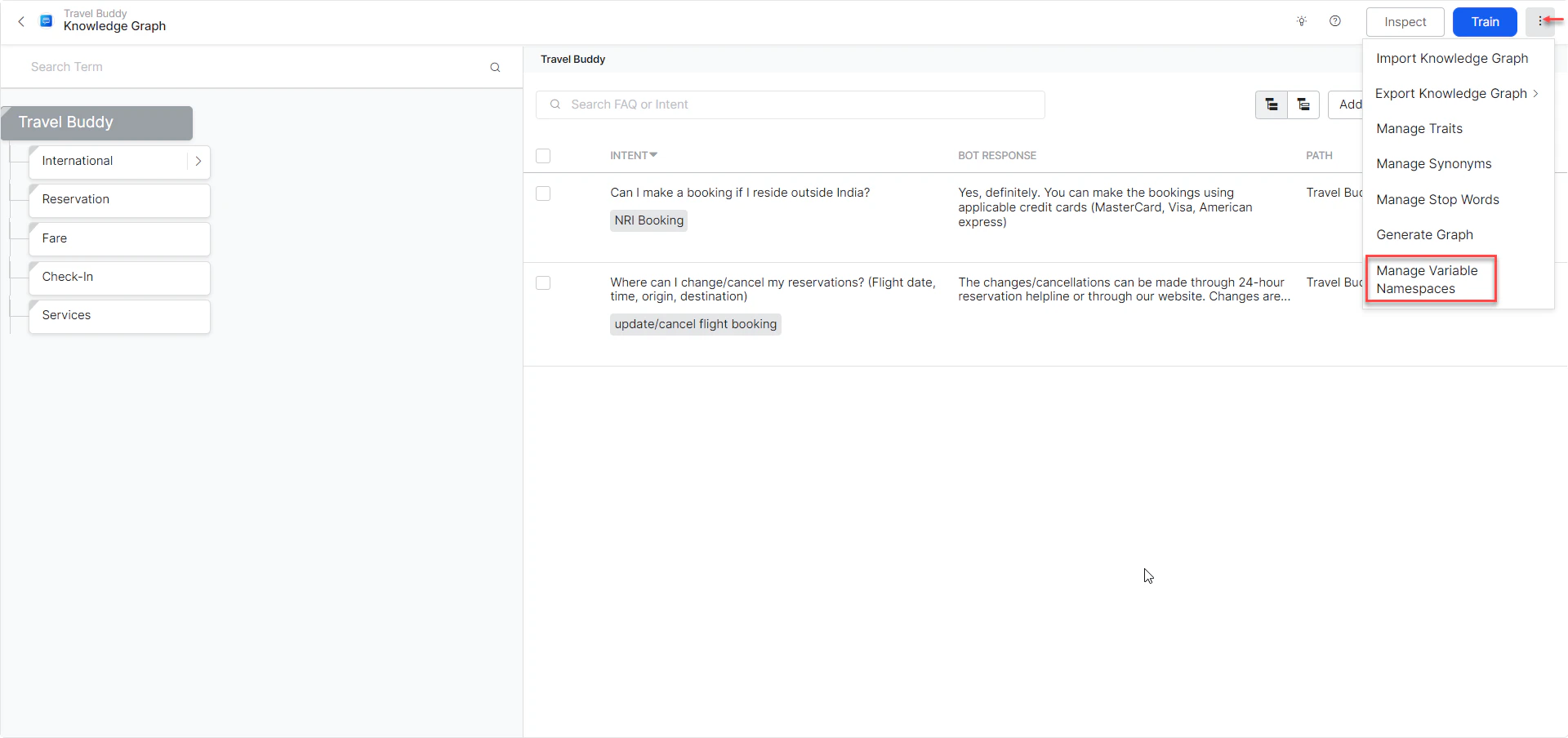
Small Talk
Navigate to Automation AI > USE CASES > Small Talk. Click the 3-dot menu icon on any of the groups.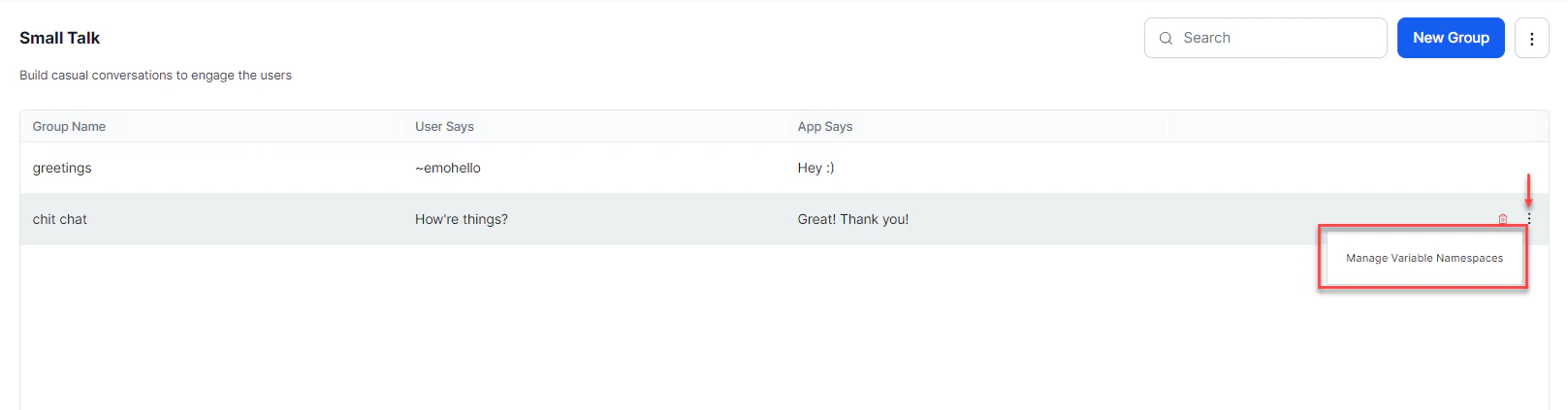
Event Handlers
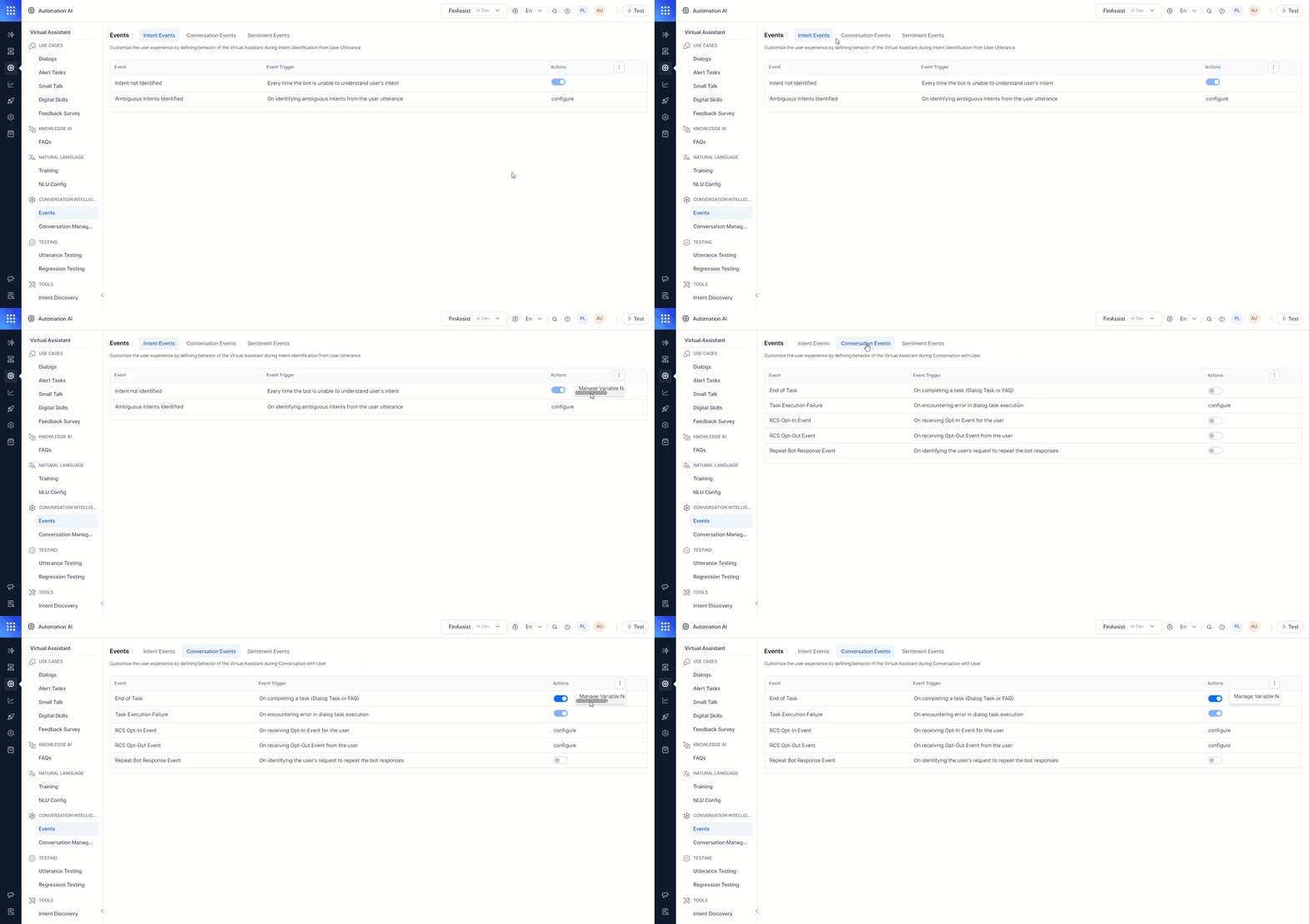
Navigate to Automation AI > CONVERSATION INTELLIGENCE > Events. Click the 3-dot menu icon.