

Benefits
Mock Scenes are specifically created for conversation designers to prototype AI Agent-user interactions before the conversation moves to the development stage. The Conversation Designer in use within this feature is specifically adapted to allow designers to focus on the conversation flow itself, without worrying about the systems and logic building side of the AI Agent.Major Features
- Create a conversation exchange prototype, between the assistant and the user, based on natural language, that can follow different paths, depending on the responses that each participant provides.
- Collaborate during the prototyping process, using notes and comments.
- Map important points in the conversation, using a timeline based on predefined hashtags or custom tags.
- Link to existing messages or to other scenes.
- Preview the conversation prototype in a customizable, shareable and collaborative view.
Mock Scene Options
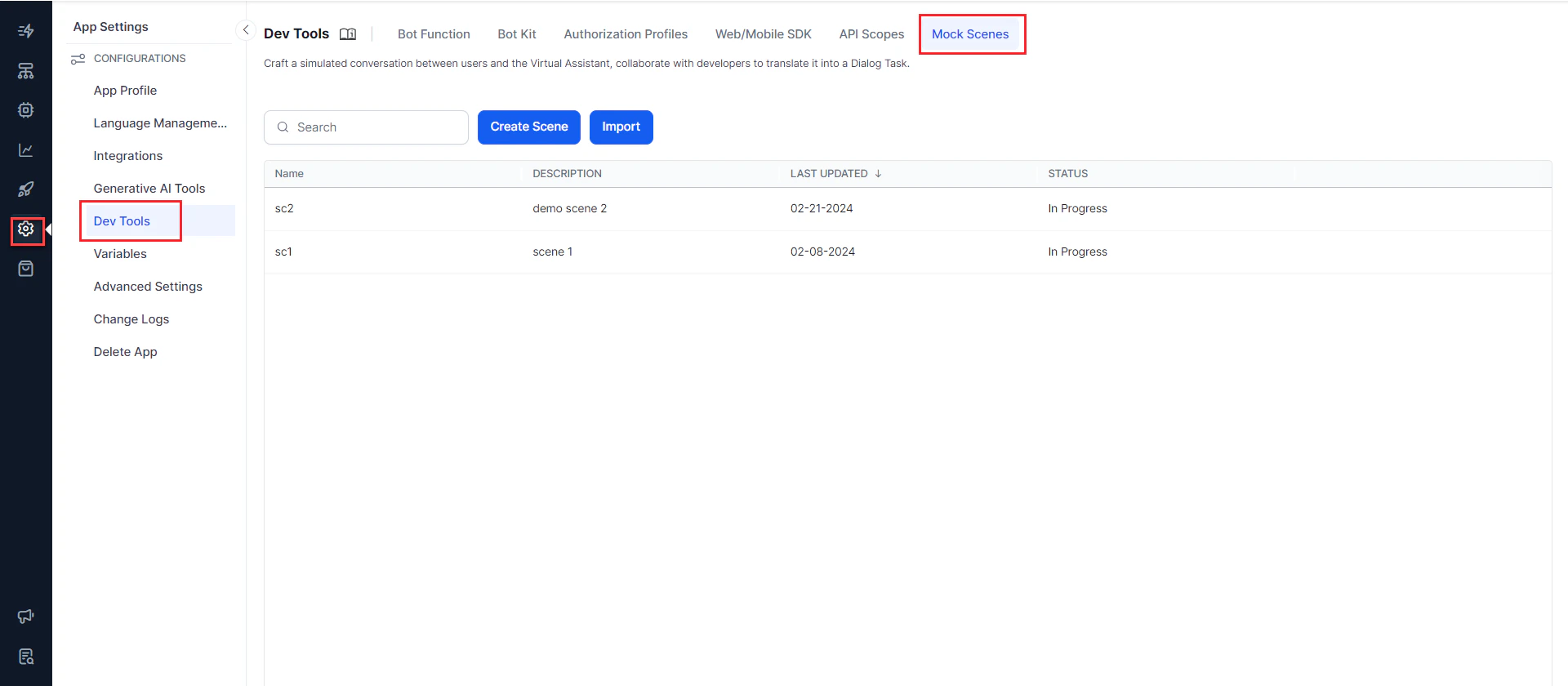
The Mock Scenes area allows you to perform the following actions:- Import an existing scene in a CSV format.
- Sort scenes based on any column.
- Search for a scene by name.
- When hovering over each scene, you have an option to:
- Share the scene with other users or teams.
- Clone the scene to create a copy.
- Export the scene into CSV format.
- Delete the scene.
Create a Mock Scene
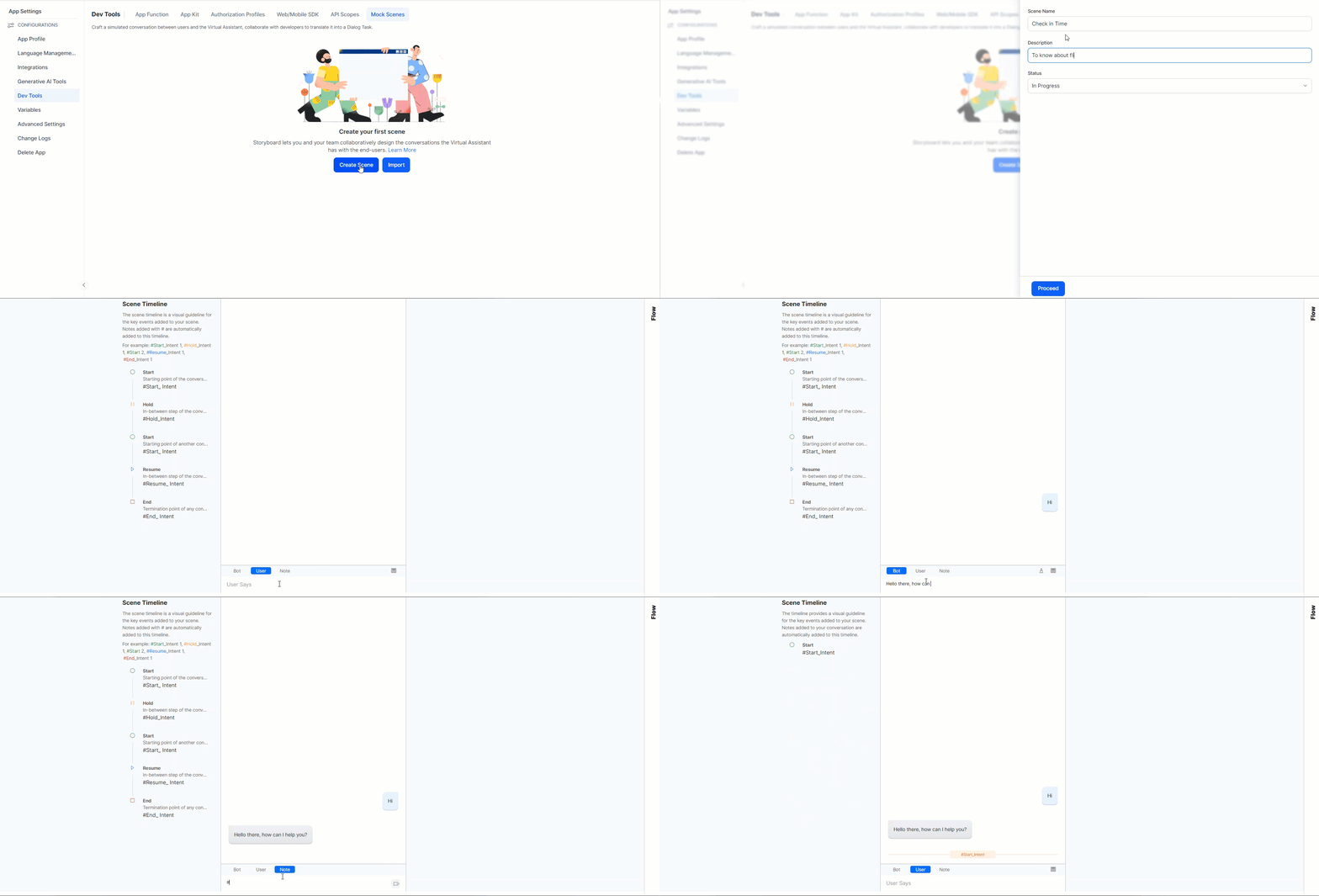
To create a Mock Scene:- On the App Settings page, select Dev Tools > Mock Scenes tab and click Create Scene.
- On the New Scene dialog box that opens up, enter a name in the Scene Name field and a description in the Description field.
- Enter a Status.
- Click Proceed.
Work with the Conversation Designer
After you add a scene, you are presented with a blank Conversation View, where you can enter the user-AI Agent messages. Mock Scenes provide options that are specifically focused on developing the conversation itself, without the business logic or training. This helps create a more seamless user experience and provides App developers with a starting point for their work.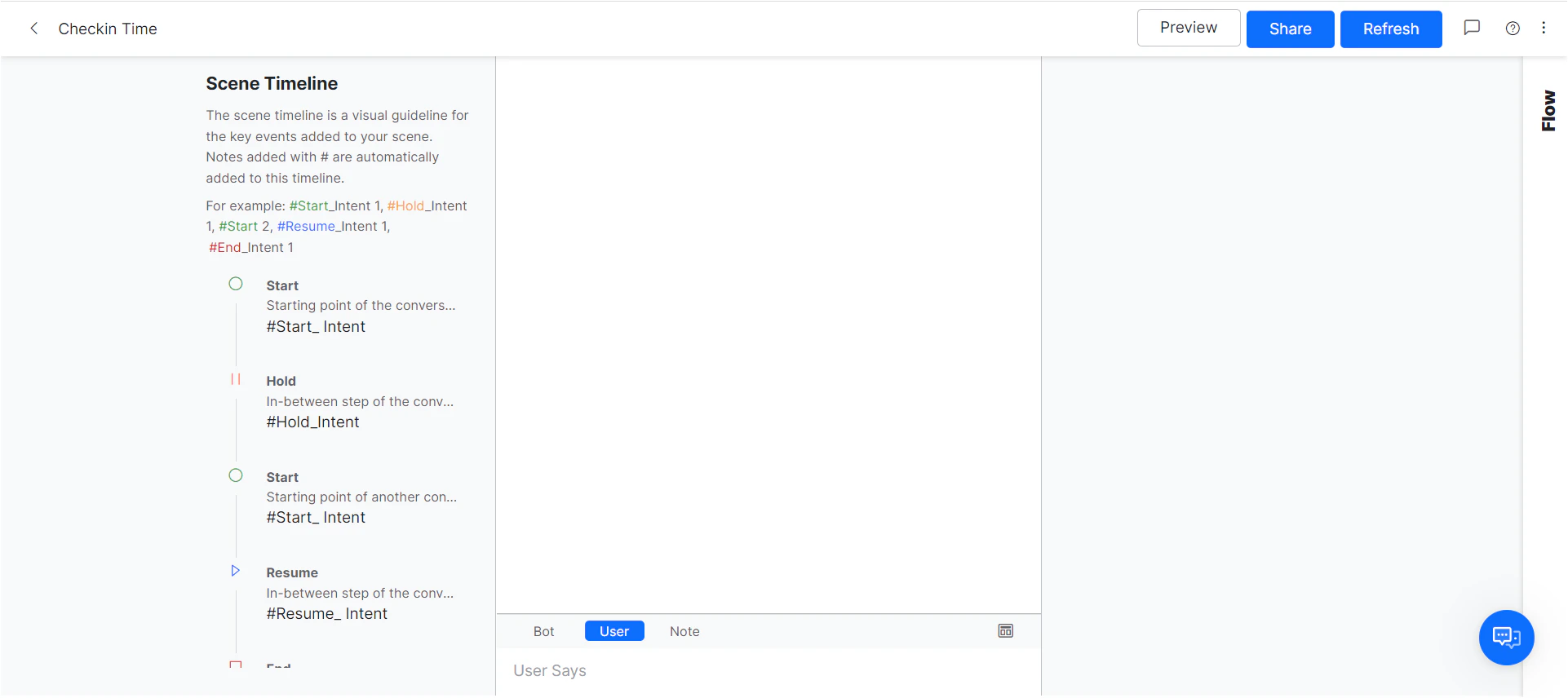
User and AI Agent (Bot) Message Tabs
User Tab
This tab is used to enter possible messages from users either requesting information or providing input to a request by the AI Agent. These messages can be:- Plain text messages. For example, in a Travel App, I want to know when check in opens for my flight.
- Attachments. For example, in a Travel App, to upload a flight reservation.
AI Agent (Bot) Tab
This tab is used to design messages that the AI Agent sends to users as a greeting, information, answer to a user query, or request for input. These messages can be:- Plain text messages with options to mark text as bold, italic, indent, multi-line, and lists - ordered and unordered.
-
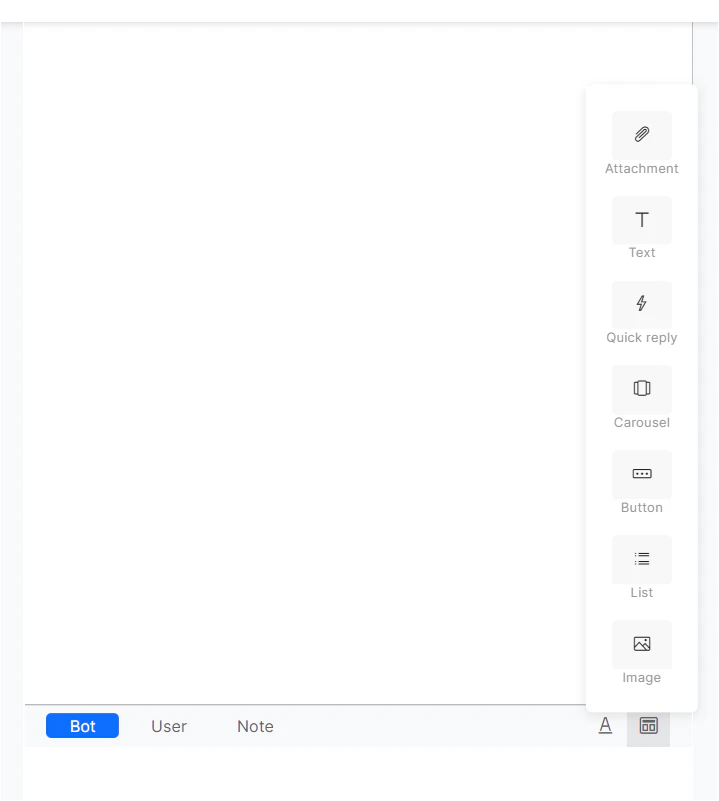
Rich messages using predefined templates such as buttons, list, quick reply, etc. (see below for a list of supported templates).
-
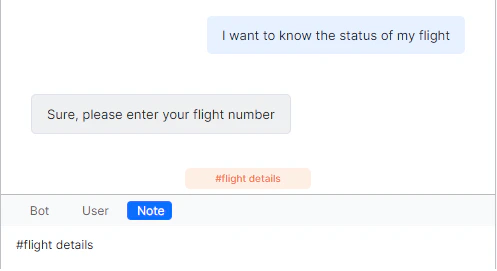
Notes: These are used to add text between messages describing an action or a section of the conversation.
-
Notes also provide an option to define the timeline of the conversation by using hashtags. Thus, defined notes help denote an important state in the conversation that’s displayed on the left of the conversation under the Story Timeline. You can move to the relevant place in the conversation by clicking the tag on the timeline. You can define your own custom tags or use one of the predefined tags. Each of these predefined tags is depicted by a unique symbol in the timeline indicating its purpose. These predefined tags include:
- #Start_< intent-name >
- #Hold_< intent-name >
- #End_< intent-name >
- #Resume_< intent-name >
-
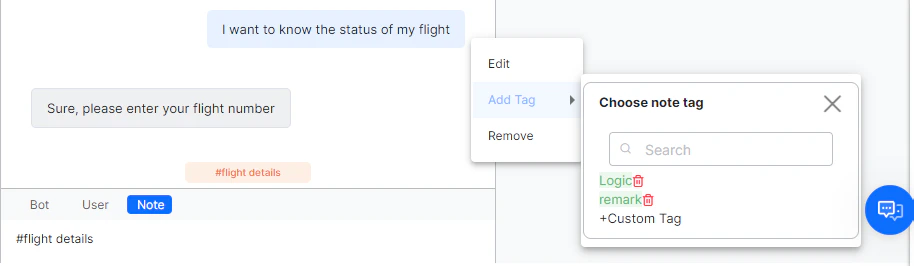
With the tag option, you can classify notes using an existing tag or by creating a new custom tag. These tags are color-coded for reference.
-
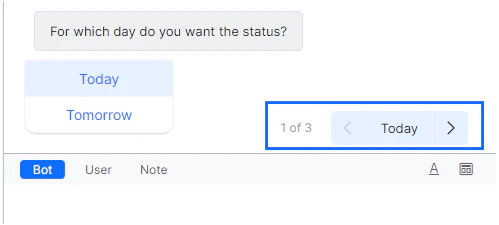
Paths: Paths are different flows that the conversations might follow, based on the options provided by the AI Agent or the user. For example, an AI Agent expects a yes or no response from the user, and the path differs based upon the user response. Using the AI Agent (bot) message, the template defines the number of alternate paths allowed. The business logic can also decide the number of paths.
-
To continue the scene along a specific path, you can select the path either using the Previous Path (<-) and Next Path (->) or select the options given to the user. You can also add additional paths using the New Path (+) option.
-
To continue the scene along a specific path, you can select the path either using the Previous Path (<-) and Next Path (->) or select the options given to the user. You can also add additional paths using the New Path (+) option.
Message Options
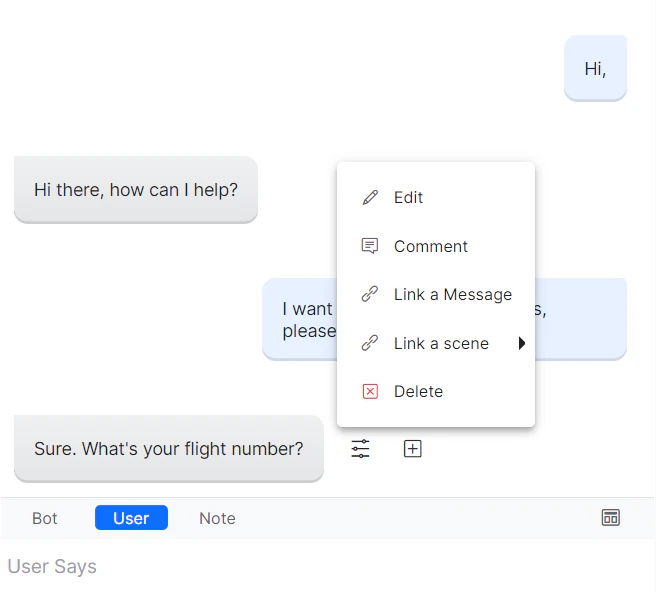
When you hover over a message you can find the following options:- Add New Path
- Add Comments
- Delete a message
-
Link a Message: You can use this option to link another message in this scene and continue a flow that’s designed. When selected, this option transitions to the Flow view from where you can select the message node, and link it to the current node.
This option is available only for the leaf nodes with no flow defined.
-
Link a Scene: You can use this option to link a predefined scene in the Storyboard. This scene is invoked during the preview. When selected, this option gives a list of scenes for you to select from and link it to the current node. You can also perform the following actions:
- View Scene: Click View Scene to open in a read-only window.
- Unlink: Click Unlink to unlink the scene.
- Edit: Allows you to edit the message.
Comments
Comments are a very useful collaborative tool. The Storyboard Scenes area allows users to add comments to any component of the scene, such as user messages, AI Agent messages, and notes. You can also reply to an existing comment thus maintaining a comments thread. To add a comment, click the message options icon, then select Comment.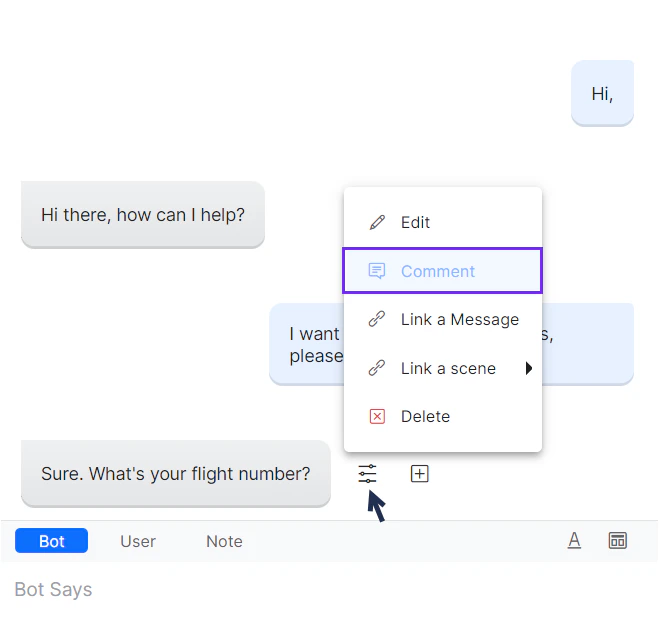
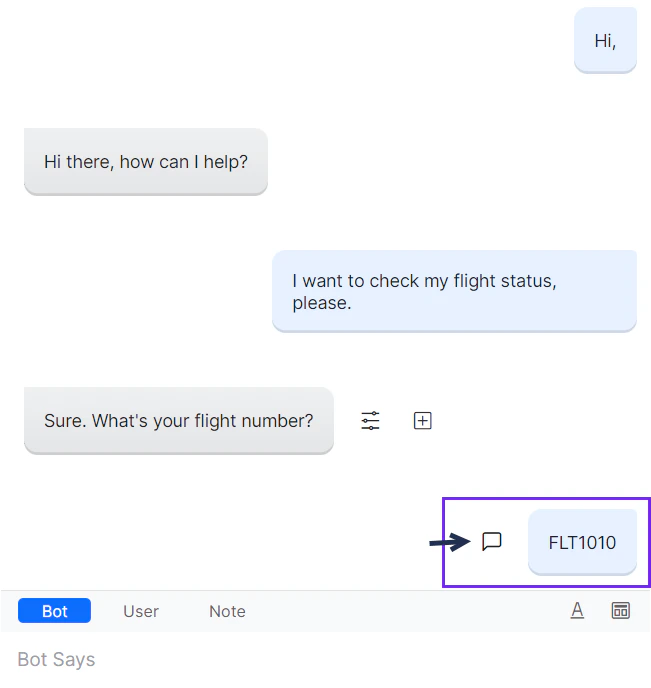
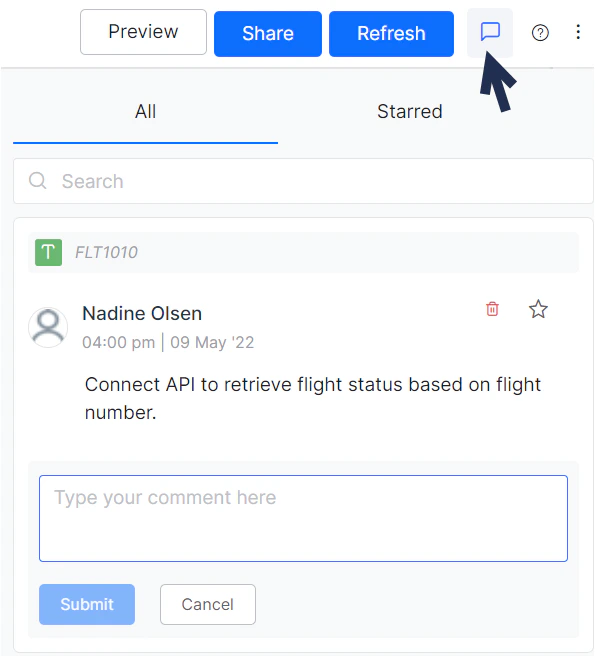
- Search through existing comments.
- View existing comments.
- Star a comment and filter by starred comments.
- Delete any comments you have made.
- Reply to comments.
Scene Options
From the Scene page, you can perform the following actions: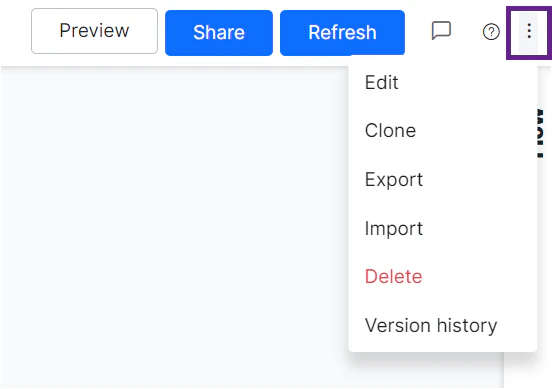
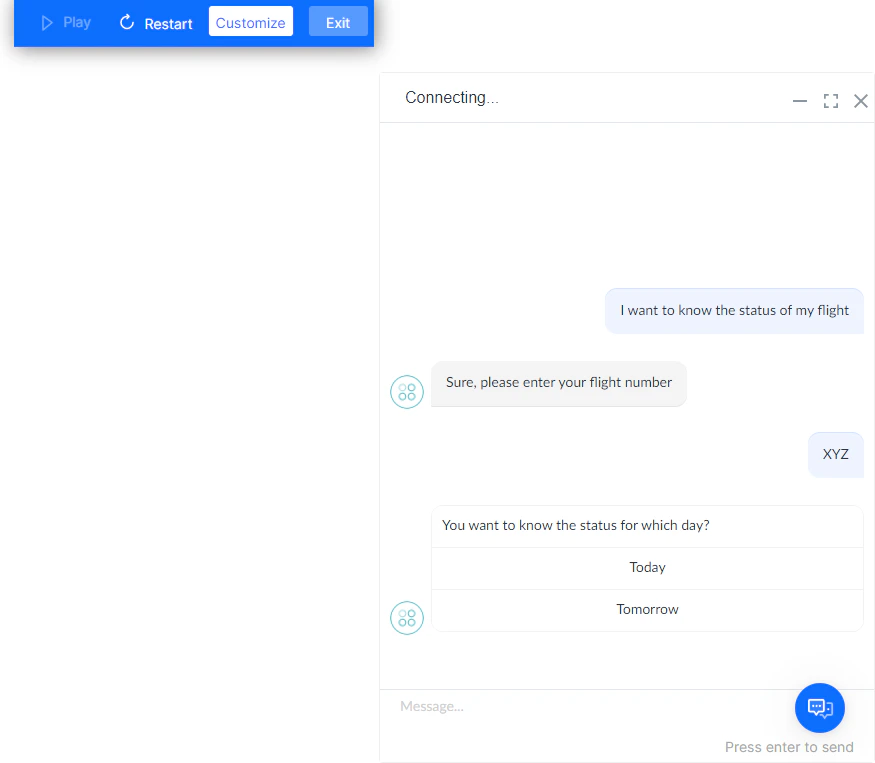
- Preview: Used to see how the conversation flows on your website. This opens in a mock website with the chat window. You can Play/Pause, Restart, Customize, and Exit the preview.
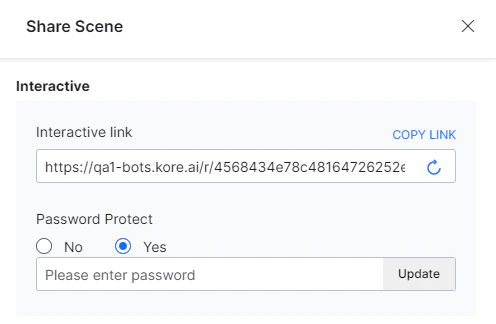
- Share: This option gives you a URL that you can share with others. This URL presents the scene preview, so you can provide the various stakeholders with a glimpse of what to expect and take their feedback. You can secure the scene preview URL with a password.
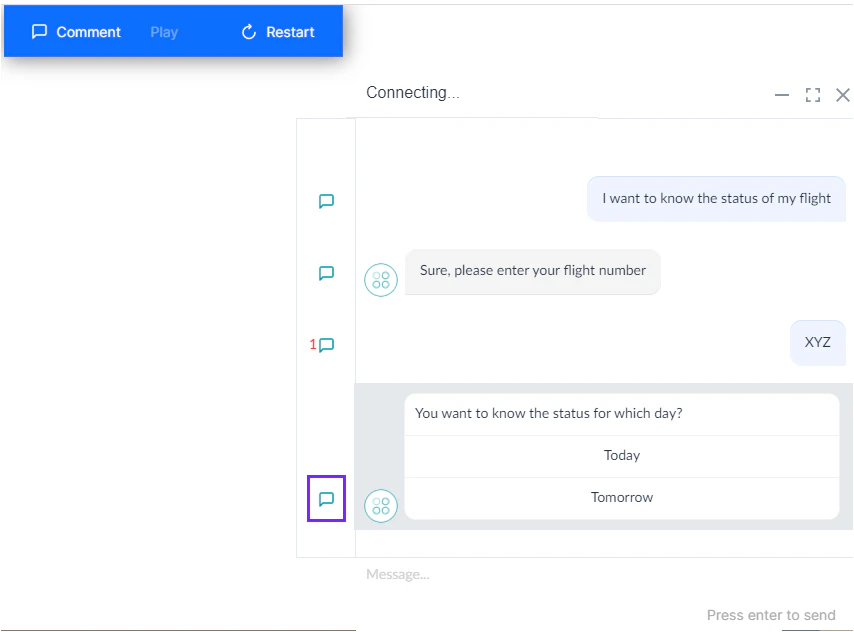
- Click the More icon to perform the actions listed below. Most of these actions are also available on the Storyboard page.
- Edit: Edit the name, description, and status of the scene.
- Clone: Clone the scene to create a copy.
- Export: Export the scene into CSV format.
- Import: Import an existing scene in CSV format. The Import fails if the scene that you want to import has linked scenes which aren’t present in the current AI Agent.
- Delete: Delete the scene. Unlink all linked scenes before deleting it.
- Version History
- A list of the most recent 20 changes made to a scene. A version is automatically created whenever the following changes are made:
- Message Added
- Message Edited (included edits to templates)
- Message Removed
- Message Reordered
- Scene Restored
- Note Added
- Note Modified
- Note Removed
- Linked to a Message
- Linked to a Scene
- An option to restore to any of those versions.
- A list of the most recent 20 changes made to a scene. A version is automatically created whenever the following changes are made:
Preview Customization
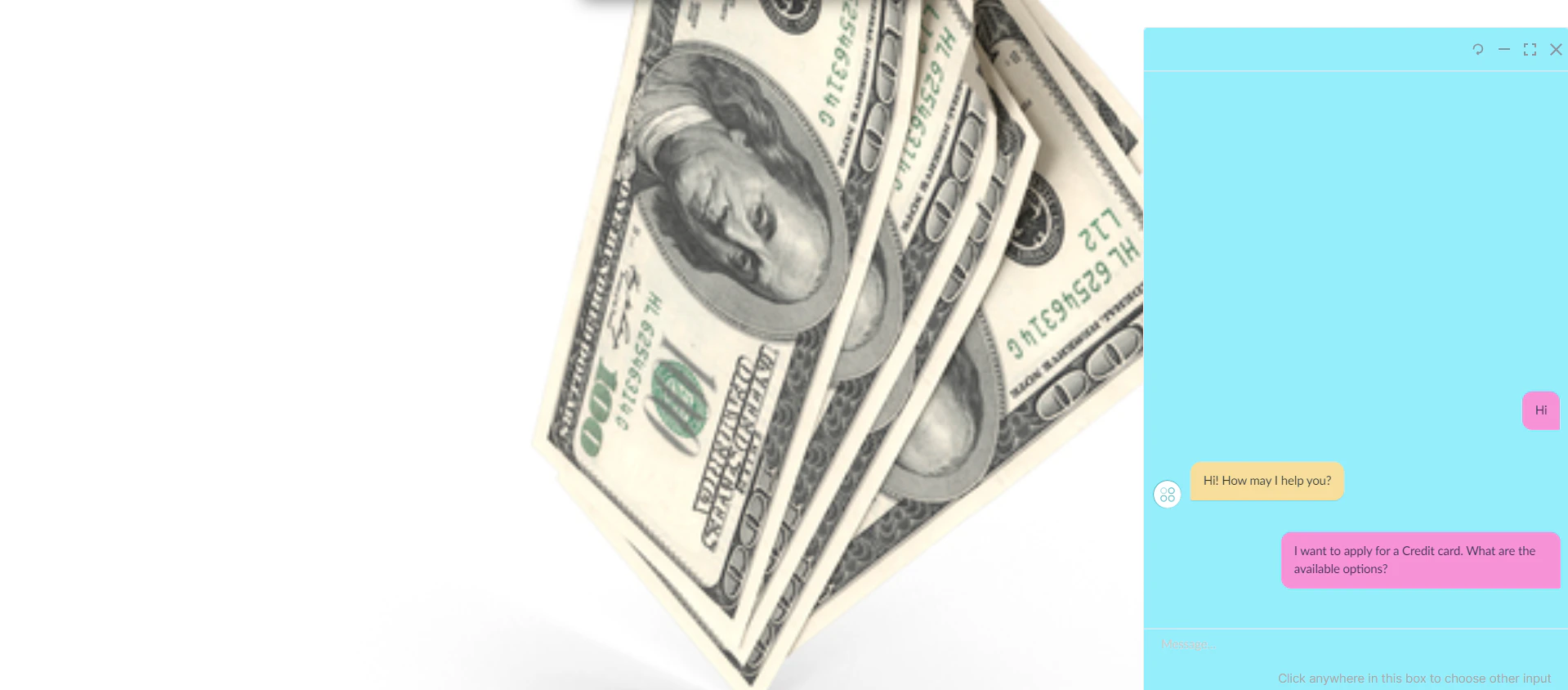
The conversation Preview area provides a Customize option, which allows you to personalize the look and feel of your preview, in accordance with your website and brand.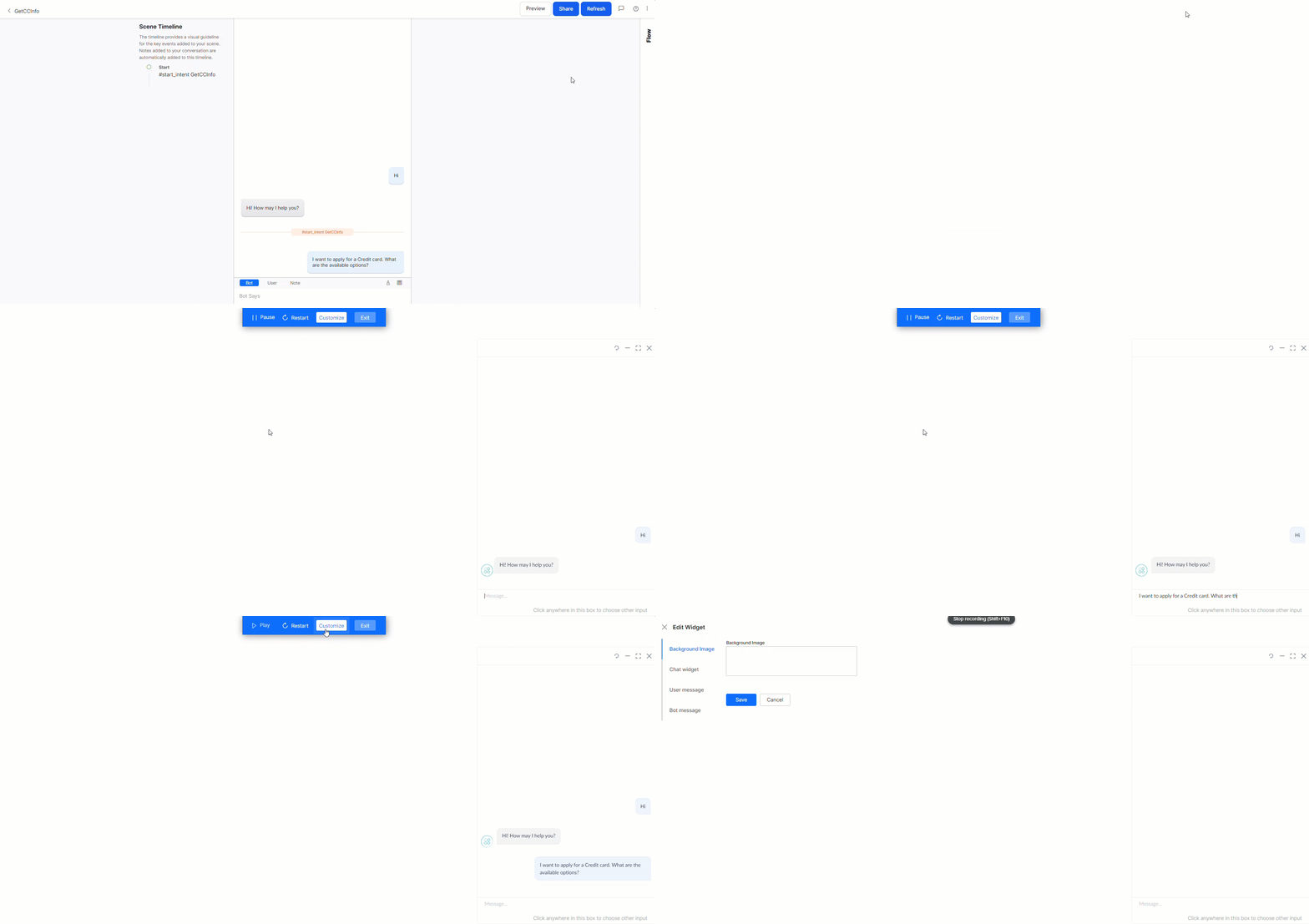
- Background Image
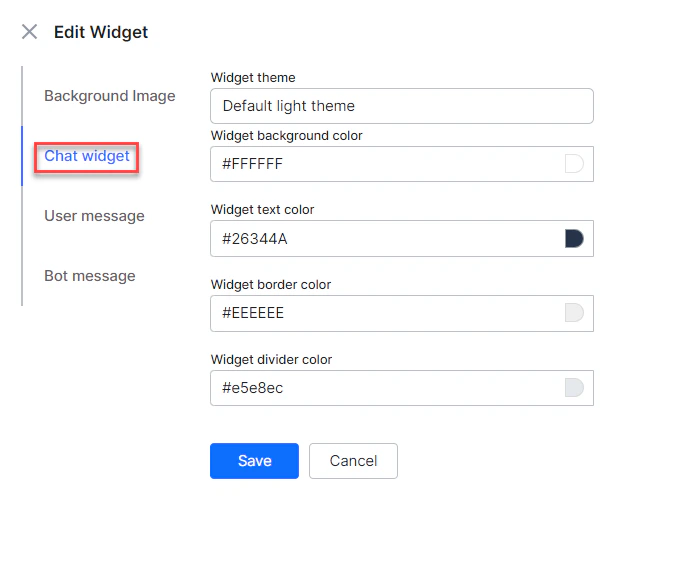
- Overall Chat Widget
- User Message Bubbles - text and background colors.
- AI Agent (Bot) Message Bubbles - text and background colors for various components.
Background Image
The background image that’s displayed on the mock website where the conversation widget is previewed can be customized. You need to provide a valid URL with the location of the image.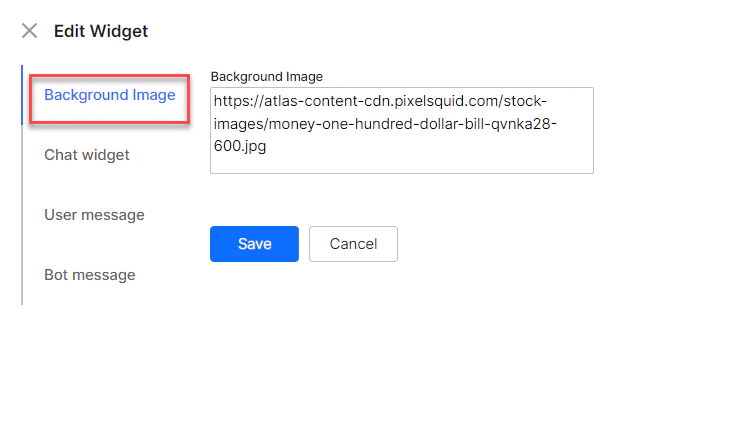
Chat Widget
This option lets you customize the entire chat widget. This includes:- Widget background-color
- Widget text color
- Widget border-color
- Widget divider color
User Messages
This option is used to customize the color of the user message bubble and text.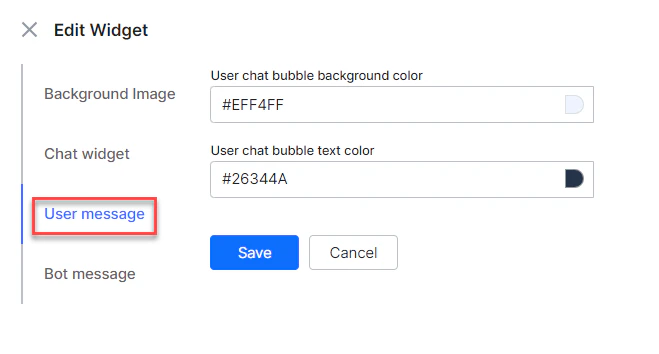
AI Agent (Bot) Messages and Templates
This option is used to customize the color of the App message bubble and text. You can also customize the button template messages if any are used.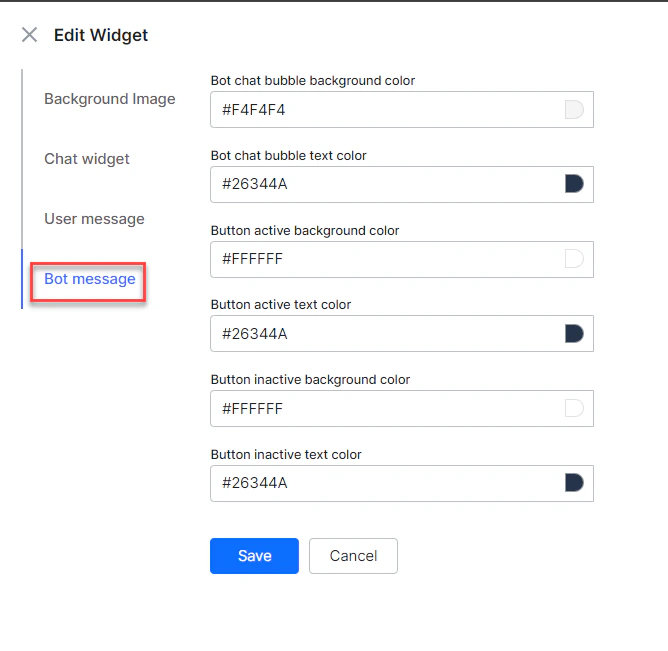
Flow View
After you design, switch to the Flow View to see the scene in a flowchart.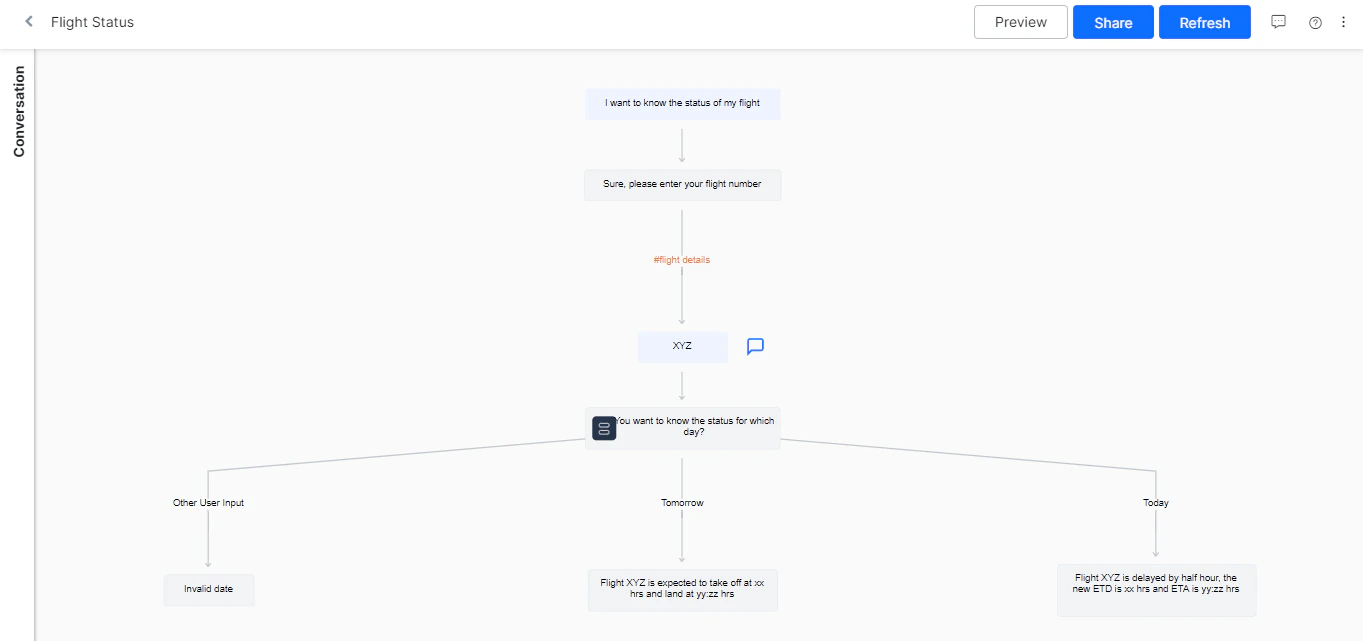
- You can’t import a scene from the flow.
- You can Export results in a PDF document.