

Types of Assertions
This section describes the types of assertions available for different intent types. Dialog Node Assertions If the app’s response is from a Dialog node, then the following assertions are available:-
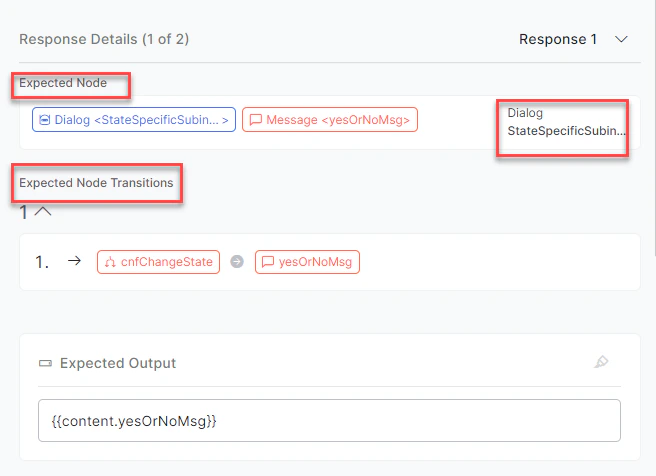
Flow Assertion: A Flow assertion tests the flow of the path traversed by every user input during a conversation to check whether the responses are provided from the correct node or not. It helps to detect and handle any deviations from the expected flow.
- It refers to the tasks, nodes, FAQs, or standard responses that were triggered during the flow execution. This ensures that the app has traversed the same path as expected.
- It’s enabled by default. You can disable it if required.
- This section shows the summary on the right side of the Test Suite panel:
- Expected Node
- Expected Intent
- Transitions
-
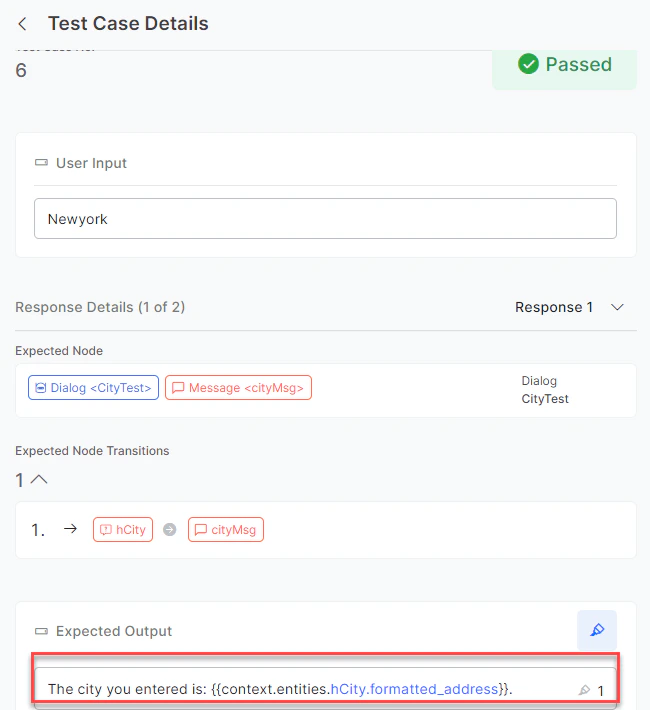
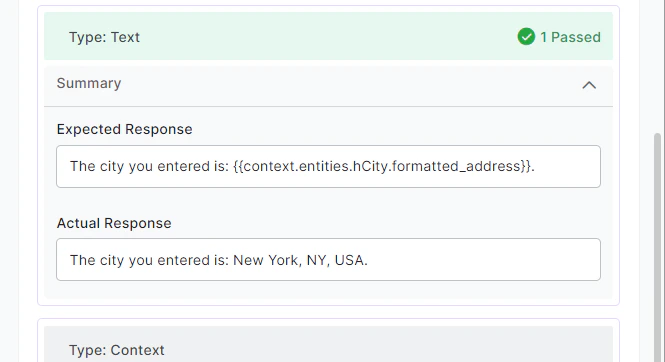
Text Assertion: A Text assertion tests the content presented to the user (string-to-string match), and provides support for dynamic values. Text assertions compare the text of the expected output with the actual output.
- It’s enabled by default. You can disable it if required.
-
This section shows the summary on the right side of the Test Suite panel:
- Expected Response: Contains all possible responses/variations with the annotated dynamic values.
 In case of text assertion, if the expected output has dynamic values, then it should be annotated using Dynamic Text Marking. If not marked, the text assertion fails and eventually leads to failure of the test case. For the test case to pass, the text for that specific output must be dynamically marked.
-
Context Assertion: A context assertion can be used to test the presence of specific context variables during a conversation. By using a context assertion, you can verify that the correct context variables are present at a specific point in the conversation, which can be helpful for ensuring the smooth and successful execution of the conversation flow.
-
It’s disabled by default. You can enable it if required.

-
Once enabled, you can click the Add button to add key-value pairs of context variables.
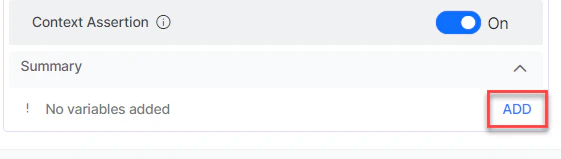
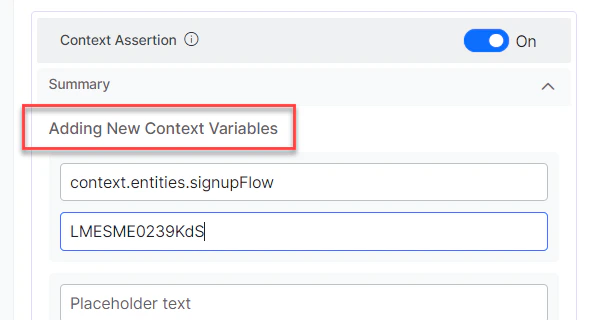
- This section shows a summary of added variables:
- Key
- Value
The Context assertion label is added or removed to the test case in a validated chat based on whether it’s enabled or disabled. As you add one pair, text boxes to add another pair get displayed. Once added, the saved key-value pairs are retained even if the assertion is disabled.If the app response is from a FAQ or Small Talk or Standard Response, the Flow assertion has only Expected Node. The behavior of Text and Context assertions is the same as how it’s for Dialog intent. -
It’s disabled by default. You can enable it if required.
Dynamic Text Marking
The dynamic text annotation feature in the Expected Output allows you to annotate a section of the text. You can add one or more annotations for a app response. During test execution, the annotated portion of the text is ignored by the platform for text assertion. You can view all the added annotations of app’s responses and be able to remove them.Even if the value of the specific marked text is different, the test cases are marked as a success during execution. This feature is handy when different values are expected every time you interact with the app.
- Click any Test Suite on the Conversation Testing page.
- In the Test Editor tab, navigate to the Test Suite Details Panel.
-
In the Test Suite Details panel, select a text in the Expected Output for a test case and click the Dynamic Marker icon (see the following screenshots).
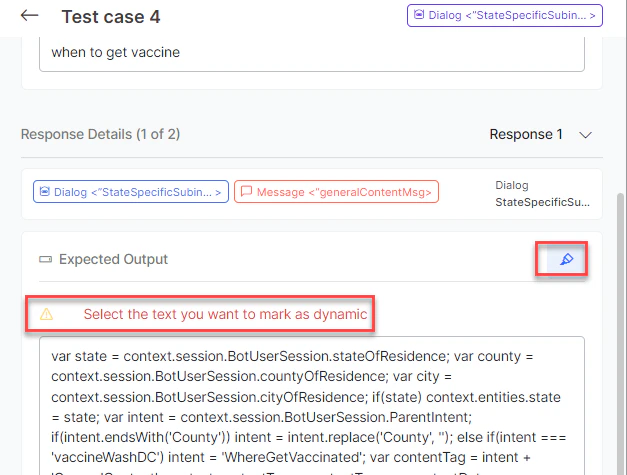
 The selected state variable in the Expected Output is annotated and highlighted in blue. One or multiple words can be marked as dynamic text.
 - You can again click the Dynamic Marker icon to deselect the text and remove the dynamic marking.
-
Click the Dynamic Marker icon next to the list to expand and see the list of dynamic values.
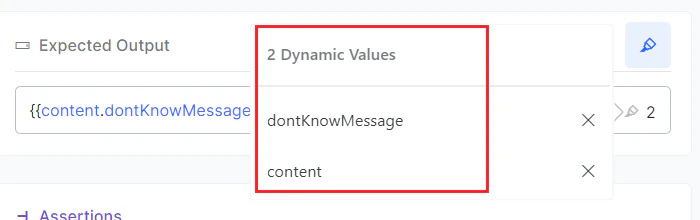
Test Coverage
The Test Coverage captures details like how many transitions or Intents are covered for this test suite. It helps add more test cases to cover the missed intents and transitions. This section explains how to access the Test Coverage and its details.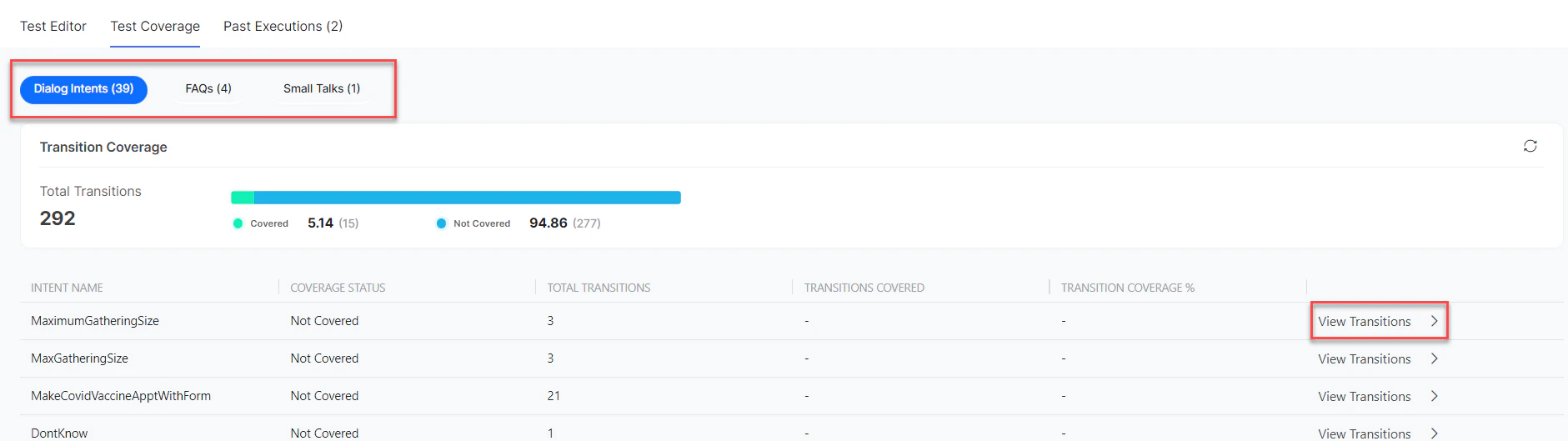
Dialog Intents
This page provides transition coverage information and details of transitions across the Dialog intents. Transition Coverage The following details are displayed in the Transition Coverage section: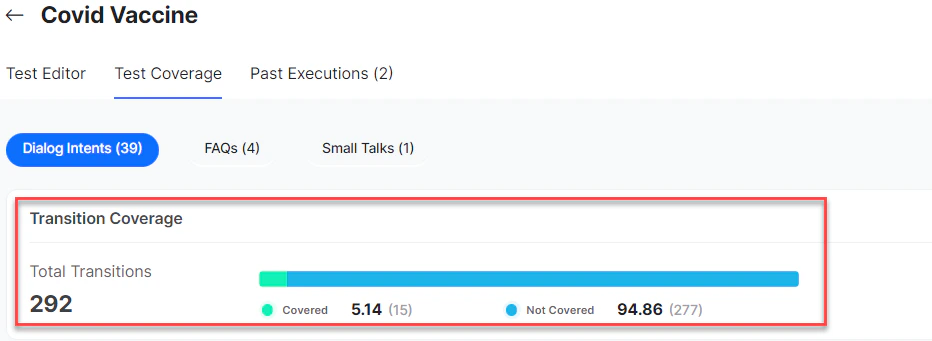
- Covered - 15 Transitions and 5.14%
- Not Covered - 277 Transitions and 94.86%
If you delete the node transition in a particular intent, then such transitions are displayed as Not Valid in the Coverage Status column.
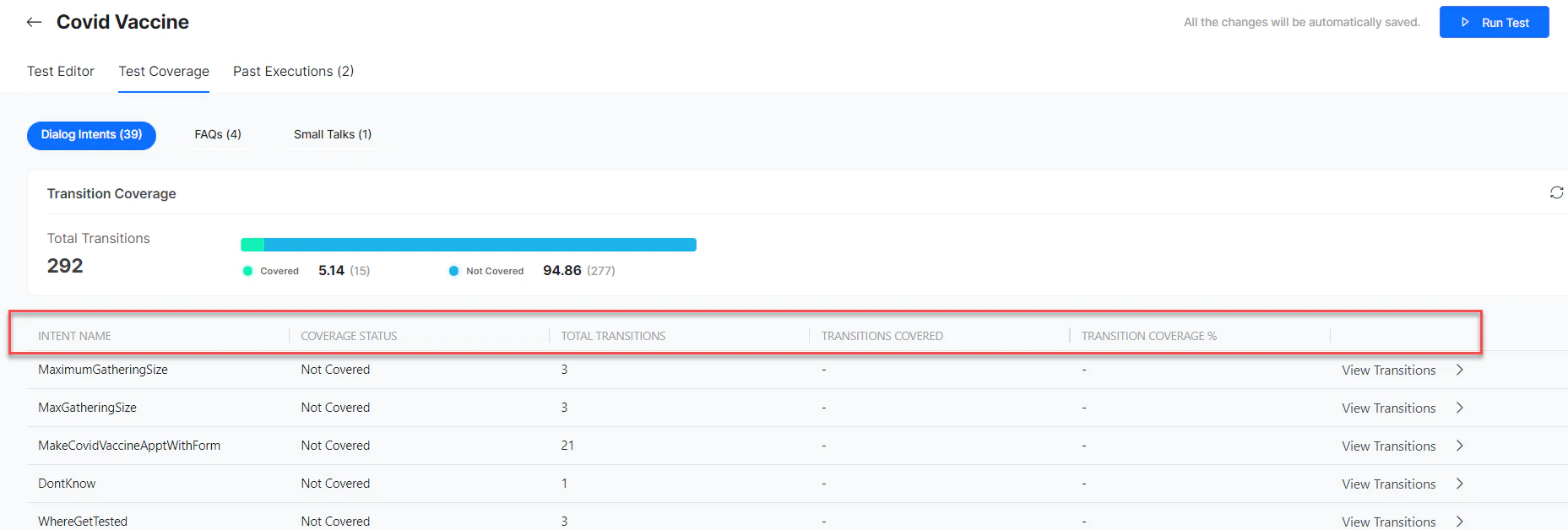
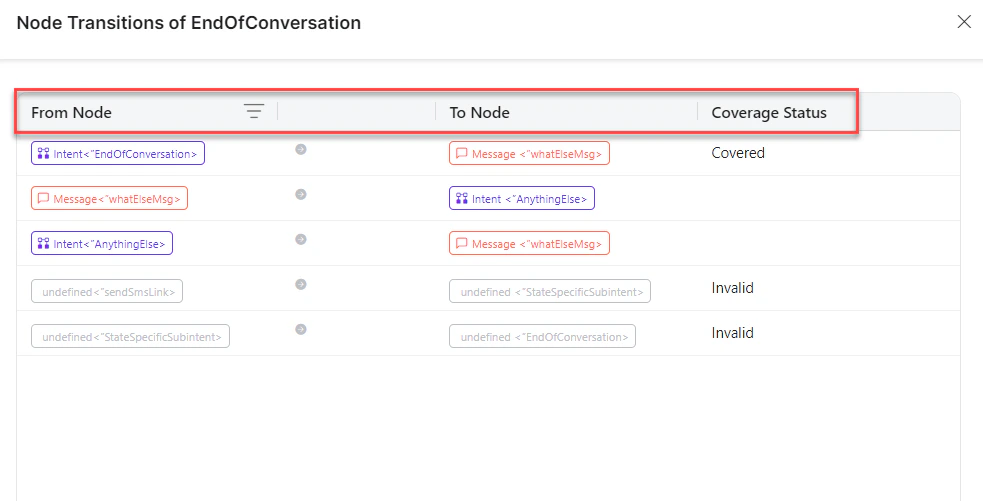
A transition must have one of the following three values displayed in the Coverage Status column:
- Covered
- Not Covered
- Not Valid
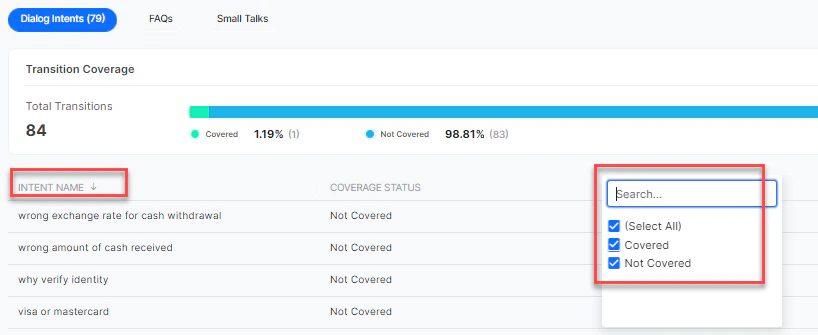
FAQs
In the FAQs tab of Test Coverage, all the unique FAQ names covered in this test suite are displayed.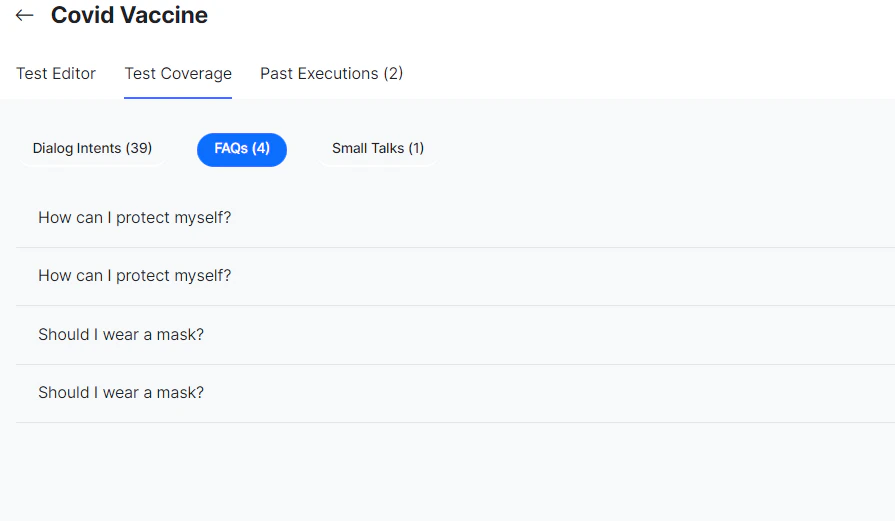
Small Talk
All the Small Talks covered in the test cases are displayed in this tab in two columns:
To know more about Patterns and Groups, see Small Talk.
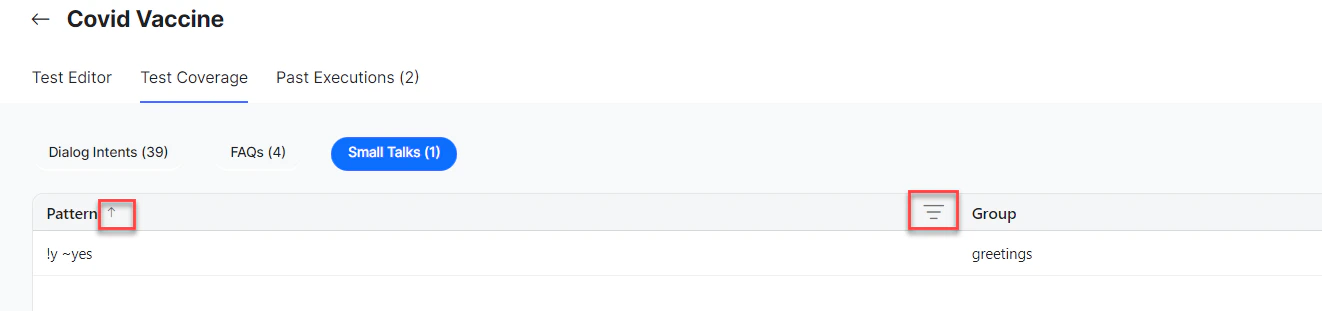
You can filter and sort the details displayed in the Small Talks grid.