

- Request access to enable Google RBM as channel.
- publish the app for the business to initiate the testing process.
- Launch the agent when the bot agent testing is completed.
- Initiate conversations with end-users when the agent is launched.
Request Access
To request access to enable Google RCS Business messaging as a channel- From the Platform, open the assistant that you want to enable Google RCS Business Messaging.
- Navigate to Channels & Flows > Channels > Digital > All > RCS Business Messaging.
- Select the Configurations tab.
- Set Request Access to Yes.
- Click Save button.
- You will receive an email from Kore.ai support team for details required to create a Bot Agent on Google RCS Business Messaging.
- Fill the form and send it back to the id provided therein.
Publish the App
Create an App and publish the app for the business to initiate the testing process A Bot Agent (on Google RCS) will be created by the Kore.ai support team based on inputs received from you. You will be notified of its creation. Follow the below steps to publish the app:- Create App, Enable Event and publish the app - This is required for the platform to receive a notification when a new user opts into talking to the bot via Google RCS.
-
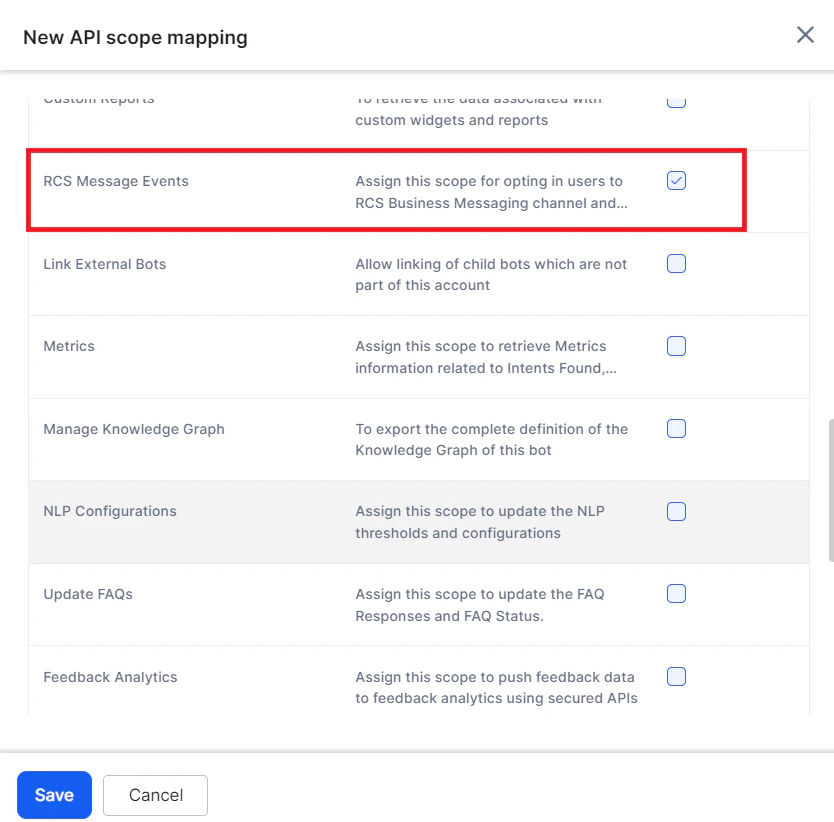
Create an App on the Platform App Settings > Dev Tools > API Scopes > New platform from API Extensions > API Scopes and enable the following scope: “RCS Message Events”.
-
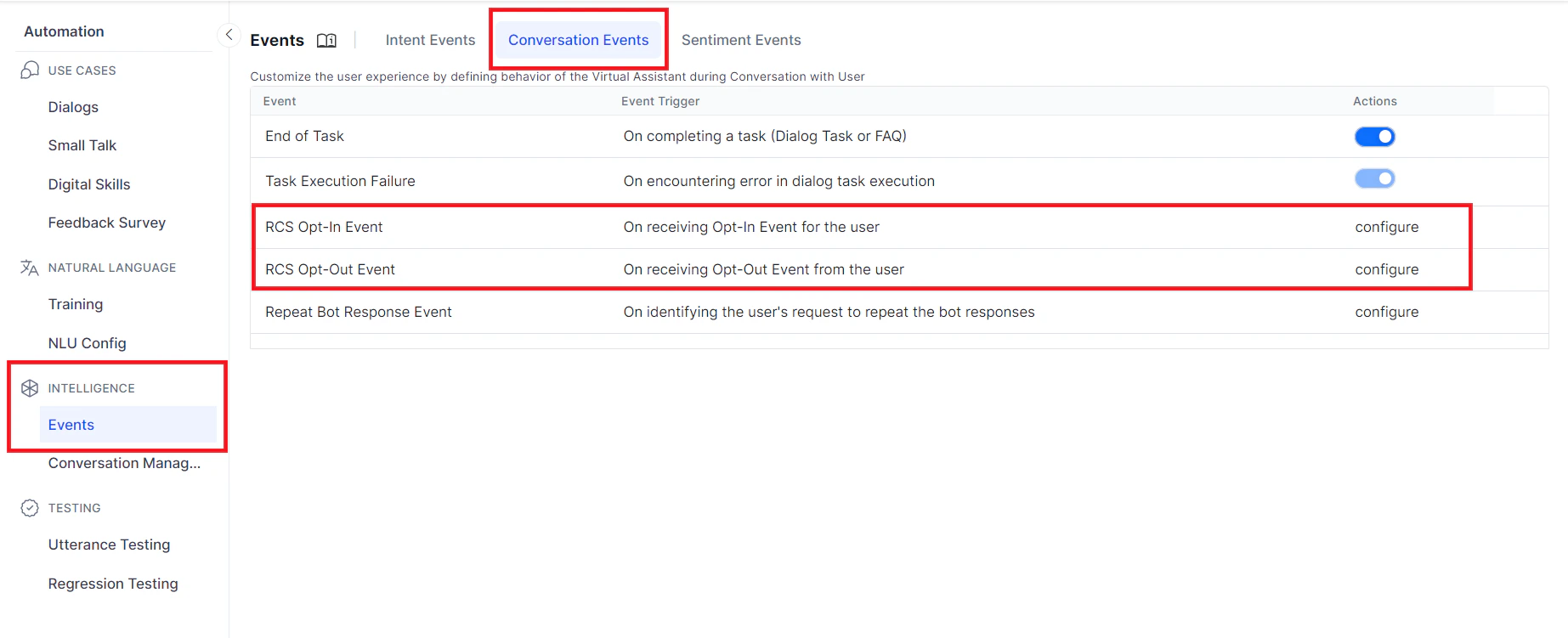
From Natural Language > Default Conversation > Event Handlers, configure the following events:
- RCS Opt-In: action to be taken once the user Opts-in for the RCS Messaging,
- RCS Opt-Out: action to be taken when the user Opts-out of the RCS Messaging.
- Publish the channel.
-
Create an App on the Platform App Settings > Dev Tools > API Scopes > New platform from API Extensions > API Scopes and enable the following scope: “RCS Message Events”.
- Trigger opt-in and/or broadcast requests:
-
Trigger opt-in: Every time a new user opts in to use Google RCS, platform needs to be informed about this new user. To inform the platform, call the msgevents API with the below details: Method:
POSTRequest Headers:auth :<JWT>Request Payload: -
Broadcast Request: To send alert or broadcast messages for an already opted-in user, you can call the msgevents API with the below details: Method:
POSTRequest Headers:auth : <JWT>Request Payload: \
-
Trigger opt-in: Every time a new user opts in to use Google RCS, platform needs to be informed about this new user. To inform the platform, call the msgevents API with the below details: Method:
- Test Access: From the Channels & Flows > Channels > Digital > All > RCS Messaging page, on the Configurations tab, you will be able to see:
- WebHook URL: set to the URL captured in the request form in Step 1.
- Opt-in URL: configured to send the opt-in messages to the platform.
- Publishing the channel will allow test numbers to talk to the assistant. The channel still needs to be launched for access by users as elaborated in the next section.
- The RCS Business Messaging OptOut event will be invoked when the user sends the message as configured in the RCS Opt-Out event. The platform will notify the business that the user has Opted out of receiving messages through the webhook URL (The URL is captured in Step 1). Any request to send messages to the users that have opted-out will be rejected. After having opted out, if the user continues conversing with the bot agent (without explicitly opting in again) standard message will be triggered. The message can be managed from the Events section in the Platform.
Events
The webhook URL provided by you at Step 1 will receive the following events so that the business can take appropriate action:- When user opts out of receiving notifications:
- When a device that doesn’t support RCS (OR) the bot agent isn’t launched receives an
opt-inorbroadcastrequest: - When user sends a message to the bot agent after opting out to receive messages:
- When business tries to broadcast message to the user who opted out to receive messages:
- Publishing the channel will allow test numbers to talk to the assistant. The channel still needs to be launched for access by users.
- The RCS Business Messaging OptOut event will be invoked when the user sends the message “OPT-OUT” to the bot agent (see below for details).
- The platform will notify the business that the user has Opted out of receiving messages through the webhook URL. The URL is captured in Step 1.
- Any request to send messages to the users that have opted-out will be rejected.
- After having opted out, if the user continues conversing with the bot agent (without explicitly opting in again) standard message will be triggered. The message can be managed from the Events section in the Platform.
Launch the Bot Agent
After having verified your bot agent, you can launch for end users by following the steps below:- On the Platform, from the Channels & Flows > Channels > Digital > All > open the RCS Business Messaging page.
- Navigate to Configurations tab.
- Set Launch Bot agent to Yes.
- Click Save button.
- Kore.ai support team will contact you with a questionnaire which will be submitted to Google RCS Business Messaging team for approval on your behalf.
- A consent email will be sent to the brand employee (as mentioned by you in the request form filled in step 1) by Kore.ai Support and the response will be forwarded to the Google RCS team.
- Once Google RCS Business Messaging team reviews the Bot Agent and approves, you will receive a confirmation email from Kore.ai support team.
- Your AI Agent’s users can now start using the RCS Messaging by opting for the same.