Back to Deployment End users can interact with an AI Agent only after it is published. The platform provides a publishing workflow for administrators to review and approve changes before they reach end users. Before publishing, configure at least one channel. See Channel Enablement.

Agent States

StateDescription
In DevelopmentDefault state when an agent is created. All changes happen here. Publishing a component creates a Published copy, but the In Development version remains editable.
PublishedContains components approved for end-user access. Developers cannot edit the Published copy directly.
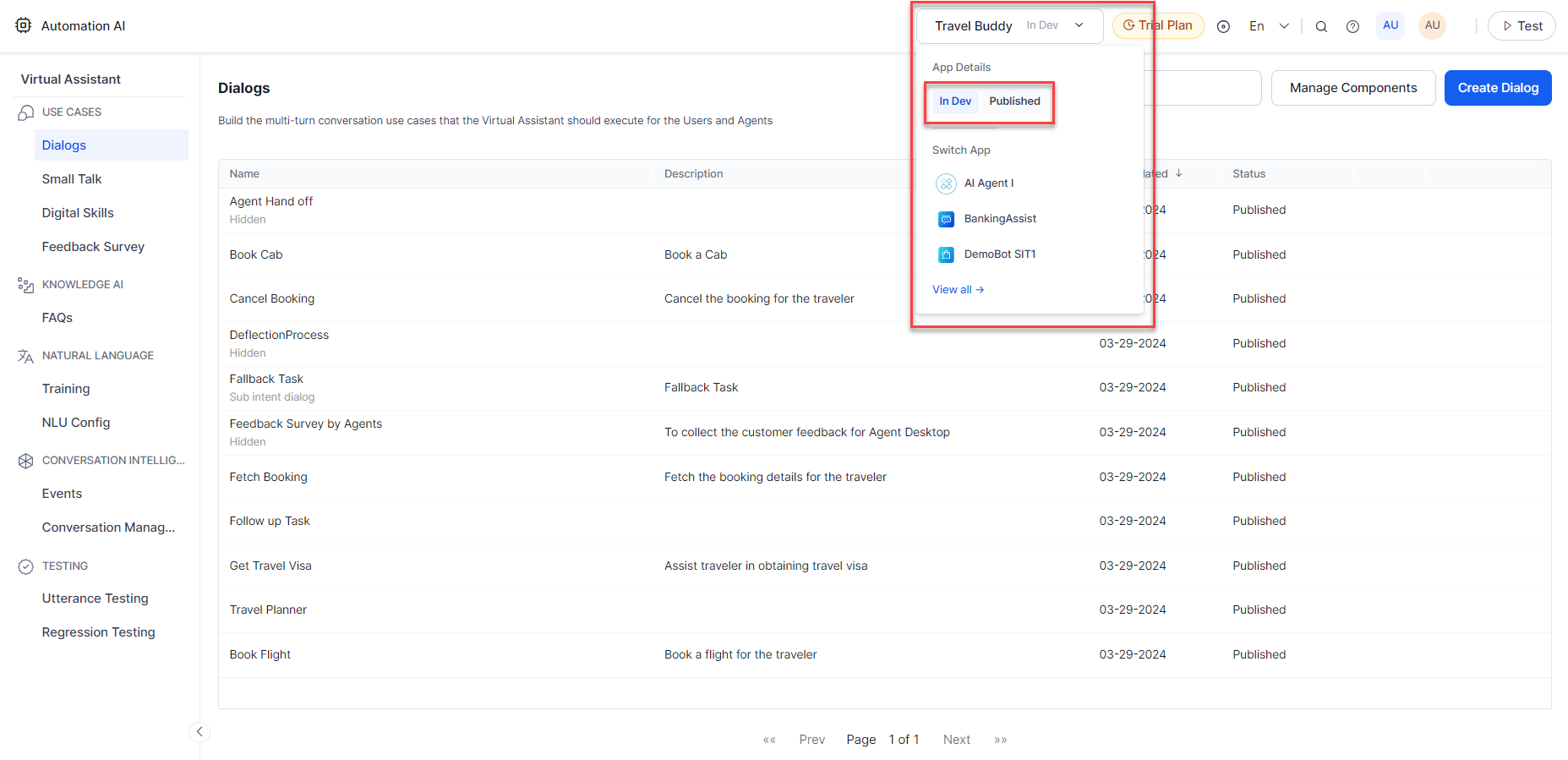
Switch between states using the dropdown on the top left of the agent window. Switch between statuses The Publish Status indicator tracks the progress of each publish request and reports success or failure with details.
If the agent is trained in a language using NLP Version 2, a banner notifies you about the upcoming auto-upgrade to NLP Version 3.

Component Statuses

StatusDescription
In ProgressConfiguration started but not complete. Applies to Alert, Action, and Information tasks only.
ConfiguredConfiguration complete; not yet published.
Awaiting ApprovalPublish request submitted; pending admin review.
PublishedApproved and available to end users.
Upgrade in ProgressA new version of a published task is being configured.
RejectedAdmin rejected the publish request. A notification email is sent to the developer.
SuspendedAdmin suspended the agent. End users cannot access it; developers can still work on the in-development copy.
A Published task cannot be deleted. Admins can Suspend it if it’s no longer needed. A Suspended task can be Upgraded to create a Configured copy for further changes.

Publishing an Agent

Only the agent owner can publish. Developers with edit access cannot.
  1. Open the agent and go to Deploy > Publish.
  2. All components are selected by default. Deselect any you don’t want to publish, then click Next. Publish page
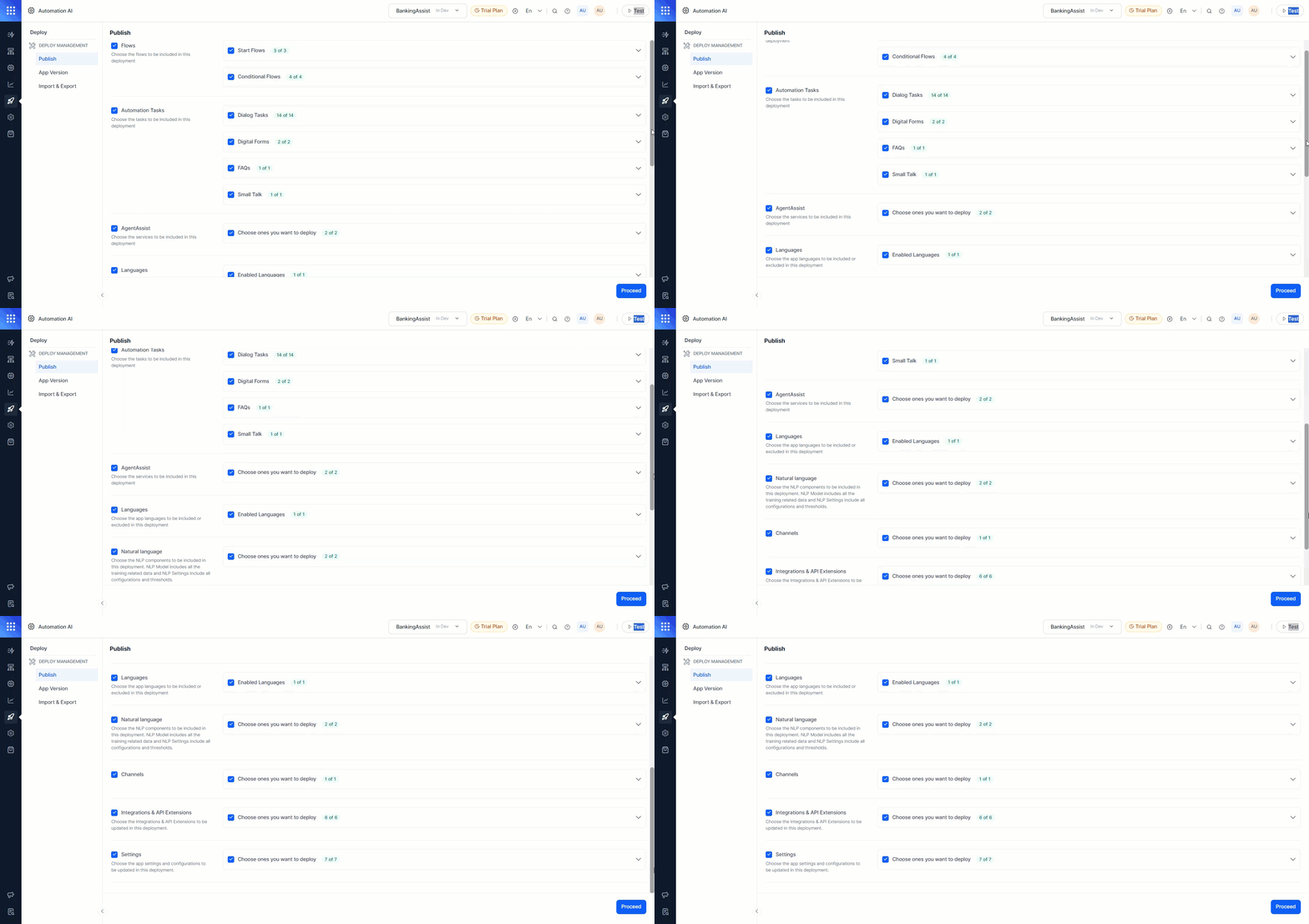
  3. Enter comments for the admin and click Confirm.
Publishing without the NL Model leaves unpublished training data associated with the in-development version of the respective tasks.

Publishable Components

Flows, Tasks & Languages

ComponentWhat Gets Published
Flows (Start, Conditional)Flows without a published version; upgraded versions of published flows
Tasks (Dialog, Alert, Panels, Widgets, Digital Forms, Small Talk)Tasks without a published version; upgraded versions. When a new language is enabled in development, all tasks appear in the publish window with the new language checkbox selected.
Knowledge Graph (per language)New and updated Level 1 terms; Traits and Synonyms replace the published set with all additions, updates, and deletions

Natural Language

NL Model The NL Model publishes training data for specific intents without publishing task definitions — letting NLP trainers and developers work independently. Steps to publish training data for specific intents:
  1. Expand Natural Language > NL Model and click All Components. NL model - All components
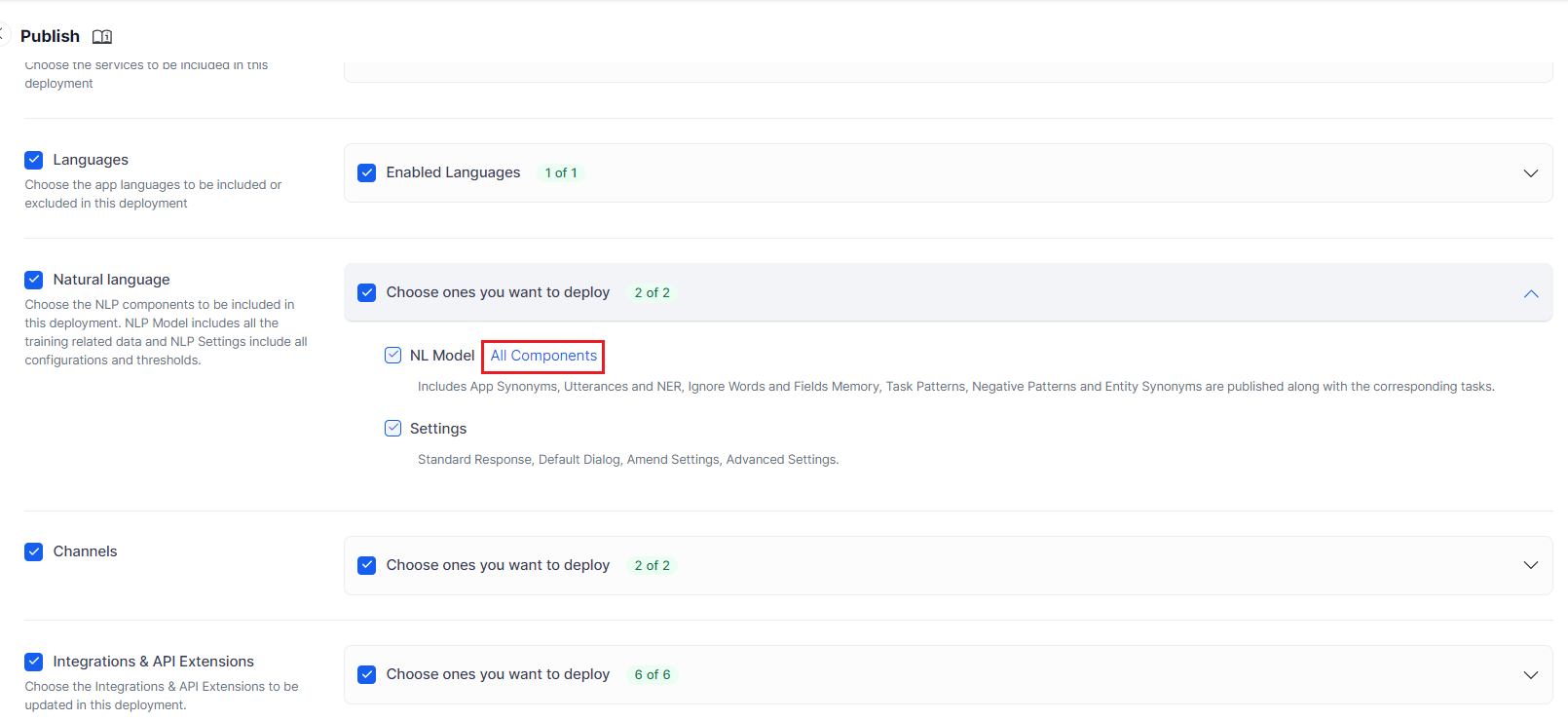
  2. Select the relevant components:
ComponentBehavior
ML UtterancesReplaces old utterances with the In Development set. Click Customize to select utterances for specific tasks. ML Utterances
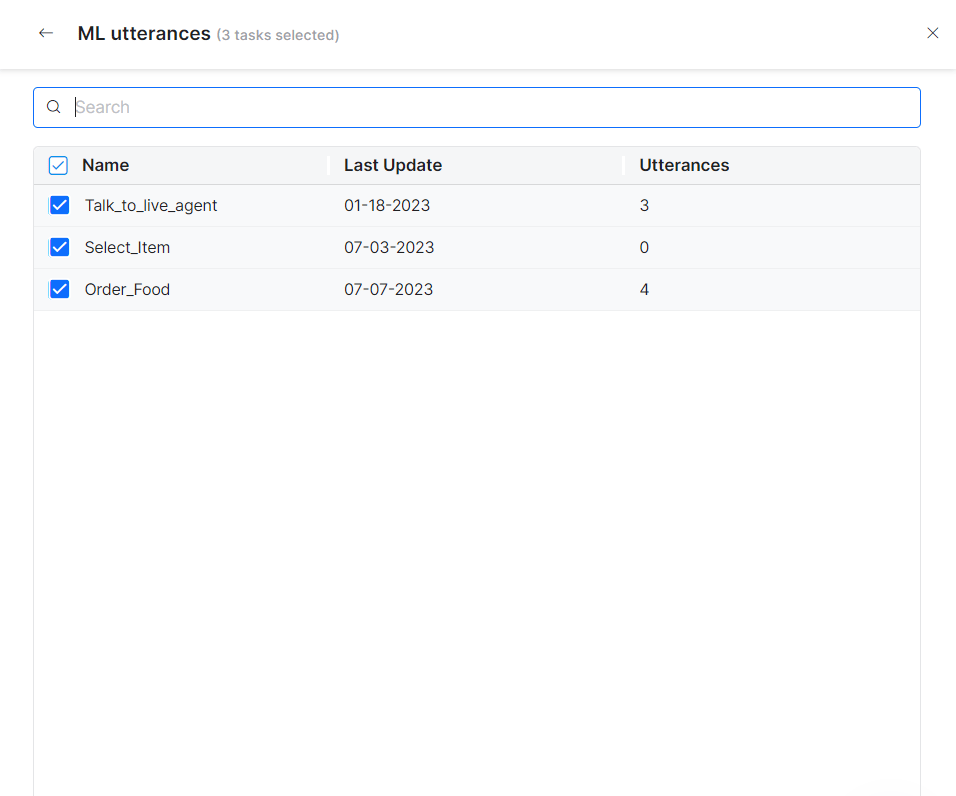
PatternsReplaces old patterns. Click Customize to select updated patterns. NL Model - Customize
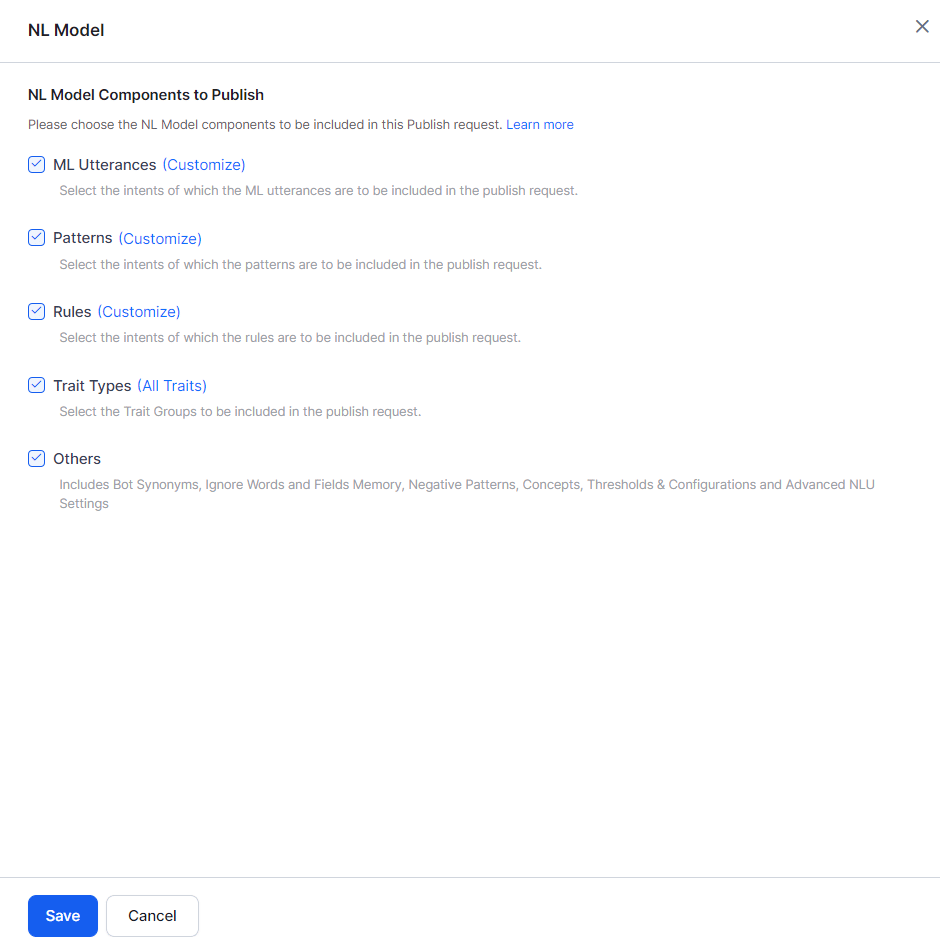
RulesReplaces intents with rules for Dialog Execution and Knowledge Graph detection. Click Customize to select specific rules.
Trait TypesReplaces traits in the Published version with the In Development set.
OthersReplaces Bot Synonyms, Utterances and NER, Ignore Words and Field Memory, Entity Patterns and Negative Patterns, and Entity Synonyms.
If Dialog Tasks are selected under Publish > Tasks, their training data is published automatically and NL Model components cannot be customized separately. Deselect the tasks first to customize ML Utterances, Patterns, and Rules individually. Selecting NL Model components and then adding Dialog Tasks triggers a warning to reset publishable components.
Settings
ComponentBehavior
Standard ResponsesReplaces the full set with the In Development version
Default DialogReplaces the configuration with the In Development version
Amend SettingsReplaces the configuration with the In Development version
Advanced SettingsReplaces the configuration with the In Development version

Channels

Replaces the Published channel configuration with the In Development version — including new channels, updated configurations, and disabled channels.

Extensions

ComponentBehavior
Event HandlersReplaces selected events in the Published version
BotKitReplaces the BotKit configuration
Agent TransferReplaces the Agent Transfer configuration
Web / Mobile SDKReplaces the SDK configuration

Settings

ComponentBehavior
General SettingsReplaces with the In Development version
Agent VariablesReplaces with the In Development version
PII SettingsReplaces with the In Development version
IVR SettingsReplaces with the In Development version
Hold & Resume SettingsReplaces with the In Development version
Custom ScriptReplaces the script file with the In Development version
Generative AI and LLMReplaces integrations, Prompts Library, Feature Mappings, and Guardrails with the In Development version
Advanced SettingsReplaces Language Detection Preference, Subdomain, Show link for task setup/execution, and Error Messages

Excluded Components

The following components are outside the publishing workflow — they either don’t affect end users directly or only do so as part of a task definition. Both agent states show the same information for these:
  • Batch Testing (custom suites and test reports)
  • Manage Developer Access
  • App Creation, Resetting, and Deletion
  • Language enablement: Enabling a new language in the In Development version requires re-publishing all components for that language.

Publication Approval

When you publish, the platform sends an approval request to the admin. Behavior depends on the agent’s Purpose:
Agent TypeApproval Outcome
Employee AgentAdmin selects users from the enterprise account who can access the agent, then approves. Only selected users can interact with the agent in the selected channels.
Consumer AgentAny user can access the agent in the selected channels once the admin approves.

Auto Approval

Admins can enable auto-approval for an agent:
  1. Open the Platform Admin Console.
  2. Go to Bots Management > Consumer Bots or Enterprise Bots.
  3. Click the more icon for the agent and select Bot Settings. Bot settings

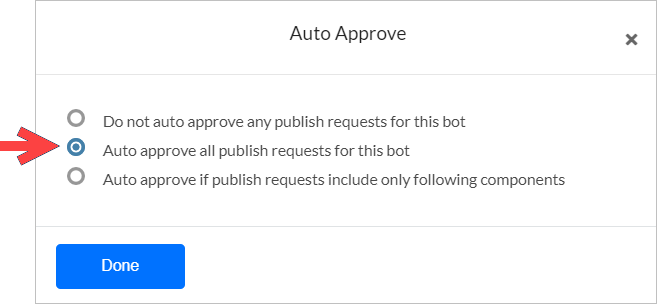
  4. Select Auto Approve > Auto Approve all publish requests for this bot. Auto Approve