Back to Available ChannelsThe Platform now allows you to add Glip by RingCentral as a messaging channel to your AI Agents.With the Glip integration, you can achieve the following:
Configure the Glip Sandbox account for testing the integration.
Set up the REST API and the authorization flow for events and conversations.
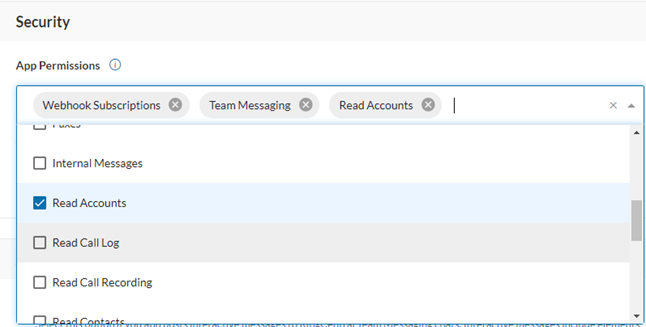
Enable Webhook Subscriptions, Read Accounts, and Team Messaging API permissions.
Link the app to the Platform using the app’s credentials.
Authorize the AI Agent for the existing/new Glip Sandbox account user.
After the integration, you can do the following:
Keep track of AI Agent conversations.
Listen to new messages from Glip or other sources.
Have AI Agents post and respond to messages in Glip conversations.
Have AI Agents handle incoming notifications from your apps into Glip teams so you don’t have to check different sites for updates.
To start the integration, you must register an application on RingCentral to gain access to the API and to integrate RingCentral into the Platform. To set up Glip as a channel, you must create an app in RingCentral’s Developer Portal and enable a webhook for the platform to receive messages.The steps to add the channel are summarized below:
To enable Glip as a channel for your AI Agent, you must create an application in the Sandbox environment (using a sandbox account) with the steps below:For New Users
Log in to the RingCentral Developer Console.
On the left menu, click Setup Wizard under Getting Started.
In the Get started to create your first app panel, click Create your First App.
For Existing Users
Log in to the RingCentral Developer Console.
Click the Console button on the top left.
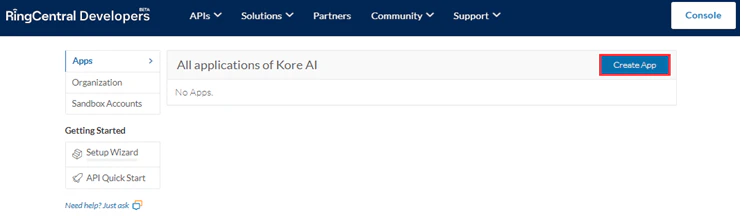
In the Apps section, click Create App.
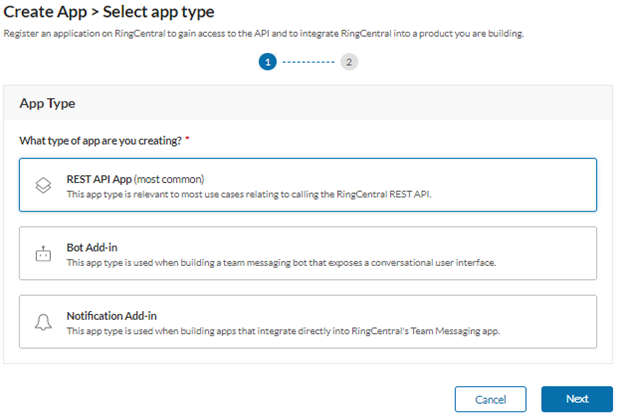
Select REST API App under App Type to call the RingCentral REST API.
Click Next.
Enter all the required details on the Create App - REST API App Settings page and click Next.
Enter the values to the following fields on the App Properties (internal-use only) page:
App Name
App Description (optional)
Primary Contact
Select the relevant option for Do you intend to promote this app in the RingCentral App Gallery?
(Optional) In the App Card panel, enter the values for the given fields to configure how your application will be presented within our App Gallery.
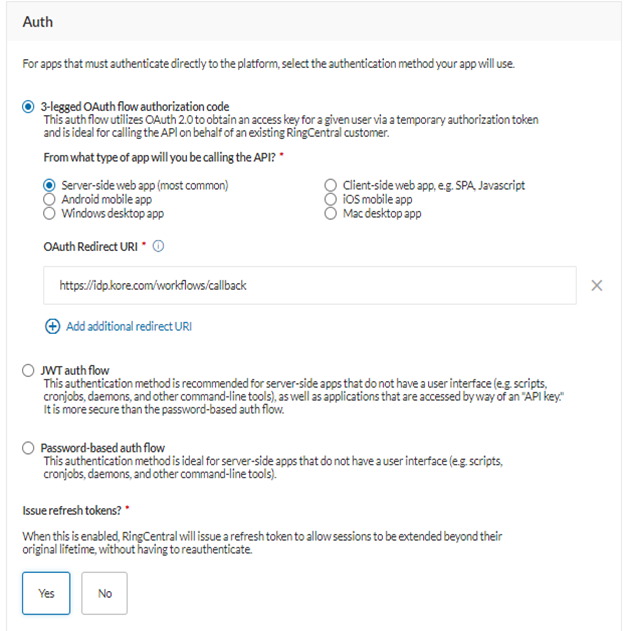
In the Auth panel, enter the values for the following fields to select the authentication method your app will use:
Select 3-legged OAuth flow authorization code.
Select Server-side web app (most common) or Client-side web app based on your app type for From what type of app will you be calling the API?
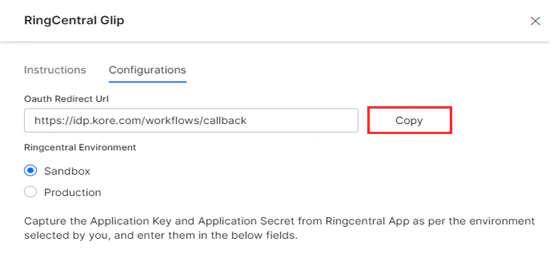
On the Platform, copy the OAuth Redirect URI under the Configurations tab in the RingCentral Glip window.
Paste the copied OAuth Redirect URI link in the Auth panel.
The OAuth Redirect URI now includes the streamid in the API request to identify the AI Agent being accessed. When an incoming request is qualified with this identifier, it helps with traceability, troubleshooting, and remediation at the network level during anomalies like malicious calls or unusual app activity.
Select Yes for Issue refresh tokens?
In the Security panel, to define the permissions to associate with the app, follow the steps below:
Select the Webhook Subscriptions, Read Accounts, and Team Messaging permissions from the dropdown list.
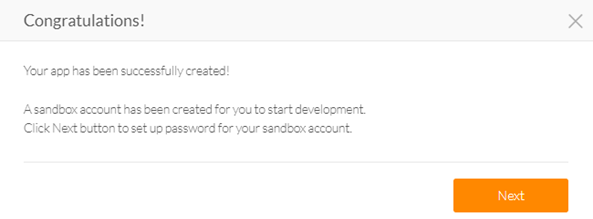
Click Create. Your App is created successfully and the system redirects to the App Dashboard page.
If you don’t have a Sandbox Account to test your app in the Sandbox environment, follow the steps below:
In the following dialog window, click Next.
Setup the Password for your Sandbox Account.
The OAuth Redirect URI now includes the streamid in the API request to identify the AI Agent being accessed. When an incoming request is qualified with this identifier, it helps with traceability, troubleshooting, and remediation at the network level during anomalies like malicious calls or unusual app activity.
After creating the app for the Sandbox/Production environment, you need to configure the app’s credentials on the Platform using the Client ID and Client Secret from the RingCentral Glip Application Dashboard to link the app. To set the credentials, follow the steps below:
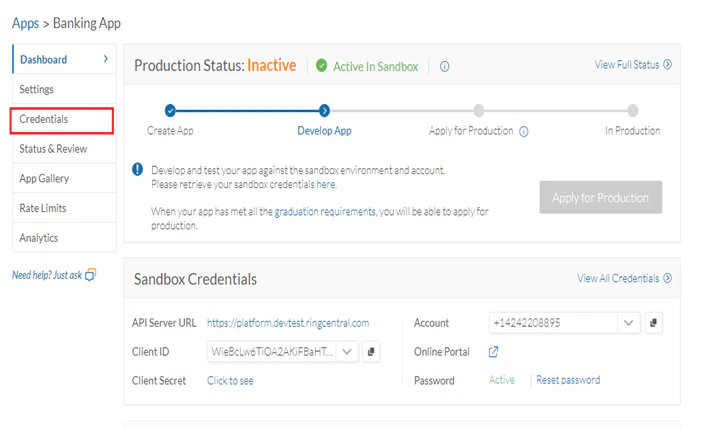
On the RingCentral Developer Application Dashboard, click Credentials on the left menu.
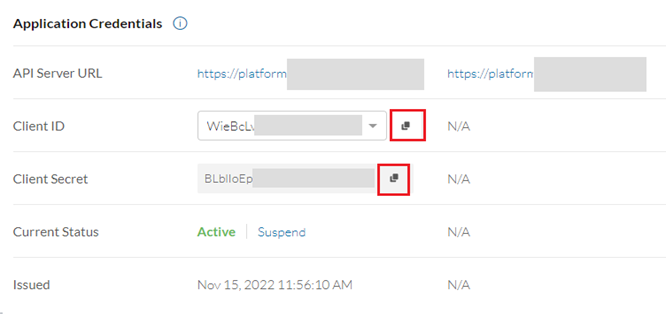
Under Application Credentials, click the copy icons for the Client ID and Client Secret (tap on click to see first) fields.
On the Platform, navigate to Channels & Flows > Channels > Digital > All and click RingCentral Glip.
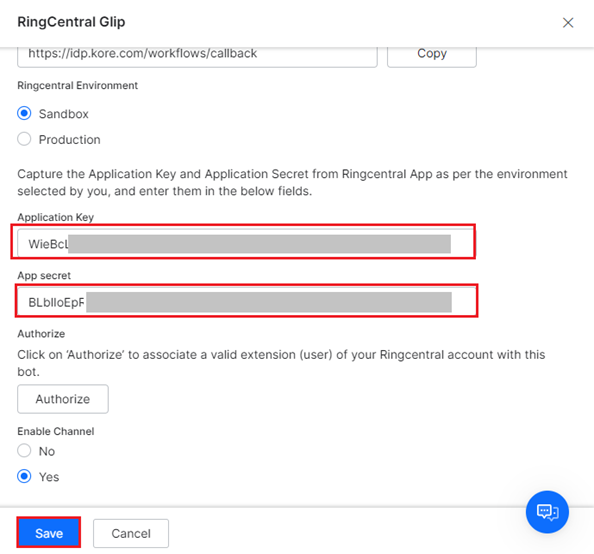
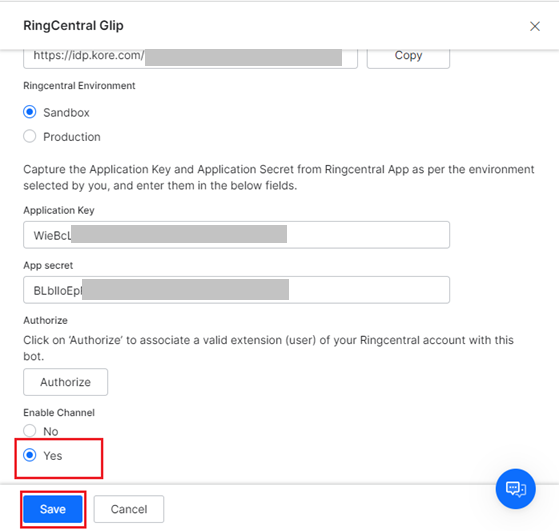
In the RingCentral Glip window, click the Configurations tab.
Paste the copied Client ID to the Application Key input field, and the Client Secret to the Application Secret input field.
Step 3: Authorize Extension (user) of your RingCentral Sandbox Account
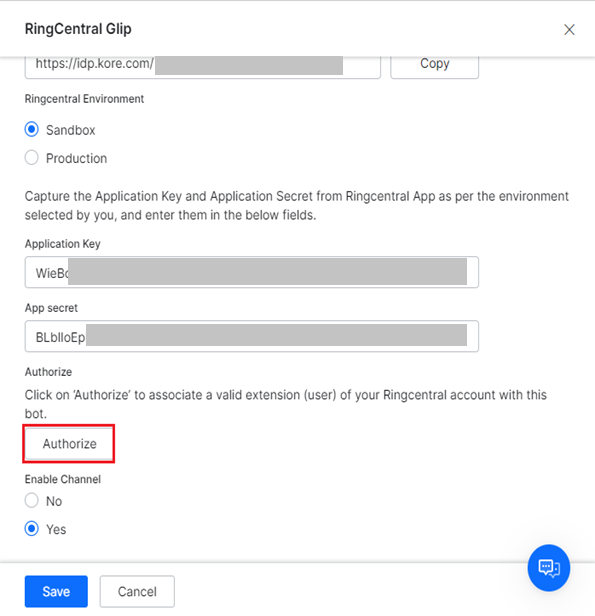
The AI Agent on the Platform must be associated with the extension (user) on your RingCentral account to access the Glip API via the developer access token. To enable this, you should authorize the AI Agent with an existing or new extension user’s credentials. To add a new (non-admin) user, follow the steps below:
Log in to your RingCentral Sandbox account.
Click the Users tab.
Click Users with Extension on the left menu.
Click +Add User.
On the Add Users and Phones dialog box, select Add Users without Phone, and follow the instructions on the page.
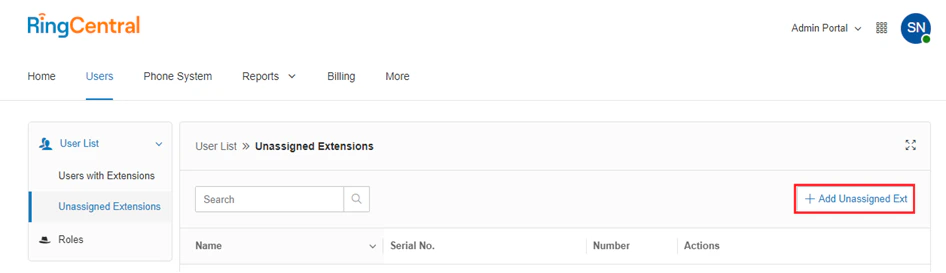
Click Unassigned Extensions on the left menu.
Click Add Unassigned Ext.
On the user profile information page, enter all the required information.
Please provide a meaningful name like Travel App or HR Assistant to the AI Agent inside Teams Messaging.
Click Save & Enable to enable the extension.
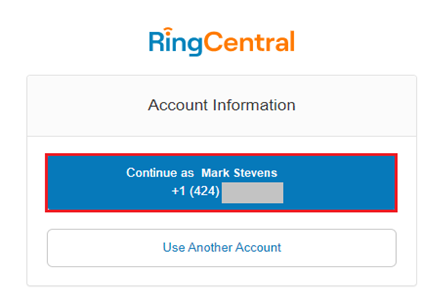
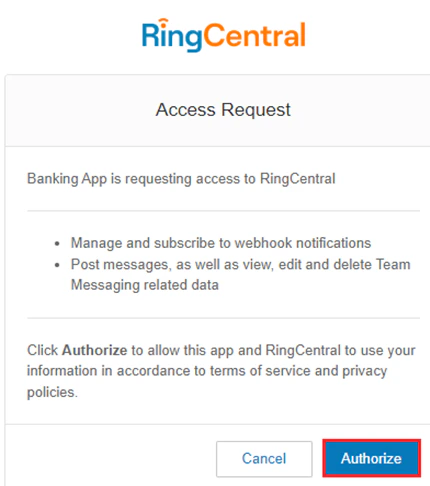
If you receive an account activation email on your registered email address, please note the username and password to authorize the AI Agent on the Platform.
Alternatively, select the “pre-assigned credentials” option and just provide/save the password.
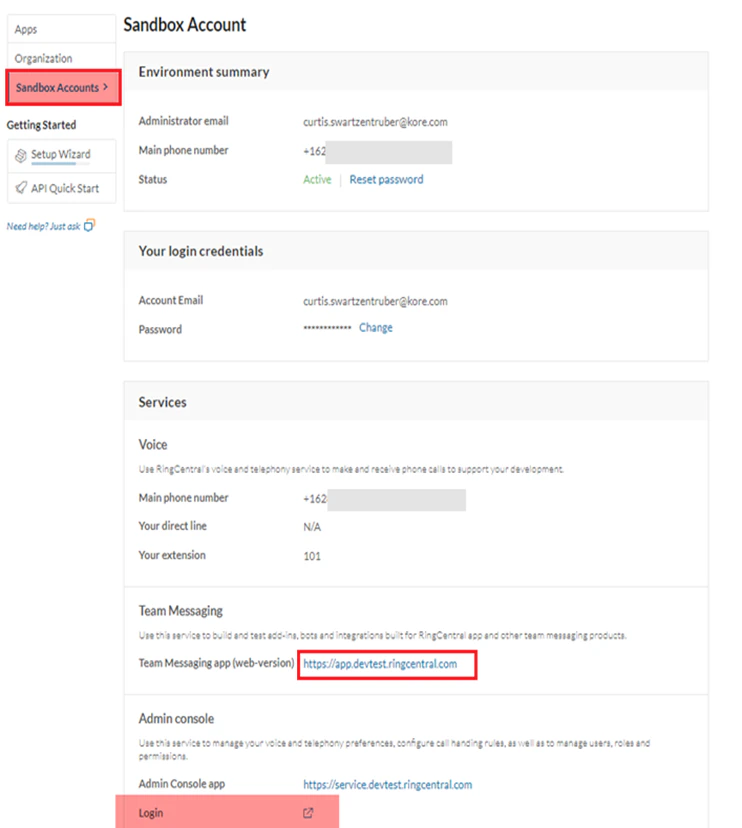
To access the admin portal from the Sandbox account screen and test the validation, follow the steps below:
Go to the Sandbox Account section and click the link in the Team Messaging section.
Navigate to Messages on the left menu.
In the Direct Messages section, click the + icon to start a new DM with the AI Agent.
Find the AI Agent using either the name or email address you used in Step 3.
Send the AI Agent an opening message, such as “Hello” or “good afternoon”. The AI Agent should respond based on the default behavior configured for Dialog Tasks.
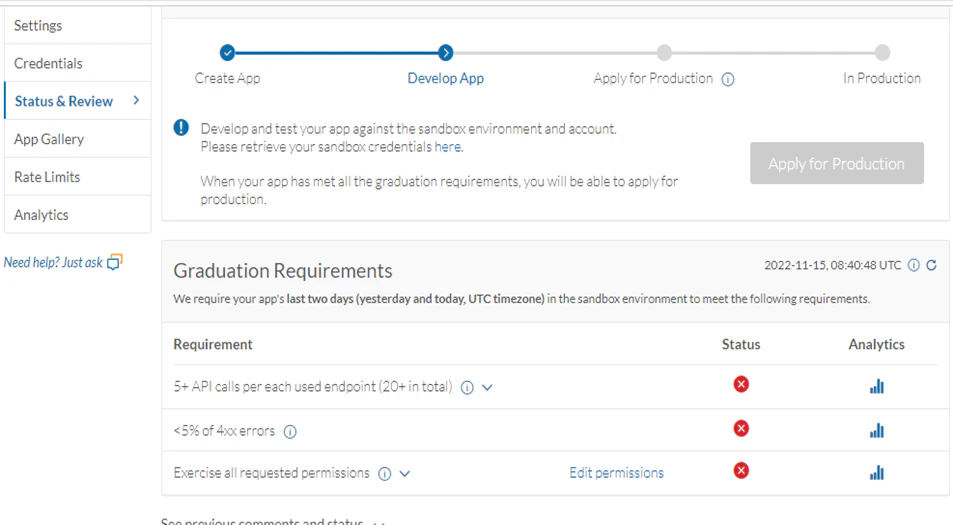
Once your app is tested in the Sandbox environment and ready for production, follow the RingCentral app graduation process mentioned here to apply for production after meeting all the graduation requirements for your app as shown below:Once your app is production ready, follow the steps below on the Platform:
Navigate to Channels & Flows > Channels > Digital > All > RingCentral Glip.
Under the Configurations tab, select Production for Ringcentral Environment.