

- Provides support for message sending, conversation management, user authentication, and rich message formatting, empowering developers to deliver seamless and engaging user communication experiences.
- Offers built-in transcoding for smooth conversations across all supported channels, with optional full control over channel-specific features.
- Consolidates all conversation details into a single callback, streamlining integration with the Platform.
- Enabling the Sinch Conversation API requires signing upon the Sinch developer dashboard.
- Capture the Sinch Project Access keys for Authentication.
- Create an App.
- Configure the Webhook URL.
- Configure the delivery channel.
- Enable the Channel on the Platform.
Step 1: Capture the Sinch Project Access keys for Authentication
Once you create an account and log in, accept the terms and conditions and create your access key. The Conversation API uses OAuth2 tokens for authentication, which can be obtained from an OAuth2 token endpoint. To authenticate, aclient_id (or KEY ID) and client_secret (or KEY SECRET) are used. You can generate new Access Keys, each with a new KEY ID and KEY SECRET, at any time.
To create an access key, follow the steps below:
- Log in to your Sinch account and navigate to the developer dashboard.
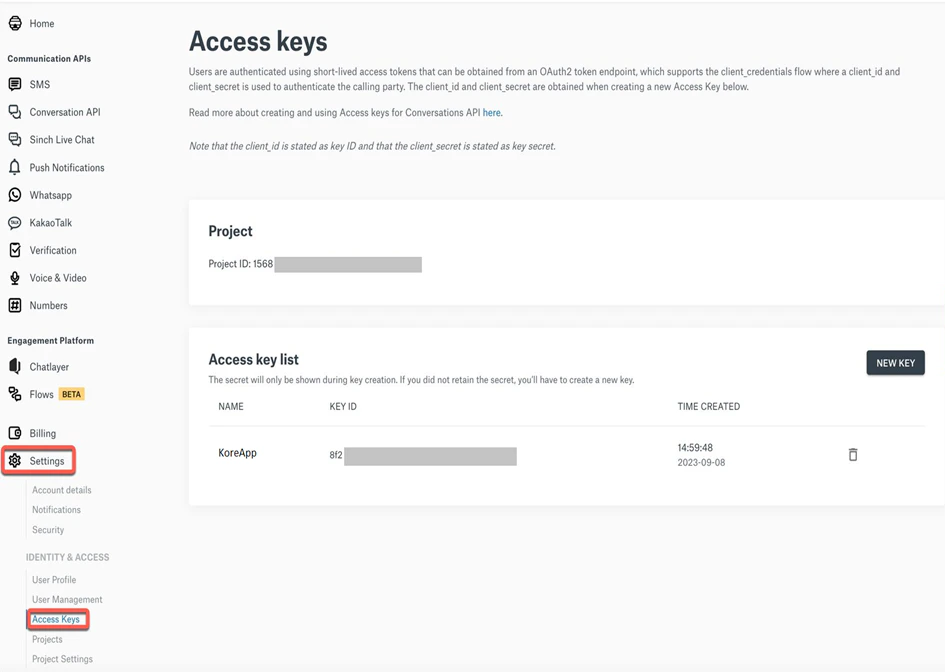
- Select Settings in the left menu and navigate to the General Settings screen.
-
Select Access Keys under Settings and navigate to the Access Keys screen.
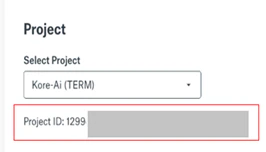
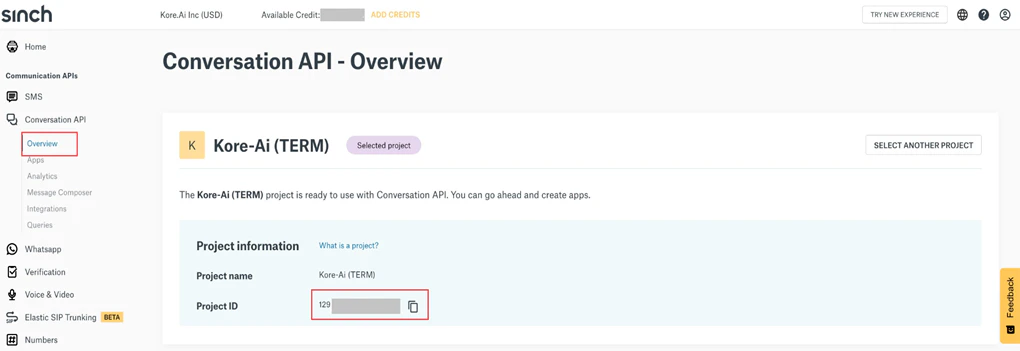
When you sign up for a Sinch account, a default project is created for you. Conversation API uses this project to group contacts and apps together. To create additional projects, contact your Sinch account manager for assistance.
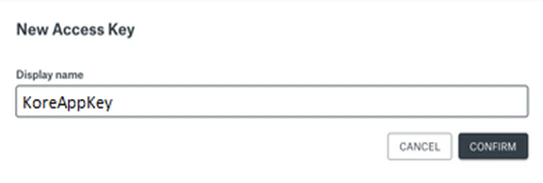
Key ID & Key Secret are generated as shown in the form below.
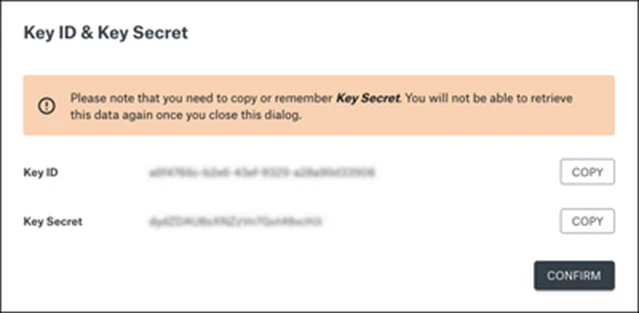
The KEY SECRET is only displayed when a new Access key is created.
Step 2: Create An App
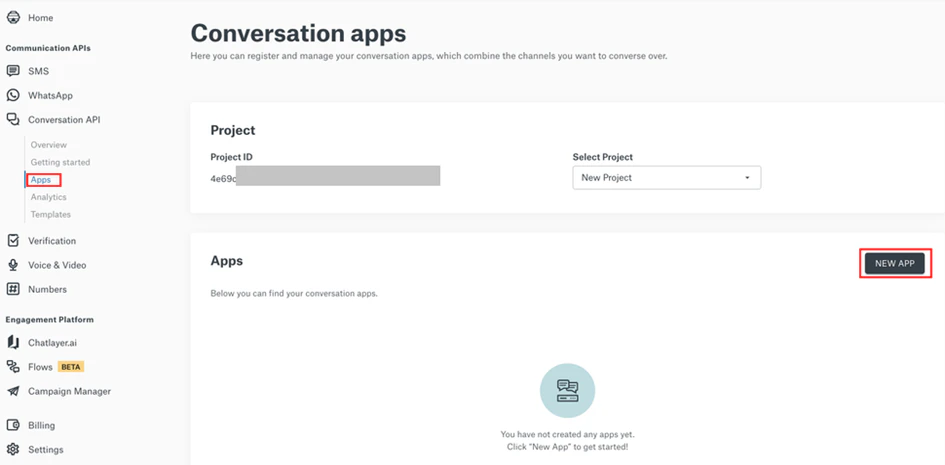
The next step is to create and configure a Conversation API app to enable the channel. Follow the steps below to create an app. Alternatively, you can use API calls to create an app.- Select Conversation API > Apps on the left menu.
-
On the Conversation Apps page, click the NewApp button in the Apps section.
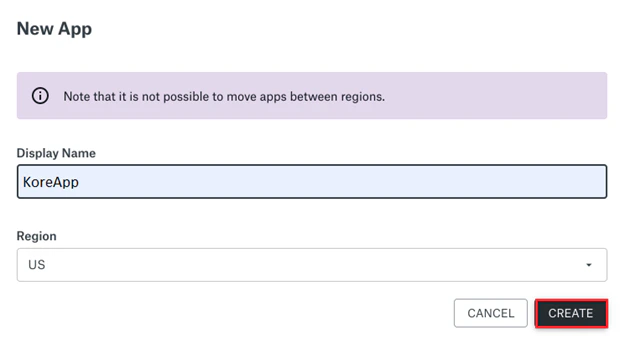
- In the New App form. Provide the app’s Display Name and select the region from the dropdown menu.
The region you select determines where your Conversation API app is hosted and where its associated data is stored. Once a region is chosen for your app, it can’t be changed.
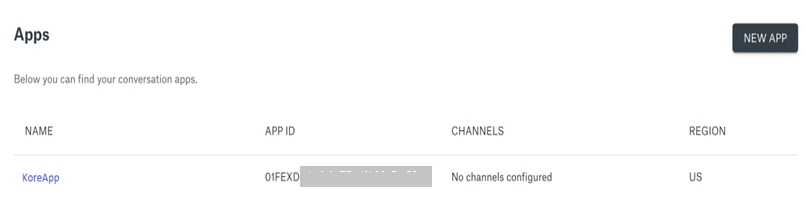
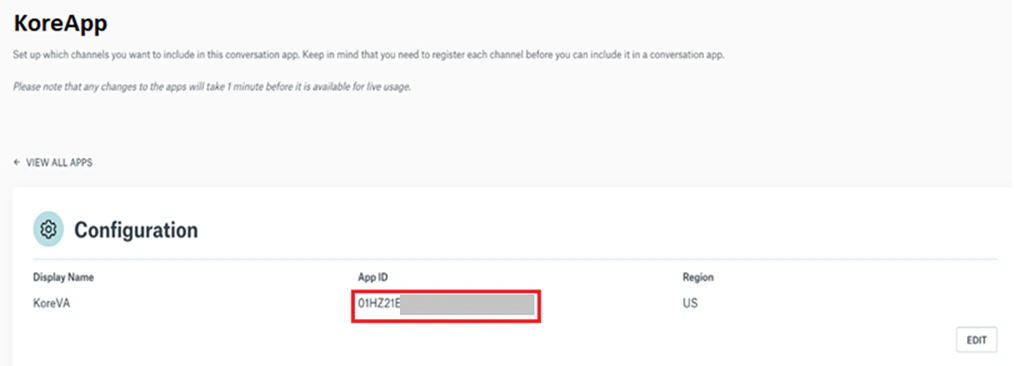
Based on the region selected, capture the Sinch region Base URL and provide it in the configuration tab of this page. See the list of Sinch region URLs.
Step 3: Configure the Webhook URL
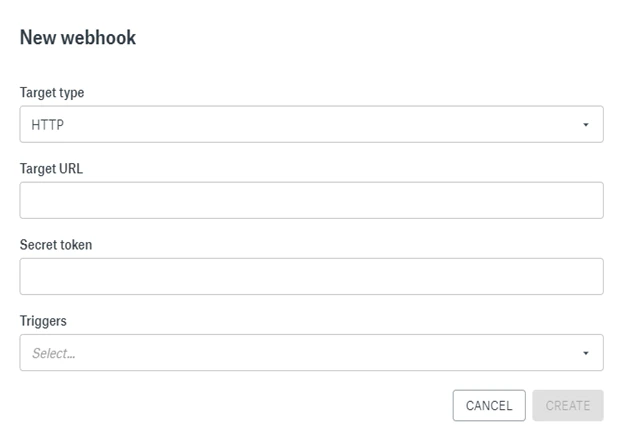
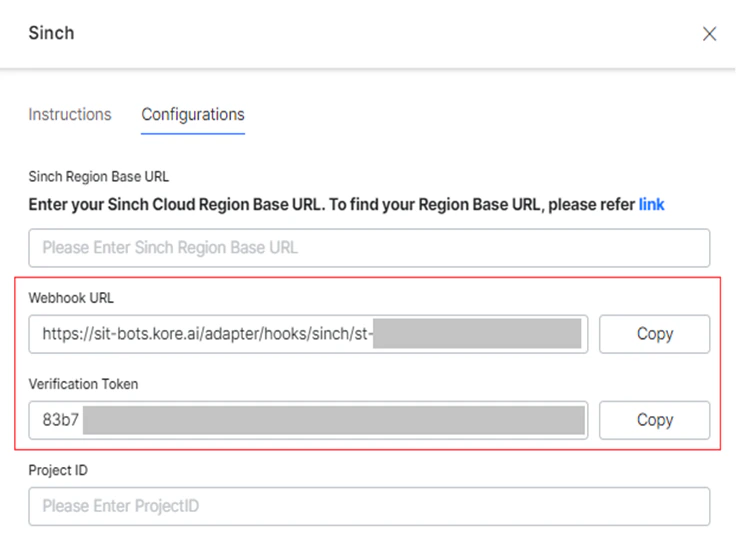
To send and receive messages, you need to configure at least one channel using a webhook URL for your app. To configure, follow the steps below:- Select the App created by you on the Apps page.
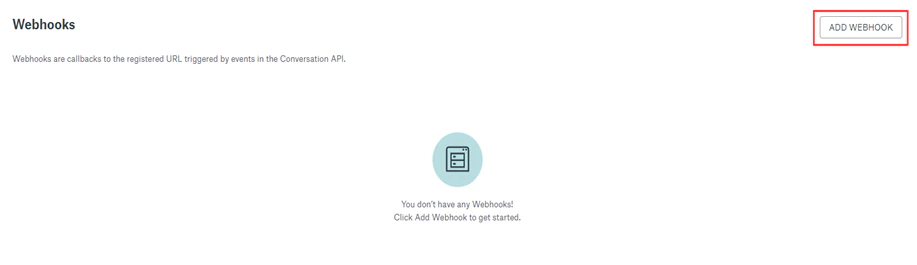
- Scroll down to the Webhooks section and click Add Webhook.
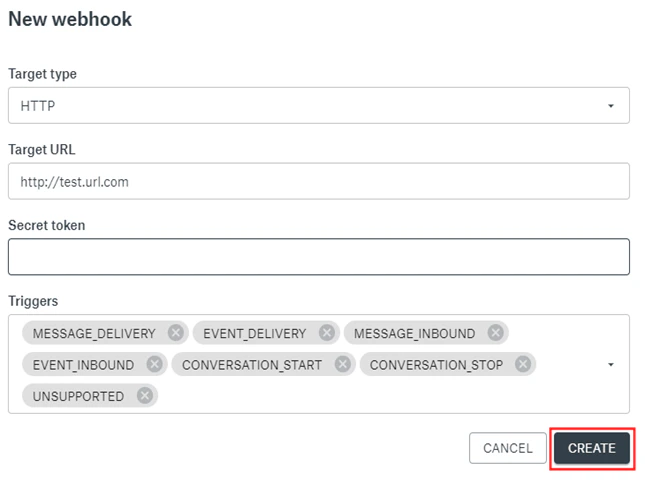

Step 4: Configure the Delivery Channel
Next, you must configure the delivery channel for the conversations with the steps given below:- Select the app you’ve created on the Apps page.
-
Scroll down to the Setup Channels section.

- Select the delivery channel you want to configure.
- To set up the required channel, click the channel listing here.
Step 5: Enable the Channel on the Platform
To enable the channel on the Platform, follow the steps below: Go to Automation AI > Flows & Channels on the left navigation menu. Select Digital under Channels. Click the All tab, and select Sinch in the Enterprise Channels section.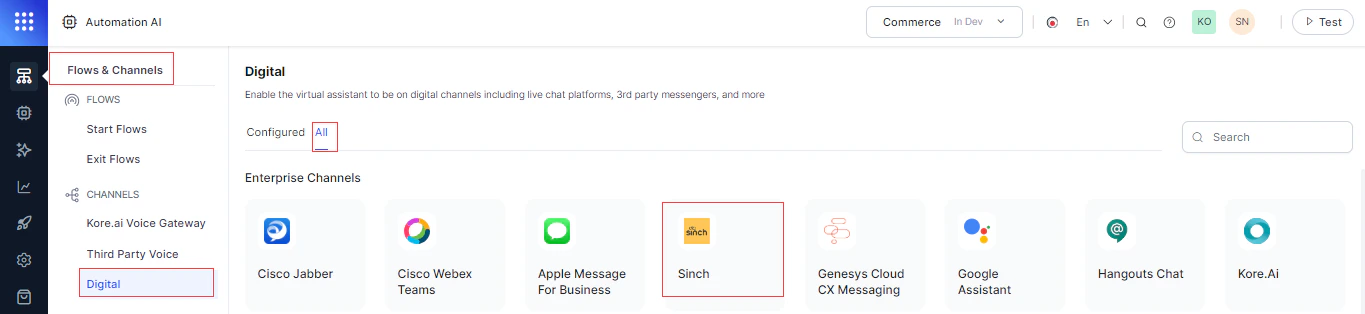
- Sinch Region Base URL: Copied in Step 3 here.
- Project ID: Copied in Step 5 here.
- Access Key Id and Access Key Secret: Copied in Step 8 here.
- App ID: Copied in Step 6 here.
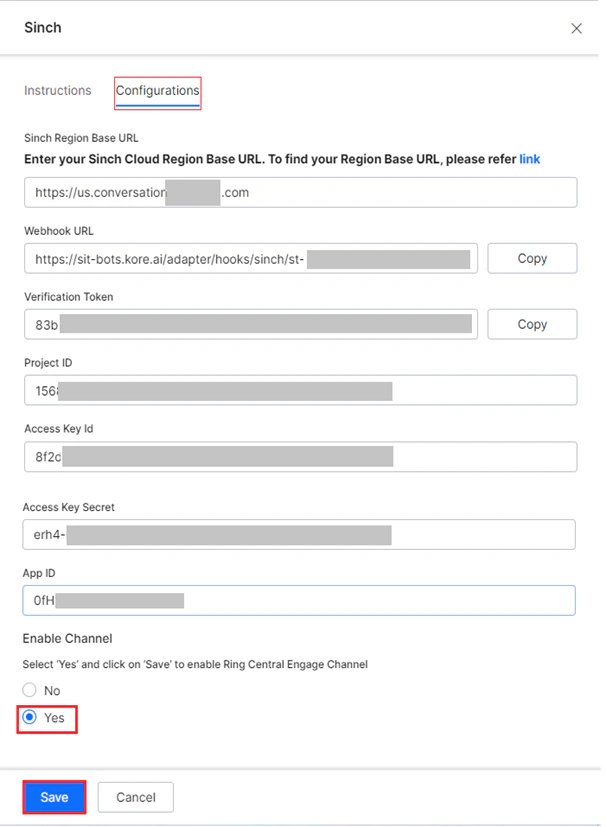
Message Types
Conversation API uses generic message types to send the same message to multiple channels. In cases where the channel doesn’t natively support the message type, the message will be transcoded. The supported message types include:Message Templates
Sinch message templates are predefined, structured formats for sending recurring or standardized messages across channels like WhatsApp, SMS, and other supported platforms. These templates ensure compliance with the channel’s messaging policies, especially for platforms like WhatsApp that require pre-approved templates for certain messages, such as notifications or service updates. Message templates can be used during AI Agent conversations to structure the messages. The default template types include:- Text
- Media (Document, Video, and Image)
- Location
- Interactive (Quick Reply and Call-to-action)
- Authentication
- Carousel