Configuration
Step 1: Create a Drift App
- Log in to https://dev.drift.com/apps with your Drift credentials.
-
Go to the App Store and click Create New App. Follow the Drift quick-start guide for instructions.
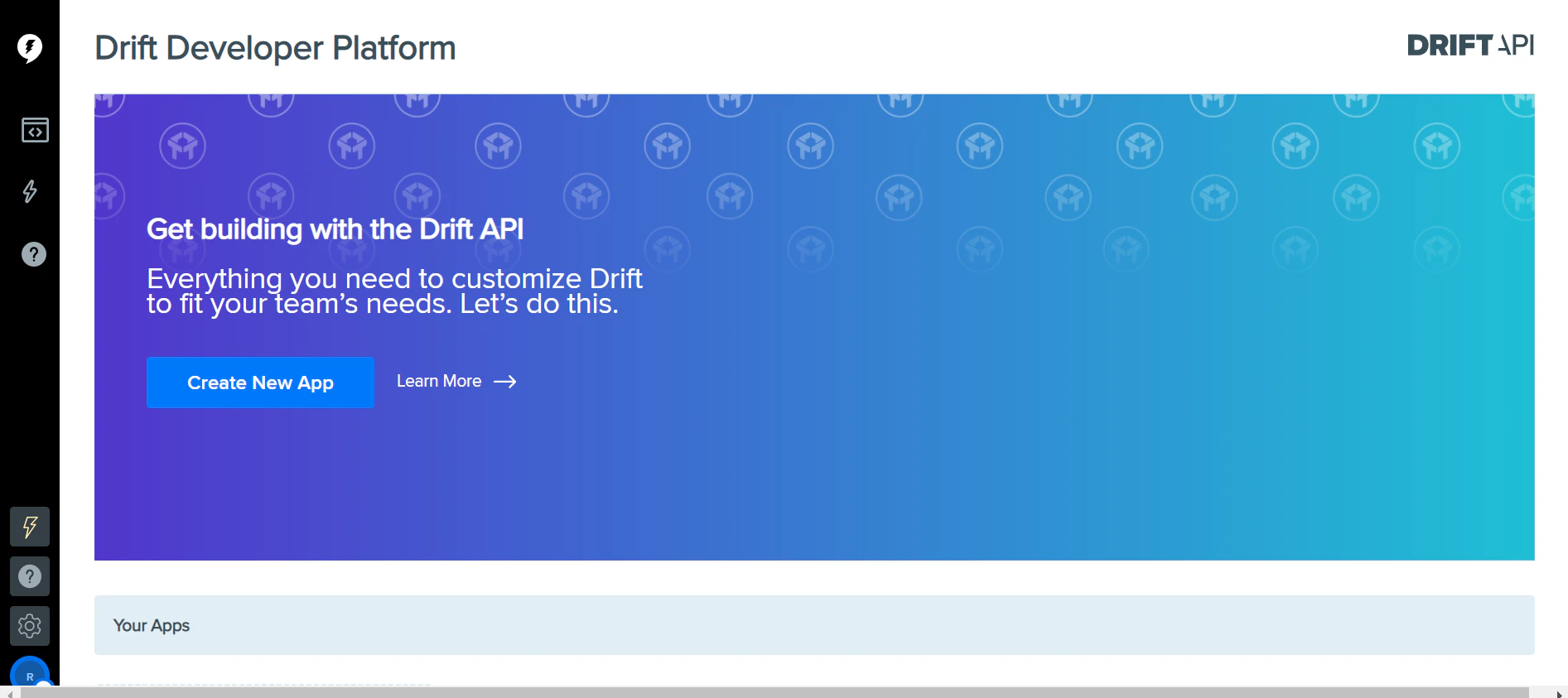
- Go to Settings > OAuth & Scopes.
-
Add the redirect URL found on the Configurations tab of the Drift Agent in Kore.ai. Click Add.
-
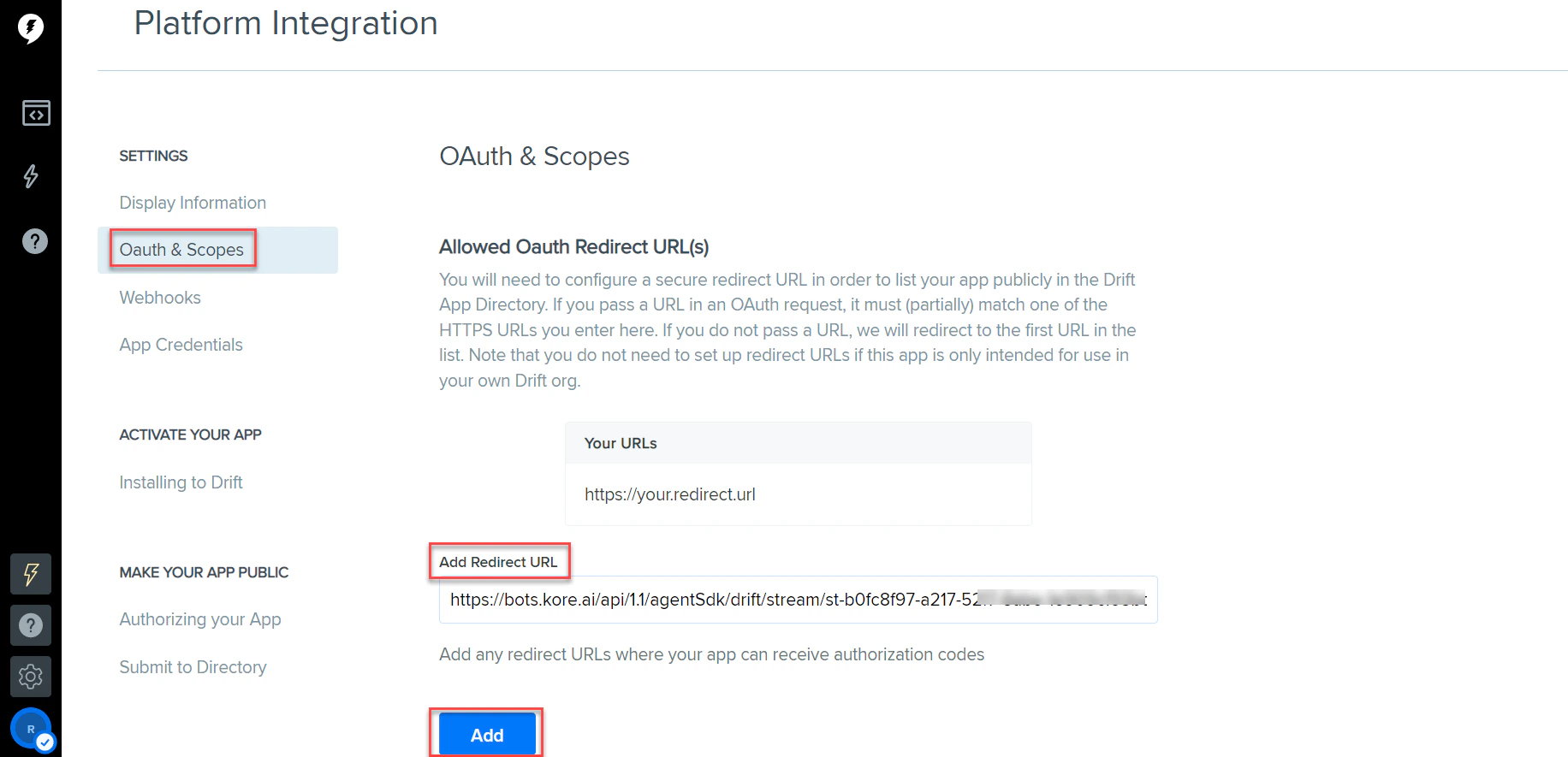
Select the WebHooks tab and add the Kore.ai Drift Agent Webhook URL as the Request URL. Enable the following webhook scopes:
new_messagenew_conversationconversation_status_updatedconversation_inactiveconversation_pushchat_to_call
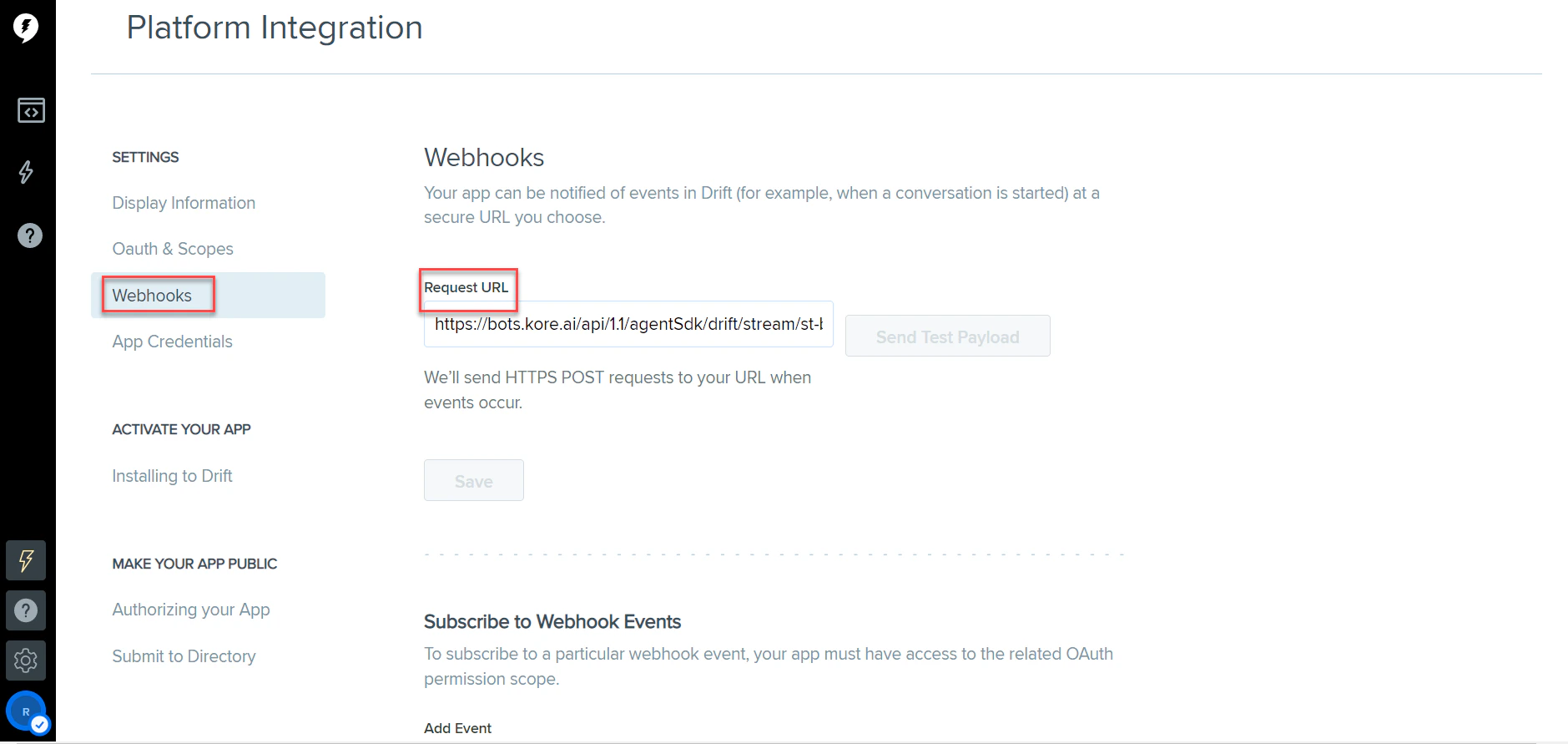
- Click Create App.
Step 2: Retrieve the Access Token
-
Under Activate Your App, click Installing to Drift and copy the Install App to Drift link to generate a non-expiring access token.
 This token is used to access your Drift data via API.
 - Copy the Access Token and save it for later.
Step 3: Retrieve the Verification Token
- Navigate to Settings > App Credentials.
-
Copy the Client ID, Secret ID, and Verification Token.
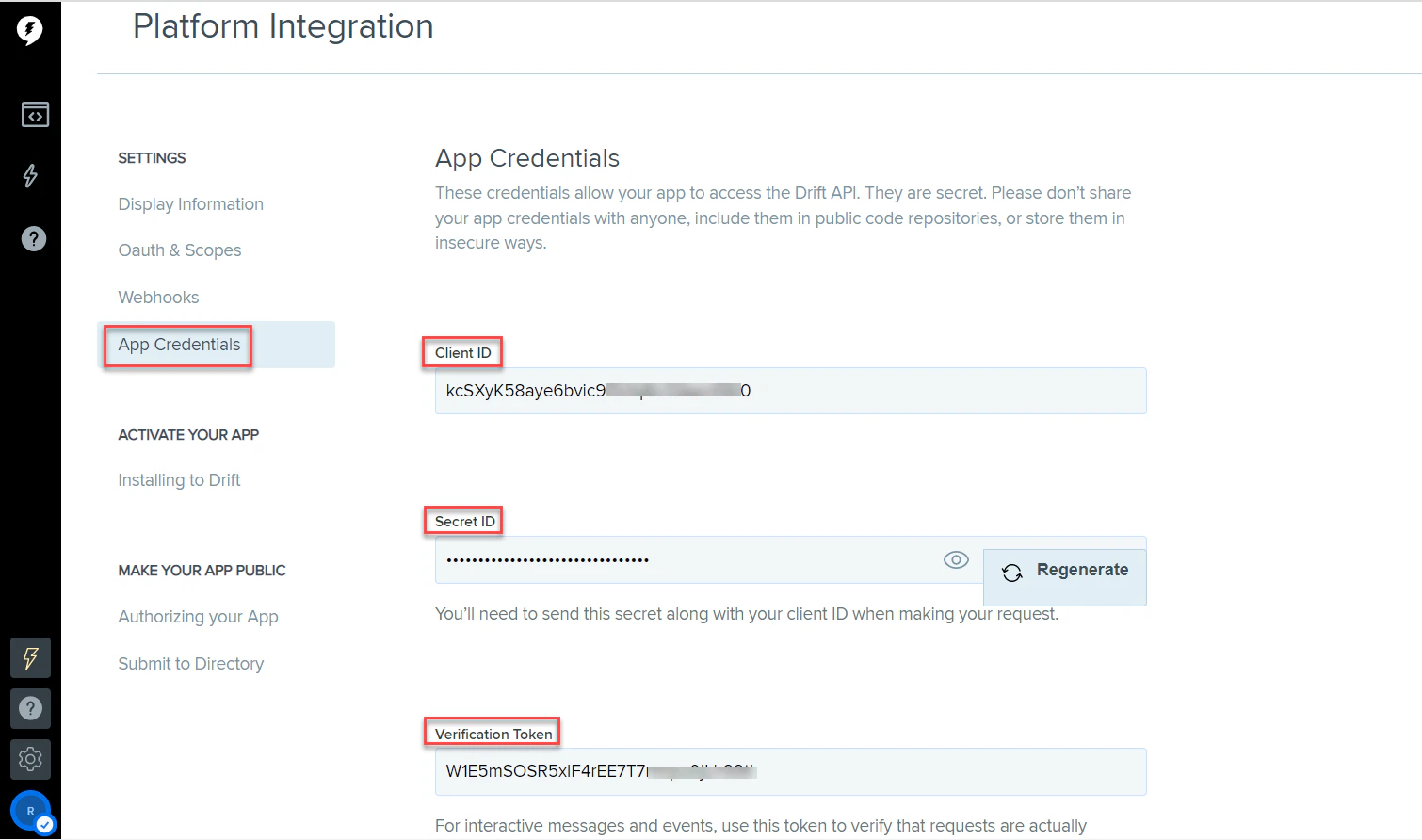
- Save these values for later.
Step 4: Enable the Drift Agent
- Log in to the Platform.
- Select the app you want to configure.
- Navigate to App Settings > Integration > Agent Transfer and click Drift.
-
Click the Configurations tab and enter:
- Access Token: Copied in Step 2
- Verification Token: Copied in Step 3
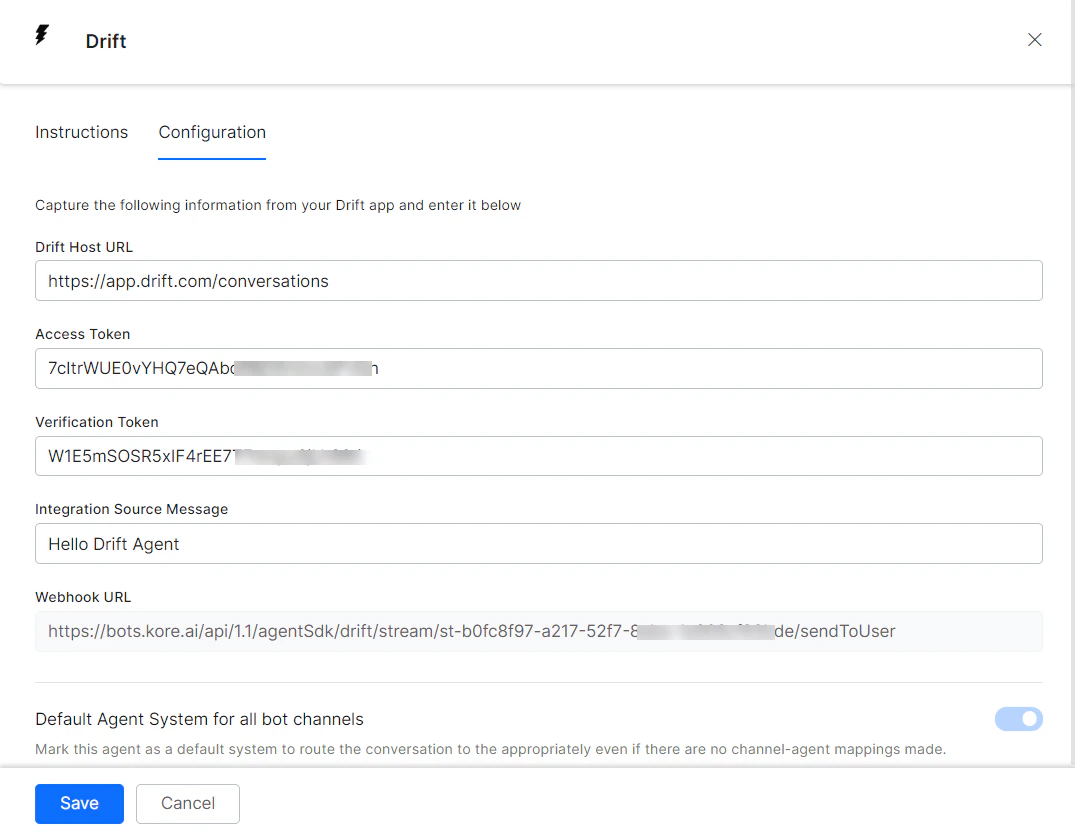
-
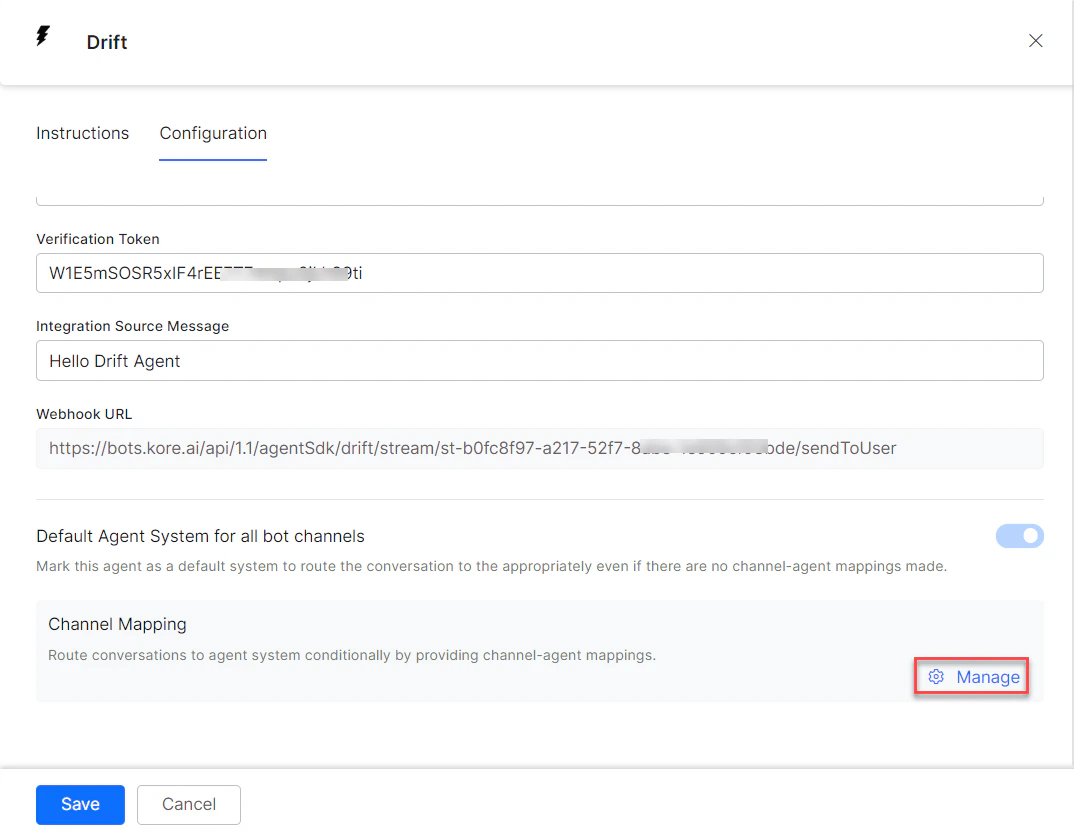
To make Drift the default agent, enable Default Agent System for all app channels.
This option is only available when multiple agents are configured.
-
Click Manage to map channels to the Drift agent.
-
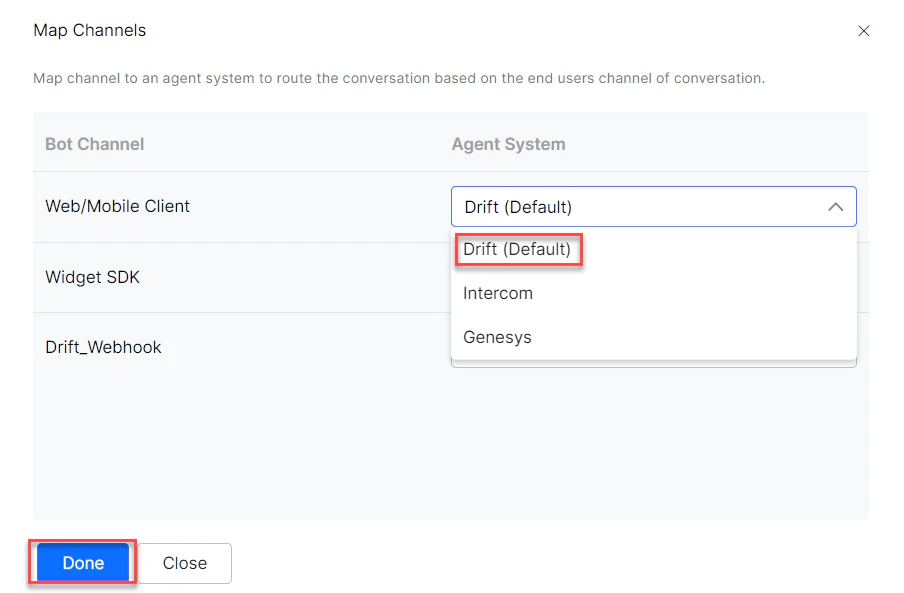
Select the channels to use Drift for handovers.
- Click Done.
- Click Save to enable the Drift agent.
- Publish the app. See Publishing your App.
Verify the Integration
- Open the app with Drift enabled.
-
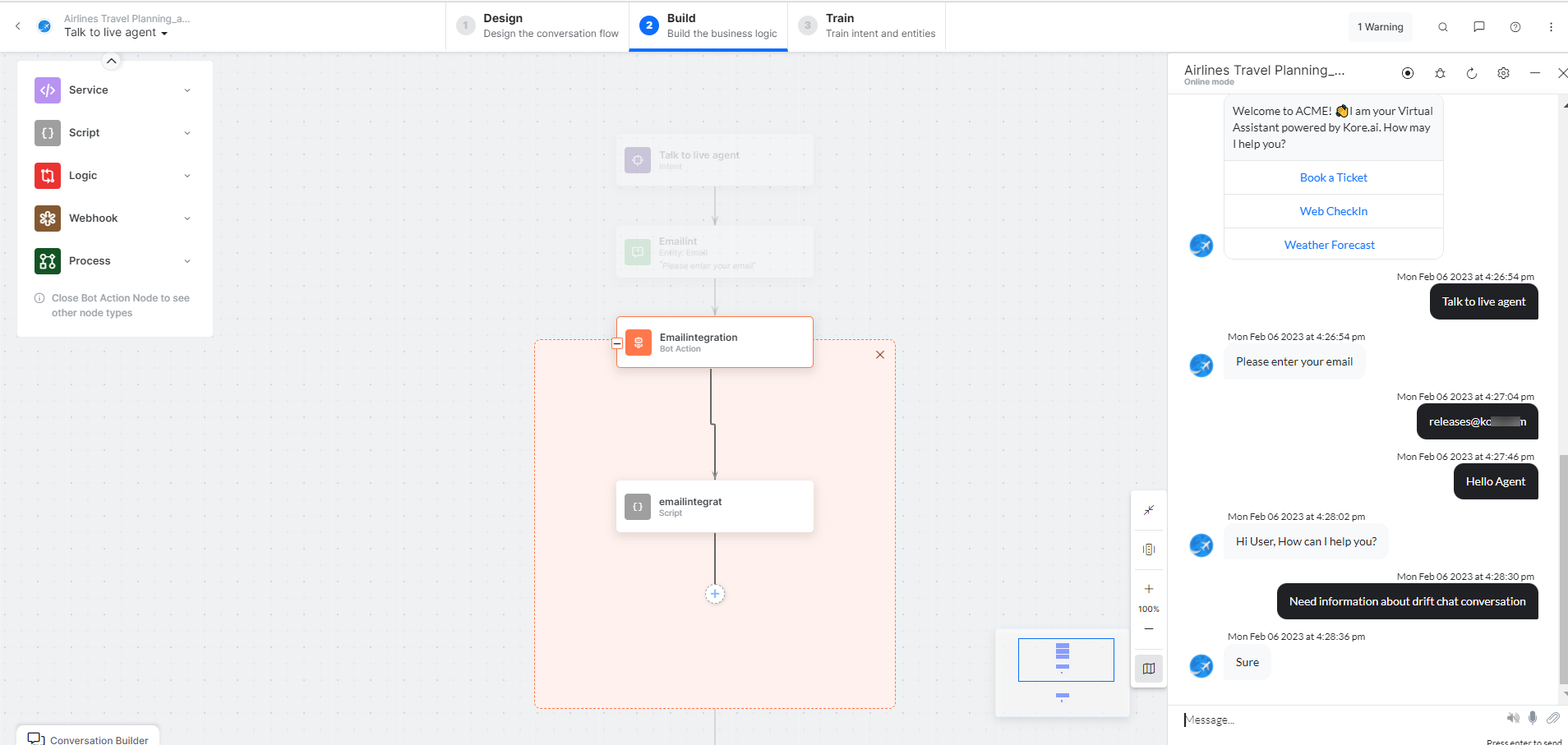
Create a new Agent Transfer Node task (for example, a Talk to Live Agent task with a LiveChats node configured to use Drift). See Agent Transfer Node.
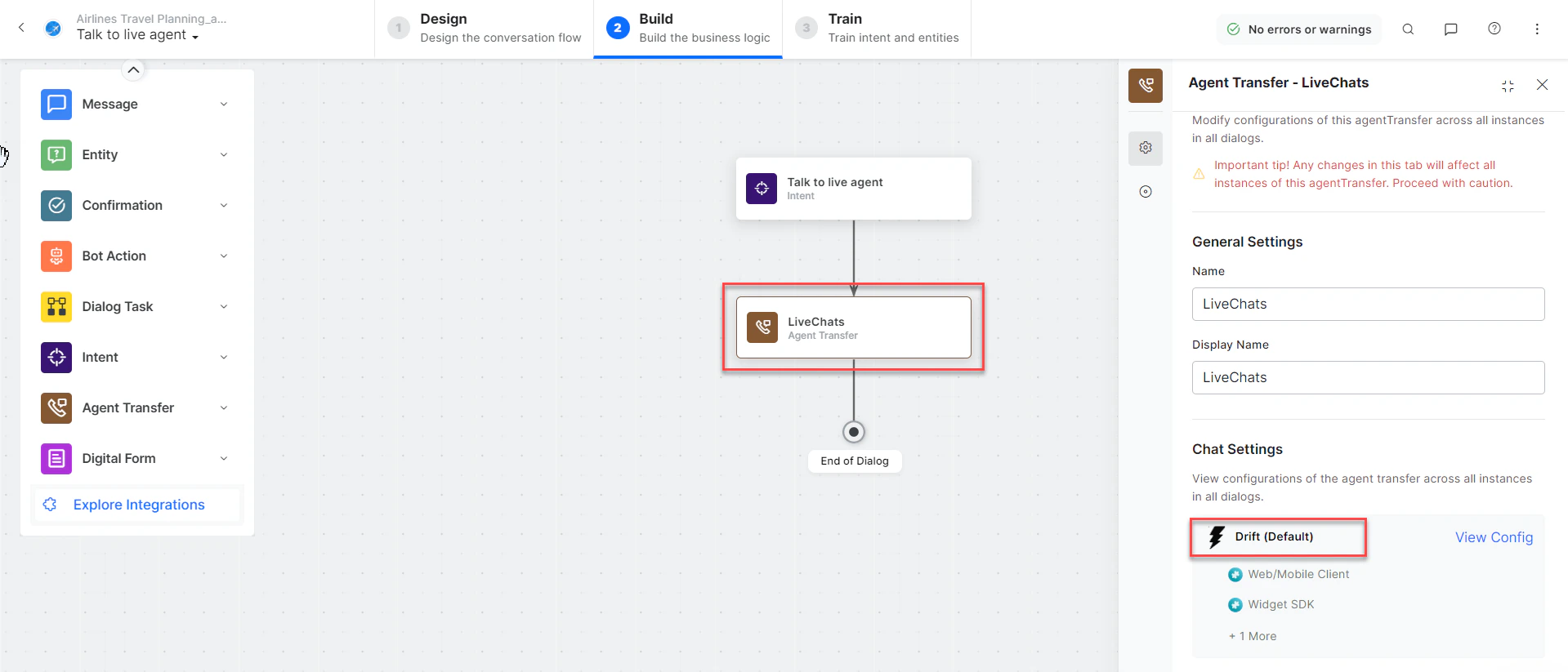
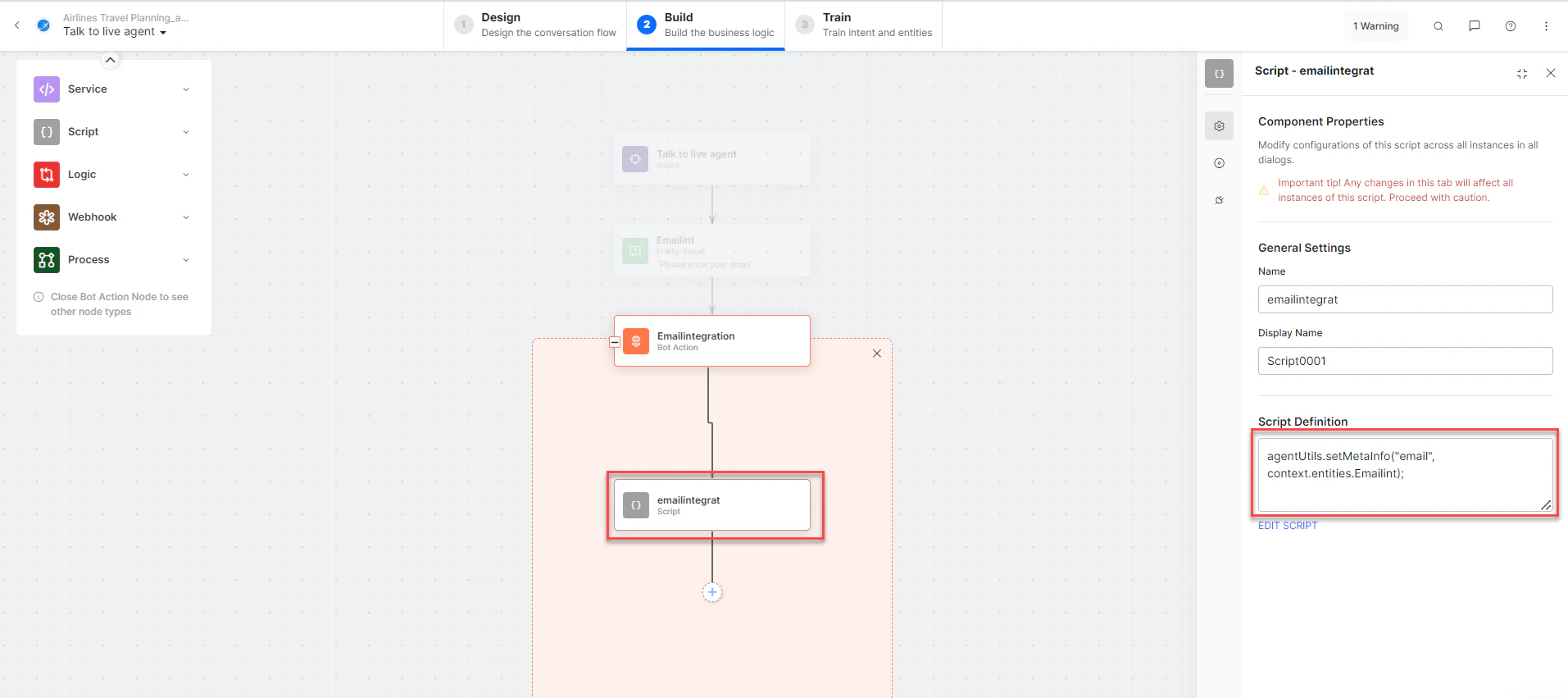
- Add an email entity node and bot action to capture the agent’s email address.
-
In the Bot Action script, enter:
- Click Talk to Bot and enter Help.
- When the agent transfer dialog is invoked, the Drift Developer Hub receives a notification.
- The conversation transfers to the Drift agent, and the agent receives a notification on Drift.
-
The connection is established and the conversation continues.