Configuration
Step 1: Create an Intercom App
- Log in to the Intercom Developer Hub with your Intercom credentials.
-
Go to the App Store and click Build your own app.
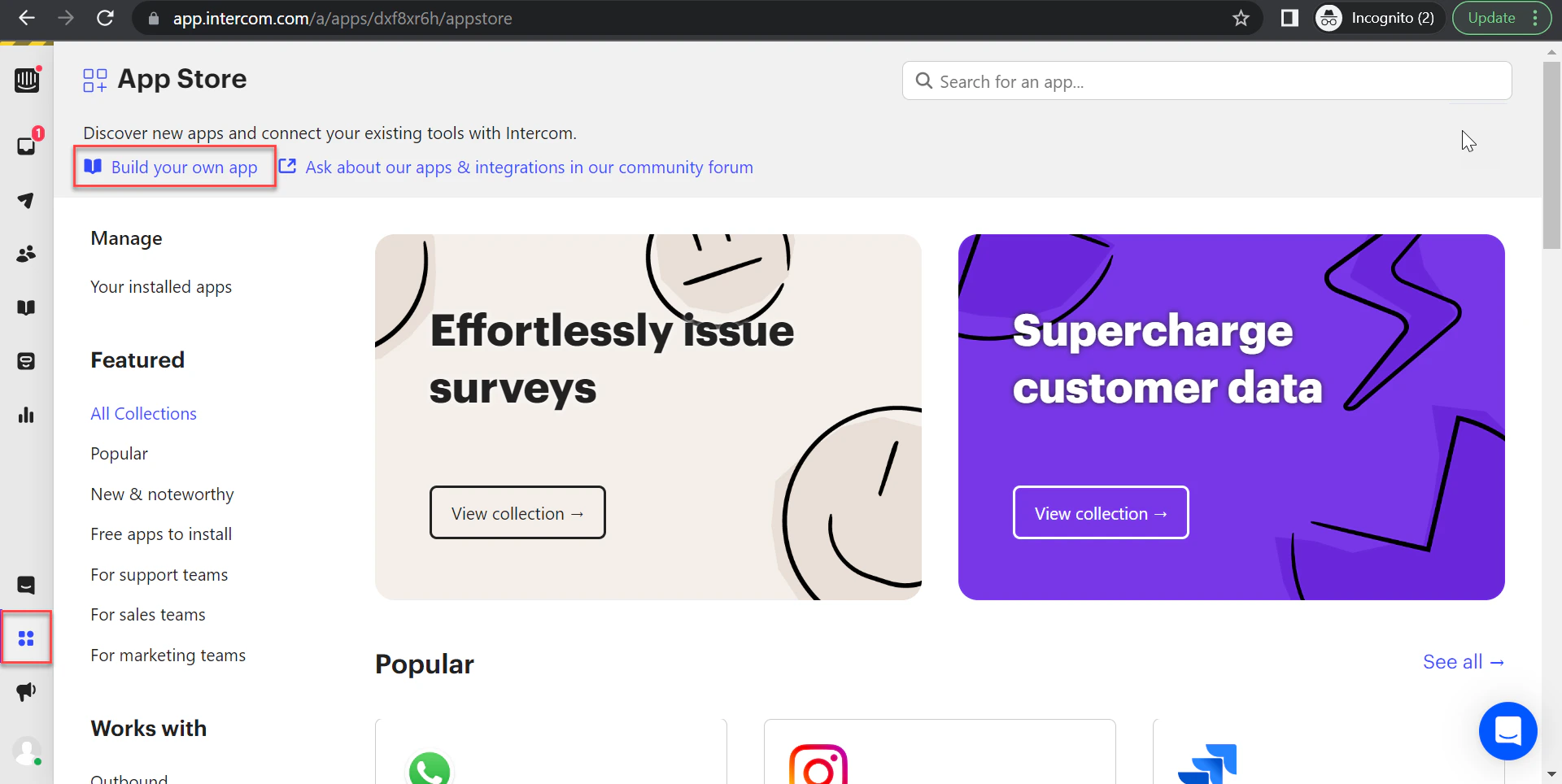
- Click Your Apps in the top-right corner.
-
Click New App and enter:
- App name
- Kore.ai Workspace
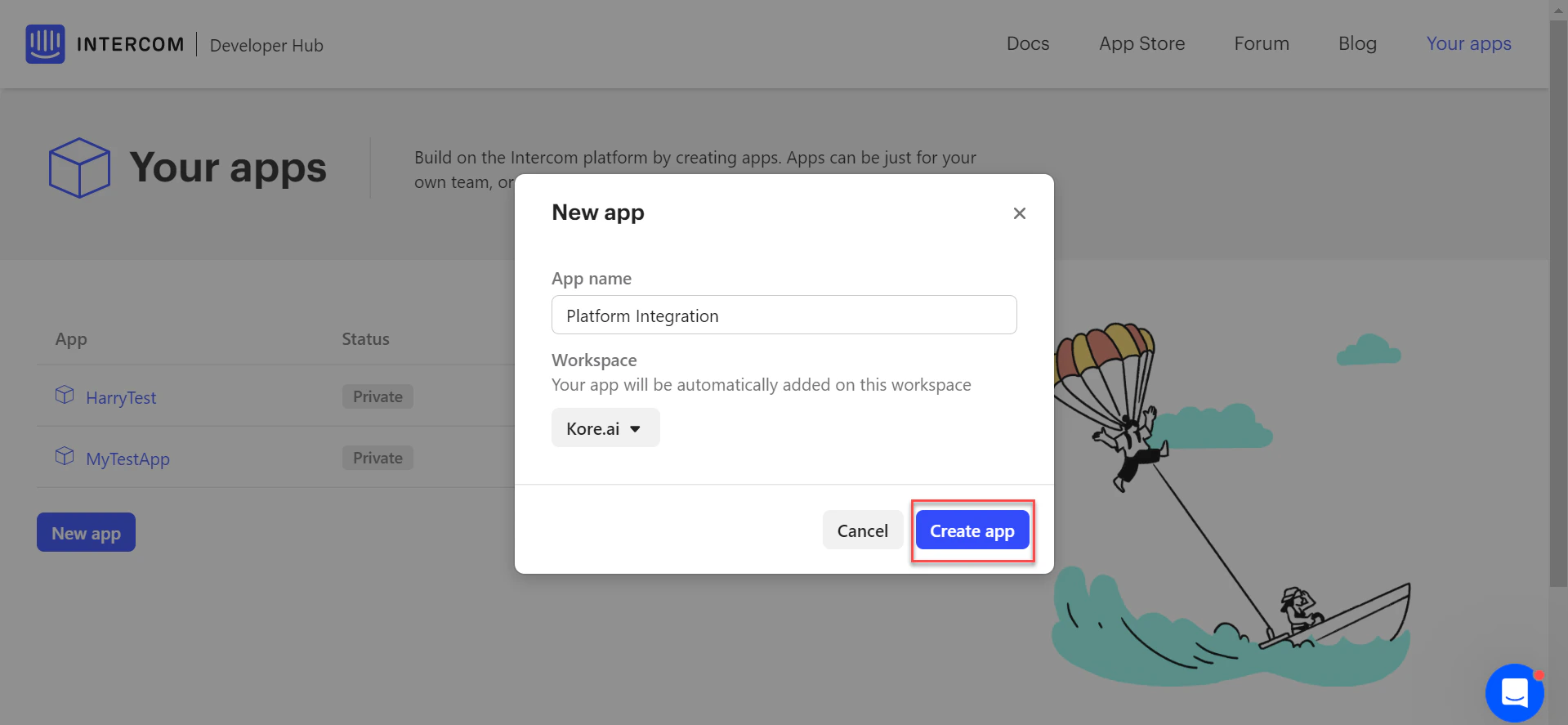
- Click Create App.
Step 2: Retrieve the Access Token
-
In the app, click Authentication and copy the Access Token.
 This token is used to access your Intercom data via API.
 - Save the Access Token for later.
Step 3: Configure a Webhook
- Log in to your Intercom account.
- Navigate to Configure > Webhooks.
- In the Intercom Developer Hub, click Add Webhook.
- Copy the Webhook URL from Integrations → Agent Transfer → Intercom → Configuration in Kore.ai.
- Paste it into the WebHook field in the New Webhook form.
- Under Webhook topics, select:
conversation.admin.closedconversation.admin.repliedconversation.admin.assignedconversation.admin.single.created
- Click Save.
Step 4: Enable the Intercom Agent
- Log in to the Platform.
- Select the AI Agent to configure.
- Navigate to App Settings > Integrations > Agent Transfer and click Intercom.
-
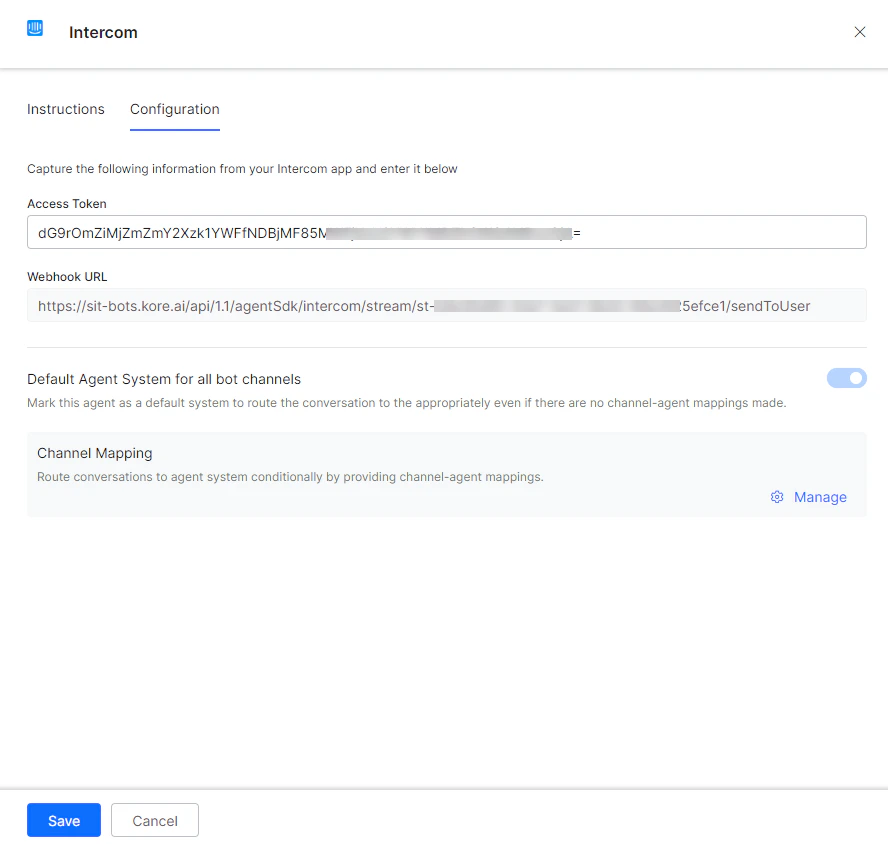
On the Configurations tab, enter:
- Access Token: Copied in Step 2
- Webhook URL: Found on the Kore.ai Intercom Agent Configuration page
-
To make Intercom the default agent, enable Default Agent System for all bot channels.
This option is only available when multiple agents are configured.
-
Click Manage to map channels to the Intercom agent.
-
Select the channels to use Intercom for handovers.
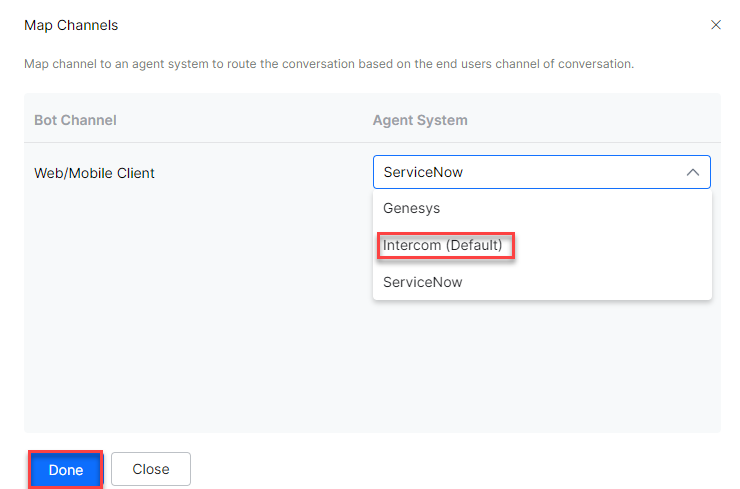
- Click Done.
- Click Save to enable the Intercom agent.
- Publish the app. See Publishing your App.
Verify the Integration
- Open the app with Intercom enabled.
-
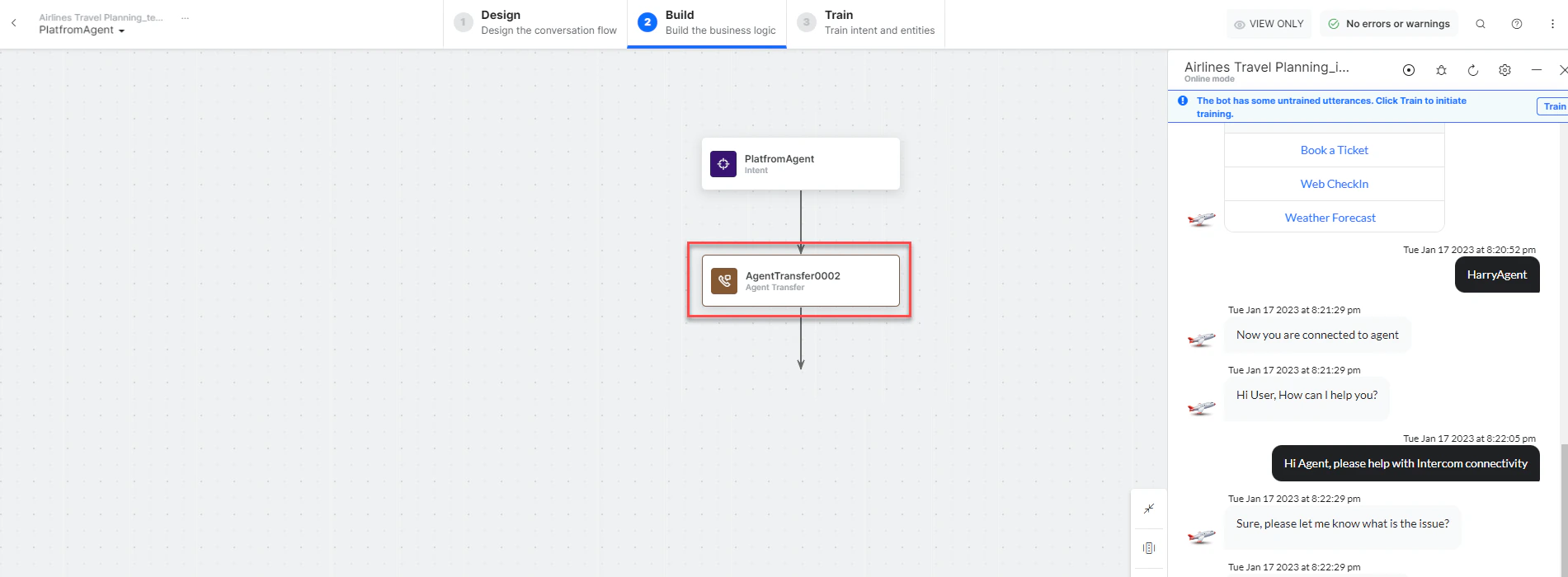
Create an Agent Transfer Node task (for example, a
PlatformAgenttask with aUserChatsnode configured to use Intercom). See Agent Transfer Node.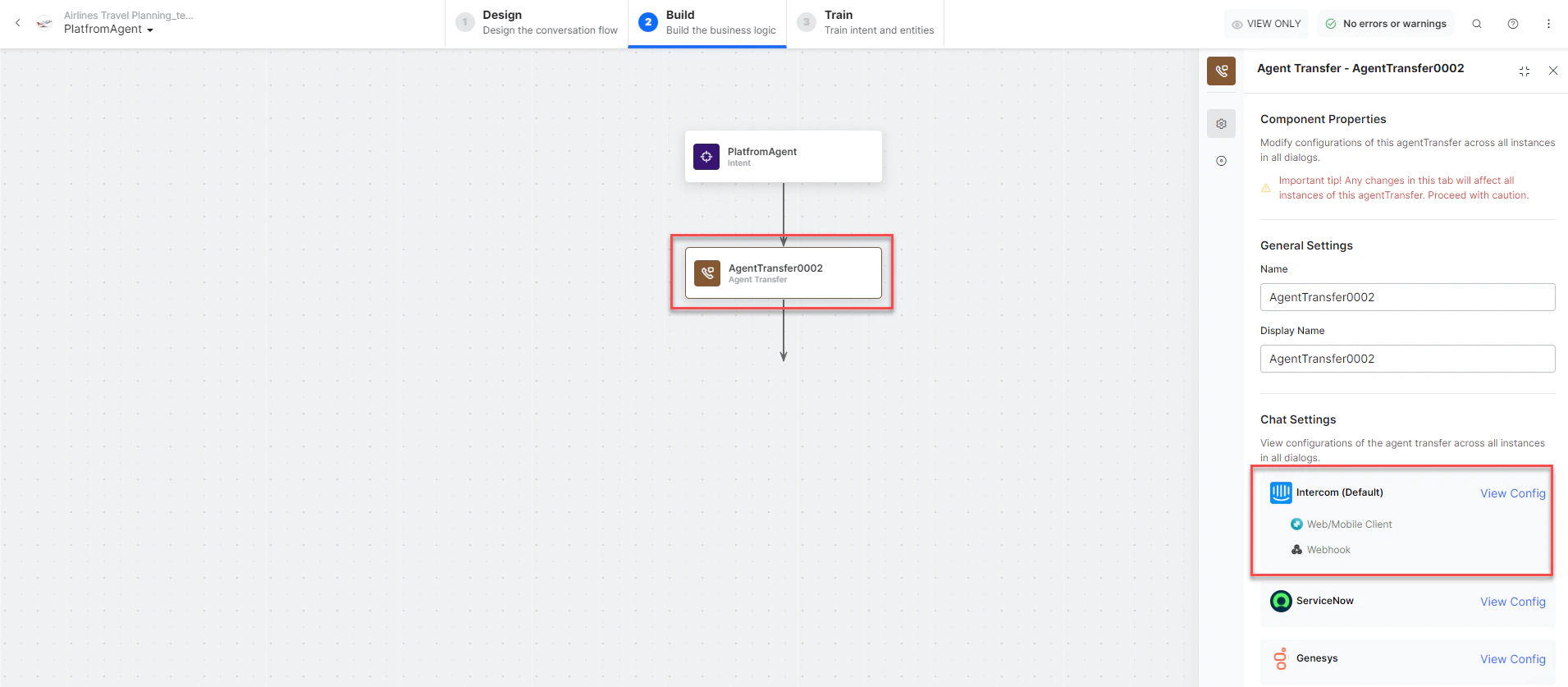
- Click Talk to Bot and enter Help.
- When the agent transfer dialog is invoked, the Intercom Developer Hub receives a notification.
- The conversation transfers to the Intercom agent and the agent receives a notification.
-
The connection is established and the conversation continues.