Configuration
Step 1: Create a User in NiceInContact
- Log in to https://login.incontact.com/ with your NiceInContact credentials.
-
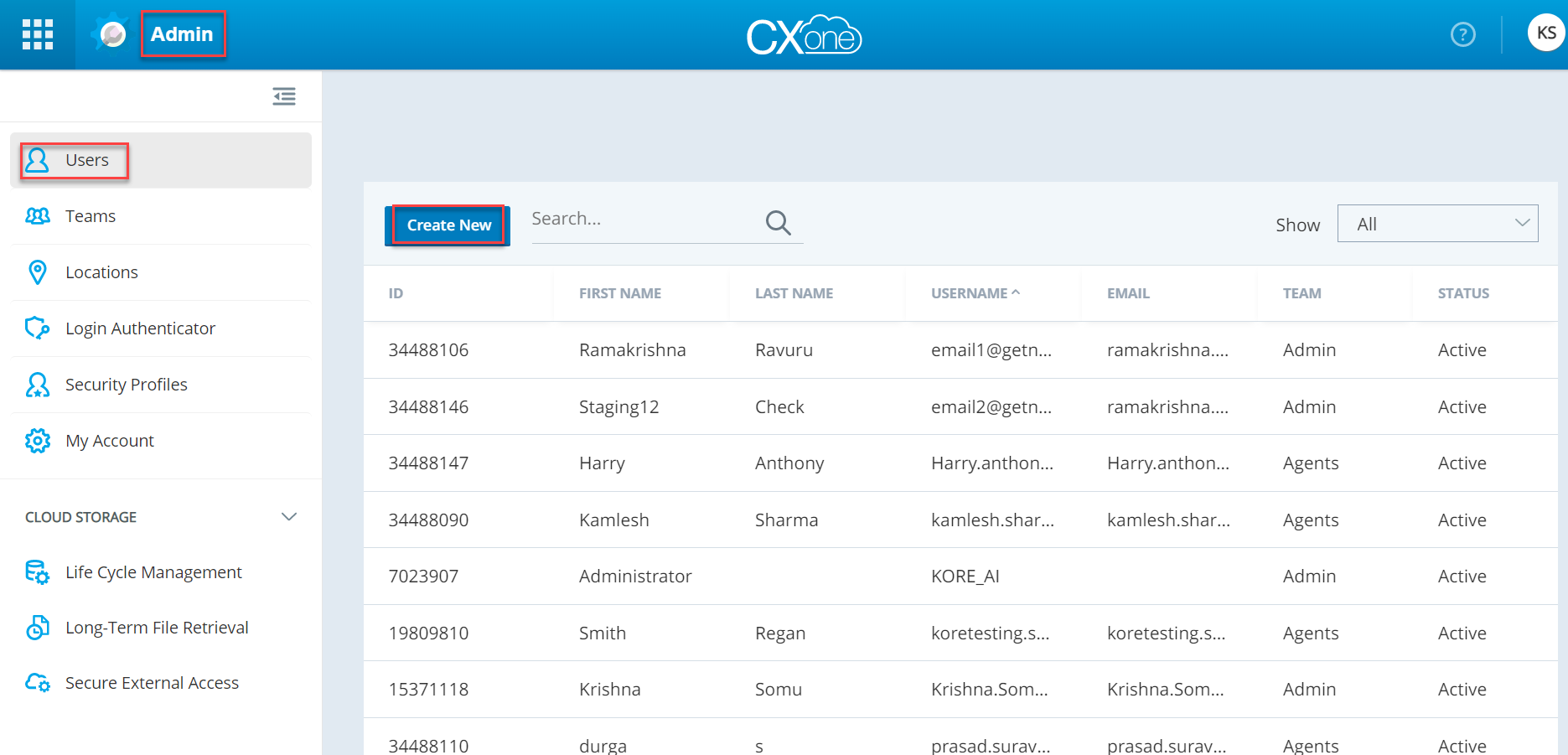
Navigate to Admin > Users and click Create New > Single User.
-
Enter the following user details:
- First Name
- Last Name
- Username
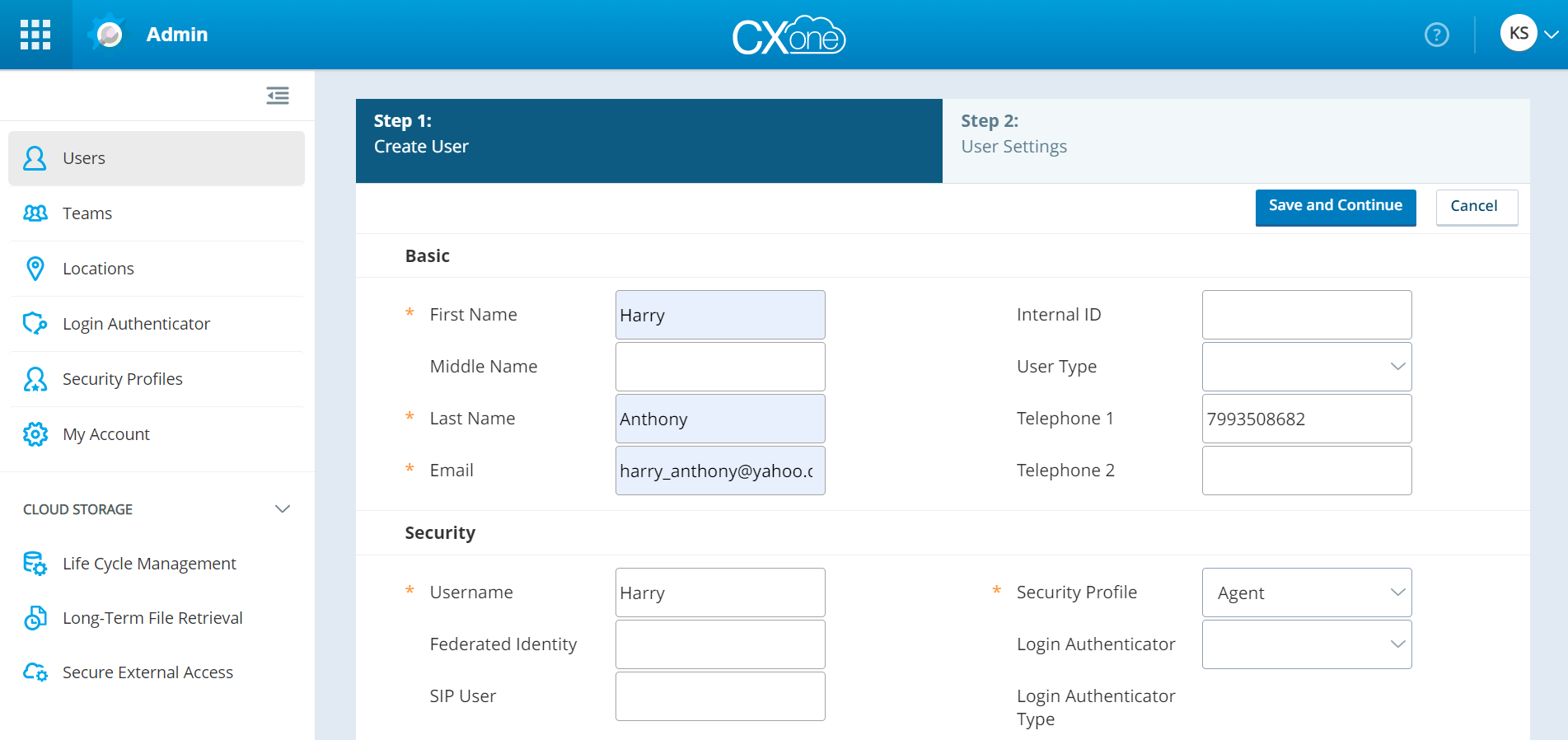
- Click Save and Continue. Note the username and password.
Step 2: Register an App and Retrieve an API Token
- Log in to https://login.incontact.com/.
- Navigate to ACD > ACD Configuration > API Applications and click Create New.
-
Enter:
- Vendor Name:
PlatformIntegration - Application Name:
PlatformInt
- Vendor Name:
-
Under API scope, select only PatronApi.
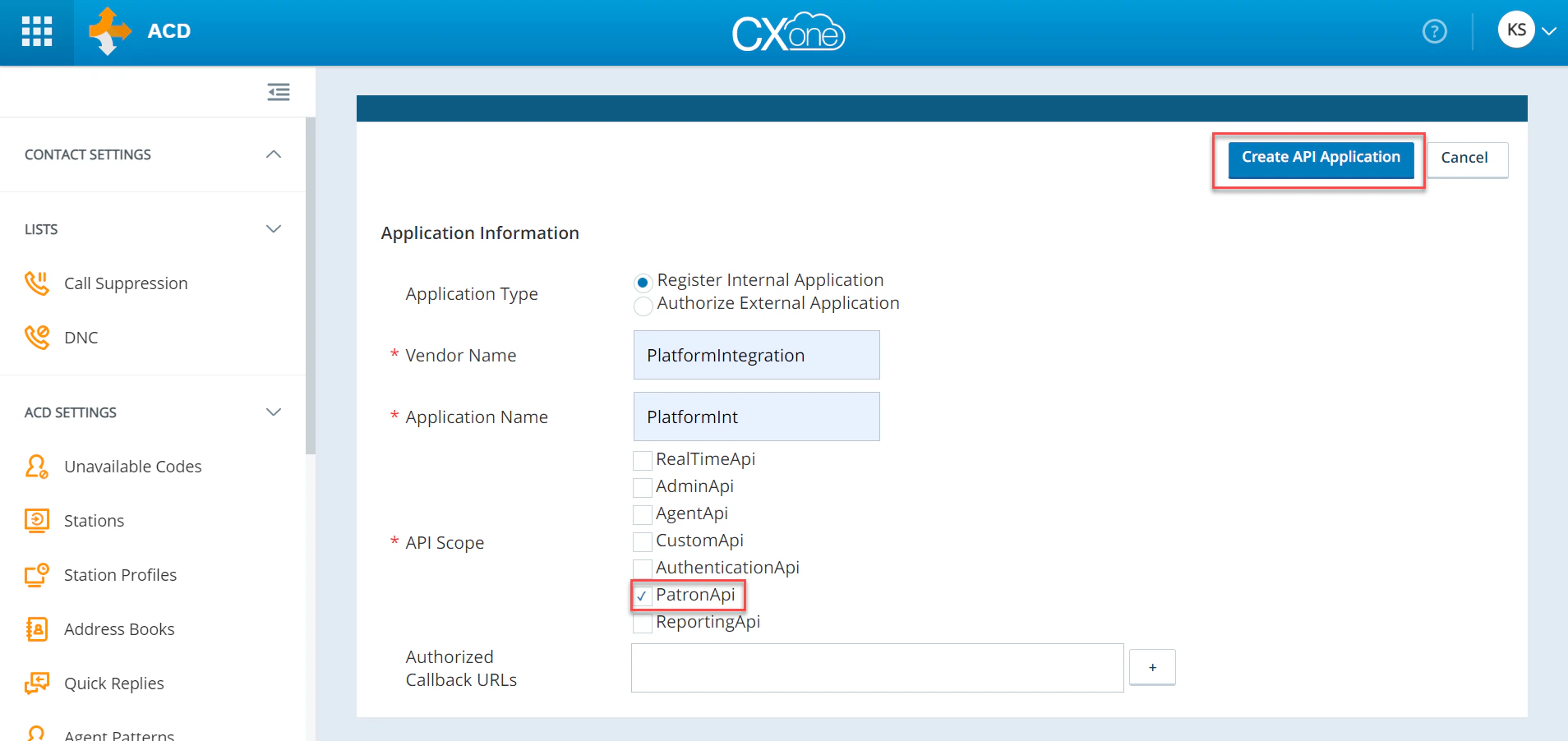
- Click Create API Application.
- Copy the Application Secret and save it.
Step 3: Create a Point of Contact
-
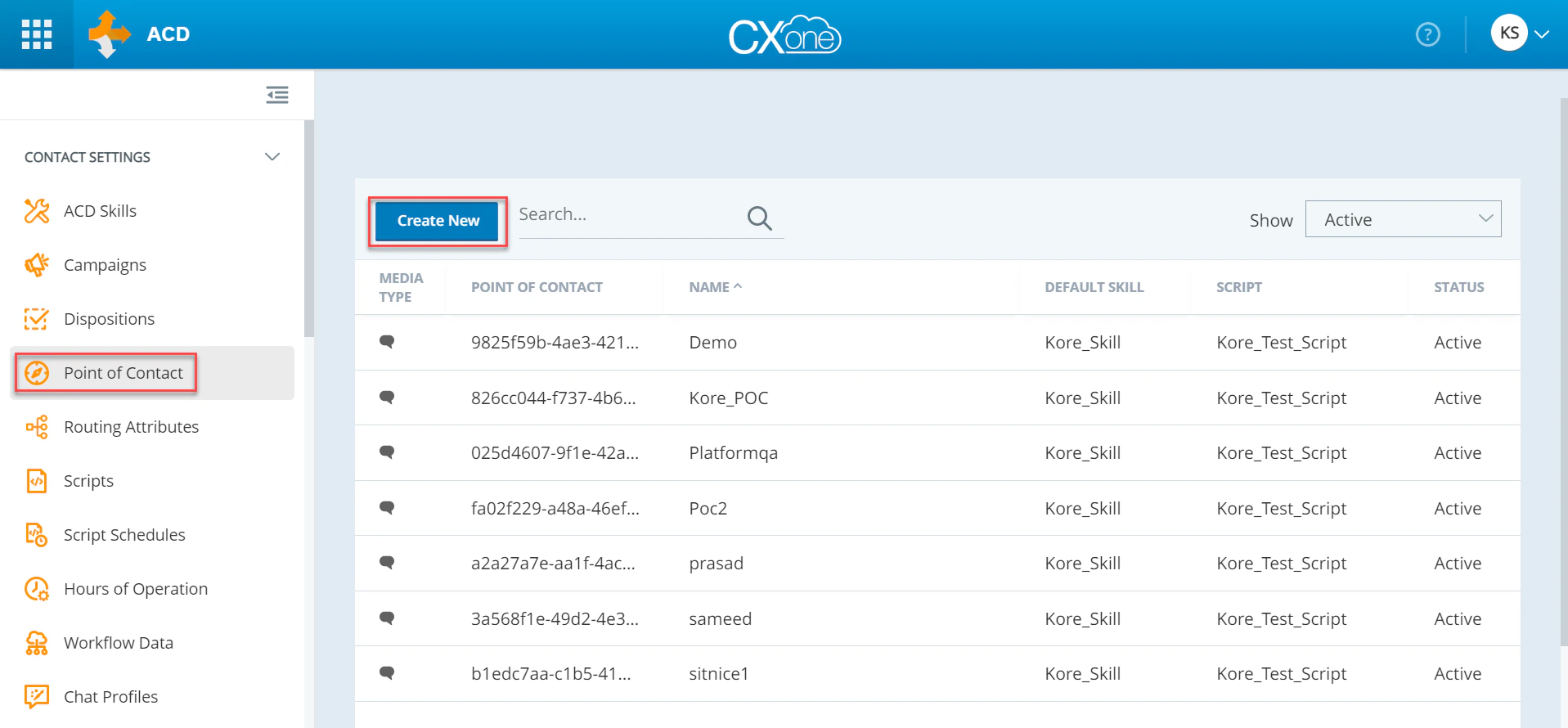
Navigate to ACD > Contact > Point of Contact and click Create New > Single Point of Contact.
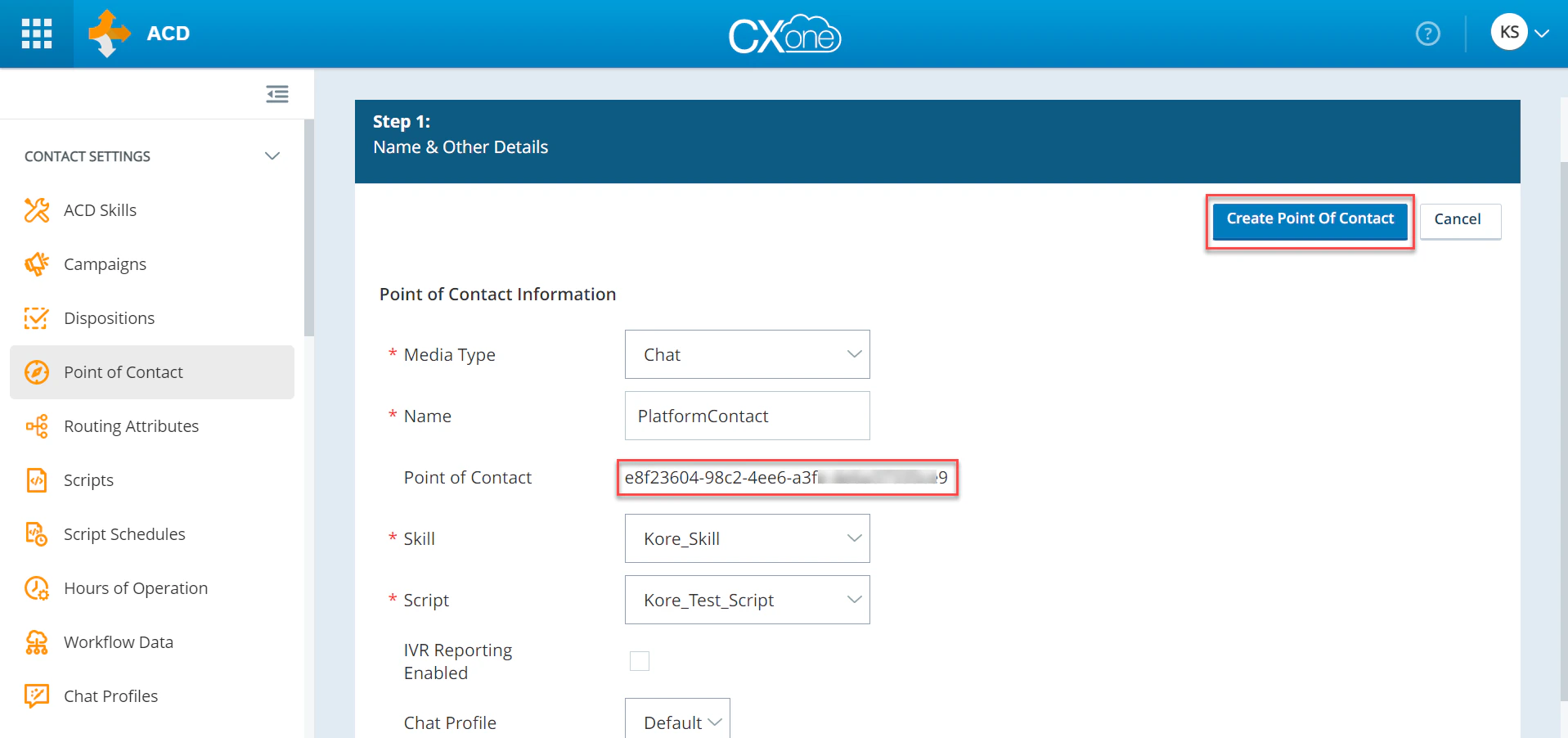
- Set Media Type to Chat.
- Enter Name, select Skills and Script, then click Create Point of Contact.
-
Copy the Point of Contact key and save it.
Step 4: Enable the NiceInContact Agent
- Log in to the Platform.
- Select the AI Agent to configure.
- Navigate to App Settings > Integrations > Agent Transfer and click NiceInContact.
-
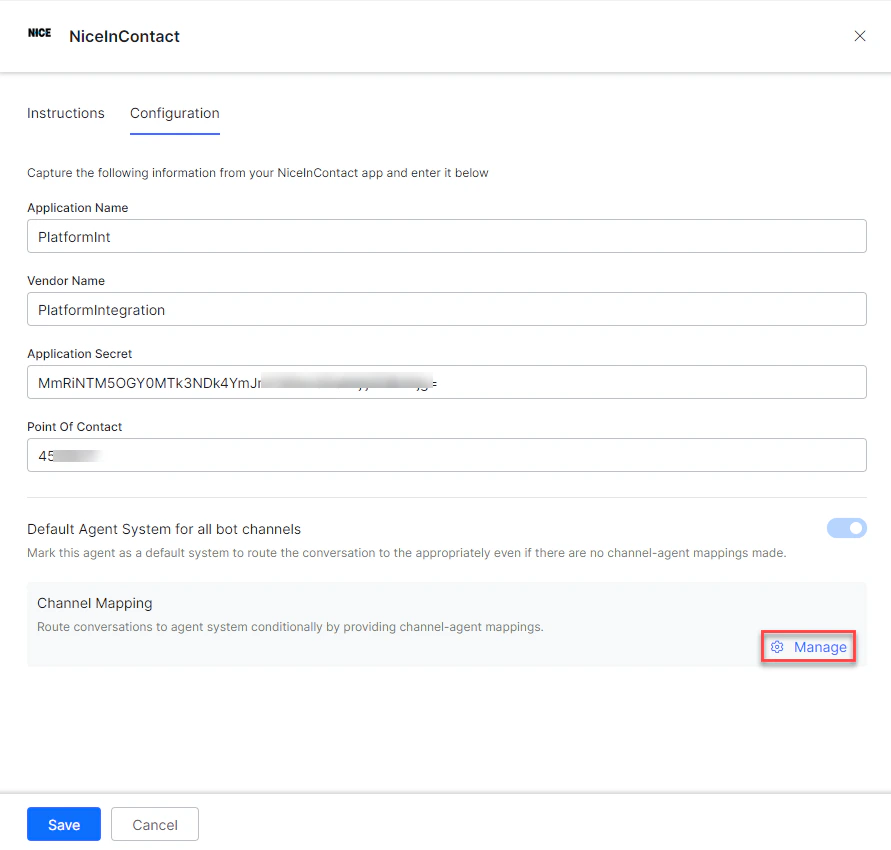
On the Configurations tab, enter:
-
To make NiceInContact the default agent, enable Default Agent System for all app channels.
 This option is only available when multiple agents are configured.
 -
Click Manage to map channels.
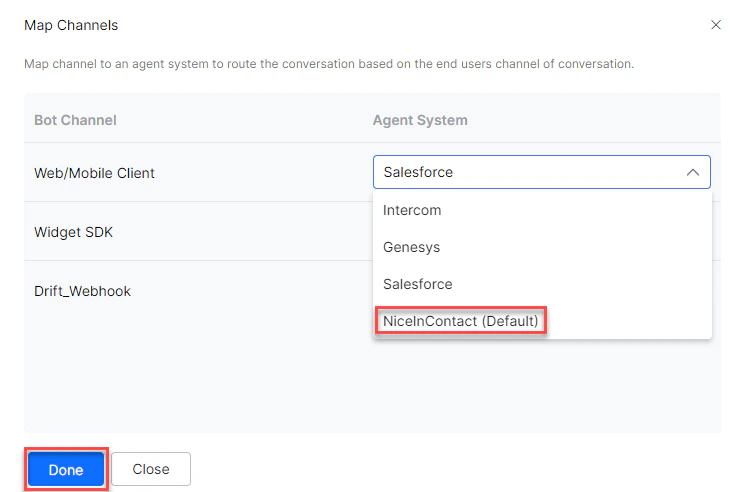
- Select the channels to use NiceInContact for handovers.
-
Click Done.
- Click Save to enable the agent.
- Publish the app. See Publishing your App.
Verify the Integration
- Log in to https://login.incontact.com/ with the user credentials from Step 1.
-
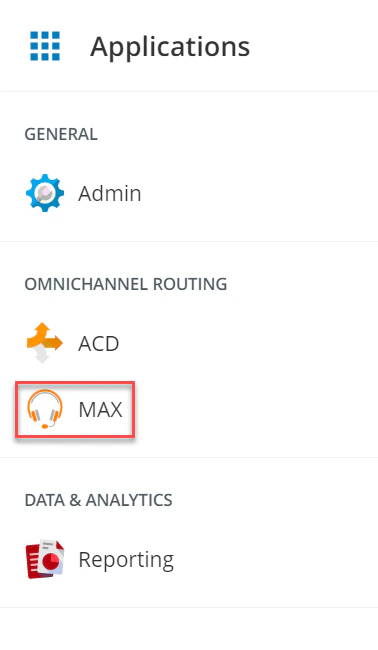
Navigate to Applications > Max to launch the Chat console.
-
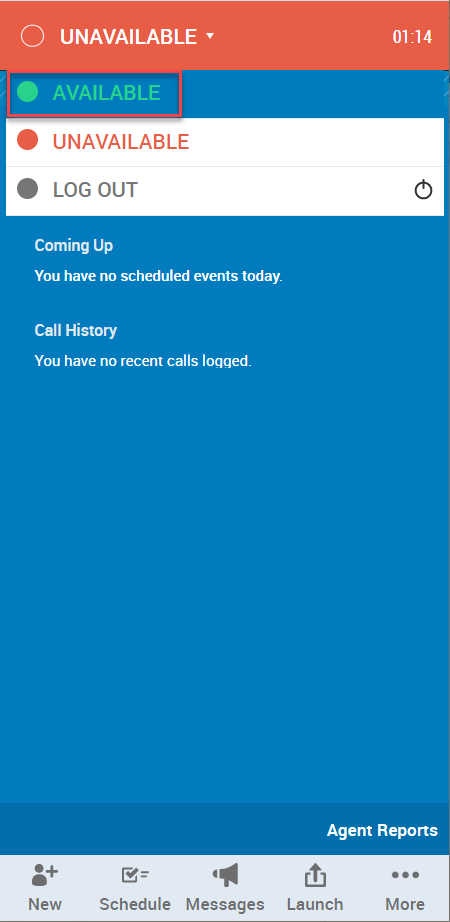
Change status from Unavailable to Available.
-
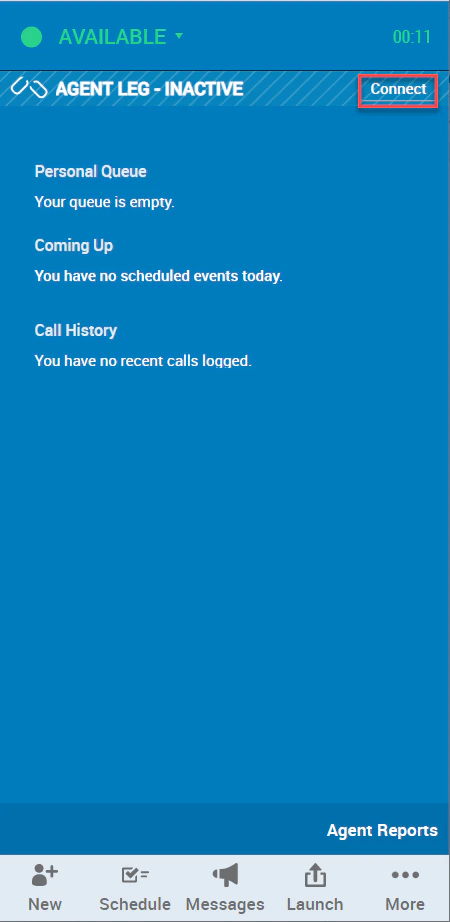
Click Connect.
- Open the AI Agent with NiceInContact enabled.
-
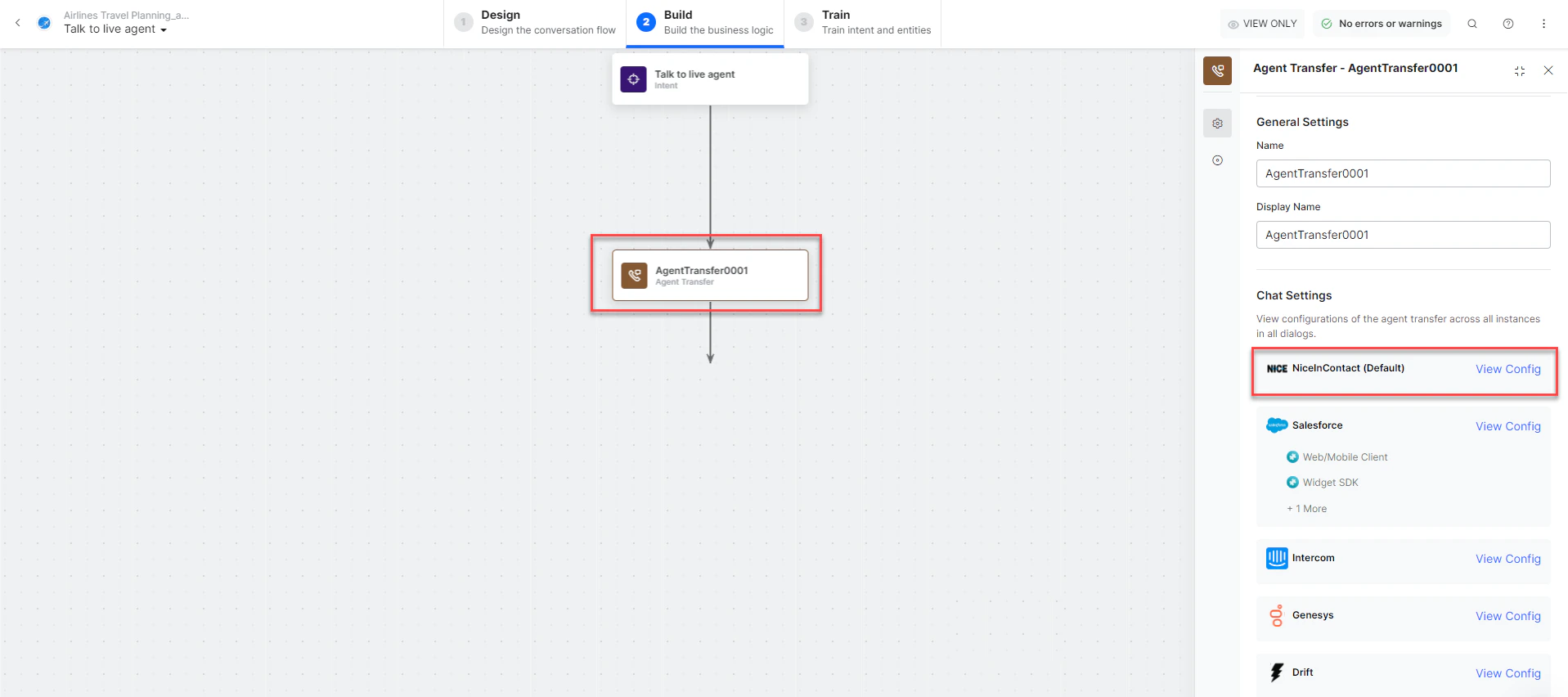
Create an Agent Transfer Node task (for example, a Talk to Live Agent task with a LiveChats node configured to use Nice agent). See Agent Transfer Node.
- Click Talk to Bot and enter Help.
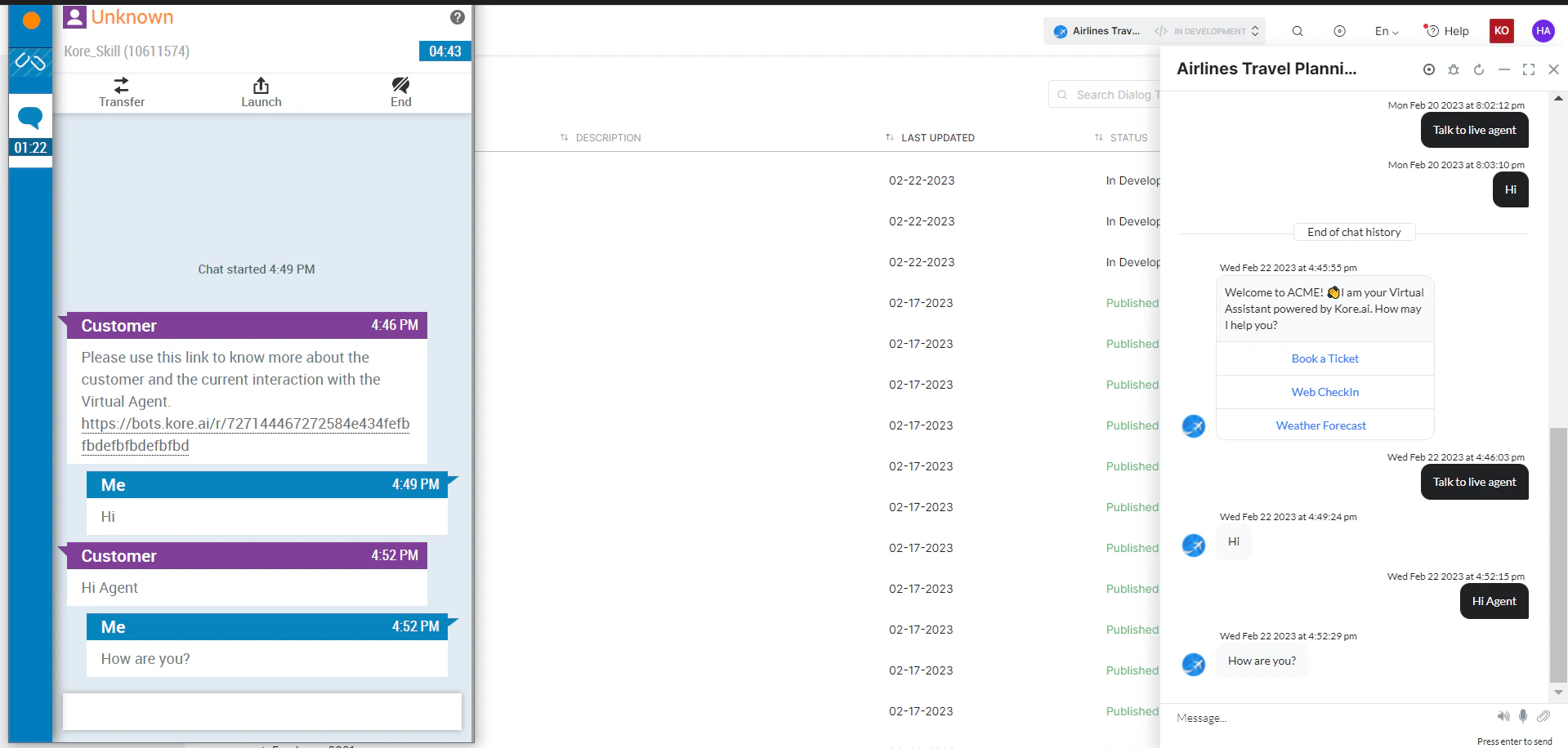
- When the agent transfer dialog is invoked, NiceInContact Chat receives a notification.
-
The conversation transfers to the NiceInContact agent and the connection is established.