

This tutorial may require a newer version of the BotKit SDK. If the downloaded files don’t include
LiveChat.js and LiveChatAPI.js, contact support.Prerequisites
Install the
url-template and node-schedule Node modules (and any other modules referenced in the LiveChat JS files).Get Your LiveChat License ID
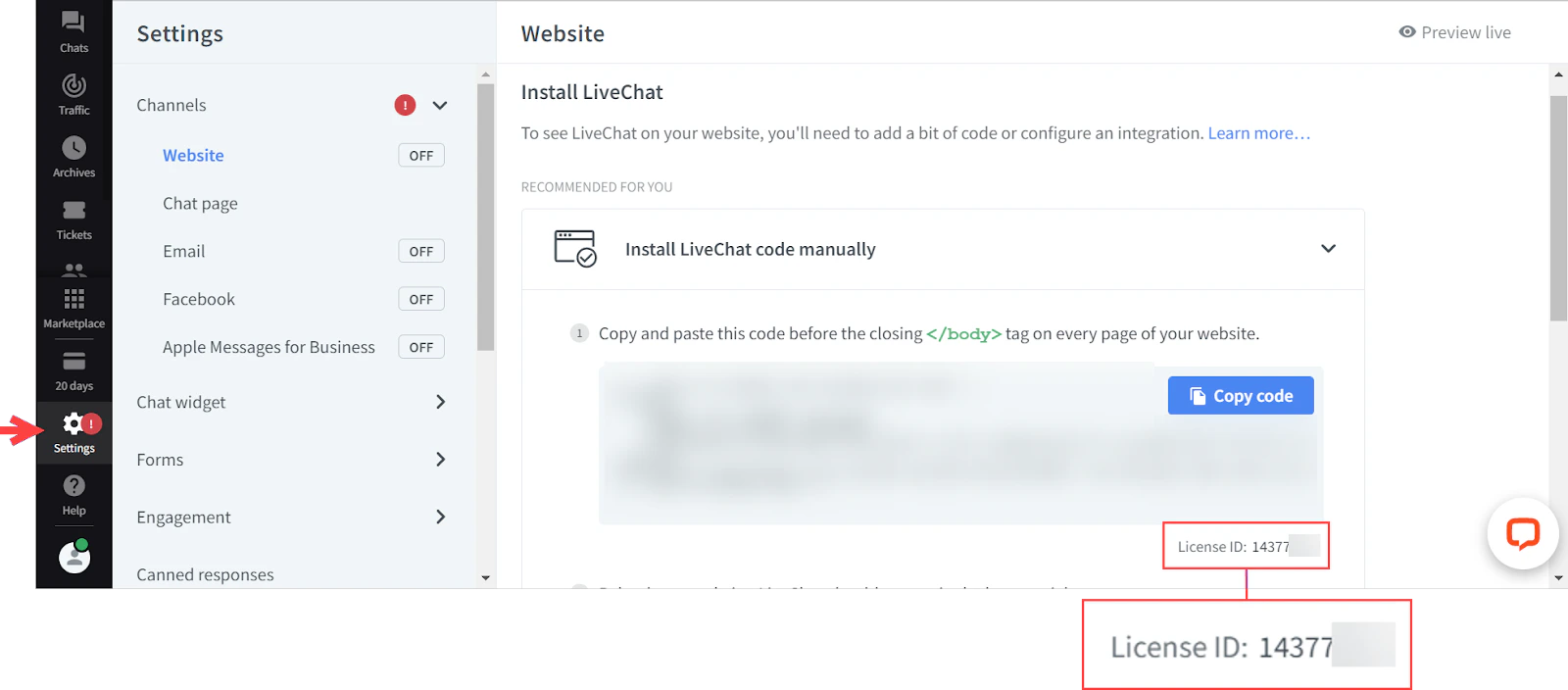
- Log into your LiveChat account and open Settings.
-
On the Website Channel Settings page, find the License ID under the manual install section.
Install and Run ngrok
- Download ngrok from ngrok.com/download.
-
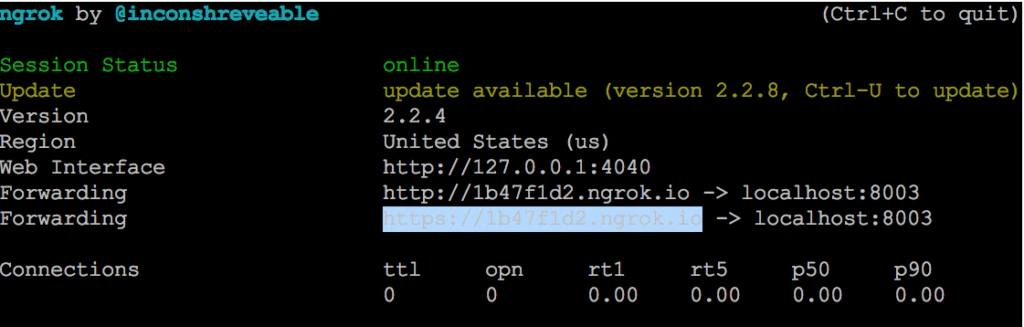
Start ngrok on port 8003:
-
Copy the HTTPS Forwarding URL (for example,
https://1b47f1d2.ngrok.io). Leave ngrok running.
Install Node.js
- Download from nodejs.org/en/download.
-
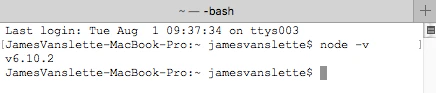
Verify the installation:
Configure the Assistant
Install the Airlines Travel Planning Assistant
- Log into XO Platform and click New Bot > Start from the Store.
- Find Airlines Travel Planning and click Install.
- After installation, create an Agent Transfer dialog task. See Dialog Builder and Agent Transfer Node.
Register Your App and Generate Credentials
-
In the XO Platform, go to Build > Integrations > BotKit.
RS256 and RS512 JWT signing algorithms aren’t supported for BotKit.
- Click Add next to the App name dropdown, enter a name, and click Next.
- Copy the Client ID and Client Secret. Click Done.
-
In Callback URL, paste the ngrok Forwarding URL (for example,
https://1bXXXXd2.ngrok.io).Each ngrok session generates a new URL. Update the Callback URL field whenever you restart ngrok. -
In Events, select:
- OnMessage — Triggered when a user message is received.
- OnAgentTransferNode — Triggered when an Agent Transfer node is reached.
- Click Save. The Successfully subscribed message appears.
Publish the Assistant
Publishing is required to share the assistant with other users. For testing only, skip to Configure the BotKit SDK. For publishing steps, see Publishing your App. After publishing, deploy in the Admin Console:- Enterprise Users — Go to Bots Management > Enterprise Bots, click Ellipses > Manage bot tasks, select all tasks, and assign the bot to users via Bot & task assignments.
- General Public — Go to Bots Management > Consumer Bots, click Ellipses > Manage bot tasks, and select all tasks.
Configure the BotKit SDK
-
Download and extract the BotKit SDK from github.com/Koredotcom/BotKit. Verify that
LiveChat.jsandLiveChatAPI.jsare included. -
Edit
config.jsonwith your credentials: -
In both
LiveChat.jsandLiveChatAPI.js, update the following variables with your assistant’s Bot Name and Bot ID (found in Configurations > General Settings):
Start and Test
-
In a Terminal window, navigate to your BotKit SDK folder and run:
Expected output:
app listening at https://:::8003 -
Testing checklist:
- ngrok running:
ngrok http 8003 - Node.js running:
node app.js - LiveChat: logged in, Chat page open
- XO Platform: click Talk to Bot (bottom-right corner of any page)
- ngrok running:
- After the Agent Transfer dialog triggers, messages are exchanged between LiveChat and the BotKit SDK.