
Projects are the foundational organizational unit in the Agent Management Platform. They act as flexible containers for AI agent initiatives—whether you are managing a single AI agent, orchestrating multi-agent workflows, or governing entire business processes. Within a Project, you can bring together everything needed to evaluate an agentic ecosystem—configuration, telemetry, policies, datasets, prompts, and access controls—all in one place. You can connect any agent or agentic app that you want to observe, govern, or analyze, including those from AI for Work, AI for Service, Agent Platform, and external or third-party agentic systems. Once an agent is linked, the Project becomes the single space to monitor performance, review runs, track metrics, apply governance, view analytics, manage models and datasets, and configure notifications.Documentation Index
Fetch the complete documentation index at: https://koreai.mintlify.app/llms.txt
Use this file to discover all available pages before exploring further.
Key Benefits
| Benefit | Description |
|---|---|
| Isolated work environment | Keeps data, models, and configurations separate between different teams or products. |
| Agent lifecycle management | Provides a dedicated space to manage an AI agent’s lifecycle, evaluation, and performance. |
| Unified integration hub | Centralizes external connections (such as LLMs and vector databases) required for that specific project. |
Key Capabilities
| Capability | Description |
|---|---|
| Project Lifecycle | Create, configure, and archive projects with full metadata management (name, description, business context, owner assignment). |
| Business Baseline Configuration | Define financial (cost/revenue per task, volume projections), operational (manual handling time, FTE capacity, throughput rates), and quality (CSAT targets, error rate thresholds, SLA requirements) baselines. |
| Team Management | Invite workspace members to projects, assign roles (Project Admin, Project Viewer), and manage access permissions via integration with Common Admin Service. |
| Project Settings | Configure telemetry retention policies, notification preferences, custom metadata fields, and archival workflows. |
Key Use Cases
Projects support a wide range of AI initiatives across business functions. For example:- Customer service teams deploying chatbots must demonstrate reduced support costs and improved CSAT scores. Projects provide the telemetry, baselines, and analytics needed to validate these outcomes.
- Operations teams implementing process automation need to measure time savings and error reduction against baseline human performance. Projects centralize performance data, policy controls, and evaluation tools, enabling teams to verify impact.
A Project does not provide agent-building features. Instead, it offers a dedicated environment to understand how your AI agents behave and perform.
Projects Dashboard
When you sign in to AMP, you land on the Projects Dashboard, which provides a high-level view of all Projects in your workspace—helping you see which are active, which may need attention, and where to dive deeper. You can use this page to:- Get an overview of all Projects in your workspace.
- Identify Projects that may require attention (such as those with active notifications).
- Open a Project for deeper analysis.
- Create a new Project
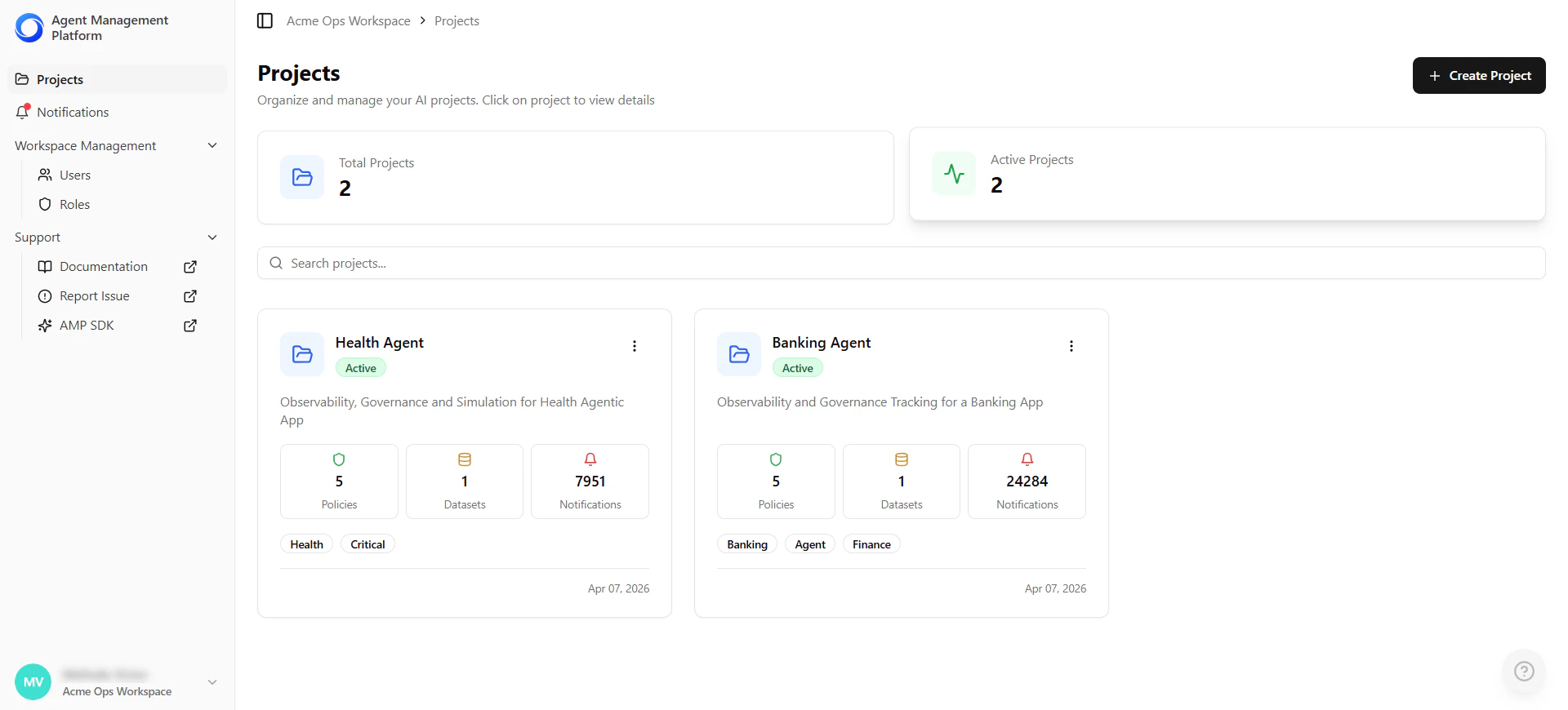
| Field | Description |
|---|---|
| Name & Description | Identifies the Project at a glance. |
| Status | Indicates whether the Project is Active or Archived. |
| Tags | Labels for team, business area, or workflow. |
| Policy Count | Number of policies governing the Project. |
| Dataset Count | Number of datasets associated with the Project. |
| Active Notifications | Highlights areas that require action. |
| Last Activity | Timestamp of the most recent update. |
Creating a New Project
Use this procedure to create a new Project and set up the workspace for your AI agent initiative.Prerequisites
You must have one of the following workspace roles:- Account Admin
- Project Admin
Steps
- Sign in to the Agent Management Platform and go to Projects.
- Select Create Project.
-
Enter the project details:
Field Description Project Name Enter a clear, unique name. Description (Optional) Add context about the project’s purpose or scope. Project Tags (Optional) Add labels such as Training, Production, or Release to support filtering and reporting. -
Configure SDK Integration:
Field Description API Key Generated when the project is created. Use this key when integrating your AI agents with the SDK. API Key Expiration Select a validity period from the dropdown. You can rotate API keys later if needed. The API key identifies the project when agents send telemetry data. Any telemetry received through this key is automatically associated with this project. For example, when a client integrates their agents with the SDK using this key, those agents send telemetry into this workspace, and the platform displays the data within this project. - Configure business baselines (optional): Define pre-automation benchmarks such as financial, operational, or quality metrics used to calculate ROI and efficiency improvements.
- Select Create Project. Your project is created successfully.
- Copy the generated API key. The platform displays the API key immediately after project creation for use in SDK integration.
-
Review the recommended Next Steps:
- Manage users and permissions.
- Register models.
- Configure baselines.
- Define policies for governance.
- Select Go to Project to open the Project Overview page.
You can have up to 50 active projects per workspace.
Project Overview Page
The Project Overview page is the home page for a Project. It provides a high-level summary of the project’s status, performance, and activity, with quick access to key configuration and monitoring features.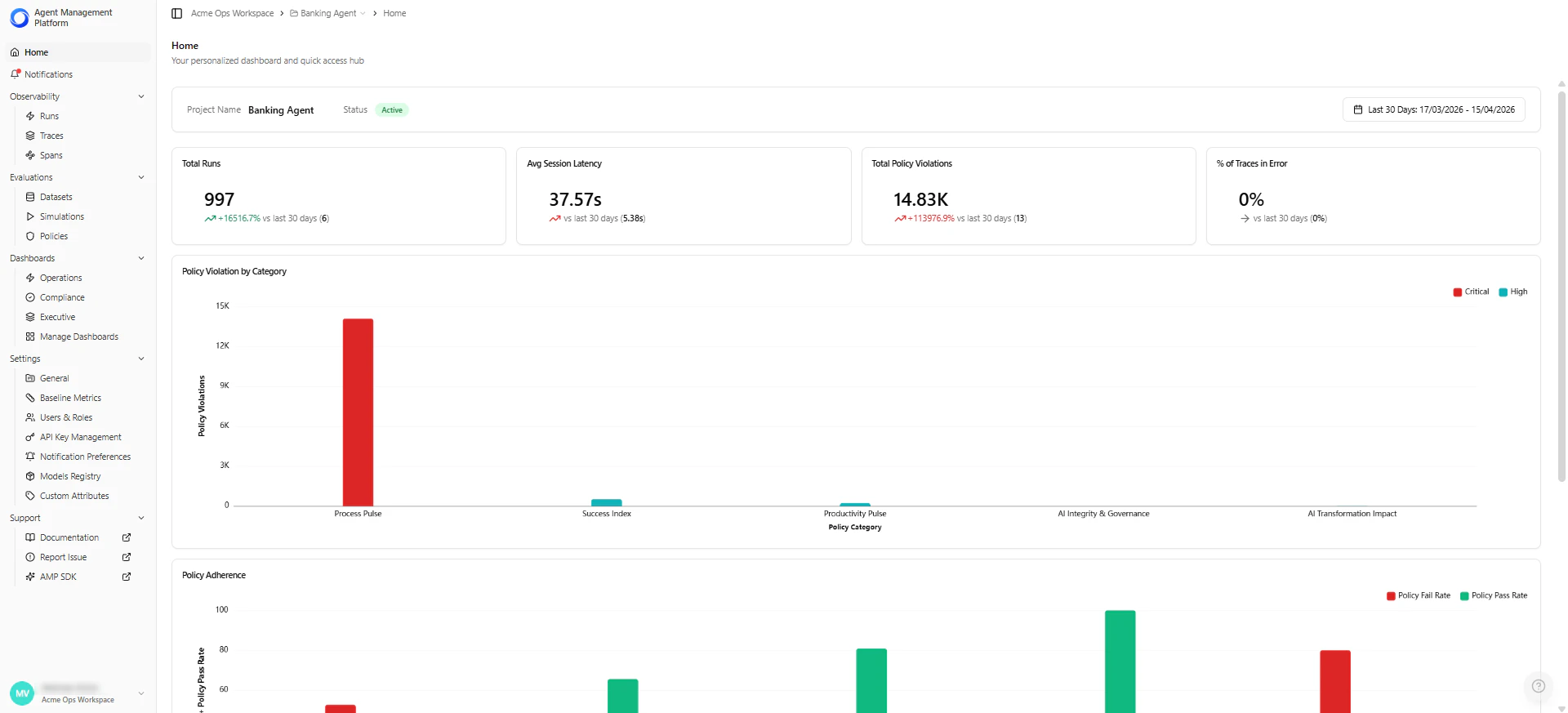
| Section | Description |
|---|---|
| Project Info | Name, description, tags, status (Active or Archived), and last updated timestamp. |
| Metrics | Total runs, error rate, latency, and policy violations—giving a quick view of agent performance. |
| Visualizations | Charts to track run volume, latency distribution, error patterns, and policy violations over time. |
| Quick Access Modules | Shortcuts to Observability, Policies, Models, Datasets, Simulations, Notifications, API Keys, Users, Prompts, and Documentation. |
How Projects Relate to Workspaces
Projects are tied to a Workspace and inherit the Workspace’s user list. Each Project then manages its own roles and permissions. You can connect any agent or agentic app deployed in the same Workspace—whether from AIS, AIW, or external sources—to a Project. Most teams link one app to one Project, but you can also connect multiple apps for a unified view of metrics and telemetry. Projects give you flexibility:- Use one Project per agentic app for clean separation.
- Combine multiple apps into a single Project for a consolidated view of performance and telemetry.