

Overview
The process involves three steps:Step 1: Link Your Salesforce CRM Account
-
Go to Marketplace in the left navigation and select Salesforce CRM integration.

- Click Install at the top right. The Instructions tab opens.
- Click the Authenticate and Install tab.
-
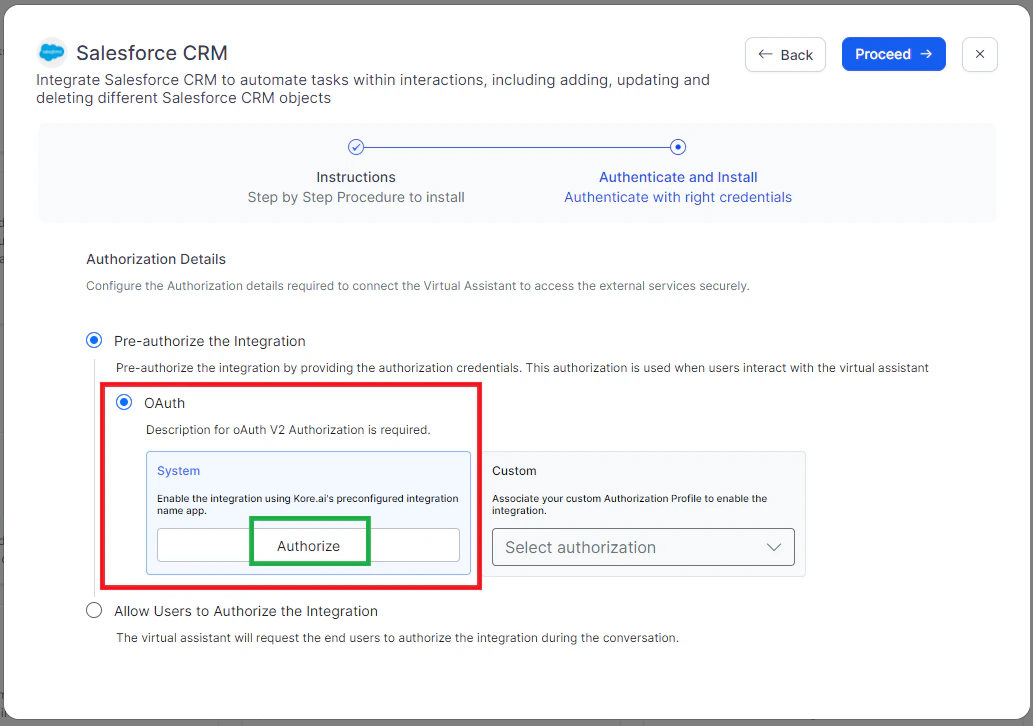
Under Authorization Type, select Pre-authorize the Integration and then OAuth.

-
Select System and click Authorize. You are redirected to the Salesforce login page.
- Enter your developer account credentials to connect your Salesforce account.
-
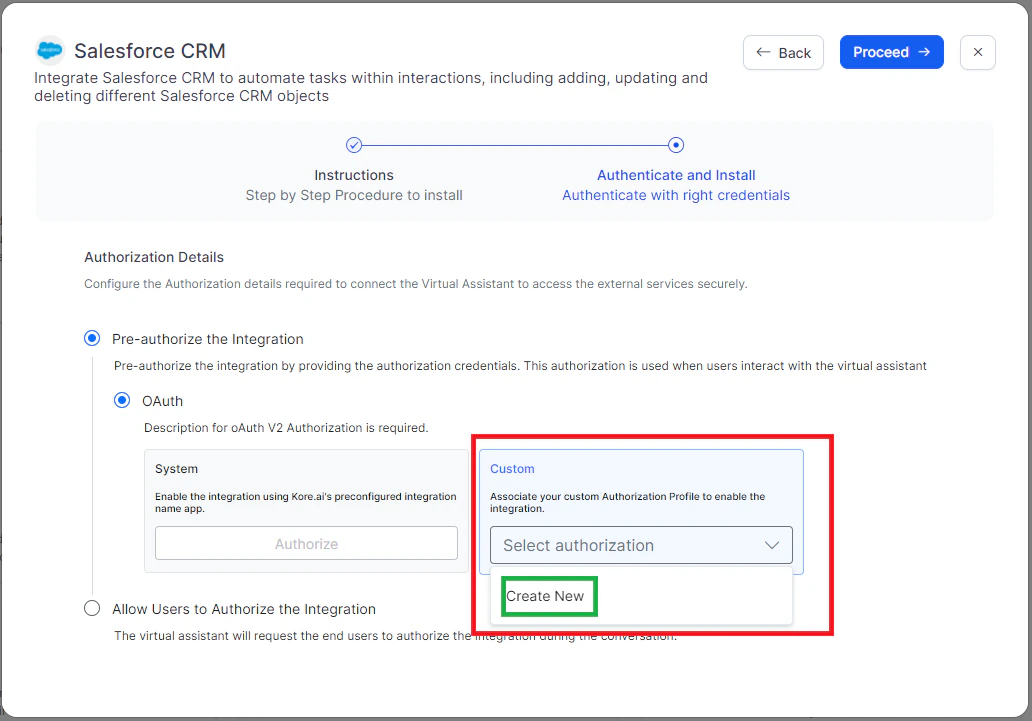
Select Custom, then click Select Authorization > Create New.
-
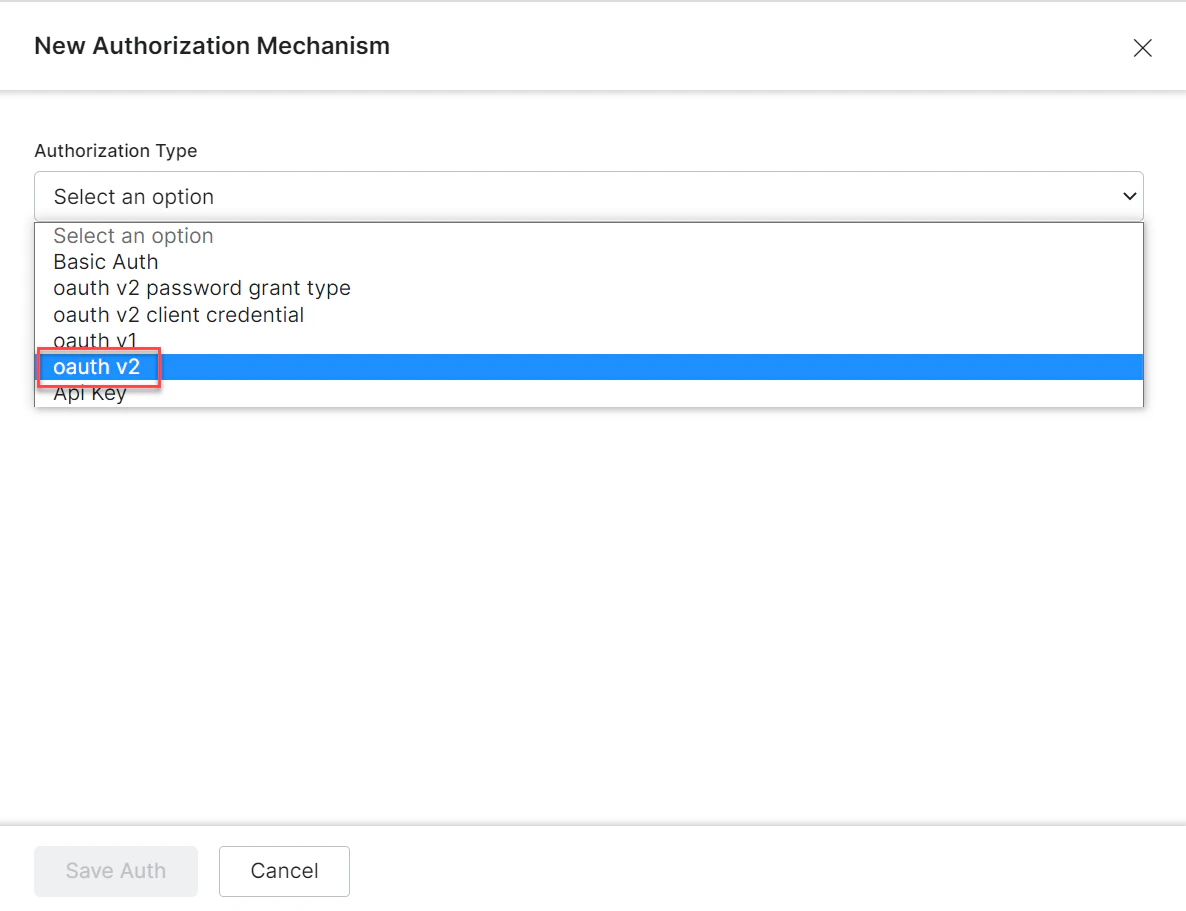
Select OAuth v2. See Setting Up Authorization Using OAuth v2.
-
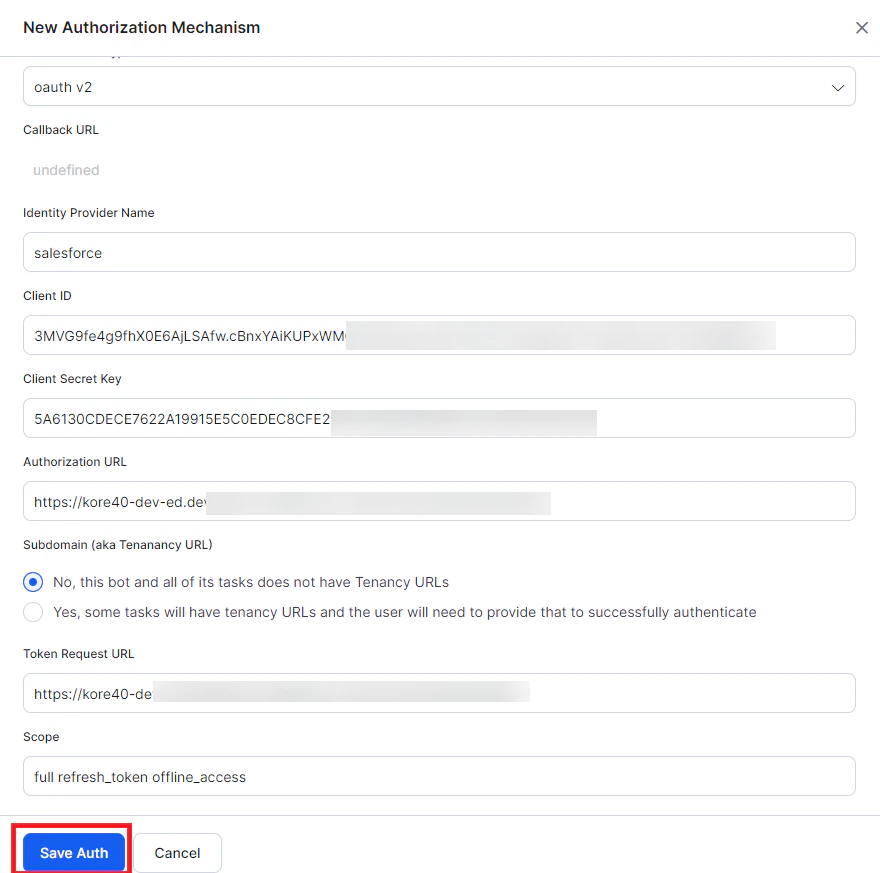
Enter the following credentials:
-
Click Save Auth, select the new profile, and click Authorize. You are redirected to
login.salesforce.com.
-
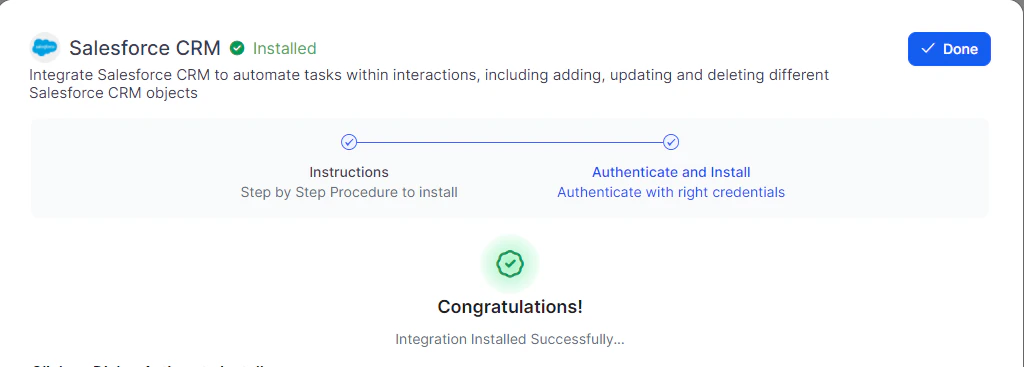
Enter your login credentials. After successful authorization, click Proceed. The Integration Installed Successfully confirmation is displayed.
Step 2: Install the Lead Capture Template for Salesforce CRM
-
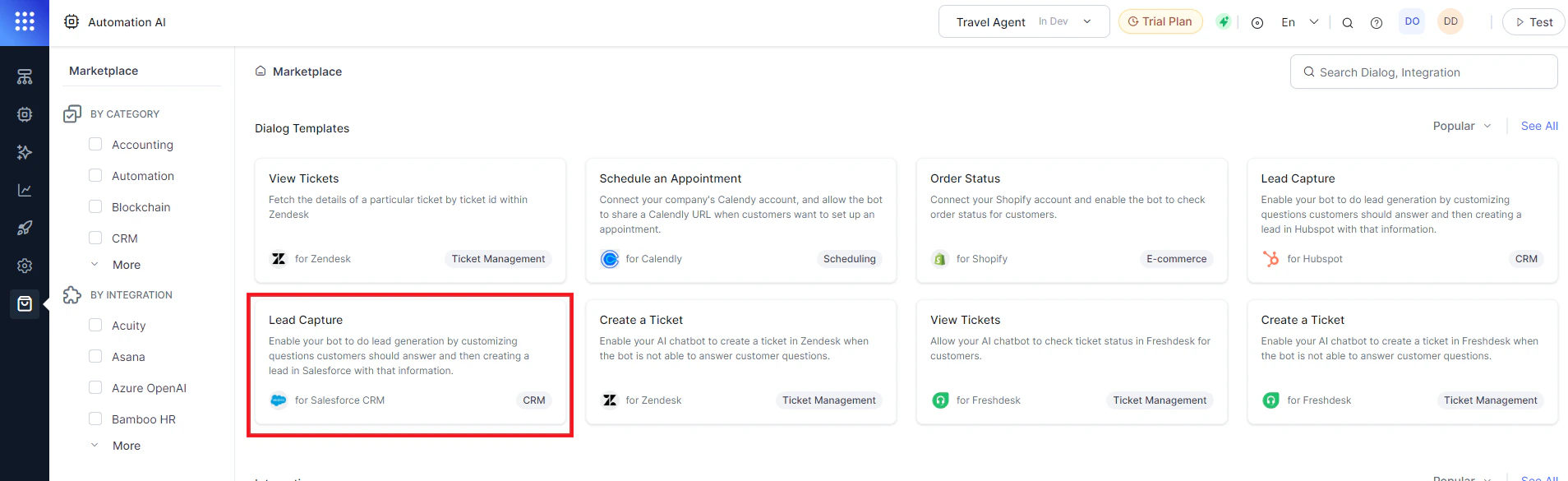
Go to Marketplace and select the Lead Capture for Salesforce CRM dialog template.
-
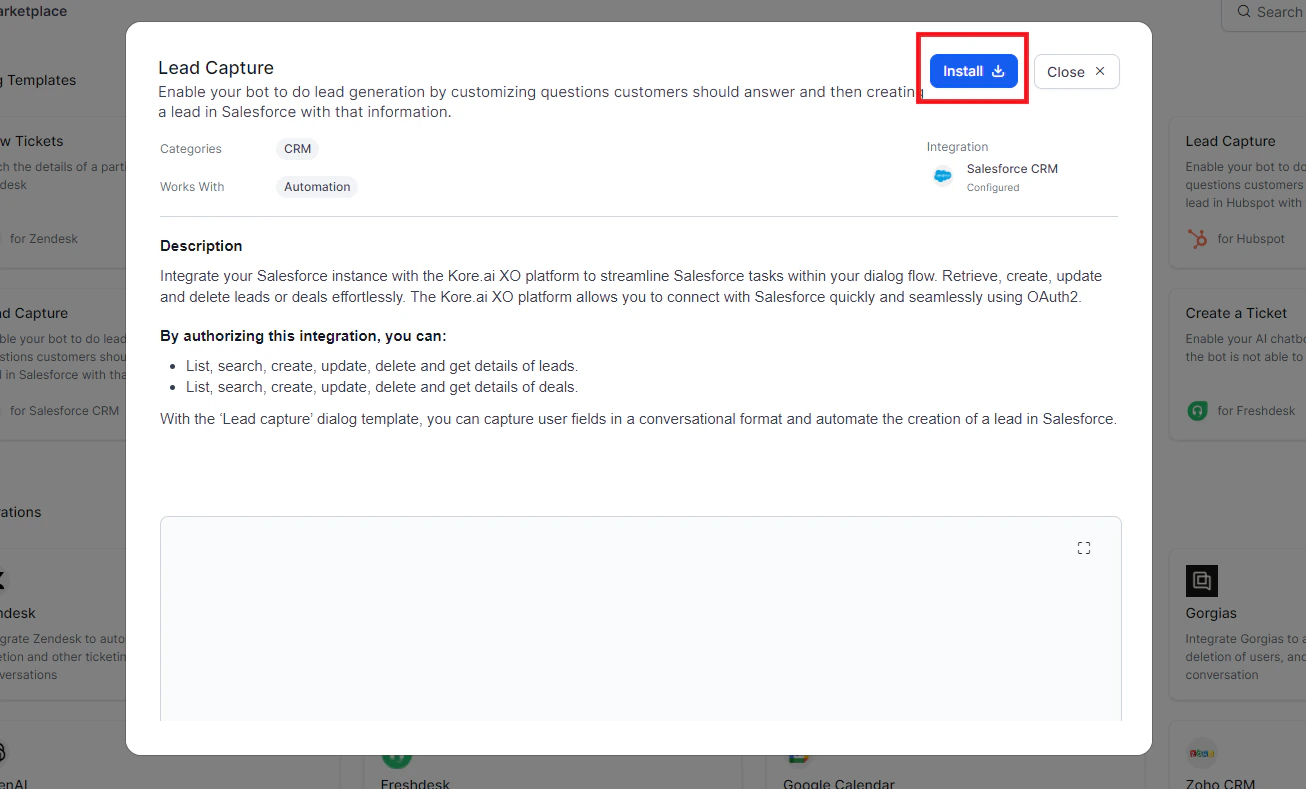
Click Install.
-
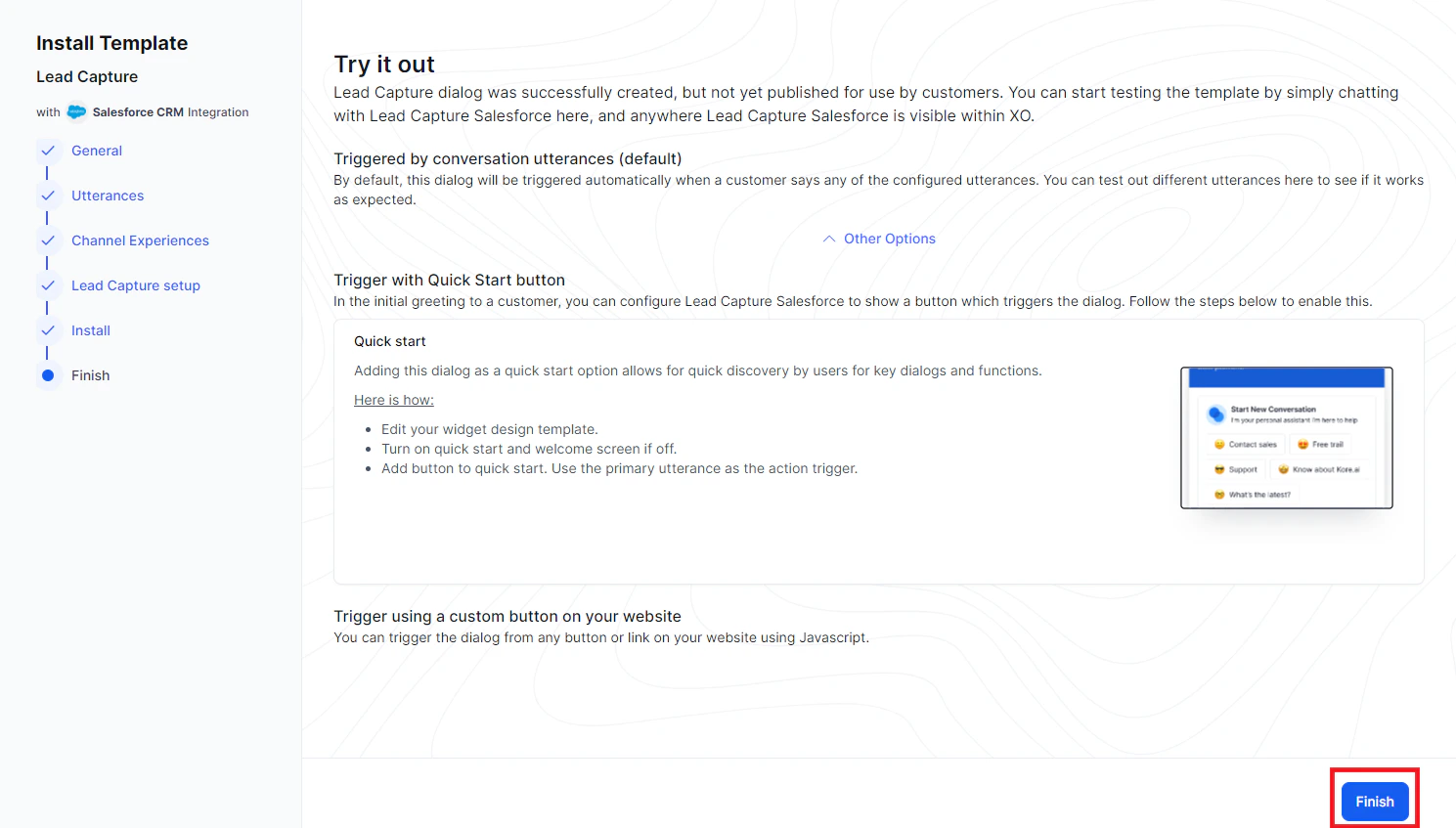
Fill in the dialog task details:
-
Click Finish. The dialog task is auto-created and listed under Automation AI > Use Cases > Dialogs.
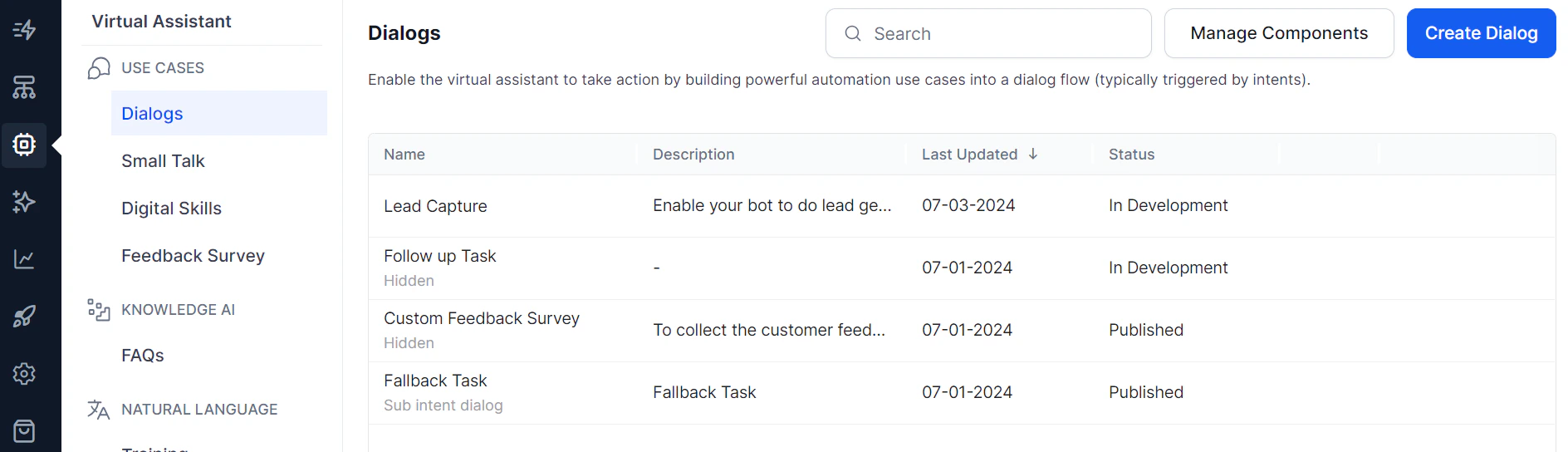
Step 3: Train and Test the Dialog Task
- Click the Test icon.
- Select a conversation type (Voice or Chat).
- Click Train to process untrained utterances.
-
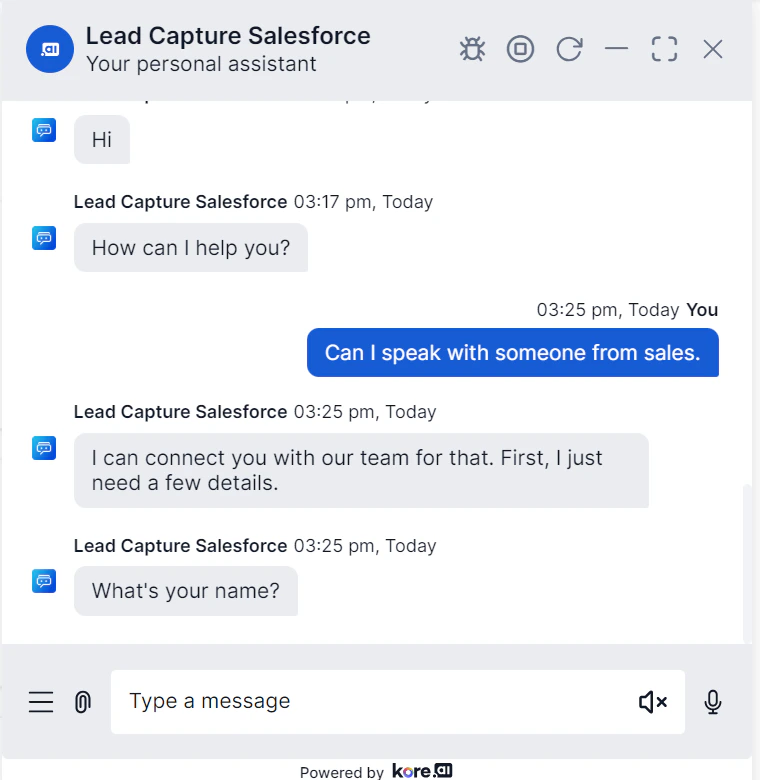
Follow the prompts in the App console to create a lead.
-
Enter lead details when prompted.

-
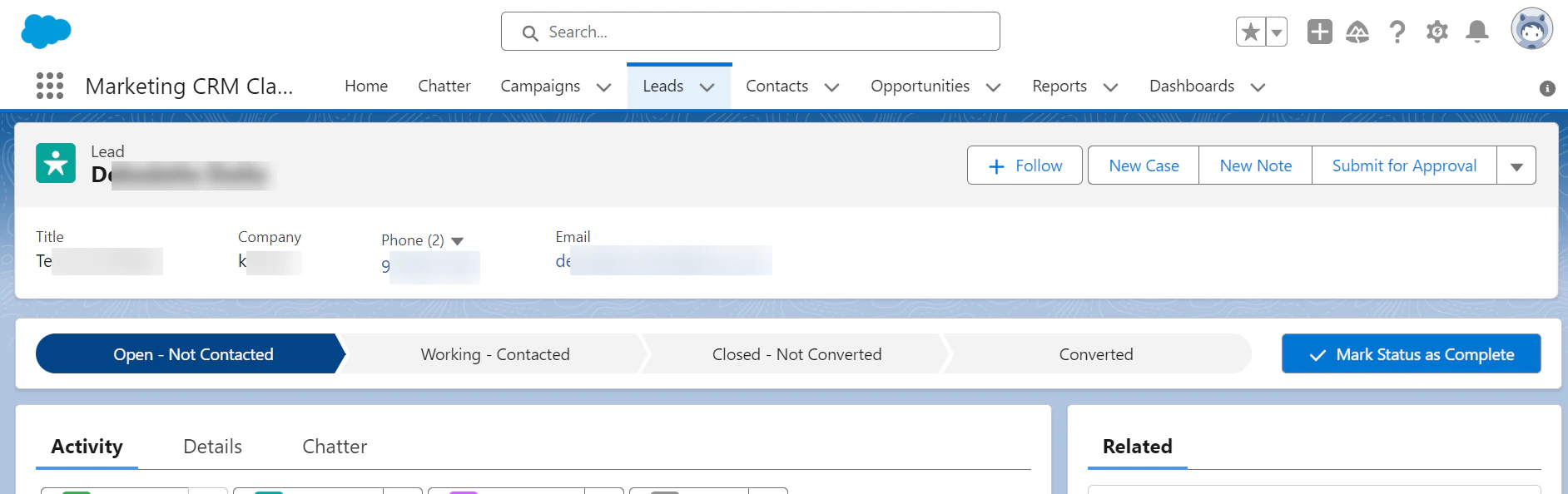
The lead is created in Salesforce CRM. To view it, log in to Salesforce, then go to App Launcher > Marketing CRM Classic > Leads.
- Publish your app to make this capability available to end users.