Back to App Settings OAuth v2 is the new version of the open protocol to allow secure authorization via a standard method from web, mobile, and desktop applications. To use oAuth v2, you must first register an account with the web application — you will need the sign-in credentials for that application to configure the Authorization Mechanism settings.

How OAuth v2 Works

OAuth v2 authorization works as follows:
  1. The XO Platform redirects the user to a login dialog at the web application.
  2. The user authenticates.
  3. The web application redirects the user back to the XO Platform with an access token.
  4. The XO Platform validates the access token.
  5. The access token allows the XO Platform to access a protected resource at the provider, on behalf of the user.

Configuring OAuth v2 Authorization

  1. Open the assistant for which you want to configure an Authorization profile.
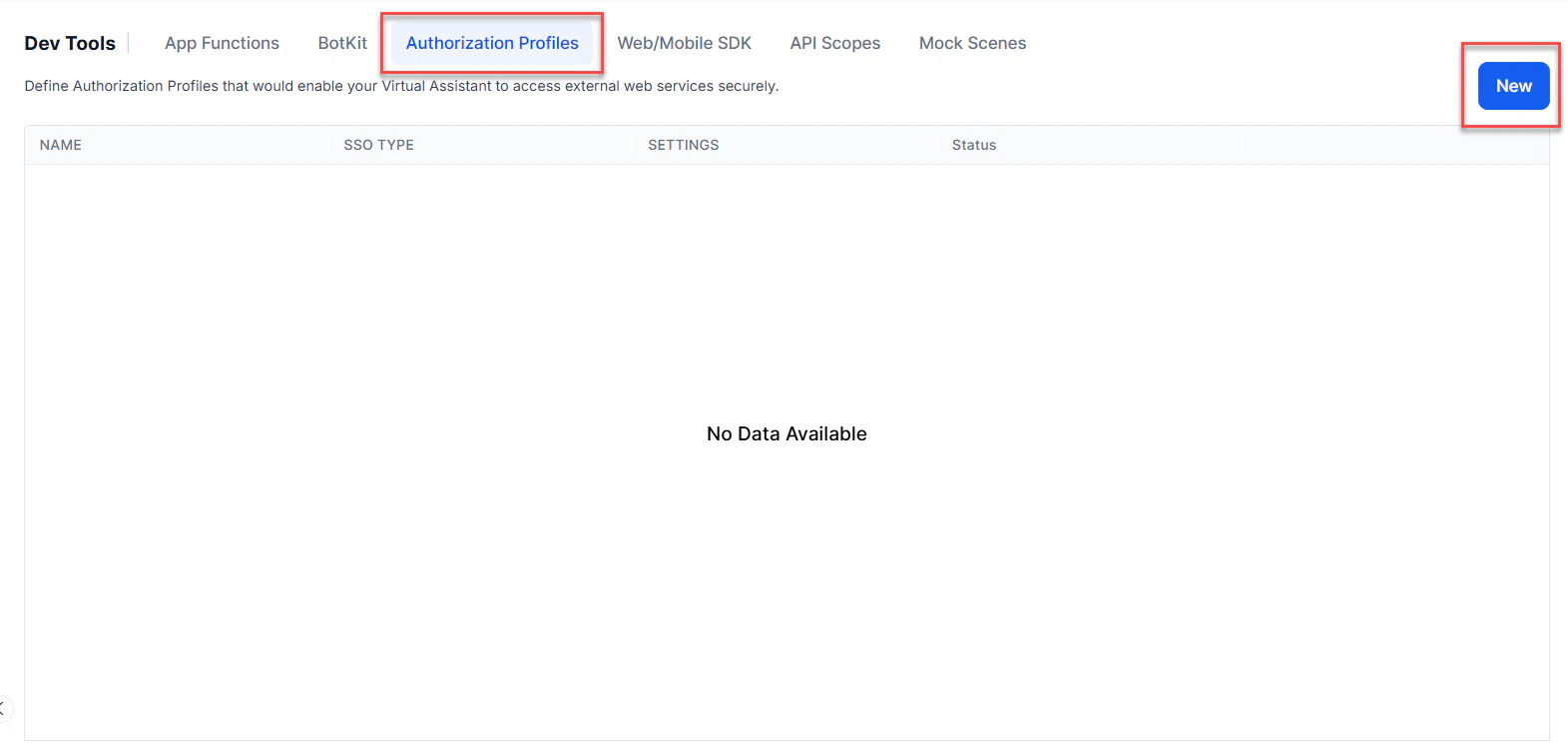
  2. From the left menu, click App Settings, then select Dev Tools > Authorization Profiles.
  3. Click New to open the New Authorization Mechanism dialog. Auth profile - Add
  4. In the Authorization Type drop-down list, select oauth v2.
  5. In the Name field, enter the name for your authorization.
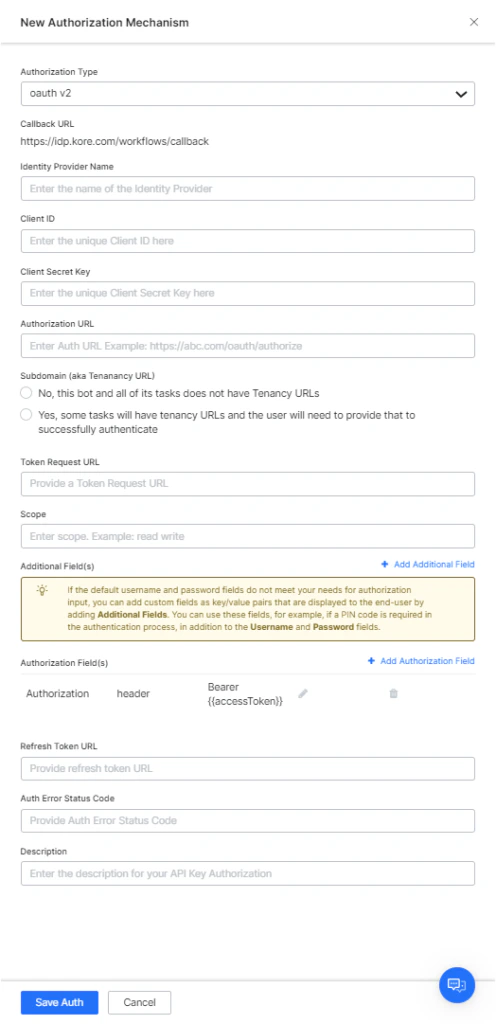
The following illustration shows the oAuth v2 fields you must define to enable authorization for your assistant. OAuth V2 fields to define

Defining Configuration Fields

To configure oAuth v2, define the fields described in the following table.
FIELD NAMEDESCRIPTION
Authorization TypeSet to oAuth v2.
Callback LinkThe URL used by the web application or web service to redirect the end-user after authorization is complete. The value https://idp.kore.ai/workflows/callback/ is provided as a read-only value by the XO Platform when you define oAuth v2 settings.
Identity Provider NameThe name of the web application or web service, for example, Asana. This field is required.
Client IDThe ID of the Kore.ai client. The XO Platform accepts a maximum length of 255 characters.
Client Secret KeyThe value provided as the XO Platform authentication based on the Client ID to the web application. The XO platform accepts a maximum length of 255 characters.
Authorization URLThe URL used to obtain end-user authorization for the XO Platform to access the web application or web service using the access token. The XO Platform accepts a valid URL with a maximum length of 3000 characters. This field is required. You can use dynamic fields, path parameter fields, query fields, and so forth, for example: https://platform.example.com/sap/opu/odata/sap/{{authfield1}}/?$format=json or https://{tenant}.service-now.com/api/now/v1/table/incident
Access Using a ConnectorSelect Yes to enable access for AI Agent using the Kore.ai Connector agent. This option is only visible if a Kore.ai Connector agent is configured and enabled in your enterprise on-premises network.
Token Request URLThe URL used by the XO Platform to obtain an unauthorized request token. A request token is a value used by the XO Platform to obtain authorization from the end-user to obtain an access token. The XO Platform accepts a valid URL with a maximum length of 3000 characters. After end-user authorization, an access token can be requested by the Kore.ai application. This field is required.
ScopeIf the web service requires additional values for authorization, add one or more Key/Value pairs. For example, some web services support using a scope key using read-only, write, or both as the value.
Refresh Token URLEnter a Refresh Token URL, if required, for cases when the authentication token expires and must be refreshed. The XO Platform accepts a valid URL with a maximum length of 3000 characters.
DescriptionEnter a description for your authorization.
For more information, see Using Session and Context Variables.

Defining Tenancy

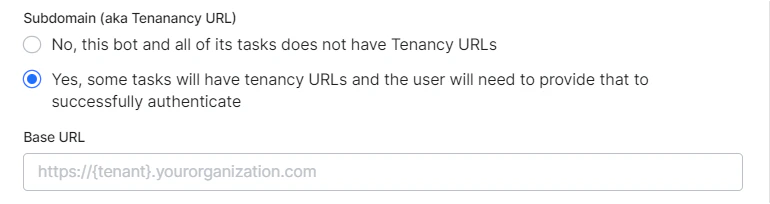
If required, in the Subdomain section, select Yes if the base URL for a web application or user interface uses a tenant name in the URL. For example, platform is the tenant organization for a web service that uses subdomain-based tenants, such as www.platform.example.com. In the following example configuration, the tenancy URL contains the {tenant} organization placeholder. Tenancy URL - Tenant organization placeholder
Adding Additional Fields

Click Add Additional Fields and enter one or more key/value pairs representing additional authorization input fields. If the default username and password fields do not meet your authorization input needs, add custom fields as key/value pairs displayed to the end-user. For example, add a PIN code field in addition to the Username and Password fields. Additional fields Specify the following fields:
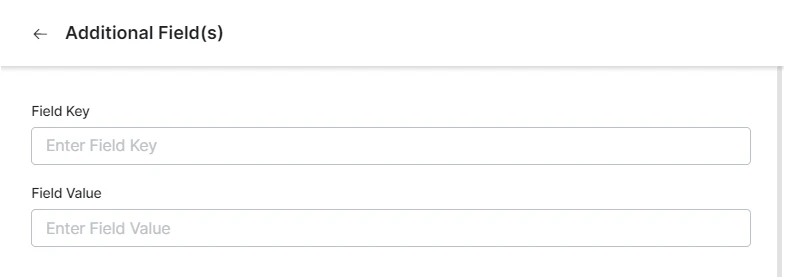
  • Field Key: The name of the custom field to specify for authorization.
  • Value: The value of the custom field to specify for the authorization.
Click Done to save the Additional Field.

Adding Authorization Fields

By default, no authorization fields are configured as part of the header of the request message. If your request requires authorization fields or the expected authorization is not part of the header (for example, social security number or PIN), click Add Authorization Fields and define the fields. Authorization fields
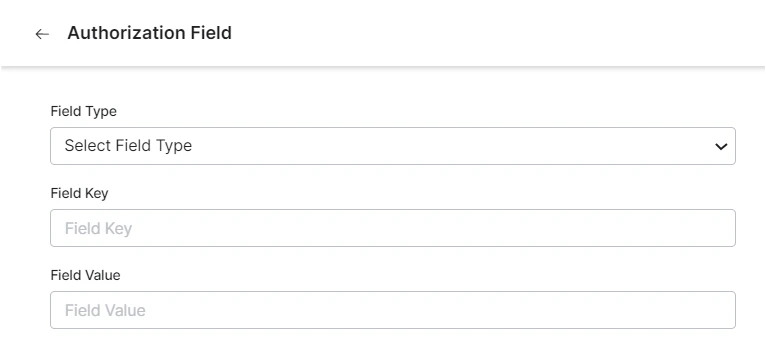
  1. In the Field Type field, select one of the following depending on where in the request message the authorization fields are required:
    • Header: The assistant expects the authorization fields as part of the header of the request.
    • Payload: The assistant expects the authorization fields as part of the content of the body of the request.
    • Query String: The assistant expects the authorization fields as a query in the body of the request.
    • Path Param: The assistant expects the authorization fields as part of the URL path for the request.
  2. In the Field Key field, enter the name of the field for the selected Field Type.
  3. In the Field Value field, enter the value for the Field Key specified.
  4. Click Done. The new authorization field is added in the Authorization Fields section.

Testing the Authorization

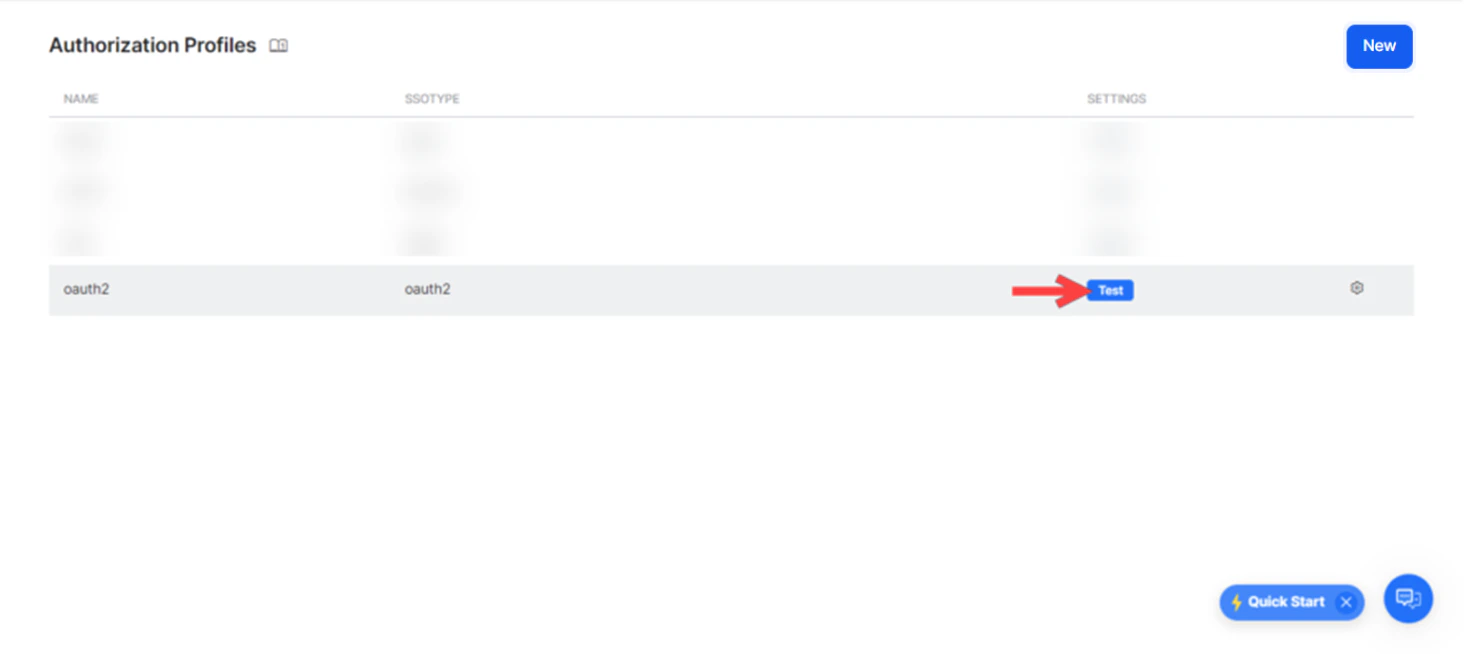
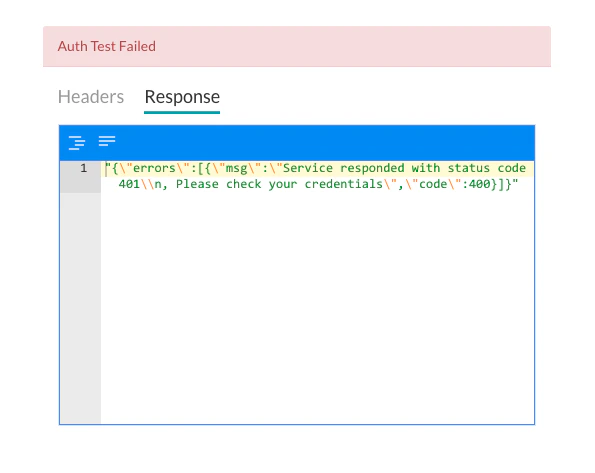
After saving the authentication, test your authorization definition on the Authentication page by clicking Test before continuing to develop the remaining steps of your task. The test is executed using the authentication token URLs and the Client ID and Client Secret Key. If tenancy was defined, the Test Authorization dialog is displayed. Testing the Authorization Click Test to begin the authorization test. Test result When validation completes, the Test Authorization dialog closes and the results — either success or failure — are displayed to the right of the Test Authorization button. If the authorization fails, the Auth Test Failed message is displayed along with the Headers and Response tabs.